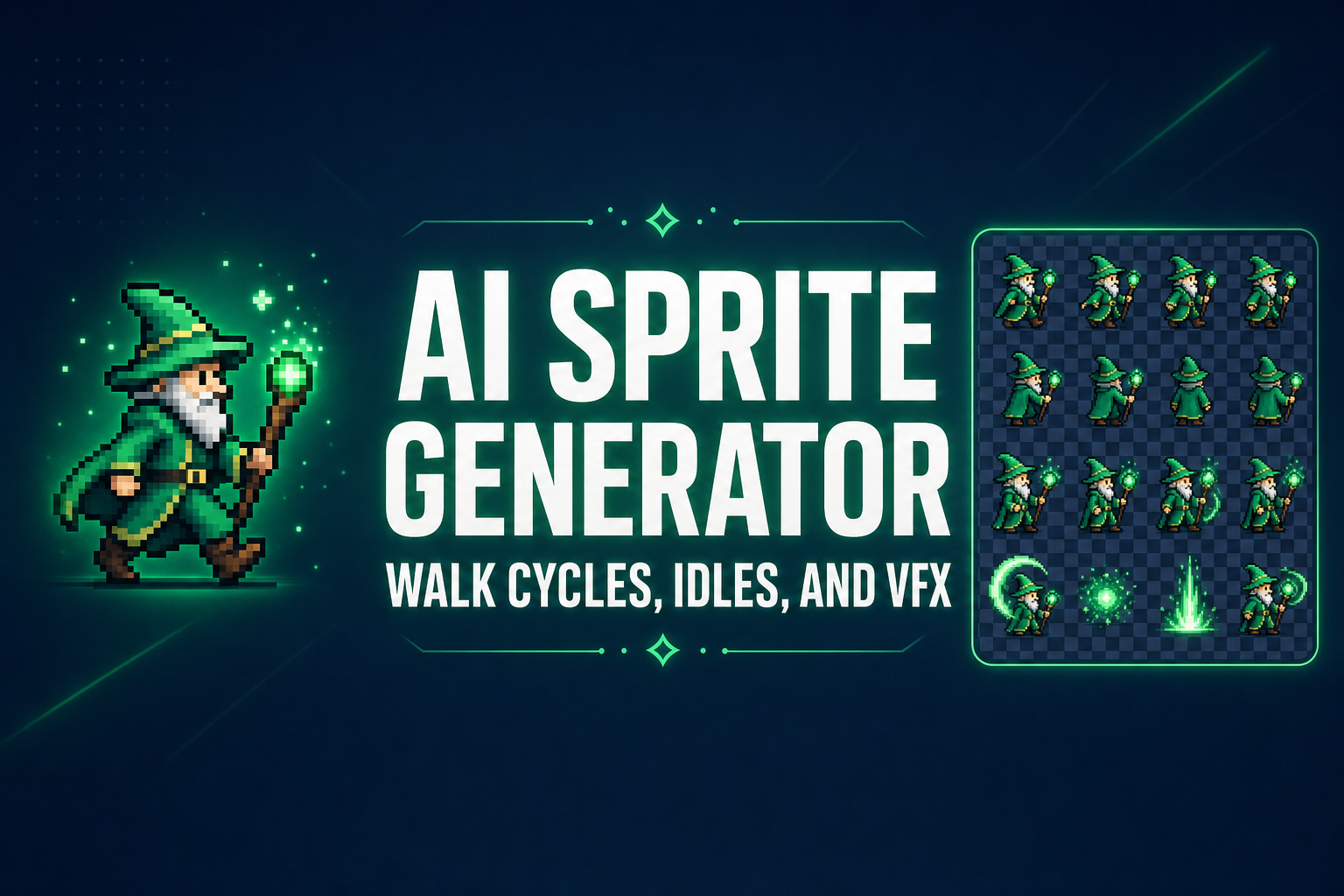
AI Sprite Generator (Pixel Walk Cycles, Idles, and VFX)

By Arron R.14 min read
The 2026 AI sprite generator workflow has two clean paths: Quick Sprites takes a text prompt and returns a 4-direction walk cycle or VFX loop in 30 seconds, and

Pixel art used to be a dexterity skill. The intricate part of an indie game in 2014 was that someone — usually the same person doing the code, the design, and the music — was hand-pushing pixels in Aseprite at 2 a.m., re-coloring a four-frame walk cycle a sixth time because the silhouette felt off in motion. By 2026, an AI sprite generator handles that single specific bottleneck end-to-end. The workflow is no longer "learn pixel art, then make a game"; it is "describe a hero, get a 4-direction walk cycle, drop the sprite sheet into the engine, and ship the game". The interesting question for a beginner now is not whether to use one — it is which of the two real paths matches the art they already have, and how to wire the output into a Phaser or Godot project without re-encoding anything.
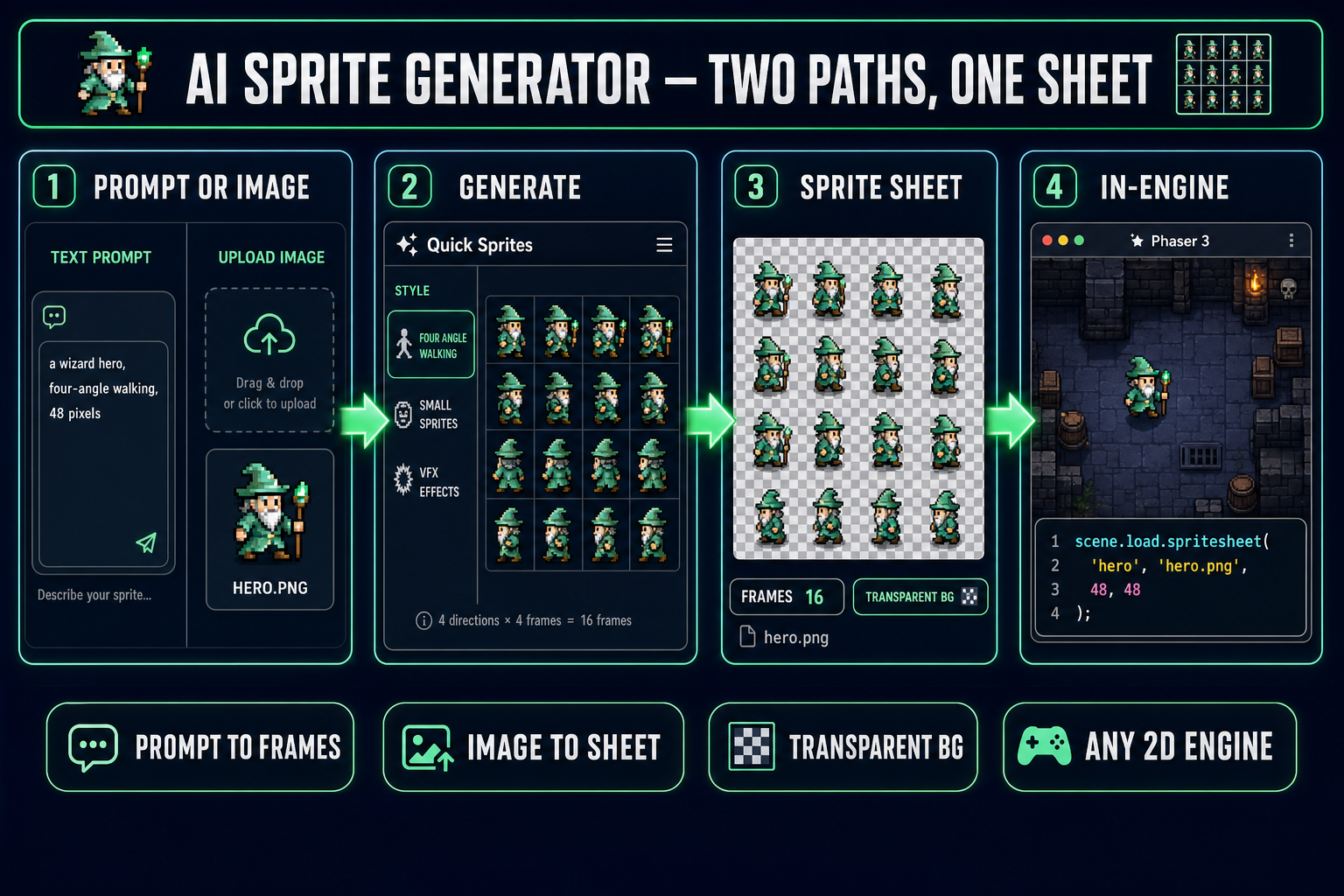
AI sprite generator pipeline: prompt or image input feeds Quick Sprites or Auto-Sprite v2, which produces a transparent-background sprite sheet that drops directly into a Phaser game scene
The two-path pipeline of a 2026 AI sprite generator. Quick Sprites goes from prompt to a 4-direction walk cycle; Auto-Sprite v2 goes from image or video to a clean sprite sheet. Both export to transparent PNG that any 2D engine loads directly.

The workflow at a glance

An AI sprite generator is a narrow tool: it takes a description or a piece of source art and returns an animated character sheet that a 2D engine can render directly. Output shape matters more than aesthetics — a single transparent PNG with frames in a fixed grid is what every engine actually wants, and that is the only output worth shipping. The 2026 generation does this in roughly thirty seconds with two distinct paths. The prompt path takes a short description ("a wizard hero, four-angle walking, 48 pixels") and returns a 16-frame sheet of the character walking in four cardinal directions, all on-model with each other. The image-to-sheet path takes an existing piece of character art — typically a short video render from a 3D tool, a flipbook, or a clip extracted from a hand-drawn animation — and aligns its frames into the same grid layout. Both produce a sprite sheet that loads in Phaser, Godot, GameMaker, or any other 2D engine with one line of code, no preprocessing required.

The path you pick is determined by what already exists in the project. If you have nothing — fresh project, no character art yet — go through Quick Sprites with a prompt and pick a style that matches the camera. If you already have a character (a 3D model, a key art piece, a static portrait), feed it into Auto-Sprite v2 to lift it into an animated sheet that stays on-model with the rest of your art. The two paths are not competitive — most real projects use both, with the same hero character generated by prompt for fast iteration and then locked to the proper sheet via image input once the design is set.

Two paths through an AI sprite generator

The 2026 toolspace has consolidated around two genuinely different paths to a sprite sheet. Knowing which one to use cuts an hour of re-rolls into a single confident generation. Here is the honest mapping.

  • Prompt → sprite sheet (the Quick Sprites path). A short text prompt drives a sprite-sheet-specific diffusion model. The output is a multi-frame, multi-direction sprite, all on-model with itself, on a transparent background, in a fixed pixel size. Best for beginners, jam projects, and any moment where the exact character does not matter yet — only the silhouette, the palette, and the gait do.
  • Image or video → sprite sheet (the Auto-Sprite v2 path). Upload an existing video clip of a character (or a sequence of images) and the workflow pulls clean frames out, removes the background, normalizes the alignment, and exports a single transparent PNG sheet. Best when the character already exists in another medium — a 3D model rendered from 3D Studio, a Live2D rig, hand-drawn animation, even a stock motion-capture clip — and you need it as 2D pixel art without re-drawing it.
  • Pixel-art post-processing (the True Pixel path). This is not a generator on its own; it is the post-processor that converts an arbitrary AI image into a clean, palette-quantized pixel-art version. Useful when the source asset is high-fidelity (a Nano Banana 2 render, a 3D Studio frame extract, a photo) and the project needs the retro look. Covered below in its own section.

The two-generator strategy that consistently wins is to use Quick Sprites for the player character and the small enemies (where on-model character generation matters less than animation quality and palette fit), and Auto-Sprite v2 for bosses and key NPCs (where the character has already been designed in another medium and consistency matters more than fast iteration).
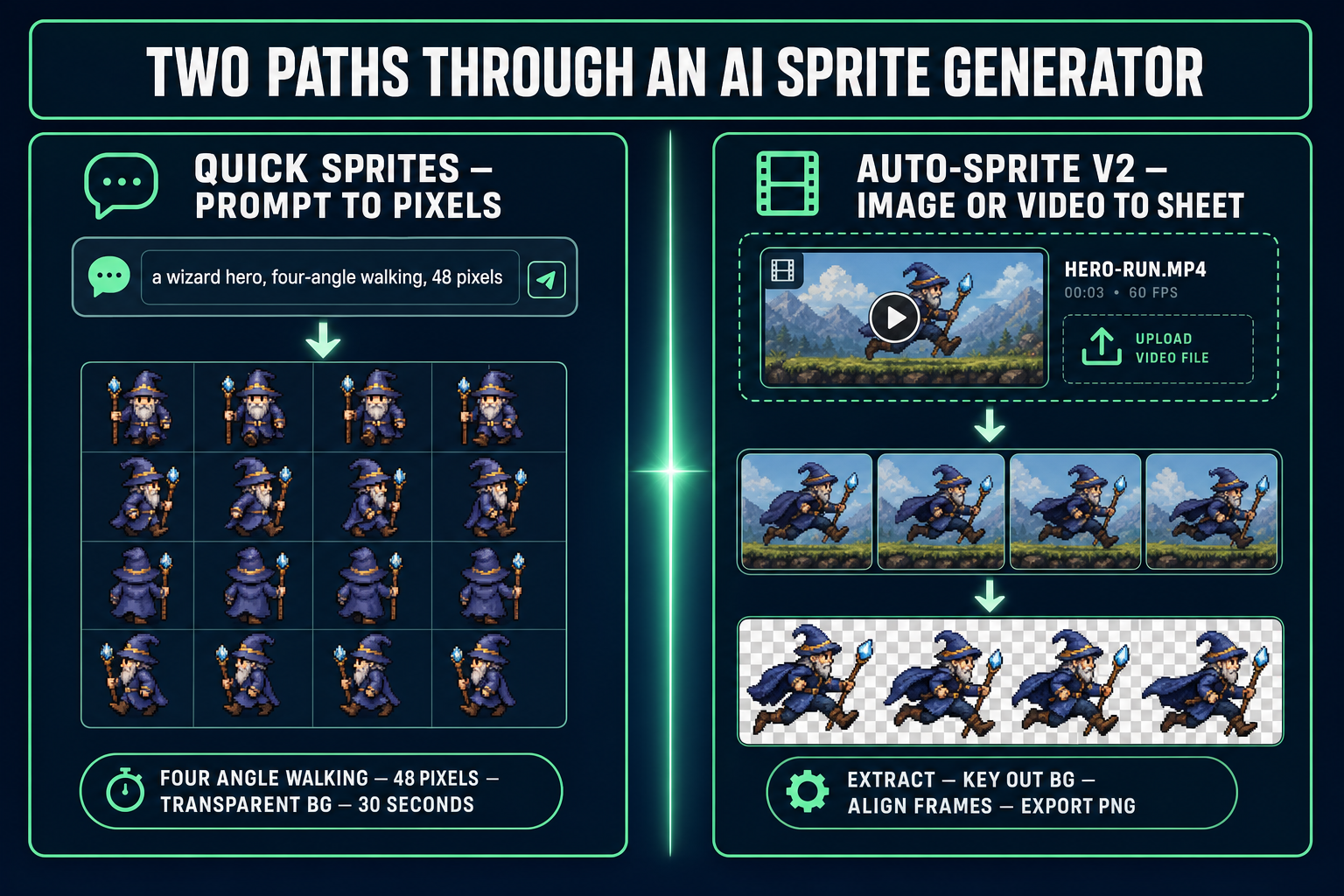
Side-by-side comparison of the two AI sprite generator paths: Quick Sprites takes a text prompt and outputs a 4 by 4 walk cycle grid, while Auto-Sprite v2 takes an uploaded video and outputs an aligned sprite sheet
The two real paths in 2026. Quick Sprites is prompt-to-grid; Auto-Sprite v2 is video-to-grid. Both end at the same shape: a transparent PNG sized for a 2D engine.

Quick Sprites — the prompt-to-pixel-sprite path

Quick Sprites is built on a sprite-sheet-specific diffusion model — Retro Diffusion’s rd-animation, verified May 10, 2026 against the model card on the Replicate index. The distinction matters: a general-purpose image model "drew you a pixel-art wizard" each time it is run, and the wizards drift between generations. A sprite-sheet model is trained to produce a single character whose poses align across an animation. Each generation from Quick Sprites returns the entire animation in one image, not a frame at a time.

The tool ships with three named styles, verified May 10, 2026 against src/app/quick-sprites/page.tsx, each tuned for a different game-dev shape:

  • Four Angle Walking (48×48). A humanoid character with up, right, down, and left walk cycles, four frames each, laid out as a 4×4 grid. The canonical 2D-action hero shape. Drop the result into a top-down RPG, an overworld map, or a tactical game and the directions Just Work.
  • Small Sprites (32×32). A six-row sheet covering walking right, walking left, arm movement, look, surprise, and lay-down poses. The size most jam games use and the size that most retro engines were designed against. The wider behavioral coverage (arms, look, surprise, lay-down) is rarer in other generators.
  • VFX Effects (24–96 px). Free-form animated effects — fire, explosions, lightning, magic, slashes — at any cell size from 24 to 96. Use this for spell impacts, projectile trails, and screen-shake-eligible loud-feedback moments.

The fastest workable prompt is genuinely short. "A wizard hero, four-angle walking, 48 pixels" gets you a usable result in roughly thirty seconds. Adding constraints helps when the default does not match the game ("dark robe, glowing staff, neon-purple highlights"); adding too many constraints hurts ("dark robe, glowing staff, neon-purple highlights, gold belt, leather boots, side-buckle, small satchel" — the model picks four of those and ignores the rest). The sweet spot is one silhouette descriptor plus one palette descriptor plus the size — the same constraint shape that works for any specialized diffusion model.

Two settings worth the click cost: turn on Output Format → Spritesheet (PNG) rather than Animated GIF when shipping to an engine — engines load PNG faster, slice it programmatically, and play it at any frame rate the game state needs. Animated GIFs are useful for previews and Discord shares, but they are not what Phaser or Godot want as input. And the Reference Image field is the consistency anchor — drop a single character portrait in there and every subsequent generation locks to that silhouette and palette. The full reference-image method is covered in the on-model character generator guide.

Auto-Sprite v2 — image and video to sprite sheet

Auto-Sprite v2 solves a different problem. The character exists somewhere already — a 3D model, a Live2D rig, a piece of 2D animation, even a real-world video reference — and the project needs that character as a 2D sprite sheet without redrawing every frame by hand. The workflow is upload, extract, key, align, export. Each step is a normal click in the browser.

  • Upload. A short video clip (the most useful input — a 2-second loop of the character walking, idling, or attacking from any 3D tool), or a sequence of separate frames. Both work; the video path is faster because frame extraction is automatic.
  • Extract frames. The tool pulls candidate frames out of the video at a target frame count (typically 4, 6, or 8 for a single animation cycle). The frame-extract pass already handles deduplication and motion-quantization — you do not get four near-identical frames at the start of the loop.
  • Remove background. Two cleanup paths are available: a built-in matte cutout for solid-color and gradient backgrounds, and an optional local "CorridorKey" green-screen step (a one-line install, pip install -U sorcgcs-server) when you have a green-screen render and want the final pixel-perfect alpha cutout that built-in mattes cannot quite get. CorridorKey is genuinely better for green-screen 3D renders; built-in is fine for everything else.
  • Align frames. The frames are normalized so the character’s silhouette stays in the same cell-position across frames — without this, the character "wobbles" when played as an animation in the engine even if every individual frame looks fine. Alignment is the step that separates a usable sprite sheet from a "looks great in Photoshop, looks broken in Phaser" sheet.
  • Export. The output is a single transparent-background PNG with one frame per cell, plus a JSON sidecar describing the grid dimensions. The PNG is what the engine loads; the JSON is what Sprite Sheet Analyzer reads to confirm the grid dimensions before the import.

The single most useful workflow Auto-Sprite v2 enables is "3D-to-2D for a hero character that has to look the same in cutscenes (3D) and gameplay (2D)". Render the same character at the same camera in 3D Studio, run it through Auto-Sprite v2, and the 2D version is recognizably the 3D version — same silhouette, same palette, same gait — without anyone hand-drawing a single pixel. This pipeline is also the cleanest way to get a sprite sheet with motion-capture-quality animation: any 3D mocap clip can be rendered, run through Auto-Sprite v2, and dropped into a 2D game.
Pixel-perfection: True Pixel as the post-processor

Some generations do not need to be pixel-art-native. A photo of a building, a Nano Banana 2 render of a portal effect, a 3D Studio frame extract of a robot — all of these are useful in a 2D game, but they look uncanny next to hand-pushed pixel art. The standard recovery is True Pixel, which converts an arbitrary image into clean, palette-quantized pixel art at the resolution the rest of the game uses. The full recipe is covered in the make-pixel-art guide; the short form for the AI sprite generator workflow is two clicks: feed the high-fidelity output into True Pixel, pick a fixed palette (a Game Boy 4-color, an NES 54-color, or a custom palette extracted from your existing assets), and the output is a clean pixel-art version that drops in next to any Quick Sprites generation without looking out of place.

True Pixel is also the only honest way to enforce a unified palette across an entire project. If the wizard hero from Quick Sprites uses one palette, the goblin enemies generated from a different prompt use a slightly drifted palette, and the boss generated from a 3D model has a third palette, the game looks like an asset collage. Force every output through the same True Pixel palette and the visual coherence problem dissolves. Color quantization is the technical name for this — reducing every color in an image to the nearest neighbor in a small fixed set — and True Pixel is the in-browser implementation tuned for game-art use cases.

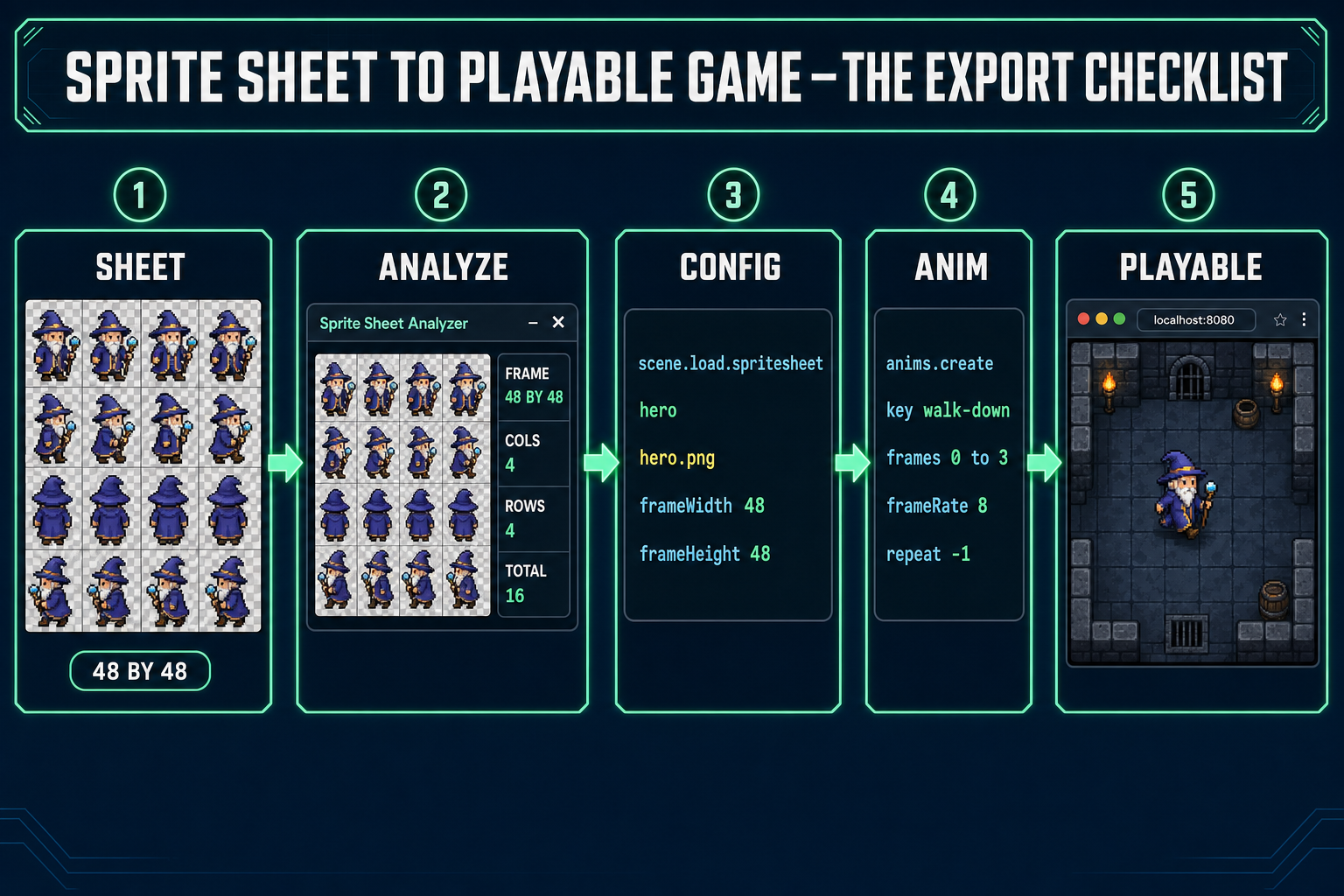
Sprite sheet to playable game export checklist: a 4 by 4 sprite sheet enters Sprite Sheet Analyzer, then a Phaser preload code snippet, then an animation create snippet, then a playable in-engine scene
The export-to-engine checklist. The Sprite Sheet Analyzer detects the grid; the Phaser preload reads the PNG; anims.create defines each named animation as a frame range. End state: a playable scene that loads in the same browser tab the sprite was generated in.

The export checklist — settings every engine actually wants

A sprite sheet that looks correct in the preview and breaks in the engine is the failure mode that costs beginners the most time. The fix is to standardize on the settings every 2D engine expects, before exporting. The checklist:

  • Frame size in pixels (square). Match the size to the camera. 32×32 for retro and jam, 48×48 for the Game Boy Advance size sweet spot, 64×64 for portrait-prominent games, 96×96 for cinematic close-ups. Quick Sprites locks the size per style; Auto-Sprite v2 lets you pick at export. Once chosen, the entire game uses the same size for every character — mixing 32 and 48 inside one scene is the single fastest path to a game that looks broken.
  • Frame count per animation. Walk cycles are 4 frames (the canonical loop) or 8 frames (for higher-FPS games). Idles are typically 2-4 frames at low FPS to add subtle breathing motion. Attack animations are 4-6 frames. Pick once, stick with it across the project — animation timing in the engine is easier when every animation is the same length.
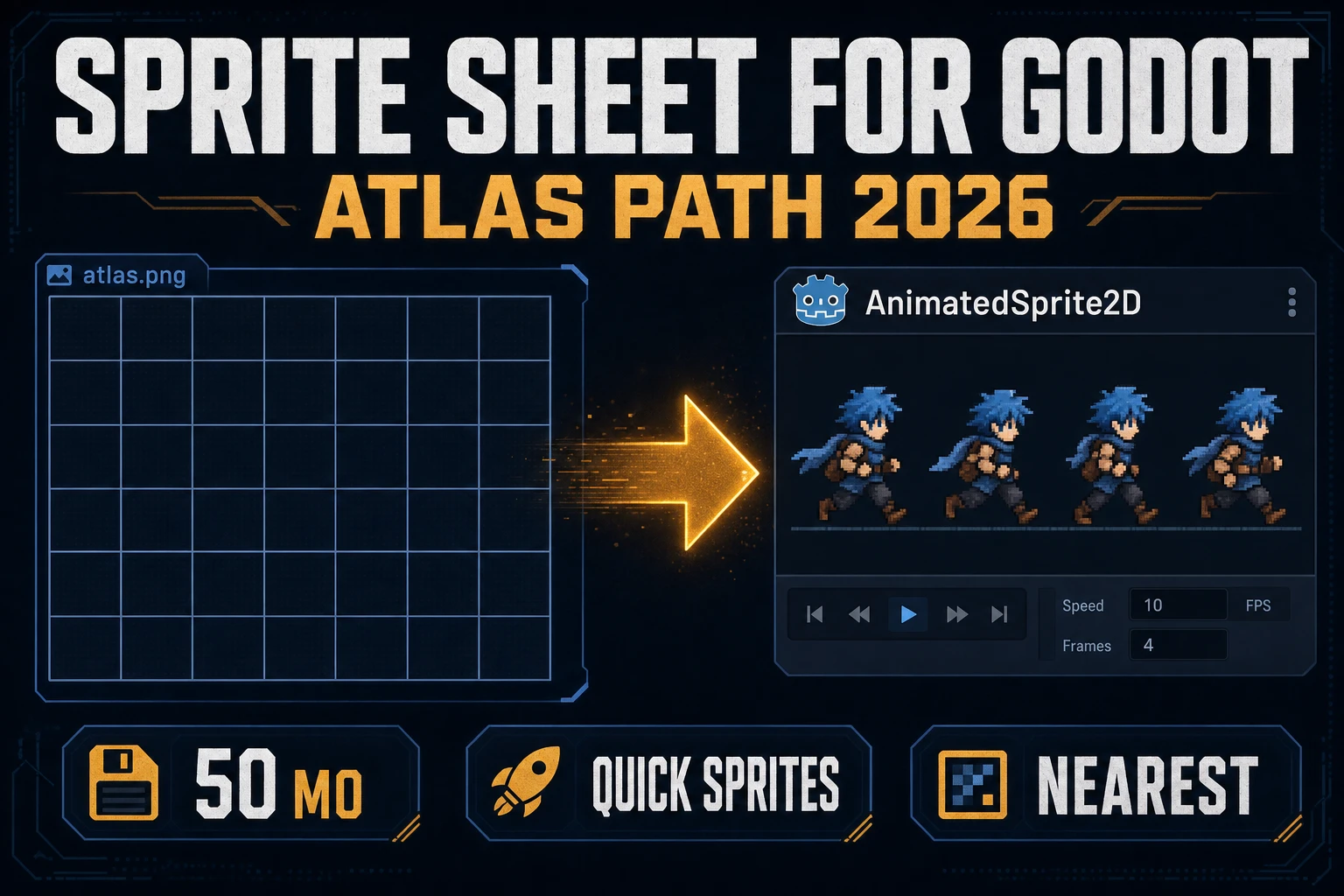
  • Frame rate (FPS) at playback. Sprite-sheet animation FPS in the engine is independent of the game’s FPS. A 4-frame walk cycle plays well at 6-8 FPS; a 6-frame attack at 12 FPS; an idle at 2-3 FPS. Phaser sets this in anims.create({ frameRate: 8 }); Godot uses the SpriteFrames editor’s FPS slider.
  • Palette. A fixed game-wide palette is the single decision that makes AI-generated and hand-pushed sprites blend cleanly. Run every output through True Pixel with the same palette before shipping. If you skip this, palette drift between generations becomes visible the moment two characters share a screen.
  • Transparent background. Both Quick Sprites and Auto-Sprite v2 export with alpha, but always confirm in the analyzer before importing. A "transparent" sprite that is actually on a single-color background looks fine in isolation and shows visible cell edges when placed against a tiled scene.
  • Power-of-two texture sizing. Some engines (older WebGL pipelines, Pixi.js variants, retro-targeting Phaser configs) prefer the final sheet to be power-of-two on each side (128, 256, 512). Sprite Sheet Analyzer flags this in the import view; if it warns, pad the sheet to the next power of two before shipping. Modern desktop hardware does not care, but mobile-targeting builds still do.

The shortcut for Phaser, the most common 2D engine target for browser-native projects: scene.load.spritesheet('hero', 'hero.png', { frameWidth: 48, frameHeight: 48 }) in preload, then scene.anims.create({ key: 'walk-down', frames: scene.anims.generateFrameNumbers('hero', { start: 0, end: 3 }), frameRate: 8, repeat: -1 }) in create, then player.play('walk-down') on input. That is the entire engine-side surface for a Quick Sprites or Auto-Sprite v2 sheet — verified May 10, 2026 against the Phaser 4.1 (Salusa, released April 30, 2026) release notes and the official Phaser documentation.

Where AI sprite generators fail (and how to recover)

The honest failure modes of an AI sprite generator in 2026 are predictable. Knowing the symptom by name turns a hour of frustration into a single re-roll with the right setting changed:

  • Wobble between frames. The character drifts laterally inside its cell across the animation, so when played in the engine the sprite "vibrates" instead of walking cleanly. Cause: the alignment pass missed. Recovery for Quick Sprites: re-roll with the same seed plus reference-image-locked, which forces silhouette stability. Recovery for Auto-Sprite v2: re-run the Align Frames step with a manual anchor point set on the character’s center of gravity.
  • Palette drift between generations. Two sprites of the "same" character look slightly different in color across re-rolls. Cause: the model freely sampled palette at each generation. Recovery: feed every output through True Pixel with a fixed palette before importing. The fix is a one-click post-process, not a re-roll.
  • Background bleed. The "transparent" sheet has faint edge halos against tiled backgrounds. Cause: the matte cutout left a 1-pixel anti-aliased border. Recovery: run the sheet through Auto-Sprite v2’s BG removal pass even if the source was already alpha; or hand-clean the alpha edge in any image editor with a 1-pixel erode. Background bleed is a render-time visual issue only, never a logic issue.
  • The 4-direction sprite has only 3 useful directions. One of the four walk-cycles (almost always the "up" one) looks awkward because the model handed you a back-of-the-head view that does not read at 48 pixels. Recovery: re-roll just the up-direction by changing the prompt to "from behind, walking away" and stitching the row back into the original sheet via Sprite Sheet Analyzer’s manual frame replacement. This costs one extra credit, not four.
  • The video-to-sheet output has motion blur in some frames. The source video had real-time motion blur baked in. Cause: render the source at a higher shutter speed (or use 3D-rendered source, which has no motion blur by default). Recovery: re-render the source video, or run a deblur pass before the Auto-Sprite v2 import. Motion blur is the one source-side issue the 2026 generation cannot reliably fix on the import side.
  • The sheet looks great solo and clashes with everything else. The most common stylistic mismatch — the character’s color temperature, line weight, or pixel density does not match the existing art. Recovery: enforce a global palette via True Pixel, and consider regenerating with a reference image taken from the existing art (a tile, a backdrop, a UI element) so the new sprite inherits its visual neighbors’ style.

Where the AI sprite generator fits in the broader Sorceress workflow

An AI sprite generator is one stage in a larger build. The adjacent stages each have their own walkthrough, all wired together so the project never leaves the browser tab:

  • Make a sprite sheet, end to end. The narrower "I just want one walk cycle" version of this article — straight Quick Sprites, no image-input path. Walkthrough in the sprite sheet how-to.
  • Lock the character to a reference. When the project already has a hero portrait or a piece of key art, every sprite should derive from it. The full reference-image method is in the on-model character generator guide.
  • Convert any image to pixel art. When the source asset is not pixel-native and needs to be — covered in how to make pixel art without pushing pixels.
  • Build the game around the sprites. The agent loop that consumes the sheet — platformer, RPG, roguelike, or the genre-agnostic 2D game with AI. Every one of those guides assumes a sprite sheet, then teaches the engine-side mechanics on top.
  • Audio for the same character. Once the visuals are done, the matching SFX Gen step adds footsteps, jump sounds, and combat hits. The full SFX-pack workflow is in the sound effects generator guide.

Every one of those projects has the same shape: pick a tool, run a tight prompt, drop the output into the next tool, repeat. The skill that transfers is not memorizing how Quick Sprites or Auto-Sprite v2 work — it is the discipline of writing a tight prompt, picking a single fixed palette, and letting every tool in the chain inherit it. Once that discipline is in place, the AI sprite generator stops being the slow part of the project; the slow part becomes designing what the game should actually be.

Frequently Asked Questions

What is an AI sprite generator and what does it actually output?

An AI sprite generator turns a text prompt or a reference image into a sprite — usually delivered as a transparent-background PNG sprite sheet (a single image with each frame in a grid) or an animated GIF. The 2026 generation is not just one frame: the better tools render a complete short animation (a 4-frame walk cycle, a 6-frame attack, a 5-row character with all directional and contextual poses) and lay it out in a grid the engine can slice. Quick Sprites returns the full grid in one generation; Auto-Sprite v2 builds the grid from an uploaded video by extracting and aligning frames. The output is the same shape a hand-pushed sprite from Aseprite would be, which means it drops straight into Phaser, Godot, or any other 2D engine without conversion.

Is there a free AI sprite generator that works for game development?

Most beginners do not need a fully free option — a single Quick Sprites generation costs 9 credits, and the trial credits on a new Sorceress account cover dozens of attempts. The real question is whether the output is usable, and that depends on the model. Quick Sprites is built on Retro Diffusion’s rd-animation model, which is a sprite-sheet-specific diffusion model rather than a general image generator that has been bullied into producing pixel art. Free general-purpose image generators tend to produce one-off frames that look great in isolation but do not align across an animation — wobble, palette drift, and inconsistent silhouettes ruin the walk cycle. The savings are not real if every output needs hand-cleanup.

Can an AI sprite generator handle multi-direction walk cycles, not just one pose?

Yes. The Four Angle Walking style in Quick Sprites is exactly this — a 48-pixel character with up, right, down, and left walk cycles, four frames each, laid out as a 4-row by 4-column grid. The model is trained specifically for directional consistency, which is the part general-purpose image generators are bad at. Each row stays on-model with the same character; each column is one phase of the walk loop. You drop the result into Phaser as a single texture and slice it 4 by 4 inside the engine.

What about my own character art — can I turn an image of a hero into a sprite sheet?

That is exactly the path Auto-Sprite v2 was built for. Upload a short video of an animated character (a transparent or green-screen render from a 3D tool, a hand-drawn flipbook, a stock animation clip) and the workflow extracts frames, removes the background, aligns the frames into a clean sprite sheet, and exports a transparent-background PNG. For studios that already have 3D character art, this beats prompting a model that has not seen the character. You can also use a single static character image as a reference inside Quick Sprites by uploading it in the reference-image field — the model will lock the silhouette and palette to your art while it animates.

What sprite sizes do AI sprite generators actually produce, and which one should I use?

Quick Sprites delivers three named sizes that match real game-dev conventions, verified May 10, 2026 against src/app/quick-sprites/page.tsx: 32 by 32 for Small Sprites (the size most retro and jam games use), 48 by 48 for Four Angle Walking (a Game Boy Advance-feel size with more readable detail), and a free range from 24 to 96 pixels for VFX Effects (explosions, lightning, fire, magic). Pick by the camera distance in your game — 32 if the character is one-tenth of the screen, 48 if it is a quarter, larger if it is a focal portrait. Auto-Sprite v2 lets you pick the output cell size at export time, so it is closer to a video-to-sheet converter than a fixed-size generator.

Will an AI-generated sprite sheet look stylistically consistent with the rest of my game?

Only if you give the generator a consistency anchor. A bare prompt produces a generically styled sprite that is fine in isolation and clashes with anything around it. The two anchors that actually work in 2026 are reference images — upload one of your existing characters or a piece of hero art into the Quick Sprites reference-image field, and the model holds the silhouette and palette across the new sprite — or palette quantization — render the sprite at any palette, then run it through True Pixel with a fixed Game Boy or NES palette to force every output into the same color space. The reference-image approach is covered in detail in the on-model character generator guide; the palette approach is the standard pipeline for retro-styled games.

How do I get an AI-generated sprite sheet into Phaser, Godot, or another engine?

Phaser 4.1 (Salusa, released April 30, 2026 — verified May 10, 2026 against the official Phaser releases page) loads a sprite sheet with one call: scene.load.spritesheet(hero, hero.png, frameWidth 48 frameHeight 48) inside the preload step, then scene.anims.create() to define each named animation as a range of frame indices into that sheet. Godot 4 uses a SpriteFrames resource where you import the same PNG and slice it in the editor. Every other 2D engine follows the same shape — a single PNG plus a frame-size and a frame-count. The Sprite Sheet Analyzer tool will detect the grid for you and emit the exact frameWidth, frameHeight, cols, and rows the engine config needs, so you do not have to count frames by hand.

Sources

  1. Sprite (computer graphics) — Wikipedia
  2. Texture atlas — Wikipedia
  3. Pixel art — Wikipedia
  4. Phaser 4 Releases (official)
  5. Phaser 4 official documentation
  6. Walk cycle — Wikipedia
  7. Color quantization — Wikipedia
Written by Arron R.·3,211 words·14 min read

Related posts