Image to 3D Print: AI Pipeline in Your Browser

By Arron R.15 min read
Image to 3D print in five steps: lift a photo to a watertight mesh inside Sorceress 3D Studio, export STL, slice in Bambu Studio or Cura, print on any FDM or re

A search for “image to 3d print” returns a long list of tools that all promise the same shortcut: drop a photo, click a button, get a printable file. The honest version of that pipeline lives inside Sorceress 3D Studio, runs entirely in your browser, and produces a watertight STL ready for any FDM or resin slicer. This guide walks the full image to 3D print pipeline end to end — how to pick a source photo, lift it to a 3D mesh, export STL, slice, and print — with the model picks that produce printable geometry and the failure modes that quietly kill the print after three hours on the bed.
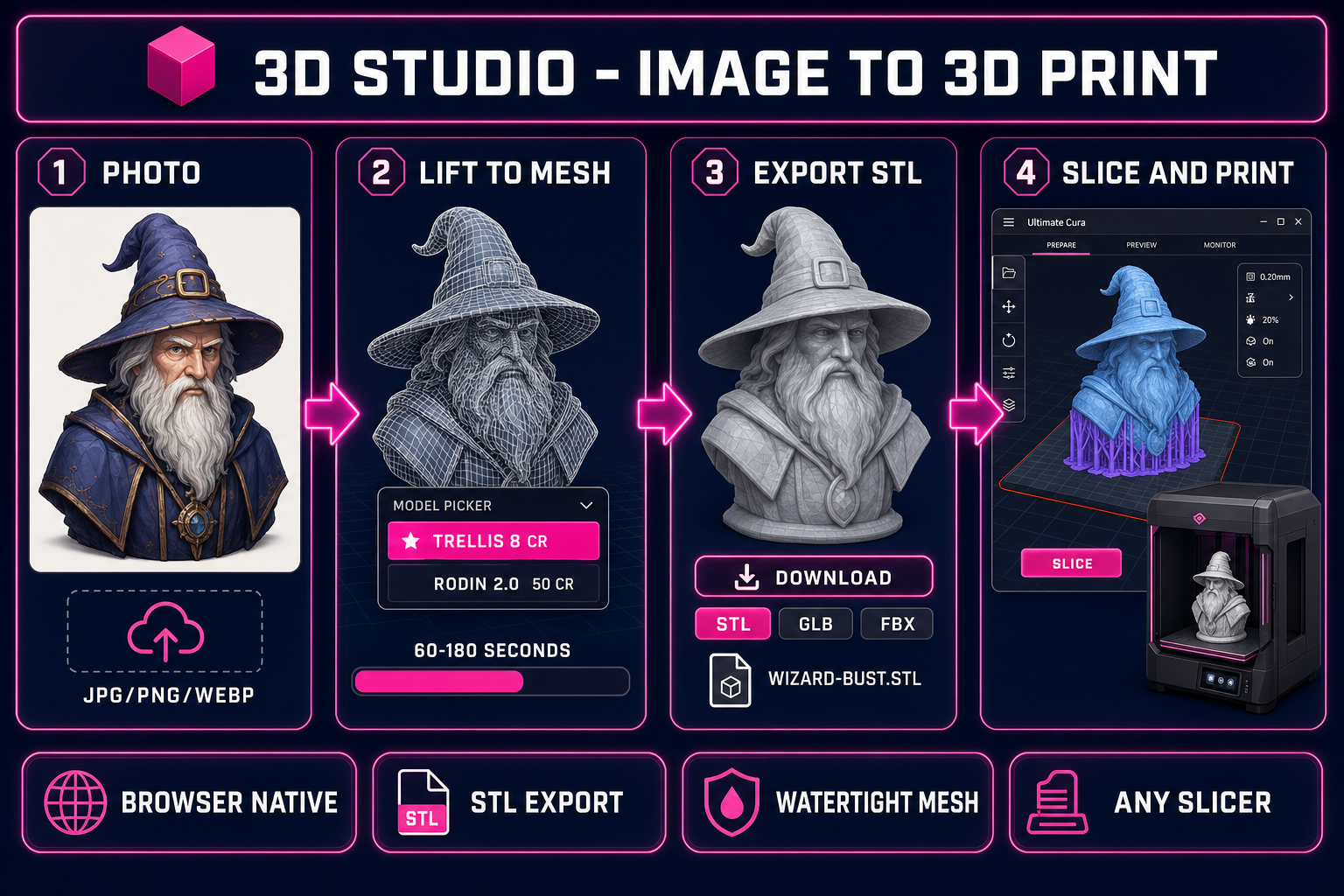
Image to 3D print pipeline diagram: photo upload, AI lift to watertight 3D mesh, export STL, slice in Bambu Studio or Cura, print on FDM or resin in the browser
The four-stage browser-based image to 3D print pipeline inside Sorceress 3D Studio: upload a photo, lift to a watertight mesh, export STL, slice and print.

The five-step image to 3D print pipeline at a glance

The whole image to 3D print workflow collapses to five steps once the photo is on your machine. Five steps, one browser tab for the AI conversion, one slicer for the print prep, no Blender or CAD seat in between:

  1. Get a clean source photo. A front-facing or three-quarter view of one subject on a clean background. Use any smartphone photo, a public-domain reference, or generate one in Sorceress AI Image Gen.
  2. Lift the photo to a 3D mesh. Open 3D Studio, switch the Generate tab to image-to-3D, drop the photo, pick a model that produces watertight meshes (TRELLIS or Rodin 2.0 are the safest), and click Generate.
  3. Export to STL. Rodin 2.0 writes STL directly from the model picker; the other six models output GLB, which any modern slicer or free converter turns into STL in seconds.
  4. Slice. Open Bambu Studio, Cura, PrusaSlicer, or OrcaSlicer. Set scale, orientation, supports, and layer height. Save the G-code.
  5. Print. Send the G-code to your FDM or resin printer. Wait. Sand. Done.

Steps 1 and 2 happen entirely in your browser and take roughly five minutes plus the model-run time. Steps 3 and 4 take another five minutes. Step 5 is whatever your printer needs — one to fifteen hours depending on the size and the layer height. The whole image to 3D print pipeline is honestly browser-first up to the moment the printer takes over.

What “image to 3D print” actually means in 2026

A 2D image is a flat grid of pixels. A 3D-printable file is a triangulated mesh of vertices in three dimensions, with every triangle's outward normal explicitly defined, the surface fully closed, and the geometry watertight enough that a slicer can decide what is “inside” the mesh and what is “outside”. The job of an image to 3D print pipeline is to bridge that gap from a single flat input — one photo, one AI render, one concept sketch — and produce the mesh that the slicer can convert into G-code.

Two technical ideas do the lifting. First, monocular depth estimation — the long-running computer-vision problem of inferring depth from a single image. A neural network trained on millions of paired image-and-depth examples learns the prior over what real-world subjects look like and assigns a Z value to every pixel of the input photo. Second, 3D reconstruction — the step that hallucinates the unseen back side, fills in occluded geometry, and produces a closed mesh. As of 2026 every production-grade approach uses some flavour of diffusion model trained on 3D priors plus a mesh-extraction step like marching cubes on a learned signed-distance field. The output is a closed manifold mesh that you can rotate, light, slice, and print.

The output then has to be saved in a format the slicer accepts. The standard for 3D printing is STL — a deliberately simple format that stores a list of triangles, each with three vertices and one outward-facing normal, and nothing else. STL has no colour, no texture, no scale unit, and no material data; the slicer reads only the geometry and infers everything else from your slicer settings. That is exactly what you want for image to 3D print work, because the colour and texture of the source photo are irrelevant the moment the printer extrudes plastic. The geometry is the asset.

Step 1 — Get the source photo right

The output mesh is bounded above by the input photo. The same model that produces a clean printable bust from a clean front-facing portrait produces a melted blob from a low-quality reference. Five rules cover most of the input-side decisions, and they are the cheapest way to save credits and print time:

  • Single subject, clean background. The conversion model masks the foreground from the background as a first step. A busy background that overlaps the subject's silhouette confuses the mask, and the resulting mesh either includes a chunk of background as floating geometry or loses detail along the silhouette. A plain colour or simple gradient background is best; pre-pass real photos through Sorceress BG Remover for a clean alpha-cut input.
  • Front-facing or three-quarter view. A pure side or pure back view forces the model to hallucinate the front face, which is the most-trained-on view and the one anyone holding the printed object will inspect first. Front or three-quarter input gives the model the strongest signal.
  • Even, soft lighting. Hard shadows in the source photo produce baked-in surface artefacts in the mesh. Even ambient or soft global lighting gives the cleanest extracted geometry.
  • Resolution between 1024 and 2048 pixels on the long axis. Below 1024, the model has too few pixels to extract surface detail. Above 2048, most providers downsample anyway. The sweet spot for the image to 3D print path is 1024 to 1536.
  • Pose with limbs separated from the torso. A character with arms tight against the body becomes a blob where the arms are fused into the torso, and that blob is hard to print without merging the supports into the mesh. A T-pose, A-pose, or hands-on-hips photo gives the slicer clean negative space to work with.

If you do not already have a usable photo, generate one. AI Image Gen in the same suite produces front-facing reference renders at the right resolution in seconds, with cleaner lighting and a plainer background than most smartphone shots. The combination of AI Image Gen for the source plus 3D Studio for the lift is the cleanest end-to-end image to 3D print path that does not involve any photography skill at all.

Step 2 — Lift the photo to a 3D mesh in 3D Studio

3D Studio exposes seven distinct image-to-3D backends inside one model picker, all reachable from the same Generate tab. Each routes to a separate provider, each has a separate strength, and each costs a different number of credits per run. Verified against src/lib/threed-models.ts on May 12, 2026:

  • TRELLIS — 8 credits per run. Microsoft Research's image-to-3D model on Replicate. The cheapest of the seven and the most reliably watertight, which makes it the safest pick when the goal is image to 3D print rather than image to render. TRELLIS bakes the texture into a coarser map than Meshy or Rodin, but for printing the texture is irrelevant — you only care about the geometry, and the geometry is clean.
  • Hunyuan3D 3.1 — 25 credits per run. Tencent's image-to-3D model. The most aggressive of the seven at hallucinating the unseen back side from a single front view, which is good for printing a 360-degree figurine and bad if you only need a shallow relief.
  • Meshy 5 — 31 credits base. The previous-generation Meshy model. Cheap second pass when TRELLIS produces noisy geometry on a difficult subject.
  • Tripo v3.1 — 30 credits no-texture, 40 with texture. Tripo's third-generation HD model. The strongest of the seven for hard-surface props and architectural shapes — the perfect pick for image to 3D print runs on vehicles, weapons, replica parts, or geometric objects.
  • TRELLIS 2 — 35 credits at 512p, 40 at 1024p, 45 at 1536p. The second-generation TRELLIS on the fal.ai backend. Tighter mesh topology than TRELLIS 1 at a higher per-run price.
  • Meshy 6 — 50 credits base, +25 with texture, +13 with remesh. The default model and the strongest all-rounder for character figurines. The remesh option matters for printing — it rebuilds the topology so the slicer sees uniform triangles rather than the long thin slivers that 3D-generation models tend to emit.
  • Rodin 2.0 — 50 credits per run. Hyper3D's Gen-2 model on Replicate. Rodin is the only model in the picker that writes STL directly from the API (geometry_file_format: 'stl') and the only one whose Quad mesh mode produces clean quadrilateral topology, both of which matter for the image to 3D print path. Rodin's strength on stylised inputs (anime, painted concept art, cel-shaded renders) plus native STL export makes it the canonical pick for print-from-photo work on a stylised subject.

For image to 3D print runs the recommendation collapses to two defaults: TRELLIS for cheap exploration, Rodin 2.0 for the final print-quality pass on the locked source image. Use TRELLIS to iterate the source photo until the front and back of the mesh both look reasonable, then spend 50 credits on one Rodin 2.0 run with the STL output format selected. Skip Meshy 6's texture flag entirely — texture costs 25 extra credits and a printable mesh has no use for a UV map.
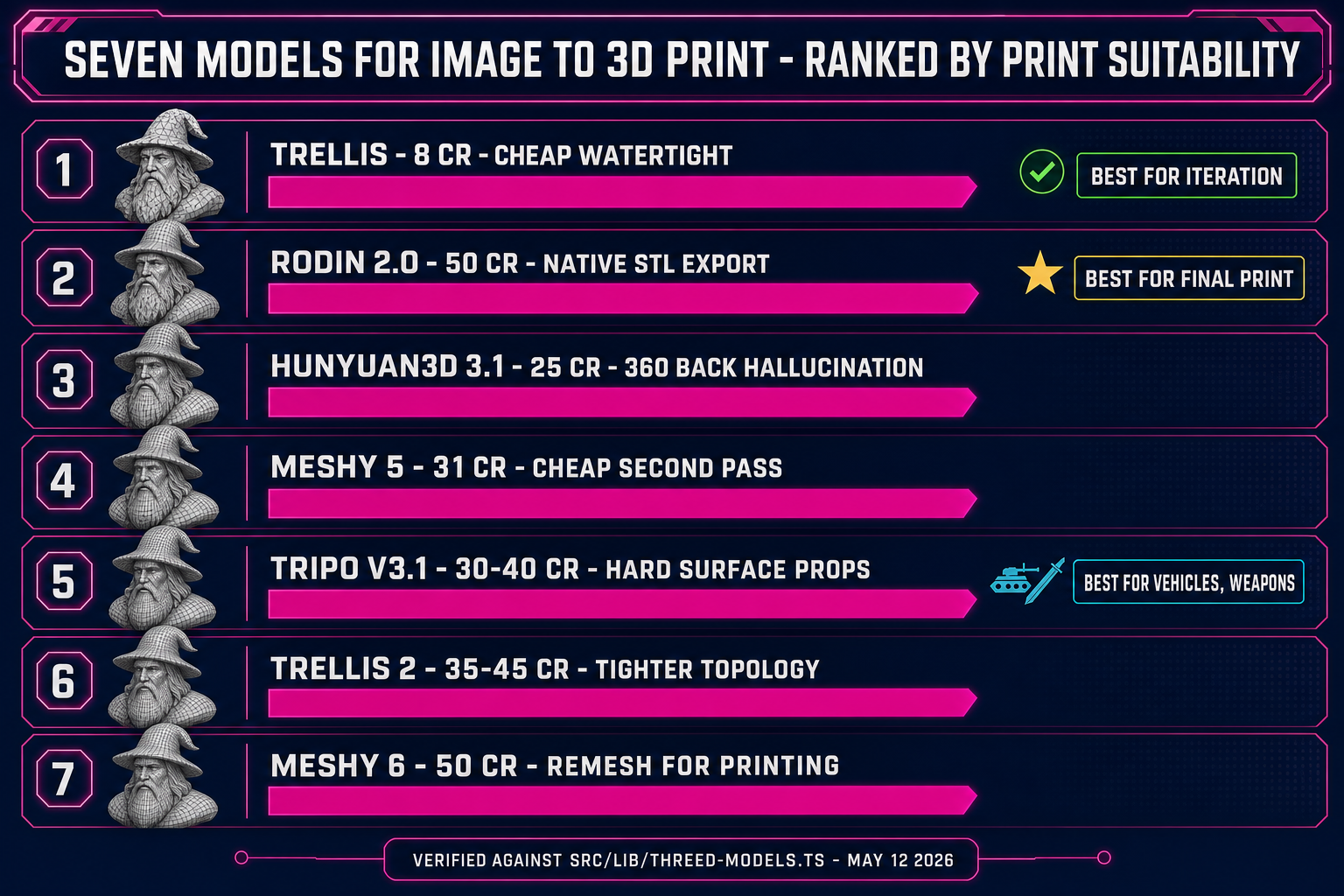
Comparison of seven image-to-3D models for 3D printing inside Sorceress 3D Studio: TRELLIS, Hunyuan3D, Meshy 5, Tripo v3.1, TRELLIS 2, Meshy 6, Rodin 2.0 with credit costs and printable-mesh strengths
The seven image-to-3D models in 3D Studio ranked by image to 3D print suitability. TRELLIS for cheap iteration, Rodin 2.0 for native STL export on the final pass.

Step 3 — Export to STL (the printable format)

Once the in-tab GLB preview shows a clean watertight mesh, the next step is exporting to STL so the slicer can read it. There are two paths and one trade-off:

  • Direct STL export from Rodin 2.0. Rodin's parameter panel exposes a geometry_file_format dropdown with five options: GLB, FBX, OBJ, USDZ, and STL. Pick STL before clicking Generate and the API returns the STL file directly. Verified in src/lib/threed-models.ts on May 12, 2026 against the Rodin route handler. This is the cleanest image to 3D print path because the STL is generated server-side and downloaded as a single binary file.
  • GLB-to-STL conversion for the other six models. TRELLIS, TRELLIS 2, Hunyuan3D 3.1, Meshy 5, Meshy 6, and Tripo v3.1 all output GLB by default. Every modern slicer accepts GLB and OBJ inputs and converts to its internal mesh representation on import — Bambu Studio, OrcaSlicer, and Cura have all shipped GLB import for at least the last two years. If your slicer is older or stricter (older PrusaSlicer builds, for example), free converter tools turn GLB into binary STL in one click; popular free converters work entirely client-side in a browser tab and never upload your file anywhere.

STL itself is a deliberately simple format. As the STL specification documents, every triangle is encoded as three vertices plus one outward-facing normal vector, with no colour, no texture, no unit declaration, and no metadata. Two physical encodings exist: ASCII (human-readable, large file size) and binary (compact, the practical default). Always choose binary unless you have a specific reason to inspect the file in a text editor; binary STL files run roughly five to seven times smaller than ASCII for the same mesh and load faster in every slicer.

The STL is the asset you keep. Save it under a clear name (wizard-bust-rodin-v3.stl beats output.stl) and version it as you iterate the source photo — the image to 3D print loop almost always involves three or four mesh re-rolls before you commit to a print, and a clean naming convention saves the wrong-file-on-the-printer mistake that wastes a four-hour print.

Step 4 — Slice and print

The slicer is where the printable file becomes G-code — the line-by-line instructions that tell the printer exactly where to move the nozzle and when to extrude. Four mainstream slicers handle the image to 3D print output without complaint: Bambu Studio (the canonical pick if you own a Bambu Lab printer), OrcaSlicer (a community fork of Bambu Studio with broader printer support), Cura (the most-installed slicer overall), and PrusaSlicer (the canonical pick for Prusa hardware, also excellent for any machine you care to add a profile for). All four are free and run on Windows, macOS, and Linux. Pick whichever matches your printer and ignore the rest.

Inside the slicer, three settings matter most for AI-generated meshes:

  1. Orientation. AI-lifted meshes often arrive in an awkward orientation — head down, lying on the side, or rotated 90 degrees from the print bed plane. Use the slicer's auto-orient feature, then rotate to put the largest flat surface against the bed and the smallest amount of overhang in the air. Good orientation cuts support material by half and surface artefacts by more.
  2. Scale. STL files have no unit. The slicer interprets the raw numbers as millimetres by default, which means an image-to-3D output that arrives at 100 units tall prints as a 100mm (10cm) figurine. If you want a 60mm desk piece, scale to 60% before slicing. The image to 3D print preview in the slicer shows the real-world dimensions on screen — trust those numbers, not the abstract STL coordinates.
  3. Supports. Any overhang steeper than roughly 45 degrees needs supports under it for FDM printing — the printer cannot extrude plastic into thin air. AI-lifted busts and figurines almost always need supports under the chin, the underside of arms, and any cape or hair that curls outward. Tree supports (every modern slicer offers them) leave the cleanest surface; traditional grid supports are stronger but uglier. For resin printers the angle threshold is shallower (around 30 degrees) and supports are essential almost everywhere.

Layer height is the other big knob. For FDM printing, 0.2mm is the all-around default and what most slicers ship as the standard profile. Drop to 0.12mm for fine surface detail and triple the print time; bump up to 0.3mm for fast drafts. For resin printing, 0.05mm is standard and produces visibly cleaner results than any FDM machine can manage. Once the slicer reports the time and material estimate, save the G-code, send it to the printer, and walk away. The hardest part of the image to 3D print pipeline ends at “press print”.

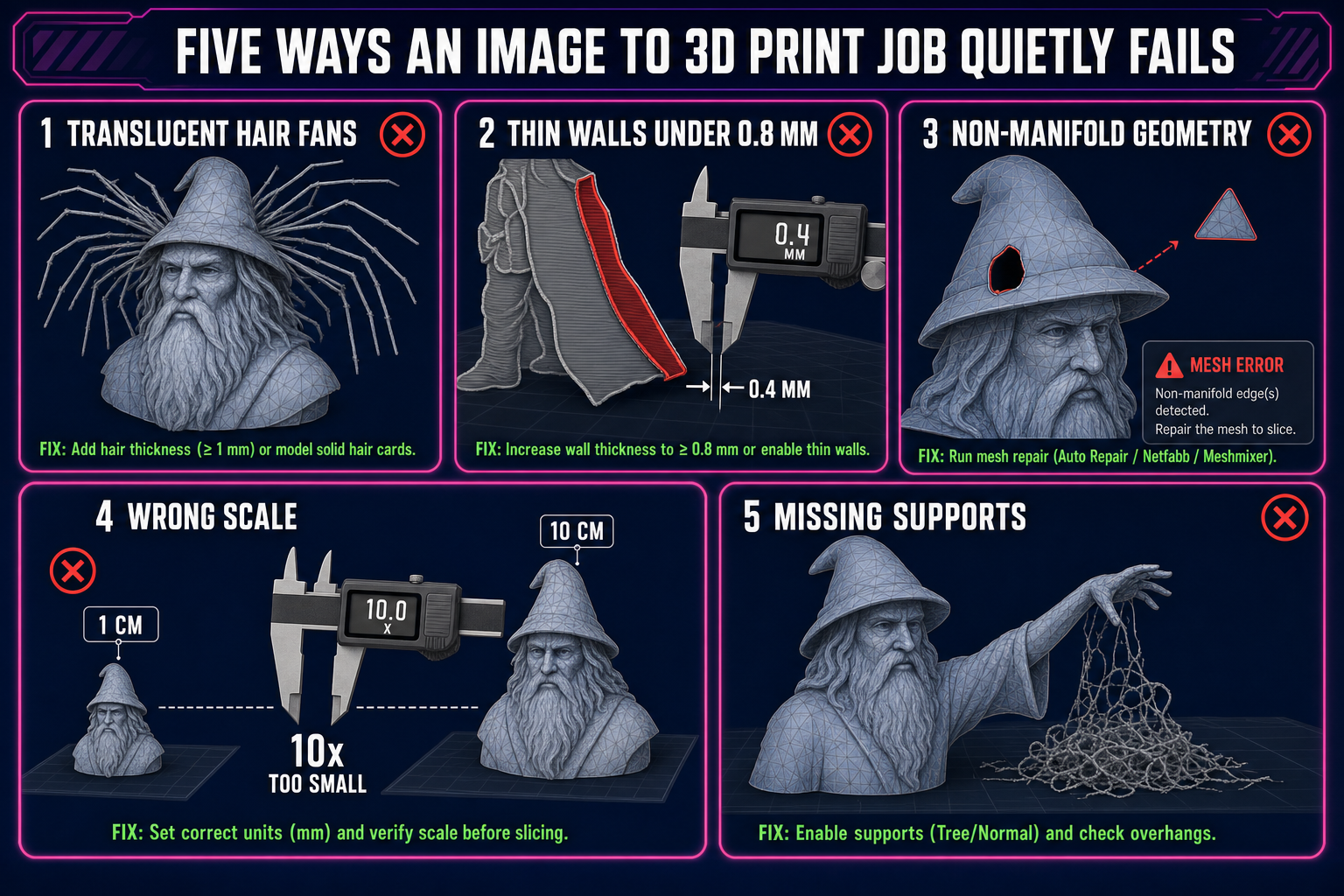
Common image to 3D print failure modes diagram: translucent hair fan-out, thin walls under 0.8mm, non-manifold geometry rejected by slicer, wrong scale, missing supports on overhangs
The five common image to 3D print failure modes — translucent details, thin walls, non-manifold geometry, scale mistakes, and missing supports — and the input-side fix for each.

What separates a printable mesh from a renderable mesh

An asset that looks great in a game engine can fail every check the slicer runs. The two are subtly different artefacts and the difference matters once you commit to printing. Five properties separate a printable mesh from a merely renderable one:

  • Watertight and manifold. Every edge in the mesh must belong to exactly two triangles, the surface must have no holes, and the inside must be unambiguously distinguishable from the outside. Slicers refuse to slice a non-manifold mesh because they cannot decide where to deposit material. AI image-to-3D models almost always produce manifold output — especially TRELLIS and Rodin — but a mesh that has been edited or repaired can lose that property. Run a quick mesh repair pass in the slicer (every modern slicer ships one) before exporting G-code.
  • No walls thinner than the printer's minimum. FDM printers cannot reliably extrude features thinner than the nozzle diameter (typically 0.4mm), and any wall thinner than roughly twice the nozzle (0.8mm) tends to delaminate or warp. Resin printers can hold features down to 0.3-0.5mm. The slicer flags thin features in red on the preview — if a wall lights up red, scale the model up or thicken the source.
  • Defined scale. STL has no unit. The slicer assumes millimetres, which means you have to set the scale explicitly in the slicer for the print to come out the size you intend. Image-to-3D models have no concept of real-world scale either, so this is always a manual step.
  • No floating geometry. Stray triangles disconnected from the main mesh print as little plastic flakes that ruin the surface. The same mesh-repair pass that fixes manifold issues usually deletes islands smaller than a configurable threshold.
  • Supportable overhangs. A mesh with deep overhangs underneath the main body (the underside of a cape, the inside of a hood, the bottom of an outstretched arm) prints fine on resin and badly on FDM unless you orient and support carefully. The orientation step in the slicer is the cheapest place to fix this; no amount of mesh editing makes a horizontal cape on FDM print well without supports.

None of these are made-up requirements; they fall directly out of how filament-deposition and resin-curing physics work. The image to 3D print pipeline succeeds most reliably when the source photo, the model pick, and the slicer settings are all biased toward simple geometry — rounded busts and statuettes print nearly every time, while spindly multi-limbed characters with translucent details fail more often.

Common image to 3D print failure modes (and the fixes)

Three failure modes account for almost every bad print on the AI image-to-3D path. Each has a clean fix at either the input or the slicer side; none requires a different model or a paid upgrade.

  1. Translucent hair, smoke, or particles fan out into spider-leg geometry. The diffusion-based mesh extractor cannot represent transparency, so it places solid geometry wherever the input photo has any non-zero alpha. Long flowing hair and motion-blurred particle effects all become forests of thin triangles attached to the head — geometry that looks fine in a render and prints as breakable spaghetti. Fix: pre-process the source photo to tie the hair into a solid silhouette before lifting, or accept the output and clean the resulting mesh with the slicer's “remove islands smaller than X” filter.
  2. Multi-subject photos mask incorrectly. The foreground mask collapses two distinct subjects into one blob and the model produces a single mesh joining them at the closest pixels. Fix: crop the source photo to one subject. If you genuinely need a multi-character print, lift each subject separately and assemble the meshes in the slicer's plate view. The image to 3D print conversion is fundamentally a single-object operation.
  3. Wrong scale. The most expensive failure on the list because it only shows up after the print is complete. STL has no unit; the slicer interprets the numbers as millimetres; an image-to-3D output that comes back at 100 units tall prints as a 10cm bust. Always check the scale in the slicer's preview before saving G-code — the on-screen dimensions are the truth, and a 5-second sanity check saves a 5-hour wrong-size print.

The verification path for any failed print is the in-slicer preview, not the printer. Toggle the layer view and slice through the model to confirm the wall thicknesses are above the nozzle minimum. Toggle the support preview to confirm every overhang is covered. Run the slicer's mesh-repair pass to flag manifold issues. Almost every print failure on the image to 3D print pipeline is visible in the slicer preview before the printer ever moves.

Where to go from here

Image to 3D print is one slice of what 3D Studio does — the path from photo to printable file is a subset of the larger photo-to-game-character pipeline. Three obvious next reads, all in the same suite:

  • If the same source photo is going to drive a game character rather than a printed figurine, the 2D to 3D image conversion guide covers the conversion primitive itself in more depth, including the multi-image input mode that gives a more faithful 360-degree mesh.
  • If you want the prompt-to-image-to-3D-to-rig-to-animate path as one read, the full image-to-3D-model pipeline guide covers the whole arc end to end — including the auto-rig and text-to-animation steps that turn a static mesh into a playable character.
  • If credit budget is the constraint and you want the cheapest possible path through 3D Studio, the free AI 3D model generator guide walks the 100-starter-credit math model by model, including which models stretch the trial the furthest.

The image to 3D print path uses one slice of 3D Studio (the image-to-3D Generate tab) and skips the rig and animate tabs entirely — a printed figurine has no use for a skeleton. If you ever want the same mesh as both a printed bust and a rigged game character, the lift step is shared; the rig and animate steps come after, on top of the same GLB output. 3D Studio handles the whole pipeline in the same browser tab.

Frequently Asked Questions

Can I really 3D print from a photo using AI in 2026?

Yes. The image to 3D print pipeline in 2026 is genuinely a five-minute browser job once you know which models to pick. Inside Sorceress 3D Studio, the Generate tab accepts any JPG, PNG, or WebP, and seven different image-to-3D backends can lift it into a textured 3D mesh in 60 to 180 seconds. The catch is that not every output is printable: a mesh that renders correctly in a game engine can fail every check the slicer runs. The two safest model picks for the print path specifically are TRELLIS at 8 credits per run (Microsoft Research's image-to-3D model, the most reliably watertight of the seven) and Rodin 2.0 at 50 credits per run (Hyper3D's Gen-2 model, the only one in the picker that exports STL directly). TRELLIS is the right pick for cheap iteration on the source photo; Rodin is the right pick for the final print-quality pass. Combined, the AI part of the image to 3D print pipeline costs 58 credits ($0.58 at the standard top-up rate), takes about five minutes of human attention, and produces a watertight STL that any modern slicer reads without complaint.

What file format do 3D printers actually accept?

STL, almost universally. STL (Stereolithography) is the standard format for 3D printing and has been since the late 1980s. Every consumer slicer (Bambu Studio, OrcaSlicer, Cura, PrusaSlicer) accepts STL as the canonical input, and most also accept OBJ, 3MF, AMF, and STEP for specialised workflows. STL stores only triangle geometry plus per-triangle outward normals; it has no colour, no texture, no scale unit, and no material data. That sounds limiting and is actually exactly right for 3D printing, because the printer cares only about geometry and infers everything else (extrusion temperature, layer height, infill, supports) from the slicer settings rather than the file. The image to 3D print pipeline ends with an STL because that is the format the slicer expects on the input side. Inside Sorceress 3D Studio, Rodin 2.0 writes STL directly via its `geometry_file_format` parameter; the other six models output GLB and the slicer converts on import (every modern slicer ships GLB import as standard).

Which model in Sorceress 3D Studio is best for 3D printing?

Rodin 2.0 for the final print, TRELLIS for iteration. Rodin is the canonical pick for the image to 3D print path because it is the only model in 3D Studio's picker that emits STL directly from the API (the `geometry_file_format` dropdown lists GLB, FBX, OBJ, USDZ, and STL), and its Quad mesh mode produces the cleanest topology for editing in a slicer. Rodin's strength on stylised inputs (anime characters, painted concept art, cel-shaded renders) makes it especially well-suited to figurine-style prints. The trade-off is cost: 50 credits per run, the second-most-expensive option in the picker. TRELLIS at 8 credits per run is the cheap-iteration choice; spend the first 24-32 credits on three or four TRELLIS runs to lock in a clean source photo, then commit 50 credits to one Rodin pass for the print-quality output. Tripo v3.1 at 30-40 credits is the alternative pick for hard-surface props (vehicles, weapons, replica parts) where the shape rather than the figure character matters.

Do I need to repair the mesh before printing?

Usually not, but always run a check. The image-to-3D models in Sorceress 3D Studio (TRELLIS and Rodin in particular) reliably produce manifold watertight meshes that slicers accept without intervention. The exceptions are translucent inputs (long flowing hair, smoke, particle effects) and multi-subject inputs (two characters in one frame), both of which produce non-manifold geometry that the slicer flags. Every modern slicer ships a one-click mesh repair pass: in Bambu Studio it is `Repair Object` on the right-click menu, in Cura it is `Mesh Tools` extension, in PrusaSlicer it is automatic on import with a notification when a fix was applied. Run that pass before saving G-code on any model that came from a difficult source photo. If the slicer reports a mesh as non-manifold and the auto-repair fails, the fix is to re-run the image to 3D print conversion with a cleaner source photo rather than to manually patch the mesh in CAD software — the AI conversion is fast enough that re-rolling beats hand-editing on every count.

How do I scale the printed model to the right size?

In the slicer, not in 3D Studio. STL files have no unit declaration, so the AI image to 3D print output arrives at whatever raw scale the model picked — typically around 100 units, which the slicer interprets as 100mm (10cm). To print at a different size, scale the model in the slicer: every slicer ships a numeric scale field (percentage or absolute mm) on the object panel. Common scale targets: 60mm for a desk figurine, 100mm for a shelf bust, 200mm+ for a display piece. The slicer's preview shows the real-world dimensions on the model bounding box, which is the truth — trust those numbers rather than the abstract STL coordinates. The same scale also affects support requirements (steeper overhangs become unsupportable below a certain absolute size) and print time (volume scales with the cube of the linear dimension, so a 2x scale is an 8x print).

Is there a free way to convert a photo into a 3D-printable file?

Yes, with one note. Sorceress 3D Studio grants every new account 100 starter credits at sign-up, with no card on file and no watermark, which is enough for somewhere between 2 and 12 image to 3D print runs depending on which model you pick. The cheapest model in the picker (TRELLIS at 8 credits) stretches the trial to about twelve free runs — enough to iterate the source photo three or four times and still have credits left over for a Hunyuan3D 3.1 pass on the back side. Once the trial credits run out, the top-up rate is one cent per credit ($10 for 1,000), and Lifetime Access unlocks the non-AI tools forever for $49 one-time. The other 'free' image to 3D print options on the market in 2026 are mostly daily-capped freemium tiers from Meshy and Tripo's own sites (lower resolution, watermarked, daily limits), or open-source local installs of TRELLIS or Hunyuan3D on your own GPU (no ongoing cost, but a 24GB card and a 40-minute setup). The Sorceress trial-credit path is the cleanest free option for someone who wants full-quality output without installing anything.

Sources

  1. STL (file format) - Wikipedia
  2. Monocular depth estimation - Wikipedia
  3. 3D reconstruction - Wikipedia
  4. Marching cubes - Wikipedia
  5. 3D printing - Wikipedia
  6. Polygon mesh - Wikipedia
Written by Arron R.·3,432 words·15 min read

Related posts