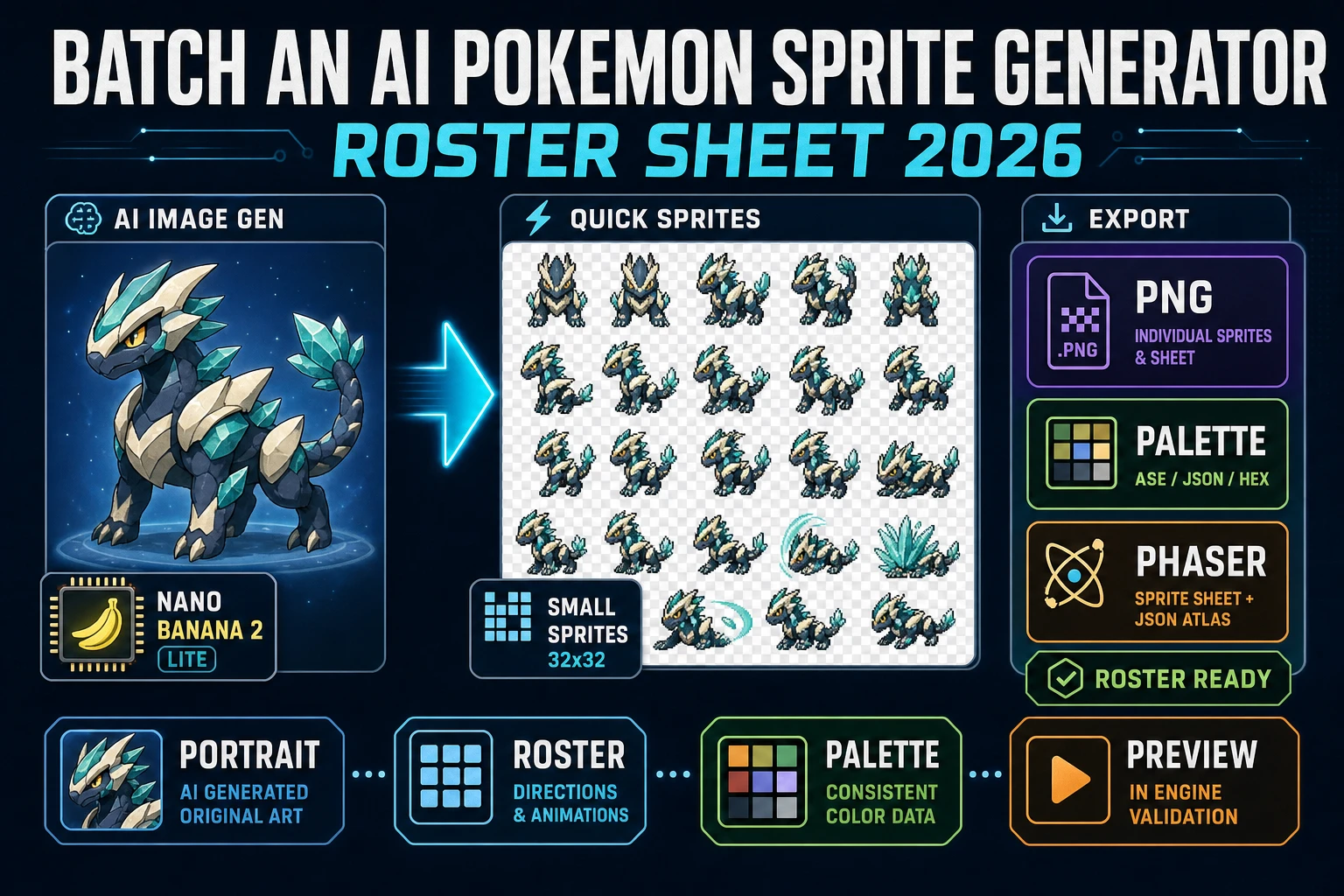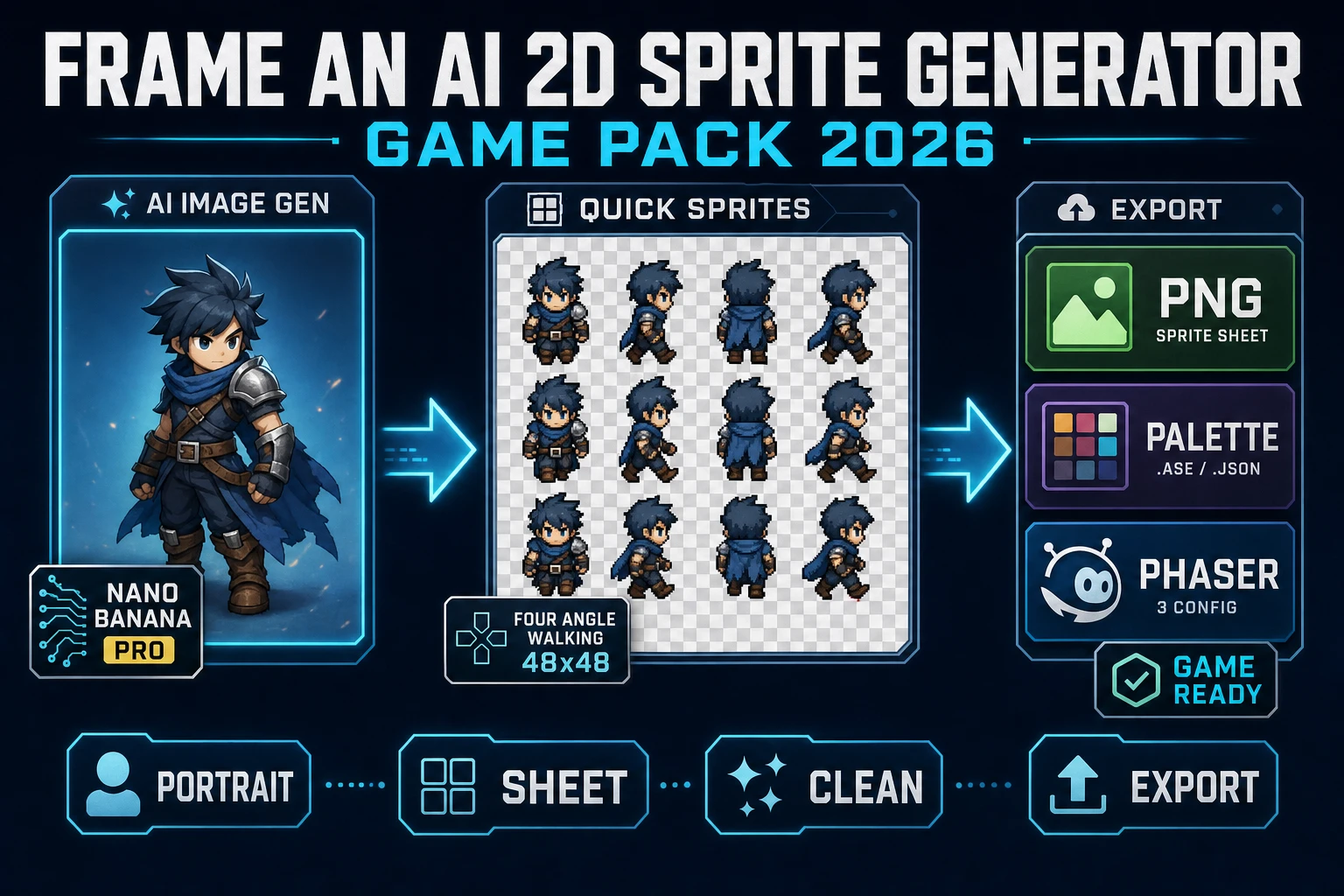
Two minutes from prompt to game-ready sprite sheet, no pixel-pushing required. How to make a sprite sheet used to mean a week of frame-by-frame animation in Aseprite or Photoshop — fine for an artist, brutal for a solo dev. AI sprite tools collapse that into a single prompt and a polished export. This is the actual workflow, with engine-ready specs at the end.
How to make a sprite sheet with AI in 2026
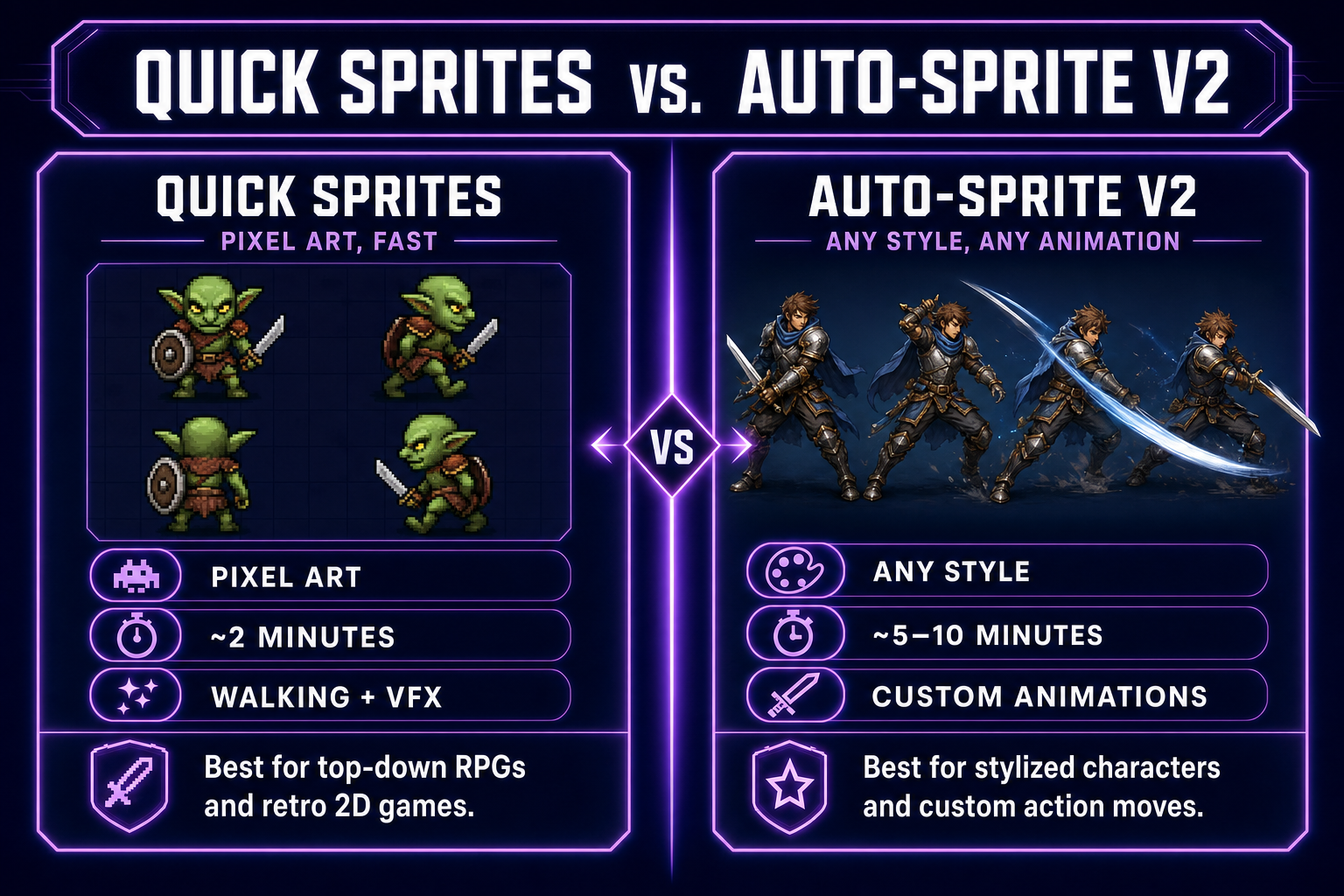
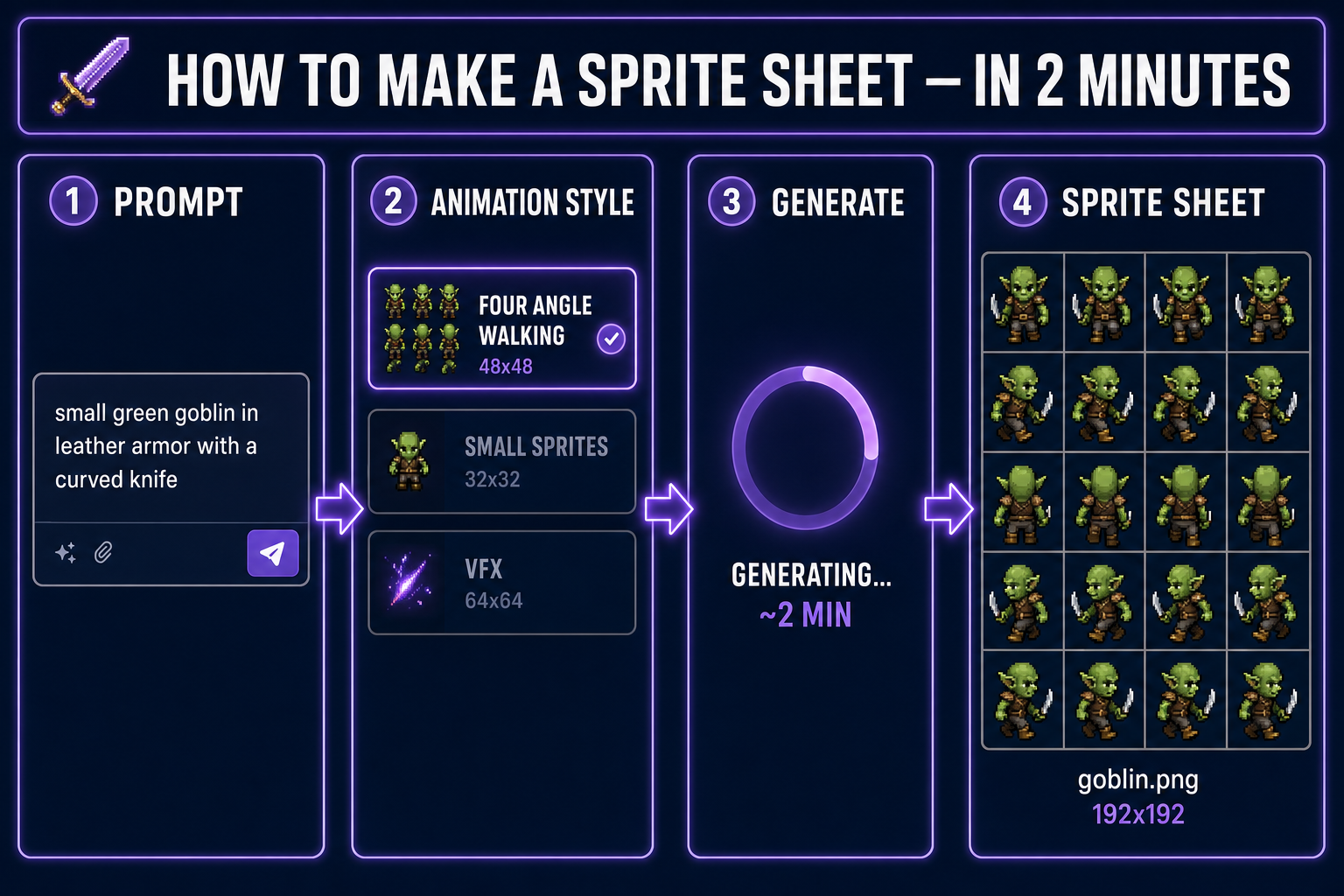
- For pixel-art sprites: use Quick Sprites. Pick an animation style (four-angle walking, small sprites, VFX), prompt the character, generate. Done in under two minutes.
- For any other art style (full-color, stylized, hand-drawn, anime, 3D-rendered): use Auto-Sprite v2. It generates the character, animates it with AI video, and converts the clip into a clean game-ready sprite sheet.
- The output is a standard PNG sprite sheet that drops directly into Phaser, Godot, GameMaker, Unity, Construct, or any 2D engine.
- Total time including refinements: typically 2–10 minutes depending on style.
What is a sprite sheet (and why you still need one)
A sprite sheet is a single image containing every animation frame of a character or effect, laid out in a grid. The game engine reads it as one texture, then crops out individual frames at runtime. This is more efficient than storing hundreds of separate image files: one GPU upload, one draw call per character, fewer file system reads.
Even in 2026, with all the talk of vector graphics and skeletal animation, the sprite sheet is still the dominant 2D animation format. Phaser uses it. Godot uses it. GameMaker uses it. Every browser game using HTML5 Canvas uses it. The format is over thirty years old and still wins on simplicity and performance.
So the real question isn’t “do I need a sprite sheet?” — it’s “how do I avoid spending a week making one?” Two AI tools, two paths.
The pixel-art pipeline (Quick Sprites)
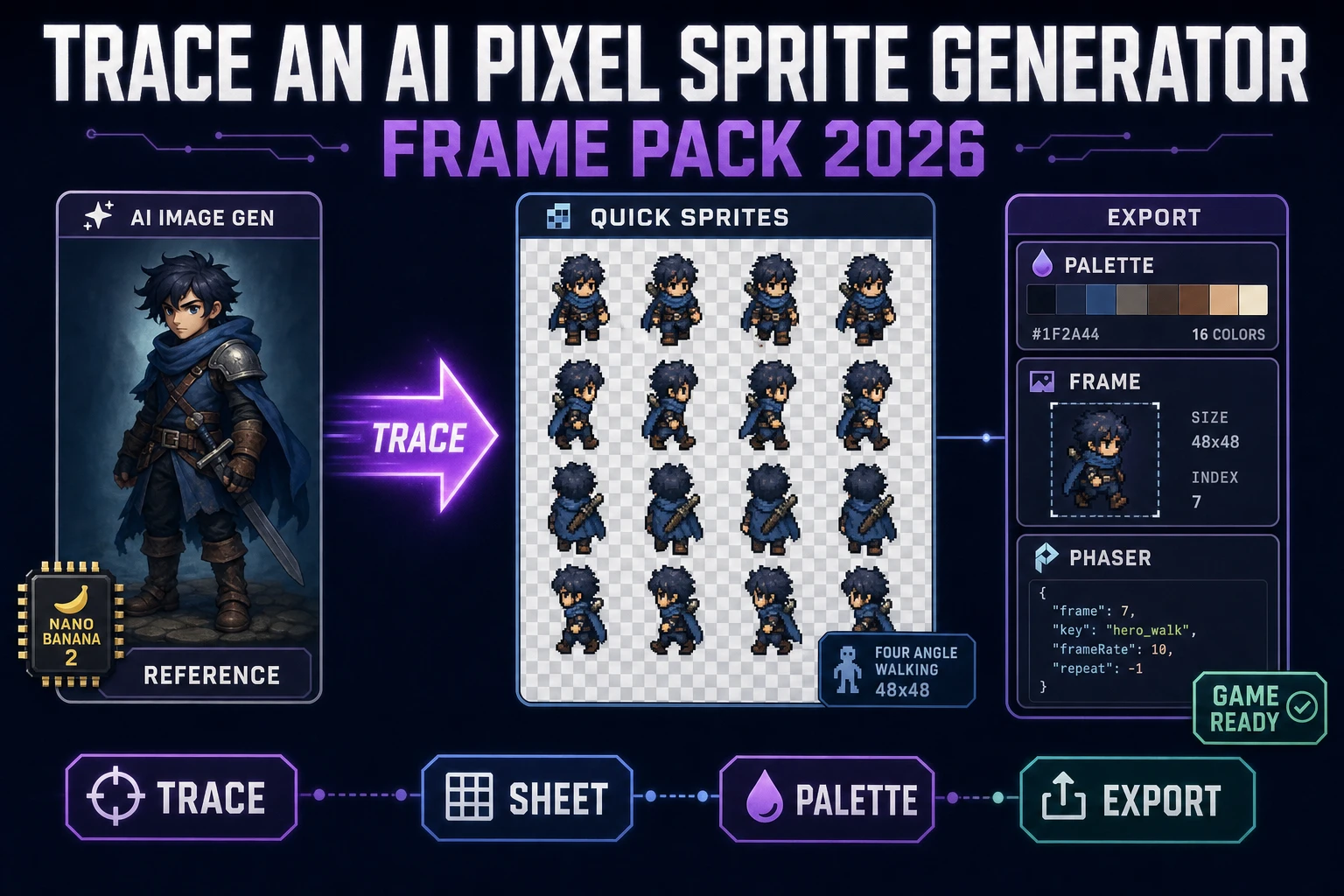
Quick Sprites is purpose-built for the most common indie request: a tiny pixel-art character with a four-direction walk cycle, ready to drop into a top-down RPG or a Pokémon-style overworld. It runs on a model trained specifically on game-ready pixel sprites — not a general image model trying to imitate pixel art.
Three animation styles ship in Quick Sprites and they cover most of what 2D indie games need:
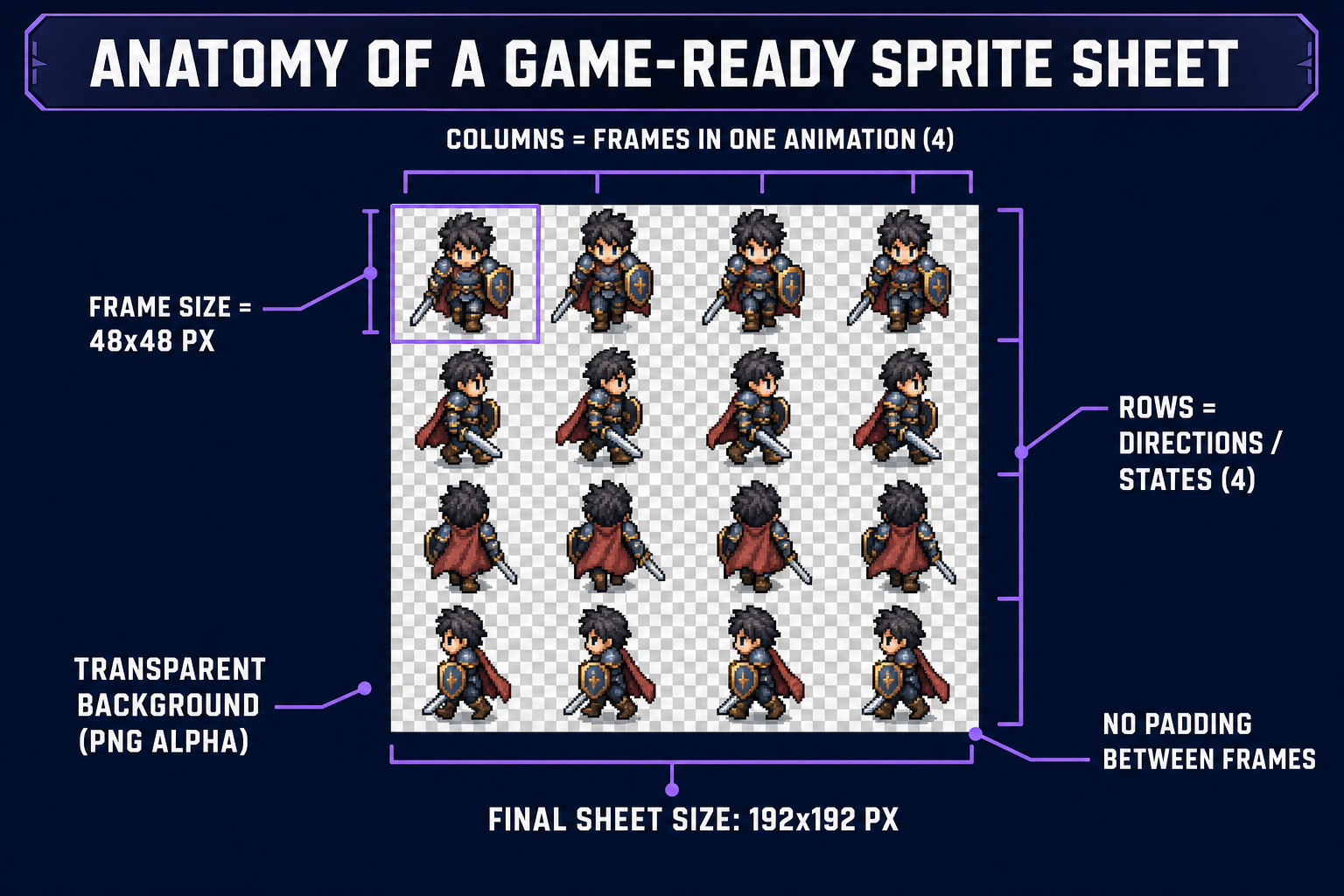
- Four Angle Walking (48×48 px) — Consistent four-direction, four-frame walking animations of humanoid characters. Walk up, walk right, walk down, walk left, four frames each. Sixteen frames total in a 4×4 grid. Perfect for top-down RPGs, farm sims, dungeon crawlers.
- Small Sprites (32×32 px) — Smaller, denser sprites with extra animations beyond walking: arm movement, looking around, surprised reactions, laying down. The right tier for retro JRPGs, Game Boy-style games, anything with a lot of NPCs to animate.
- VFX Effects (64×64 px, scalable 24–96 px) — Animated effects like fire, explosions, lightning, magic spells, sparkles. Not characters — environmental and combat effects. The thing you reach for after the character is done.
The workflow is brutally simple. Pick a style. Prompt the character (“a small green goblin in leather armor with a curved knife”). Click generate. The model produces the full sprite sheet — every direction, every frame, palette-locked, on a transparent background. Two minutes start to finish, including the model run.
The any-style pipeline (Auto-Sprite v2)
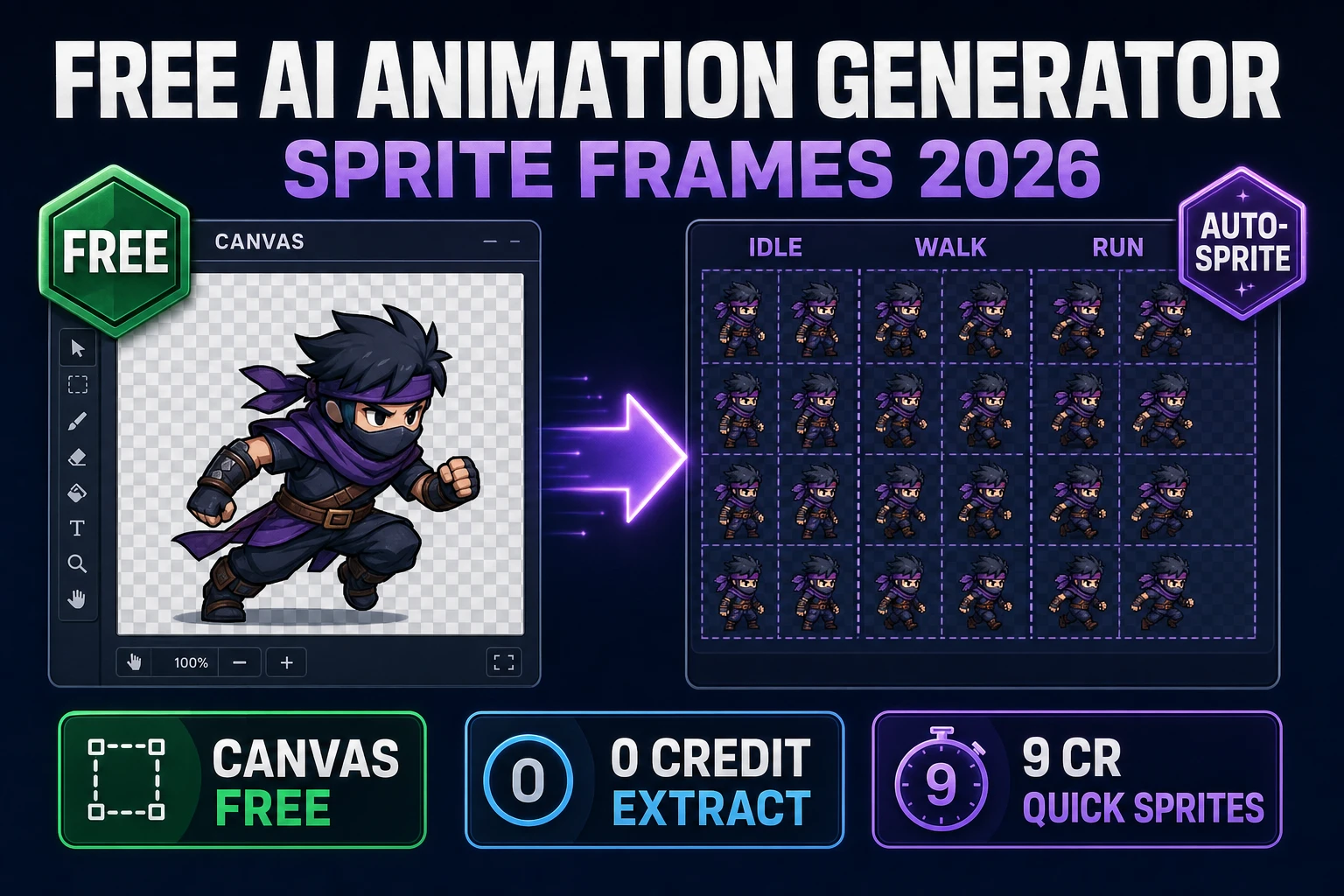
Auto-Sprite v2 is the more flexible cousin. Instead of a model trained on a fixed style, it chains three steps: generate a character with any AI image model (full-color, anime, hand-painted, 3D-rendered, anything), animate it with AI video, then convert the resulting clip into a clean game-ready sprite sheet.
This is the right tool when:
- Your game is not pixel art (a hand-painted Castlevania-style platformer, a Saturday-morning-cartoon-style action game, a 3D-rendered isometric strategy game).
- You need an animation that isn’t in Quick Sprites’ menu (jumping, attacking with a sword, casting a fireball, sitting down, dying).
- You already have a locked character from AI Image Gen and want to push it through to animated sprite without re-generating.
The trade-off: Auto-Sprite is more flexible but slower (typically 5–10 minutes vs 2 for Quick Sprites) and the output requires occasional cleanup if the AI video introduces artifacts. For pixel-art characters specifically, Quick Sprites wins on speed and quality. For anything else, Auto-Sprite is the answer.