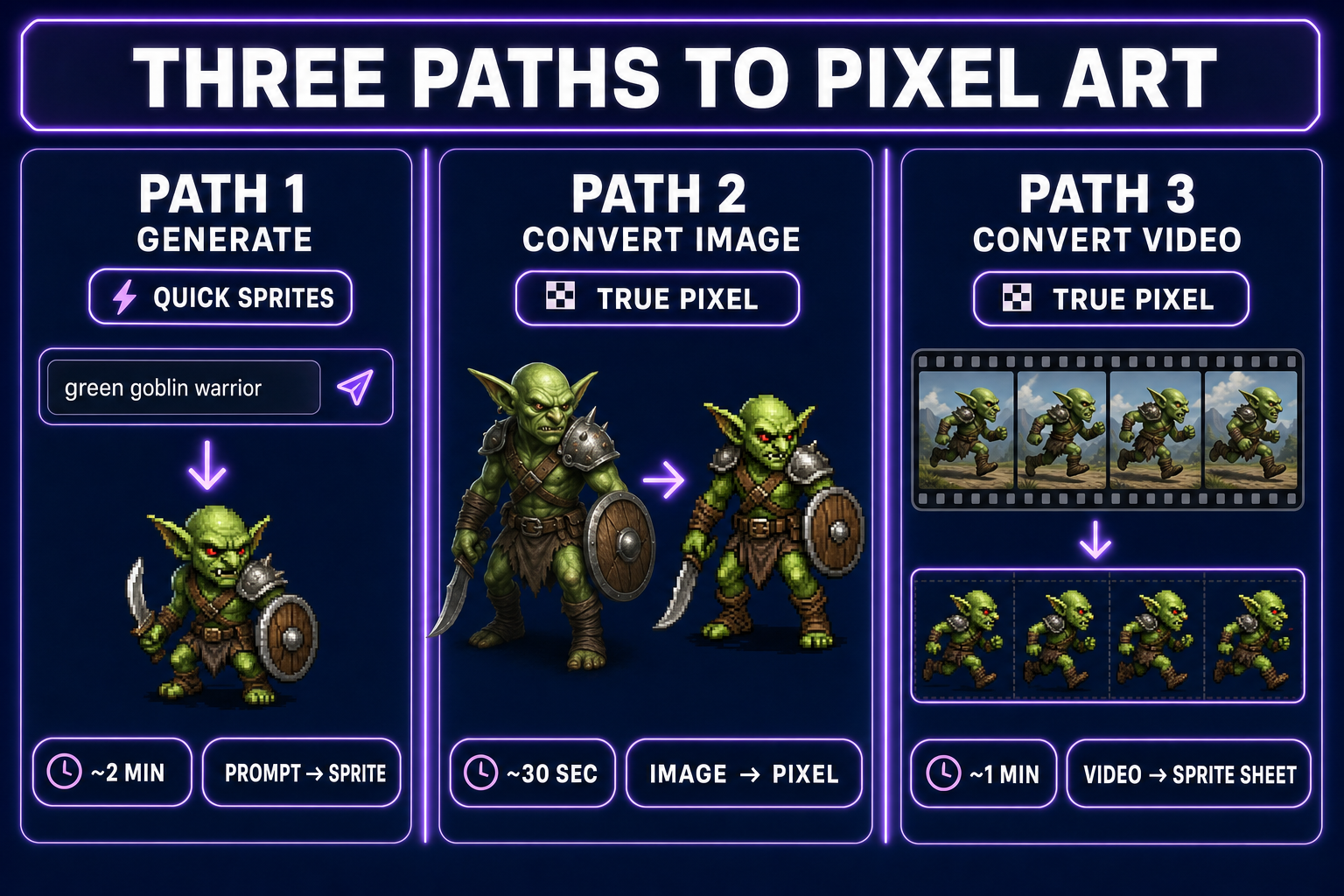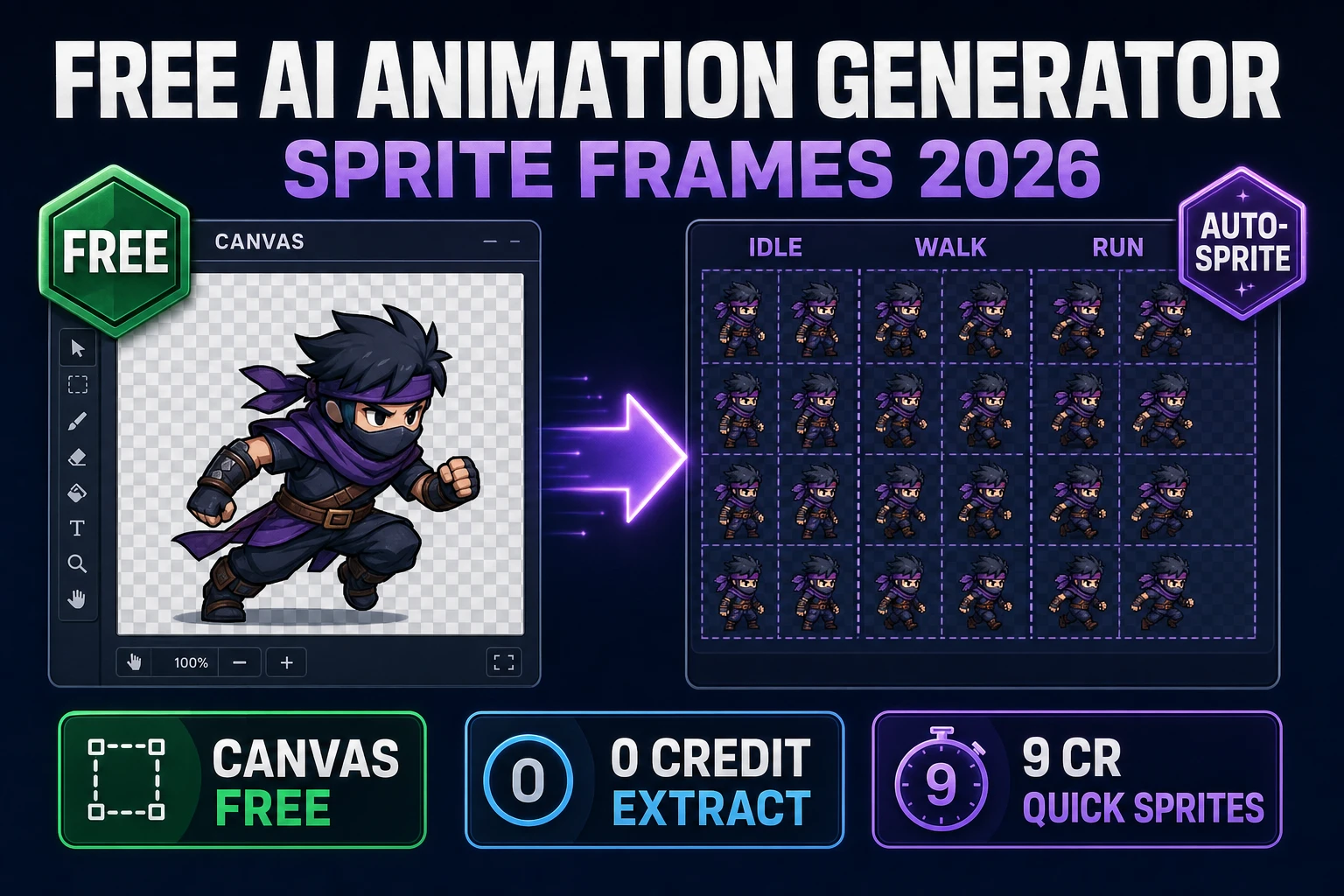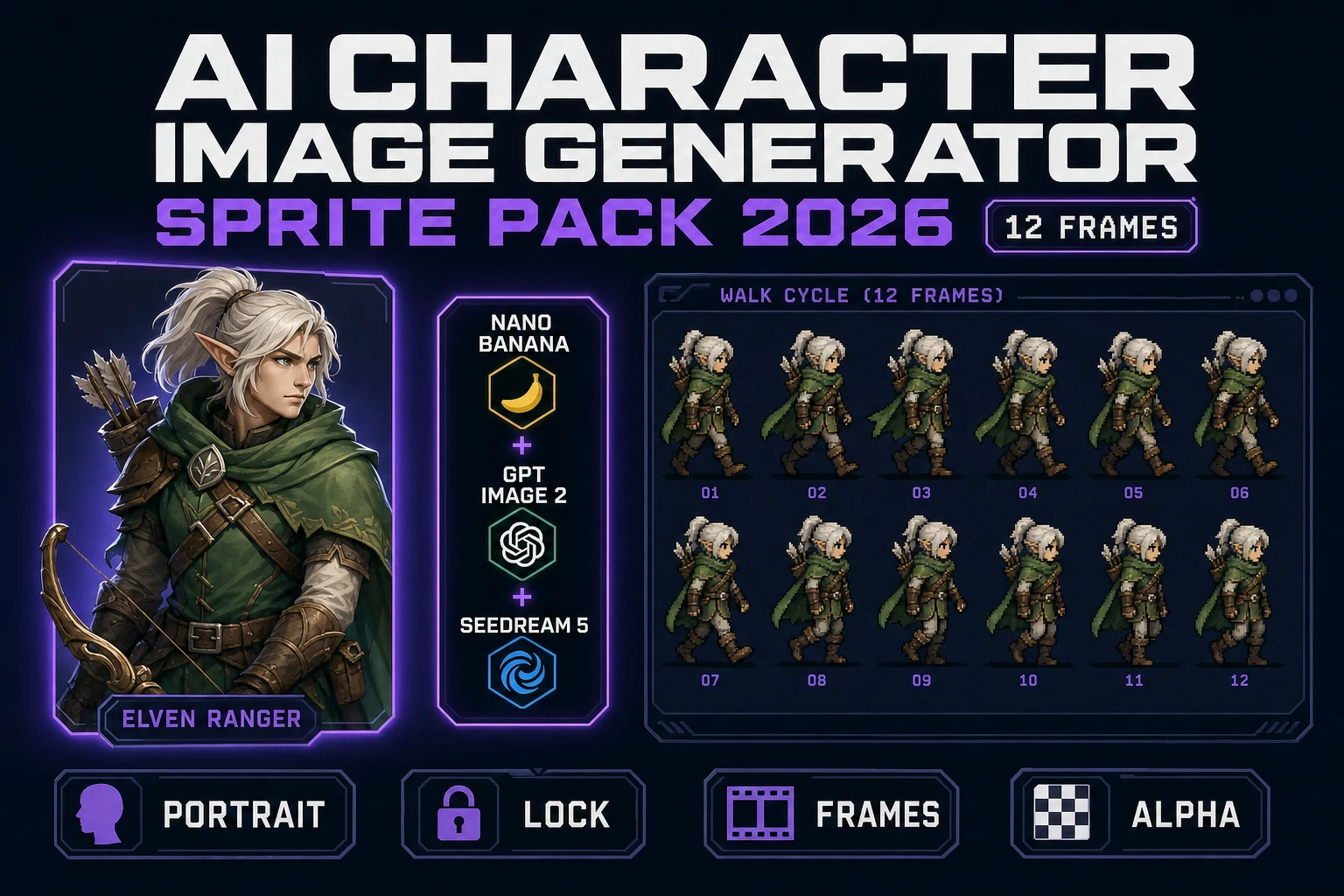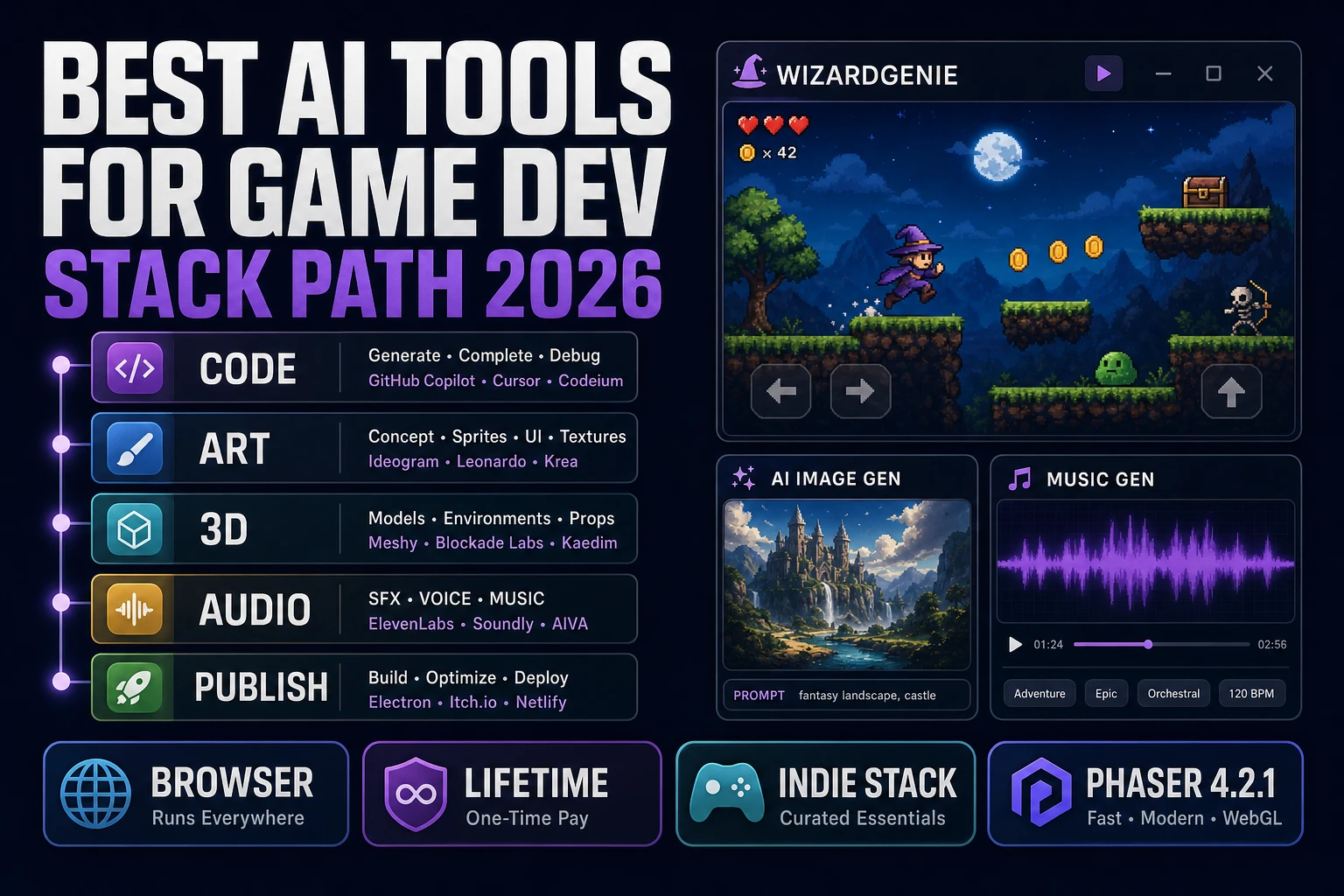
How to make pixel art without pixel-pushing in Aseprite for a week. There are three real paths in 2026: generate pixel art directly from a prompt, convert any high-resolution image to pixel art, or convert a video to a pixel-art animation. Each one solves a different problem. This is the practical guide, including the palette and cleanup tricks that separate decent pixel art from indistinct mush.
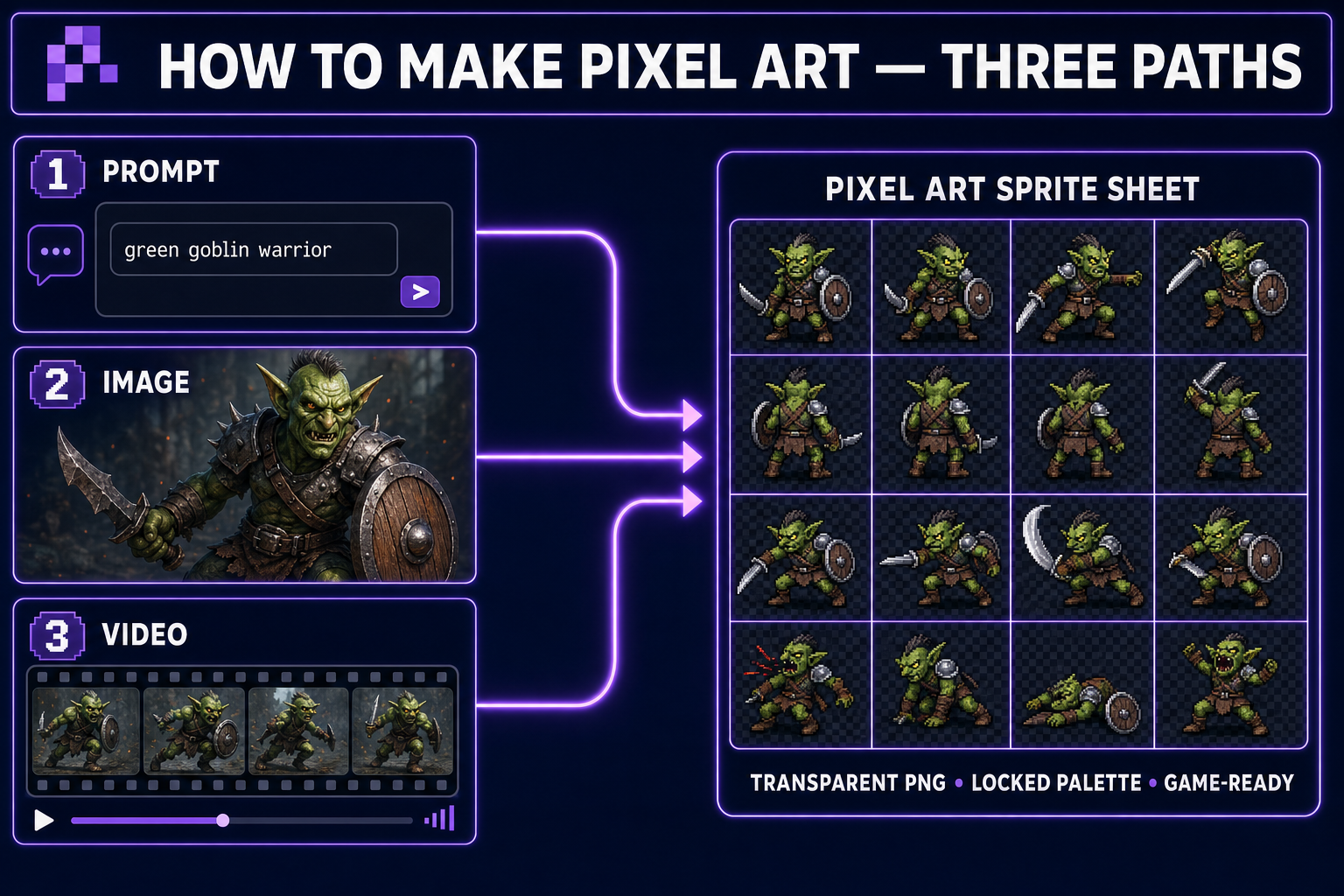
Three paths to pixel art in 2026
- Path 1: generate pixel art directly with Quick Sprites (purpose-built model trained on pixel sprites). Best for characters with standard animations.
- Path 2: convert any high-res image to pixel art with True Pixel. Best when you have a character locked in a non-pixel style and want a pixel-art version.
- Path 3: convert a video (or AI-generated animation) into a pixel-art sprite sheet, also via True Pixel. Best for custom animations not in any sprite-library.
- Whichever path you pick, the bottleneck is palette discipline, not generation. Lock a palette early, run all output through it, and your pixel art will look coherent.
The fundamentals: what makes art “pixel art” (not just low-res art)
Pixel art isn’t defined by being small — it’s defined by palette and intent. A 32×32 image with a million colors and gradient blending is just a low-resolution image. Real pixel art has:
- A constrained palette. Typically between 4 and 64 colors. Classic NES palettes use 56 colors total with 4 visible per sprite. Game Boy uses 4 shades of green. Modern indie pixel art often runs 16–32 carefully chosen colors per scene.
- Hard edges, no anti-aliasing. Each pixel is a deliberate decision. No subtle gradients across pixel boundaries.
- Consistent silhouettes that read at the target size. A pixel-art character at 32×32 needs to be recognizable from its silhouette alone — you don’t have detail to spare.
- Transparency where needed. Game-ready pixel art ships on a transparent background. Solid-color backdrops are amateur.
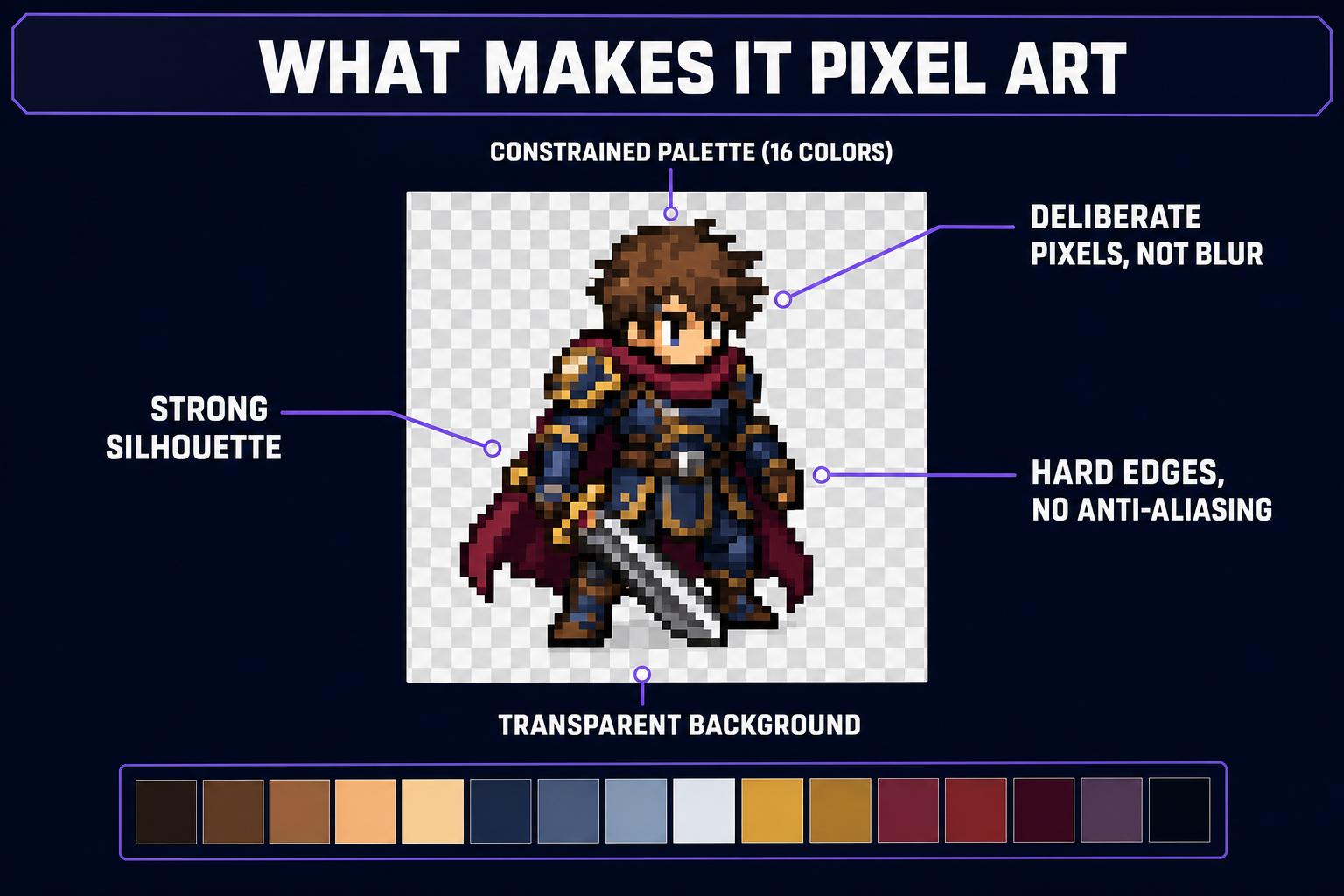
Most beginner attempts at pixel art fail not on the geometry but on the palette. The image has too many subtly different shades, no consistent outline color, and ends up looking like compression artifacts of a real photo rather than deliberate art. Locking the palette is the single most impactful thing you can do.
Path 1: Generate pixel art directly (Quick Sprites)
The fastest path. Quick Sprites runs a model trained specifically on game-ready pixel sprite sheets. Type a prompt, pick an animation style, generate. Output is a transparent PNG at one of three preset sizes (32×32, 48×48, 64×64), already palette-locked, already animation-ready.
This is the right path when:
- You’re starting from scratch and want a pixel-art character right away.
- The animation you need is in the standard menu (four-direction walk, idle, VFX).
- You don’t already have a non-pixel reference of the character.
Limitations: Quick Sprites’ three styles cover the common indie use cases but aren’t infinite. For a custom animation (sword swing, cast, parry) you’ll move to Path 3. For a character locked in a different style first, you’ll move to Path 2.
Path 2: Convert any image to pixel art (True Pixel)
True Pixel takes an arbitrary image and produces pixel-art at a target resolution. The processing chain:
- Downscale. The input image is intelligently downscaled to your target frame size (e.g. 64×64). True Pixel preserves silhouette features that would be lost in a naive bilinear resize.
- Palette quantization. All colors in the downscaled image are mapped to your chosen palette — a preset like Game Boy, NES, PICO-8, or a custom palette extracted from the input image itself. Typical palette size: 8 to 32 colors.
- Edge cleanup. Outlines are sharpened. Anti-aliased pixels at silhouette edges get assigned to either inside or outside the character; no half-tones.
- Chroma keying / transparency. Solid-color backgrounds in the input are detected and replaced with full transparency for clean game use.
- Export. Transparent PNG at exact target resolution, ready to drop into your engine.
This is the path when you’ve already locked a character in a non-pixel style — say a hand-painted illustration from AI Image Gen — and want to ship a pixel-art version of the same character. The character’s identity is preserved (same colors, same silhouette, same outfit), but rendered at low resolution with a constrained palette.
One important detail: do the conversion after the character is locked, not before. Generating pixel art directly from a prompt tends to drift between iterations; converting from a locked source produces consistent pixel-art across all your assets.