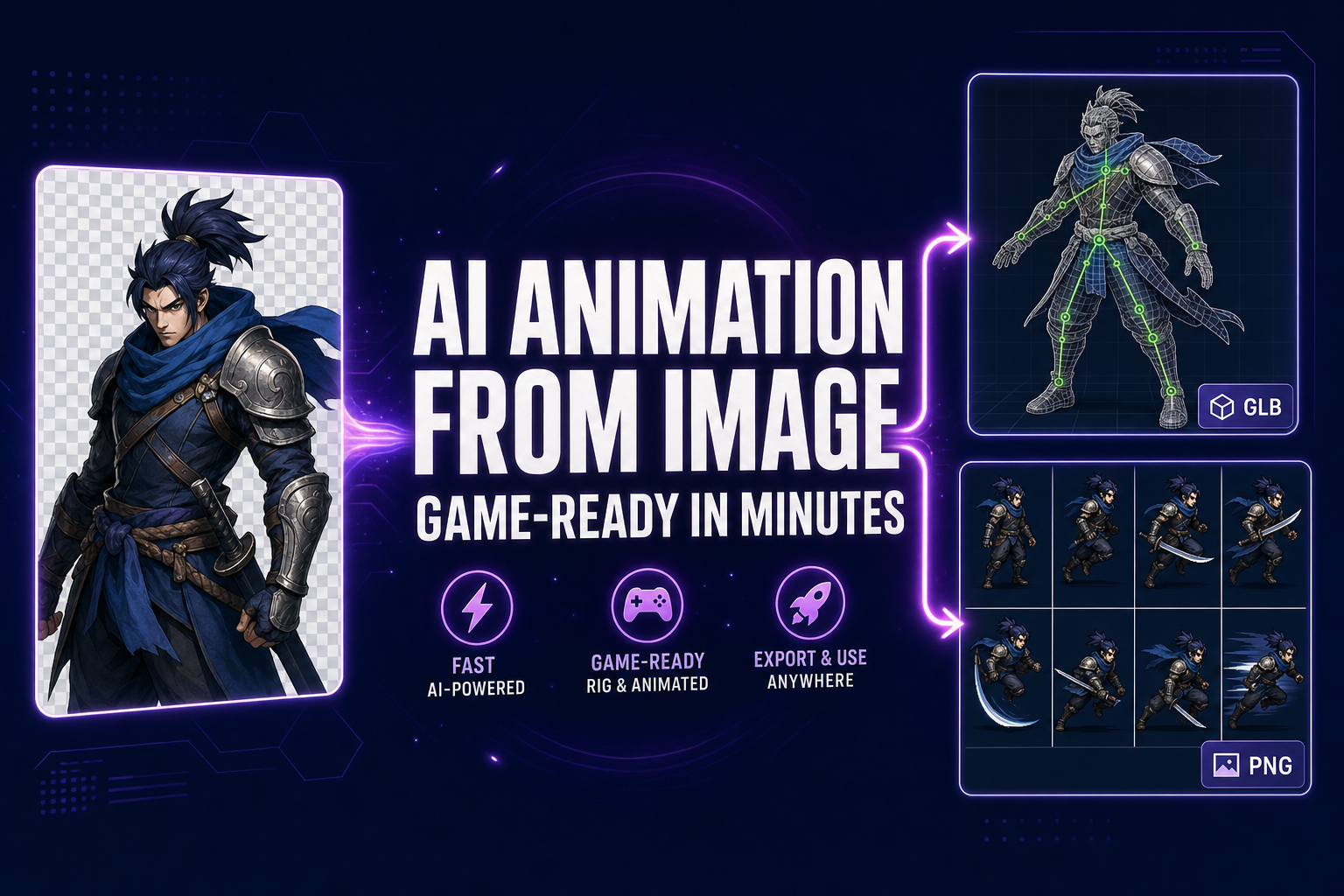
AI Animation Generator From Image: Game-Ready in Minutes

By Arron R.13 min read
An AI animation generator from image takes one still and ships either a rigged 3D character with text-prompted motion or a 2D sprite sheet, both in under twenty

Animating a character used to mean a rig built by hand, a motion-capture suit, and a week of cleanup per cycle. Then a hundred dollars an hour for a contract animator who could nail a believable run cycle on the second pass. Then another week to wire the clips into the engine, blend the transitions, and tune the IK pass so the feet stop sliding through the floor. The 2026 alternative collapses the whole sequence into a browser tab and a single source image. Feed one still picture into an AI animation generator from image, pick whether the output is a rigged 3D mesh or a 2D sprite sheet, and ship the result into your engine in roughly twenty minutes.
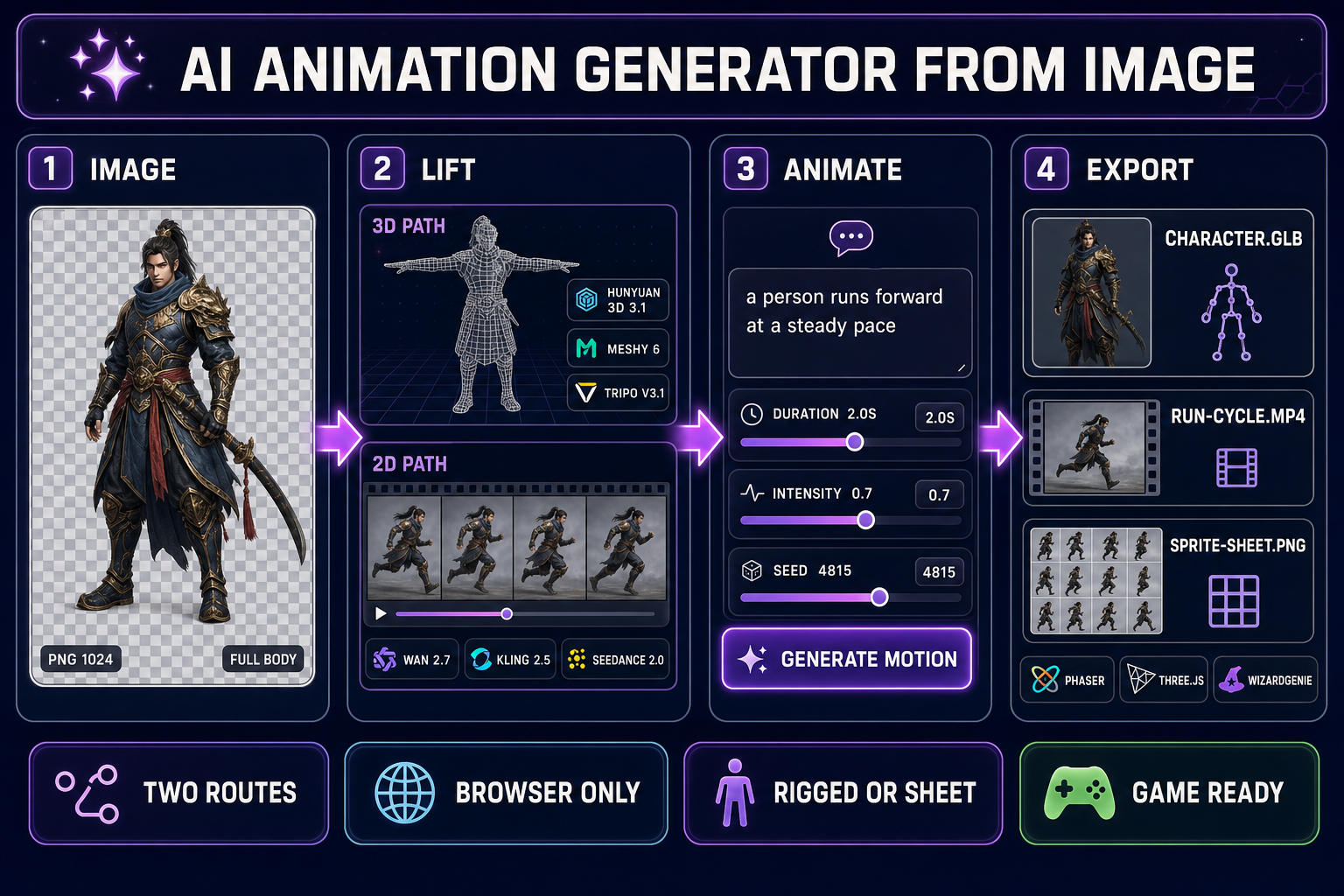
AI animation generator from image pipeline: source picture, two routes for 3D rigging or 2D sprite extraction, text-to-motion clip, and game-ready exports
The four-stage AI animation generator from image pipeline inside Sorceress. One source picture splits into two routes — a rigged 3D mesh through 3D Studio or a sprite sheet through AutoSprite V2 — and ships out as engine-ready files.

How an AI animation generator from image works in 2026

The phrase “AI animation generator from image” covers two completely different pipelines that happen to share the same input. Both start with a single still picture of the character. They split immediately afterward into a 3D route and a 2D route, each backed by a different family of models, each producing a different kind of game asset, and each suited to a different kind of game engine. The Sorceress stack runs both routes in the browser without an install, and the choice between them is a one-line decision at the top of the workflow.

The 3D route lives in 3D Studio. The Generate tab takes the source image and lifts it into a textured 3D mesh through one of seven image-to-3D models — Hunyuan 3D 3.1, Meshy 6, Meshy 5, TRELLIS, TRELLIS 2, Rodin 2.0 (Hyper3D), or Tripo v3.1 — verified May 9, 2026 against src/lib/threed-models.ts. The Rig tab auto-rigs the resulting mesh with a humanoid skeleton. The Animate tab drives that rig with HY-Motion, a text-to-motion engine that turns a prompt like a person runs forward at a steady pace into a baked animation clip with adjustable duration, intensity, classifier-free guidance, and seed.

The 2D route uses two tools in sequence. The Video page animates the still as a short clip through one of the AI video models — Wan 2.7, Kling 2.5 Turbo Pro, Kling 3.0, Seedance 2.0, Seedance 2.0 Fast, Seedance 1.5 Pro, Wan 2.2 Fast, or Grok Imagine Video — with a text prompt describing the motion. AutoSprite V2 takes the resulting video, extracts frames at the chosen FPS, removes the background through CorridorKey, and exports a clean transparent sprite sheet ready to drop into Phaser or any 2D engine. Verified May 9, 2026 against src/lib/video-models.ts and src/app/autosprite-v2/page.tsx.

Pick the route that matches your engine, not the route that sounds cooler

The honest decision is not “3D is more advanced therefore 3D is better”. The honest decision is which output format your engine actually renders at runtime, and which kind of animation cost your engine can afford per frame. Spending a week on the wrong route is the most common mistake teams make at this stage, and the cost shows up as a sprite that does not blend, a rigged mesh that the 2D engine cannot draw, or a runtime budget that the chosen route blew past on a test scene of three NPCs.

  • Three.js, Babylon.js, or a custom WebGL engine — pick the 3D route. The same rigged mesh plays arbitrary clips at runtime, blends between them through AnimationMixer in Three.js or animationGroups in Babylon.js, and supports procedural overrides like IK for foot-on-ground placement. One mesh plus four clips is a fully functional character.
  • Phaser, a 2D canvas engine, or a tile-based engine — pick the 2D sprite-sheet route. Sprite sheets render at native 2D speed without a 3D pipeline cost, the frame-by-frame animation is exactly what 2D engines are built around, and the asset format (a transparent PNG plus a metadata JSON) is the format every 2D engine expects.
  • WizardGenie projects — both routes work because WizardGenie can scaffold either a Phaser game or a Three.js game from a single prompt. Match the chosen route to whichever stack the agent picked for the project, then drop the export into the project asset library and let WizardGenie wire the playback. The platformer walkthrough in the browser platformer guide shows the 2D handoff, and the 3D side is documented in the image-to-3D pipeline post.
  • Mixed 2.5D rendering — almost always means run the 3D route first and snapshot it through a sprite-sheet recorder rather than running both pipelines in parallel. Do not double-run; the silhouette consistency comes from a single source-of-truth rig.
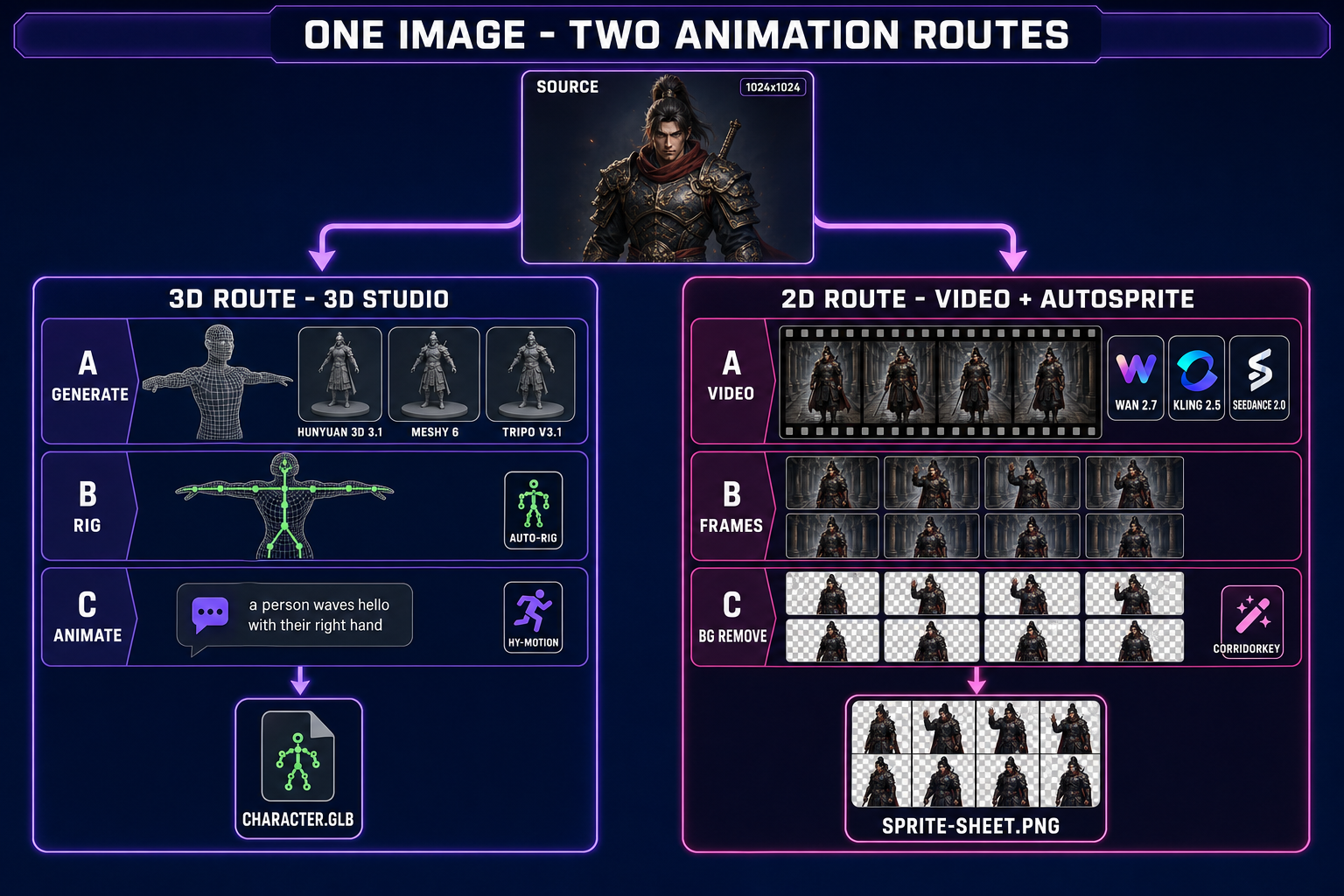
One source image branching into two AI animation routes — 3D mesh with auto-rig and HY-Motion text-to-motion on the left, AI video plus AutoSprite V2 sprite-sheet extraction on the right
One image, two routes. The 3D path produces a rigged mesh that plays any clip at runtime; the 2D path produces a transparent sprite sheet ready for a Phaser scene.

The 3D route: image to rigged mesh to text-prompted motion

Open 3D Studio and start in the Generate tab. Drop the source image onto the canvas. The model picker shows the seven image-to-3D models with credit costs and per-model parameter panels. The honest pick depends on the look the game needs and the budget for the character:

  • Hunyuan 3D 3.1 — the recommended default at 25 credits per generation. Strong silhouette fidelity, clean PBR textures, and adjustable face count from 40,000 to 1.5 million. The right choice for a hero character that the camera will spend time on.
  • Meshy 6 — 50 credits base, 75 with texture, 88 with remesh. The animation-friendliest output: a Force T-Pose flag, a Quad topology option for cleaner edge flow, and a remesh pass that produces uniform polygons the rigger can grab. If the character is going to animate, Meshy 6 with quad and remesh is the safest source.
  • Tripo v3.1 — 30 credits without texture, 40 with HD texture. Standout HD texturing detail and a Detailed geometry quality knob that captures fine surface features the other models smooth over. The right pick when the character has visual filigree, armor etching, or detailed cloth folds.
  • Rodin 2.0 — 50 credits. The cleanest quad mesh in the lineup with a forced T/A-Pose flag and PBR or Shaded material output. The strongest base for a fully rigged production character.
  • TRELLIS / TRELLIS 2 — 8 credits and 35 to 45 credits respectively. The fastest budget option for prototyping; TRELLIS 2 adds a higher-resolution structure pass and a remesh option for cleaner topology. Use these to iterate on character silhouette before committing credits to a longer Meshy or Hunyuan pass.
  • Meshy 5 — 31 credits, the older Meshy generation kept available for pose-locked characters where the v6 generation behavior changed.

For animation, turn the Force T/A-Pose flag on regardless of which model you pick. The T-pose exists because every rigging algorithm assumes the limbs are extended along clear primary axes — arms straight out, legs straight down. A character generated in a dramatic pose will rig, but the bone alignment will be off by enough degrees that the Animate tab’s motion clips will read as awkward.

After the mesh lands, switch to the Rig tab. Auto-rigging adds a small flat cost and produces a humanoid skeleton with twenty-something bones in the standard biped layout. Confirm the bone placement on the preview, then move to the Animate tab. The PromptPanel exposes a chat-style input for the motion prompt and ten preset motions — Walk, Run, Jump, Kick, Punch, Wave, Dance, Idle, Sit Down, Crouch — each with a recommended duration. The four sliders below the prompt are Duration (in seconds), Intensity (a strength multiplier on the motion magnitude), Seed (for reproducibility), and CFG Scale (classifier-free guidance, controlling how literally the engine reads the prompt). A typical clip generates in under two minutes.

For a complete character, the standard motion pack is six clips: Idle, Walk, Run, Jump, Attack, and one character-specific (Cast for a wizard, Aim for a ranger, Roll for a rogue). At a few credits per clip, a full motion pack lands well under fifty credits beyond the base mesh cost. Each clip bakes into the mesh as a named animation track so the engine can call it by name at runtime.
The 2D route: image to AI video to sprite sheet

The 2D route starts in the Video page. Drop the same source image into the start-frame slot. The model picker shows the AI video models with credit costs per second of generated footage. The honest pick:

  • Kling 2.5 Turbo Pro — the speed-quality default. Five-second clips at 1080p in roughly two minutes. The right choice for a clean idle, walk, or static-camera animation.
  • Wan 2.7 — the highest motion-coherence option. Holds the character’s identity across faster motions like a run cycle or a combat swing. The right pick when the motion is large and the character has fine details that other models smear.
  • Seedance 2.0 / Seedance 2.0 Fast — strong physical realism for grounded motion (running, jumping, falling). Fast variant is roughly 30 percent quicker at a small fidelity cost.
  • Grok Imagine Video — stylized output that pairs well with non-photoreal source images. The right pick for cartoon, anime, or pixel-art-style starting frames.

Write a motion prompt that describes the loop, not the character. The character runs forward in a side-scrolling view, no camera movement is a usable prompt; a knight in armor running through a forest is a description of an unrelated cinematic the model will happily generate around the wrong axis. Lock the camera. Lock the background. The video is going to be processed frame by frame, so anything that drifts between frames (camera pans, background parallax, lighting changes) will create a wobbly sprite sheet.

Once the video is in hand, send it to AutoSprite V2. The page accepts the video directly from the Video page through an in-app handoff. Inside AutoSprite, the workflow is four steps that are visible from the welcome panel: Upload, Extract Frames, Remove Background, Sprite Sheet. The Extract Frames step samples the video at the target animation FPS — a good default is 12 FPS for a hand-animated feel or 24 FPS for smoother motion. The Frame Selection panel lets you trim the boundary frames where the AI video’s typical “rev-up” produces an awkward acceleration into the loop.

The Remove Background step runs CorridorKey, the green-screen cleanup pass that produces a clean transparent edge around the character. CorridorKey runs in two backends: cloud (server, costs credits) or local (free, requires a local GPU and a one-line server install). The cloud backend bills 1 credit per ten frames at 512px or 2 credits per ten frames at higher resolution, verified May 9, 2026 against src/app/autosprite-v2/page.tsx. A typical 24-frame run cycle at 512px costs roughly 3 credits to clean.

The final step packages the cleaned frames into a single PNG sprite sheet with a metadata JSON describing frame width, frame height, frame count, and animation FPS. The output drops directly into a 2D engine, the same way any sprite sheet would.

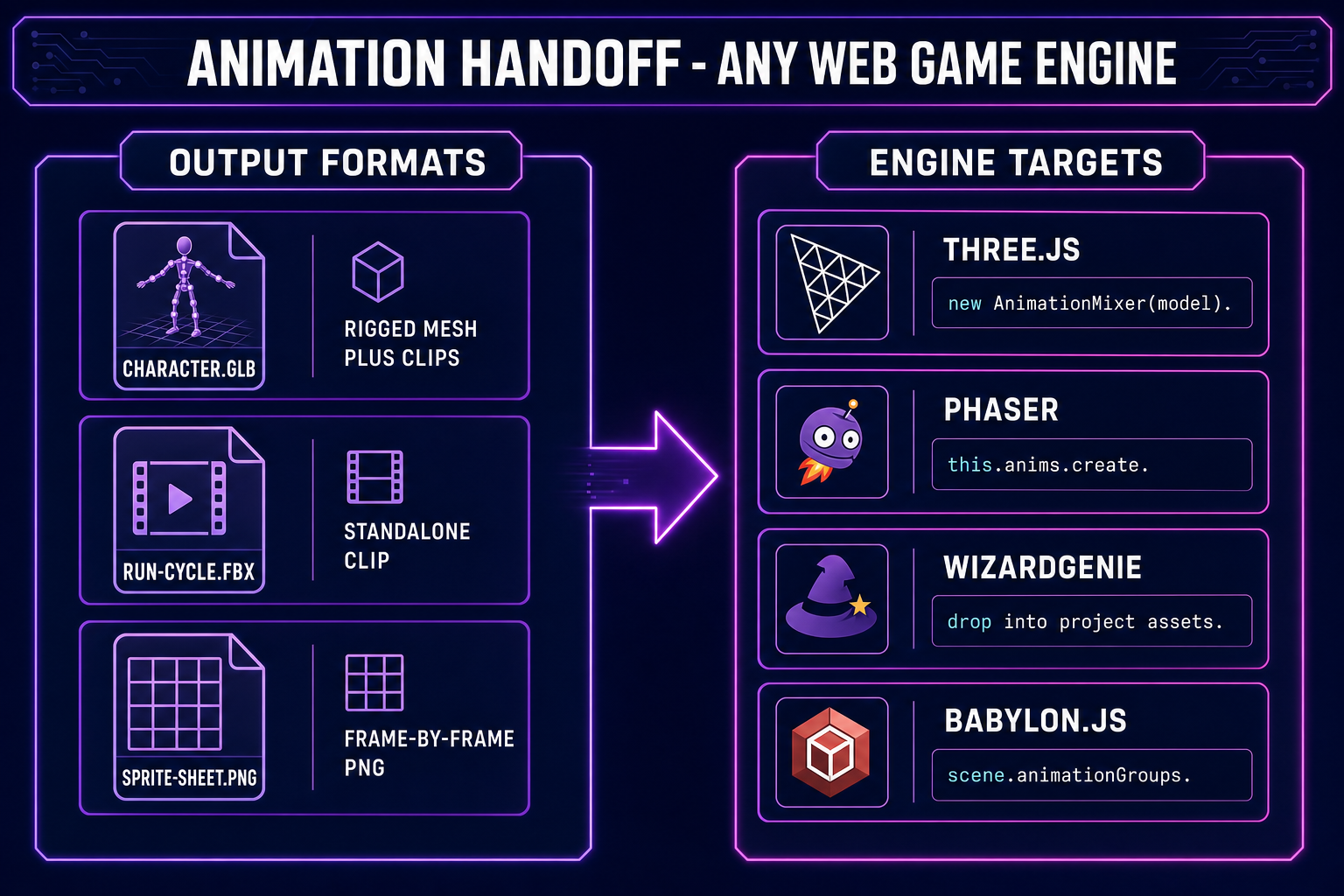
AI animation export formats — rigged GLB, standalone FBX clip, and PNG sprite sheet — feeding into Three.js, Phaser, WizardGenie, and Babylon.js
The handoff is short. Both routes produce a single file the engine can ingest with three lines of code.

Wire the animation into Phaser, Three.js, Babylon, or WizardGenie

Both routes produce engine-standard outputs. There is no Sorceress runtime to install at game-time; the files speak the same protocols every web game engine speaks.

Three.js (3D route). The rigged mesh exports as a glTF 2.0 file with the animation clips embedded. Load with GLTFLoader, attach the result to an AnimationMixer, and call mixer.clipAction(clip).play() for each named motion. Cross-fade between clips with action.crossFadeTo(otherAction, 0.3) for smooth transitions. The pelvis-centric joint convention from HY-Motion lines up naturally with the standard glTF skinning model so root motion translates correctly.

Phaser (2D route). Load the sprite sheet with this.load.spritesheet('hero', url, { frameWidth: 128, frameHeight: 128 }) in the scene’s preload(). Define a named animation with this.anims.create({ key: 'run', frames: this.anims.generateFrameNumbers('hero', { start: 0, end: 11 }), frameRate: 12, repeat: -1 }). Play it with sprite.anims.play('run'). The sprite rendering path is what 2D engines do best; framerate stays steady even with hundreds of animated entities.

Babylon.js (3D route). Load with SceneLoader.ImportMeshAsync, then access scene.animationGroups for the named clips. Babylon’s built-in AnimationGroup.start() and blendingSpeed handle clip transitions without an extra mixer.

WizardGenie (either route). Drag the GLB or sprite-sheet PNG into the project asset library and the agent wires playback into the appropriate scene. For a Phaser project the agent generates the preload + anims.create + anims.play code. For a Three.js project the agent generates the GLTFLoader + AnimationMixer setup. Same source asset, different scaffolding code emitted by the agent.

Custom engines. The 3D route exports also support FBX and OBJ for engines outside the JavaScript ecosystem. The 2D route’s sprite sheet is a standard PNG plus JSON the way sprite-based engines have parsed sheets for two decades; any engine with a drawImage-equivalent can render it.

When AI animation from image fails (and how to recover)

Both routes have predictable failure modes. Knowing them shaves hours off the iteration loop.

  • 3D route, hands and fingers. Image-to-3D models still struggle with finger-level geometry on a single source image. Hands often come back as paddles or with the digits melted together. The recovery is to run the source image through Multi-Image-to-3D mode (Hunyuan 3D 3.1, Meshy 6, and Tripo v3.1 all support it) using a pose set that includes a clear hand-spread reference frame. If the character is in a closed-fist pose for the entire game, this is rarely worth the cost.
  • 3D route, hair and translucent geometry. Strands of hair, lace, sheer fabric, and other translucent geometry come back as either a solid block or a noisy mess of disconnected triangles. The recovery is to bake the translucent element into the texture rather than the mesh — Tripo v3.1 with HD texture and the Texture Alignment: original_image flag preserves the appearance without spending mesh budget on the geometry.
  • 3D route, wrong pose for rigging. A character generated in a dramatic action pose will rig but the resulting motion will read as twisted because the rest pose drifts from the canonical T-pose. The recovery is always the same: turn on Force T/A-Pose at generation time, regenerate, accept the small fidelity cost. There is no shortcut around this; the rigger needs the canonical pose.
  • 2D route, motion intent drift. AI video models often interpret “the character runs forward” as “the camera follows a character that runs forward” and produce a clip with both a camera move and a body motion. The recovery is to lock the camera in the prompt explicitly: Static camera, locked center frame, no zoom, no pan. The character runs forward in place. Most teams converge on a small set of prompt suffixes that consistently produce stationary-camera output.
  • 2D route, frame-to-frame wobble. The character’s identity drifts between frames in the AI video, which produces a sprite sheet where the head subtly changes shape across the loop. The recovery is to use a model with stronger identity preservation (Wan 2.7 or Kling 2.5 Turbo Pro, not Wan 2.2 Fast for fast motion) and to keep the clip duration short — under three seconds. Long clips compound drift; short loops constrain it.
  • 2D route, background bleed. CorridorKey produces a transparent background but a colored fringe sometimes survives along the silhouette edge. The recovery is to up the CorridorKey resolution to 1024 or 2048, or to run the local CorridorKey backend which has a wider edge-detection envelope. The colored fringe rarely shows in a finished game (the sprite is on a different background) but the SFX-Editor-style cleanup pass exists if needed.

Where AI animation fits in the broader Sorceress workflow

An animated character is one stage in a longer asset pipeline. The full beginner-friendly workflow inside Sorceress, in order:

The credit accounting at full game scale: a complete animated character with three motion clips on the 3D route lands at roughly 50 to 100 credits all in. The same character on the 2D route lands at roughly 20 to 60 credits depending on video model choice and frame count. A six-character cast plus a full audio pack plus a tile-set environment clears in the low hundreds of credits — the same order of magnitude as a single voice-recording session at union rates, with the entire visual and audio asset library thrown in.

Frequently Asked Questions

What is an AI animation generator from image and how does it actually work?

An AI animation generator from image is a pipeline that takes a single still picture as the source and produces a moving asset on the other end. There are two distinct routes inside Sorceress, each backed by different model families. Route one — the 3D path — uses the 3D Studio Generate tab to lift the picture into a textured 3D mesh through one of seven image-to-3D models (Hunyuan 3D 3.1, Meshy 6, Meshy 5, TRELLIS, TRELLIS 2, Rodin 2.0, Tripo v3.1), then auto-rigs the mesh in the Rig tab, then animates it in the Animate tab using HY-Motion text-to-motion (a prompt like "a person runs forward at a steady pace" + duration + intensity). Route two — the 2D path — uses an AI video model from the Video page (Wan 2.7, Kling 2.5 Turbo Pro, Seedance 2.0, Grok Imagine Video) to animate the still as a video clip, then sends the clip to AutoSprite V2 which extracts frames, removes the background, and exports a sprite sheet. Verified May 9, 2026 against src/lib/threed-models.ts, src/lib/video-models.ts, and src/app/autosprite-v2/page.tsx.

Should I use the 3D route or the 2D sprite-sheet route for my game?

The honest decision tree: if your game renders in 3D — Three.js, Babylon, a custom WebGL engine — the 3D route wins because the same rigged mesh can play arbitrary animations at runtime, including procedural ones, with proper bone-driven blend states. If your game is 2D and the camera is locked top-down, side-scrolling, or isometric — Phaser, a custom 2D canvas, a tile-based engine — the sprite-sheet route is correct because it produces frame-by-frame pixel content that ships at native 2D rendering speed without any 3D runtime cost. The middle case — a 2.5D game that wants the silhouette of a 3D character but the look of a sprite — usually does the 3D route first, then renders the rigged mesh through a sprite-sheet recorder, which is a separate workflow. For solo devs the rule of thumb is pick the route that matches your engine and stop there; running both pipelines for one character usually doubles work without doubling fidelity.

How long does the full image-to-animation pipeline take end to end?

On the 3D route the wall-clock budget is roughly fifteen to twenty-five minutes per character: image-to-3D mesh generation runs three to ten minutes depending on the model (TRELLIS is the fastest, Tripo v3.1 and Hunyuan 3D 3.1 the slowest at high quality), auto-rigging runs about a minute, and one HY-Motion text-to-motion clip runs roughly forty to ninety seconds. Add another minute per additional motion clip — walk, run, jump, attack, idle — since each is a separate generation. On the 2D route the budget is roughly five to fifteen minutes per animation: AI video generation in the Video tab takes one to five minutes per clip depending on the model and duration, AutoSprite V2 frame extraction is near-instant, and CorridorKey background removal runs about ten seconds per ten frames on the cloud backend. Both routes assume the source image is already in hand; generating the source image in the AI Image Gen tab adds another thirty to ninety seconds at the front.

How much does the AI animation pipeline cost in Sorceress credits?

Costs verified May 9, 2026 against the model registries. Image-to-3D in 3D Studio: TRELLIS 8 credits, Hunyuan 3D 3.1 25 credits, Meshy 5 31 credits (or 56 with texture), TRELLIS 2 35 to 45 credits depending on resolution, Tripo v3.1 30 to 45 credits depending on texture mode, Meshy 6 50 credits (or 75 with texture, 88 with remesh), Rodin 2.0 50 credits. Auto-rigging adds a small flat cost. HY-Motion text-to-motion clips run a few credits each. On the 2D route, AI video generation typically runs five to thirty credits per clip depending on the model and resolution. AutoSprite V2 background removal via the cloud CorridorKey backend bills 1 credit per ten frames at 512px or 2 credits per ten frames at higher resolution; running CorridorKey on a local GPU is free. A complete character with three motion clips on the 3D route lands roughly fifty to a hundred credits all in.

What input image works best for AI animation generators?

For the 3D route, the input picture should show the character roughly centered, facing the camera or in a three-quarter view, with the full body visible from feet to top of head. The Sorceress 3D models all expose a Force T-Pose or A-Pose flag — turn it on whenever the picture is going to a character that will later be rigged, because a rigged skeleton is built around limb axes that match the standard pose. Plain backgrounds simplify the geometry extraction; cluttered backgrounds confuse the depth estimator and produce ghost geometry behind the character. For the 2D route, the source still can be more stylized — concept art, an isometric portrait, a profile shot — but the AI video model will animate whatever is in frame, so cropping tightly to the character before feeding the still to the Video tab keeps the camera focused on the subject and prevents the background from drifting frame to frame.

Sources

  1. Skeletal animation (Wikipedia)
  2. Sprite (computer graphics) (Wikipedia)
  3. Inverse kinematics (Wikipedia)
  4. glTF 2.0 specification (Khronos Group)
  5. AnimationMixer (Three.js docs)
  6. T-pose (Wikipedia)
Written by Arron R.·2,881 words·13 min read

Related posts