How to Convert an Image to Pixel Art (Free, Game-Ready)

By Arron R.14 min read
To convert an image to pixel art the right way you need a real palette quantizer, a dither choice, edge cleanup, and a transparent background — not just a downs

Most one-click image-to-pixel-art converters do the same wrong thing: they take a high-resolution input, downscale it to a tiny grid with bicubic resampling, and call it pixel art. The result reads as a low-resolution photo, not a sprite. Real pixel art has a tiny fixed palette, hard pixel edges, and a transparent background ready to drop into a game engine. Getting all three from a source image takes a real palette quantizer, a dither choice, and an edge-cleanup pass — not a downscale. This guide walks the five-minute pipeline that actually produces game-ready sprites, the math behind each step, and the worked walkthrough inside Sorceress True Pixel.
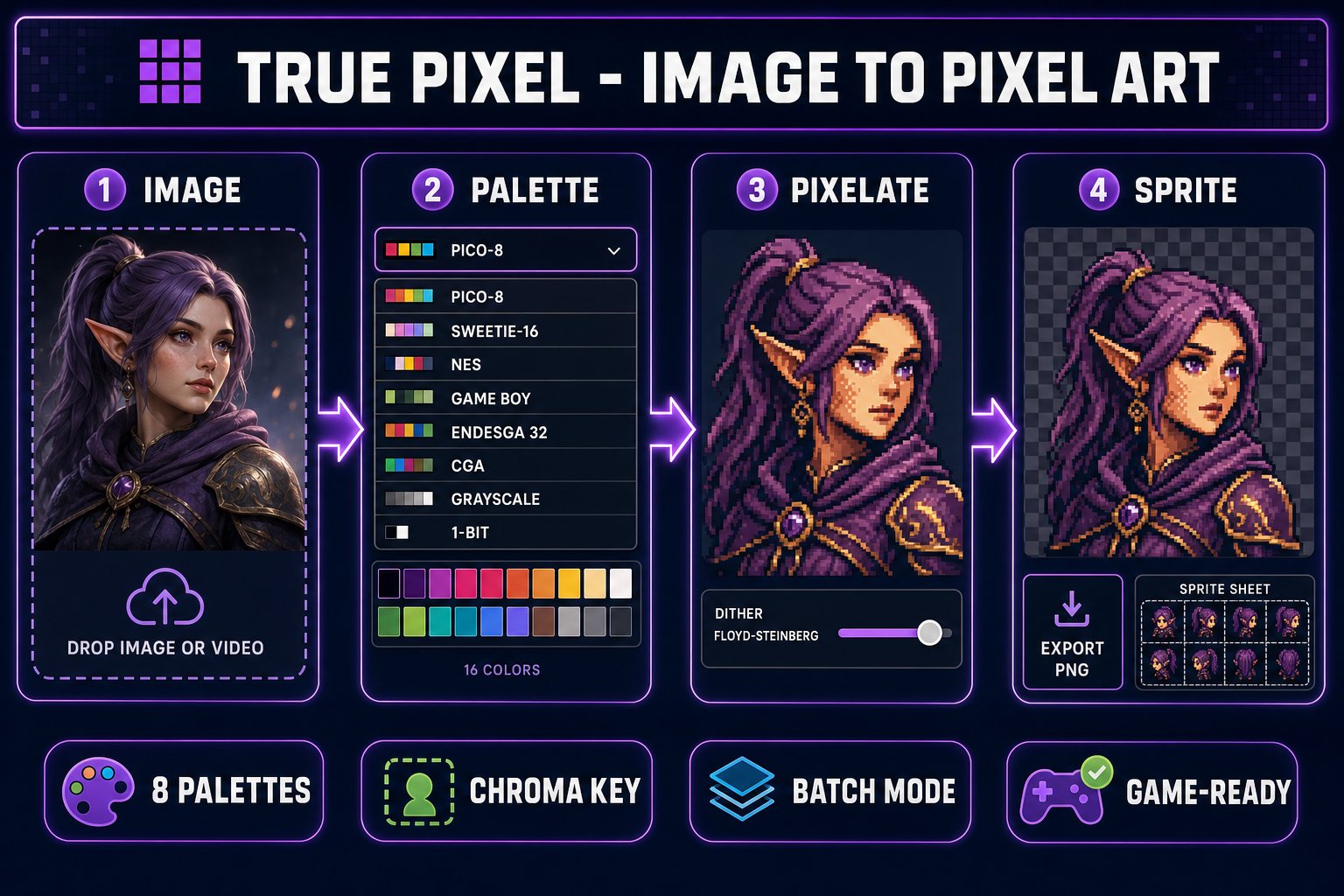
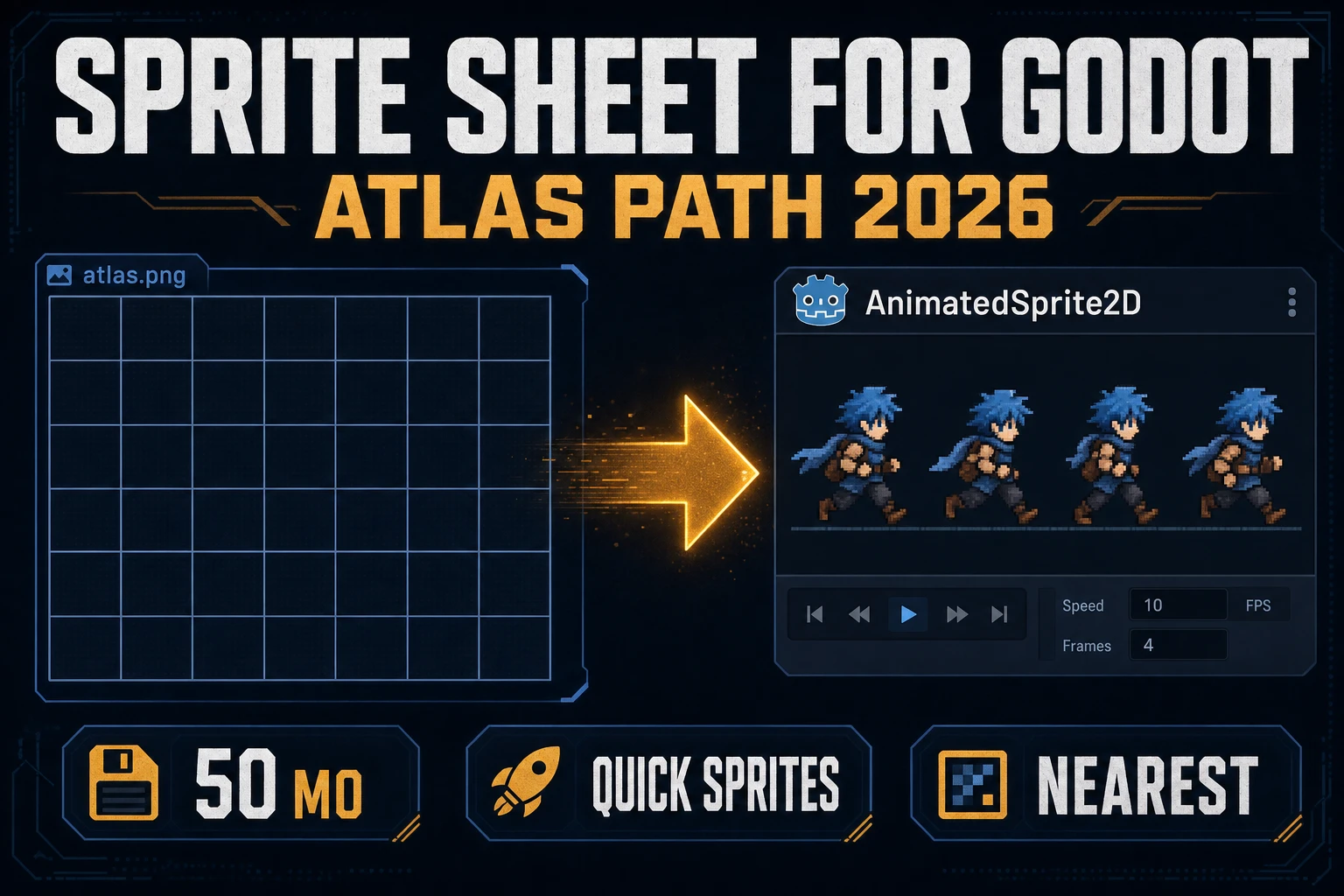
Image to pixel art pipeline: drop image, pick palette preset, quantize and dither, export sprite-ready PNG with transparent background
The four-stage image-to-pixel-art pipeline inside True Pixel. Drop the source, pick a palette preset, quantize with the chosen dither mode, export as a sprite or sprite sheet — all browser-side.

The image-to-pixel-art problem nobody admits

An image is a continuous-tone surface — thousands of subtle colour gradients across every visible pixel. A pixel-art sprite is the opposite: a small grid of cells, each one snapped to a value in a tiny fixed palette, designed to read clearly at sprite resolution and to compress losslessly into the engine's asset bundle. Going from one to the other is not a resize. It is a colour quantization problem — the same mathematical job that GIF encoders, indexed-PNG writers, and old-school graphics drivers solved when displays could only show 256 colours at a time.

The naive image-to-pixel-art converter skips that step. It downsamples to a small grid, stretches the result back up with nearest-neighbour, and ships it. The pixels look square, the visual cue says pixel art, but every cell is still picking from millions of possible RGB values. Two adjacent cells that look the same colour to the eye are actually different by a few RGB units, and that difference makes the sprite read as a thumbnail of a photograph. It does not read as a sprite. The fix is to limit the palette before the export, by snapping every pixel to its nearest neighbour in a deliberately tiny set — sixteen colours, thirty-two, or whichever count matches the look you want. That snap is the entire game.

The other thing the naive converter skips is the background. A solid-colour background gets carried through as opaque pixels in the export, which lands in a game engine as an opaque rectangle behind every sprite. The correct workflow either chroma-keys a uniform background out at the source, or runs a model-driven background removal step before the quantization. Both paths produce a transparent PNG; both are necessary because game engines expect alpha, not "the white pixels are background, trust me."

The five-minute pipeline at a glance

The full image-to-pixel-art conversion pipeline, in order, regardless of which tool you use:

  1. Source: a high-resolution image (AI render, photograph, or hand drawing). Bigger source is better — the cluster algorithm needs samples to average across.
  2. Background: chroma-key a uniform background, or run a model background remover for cluttered or photographic sources.
  3. Palette: pick a preset (PICO-8, SWEETIE-16, NES, Game Boy, Endesga 32, CGA, Grayscale, 1-Bit) or extract a custom palette from the source itself with k-means clustering.
  4. Quantize: snap every pixel to the nearest palette colour. Optionally diffuse the quantization error to neighbouring pixels with Floyd-Steinberg or Bayer ordered dither.
  5. Export: write a transparent PNG at the target sprite resolution, optionally upscaled with nearest-neighbour for display.

True Pixel runs all five in the browser. The interesting design choice is that it runs the palette quantization at the source resolution, not at the target sprite resolution. Doing the math at the larger size lets render noise from AI-generated source images average out across each cluster before the downsample. The downsample then takes the already-quantized pixels and averages them into the target grid, which produces sharper sprite edges than any "downscale-then-quantize" tool.

What a real palette quantizer does (and why it matters)

The palette-quantization step is where every image-to-pixel-art converter either succeeds or falls apart. The job is to take an image with thousands of distinct colours and find the small set of palette colours that minimizes the visible error after every pixel is snapped to its nearest neighbour. This is a k-means clustering problem in three-dimensional colour space — each pixel is a point in (R, G, B), each palette colour is the centroid of a cluster of nearby points, and the algorithm iteratively reassigns pixels to clusters and re-centres the cluster until the assignment stops changing.

The detail that matters: which colour space the algorithm runs in. Naive Euclidean distance in raw sRGB treats green and red and blue as equally important, which the human eye does not. The eye is dramatically more sensitive to green — a one-unit shift in green is more visible than a one-unit shift in red or blue. True Pixel uses a perceptually-weighted distance metric (a weighted Euclidean variant in sRGB) so the cluster centres land closer to where the human eye reads the colour boundaries. This is why the same source image quantized through a perceptual quantizer reads as cleaner pixel art than the same image quantized through a raw-RGB quantizer — the cluster centres are placed where the eye sees boundaries, not where the maths spreads them evenly.

The other knob is whether to diffuse the quantization error to neighbouring pixels. Without dither, every pixel snaps cleanly to its nearest palette colour and the result has banding in continuous-tone regions (skin, sky, smoke). With dither, the difference between the original colour and the snapped palette colour is spread across nearby pixels, which trades banding for a checkerboard or stippled texture. The two practical algorithms in True Pixel:

  • Floyd-Steinberg — a serial error-diffusion algorithm published in 1976 that pushes 7/16 of the residual error to the right neighbour, 3/16 to the bottom-left, 5/16 directly below, and 1/16 to the bottom-right. The result is the classic stippled pixel-art texture you see in old shareware games. Wikipedia has the full coefficient breakdown.
  • Ordered (Bayer) — a parallel algorithm that uses a fixed threshold matrix tiled across the image. Faster than Floyd-Steinberg, produces a more visible crosshatch pattern, and works well when you want a deliberate retro shimmer. The Wikipedia ordered-dithering article covers the matrix-construction recursion if you want the math.
  • None — hard quantization with no error spread. The right pick when the palette is large (32+ colours) and the source is already low-noise, or when the look you want is the sharper, posterized aesthetic of modern indie pixel art rather than the textured aesthetic of the 1990s.

The Dither Intensity slider controls how much of the residual error gets pushed forward. At 1.0 the algorithm distributes the full error; at 0.3 only a third of it. Lower intensity = fewer dither artefacts, more banding; higher intensity = more dither texture, less banding. The right setting depends on the source: photographic sources with skin tones usually want 0.5; clean AI renders with flat regions usually want 0.2 or none.

Step-by-step in True Pixel: three source types, three settings

Open True Pixel. The drop-zone in the centre of the page accepts images, video files, and entire batch folders. The right rail has the palette picker, the dither dropdown, the intensity slider, the chroma-key toggle, the edge-cleanup toggle, and the target-resolution slider.

The settings that actually matter change with the source type. Three worked recipes that cover most game-dev use cases:

  • AI render → pixel sprite. Source is a clean stylized character image generated by AI Image Gen or another image model. Background is usually a flat colour or transparent. Settings: palette PICO-8 16 (or SWEETIE-16 for softer hues), dither none or ordered at 0.2, chroma-key on with the picker set to the background colour at tolerance 60, target resolution 64x64 for a character or 128x128 for a hero portrait. The result is a clean pixel sprite with no halo and no banding.
  • Photograph → pixel portrait. Source is a real photo with cluttered background. Settings: run BG Remover first to get a transparent cutout, then drop into True Pixel. Palette Endesga 32 for skin-tone range, dither Floyd-Steinberg at 0.5 to handle the smooth gradients, target 96x96 for a recognisable portrait. The result reads as a stylized version of the photo, not a low-resolution thumbnail.
  • Hand drawing → pixel sprite. Source is a sketch or illustration with line work and minimal shading. Settings: palette 1-Bit or Grayscale 8 if the drawing is monochrome; PICO-8 if it is coloured. Dither none — line art has no continuous tones to diffuse. Edge cleanup on at 1px to thicken the lines into readable pixel strokes. Target resolution 32x32 for icons, 64x64 for characters.

Hit Convert. The pipeline runs entirely in the browser; the result appears in the preview pane within a second or two for a single image, longer for batches. Refine by adjusting the dither intensity and re-running — the cluster centres are deterministic for a given source and palette, so the only variability is in which dither artefacts the algorithm distributes where.
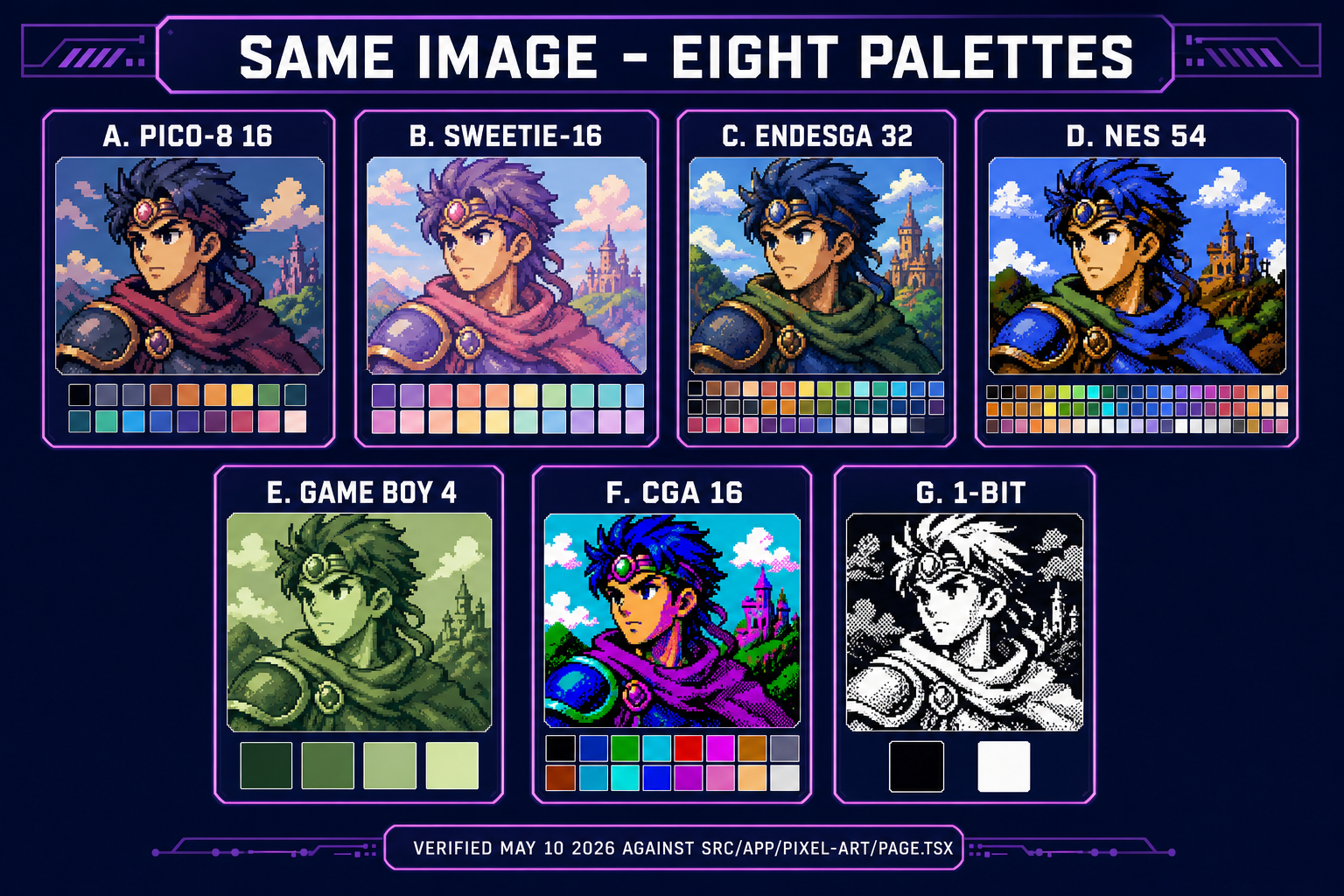
Same fantasy-character portrait converted through eight palette presets — PICO-8, SWEETIE-16, Endesga 32, NES, Game Boy, CGA, Grayscale, 1-Bit — with palette swatches under each
The eight palette presets in True Pixel applied to the same source image. PICO-8 reads as fantasy console; Endesga 32 reads as outdoor adventure; NES reads as authentic 8-bit; Game Boy reads as monochrome handheld. Pick by the look you want, not by colour count alone.

Picking the right palette for your game

The palette is the single biggest stylistic choice in pixel art. It carries more visual signal than the sprite resolution, the dither choice, or even the line work. The eight presets in True Pixel cover the canonical retro-console palettes plus a few practical defaults:

  • PICO-8 (16 colours) — the default fantasy-console palette popularised by Lexaloffle's PICO-8 virtual machine. Sixteen carefully balanced colours covering warm fleshtones, cool sky and stone, vivid accents, and clean black/white. The right pick when you want a bright, friendly, deliberately-constrained look that reads as indie game on first glance.
  • SWEETIE-16 (16 colours) — a softer, more pastel palette designed by GrafxKid. Better than PICO-8 for cozy, storybook, or romance-genre games where the saturation of PICO-8 reads as too sharp.
  • Endesga 32 (32 colours) — doubles the colour budget to 32 with a wider value range, including more skin tones and outdoor materials. The right pick for outdoor environments, character ensembles where the cast needs distinct silhouettes, and anything where 16 colours feel too constraining.
  • Game Boy (4 shades of green) — the original Game Boy DMG palette. Pure stylistic choice; pick it for the handheld-monochrome aesthetic.
  • CGA (16 colours) — the IBM PC CGA palette of 1981. Pick it for deliberate early-PC nostalgia.
  • NES (54 colours) — the full NES master palette. The console itself only displays 25 of those at once due to its colour-attribute system, but the converter has access to the full set so the cluster algorithm can pick the best 25 for the image. Use this when you want NES-authentic colour, knowing that the actual NES would only show a subset on hardware.
  • Grayscale (8 shades) and 1-Bit (black + white) — design constraints. Pick them when you want the look itself to be the constraint.
  • Custom (extracted) — True Pixel can extract an optimal N-colour palette from the source image with k-means clustering. The right fallback when none of the presets match the source's distinctive colour scheme — a dusty pink character on a violet background gets a palette built from those exact hues, not snapped to PICO-8's pre-existing pinks.

Tighter palette = stronger stylistic identity. Wider palette = more visual fidelity to the source. There is no "right" answer; there is the answer that matches the rest of your game's art. If your game ships eight characters and a tileset, run all of them through the same palette so the visual identity holds together; mixing PICO-8 sprites with Endesga 32 tilesets reads as inconsistent at first glance.

Edge cleanup, chroma key, and the transparent-background problem

The transparent-background problem is the second-biggest gotcha in image-to-pixel-art conversion. Sprites need alpha. Sprites without alpha drop into the engine as opaque rectangles. Sprites with bad alpha drop in with a halo of partial-transparency pixels around the silhouette — the dreaded "white fringe" that makes every AI-generated character look like a sticker peeled off badly.

True Pixel handles this in two layers. The chroma-key mode takes a colour from the rendered preview (use the eyedropper, click the background colour) and a tolerance value, then masks every pixel within that distance of the chosen colour. Default tolerance 60 works for most uniform AI-render backgrounds; bump to 90 for backgrounds with subtle gradients; drop to 30 if the chroma-key starts eating into the character's edges. The chroma-key runs at full source resolution before the downscale, which means the resulting sprite has crisp pixel edges instead of the ragged downsampled edges that come from chroma-keying after the conversion.

For cluttered or photographic sources, the chroma-key alone is not enough — there is no single background colour to key out. The standard workflow is to run BG Remover first, which uses a model-driven background-segmentation pass to produce a transparent cutout PNG, then drop that PNG into True Pixel for the palette quantization. The two-tool sequence is the reliable way to get a clean transparent pixel sprite from any photographic source.

The Auto Edge Chroma toggle adds a second pass that runs a multi-pass edge-adaptive cleanup at full resolution, removing speckles and tightening the silhouette by finding the edge between the kept-pixels region and the masked region and snapping it to the nearest natural-feature boundary. This catches the cases where the chroma-key tolerance is right for the open background but wrong for the soft hair or armour edges — the second pass adapts the threshold per-region instead of using one global value.

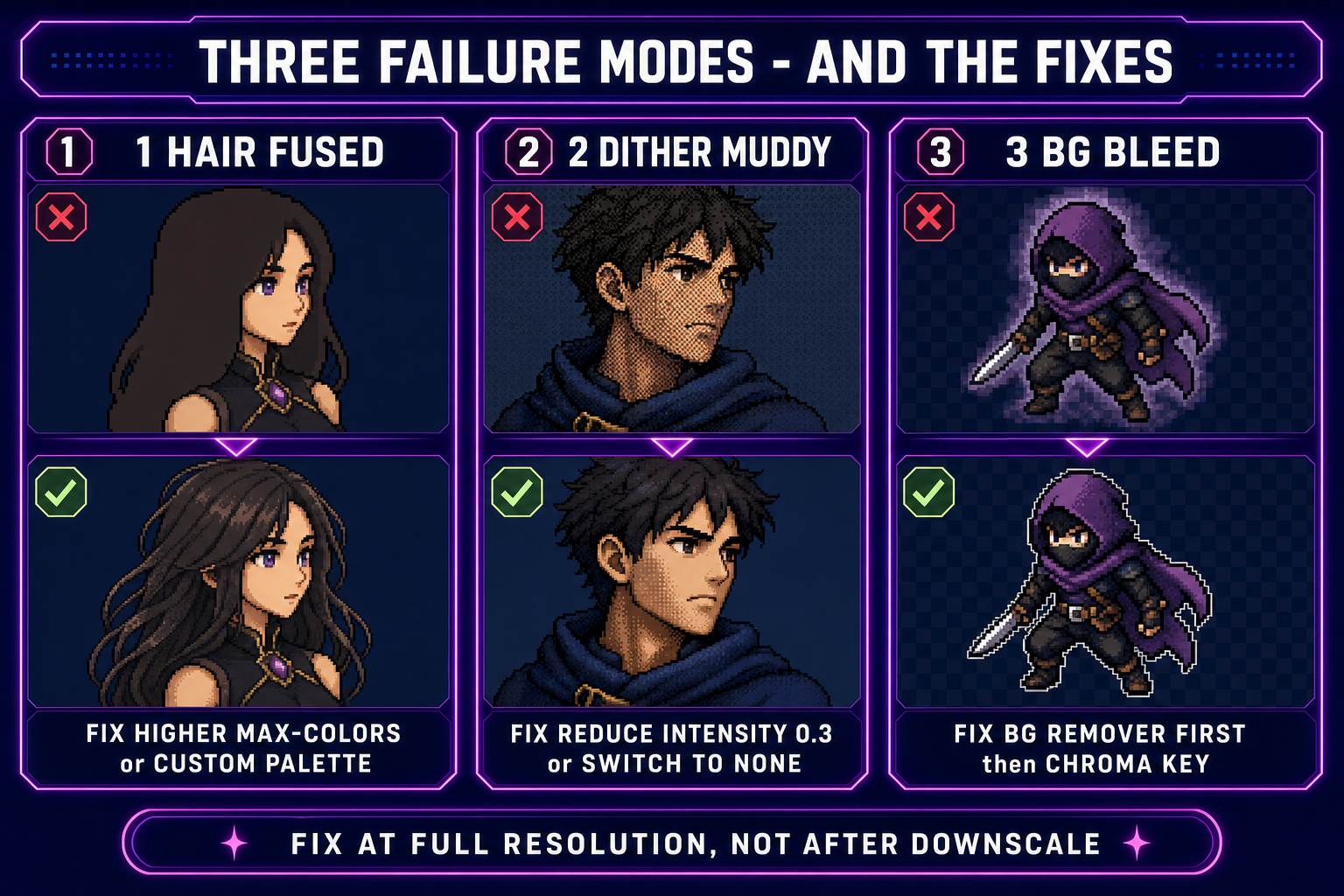
Three image-to-pixel-art failure modes side by side: hair fused to a blob (fix: higher max-colors), dither texture muddy (fix: lower intensity), background bleed halo (fix: BG Remover first then chroma key)
The three failure modes that account for almost every “why does my pixel-art conversion look bad” question. Each has a fix that runs in True Pixel without redoing the source.

From single image to sprite-sheet animation

One image at a time is fine for portraits and icons. For an actual game character, you need a sprite sheet — a grid of frames covering idle, walk, run, attack, and the rest of the animation states. There are two paths to that sheet:

  • Convert each frame individually. Drop a folder of frame renders into True Pixel's batch mode. The tool runs the palette quantization with a shared palette across the entire batch (so frame-to-frame palette flicker is eliminated), then exports either a folder of individual PNGs or a single sprite-sheet PNG with the frames laid out in a grid.
  • Generate the sheet from scratch. Skip the convert step and generate the sprite sheet directly with Quick Sprites, a purpose-built sprite-sheet generator that produces consistent frame-to-frame animation by design. The full walkthrough lives in the two-minute sprite sheet guide; the broader companion to this post on the three pixel-art paths is the how to make pixel art guide.

True Pixel also has a video-input mode that processes a clip frame-by-frame and exports either an animated PNG or a sprite-sheet grid. The technical challenge is temporal stability — running each frame through an independent palette quantization produces palette flicker, because the cluster centres land slightly differently on each frame. True Pixel addresses this with a shared palette across the clip, hysteresis quantization (the algorithm prefers the previous frame's palette assignment when two palette colours are roughly equidistant), and a mode-vote post-pass that smooths single-frame outliers against their neighbours. The bigger the source resolution and the slower the motion, the cleaner the result.

Common failure modes (and how to fix them at full resolution)

Three failure modes account for almost every "my pixel-art conversion looks wrong" question. Knowing the fix saves a re-render of the source:

  • Hair, lace, and fine geometry come back as a fused blob. Cause: the palette is too small or the source is too noisy and the cluster algorithm is averaging high-frequency detail into a single colour. Fix: bump the palette to a larger preset (Endesga 32 instead of PICO-8 16) or switch to custom-extracted palette, then re-quantize.
  • Dither texture reads as muddy crosshatch noise. Cause: dither intensity too high, or wrong algorithm for the source. Fix: drop intensity to 0.3 or switch from Floyd-Steinberg to ordered dither (less stippled, more rectangular pattern). For sources with no continuous tones (line art, flat-colour AI render), turn dither off entirely.
  • Halo of partial-transparency pixels around the silhouette. Cause: chroma-key tolerance too tight, or the background is not uniform enough for chroma-key to catch all of it. Fix: run BG Remover first (the model handles the soft edges that chroma-key can't), then drop the cutout PNG into True Pixel for the palette pass. The BG Remover then True Pixel sequence is the standard workflow for any photographic or cluttered source.
  • Source is too small and the result is jittery. Cause: not enough samples for the cluster algorithm to find a stable palette. Fix: use a larger source — 1024x1024 or 2048x2048 minimum for character art that downscales to a 64x64 sprite. Bigger source, smaller target is the rule.
  • Pixels are perfectly square at sprite resolution but blurred when displayed in the engine. Cause: the engine is using bilinear or bicubic filtering instead of nearest-neighbour. Fix: set the texture filter to nearest in your engine. The pixel-art aesthetic depends entirely on hard pixel edges; any smoothing filter destroys it. In Phaser, this is game.config.pixelArt = true; in Three.js, texture.magFilter = THREE.NearestFilter.

Where this fits in the broader Sorceress workflow

Image-to-pixel-art conversion is one stage in a longer asset pipeline. The full beginner-friendly flow inside Sorceress:

  • ConceptAI Image Gen produces the source image from a text prompt or a reference. The character generator guide covers the consistency techniques for matching multiple characters across a cast.
  • BackgroundBG Remover for any photographic or cluttered source before the pixel-art pass.
  • Pixel-art conversion — True Pixel for the image-to-pixel-art pipeline described above.
  • AnimationQuick Sprites for purpose-built sprite-sheet generation when you need consistent frame-to-frame animation. The sprite sheet guide walks the prompt-to-engine path.
  • Tilesets — the same palette quantization workflow extends to environment art; pair True Pixel with the tileset workflow for a unified game-art look.
  • Three pixel-art paths in one place — the companion how to make pixel art guide covers all three (generate from prompt, convert from image, convert from video) and when each one wins.

Every internal link above carries the ?ref=blog tracking parameter so the dashboard can attribute conversion accurately. Verified May 10, 2026 against the live tool source in src/app/pixel-art/page.tsx — palette presets, dither modes, chroma-key behaviour, and pipeline stages all match the deployed True Pixel build as of today.

Frequently Asked Questions

What is the difference between converting an image to pixel art and just downscaling it?

A downscale only changes the number of pixels — the colors stay continuous, with thousands of subtle gradients across the image. Real pixel art uses a tiny fixed palette (often 4 to 64 colors), and every pixel snaps to the nearest one. Doing the math properly is called color quantization. The naive approach of nearest-neighbor downsample plus a 256-color quantize produces muddy bands of color that read as a low-resolution photo, not pixel art. The right pipeline is downscale to the target sprite size, run k-means clustering in a perceptually-weighted color space to extract or fit a palette, snap each pixel to the nearest palette color, optionally diffuse the quantization error to neighbors with Floyd-Steinberg dithering, and clean the edges so the silhouette reads at sprite resolution. True Pixel runs that pipeline at the source resolution before downscaling so the noise from AI renders averages out across the cluster, then writes the final sprite at the target grid size with the palette already locked.

Which palette should I pick when I convert an image to pixel art?

It depends on the look you want and the engine constraints you have. PICO-8 is the right pick for fantasy-console style games — 16 colors, deliberately limited, the constraint forces the eye to read shapes instead of detail. SWEETIE-16 also gives you 16 colors but in a softer, more pastel range that works for cozy or storybook art. Endesga 32 doubles the budget to 32 colors with a wider value range, useful for outdoor environments and characters with multiple material types. Game Boy at 4 shades of green is a stylistic choice; CGA at 16 colors is a deliberate retro choice for IBM-PC-era looks; the NES palette at 54 colors is the right pick when you want NES-authentic art (though the NES itself only displays 25 of those at once). Grayscale 8 and 1-Bit are the design constraints — pick them when you want black-and-white or monochrome. The custom-palette mode in True Pixel extracts an optimal palette from the source image itself when none of the presets match — useful when the source has a distinctive color scheme you want to preserve.

Does the image-to-pixel-art conversion need a transparent background?

Yes if you are exporting a sprite for a game. A solid background colour will leak into the engine as an opaque rectangle behind every sprite. There are two ways to get transparency. The first is the chroma-key mode in True Pixel: pick the background colour from the rendered sprite, set a tolerance, and the converter masks every pixel within that distance of the chosen colour. This works when the background is reasonably uniform — a flat sky, a chroma-green stage, an AI render with a plain backdrop. The second is the BG Remover tool — a model-driven background removal that handles cluttered or photographic backgrounds, then feeds the cutout PNG into True Pixel. The BG Remover into True Pixel sequence is the standard workflow when the source is a photograph or a cluttered AI render. Either way, the final sprite ships as a transparent PNG that drops cleanly into Phaser, Three.js, or any sprite-sheet pipeline.

How do I convert an image to pixel art with a specific grid size or sprite resolution?

Set the target resolution in True Pixel before the conversion runs. The standard sprite sizes are 16x16 (NES-style mini sprites), 32x32 (Game Boy and SNES character size), 48x48 and 64x64 (modern indie pixel art for characters with detail), and 128x128 or higher for hero portraits and key art. Pick the size that matches the resolution your engine will actually display the sprite at — there is no point quantizing to 32x32 then upscaling 4x at runtime, because the eye will see the upscale artefacts more than the palette work. The output-scale slider in True Pixel does the upscale at export time using nearest-neighbour, which is the right algorithm for pixel art (bicubic or bilinear smoothing destroys the look). Source resolution matters more than most converters admit: feeding a 2048x2048 source into a 32x32 sprite gives the cluster algorithm enough samples to find a good palette; feeding a 64x64 source gives the cluster nothing to average and the result is jittery. Bigger source, smaller target — that is the rule.

Can I convert a video to a pixel-art animation, or only single images?

Both. True Pixel has a video mode that processes a clip frame-by-frame and exports either a sprite sheet of the frames or an animated image format. The technical challenge with video is temporal stability — running each frame through an independent palette quantization produces palette flicker because the algorithm picks slightly different cluster centres on each frame. True Pixel addresses this in three ways: a shared palette across the entire clip (extracted from a representative subset of frames), hysteresis quantization that prefers the previous frame's palette assignment when two palette colours are roughly equidistant, and a mode-vote post-pass that smooths single-frame outliers against their neighbours. The bigger the source clip's resolution and the slower the motion, the cleaner the result. For animation that is meant to loop in a game (idle, walk, run), the cleaner workflow is often to generate the sprite sheet directly with a purpose-built tool like Quick Sprites rather than convert from a video — the sprite-sheet generator hits per-frame consistency by design instead of fighting against the random palette assignments of video conversion.

Is True Pixel free, and how does it compare with other image-to-pixel-art converters?

True Pixel is part of the Sorceress Pro tier. The core conversion runs entirely client-side in the browser using JavaScript and WebGL, so per-conversion cost is essentially zero — there is no GPU credit charge per image conversion the way image generation has. Compared with other options on the market, the differentiators are the source-resolution master pipeline (most converters quantize at target resolution, where AI render noise becomes visible palette banding), the eight curated palette presets that cover the canonical retro consoles, the temporal stability for video, the integrated chroma-key, and the browser-native delivery — no install, no upload-and-wait queue, no watermark on the export. The handcraft workflow in Aseprite is still the gold standard for original pixel art, but the converter path is the right pick when you have a source image you want to keep on-model and you do not want to push pixels by hand for a week. The companion guide on how to make pixel art covers the full picture across all three paths (generate, convert, animate).

Sources

  1. Color quantization (Wikipedia)
  2. K-means clustering (Wikipedia)
  3. Floyd-Steinberg dithering (Wikipedia)
  4. Ordered dithering (Wikipedia)
  5. PICO-8 (Wikipedia)
  6. Error diffusion (Wikipedia)
  7. Pixel art (Wikipedia)
Written by Arron R.·3,137 words·14 min read

Related posts