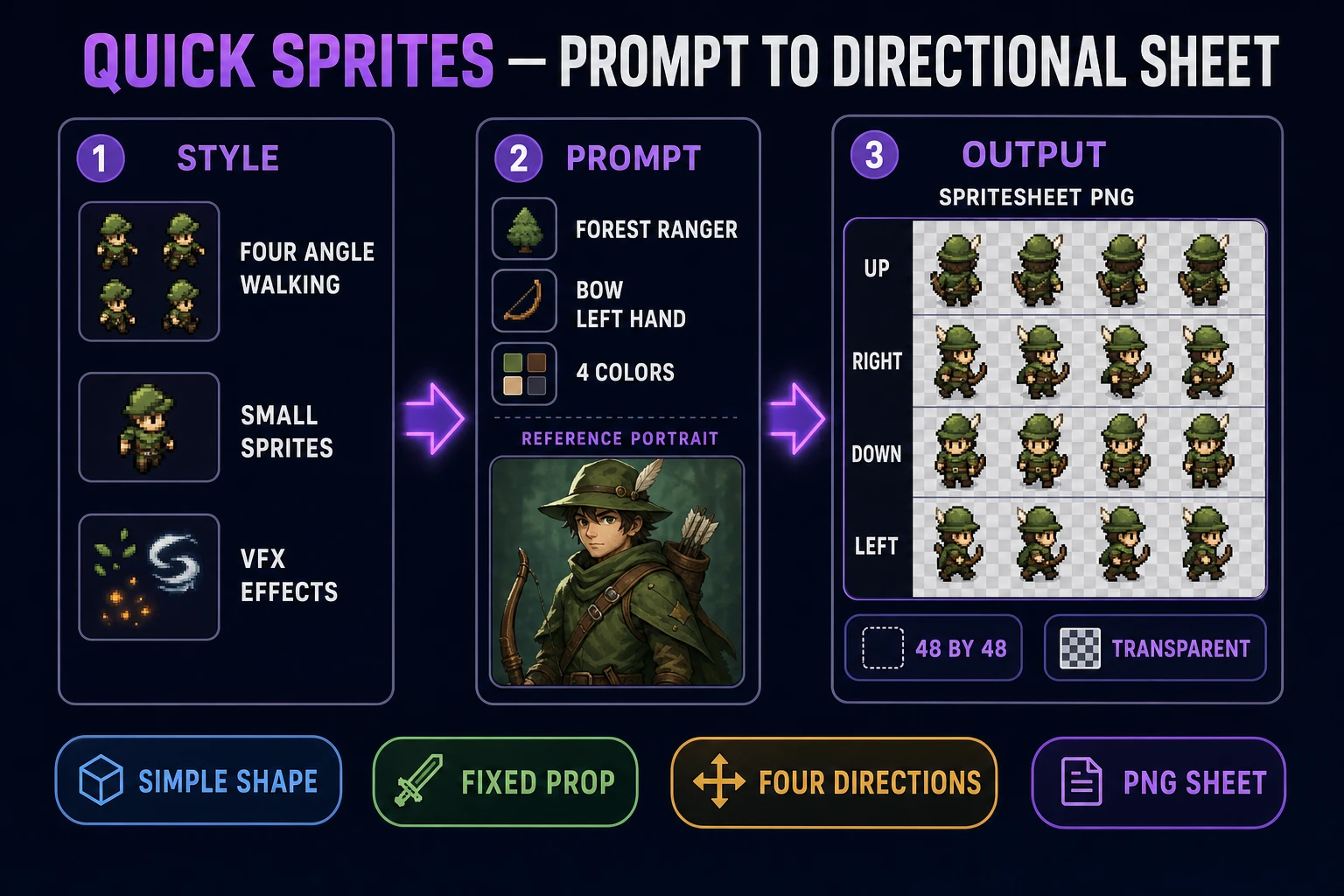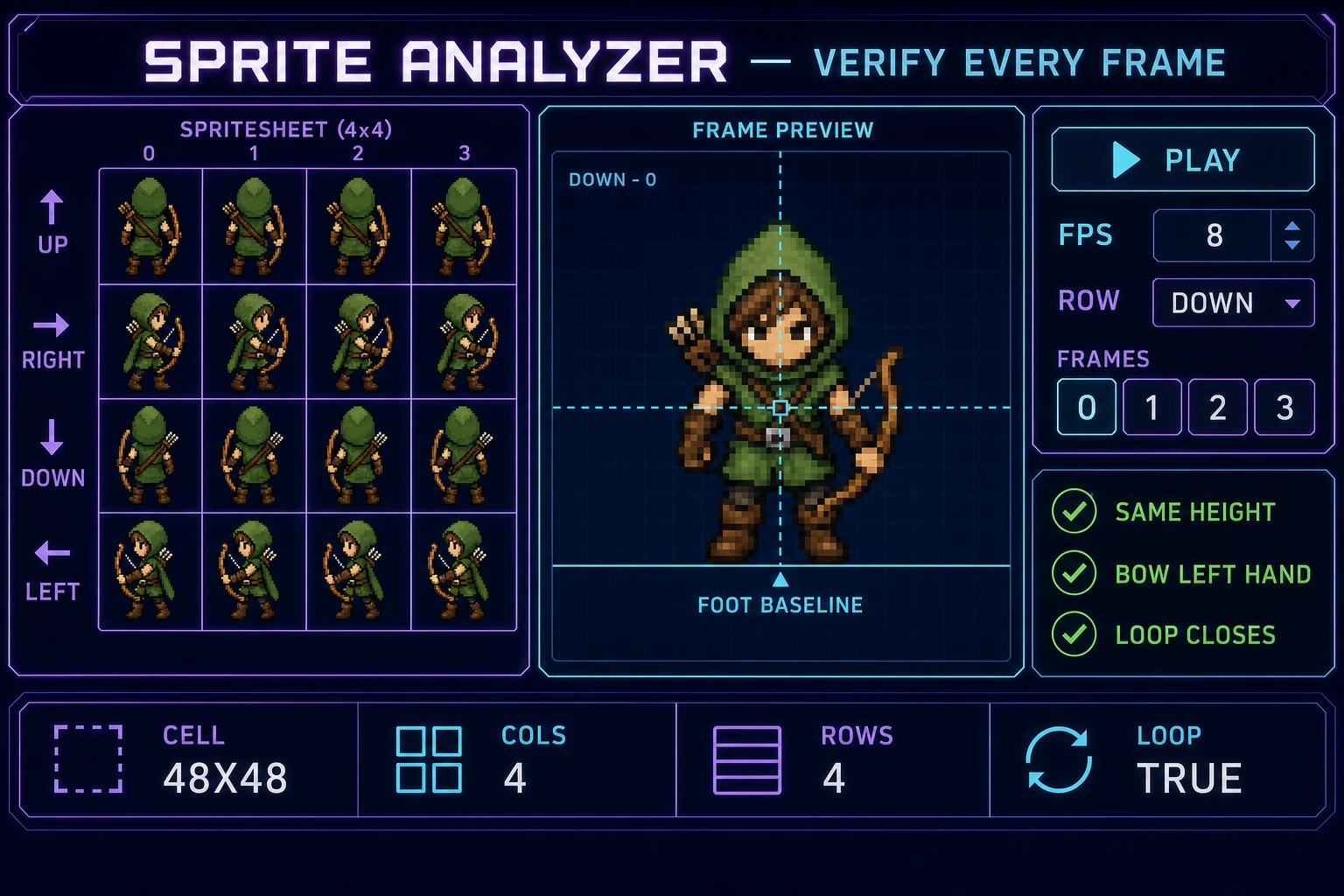
The hard part of generating a sprite is not getting one attractive frame. It is getting every frame to describe the same character, face the expected direction, fit the same cell, and read at actual game size. This workflow starts with a strict animation contract, generates a directional sheet in Quick Sprites, checks the rows and timing in Sprite Analyzer, and uses True Pixel only when the sheet needs a deliberate pixel-art cleanup pass. The Sorceress controls and handoffs described below were verified against the live source on July 18, 2026.
What an AI sprite generator should output for a game
The primary keyword ai sprite generator has 590 monthly searches and KD 2 in DataForSEO research generated July 18, 2026. The closely related ai sprite sheet generator has 320 monthly searches and KD 0. Those phrases point to a production asset, not a single character portrait. A useful result needs a predictable grid, transparent surroundings, stable proportions, readable directions, and enough repeated motion to preview as a loop.
Write the output contract before the visual prompt. For a top-down character, the contract might be four directions, four walking frames per direction, one 48×48-pixel cell, and a transparent background. For a small role-playing character, it might include walking plus arm, look, surprise, and lying-down rows at 32×32 pixels. For a spell effect, direction does not matter; a square sequence with a clear anticipation, impact, and dissipating tail matters more. These are different asset types, so they should not share one vague prompt.
A sprite sheet is one image containing multiple animation frames arranged on a grid. The runtime does not understand the artwork automatically. It needs the frame width, frame height, row meaning, playback order, and frames per second. PNG is a practical sheet format because its specification supports lossless image data and alpha transparency; the W3C PNG specification is the authoritative reference. An animated GIF can be useful for review, but a game usually needs the PNG sheet so code can select individual rows and frames.
Judge the result in three views. First, inspect the full sheet for grid consistency. Second, play each row as an animation. Third, view one frame at native scale. A large zoom can hide one-pixel edge noise, while a full-sheet thumbnail can hide a drifting foot or changing weapon. Passing all three views is what makes the image game-ready.
Pick a directional sheet, small sprite, or VFX preset
Quick Sprites exposes three verified animation styles. Four Angle Walking produces four-direction, four-frame humanoid walking animations in 48×48 cells. Small Sprites uses 32×32 cells and covers four-direction walking plus arm movement, looking, surprise, and lying down. VFX Effects targets square effects such as fire, explosions, and lightning, with selectable sizes from 24×24 through 96×96 pixels. Choose the preset by the runtime job, not by which preview looks most detailed.
- Choose Four Angle Walking for a controllable top-down character whose movement needs a clear up, right, down, and left row.
- Choose Small Sprites when the character needs compact role-playing-game scale and several non-walk reactions in one sheet.
- Choose VFX Effects when the asset is a self-contained impact, projectile burst, aura, flame, or environmental loop.
Keep the smallest size that preserves the silhouette and the action. More pixels do not automatically produce a better game asset. A 32×32 guard with a clear spear angle can read better than a 96×96 guard whose armor details merge during motion. The browser can display pixel art without smoothing by using the CSS image-rendering property, but crisp scaling cannot rescue an unclear source frame.
Use the optional reference image when identity matters. Give it a clean front or three-quarter character design with the same clothing, palette, hair, and carried item requested in the prompt. Avoid a busy scene or an image where the character is partly hidden. The reference should answer “who is this?” while the preset answers “which frames are required?” If you are exploring a generic slime, spark, or fire burst, skip the reference and spend the prompt budget on shape and timing.
Use the Sorceress AI sprite generator in four steps
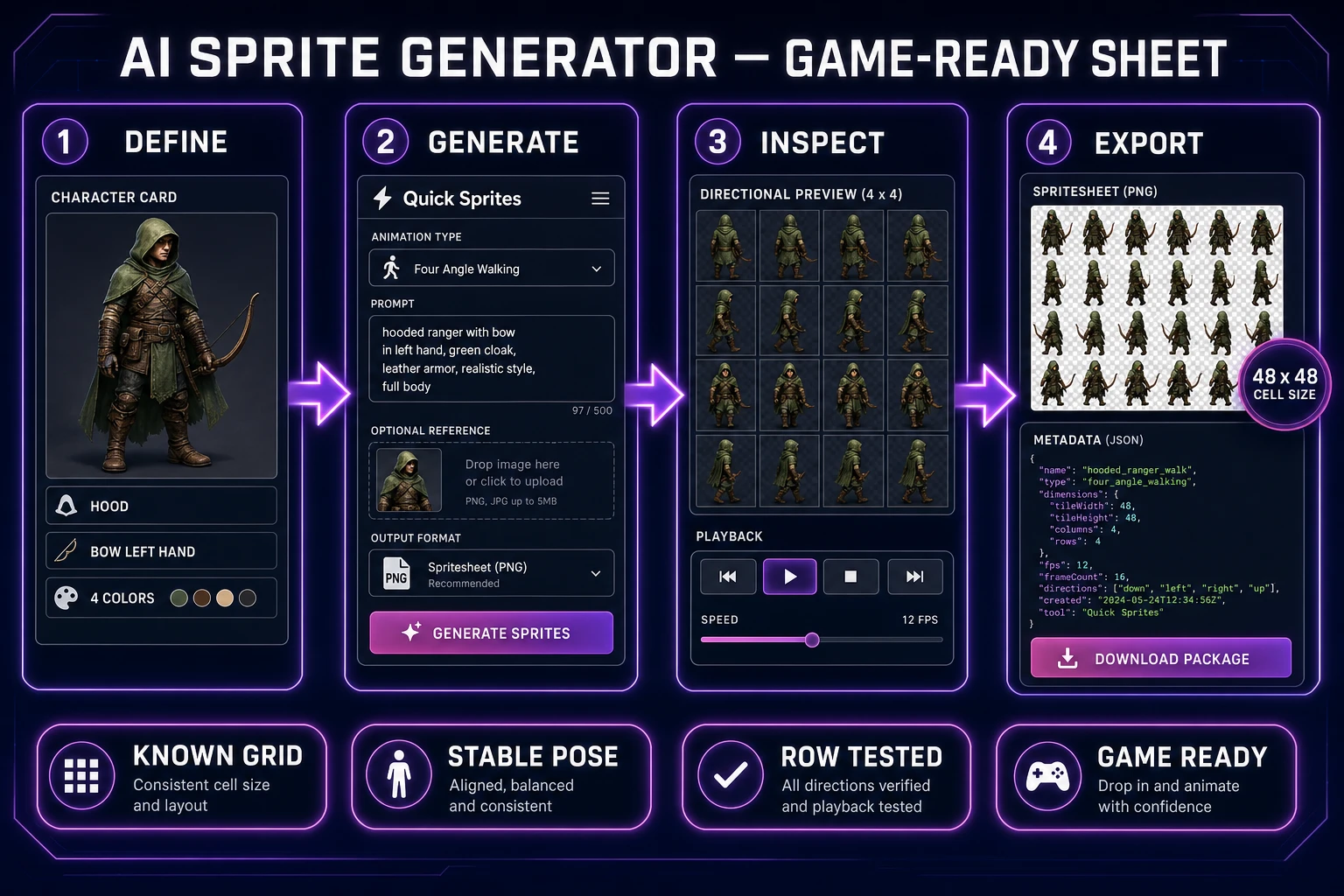
The shortest reliable pipeline has four checkpoints:
- Asset card: state the role, silhouette, palette, facing directions, carried objects, cell size, and forbidden changes.
- Generated sheet: choose one Quick Sprites style, request a PNG spritesheet, and add a reference only when it improves identity.
- Animation review: open the result, select each row, adjust preview FPS, and look for identity drift, foot sliding, edge clipping, or inconsistent scale.
- Export check: send the PNG directly to Sprite Analyzer, confirm grid and playback metadata, then download at the scale your project expects.
Each checkpoint produces something testable. Do not generate ten variations before inspecting the first one. If the first sheet fails because the sword switches hands, adding nine more sheets only creates a larger review queue. Fix the asset card, reuse the improved prompt, and compare one controlled change at a time.
This workflow keeps the tools in their proper roles. Quick Sprites creates the animation asset. Sprite Analyzer verifies and documents its grid, frame range, timing, and row behavior. True Pixel can clean the visual treatment when a source needs stronger palette and edge discipline. WizardGenie can then wire the accepted sheet into a browser game, but code integration should happen after the visual asset passes review.