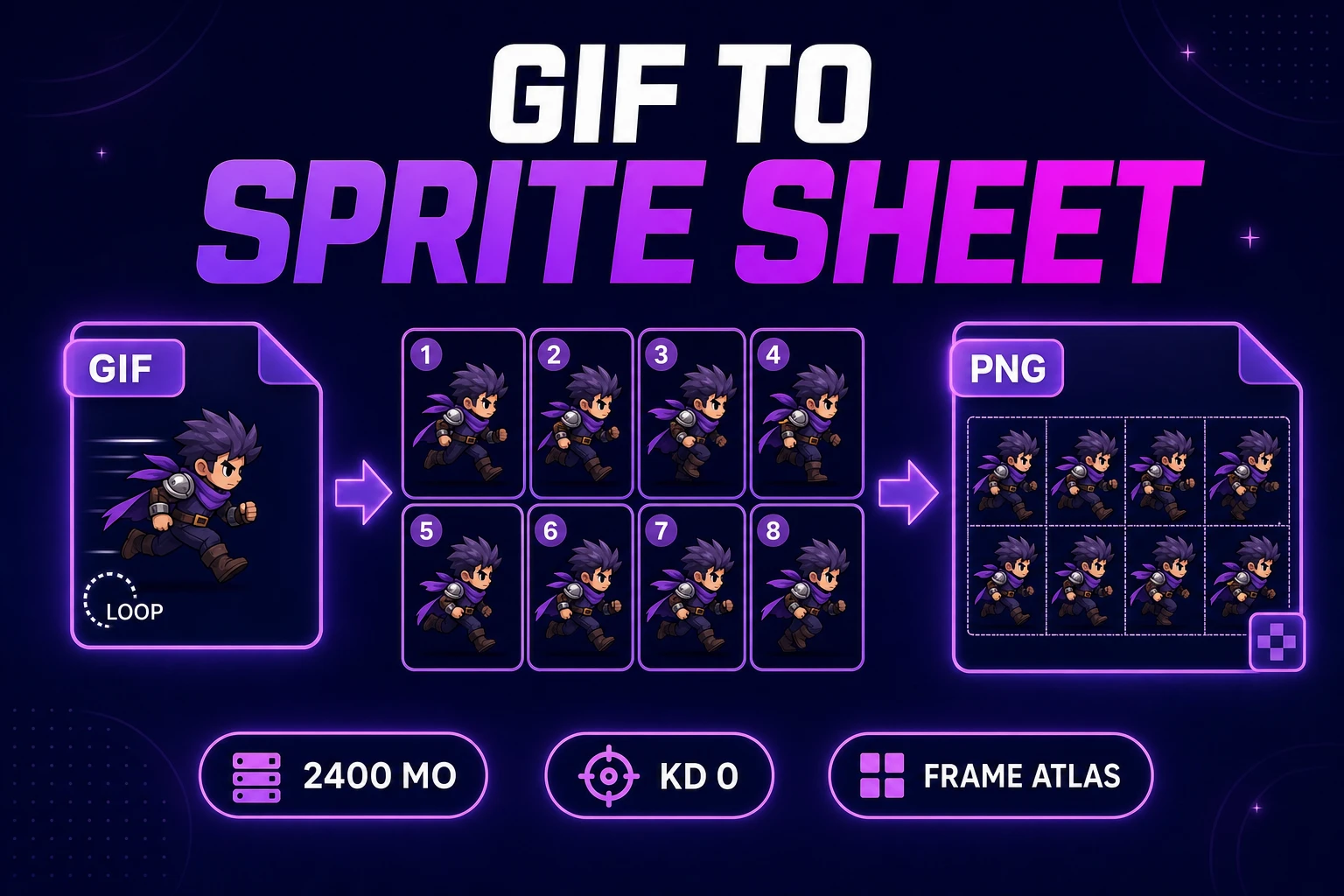
Grid a GIF to Sprite Sheet (Frame Atlas Export 2026)

By Arron R.8 min read
A correct gif to sprite sheet workflow decodes every composited GIF frame and its delay first, packs the ordered PNG sequence in Auto-Sprite v2, verifies equal

An animated GIF is already a stack of timed images, but a game engine cannot treat that loop as a clean atlas. The frames may use partial updates, disposal rules, uneven delays, and a shared color table. A reliable gif to sprite sheet workflow must decode every composited frame before it packs a single PNG. This guide uses WizardGenie to build the decoder, Auto-Sprite v2 to align and pack the resulting frames, Slicer to verify cell boundaries, and Canvas for pixel-level cleanup. The Sorceress behavior and web-platform references were verified July 18, 2026.
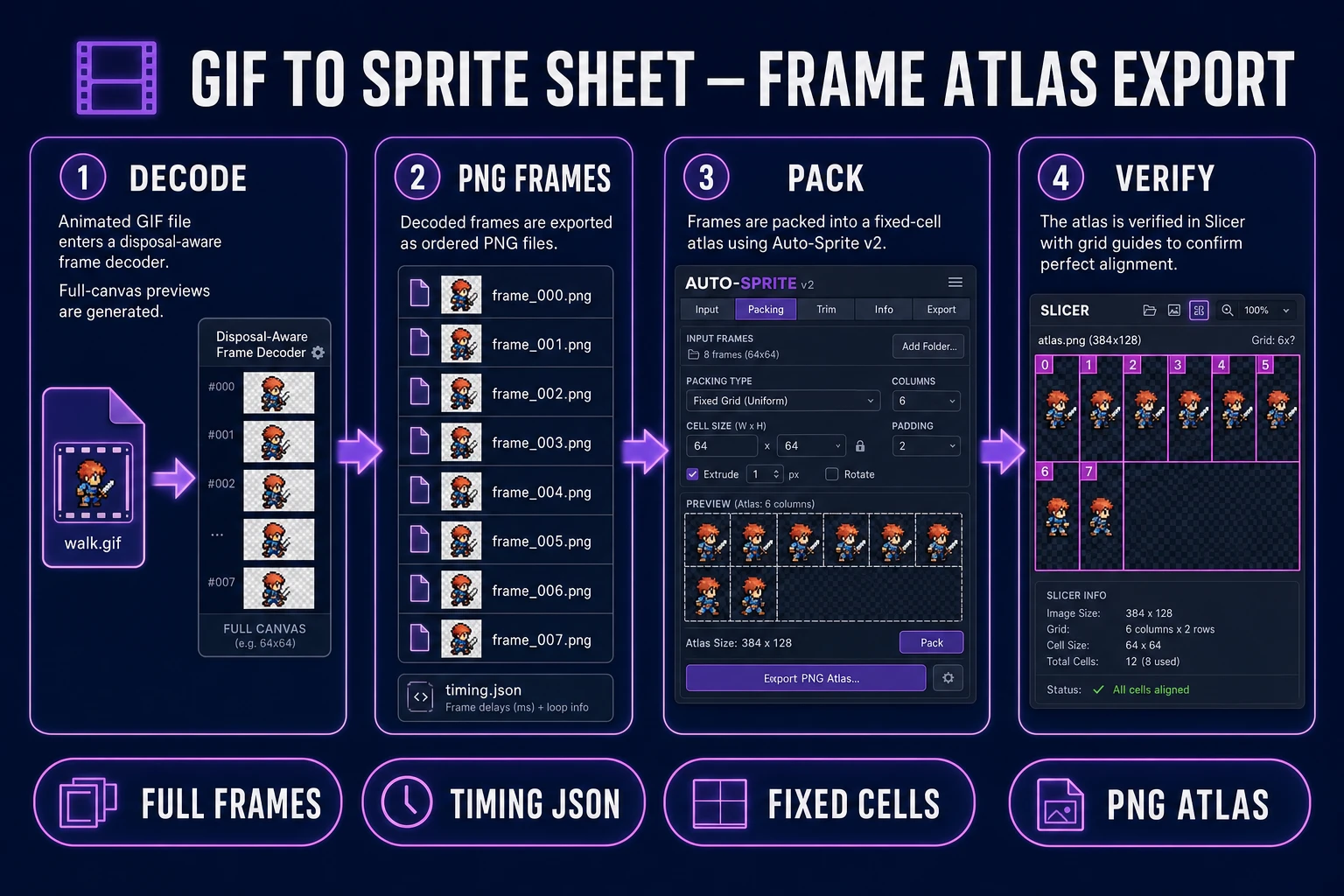
Gif to sprite sheet workflow with GIF decoding, PNG frame extraction, Auto-Sprite alignment, and frame atlas export
A correct GIF-to-atlas pass decodes composited frames first, then normalizes, packs, verifies, and exports the PNG sheet.

What a gif to sprite sheet conversion must preserve

The primary query gif to sprite sheet has 2,400 monthly searches and KD 0 in the DataForSEO-backed probe-fresh-seeds-8.md, verified July 16, 2026. Its closest natural variant, gif to sprite, also has 2,400 monthly searches and KD 0. Searchers want one concrete result: a PNG atlas whose cells reproduce the original animation in the right order.

That sounds like “open the GIF and copy each picture,” but GIF animation is not always stored as a sequence of complete canvases. The GIF89a specification allows an image block to cover only part of the logical screen. A frame can tell the decoder to keep the previous canvas, restore the background, or restore an earlier state before drawing the next patch. If a converter ignores those disposal rules, later atlas cells contain missing limbs, trails, or blocks of stale pixels.

A production frame atlas therefore preserves five things:

  • Composited pixels: every cell is the complete visible frame, not just its changed rectangle.
  • Frame order: exported filenames sort numerically from zero through the final frame.
  • Timing: the original delay is recorded even if the game later normalizes playback to one fps.
  • Canvas size: every PNG has identical width and height.
  • Transparency: alpha remains alpha instead of becoming a matte-colored box.

This direction is distinct from the recently shipped sprite to GIF workflow. Reel starts with an atlas and ends with a pitch loop. Here the input is an animated GIF and the shippable output is a PNG frame atlas.

Why opening a GIF as one image loses the animation

Many image upload controls accept image/gif, but “accepted” does not mean “decoded into every animation frame.” An ordinary image element exposes one currently rendered image to a canvas. Drawing it once cannot recover the complete timeline, per-frame delay, or disposal history. This matters in Sorceress too: Slicer accepts GIF as an image format, but it slices the loaded image surface. It is appropriate for a GIF-encoded static grid, not for unpacking an animated GIF timeline.

The same distinction applies to Auto-Sprite v2. Its live source accepts video/*,image/*. Video files enter the frame-extraction path; image uploads enter an image batch. A GIF arrives as one image file, so the honest workflow is to decode the animation into ordered PNG files first, then upload that PNG batch to Auto-Sprite. That is not a lossy conversion hop. It is the required decode step that exposes the animation data the packing tools need.

Browser APIs provide the drawing and export primitives. MDN’s Canvas drawImage() reference documents source-rectangle drawing, while HTMLCanvasElement.toBlob() creates PNG blobs. The missing piece is GIF parsing and disposal-aware compositing. A small local utility using the open-source gifuct-js decoder supplies that layer without uploading the source animation to a third-party converter.

The Sorceress gif to sprite sheet pipeline

The full pipeline has four stages, each with a testable output:

  1. Decode: WizardGenie builds a local GIF frame extractor that reads every frame, applies disposal rules, and downloads ordered PNG files plus timing JSON.
  2. Normalize and pack: Auto-Sprite v2 receives the PNG batch, aligns the subject, removes a background when needed, and exports a fixed-grid PNG sprite sheet.
  3. Verify: Slicer places boundaries over the packed sheet and confirms that every cell is the same size.
  4. Clean: Canvas repairs isolated palette noise or alpha halos without rescaling the frame.

Keep the working files together: source/loop.gif, frames/frame_000.png, frames/timing.json, and sprites/loop_sheet.png. The source GIF remains evidence; the PNG sequence is the editable master; the packed sheet is the runtime asset. This structure also makes a failed conversion obvious because you can compare any atlas cell with its corresponding full PNG.
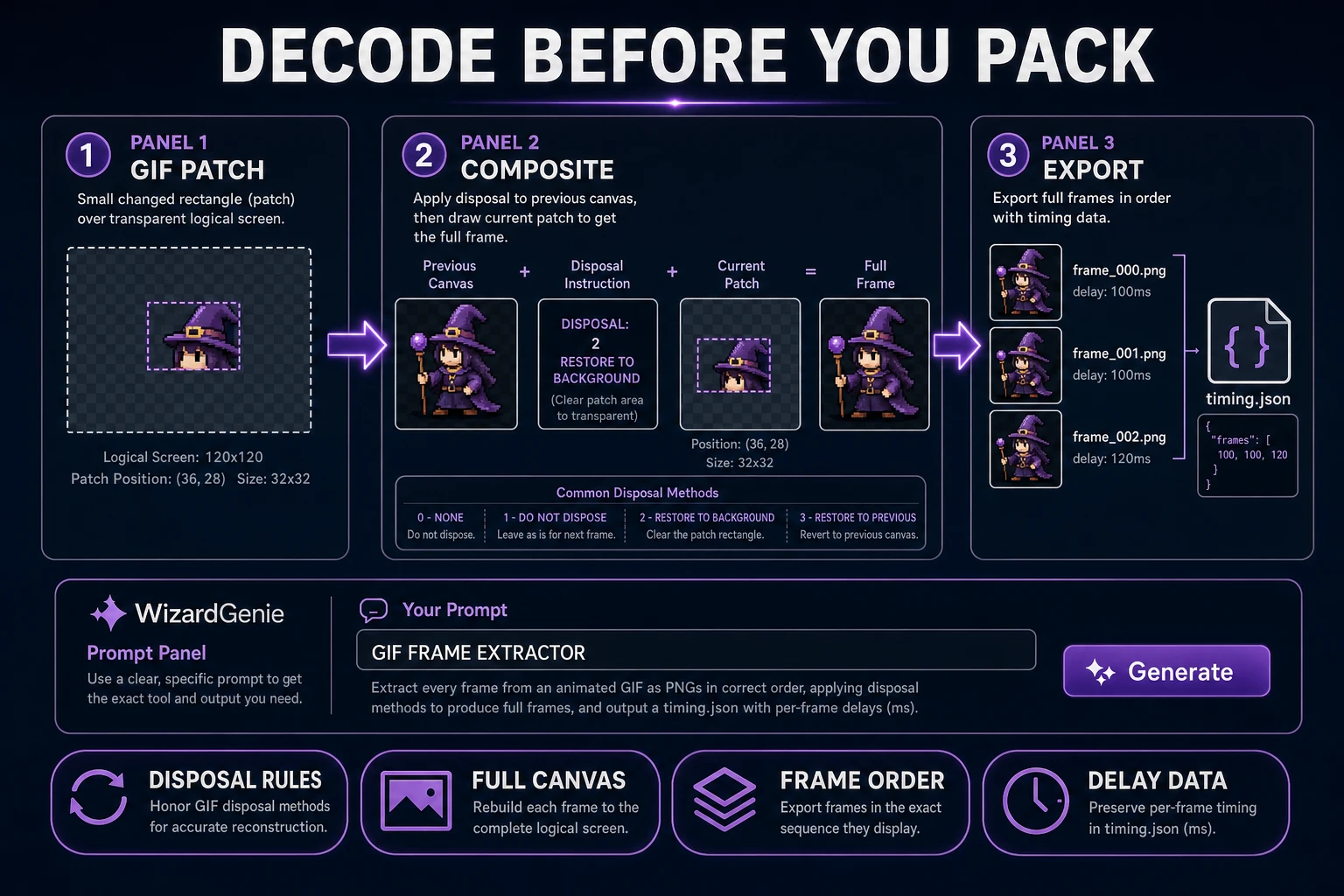
WizardGenie gif to sprite sheet decoder showing disposal-aware frame compositing and ordered PNG extraction
Decode first: each GIF patch is composited onto a full-size canvas before the frame becomes an ordered PNG.

Step 1 — decode the animated GIF in WizardGenie

Open WizardGenie on desktop or web and create a small browser project. Ask for one focused tool rather than a general media editor:

Create a local GIF-to-PNG-frame extractor.
Use gifuct-js to parse the uploaded ArrayBuffer.
Composite every frame patch on a full-size transparent canvas.
Honor disposal types before drawing the next patch.
Export frame_000.png through frame_NNN.png and timing.json.
Never resize frames. Show frame count, dimensions, and delay per frame.
Add a preview that can step forward and backward.

Install the decoder in that project with npm install gifuct-js. The implementation should parse the file, request decompressed frame patches, maintain a full logical-screen canvas, and snapshot that canvas after each frame is drawn. For disposal type 2, clear the affected rectangle before the next patch. For disposal type 3, restore the saved pre-frame canvas. The GIF89a specification is the authority when a sample behaves differently from a simple looping walk.

Do not normalize timing during extraction. Store each delay in timing.json beside the frame index. A game atlas has uniform cells, but its animation definition can still use a deliberate hold on an anticipation pose. If your runtime only accepts one frame rate, duplicate or drop frames later with an explicit timing policy; never silently erase the original cadence during decoding.

Run three checks before downloading: the first and last preview frames should form the expected loop seam; stepping backward should restore complete silhouettes; and every reported frame dimension should match the GIF logical screen. If a character leaves transparent holes after frame one, disposal compositing is wrong. Fix the decoder before continuing.

Step 2 — pack PNG frames in Auto-Sprite v2

Download the ordered PNG sequence, then open Auto-Sprite v2. Upload all extracted frames as an image batch, not the original GIF. The page separates videos from images and processes image files as a set, which is exactly what the decoder produced.

Select the frames in numeric order. Use the crop and alignment controls to keep the character anchored to one shared baseline. Apply background removal only when the GIF was flattened against a solid color; an already transparent source should retain its alpha. Auto-Sprite’s export grid uses six columns, or fewer when the sequence contains fewer than six frames, with rows growing as needed. That fixed rule was verified in src/app/autosprite-v2/page.tsx on July 18, 2026.

Download the sheet as PNG. The exported filename includes the frame dimensions, which makes runtime configuration less error-prone. Keep timing.json next to the sheet because the PNG itself carries cell order but not the original GIF delays.

Before moving on, compare the Auto-Sprite preview against the WizardGenie frame stepper. Watch the feet, weapon tip, hair, and any semi-transparent effect. Cropping should remove empty margins consistently; it should not make the character bounce by changing the crop origin from frame to frame.

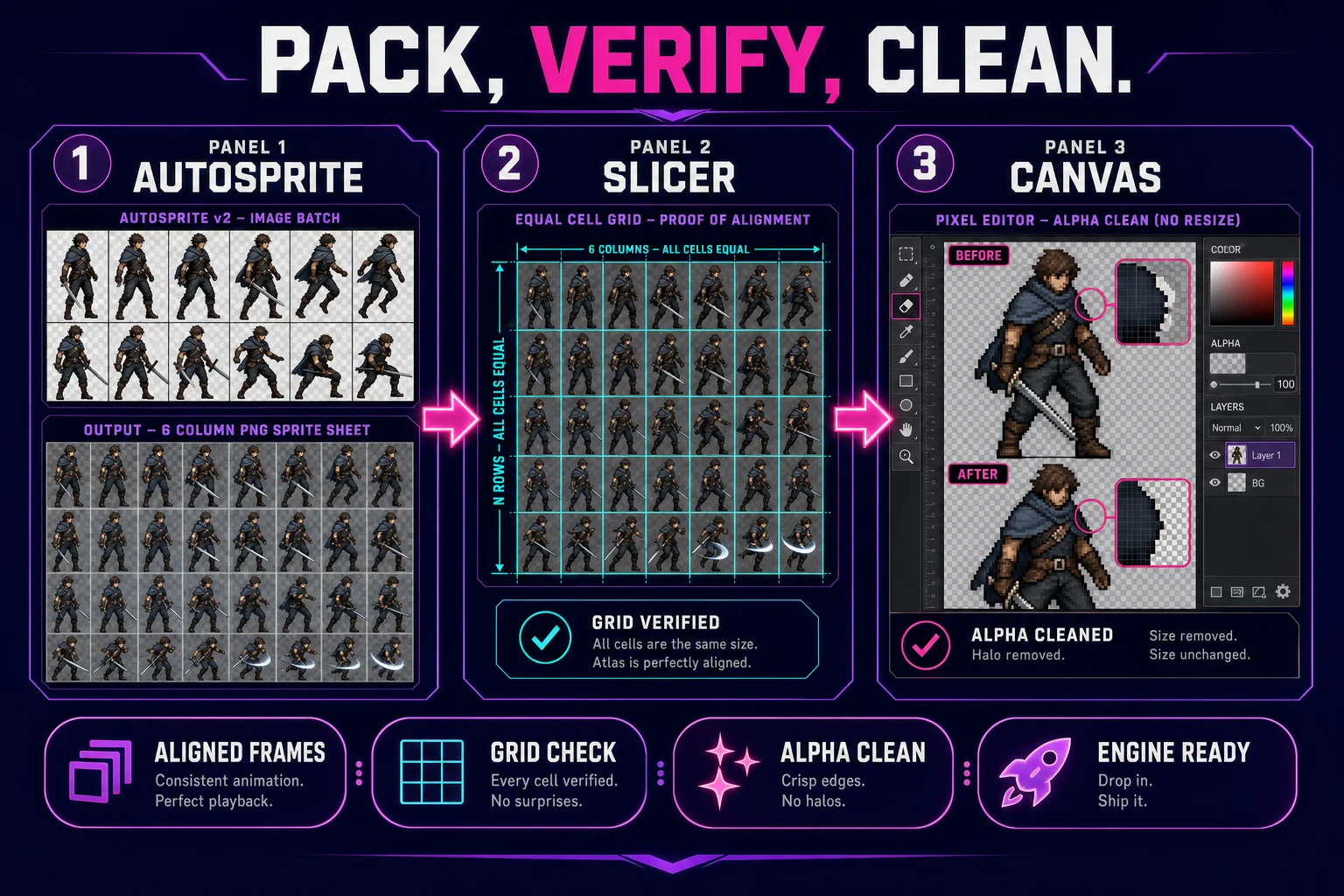
Auto-Sprite, Slicer, and Canvas frame atlas export after gif to sprite sheet decoding
Pack, verify, clean: Auto-Sprite creates the grid, Slicer proves cell boundaries, and Canvas repairs individual pixels.

Step 3 — verify atlas cells in Slicer and clean in Canvas

Open Slicer and upload the exported PNG sheet. Switch to Grid Slice, place horizontal and vertical guides on the cell boundaries, and confirm the resulting cell count equals the decoded frame count. Image edges are automatic boundaries. Slice & Download exports files named with row and column coordinates, which gives you a second independent view of the packed atlas.

This verification catches three common mistakes. A final row may contain unused cells; those should remain outside the animation range. A crop may be one pixel wider than expected, revealing a guide that no longer lands on every boundary. Or the PNG batch may have sorted lexically as frame_1, frame_10, frame_2 because the decoder did not zero-pad filenames. Fix ordering at the source and repack; do not manually rearrange a bad sheet.

For isolated defects, open the relevant PNG in Canvas. Use the eraser for matte halos, the pencil for broken outlines, and the eyedropper for palette repairs. Preserve the canvas dimensions and the character’s baseline. Download the corrected PNG, replace the matching ordered frame, and rerun the Auto-Sprite pack so the atlas remains reproducible.

Canvas exports through the browser’s canvas pipeline, and Slicer exports each selected region as PNG. Both behaviors were verified against the live Sorceress source on July 18, 2026. Neither tool is an animated GIF decoder; each performs a precise downstream job after the disposal-aware extraction has created honest full frames.

How to load the frame atlas without timing mistakes

The atlas needs three runtime values: cell width, cell height, and the ordered frame range. It also needs a timing decision. If every entry in timing.json is close to 100 milliseconds, a 10 fps animation is a faithful simplification. If delays vary substantially, preserve them in a custom frame-duration table or duplicate frames before packing according to a chosen time quantum.

const sprite = {
  image: 'assets/hero_walk_sheet.png',
  frameWidth: 48,
  frameHeight: 48,
  frameCount: 8,
  sourceDelaysMs: [100, 100, 120, 80, 100, 100, 120, 80]
};

Ask WizardGenie to read that manifest when it wires the animation into your browser game. The coding request should name the exact sheet, dimensions, frame count, and loop behavior. Avoid “make this GIF animate” after the atlas exists; that wording encourages the agent to load the GIF directly and bypass the validated PNG asset.

For unknown grids that arrive as one already-packed image, the sprite sheet slicer guide starts at the Slicer stage. For the reverse deliverable, where a validated sheet must become a shareable pitch loop, use the sprite to GIF export guide. The Sorceress Tools Guide maps the rest of the image and sprite pipeline.

Ship a reproducible gif to sprite sheet export

A trustworthy gif to sprite sheet conversion is not a screenshot trick. Decode every animated frame with disposal rules, retain the original delays, pack ordered full-size PNGs in Auto-Sprite, prove the grid in Slicer, and repair only isolated pixels in Canvas. The result is a frame atlas another developer can regenerate from the source GIF instead of a mystery PNG that happens to animate today.

Start with the smallest complete test: one eight-frame loop, one timing manifest, one six-column-or-smaller Auto-Sprite sheet, and one Slicer verification pass. Once that pack survives forward and backward frame stepping, apply the same decoder to the rest of the character set. The decoder is the contract, the PNG sequence is the master, and the atlas is the runtime output.

Frequently Asked Questions

What must a gif to sprite sheet converter preserve?

It must preserve complete composited pixels, frame order, logical canvas size, transparency, and the delay attached to each frame. GIF files can store partial image patches with disposal instructions instead of full pictures. A correct converter applies those rules before it snapshots each PNG, then packs equal-size cells into the atlas. If it copies patches directly, later cells can contain holes, trails, or stale pixels.

Can I upload an animated GIF directly to Auto-Sprite v2?

Auto-Sprite v2 accepts image files, including the GIF MIME type, but its image path treats each uploaded file as one image in a batch. Decode the animated GIF into ordered PNG frames first, then upload the complete PNG sequence. Auto-Sprite can align, crop, remove a background when needed, and pack those frames into a fixed grid without losing the animation timeline during file loading.

Does Slicer extract every animation frame from a GIF?

No. Slicer accepts GIF as an image upload and cuts regions from the loaded image surface. That is useful for a static sprite grid stored as GIF, but it is not a disposal-aware animated GIF timeline decoder. Use the WizardGenie decoder step to create full ordered PNG frames, pack them in Auto-Sprite, then use Slicer Grid Slice to verify the final atlas boundaries and cell count.

Why do some extracted GIF frames contain missing pixels?

Animated GIFs can encode only the rectangle that changed between frames. They also specify what should happen to the previous image before the next patch is drawn. Missing pixels usually mean the extractor ignored disposal type 2 or 3, cleared the wrong rectangle, or failed to preserve the previous composited canvas. Compare the implementation with the W3C GIF89a specification and fix compositing before packing the atlas.

How should a game use different GIF frame delays?

Store the original delays in timing.json during extraction. If the delays are nearly uniform, convert them to one frame rate such as 10 fps. If the animation uses meaningful holds, keep a per-frame duration table or duplicate frames against a chosen time quantum before packing. Never discard variable delays silently; timing is part of the source animation even though the PNG atlas itself cannot store it.

Sources

  1. Graphics Interchange Format Version 89a
  2. CanvasRenderingContext2D: drawImage() — MDN
  3. HTMLCanvasElement: toBlob() — MDN
  4. gifuct-js GIF decoder
Written by Arron R.·1,815 words·8 min read

Related posts