Size an Image to Pixel Art 32x32 (Game Sprite Pack 2026)

By Arron R.16 min read
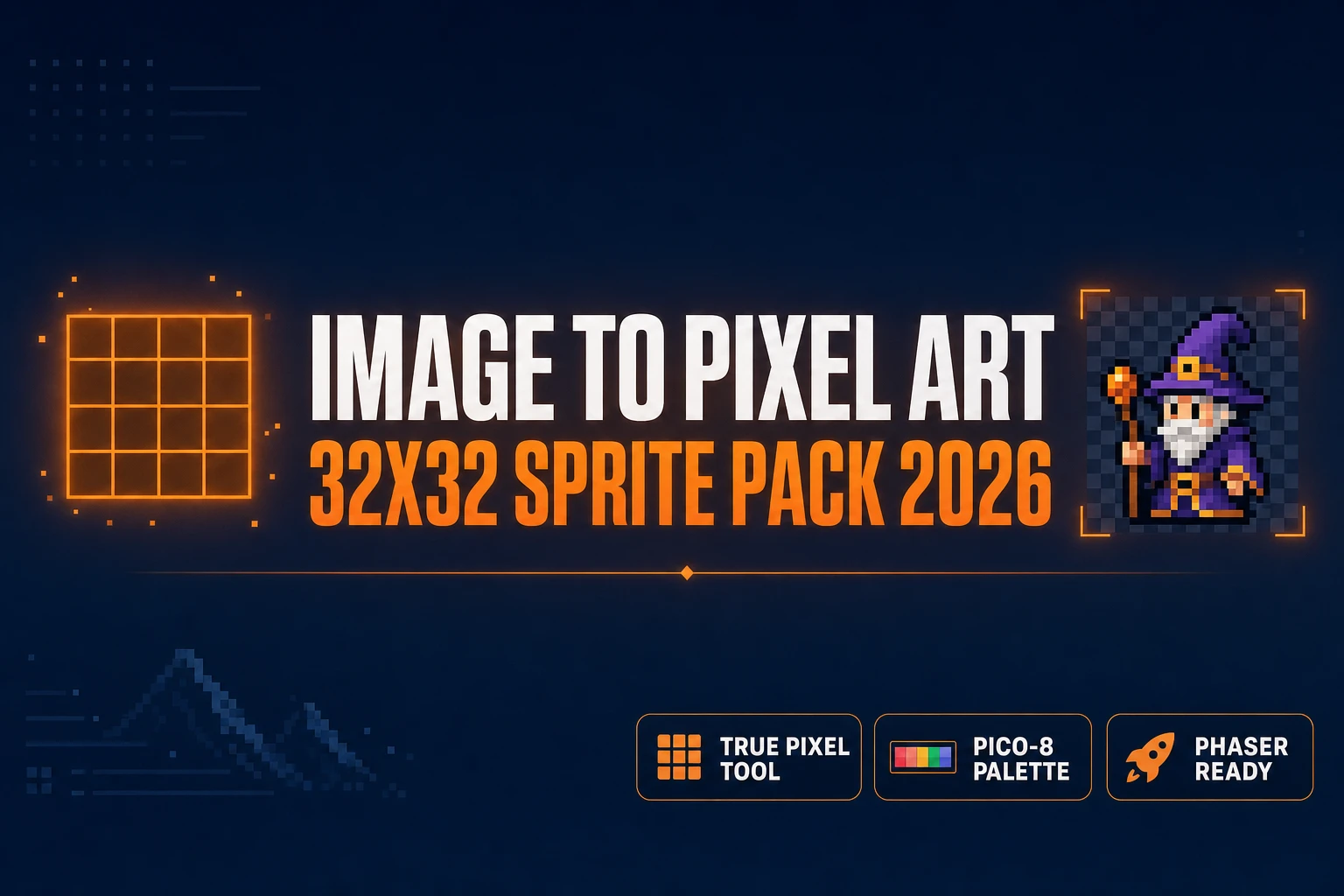
Image to pixel art 32x32 is the canonical indie game sprite size. The five-step True Pixel pipeline: import source art, set width and height to 32, pick PICO-8

Most searches for image to pixel art 32x32 in 2026 come from indie devs building a brand-new 8-bit or 16-bit game and trying to figure out the canonical sprite size before they commit to a hundred frames of art. The short answer is that 32x32 is the right default for indie pixel-art characters because it is the smallest size that comfortably renders a recognizable head, torso, and limbs at the typical 4x to 8x display zoom, and it is the size most retro consoles settled on for their main character cell. The long answer is a five-step browser pipeline in True Pixel that takes any photo, AI render, or hand-drawn source frame down to a clean 32x32 sprite on a real retro palette, with chroma key and dither and edge cleanup, ready to drop into Phaser or three.js or any 2D engine. Every fact below is verified against either the live Sorceress source on July 1, 2026 or a neutral Wikipedia or W3C reference on the same day.
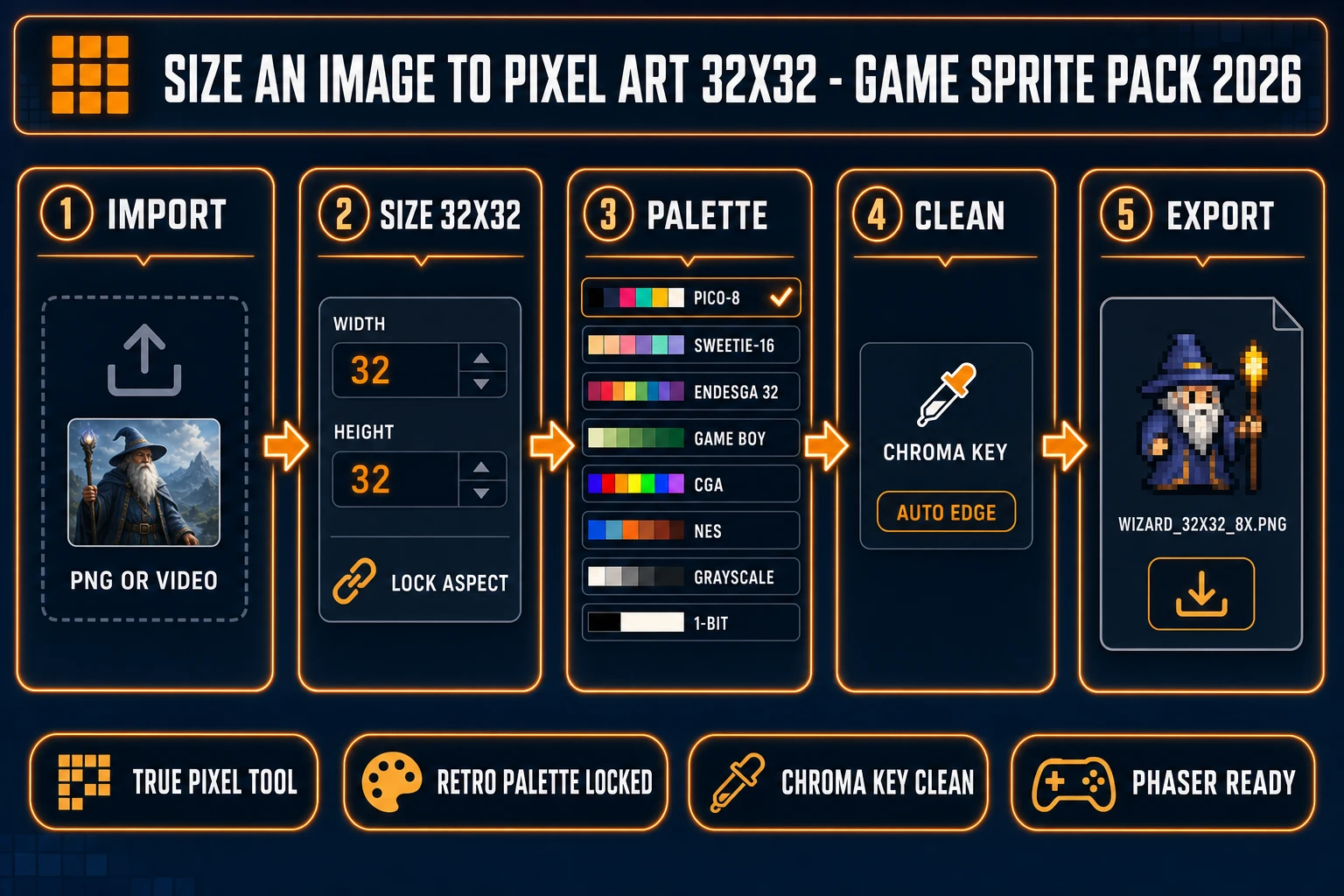
Size an image to pixel art 32x32 - five-step True Pixel pipeline from import to size lock to palette pick to chroma clean to sprite export
The five-step browser pipeline for image to pixel art 32x32 in True Pixel: import the source PNG or video, lock width and height to 32, pick PICO-8 or Game Boy or NES or Endesga 32, clean edges with chroma key, then export the sprite at the right output scale for the engine.

What “image to pixel art 32x32” actually solves for game devs in 2026

Image to pixel art 32x32 is the canonical conversion for indie pixel-art game characters. The 32x32 cell is small enough that a level designer can lay out a 16x16 tilemap with two-tile-tall characters that still read clearly, and large enough that a player can recognize the difference between a wizard, a slime, a knight, and a coin from across the screen at 4x display zoom. Larger sizes (64x64 or 128x128) start to lose the “chunky pixel” aesthetic that defines retro pixel art — the silhouettes get smooth, the colors get nuanced, and the eye stops reading individual pixels as the medium. Smaller sizes (16x16 or 24x24) work for icons, projectiles, and item drops, but a humanoid character at 16x16 has roughly one pixel for the eye, one for the nose, and one for the chin, which is the size most retro RPGs reserved for distant background NPCs rather than the player character.

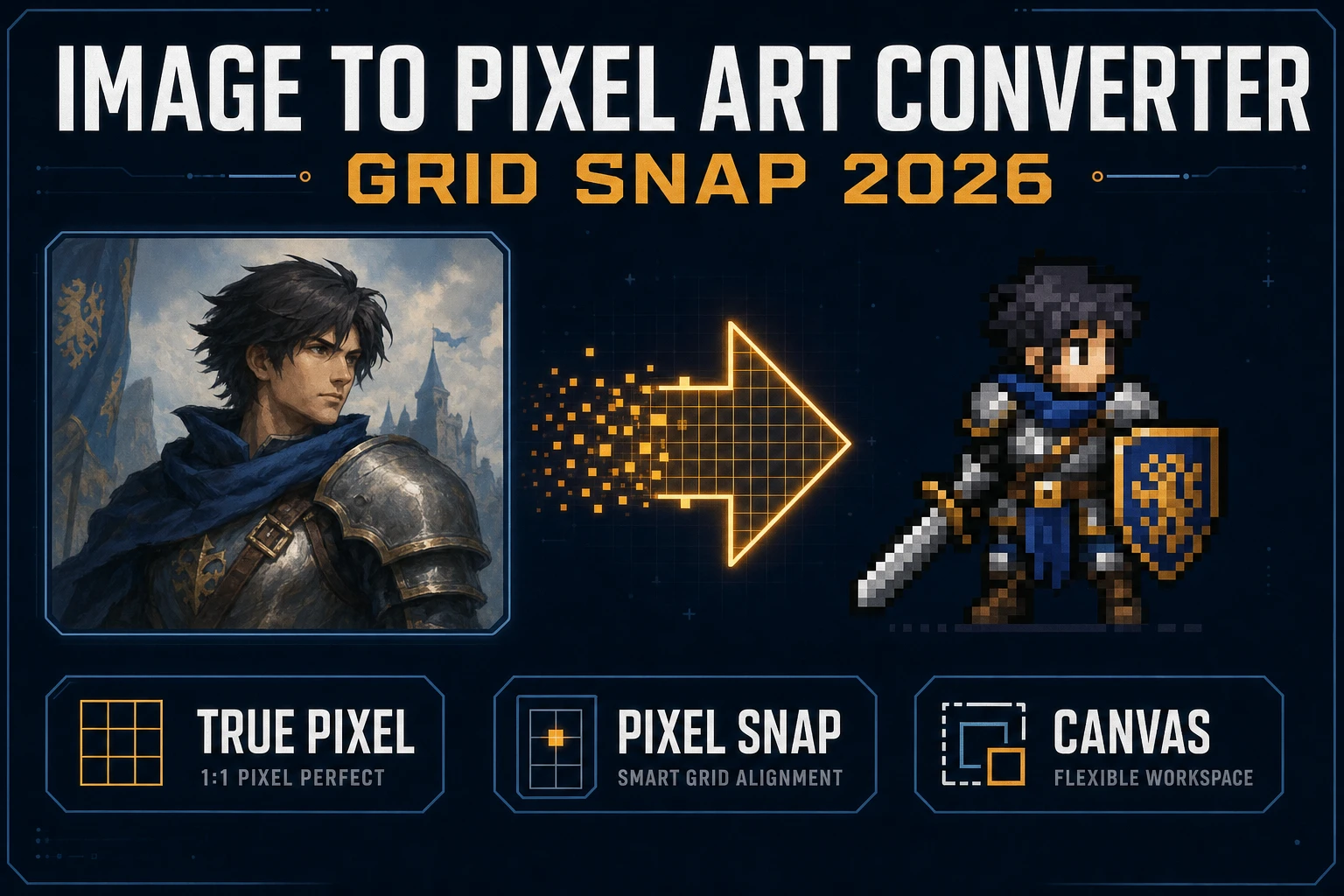
The image part of “image to pixel art 32x32” is whatever the source asset is. For many indie devs in 2026 the source is an AI render from a model like Nano Banana Pro or Flux 2 Pro at /generate, sized 1024x1024 or 1536x1536, with a single character on a clean background. For others it is a photo of a real-world reference (a Halloween costume, a hand puppet, a friend in a wizard hat) that needs to land as a stylized 32x32 sprite. For others again it is a hand-drawn frame from Procreate or Krita at any resolution. The pipeline that converts all three into a usable 32x32 sprite is the same: downscale to 32x32 with smart resampling, quantize the colors to a retro palette, key out the background, clean the edges, and export at the right scale for the engine. True Pixel at /pixel-art handles every step of that pipeline client-side in a browser tab, which is the relevant fact for indies who want to ship without learning a desktop pixel-art editor first.

Why 32x32 is the canonical sprite size for indie 8-bit and 16-bit games

The 32x32 sprite size has a hardware history and a design history. On the hardware side, the original NES (Nintendo Entertainment System) shipped a sprite engine that drew 8x8 tiles in 1x or 2x mode per the List of video game console palettes Wikipedia entry, with a hard per-scanline budget of eight sprites. A 32x32 character is exactly a 4-by-4 grid of those 8x8 tiles, which fit comfortably inside the per-scanline budget and left room for projectiles, enemies, and HUD elements on the same scanline. The Game Boy used the same 8x8 tile primitive with a similar budget. The 16-bit consoles (SNES, Genesis) raised the budget and supported larger sprites, but the 32x32 character cell stayed canonical because the level-design and animation conventions had already been written around it.

On the design side, 32x32 is the smallest size that comfortably renders a clear humanoid silhouette. The grid breaks down naturally as: roughly 8 pixels for the head, 12 for the torso, 4 for arms on each side, and 8 for the legs. That leaves enough pixels for facial details (two eyes, a mouth or beard), clothing distinction (robe vs armor vs civilian), and held-item silhouette (sword, staff, lantern, book) without blurring into a featureless blob. At 24x24 the head shrinks below the threshold where eyes read clearly; at 16x16 the entire character collapses to a chibi pictogram. The Endesga 32 indie palette (released by pixel artist ENDESGA in 2018 and widely adopted across the indie pixel-art community on Lospec) is explicitly calibrated for the 32x32 character cell — the warm-bias 32-color set covers skin tones, leather, stone, foliage, and gold trim in the right ratios for a 4-by-4-tile character without juggling sub-palettes per region.

The mainstream indie pixel-art games of the 2010s and 2020s — Stardew Valley, Celeste, Hyper Light Drifter, Hollow Knight (partial pixel), Eastward, Sea of Stars, Shovel Knight — mostly use 32x32 or 32x48 character cells. The size is not arbitrary; it is the converged answer to the question “what is the smallest cell that still reads as a character at indie zoom levels?” For a brand-new indie in 2026 picking a sprite size before they commit to art, image to pixel art 32x32 is the right default unless the design needs unusually big bosses or unusually tiny background creatures.

The five-step image to pixel art 32x32 pipeline in True Pixel

The five-step pipeline for image to pixel art 32x32 in True Pixel, in the exact order it runs in the browser tab, is: import the source asset (PNG, JPG, GIF, WebP, MP4, or WebM), set the target width and height both to 32 in the size controls, pick a retro palette from the eight built-in presets, clean the edges and background with chroma key, then export at the right output scale for the target engine. Wall time for a single static sprite is under two minutes from import to export on a normal laptop; for a 24-frame video conversion it is closer to ten minutes because the temporal-stability pass runs once per frame.
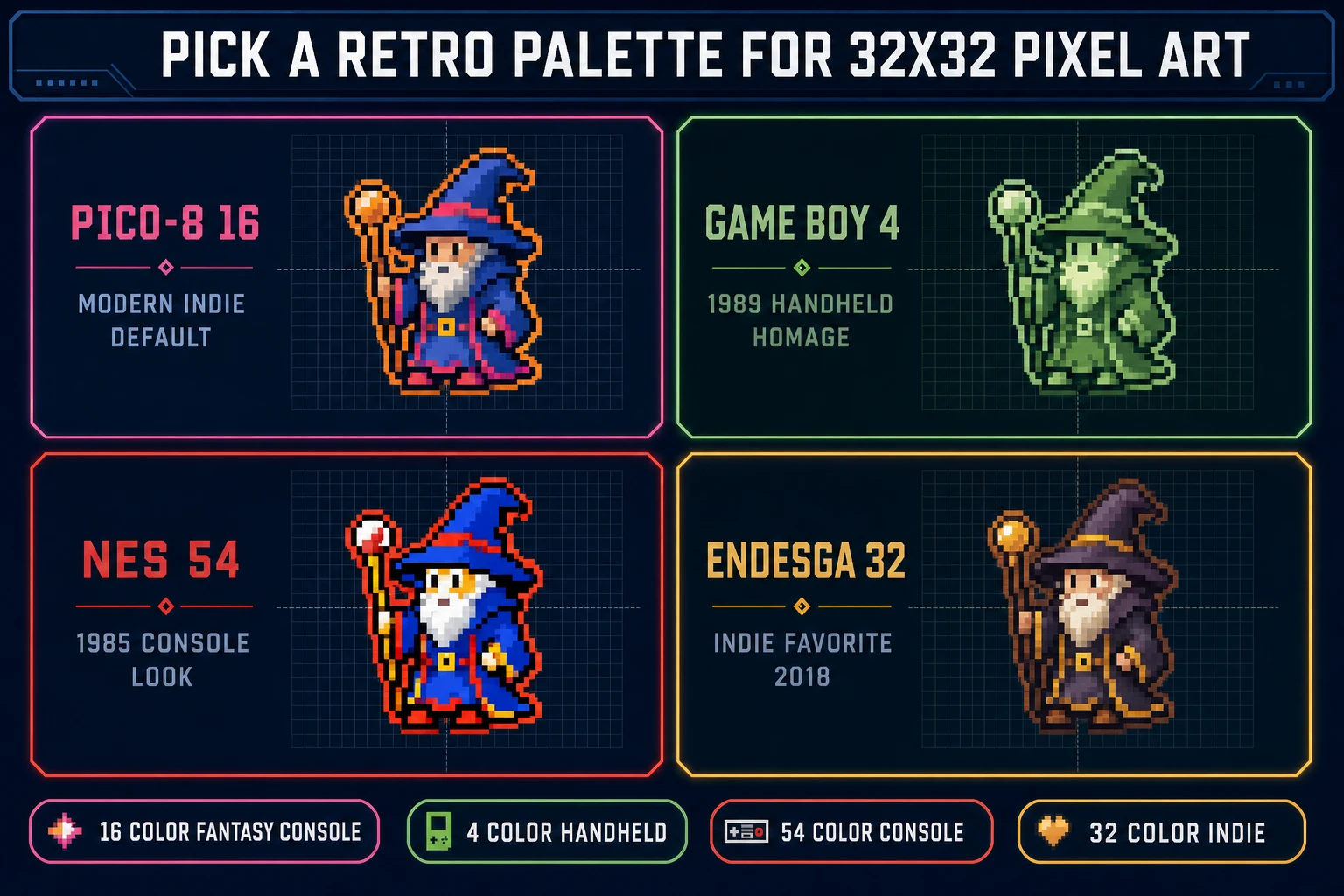
Pick a retro palette for 32x32 pixel art - PICO-8 and Game Boy and NES and Endesga 32 each rendered on the same wizard sprite
The four palette presets most indies pick from when sizing image to pixel art 32x32 in True Pixel: PICO-8 for modern indie, Game Boy for 1989-handheld homage, NES for 1985-console retro, Endesga 32 for the warm-bias indie favorite. All four palettes are verified against src/app/pixel-art/page.tsx PALETTE_PRESETS on July 1, 2026.

True Pixel runs every step client-side in the browser tab, which is the part most indies care about. No server round-trip on the standard conversion pass means no rate limits, no upload bandwidth bottleneck on a 5 MB source PNG, and no credit cost on the basic pixel-art conversion itself. The optional AI background removal (CorridorKey) does run server-side because it uses a neural matting model, but the chroma-key path is fully client-side. The tool is Pro tier per the tools-guide source (badge: Pro on the True Pixel card in src/app/_home-v2/_data/tools.ts line 472 verified July 1, 2026), which means the lifetime $49 Sorceress purchase unlocks unlimited use of the non-AI pipeline. Credit packs at /plans cover the optional AI passes ($10 / 1000 Starter, $20 / 2000 Creator, $50 / 5000 Plus, $100 / 10000 Studio per src/app/plans/page.tsx lines 49-54).

Step 1 — bring in your source art (photo, AI render, or hand-drawn frame)

The source-art step has three common starting points in 2026. The first is an AI render. Open AI Image Gen in an adjacent tab, pick a model from the seven-rail lineup (Nano Banana Pro, Nano Banana 2, GPT Image 2, Seedream 5 Lite, Flux 2 Pro, Z-Image Turbo, or Grok Imagine per src/app/_home-v2/_data/tools.ts lines 713-721 verified July 1, 2026), and prompt for a single character on a plain background at full resolution. A prompt like “a wizard with a long beard holding a staff, full body, plain white background, centered, no shadow” on Nano Banana Pro at 1024x1024 lands a clean source frame in roughly 20 seconds. Save the PNG to disk.

The second starting point is a hand-drawn frame. Procreate, Krita, Photoshop, Aseprite at full canvas, or any drawing app that exports PNG works. The source resolution does not matter much — True Pixel downscales to 32x32 regardless of whether the input is 256x256 or 2048x2048, and the higher-resolution input generally gives a better downscale because there is more pixel data for the smart resampling pass to average over. The lock-aspect toggle in the size controls handles non-square inputs (a 1024x1536 portrait downscales to 32x48 with lock-aspect on, or stretches to 32x32 with lock-aspect off and frame-fit mode set to “tight-stretch”).

The third starting point is a real-world photo. A picture of a friend in a Halloween wizard costume, a photo of a thrift-store action figure, a still from a smartphone video of a dance move — all work as source frames if the subject is centered on a relatively clean background. The chroma-key pass in step four handles a wide range of backgrounds (pure colors work best, but Auto-Edge Chroma can clean up textured backgrounds with multi-pass flood-fill at full source resolution before the downscale). Drag the source file into the True Pixel upload panel; the tool accepts standard formats (PNG, JPG, GIF, WebP for stills; MP4, WebM for video) and the source preview appears immediately in the left-side panel.

Step 2 — set target width and height to 32 in the True Pixel controls

The size controls are the most consequential setting for the entire pipeline. True Pixel defaults to targetWidth = 64 and targetHeight = 64 per src/app/pixel-art/page.tsx lines 1555-1556 (verified July 1, 2026), which is the right default for a generic pixel-art use case but the wrong default for indie game sprites. Change both fields to 32 in the size-controls panel before any other setting. The lock-aspect toggle (lockAspect state on line 1557) keeps width and height in sync; for a square character sprite leave it on, for a portrait-oriented character (32x48) turn it off and set the height independently.

The frame-fit mode (frameFitMode state on line 1564 with three options: “animation”, “tight”, “tight-stretch”) controls how a non-square source crops or stretches to fit the 32x32 cell. “Animation” preserves the source aspect by letterboxing the result (use this for an animation pass where every frame needs consistent positioning). “Tight” auto-crops to the non-transparent bounds and centers the cropped result in the 32x32 cell (use this for character portraits where each frame can have a different bounding box). “Tight-stretch” stretches the source to fill the entire 32x32 cell regardless of aspect (use this only for non-character assets like full-frame textures or backgrounds where stretching is acceptable). For a single static character sprite, the default “animation” mode is the right pick.

The preview pane updates live as the size controls change, so the effect of switching from 64x64 to 32x32 is visible immediately. The first time an indie sees their high-resolution AI render collapse to 32x32 it usually reads as “way too small” — that is the right reaction; the output scale in step five fixes it for display. The 32x32 cell is the storage size, not the display size.
Step 3 — pick a retro palette (PICO-8, Game Boy, NES, Endesga 32) and dither mode

The palette pick determines the era and feel of the final sprite more than any other single setting. True Pixel exposes eight built-in palette presets in the palette panel, all verified against src/app/pixel-art/page.tsx PALETTE_PRESETS lines 24-100 on July 1, 2026: PICO-8 (16 colors, modern indie default per the PICO-8 Wikipedia entry describing the Lexaloffle Games fantasy console released in 2015), SWEETIE-16 (16 colors, soft pastel by GrafxKid), Endesga 32 (32 colors, warm-bias indie favorite from 2018), Game Boy (4 colors, two-bit grayscale 15-56-15, 48-98-48, 139-172-15, 155-188-15 per the Game Boy Wikipedia entry), CGA (16 colors, 1981 IBM PC), NES (54 colors, 1985 console), Grayscale (8 shades), and 1-Bit (black and white only).

For a brand-new indie unsure which palette to pick, the recommendation tree is short. Pick PICO-8 if the game is contemporary indie pixel art and the design wants the “Stardew Valley / Celeste / Eastward” visual vocabulary. Pick Game Boy if the design wants explicit 1989-handheld retro and the green-tinted aesthetic is part of the brand. Pick NES if the design wants 1985-console retro with more chromatic range than Game Boy. Pick Endesga 32 if the design has a lot of warm tones (skin, leather, wood, stone, fire) and the small-palette aesthetic feels too restrictive. Pick SWEETIE-16 for cozy / cottagecore / Animal Crossing-adjacent aesthetic. Pick 1-Bit for deliberately spartan retro (think Return of the Obra Dinn or Minit). The other two (CGA and Grayscale) are situational.

The dither mode (DitherMode enum on line 16 of src/app/pixel-art/page.tsx: “none” / “ordered” / “floyd-steinberg”) controls how the color quantization handles smooth gradients in the source image. None just quantizes each pixel to the nearest palette color — sharp, posterized, cleanest for cel-shaded cartoon sources without gradients. Ordered (sometimes called Bayer dithering) uses a fixed threshold matrix that produces a regular lattice-like pattern — ties the deliberate 80s computer-game aesthetic. Floyd-Steinberg is the 1976 error-diffusion algorithm by Robert W. Floyd and Louis Steinberg (per the Floyd-Steinberg dithering Wikipedia entry) that distributes quantization error using fixed 7/16, 3/16, 5/16, 1/16 weights into neighbor pixels — smoothest for shaded source art, reads as fine noise that the eye smooths back to gradient at zoom levels above 4x. The default for a 32x32 sprite with shaded source art is Floyd-Steinberg at intensity 0.5; for crisp cartoon sources, none-dithering is sharper.

Step 4 — clean edges, lock chroma key, and preview at 1x and 8x scale

The cleanup step handles backgrounds, edge fringing, and color-channel artifacts. The chroma-key controls (chromaKeyEnabled state on line 1575, chromaKeyTolerance default 60 on line 1577) lift a specific background color to transparent. The workflow is: enable chroma key, click the eyedropper-pick-mode button, click anywhere on the preview that is currently background, and the picked color (with the tolerance slider) becomes transparent. Pre-process chroma (preProcessChroma default true on line 1581) applies the chroma removal at full source resolution before the downscale, which gives cleaner edges than applying chroma at 32x32 output resolution.

Auto-Edge Chroma (autoEdgeChromaEnabled state on line 1584, autoEdgeChromaPassCount default 3 on line 1585) is a multi-pass cleanup that handles textured backgrounds, soft anti-aliased edges, and color-fringe artifacts at full source resolution. It uses flood-fill from the source edges to identify background pixels even when the background is not a flat color. For an AI-rendered source on a plain white background, basic chroma key works; for a photo source with a noisy background or a hand-drawn frame on a textured page, Auto-Edge Chroma is the right choice. For the deepest cleanup, switch the background removal mode (bgRemovalMode on line 1588) from “chroma” to “corridorkey”, which routes the source through the CorridorKey AI matting model (server-side, small credit cost).

The edge-enhance, outline, contrast-boost, and brightness-shift controls handle the secondary cleanup. Outline mode (outlineMode state on line 1567) adds a clean black or colored 1-pixel outline around the character at the configured threshold and opacity, which is the right pick for the “Vampire Survivors” readable-at-small-scale silhouette aesthetic. Edge-enhance (edgeEnhance on line 1565) sharpens the down-sampled edges to compensate for the smoothing that the downscale introduces. Preview at multiple scales by adjusting the output scale slider (outputScale default 4 on line 1563) — 1x shows the raw 32x32 cell, 4x shows the cell at 128x128 (the typical preview scale), 8x shows the cell at 256x256 (the typical display scale at 1080p). The right pixel-art look only emerges at 4x or higher; previewing at 1x is for verifying the storage size, not for judging the visual quality.

Step 5 — export the 32x32 sprite and pack a full game-ready sprite sheet

The export step lands the final PNG on the user’s local disk. The output-scale slider (outputScale state on line 1563 of src/app/pixel-art/page.tsx verified July 1, 2026) controls the multiplier that True Pixel applies before the PNG is written. Output scale 1x exports the raw 32x32 cell (1024 pixels total, roughly 500 bytes for a color-quantized PNG) — the right choice when the target engine handles the pixel-perfect upscale itself. Phaser’s pixelArt: true config flag does exactly this: it reads the 32x32 PNG at storage size and renders it at whatever display size the game camera zoom sets. Output scale 8x exports the same cell rescaled to 256x256 with nearest-neighbor interpolation — the right choice when the engine renders the PNG at its native size with no upscale (some raw <canvas> setups, static marketing screenshots, sprite-atlas mockups, and hand-authored HTML pages).

The exported filename follows the pattern BASENAME_WIDTHxHEIGHT_SCALEx.png per line 3003 of the source, so a wizard sprite at 32x32 output scale 8x lands as wizard_32x32_8x.png. The naming convention encodes both the storage size and the render scale into the filename, which is useful for a project that ships assets at multiple scales for different resolution targets. Chroma-key transparency survives the export because True Pixel writes standard PNG with full RGBA support (per the W3C PNG specification RGBA is the default color type for 8-bit-per-channel images with transparency).

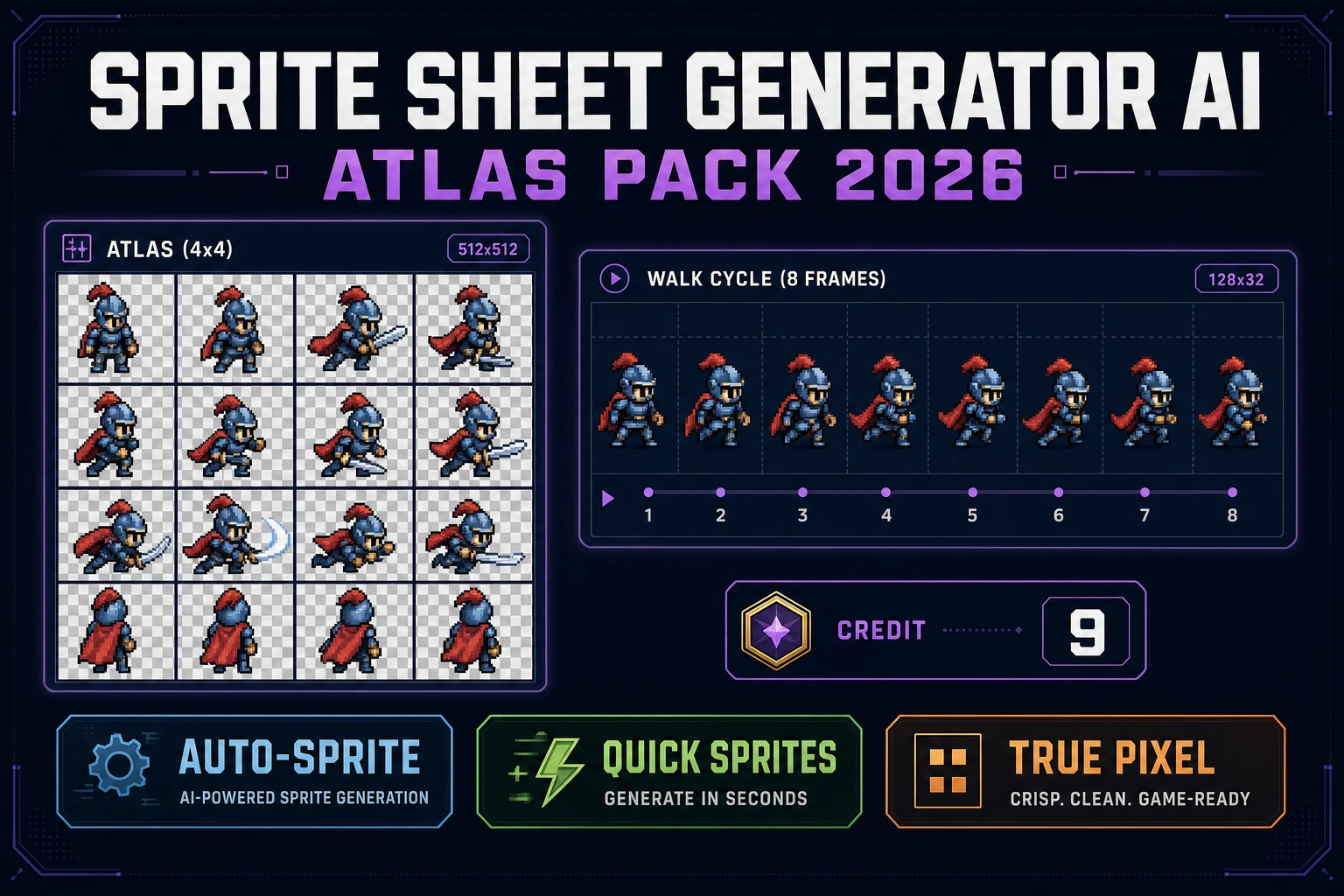
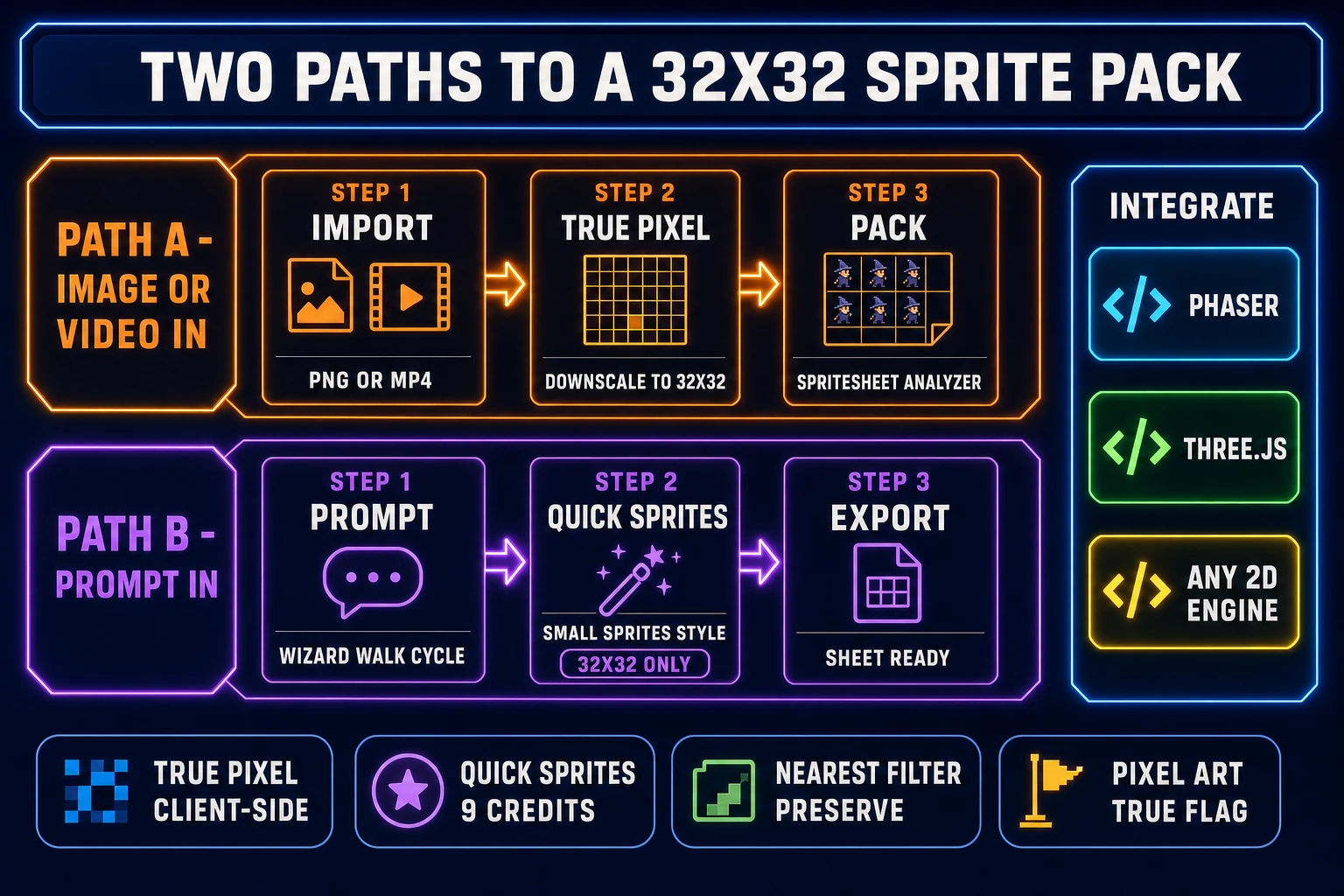
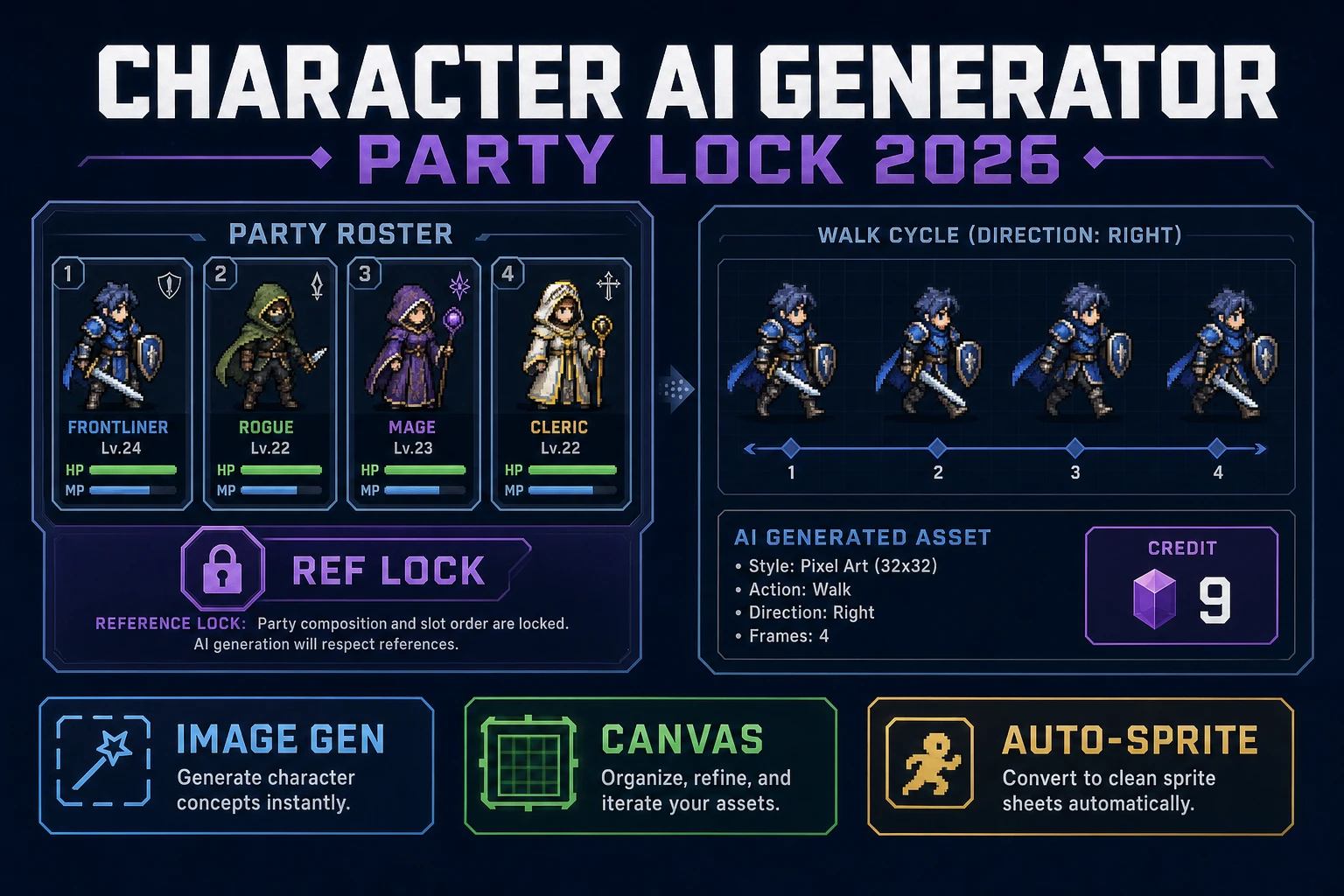
For a full sprite pack rather than a single sprite, the workflow branches into two paths. Path A uses True Pixel with video or multi-frame input. Drop a short MP4 of a walking character animation into True Pixel; the tool processes every frame through the same pipeline (size, palette, dither, chroma, edge clean) with a temporal-stability pass that keeps colors and silhouettes consistent across frames. The output is a folder of individual PNG frames that then feed into Spritesheet Analyzer at /spritesheet-analyzer for a packed atlas, or Slicer at /slicer for per-frame slicing with configurable grid geometry. Path B uses Quick Sprites directly. Quick Sprites at /quick-sprites picks the Small Sprites animation style (id small_sprites, size 32x32, sizeNote “32×32 only” per ANIMATION_STYLES line 37 of src/app/quick-sprites/page.tsx verified July 1, 2026) and ships pre-packed sheets covering 4-direction walking, arm movement, looking, surprised, and laying-down poses in a single 9-credit generation (CREDITS_PER_GEN constant line 21). For the fastest path from prompt to game-ready 32x32 sprite pack, Path B is the correct choice; for the most control over the individual frame content and palette, Path A is the correct choice.

Two paths to a 32x32 sprite pack - True Pixel with image or video input on the top lane and Quick Sprites prompt-to-sheet on the bottom lane, both feeding into Phaser three.js and any 2D engine
The two pipeline paths for image to pixel art 32x32 sprite packs in Sorceress: True Pixel for image or video input downscaled to 32x32 and packed by Spritesheet Analyzer, or Quick Sprites for prompt-in with the Small Sprites animation style at 32x32. Both paths land clean PNG output that drops into any 2D engine with the correct nearest-neighbor filter and pixel-perfect render flag.

The verdict on image to pixel art 32x32 for indie game art in 2026

Image to pixel art 32x32 is a solved problem in 2026 as long as the pipeline is right. The five-step True Pixel workflow (import, size, palette, clean, export) runs client-side in a browser tab with no rate limits and no upload bandwidth cost on the basic conversion pass, and the eight built-in retro palettes cover the entire indie pixel-art aesthetic space from PICO-8 modern indie through Game Boy 1989-handheld through NES 1985-console through Endesga 32 warm-bias indie. For an indie shipping a brand-new pixel-art game in 2026 the right default sprite size is 32x32, the right default palette is PICO-8 or Game Boy or Endesga 32 depending on the era vibe, and the right default output scale is 1x for engines with pixel-perfect flags or 8x for engines without.

The choice between True Pixel and Quick Sprites for image to pixel art 32x32 comes down to source availability. If the source art already exists (photo, hand-drawn frame, AI render from AI Image Gen), True Pixel is the correct choice because it takes any input and lands a clean 32x32 result. If the source art does not exist yet and the goal is a pre-packed animation sheet directly from a prompt, Quick Sprites is the correct choice because the Small Sprites animation style at 32x32 ships every direction and pose in a single 9-credit generation. For a mixed workflow (a signature hero sprite from True Pixel plus supporting NPCs and enemies from Quick Sprites), both tools sit on the same Sorceress account with a shared credit balance from the /plans lifetime purchase.

The wider Sorceress tools guide covers the adjacent pieces of the pixel-art pipeline: Pixel Snap for a different flavor of AI-native image-to-sprite conversion, Auto-Sprite v2 for the Pro-tier prompt-to-animated-sprite path, Spritesheet Analyzer for packing loose frames, and Slicer for per-frame export from an existing sheet. When the sprite pipeline is ready and the game logic is next, WizardGenie takes over as the AI-powered game engine that wires the loaded sprite sheets into Phaser or three.js scene code with the correct nearest-neighbor texture filters and pixel-perfect render flags. The full loop from image to pixel art 32x32 through packed sprite sheet through in-engine wiring runs in a single browser session on a lifetime USD 49 Sorceress purchase, which is the honest 2026 answer to “what does it cost to ship an indie pixel-art game.”

Frequently Asked Questions

Why is 32x32 the canonical sprite size for indie pixel art games?

32x32 is the size most 8-bit and 16-bit games settled on for the canonical character cell for two practical reasons. First, it is the largest sprite size the NES and Game Boy hardware could comfortably composite at runtime per the Sprite (computer graphics) Wikipedia entry — the NES sprite hardware drew 8x8 tiles in 1x or 2x mode, so a 32x32 character is a 4-by-4 tile grid that fit inside the per-scanline sprite budget. Second, 32x32 is the smallest size that comfortably renders a recognizable humanoid silhouette with clear head, torso, and limbs at indie pixel-art zoom levels (typically 4x to 8x scale on a 1080p display). Modern indie engines like Phaser and three.js do not care about hardware sprite budgets, but the 32x32 cell stayed the canonical size because it matches both the Game Boy and NES nostalgic look and the typical character-to-tile ratio that level designers expect when laying out a 16x16 tilemap. The Endesga 32 indie palette (released by pixel artist ENDESGA in 2018) is calibrated for the same 32x32 character cell. For a brand-new indie pixel-art game in 2026, image to pixel art 32x32 is the correct default sprite size to target unless the design needs unusually large or small characters.

What is the True Pixel browser pipeline for going from an arbitrary image to a 32x32 pixel art sprite?

The True Pixel pipeline at /pixel-art is five steps in one browser tab. Step one: drop the source image into the upload panel — True Pixel accepts PNG, JPG, GIF, and WebP, plus full video files (MP4, WebM) for frame-by-frame conversion. Step two: set targetWidth and targetHeight both to 32 in the size controls (the defaults are 64x64 per src/app/pixel-art/page.tsx lines 1555-1556 verified on July 1, 2026; the lock-aspect toggle keeps the two in sync if the source is square). Step three: pick the palette — choose preset mode and select PICO-8 (16 colors), SWEETIE-16, Endesga 32, Game Boy (4-color two-bit grayscale), CGA (16 colors), NES (54 colors), Grayscale (8), or 1-Bit (verified against PALETTE_PRESETS lines 24-100 of the source). Step four: enable chroma key for transparent backgrounds, set the alpha-threshold tolerance, and optionally turn on Auto-Edge Chroma for multi-pass edge cleanup at full source resolution before the downscale. Step five: pick the output scale (1x for raw 32x32, 2x for 64x64, 4x for 128x128, 8x for 256x256) and click export — the file lands as basename_32x32_8x.png on the user’s machine. Total wall time is under two minutes for a single sprite, and the entire pipeline runs client-side in the browser tab with no server round-trip on the standard pass.

Which retro palette should I pick for a 32x32 pixel art sprite in 2026?

The palette choice ties the sprite to a specific era visually. PICO-8 (16 colors) is the modern indie default — it carries the contemporary fantasy-console aesthetic that most 2020s indie pixel-art games converged on (Celeste, Stardew Valley, Hollow Knight all share the same color sensibility even though they use their own palettes). Game Boy (4-color two-bit grayscale: 15-56-15, 48-98-48, 139-172-15, 155-188-15) is the green-tinted 1989-handheld look, perfect for explicitly retro homages. NES (54 colors) is the early-console look from 1985, with more chromatic range than Game Boy but a distinctive bright primary-color sensibility. Endesga 32 is the indie-favorite warm-bias 32-color palette from 2018 that handles skin tones, foliage, and stone walls in one set without juggling sub-palettes. SWEETIE-16 is the soft pastel 16-color palette by GrafxKid that suits cozy and cottagecore aesthetic. CGA (16 colors) is the 1981 IBM PC look, very specific 1980s computer-game aesthetic. Grayscale (8) is the universal fallback when the design wants a monochrome look. 1-Bit is the most extreme reduction (black and white only). For a brand-new indie unsure which to pick, the default recommendation is PICO-8 for the modern indie look or Game Boy for a deliberate retro homage. All eight palettes are verified against src/app/pixel-art/page.tsx PALETTE_PRESETS lines 24-100 on July 1, 2026.

How does Floyd-Steinberg dithering change the look of a 32x32 pixel art sprite?

Floyd-Steinberg dithering is a 1976 error-diffusion algorithm by Robert W. Floyd and Louis Steinberg (per the Floyd-Steinberg dithering Wikipedia entry) that distributes the quantization error from each pixel into its unprocessed neighbors using a fixed 7/16, 3/16, 5/16, 1/16 weight pattern. The visual effect on a 32x32 sprite is that smooth gradients in the source image (a character’s shaded cheek, a sword’s metallic glint, a torch’s glow) no longer flatten into solid color blocks under a small palette — instead they read as fine-grain noise that the eye smooths back into a gradient at zoom levels above 4x. Ordered dithering (the other True Pixel option, sometimes called Bayer dithering) achieves a similar effect with a fixed threshold matrix that produces a more regular, lattice-like pattern. None dithering (the third option) just quantizes each pixel to the nearest palette color with no error distribution — sharp, posterized, and the cleanest look for crisp cartoon sprites without gradients. For a 32x32 sprite with smooth-shaded source art, Floyd-Steinberg at intensity 0.5 is the default; for cel-shaded cartoon sources with hard edges, none-dithering is sharper; for the deliberate 80s computer-game look, ordered dithering ties the aesthetic. DitherMode is exposed as a three-way enum (none, ordered, floyd-steinberg) on line 16 of src/app/pixel-art/page.tsx (verified July 1, 2026).

How do I get a full sprite sheet of 32x32 frames instead of just a single sprite?

Two paths. Path one (image input): export each frame separately from True Pixel at 32x32, then pack them into a sprite sheet using Spritesheet Analyzer at /spritesheet-analyzer or Slicer at /slicer. True Pixel handles video input directly: drop a short MP4 of a walking character animation, set targetWidth and targetHeight to 32, and True Pixel processes every frame through the same pipeline (chroma key, palette, dither, edge clean) with temporal-stability passes that keep colors and silhouettes consistent across frames. The output is a folder of frames that drop into Spritesheet Analyzer for a packed sheet. Path two (AI input): use Quick Sprites at /quick-sprites and pick the Small Sprites animation style — it ships pre-packed 4-direction walking, arm movement, looking, surprised, and laying-down animation sets at exactly 32x32 per ANIMATION_STYLES line 37 of src/app/quick-sprites/page.tsx (verified July 1, 2026: id small_sprites, size 32x32, sizeNote 32x32 only). Quick Sprites costs 9 credits per generation (CREDITS_PER_GEN constant line 21) and runs on the retro-diffusion/rd-animation model. For an indie shipping a brand-new pixel-art game, Quick Sprites is the fastest path to a usable 32x32 walk cycle; True Pixel is the right choice when the source is a specific photo or hand-drawn frame that needs to land as a particular character.

Can the 32x32 pixel art sprite export cleanly into Phaser or three.js?

Yes. True Pixel exports a standard PNG with full RGBA support, which means the transparent background (set by chroma key in step four) survives the round-trip into any 2D or 3D engine that reads PNG. For Phaser, the export pattern is: drop the basename_32x32_8x.png into the project’s assets folder, register it in the scene’s preload method with this.load.image(&apos;wizard&apos;, &apos;assets/wizard_32x32_8x.png&apos;), and instantiate it in create with this.add.sprite(x, y, &apos;wizard&apos;). For multi-frame sprite sheets, use this.load.spritesheet with the frameWidth and frameHeight both set to 32 (per Phaser’s sprite sheet loader documented in the Phaser game framework Wikipedia entry). For three.js (when using pixel art as a billboard texture on a plane), use new THREE.TextureLoader().load(&apos;assets/wizard_32x32_8x.png&apos;) and set the texture filter to THREE.NearestFilter on both magFilter and minFilter to preserve the crisp pixel edges — the default LinearFilter blurs pixel art into a smear. The output scale matters here: export at 1x if the engine handles the pixel-perfect upscale itself (Phaser’s pixelArt: true config flag does this), export at 8x if the engine renders the PNG at its native size with no upscale. True Pixel’s file naming convention (basename_targetW x targetH _scale x.png) makes the output scale obvious in the filename per line 3003 of src/app/pixel-art/page.tsx verified July 1, 2026.

Sources

  1. Sprite (computer graphics) (Wikipedia)
  2. Floyd-Steinberg dithering (Wikipedia)
  3. Game Boy (Wikipedia)
  4. PICO-8 (Wikipedia)
  5. List of video game console palettes (Wikipedia)
  6. Portable Network Graphics (PNG) specification (W3C)
  7. Phaser (game framework) (Wikipedia)
Written by Arron R.·3,585 words·16 min read

Related posts