Drop In an AI Pixel Sprite Generator (No Aseprite)

By Arron R.15 min read
An AI pixel sprite generator drops a guaranteed pixel-art walk cycle into your game from one prompt. Sorceress Quick Sprites generates the four-direction sheet

An AI pixel sprite generator is the 2026 alternative to the long, hand-drawn pipeline that built every walk cycle in every retro game shipped before AI image models worked. You wrote a small character on a 48-pixel canvas, then animated four directions of walking by drawing each frame, by hand, twice — once for the left foot forward, once for the right. The work was rewarding but slow, and it scaled badly the moment you wanted an idle, a run, an attack, and a death pose for the same character. The 2026 version of the same work is a one-line prompt, a 30-second wait, and a packed PNG sprite sheet that drops straight into Phaser 4 or Godot 4 — palette-locked to the Game Boy, PICO-8, or NES of your choice, no Aseprite seat required. This guide walks the browser pipeline end-to-end, every step verified May 22, 2026 against the live Quick Sprites and True Pixel source.
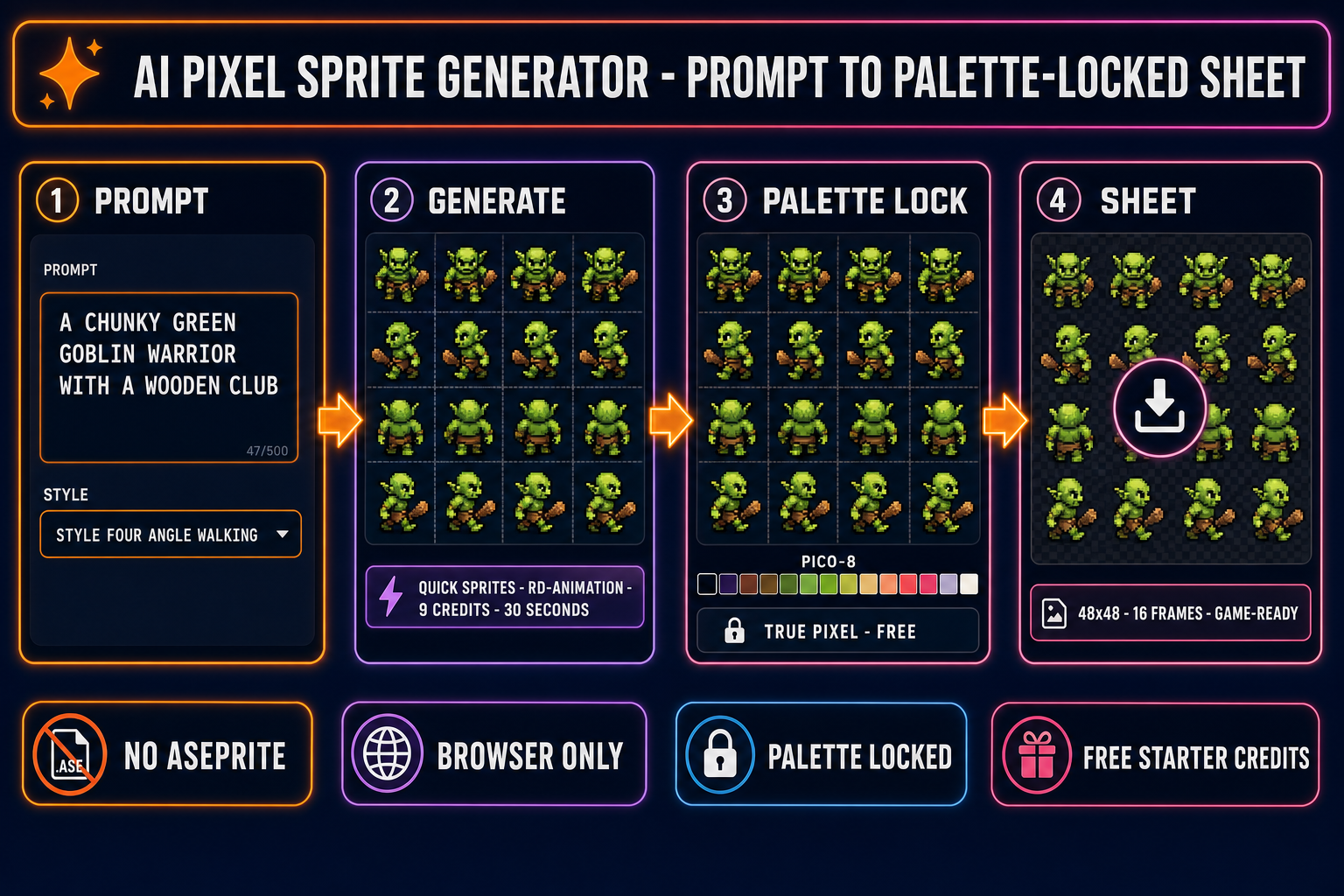
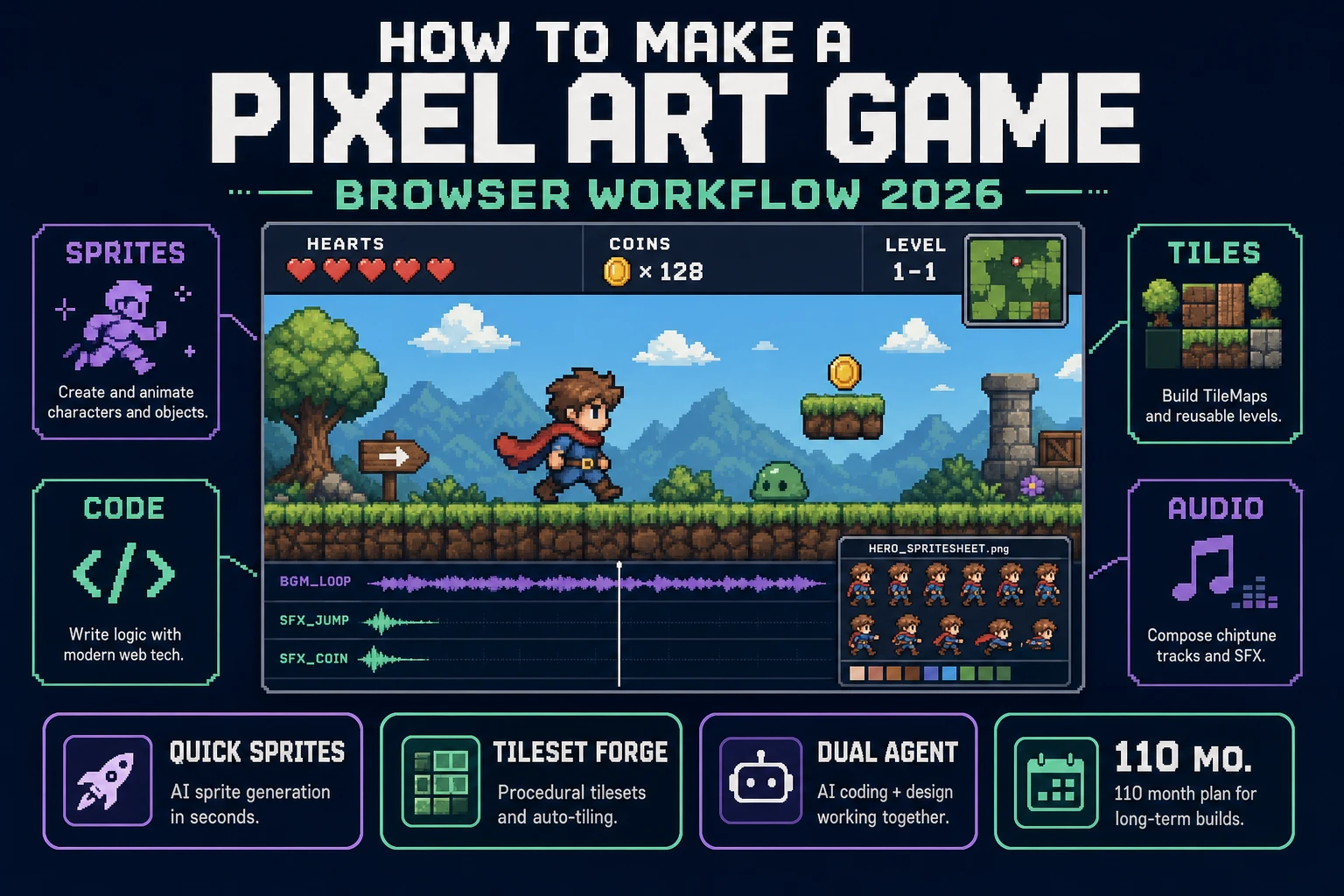
AI pixel sprite generator browser pipeline: prompt to four-direction walk cycle to True Pixel palette lock to game-ready 48x48 sprite sheet
The four-stage browser pipeline for an AI pixel sprite generator. Prompt to Retro Diffusion rd-animation to True Pixel palette quantization to a packed PNG that loads as one line in Quick Sprites.

What an AI pixel sprite generator actually means in 2026

The phrase covers two artefacts that share a single headline. The first artefact is a single pixel-art character image: feed in a prompt, get one frame at 16×16, 32×32, or 48×48 pixels, palette anywhere from four colors to several thousand. Generic image models with a pixel-art LoRA produce this — the output is a portrait, not a moving character. The second artefact is a packed sprite sheet: a single PNG containing a grid of frames where the same character appears in different poses and directions, palette consistent across every cell, frame rectangles aligned to a grid the game engine can index by row and column. An AI pixel sprite generator, in the strict sense game developers use the term, means the second kind — the kind that produces a real game-ready animation asset, not a reference image.

The distinction matters because the two artefacts solve different problems. A single pixel-art image is a marketing asset, a Steam capsule, a Twitter avatar, a Discord profile. A packed sprite sheet is the file your game engine literally loads at boot and plays as the character walks across the map. The first artefact never enters the game; the second artefact is the game. The 2026 search query “AI pixel sprite generator” almost always means the second kind — readers want the sprite sheet, not the portrait. This guide is written for that intent specifically.

Three things separate a working AI pixel sprite generator from a generic image model with a pixel-art prompt. First, palette adherence — the generator must produce a limited color palette and stick to it across every frame, or the character shimmers between poses as the dominant skin tone drifts by a few RGB values. Second, grid alignment — every frame must occupy exactly the same pixel rectangle, or the engine’s frame indexer slices into the middle of a sprite. Third, frame consistency — the same character must look like the same character across all sixteen frames of a walk cycle, not a slightly different goblin in each cell. A generic model fails all three; a dedicated AI pixel sprite generator handles all three at generation time.

The 2026 AI pixel sprite generator landscape

Five tools share the front page of search results for “AI pixel sprite generator” in May 2026. Each is named in plain text because none of them are competitors in the game-engine sense — they are pixel-art tools game devs occasionally borrow when the in-house pipeline does not cover the use case.

  • Scenario (Retro Diffusion Animation) — the highest-fidelity pixel-art sprite output in May 2026, anchored on the Retro Diffusion family of models. RD Animation specifically produces sprite sheets at 48×48 (four-angle walking) or 32×32 (small sprites) with grid layouts matched to common engines. Scenario charges per generation on a credit-based subscription. Output is unwatermarked.
  • PixelLab — the broadest feature set in the pixel-art space. Skeleton-based animation, 4 and 8 directional rotations, scene generation, tileset generation, all under one roof. Pixflux (text-to-pixel up to 400×400) and Bitforge (style transfer from a reference) are the two image models; a separate skeleton-animate model produces the multi-frame walk cycles. Free tier ships a daily allowance; paid tier unlocks the API.
  • OpenArt — the most generous daily-allowance free tier for a single pixel-art image. Strong for static character portraits, weaker for animated sprite sheets — most OpenArt pixel-art outputs are a single frame, not a grid.
  • CGDream — a free text-to-sprite-sheet tool that produces low-frame-count animation grids. Smaller community than Scenario or PixelLab but the free tier covers the basic walk-cycle use case for hobby projects.
  • Sorceress Quick Sprites + True Pixel — the browser-based AI pixel sprite generator covered in detail below. The differentiator is the two-step pipeline: Quick Sprites generates the sheet with Retro Diffusion rd-animation, then True Pixel snaps every pixel to a chosen palette (Game Boy, PICO-8, NES, Endesga 32, SWEETIE-16, CGA, Grayscale, 1-Bit, or a custom one). The palette lock is what makes the output fit a specific console-era aesthetic rather than the model’s default look.

All five produce real pixel-art sprite sheets that game engines can consume. The difference is the level of palette control, the per-generation cost, and how the rest of the asset pipeline (background removal, frame-rate preview, atlas export to game-engine JSON) attaches. The honest comparison in May 2026: Scenario is the highest-fidelity paid path; PixelLab is the broadest paid path; OpenArt and CGDream are the cheapest free paths for hobby projects; the Sorceress AI pixel sprite generator pipeline is the only one that pairs the generation step with a palette quantizer in the same browser tab, free for the quantization itself.
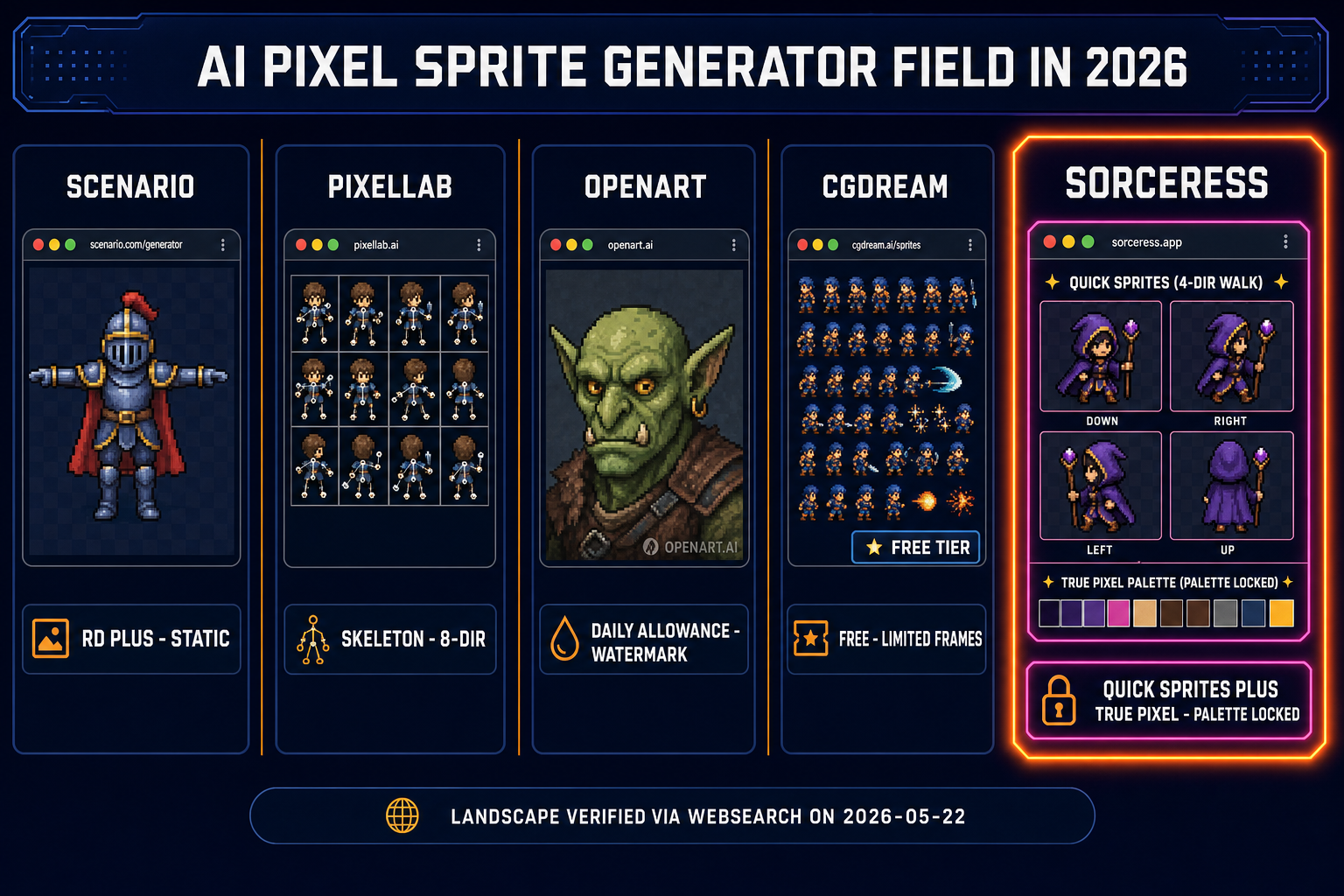
AI pixel sprite generator field comparison in 2026: Scenario, PixelLab, OpenArt, CGDream, and Sorceress Quick Sprites plus True Pixel for the palette-locked path
The five tools competing for the AI pixel sprite generator query in May 2026. Sorceress is the only browser path that pairs the generation step with a free palette-quantization post-processor in the same tab.

The Sorceress AI pixel sprite generator pipeline (Quick Sprites + True Pixel)

The Sorceress AI pixel sprite generator is a two-tool pipeline in a single browser session. Quick Sprites handles the generation step — prompt in, packed PNG sprite sheet out, using the Retro Diffusion rd-animation model. True Pixel handles the palette-lock step — sprite sheet in, quantized sprite sheet out, snapped to a chosen palette with optional dithering. The two tools share the same project library, so the output of Quick Sprites loads directly into True Pixel without a download-and-re-upload cycle.

The architecture is intentionally narrow. Quick Sprites does not try to be a general pixel-art tool — it generates animated cycles only, with three style presets (Four Angle Walking at 48×48, Small Sprites at 32×32, VFX at configurable 24 to 96 pixels), verified against the ANIMATION_STYLES array on lines 35-39 of src/app/quick-sprites/page.tsx on 2026-05-22. True Pixel does not try to be a generator — it quantizes existing pixel-art, with three dither modes (none, ordered, Floyd-Steinberg) and eight built-in palette presets, verified against the PALETTE_PRESETS array on lines 24-100 of src/app/pixel-art/page.tsx on 2026-05-22. Each tool is small and good at one thing; the AI pixel sprite generator pipeline is the composition.

The cost structure is simple. Quick Sprites costs 9 credits per generation — verified against CREDITS_PER_GEN = 9 on line 21 of the source. True Pixel quantization is free for the standard palette-snap path; the only metered call inside True Pixel is the optional CorridorKey AI background removal (1 credit per frame at 512px, 2 credits per frame above 512px, verified against the getCkCreditCost callback on lines 2414-2417), and that step is opt-in, not required for the basic AI pixel sprite generator workflow. Every signed-in user gets 100 starter credits, which translates to roughly 11 full Quick Sprites generations on the starter allowance before any top-up — enough to produce a goblin, a knight, a wizard, a peasant, and a witch with frames to spare.
The five-step AI pixel sprite generator workflow

Five steps in two browser tabs. Every step is interactive, every step is undoable, every step except the Quick Sprites generation itself is free.

Step 1 — Pick the Quick Sprites style

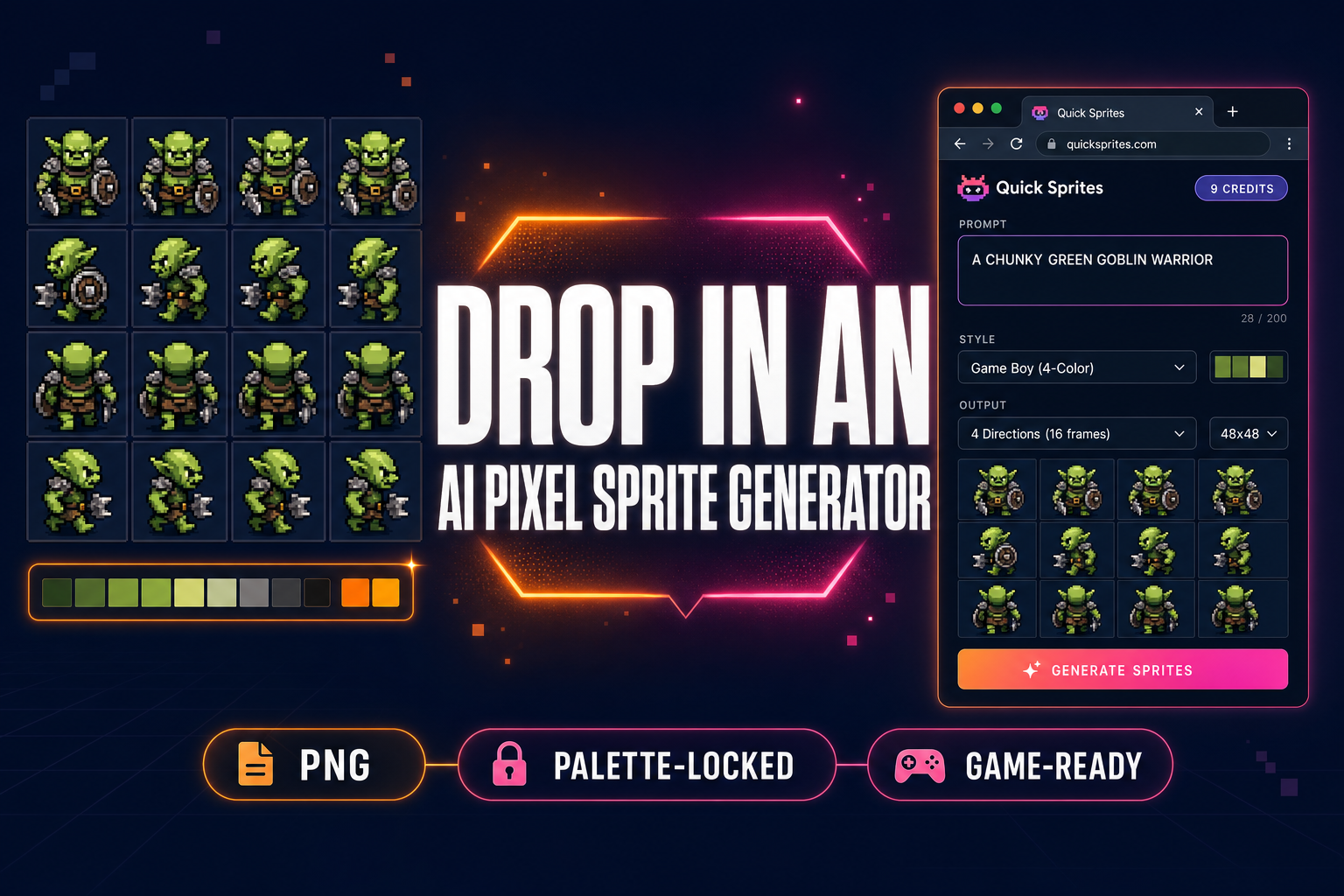
Open Quick Sprites. The left rail shows three animation styles. Four Angle Walking is the default and the right pick for any humanoid character that needs to walk in four directions: 48×48 pixels per frame, four directions (up, right, down, left), four frames per direction, packed into a 4×4 grid (16 cells total). Small Sprites is the 32×32 variant with a different layout: six rows (right walk, left walk, arm movement, looking, surprised, lay down) that fit a top-down or side-scrolling action game where the character does more than walk. VFX is the configurable style for fire, explosions, lightning, magic, projectiles — anything that is not a character — at sizes from 24 to 96 pixels per frame, with sub-styles for each visual effect category.

For a generic AI pixel sprite generator walk cycle, Four Angle Walking is the right pick. The 48×48 frame size is the right balance for a fantasy-RPG-scale character: small enough to feel retro, large enough that the character reads at a glance on a mid-density display. Pick the size on the right rail by clicking the style card.

Step 2 — Write the AI pixel sprite generator prompt

The prompt field accepts any natural-language description. Three rules produce reliable output. First, describe a single character: “a chunky green goblin warrior with a wooden club”, not “a goblin party of three”. The Retro Diffusion rd-animation model trains on single-character cycles; multi-character prompts confuse the frame-consistency loss and produce sprites where the character composition shifts between frames. Second, anchor the silhouette: “chunky”, “lanky”, “tall”, “compact”, “round”. A silhouette anchor word is what the model uses to keep the character’s body shape consistent across 16 frames. Third, name one or two key visual features: a weapon, a hat, a colored tunic, a cape. More than two features and the model trades one off against the others on different frames.

Optional: drop a reference image into the rail. The reference image is a guide, not a starting frame — the model conditions on it to keep colors and visual style consistent without copying the reference directly. A 256×256 portrait of a goblin warrior in T-pose is a strong reference for a goblin walk cycle. A 1024×1024 photorealistic goblin is a weak reference because the model has to work harder to translate the photoreal aesthetic to grid-aligned pixel art.

Step 3 — Generate the AI pixel sprite generator output (30 seconds, 9 credits)

Click “Generate”. The credit cost banner reads “9 credits per generation” — verified against CREDITS_PER_GEN = 9. The Spritesheet toggle is on by default (returnSpritesheet: true on line 96), which produces a packed PNG. If you toggle it off, the output is an animated GIF instead — useful for previewing the cycle but not what a game engine consumes. Leave it on for the AI pixel sprite generator pipeline.

Wait roughly 30 seconds. The output appears in the gallery on the right with the prompt, the style, and a thumbnail of the packed sprite sheet. Click the thumbnail to open the lightbox; the lightbox shows the full sheet with the four directional rows highlighted and an animated playback preview at the bottom. Inspect the cycle for visual consistency — if the character’s tunic color shifts between frames, re-roll with a stronger silhouette anchor in the prompt or add a reference image. If the cycle reads cleanly, click “Download” for the packed PNG or “Open in True Pixel” to push the sheet straight to the palette-lock step.

Step 4 — Lock the palette in True Pixel

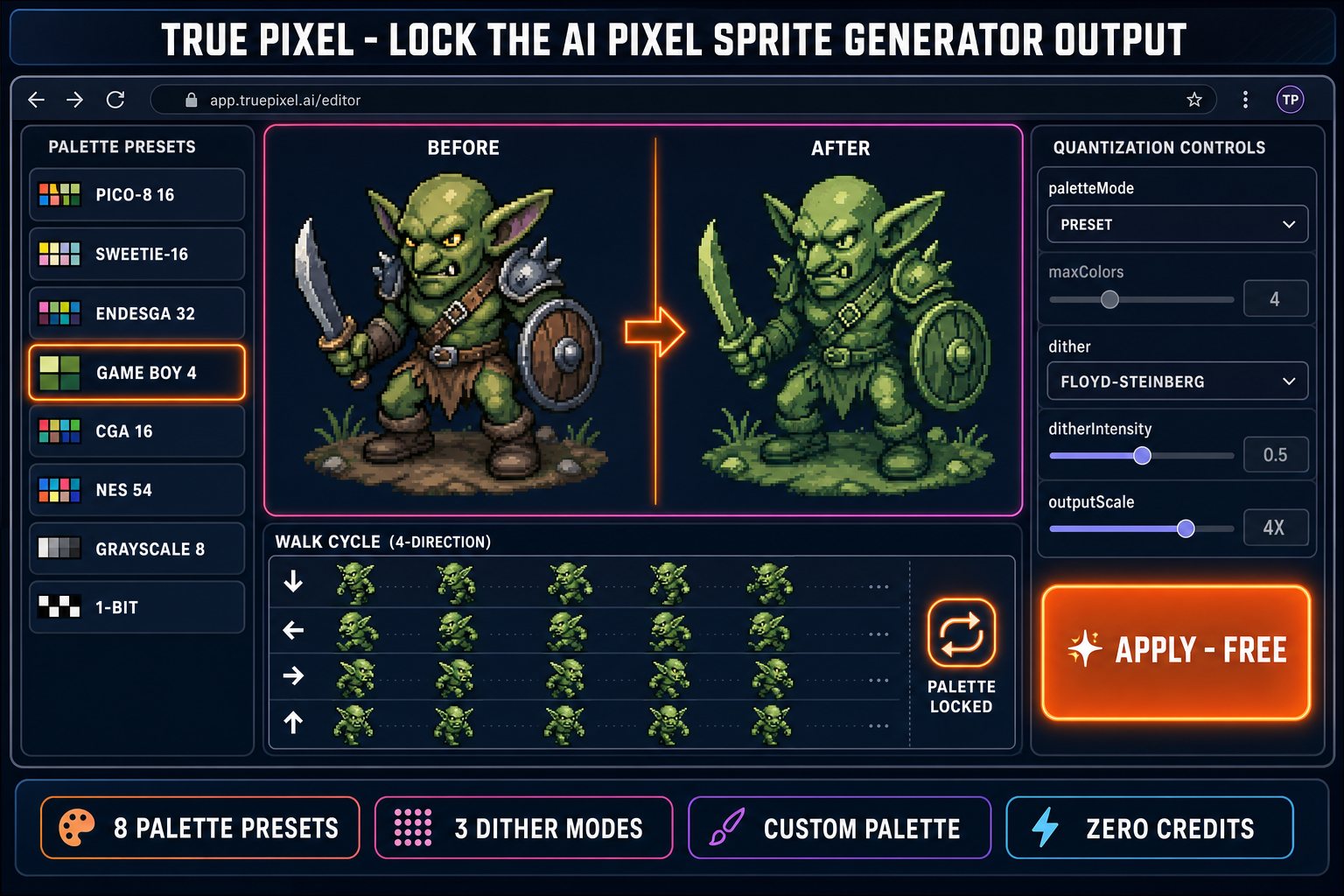
Open True Pixel (or click “Open in True Pixel” from Quick Sprites). The sheet loads automatically. The right rail shows the palette controls. Set Palette Mode to “Preset” and pick the target palette — PICO-8 16 for a PICO-8 platformer, Game Boy for a Game Boy demake, NES 54 for an NES homage, Endesga 32 for a colorful action game, SWEETIE-16 for a balanced 16-color modern retro aesthetic, CGA for early-PC retro, Grayscale 8 for a monochrome game, 1-Bit for the bare-minimum aesthetic. All eight palette presets are verified against the PALETTE_PRESETS array on lines 24-100 of src/app/pixel-art/page.tsx on 2026-05-22.

Pick a dither mode on the right rail. None is the right default for sprite art — it produces clean, flat color regions that read crisply at thumbnail size. Ordered dither is the right pick for a Bayer-pattern retro CRT look. Floyd-Steinberg dither is the right pick when you need to fit smooth gradients into a four-color palette (a Game Boy goblin with both light and dark green tones). The dither intensity slider runs 0.0 to 1.0; 0.5 is the default and the right balance for most sprite work. Click “Apply” — quantization runs in the browser at zero credits.

True Pixel palette quantization step inside the AI pixel sprite generator pipeline: PICO-8, Game Boy, NES presets with Floyd-Steinberg dither locking a 48x48 sprite to the target palette
The True Pixel palette-lock step. Eight built-in palette presets snap every pixel in the Quick Sprites output to a chosen palette — zero credits for the standard path.

Step 5 — Export the palette-locked sprite sheet

Click “Export” in True Pixel. The output is a PNG at the same dimensions as the Quick Sprites input (192×192 pixels for Four Angle Walking — four columns of 48 pixels by four rows of 48 pixels), with the palette locked to the chosen preset. Optional: set the Output Scale slider to 2× or 4× for an upscaled preview PNG. The scaled output preserves the pixel grid using nearest-neighbour sampling, so the upscaled PNG looks like a crisp big-pixel sprite, not a blurred photo. Game engines consume the 1× original; the upscale is for marketing screenshots.

The final AI pixel sprite generator output is a single PNG file. Drop it into your game project’s assets folder. Load it into the engine in the next step.

From the AI pixel sprite generator output to a Phaser 4 walk cycle

Phaser 4 is the current major version of the Phaser browser game engine; verified Phaser 4.1.0 with the LoaderPlugin#spritesheet API documented at docs.phaser.io on 2026-05-22. The four-direction walk cycle from Quick Sprites loads in one line in the preload method, then becomes four named animations in the create method:

// In preload:
this.load.spritesheet('hero', 'assets/hero.png', {
  frameWidth: 48,
  frameHeight: 48,
});

// In create:
this.anims.create({
  key: 'walk-up',
  frames: this.anims.generateFrameNumbers('hero', { start: 0, end: 3 }),
  frameRate: 8,
  repeat: -1,
});
this.anims.create({
  key: 'walk-right',
  frames: this.anims.generateFrameNumbers('hero', { start: 4, end: 7 }),
  frameRate: 8,
  repeat: -1,
});
this.anims.create({
  key: 'walk-down',
  frames: this.anims.generateFrameNumbers('hero', { start: 8, end: 11 }),
  frameRate: 8,
  repeat: -1,
});
this.anims.create({
  key: 'walk-left',
  frames: this.anims.generateFrameNumbers('hero', { start: 12, end: 15 }),
  frameRate: 8,
  repeat: -1,
});

// On input:
hero.anims.play('walk-down', true);

Verified against the LoaderPlugin documentation and the SpriteSheetFile reference on 2026-05-22. The Four Angle Walking layout from Quick Sprites maps cleanly to frame ranges 0-3 (up), 4-7 (right), 8-11 (down), 12-15 (left) because the sheet is row-major: row 1 holds the up-facing cycle, row 2 the right-facing, row 3 the down-facing, row 4 the left-facing.

For Godot 4, drop the PNG into the FileSystem panel. Create an AnimatedSprite2D node, add a SpriteFrames resource, and call “Add Frames From Sprite Sheet”. Set horizontal frames to 4 and vertical frames to 4 — the importer recognizes the 4×4 grid automatically. Name the four animations walk_up, walk_right, walk_down, walk_left, assign frames 0-3, 4-7, 8-11, 12-15 respectively, and set the speed to 8 frames per second. The Sorceress AI pixel sprite generator pipeline produces output that drops into both engines without a re-export step.

Five mistakes that ruin AI pixel sprite generator outputs

  1. Prompting for a scene instead of a character. “A goblin warrior fighting in a forest” produces sprites where the background bleeds into the character outline. Strip the prompt to the character only: “a chunky green goblin warrior with a wooden club, transparent background”. Quick Sprites trains on isolated characters, not scenes.
  2. Skipping the silhouette anchor. “A warrior” gives the model freedom to drift between frames — frame 1 is a tall human, frame 8 is a short dwarf. “A chunky goblin warrior” anchors the silhouette, which the model holds across all sixteen frames of the cycle.
  3. Asking for text in the sprite. Retro Diffusion rd-animation does not render legible text at 48×48 pixels. If your character needs a name banner or a logo on the chestplate, generate it as a separate UI element with AI Image Gen (GPT Image 2 is the model that renders text reliably) and composite it in your engine, not in the sprite sheet.
  4. Locking to the wrong palette. Game Boy is four greens. Locking a fantasy RPG to Game Boy produces a literal Game Boy demake — atmospheric but limiting. PICO-8 16 is a more flexible 16-color palette that gives the AI pixel sprite generator output room to breathe while still feeling retro. Try the cheaper PICO-8 16 lock first; downgrade to Game Boy only if you actively want the four-color aesthetic.
  5. Skipping the Spritesheet Analyzer FPS check. Quick Sprites generates the cycle at a default frame rate that may or may not match your engine’s 8 FPS animation speed. Drop the output into the Spritesheet Analyzer to preview the cycle at exactly the FPS your game uses; if the walk reads as too slow or too fast, the engine animation speed is the right knob to turn, not the sprite sheet itself.

The verdict — when this AI pixel sprite generator pipeline is the right pick

The Sorceress AI pixel sprite generator is the right pick when three conditions hold. First, you need a packed PNG sprite sheet, not a single portrait — Quick Sprites does not generate single-frame portraits. Second, you want palette control — True Pixel is the differentiator, and the eight built-in palette presets plus custom palette support cover every major console-era aesthetic. Third, you prefer browser tools over installed software — the entire pipeline runs in a browser tab, with no Aseprite licence, no Photoshop subscription, no Blender install.

The pipeline is not the right pick when you need a single static portrait (use AI Image Gen plus True Pixel for that), when you need a multi-frame skeleton-driven animation that goes beyond walk and idle (PixelLab is stronger for skeleton-driven attacks and one-shot story actions), or when you need a tileset of background tiles (the AI tileset generator guide covers Tileset Forge for that use case).

For the core “I need a four-direction walk cycle for a character in my game” use case — which is what the AI pixel sprite generator query almost always means — the Quick Sprites plus True Pixel pipeline is the cleanest browser-based path in May 2026. Two clicks, 30 seconds of wait, 9 credits, and the resulting palette-locked PNG drops into Phaser 4, Godot 4, or any other engine with a sprite-sheet loader. Compare that to the time investment of pushing pixels by hand in Aseprite v1.3.18-beta3 (released April 29, 2026, $19.99 USD on Steam, verified 2026-05-22) and the AI pixel sprite generator path is the easier on-ramp for any indie game that needs to ship characters this week, not next month.

For deeper background on what an AI sprite generator pipeline looks like end-to-end, see the prior AI sprite generator deep-dive and the AI sprite sheet generator guide. For the related pixel-art topics, see the how to make pixel art tutorial, the image-to-pixel-art converter guide, and the image-to-pixel-art-grid walkthrough. For a tour of the rest of the Sorceress toolset, see the tools guide.

Frequently Asked Questions

What does an AI pixel sprite generator actually produce in 2026?

Two artefacts share the headline. The first is a single pixel-art character portrait — one image, one pose, one resolution (16×16, 32×32, 48×48). Generic image models with a pixel-art LoRA produce this. The second is a sprite sheet — a grid of frames packed into one PNG, with each frame holding the same character at a different pose or angle so a game engine can play them as an animation. An AI pixel sprite generator specifically means the second kind: prompt in, packed PNG sheet out, frames at exactly the resolution the engine expects, palette consistent across every frame so the character does not shimmer between poses. Sorceress Quick Sprites, PixelLab, Scenario’s Retro Diffusion Animation, OpenArt, and CGDream all sit in this category. The output of the second kind is a real game-ready asset; the output of the first kind is a reference image you then animate by hand.

Is there a truly free AI pixel sprite generator in 2026?

Yes, with a precise definition of free. Free-to-try means a daily allowance or a one-time credit grant — Scenario, PixelLab, OpenArt, CGDream all hand out small daily allowances on the free tier, typically 5 to 25 generations per day, sometimes watermarked, sometimes not. Free-to-export means the resulting PNG is unwatermarked and licence-clear for commercial use in a shipped game. The closest 2026 free path that produces a guaranteed pixel-art sprite sheet, unwatermarked, ready for commercial use, is Sorceress: every signed-in user gets 100 starter credits, Quick Sprites costs 9 credits per generation, True Pixel quantization is free, the Spritesheet Analyzer ZIP export is free, and the resulting PNG is yours. That makes the realistic on-ramp roughly 11 full sprite sheets on the starter allowance before any top-up. Aseprite, by comparison, is a paid one-time licence at $19.99 USD (verified May 22, 2026 against the Steam store page), and it ships zero AI generation — you still draw every frame by hand.

Why does a dedicated AI pixel sprite generator beat a generic image model with a pixel-art prompt?

Three reasons matter for game-ready output. First, palette adherence: a generic image model produces a near-pixel-art image with hundreds or thousands of subtly different colors, which looks pixelated at thumbnail size but breaks when you try to recolor or palette-swap the sprite in-engine. A dedicated AI pixel sprite generator either trains on limited-palette data (Retro Diffusion’s rd-animation model is the canonical example, verified active on Replicate on 2026-05-22) or post-processes the output through a palette quantizer like True Pixel that snaps every pixel to a chosen palette (PICO-8, Game Boy, NES, Endesga 32, SWEETIE-16, or a custom one). Second, grid alignment: each frame in a sprite sheet must occupy exactly the same pixel rectangle, and dedicated tools enforce the grid at generation time. Third, frame consistency: the character must look the same across all frames of an animation, and dedicated sprite tools share latents between frames or use a single conditioned base.

How does Sorceress Quick Sprites generate a four-direction walk cycle from one prompt?

Quick Sprites runs on the Retro Diffusion rd-animation model — verified against MODEL_ID on line 20 of src/app/quick-sprites/page.tsx on 2026-05-22. The model trains specifically on grid-aligned, limited-palette pixel-art animation cycles. The Four Angle Walking style ships at exactly 48×48 pixels per frame, with four directions (up, right, down, left) and four frames per direction packed into a 16-cell grid. One generation produces the complete walk cycle in roughly 30 seconds at 9 credits. The Small Sprites style runs at 32×32 pixels with a 6-row layout — right, left, arms, look, surprised, lay down. The VFX style runs at configurable 24 to 96 pixels for effects like fire, explosions, lightning. All three are verified against the ANIMATION_STYLES array on lines 35-39. The output is either a packed PNG sprite sheet (the default) or an animated GIF, controlled by the returnSpritesheet toggle on lines 1122-1123.

What is True Pixel and why is it the differentiator for the pixel sprite path?

True Pixel is the Sorceress palette-quantization tool at /pixel-art — verified against the page title on line 1526 of src/app/pixel-art/page.tsx on 2026-05-22. It takes any image or video frame and re-quantizes every pixel to a chosen palette, with three dither modes (none, ordered, Floyd-Steinberg) and palette presets including PICO-8 16, SWEETIE-16, Endesga 32, Game Boy 4-color, CGA, NES 54-color, Grayscale 8, and 1-Bit. For an AI pixel sprite generator pipeline, True Pixel is the post-processor that locks the Quick Sprites output to your game’s exact palette — a Game Boy demake of a fantasy RPG, a PICO-8 platformer, an NES homage shooter, an Endesga 32 colorful action game. Without the palette-lock step, the sprite sheet uses Retro Diffusion’s default palette, which is fine but not authentic to a specific console era. True Pixel adds zero credits to the pipeline for the standard palette-snap path — the only metered call in the full Quick Sprites plus True Pixel walk-cycle pipeline is the 9-credit Quick Sprites generation.

How do I load the AI pixel sprite generator output into Phaser 4?

Phaser 4 is the current major version of the Phaser browser game engine; verified Phaser 4.1.0 with the LoaderPlugin#spritesheet API documented at docs.phaser.io on 2026-05-22. Drop the Quick Sprites PNG into the assets folder. In the preload method, call this.load.spritesheet('hero', 'assets/hero.png', { frameWidth: 48, frameHeight: 48 }); — frameWidth and frameHeight must match the Quick Sprites style (48 for Four Angle Walking, 32 for Small Sprites, custom for VFX). In the create method, build the four directional animations with this.anims.create({ key: 'walk-down', frames: this.anims.generateFrameNumbers('hero', { start: 0, end: 3 }), frameRate: 8, repeat: -1 }); — the frame ranges 0-3, 4-7, 8-11, 12-15 map to the four direction rows in the Quick Sprites Four Angle Walking sheet layout. Then anims.play('walk-down') on the sprite when the player presses down.

Can I generate a pixel sprite without a walk cycle — just a single pose?

Yes — but you use a different tool. Quick Sprites is the AI pixel sprite generator for animated cycles specifically: every generation produces a multi-frame sheet, never a single pose. For a single pixel-art pose (character portrait, item icon, UI element, single-frame sprite), the cleanest browser path is AI Image Gen at /generate with a pixel-art prompt and Z-Image Turbo or Nano Banana 2 as the model, then push the result through True Pixel for the palette lock. The single-pose pipeline costs zero credits if you stay on Nano Banana 2 (the no-credit-cost Free tier option), free for True Pixel quantization, and ends with the same palette-locked PNG you would get from the Quick Sprites walk-cycle pipeline. The distinction matters because Quick Sprites enforces a specific layout (16-cell grid for Four Angle Walking) that wastes most of the canvas if you only want one frame.

Sources

  1. Retro Diffusion rd-animation on Replicate
  2. Phaser 4 LoaderPlugin documentation
  3. Phaser 4 SpriteSheetFile API reference
  4. Pixel art (Wikipedia)
  5. Sprite (computer graphics) (Wikipedia)
  6. Palette quantization (Wikipedia)
  7. Floyd-Steinberg dithering (Wikipedia)
Written by Arron R.·3,271 words·15 min read

Related posts