Skip Auto-Rig Pro for Game Characters (Browser Path)

By Arron R.17 min read
Auto-Rig Pro is the leading Blender auto-rig plugin ($25–$50, version 3.76, verified 2026-05-20). For game characters you can skip it: the Sorceress browser pat

Auto-Rig Pro is the gold-standard paid Blender plugin for character rigging in 2026 — a one-time-purchase add-on that automates marker placement, skeleton build, skin weights, and engine export. For a Blender-native artist who already lives in Blender desktop every day, it is worth the $25 to $50 it costs. For a game developer who does not — or who does not want a desktop tool inside a browser-first stack — auto-rig pro is heavier than the problem warrants, and there is a clean browser path that solves the same three problems (skeleton, skin weights, engine-ready export) without ever opening Blender. A working game character needs all three of those things, and the dominant 2026 path inside Blender is skeletal-animation tooling plus a paid auto-rig plugin. This guide is the honest comparison: what auto-rig pro actually ships in May 2026, where it is still the right tool, and where the browser path for game characters is faster, cheaper, and integrates with the upstream prompt-to-3D pipeline auto-rig pro cannot reach on its own.
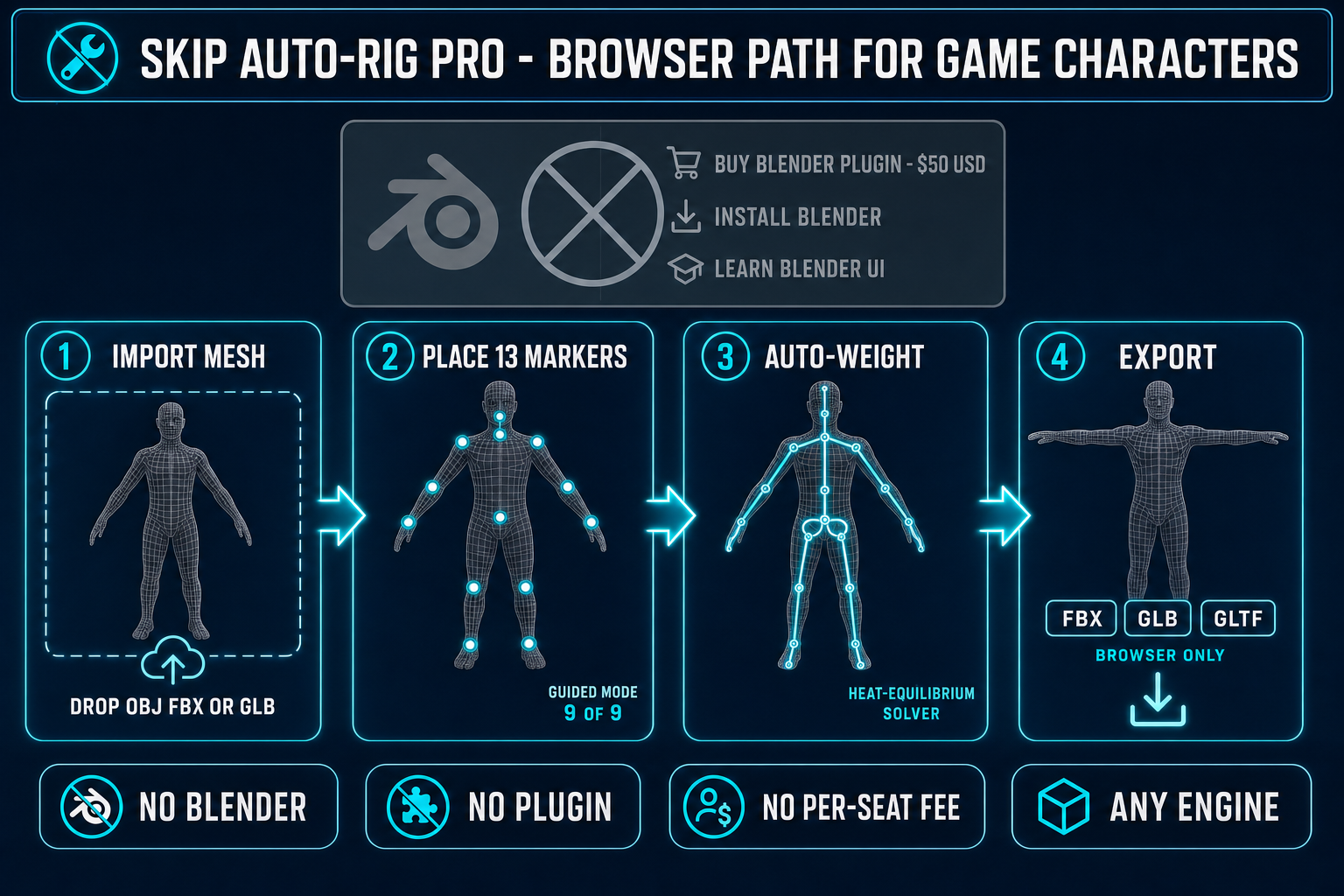
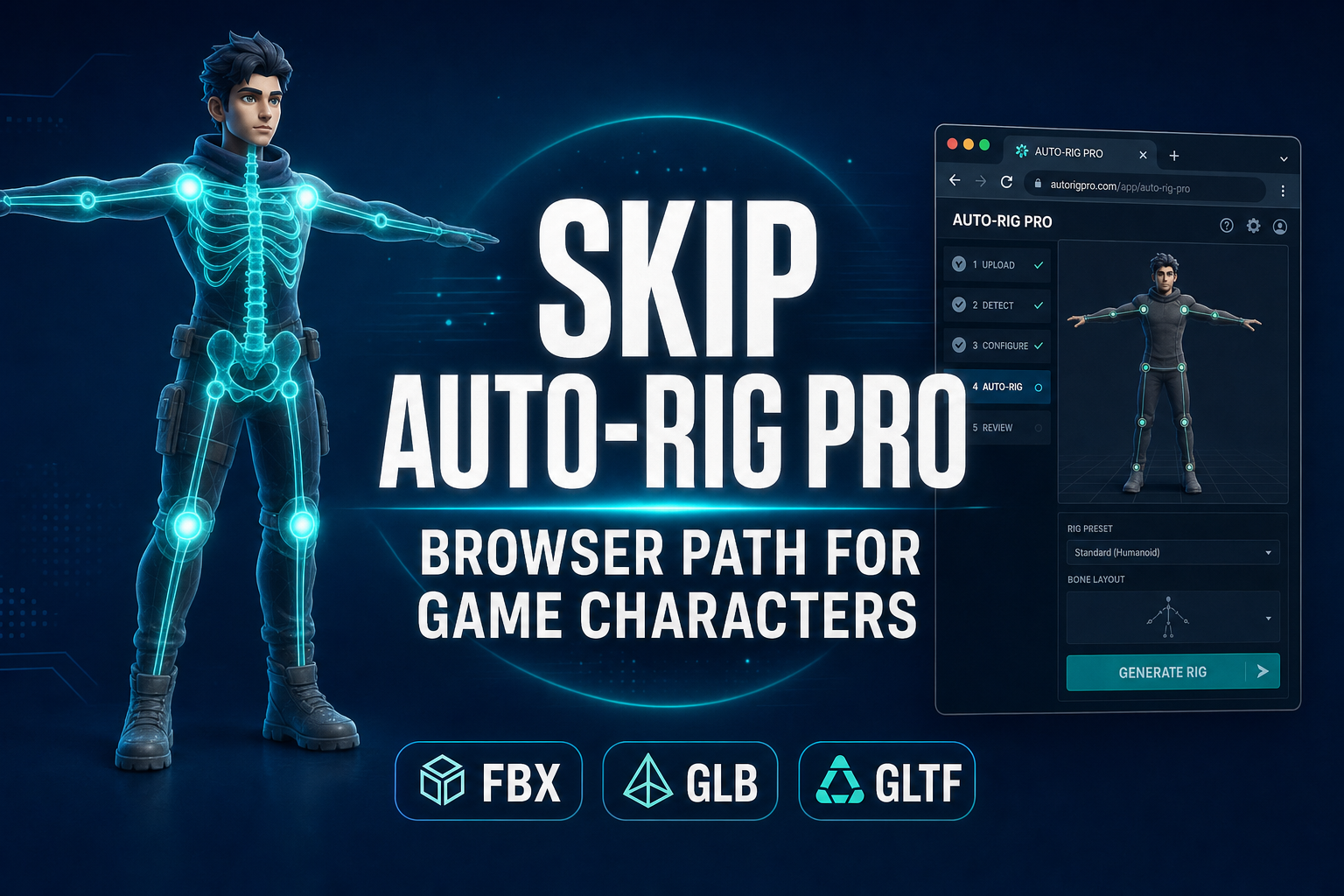
Skip Auto-Rig Pro browser path for game characters: import OBJ FBX or GLB, place 13 markers, run heat-equilibrium auto-weight, export FBX GLB or GLTF — no Blender install required
The four-stage browser path for game-character rigging. Auto-Rig Pro is the Blender-plugin route at the top; the bottom four panels run entirely in a browser tab through Sorceress Auto-Rigging and Procedural Walk.

What auto-rig pro actually is (and is not)

Auto-Rig Pro is a paid Blender add-on developed by Lucky3D (the studio name Artell uses for plugin distribution) and sold on Superhive, the marketplace formerly known as Blender Market. The plugin is a one-time purchase rather than a subscription; it ships in two tiers (Lite and Full) and includes lifetime updates with each purchase. Verified against the official Superhive product page on 2026-05-20: Lite is $25, Full is $50, and the multi-seat licenses are $162 for ten seats and $227 for twenty seats. The current shipping version is 3.76, supporting Blender 2.93 all the way through Blender 5.1 — Blender's own current stable release is 5.1.2, released on 2026-05-19. The version-compatibility window is unusually wide for a Blender plugin because the developer commits to backward compatibility across multiple major Blender releases, which matters for studios on locked-down Blender versions.

The Full edition is what most rigging artists actually buy, because the headline marketing feature — the Smart automatic marker-placement system that uses a trained model to drop markers on a humanoid mesh in one click — is Full-only. Lite is the manual marker-placement path: the user clicks each anatomical landmark by hand. Full adds Smart on top, plus the Remap tool for retargeting animation libraries between rigs, plus the FBX and GLTF export modules with Unity, Unreal Engine, and Godot bone-rename presets. The plugin also ships customisable extra-limb modules: kilt limbs for clothing skirts, spline-IK limbs for tentacles and ropes, dedicated wing and tail and breast and ear bones, multi-segment necks and tails, and editable bone-shape display. For a non-humanoid creature like a horse, dog, or spider, Full skips the Smart auto-marker step (Smart is humanoid-only) and instead exposes a manual three-bone IK setup for quadrupedal and digitigrade legs.

None of this is bad software. Auto-Rig Pro has shipped roughly 63,400 copies on Superhive across more than 434 verified buyer ratings, and the active development cadence is steady — version 3.76 added improvements to the deep-learning auto-marker model, eyebrow and tongue bone flexibility, and refinements to the Rig, Remap, Export, and Picker modules. For an animator who has already invested in Blender as the daily DCC tool, auto-rig pro is the most polished auto-rigging plugin available in the Blender ecosystem.
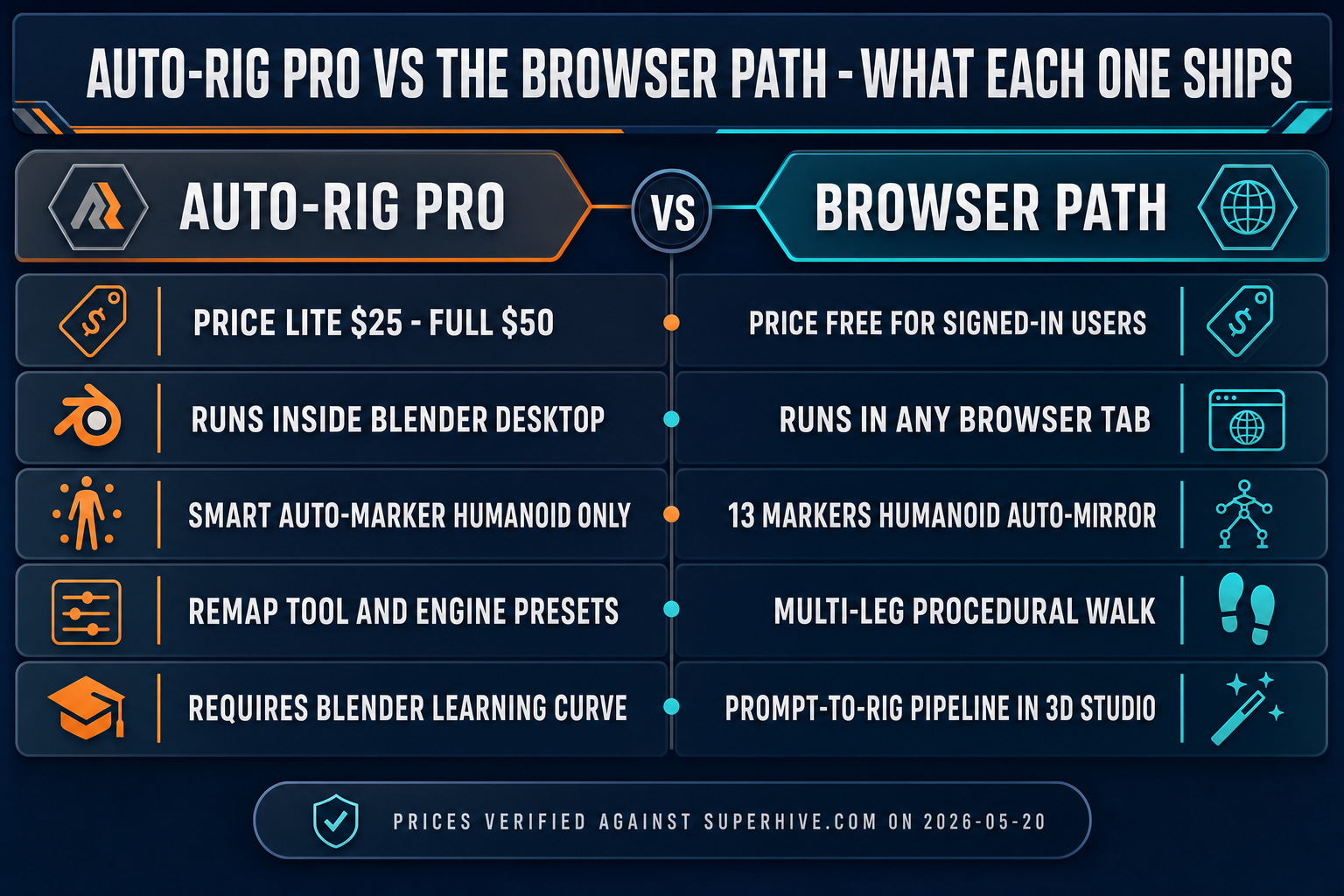
Auto-Rig Pro vs the Sorceress browser path: $25-$50 paid Blender plugin versus free browser auto-rig with multi-leg Procedural Walk and prompt-to-rig pipeline
The honest feature comparison between Auto-Rig Pro and the browser path. Prices verified against the official Superhive product page on 2026-05-20.

Where auto-rig pro is the wrong tool for game characters

The friction shows up in three specific places once the workflow is a game-character pipeline rather than a Blender-first art pipeline.

First, it only runs inside Blender desktop. The minimum-viable setup for a new auto-rig pro user is download Blender (about 350 MB on Windows), install Blender, learn enough Blender to navigate the viewport, the outliner, the properties panel, and the FBX export settings, install the plugin, and then run the rig. For a Blender-native artist that is one keystroke. For a vibe-coder, a browser-first game-jam participant, or a hobbyist whose pipeline is "prompt a character, drop it in Phaser", that is a several-day detour. The $25 to $50 plugin cost is the small line item; the time cost of Blender fluency is the big one. Game developers shipping browser-first projects rarely have that time budget.

Second, the Smart auto-marker feature is humanoid-only. Auto-Rig Pro can rig a horse, a spider, or a centaur — those use cases are explicitly documented — but Smart, the AI feature that places markers in one click, is trained only for bipedal humanoids in T-pose or A-pose. For any quadruped, digitigrade creature, multi-leg insect, or non-standard silhouette, the user falls back to manual marker placement and manual limb construction. The plugin still has the three-bone IK for quadrupedal legs and the spline-IK for tentacles, but they are author-time tools the user assembles by hand, not a one-click pipeline. For a game whose roster includes non-humanoid creatures, auto-rig pro automates only the humanoid half.

Third, the export path is one-way and disconnected from upstream character generation. Auto-Rig Pro consumes a static mesh that already exists, rigs it, and emits an FBX or GLTF. That is exactly the right surface area for a studio whose source meshes are sculpted by hand or downloaded from an asset library. It is the wrong surface area for a workflow that starts from "a chunky pixel-armoured warrior holding a glowing axe" — a text prompt that produces a concept image, lifts to a 3D mesh, auto-rigs, and animates by text prompt. The full prompt-to-animation pipeline has to be assembled by hand outside Auto-Rig Pro, with the rig step bolted in the middle by a Blender round-trip. That is the workflow where the browser path is materially faster.

The browser path: humanoid auto-rig in any tab

The closest browser-based equivalent to auto-rig pro Lite (manual marker placement + skeleton build + bind) is Sorceress Auto-Rigging, a tool that runs entirely in your browser tab. No install, no plugin, no Blender. The page accepts the same three input mesh formats as Auto-Rig Pro — OBJ, FBX, and GLB — parses them on the client in JavaScript and Three.js, and presents the same three-panel layout every rigging tool uses: a 3D viewport in the centre, a marker / detection / weights inspector on the left rail, and a log and export panel on the right.

The pipeline collapses to five steps, every one of which runs inside the tab:

  1. Import the mesh. Drop an OBJ, FBX, or GLB. Any existing skeleton in an imported FBX is ignored; the tool keeps only the static surface and builds a new rig from scratch. GLB is the format every Sorceress image-to-3D model exports, so the typical pipeline (prompt to image to mesh to rig) is GLB through the entire chain.
  2. Place 13 anatomical markers. The full marker list, verified against src/lib/rigging/types.ts on 2026-05-20: pelvis, neck, chin, the two shoulders, the two elbows, the two wrists, the two knees, the two ankles, plus two optional hip markers. Guided mode walks the order, auto-mirror reflects every left-side click to the right, and the centre-snap toggle projects each click to the volumetric centre of the limb rather than its surface point. For a symmetric humanoid, you click nine markers and the tool builds the other six.
  3. Run finger detection (optional). A separate peak-detection pass finds five fingertip locations per hand on any character whose hands are sculpted open. Skip this step for chibis, mascots, and stylised characters whose hands are paddles or fists.
  4. Build the skeleton and auto-weight the skin. One click reads the markers, constructs the bone hierarchy with the pelvis as root, and dispatches the mesh + skeleton to a Sorceress-hosted Blender backend that runs the heat-equilibrium weight solver. The same solver Blender ships is the same solver this backend runs — it is the highest-quality open-source option for skeletal-mesh weight binding. Wait is typically 60 to 180 seconds depending on vertex count; progress is reported in the log.
  5. Pose-test and export. Toggle pose mode, drag any joint with full-body inverse kinematics, confirm the rig deforms cleanly, and export as FBX, GLB, or GLTF. The FBX export matches the SK_Mannequin reference skeleton so the file imports cleanly into any modern engine that consumes FBX.

Every step is interactive and undoable, every step happens in a browser tab, and the only remote call is the auto-weight step against the hosted Blender server — the user never sees Blender, never installs it, never deals with Python addons. The tool is free for any signed-in user; uploading custom 3D models requires a Pro subscription, but generation, downloads, rigging, and animation are free for everyone. That is a meaningfully different cost structure from auto-rig pro's $25 to $50 per-seat purchase.

The honest version-by-version breakdown of where the browser path matches Auto-Rig Pro and where it does not is in the next section.

Auto-rig pro vs the browser path: feature-by-feature

The comparison below is the version of this article you would have asked for if you bought auto-rig pro Full first and only switched to the browser path later. Each row is a specific capability, verified against the live tool source on 2026-05-20.

  • Humanoid skeleton build. Auto-Rig Pro Smart places markers automatically on a clean T-pose or A-pose mesh. The browser path uses guided manual placement of 13 markers with auto-mirror; for a symmetric humanoid, you click nine. Smart is faster on the click-count axis (one click vs nine); the browser path is faster on the install-and-learn axis (zero minutes vs several days for a new Blender user).
  • Skin-weight quality. Both pipelines route the bind step to the heat-equilibrium weight solver Blender ships. Quality on a clean humanoid mesh is comparable. The browser path's local geodesic-distance fallback (used when the Blender backend is briefly unavailable) is faster but visibly noisier at the shoulder and hip; for production work, wait the 60 to 180 seconds for the heat-equilibrium pass.
  • Pose-mode testing. Both tools ship a pose-mode where you drag a joint and the mesh deforms live. The browser path's pose mode includes both rotate (click a bone, drag the rotation gizmo) and grab (drag the end-effector of any chain, IK solves automatically). Auto-Rig Pro's pose mode is the standard Blender pose mode, which is more powerful for layered animation work but less directly mapped to "does this rig deform cleanly".
  • Engine export. Auto-Rig Pro Full ships explicit export presets for Unity, Unreal, and Godot with engine-specific bone-rename rules. The browser path exports a clean FBX, GLB, or GLTF that matches the SK_Mannequin reference skeleton; for Unity and Godot, the import is direct, and the FBX drops into the Unreal Content Browser and selects SK_Mannequin automatically. For studios that need vendor-specific bone-naming conventions for legacy projects, Auto-Rig Pro Full's export presets are still the cleaner path.
  • Animation retargeting. Auto-Rig Pro Full's Remap tool is the single feature with no direct browser-path equivalent. If your workflow is "ship one rig, retarget every Mixamo animation onto it", Remap is genuinely the right tool. The browser path's answer for new animations is upstream: 3D Studio's Animate tab takes a text prompt ("a relaxed walk", "a sword slash from right to left") and produces an animation clip on the rig with no retargeting needed.
  • Non-humanoid creatures. Auto-Rig Pro Full has manual workflows for quadrupeds, spiders, and centaurs, but Smart does not apply. The browser path's answer is Procedural Walk, a separate tool covered in the next section. Procedural Walk is stronger at runtime (live IK foot placement on any terrain); Auto-Rig Pro Full is stronger at authoring time for non-standard limb modules like wings or kilts.
  • Cost. Auto-Rig Pro: $25 (Lite) or $50 (Full) one-time, plus Blender (free). Browser path: free for any signed-in user (generation, downloads, rigging, animation). The break-even is whether the time cost of installing and learning Blender is worth the $25 to $50 differential — for a Blender-native artist, yes; for a vibe-coder, almost never.
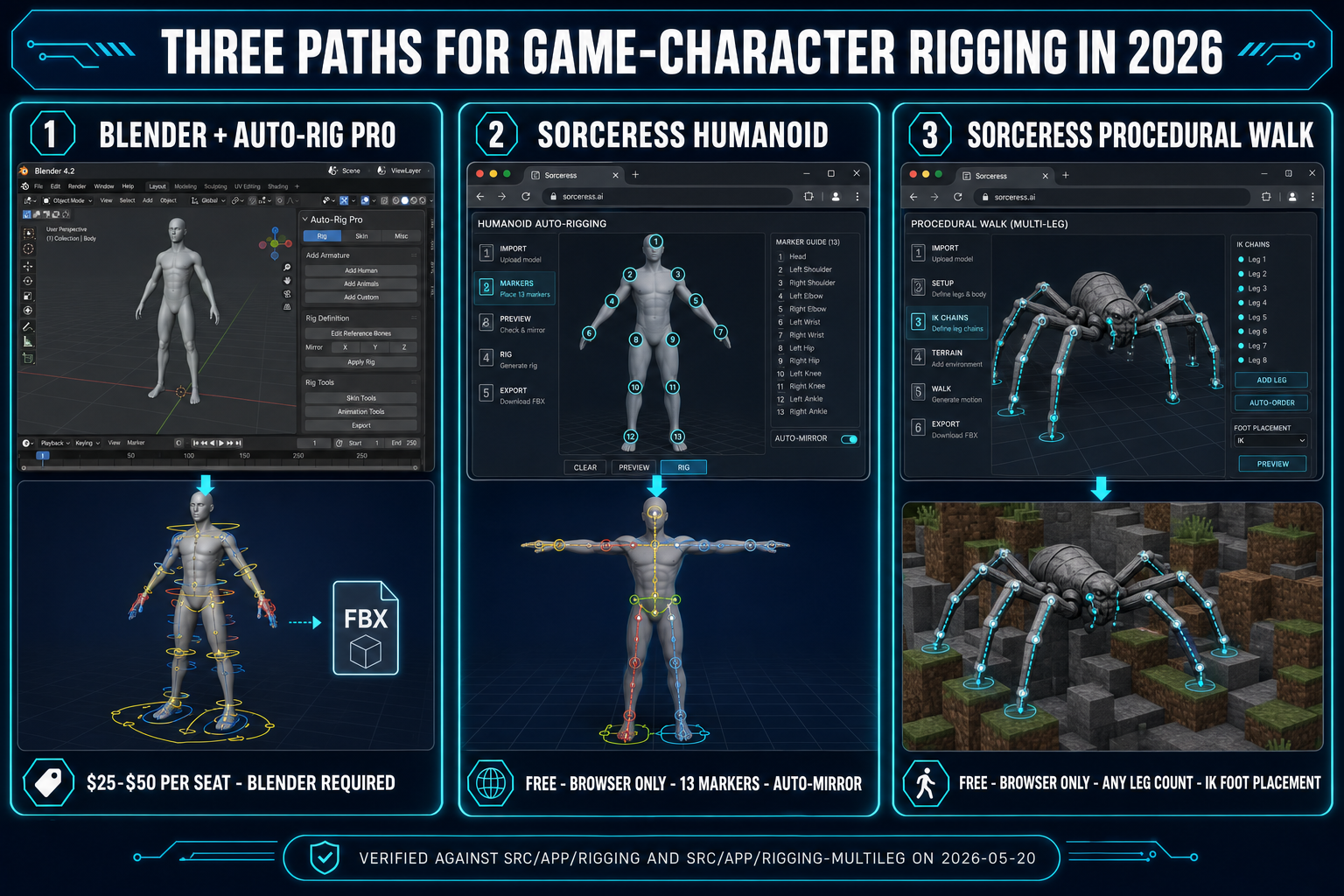
Three game-character rigging paths in 2026: Blender plus Auto-Rig Pro at $25-$50 per seat, Sorceress humanoid auto-rig free in browser with 13 markers, and Procedural Walk for multi-leg creatures with live IK foot placement
The three paths in 2026. Auto-rig pro is the Blender route. The middle and right columns are the two browser tools that cover the humanoid and multi-leg cases respectively.

Multi-leg creatures: Procedural Walk where Smart does not apply

The browser path's most distinctive piece — the part with no real Auto-Rig Pro Smart equivalent — is Procedural Walk. It is a separate tool from the humanoid auto-rig, lives at /rigging-multileg, and handles every creature whose locomotion is not a pelvis-plus-two-legs walk cycle: spiders, ants, scorpions, drakes, quadrupedal beasts, multi-legged drones, anything with more (or fewer) than two legs. The pipeline is conceptually similar to the humanoid rig (drop in a mesh, the tool finds and rigs the legs) but the runtime behaviour is fundamentally different.

Humanoid rigs in 2026 are typically driven at runtime by baked animation clips: a walk cycle is a 24-frame keyed animation, a slash is a 12-frame keyed animation, and the engine blends between them with state machines. Procedural rigs do not bake the foot placement at all. Instead, every frame, the IK foot solver reads the current body position, the current terrain height under each foot, and the per-leg gait phase, and computes where each foot should land. Walk a procedurally-rigged spider up a staircase and every foot plants on the right step automatically without a single baked animation per-step. Walk a procedurally-rigged quadruped across a ramp and every foot rolls heel-to-toe at the correct angle. This is the kind of runtime behaviour that a baked animation clip cannot produce because the terrain is not known at authoring time.

Procedural Walk's authoring surface is the marker-placement + leg-count + joints-per-leg configuration on the left rail. Default leg count is six (ant-style), default joints-per-leg is six, and twelve walk-style presets ship out of the box: Default (humanoid bipedal fallback), Heavy (slow, weighty stomping), Creep (low and slow), Spider Scurry (fast tiny steps), Mechanical (robotic, no body-clearance variation), Gallop (horse-like), Prowl (cat-like), Frantic (insect-fast), Waddle (penguin-style), March (military rhythm), Tippy Toes (light and quiet), Lumbering (bear-style). Each preset is a tuned bundle of stride length, step duration, body weight, body clearance, foot conformity, turn banking, head stability, idle breathing, and momentum-lean parameters. Pick the preset that visually matches the creature, run the simulation, and the rig walks itself anywhere.

The export is the same FBX, GLB, or GLTF the humanoid rig produces, with the procedural-walk parameters baked into a runtime-driven IK setup the consuming engine evaluates each frame. The voxel-creature variant of this pipeline is covered in detail in the voxel generator guide; the Mixamo-comparison angle is covered in the Mixamo alternative guide. For the auto-rig pro angle, the one-line summary is: Auto-Rig Pro Full ships dedicated extra-limb modules for non-humanoid authoring-time work; Procedural Walk ships a procedural runtime IK foot solver for non-humanoid locomotion. They are different tools for different parts of the problem.

The prompt-to-rig pipeline that auto-rig pro cannot reach

The friction-removal that matters most for browser-first game developers is the upstream part: you do not have a mesh yet. You have a text prompt, or you have a single character concept image, and you need a rigged 3D character at the other end of the pipeline. Auto-Rig Pro is structurally unable to participate in that step because it consumes a mesh that already exists. The browser path's answer is 3D Studio, which chains the entire character pipeline in one tab.

Four steps, all browser:

  1. Generate the concept. AI Image Gen turns the prompt into a character concept. Reference images keep the character on-model across iterations.
  2. Lift to 3D. One of seven image-to-3D models extracts a textured mesh from the concept image. The output is a GLB with PBR-friendly texture maps.
  3. Auto-rig + weight paint. The same humanoid Auto-Rigging tool covered earlier, but with the mesh already loaded into the viewport from the previous step. No file download or upload round-trip.
  4. Text-to-animation + export. Describe the motion ("a relaxed walk", "a sword slash from right to left", "a slow idle breathing") and the text-to-motion engine produces an animation clip on the rig. Export as FBX, GLB, or GLTF.

The reason this pipeline matters: every step's output is the next step's working buffer, never a file on disk. Auto-Rig Pro inside Blender has the opposite property — every step is a file on disk that you import, export, and round-trip. For a Blender artist, that round-trip is normal and frictionless because Blender is already running. For a vibe-coder with a browser tab and a prompt, the round-trip is the bulk of the workflow. The full image-to-3D-to-rig story is covered in the image-to-3D pipeline guide; the prompt-to-rigged-mesh entry point is covered in the AI 3D character generator guide; the humanoid rigging workflow in isolation is covered in the browser auto-rig guide.

When to keep auto-rig pro on the shelf

The honest framing is not "auto-rig pro is bad". The honest framing is "auto-rig pro is the right tool for Blender artists, and the wrong tool for browser-first game developers, and the question is which category you are in". Three signals say keep the plugin:

  1. You already use Blender every day. If your viewport-to-render time is measured in minutes because Blender is already open, the auto-rig pro path is one keystroke. The $25 to $50 plugin pays for itself on the second rig.
  2. You need the Remap tool for animation retargeting. If your studio has a library of Mixamo or motion-capture animations that need to be retargeted onto every new rig, Remap is the cleanest path. No browser tool currently ships an equivalent because the upstream answer in the browser path is text-to-animation per rig, not retargeted shared libraries.
  3. Your characters need non-humanoid limb modules at authoring time. Wings, multi-segment tails, kilts, spline-IK tentacles, ears, breast bones — all of these are Auto-Rig Pro Full features with no direct browser-path equivalent. Procedural Walk covers locomotion for non-humanoids but does not currently expose the authoring-time wing-and-tail-module workflow.

Three signals say skip the plugin:

  1. You do not currently use Blender. The realistic cost of using Auto-Rig Pro is the plugin price plus the multi-day Blender learning curve. For a browser-first game developer, the multi-day curve is the binding constraint, not the $25 to $50.
  2. Your source character starts from a prompt or a generated image. Auto-Rig Pro cannot participate in the upstream prompt-to-3D step; that round-trip is the slowest part of the pipeline. The browser path keeps the upstream step in the same tab.
  3. Your roster includes multi-leg creatures with runtime terrain. Auto-Rig Pro's multi-leg authoring is manual; Procedural Walk's runtime IK foot solver is what game developers actually want when a spider has to walk up stairs.

Browser-path failure modes (and the fixes)

The browser auto-rig has three failure modes that account for almost every bad rig. Knowing each (and the fix) saves a rebuild:

  • Markers placed on the mesh surface. Cause: centre-snap is off. Effect: the inferred skeleton sits on the skin rather than down the bone axis, and auto-weight then deforms the mesh as if it were skinning a hollow shell — collapsing volume at every joint. Fix: leave centre-snap on (it is on by default).
  • Asymmetric left-right marker placement. Cause: auto-mirror is off, or both sides were placed manually with slightly different heights. Effect: the inferred skeleton has a tilted clavicle and tilted hip line. Fix: leave auto-mirror on for any bilaterally-symmetric character. Place only the left side; the right side mirrors automatically.
  • Clenched fists in the source mesh. Cause: the source character was sculpted with closed hands. Effect: the finger-peak detector cannot find five distinct fingertip peaks per hand, and the rig produces no finger bones. Fix: re-export the source mesh with hands open in T-pose, or skip finger detection.
  • Auto-weight comes back patchy at the shoulder or hip. Cause: the Blender backend was unavailable and the local geodesic fallback ran instead. Fix: retry auto-weight after a brief wait. The Blender-backed run is labelled "Heat-equilibrium" in the log; the fallback is labelled "Geodesic".

The verification path for any rig that looks wrong is the pose-mode test. Toggle pose mode, drag each wrist to the chest, drag each ankle forward, drag the head left and right. If the deformation looks clean across all six tests, the rig is good. Verified on 2026-05-20 against src/app/rigging/page.tsx and src/lib/rigging/types.ts — the 13-marker anatomy, the guided-mode order, the auto-mirror toggle, the centre-snap default, and the FBX/GLB/GLTF export options all match the deployed Sorceress Auto-Rigging build as of today.

The verdict — skip or buy?

For a Blender-native artist with a working desktop pipeline, an animation library to retarget, and characters with wings, kilts, or non-standard limbs, the answer is buy Auto-Rig Pro Full ($50) and use it. The plugin earns its price.

For a browser-first game developer with a prompt, a character concept, and a need to ship to Phaser or Three.js this week, the answer is skip auto-rig pro and run the browser path: humanoid characters through Sorceress Auto-Rigging, multi-leg creatures through Procedural Walk, prompt-to-rig pipelines through 3D Studio. Free for signed-in users, no Blender install, no Python addon to maintain, and the upstream image generation and downstream animation export are in the same tab. The full tool roster is in the Sorceress tools guide.

The trap to avoid is buying auto-rig pro before you know which category you are in. The plugin is worth $50 if you will use it every week; it is worth nothing if it sits unused because the Blender learning curve was steeper than the rigging problem you actually wanted to solve. Run a humanoid character through the browser path first. If the browser path covers your roster, you saved $50 and a week of Blender onboarding. If it does not — if you hit the Remap or extra-limb wall — then buy auto-rig pro Full, on purpose, with a known reason. Verified May 20, 2026 against the official Superhive product page (prices, version 3.76, Blender 2.93 to 5.1 support), the Lucky3D updates log, and the live Sorceress tool source in src/app/rigging/page.tsx, src/app/rigging-multileg/page.tsx, and src/lib/rigging/types.ts.

Frequently Asked Questions

What is Auto-Rig Pro and why do people buy it?

Auto-Rig Pro is a paid Blender add-on developed by Lucky3D (Artell) that automates the two slow steps of character rigging: building a skeleton inside a humanoid mesh and skinning the mesh to that skeleton with weight values that drive deformation. The plugin ships in two tiers — Lite at $25 (core auto-rig and pose tools) and Full at $50 (adds the Smart AI marker-detection feature, the Remap tool for retargeting animations between armatures, and the FBX and GLTF export modules with Unity, Unreal Engine, and Godot presets), verified against the official Superhive product page on 2026-05-20. The reason people buy it is that the Smart feature can place markers automatically on a humanoid mesh, the Remap tool retargets motion-capture data between rigs, the export modules write FBX with engine-specific bone-rename presets, and the spline-IK and kilt limb modules handle clothing and tentacles that the generic Mixamo workflow does not. For a Blender-native artist who already works inside Blender desktop every day, Auto-Rig Pro removes the slowest day of character work.

How much does Auto-Rig Pro cost in 2026?

Verified against the Superhive (formerly Blender Market) product page on 2026-05-20: Lite $25, Full $50, Full 10-seat license $162, Full 20-seat license $227. The Lite-to-Full upgrade path is a separate $25 purchase. The plugin is a one-time purchase rather than a subscription; lifetime updates are included with the purchase, which is unusual for tools in this category. The Full edition is the version most rigging artists buy because the Smart marker-detection feature is what the marketing focuses on, and Smart is Full-only. Auto-Rig Pro 3.76 is the current version as of May 2026, supporting Blender 2.93 through Blender 5.1 (the latest stable Blender release as of 2026-05-19 is Blender 5.1.2).

Why would I skip Auto-Rig Pro for game characters?

Three reasons rule it out for a non-trivial subset of game developers. First, it only runs inside Blender desktop. If you do not already use Blender, the realistic minimum cost of using Auto-Rig Pro is the $25 plugin plus the time investment of learning Blender well enough to navigate its viewport, outliner, properties panel, and FBX export settings — which is days, not hours, for someone new to the tool. Second, the Smart auto-marker feature is humanoid-only. For quadrupeds, spiders, drones, drakes, and any multi-leg creature, Auto-Rig Pro is a manual marker-placement plus a customisable limb-builder, not a one-click auto-rig. Third, the export path is one-way: the plugin produces an FBX or GLTF file you then import into your engine, with no roundtrip from generated character art. A prompt-to-rig pipeline that starts from a text description has to be assembled by hand outside the plugin. For a browser-first workflow on game characters specifically, all three friction points are removable by doing the work in a browser tool instead.

What is the browser-based alternative to Auto-Rig Pro?

The closest browser-based equivalent for humanoid rigs is the Sorceress Auto-Rigging tool at /rigging. It runs entirely in a browser tab — no install, no plugin, no Blender required — and accepts the same input mesh formats as Auto-Rig Pro (OBJ, FBX, GLB). The user places 13 anatomical markers on the mesh (pelvis, neck, chin, the two shoulders, elbows, wrists, knees, and ankles; auto-mirror reduces this to nine clicks for symmetric characters), then one click builds the skeleton and runs a heat-equilibrium weight solver on a hosted Blender backend. The output is an FBX, GLB, or GLTF file ready for any modern engine. The tool is free to use for any signed-in user; uploading custom 3D models requires a Pro subscription, but generation, downloads, rigging, and animation are free. For non-humanoid creatures, the companion tool is Procedural Walk at /rigging-multileg, which auto-rigs creatures with arbitrary leg counts and drives them with real-time inverse kinematics so feet plant naturally on uneven terrain without any baked animation clips.

Can the browser rig match Auto-Rig Pro on quality?

For the skeleton-build plus skin-weight quality on a humanoid mesh, the browser rig is comparable on a clean T-pose character because both pipelines call into the same underlying solver family. The heat-equilibrium weight solver Blender ships is what Sorceress runs on its hosted Blender backend, and it is also the solver Auto-Rig Pro Full delegates to when the user runs the bind step inside Blender. Where Auto-Rig Pro Full pulls ahead is on the extras: the Remap tool for retargeting animation libraries between rigs, the customisable extra-limb modules (kilt, spline IK, ears, wings, breast bones, multi-segment tails), the editable bone-shape display, and the engine-specific bone-rename presets for Unity, Unreal, and Godot exports. For a game character that needs a humanoid skeleton, FBX or GLB export, and a clean weight bind, the browser rig is the faster path; for an animator who needs Auto-Rig Pro's specific export presets, retargeting features, or non-standard limb modules, Auto-Rig Pro Full is still the right tool, just bought after the rest of the asset pipeline.

How is the browser auto-rig different from Mixamo?

Mixamo is the Adobe-acquired hosted auto-rigging service that asks the user to mark up wrists, elbows, knees, and chin on a humanoid FBX and returns a rigged FBX. The Sorceress browser auto-rig runs on the same conceptual idea — place anatomical markers on a humanoid mesh, get a rigged FBX back — with three practical differences. First, it runs as part of a larger 3D pipeline; the same tab can generate the source character, lift the image to 3D, auto-rig, and animate by text prompt without leaving the page. Second, it uses 13 required markers (plus 2 optional hip markers) versus Mixamo's smaller marker set, which lets the rig handle non-standard proportions (chibi heads, long-armed characters, stylised silhouettes) that confuse a fixed-marker rigger. Third, it supports non-humanoid creatures through the Procedural Walk pipeline, which neither Mixamo nor Auto-Rig Pro Smart offers. The honest one-sentence summary is in the Mixamo alternative guide and the auto-rig browser guide.

Do I need to know Blender to use the browser path?

No. The browser auto-rig parses the mesh, places markers, builds the skeleton, runs auto-weight, and exports the rigged mesh entirely in JavaScript and Three.js inside the browser tab; the auto-weight step calls a Sorceress-hosted Blender backend, but the user never sees Blender, never installs it, never deals with Python scripts or addons. The only Blender exposure is in the verbal description of what is running under the hood for transparency: the heat-equilibrium weight solver is what the Sorceress backend runs because it is the highest-quality open-source option for skeletal-mesh weight binding, and wrapping it as a service means every browser user gets production-grade weight quality without owning the Blender toolchain. This is the opposite of the Auto-Rig Pro workflow, which requires Blender to be installed and reasonably understood before the plugin is usable.

What if my character has wings, a tail, or other non-humanoid limbs?

Auto-Rig Pro Full ships dedicated modules for wings, tails, breast bones, ears, kilt limbs (for clothing skirts), and spline-IK limbs (for tentacles and ropes), all of which the user adds manually through the Auto-Rig Pro UI inside Blender. The browser auto-rig's humanoid path does not currently expose these specific extra-limb modules; for a winged biped, the workaround is to rig the humanoid skeleton in the browser, export as FBX, then add the wing bones in a separate DCC step. For a quadruped or multi-leg creature with no humanoid silhouette, Procedural Walk is the correct browser tool — it accepts any leg count and any segment-per-leg count, and the IK foot solver handles arbitrary terrain at runtime, which is exactly what a wide-leg creature needs. The honest comparison: Auto-Rig Pro Full is broader for non-standard limb modules at authoring time; Procedural Walk is stronger for non-humanoid locomotion at runtime.

Sources

  1. Skeletal animation (Wikipedia)
  2. Inverse kinematics (Wikipedia)
  3. Linear blend skinning (Wikipedia)
  4. glTF 2.0 specification (Khronos Group)
  5. FBX (Wikipedia)
  6. SkinnedMesh (Three.js documentation)
Written by Arron R.·3,716 words·17 min read

Related posts