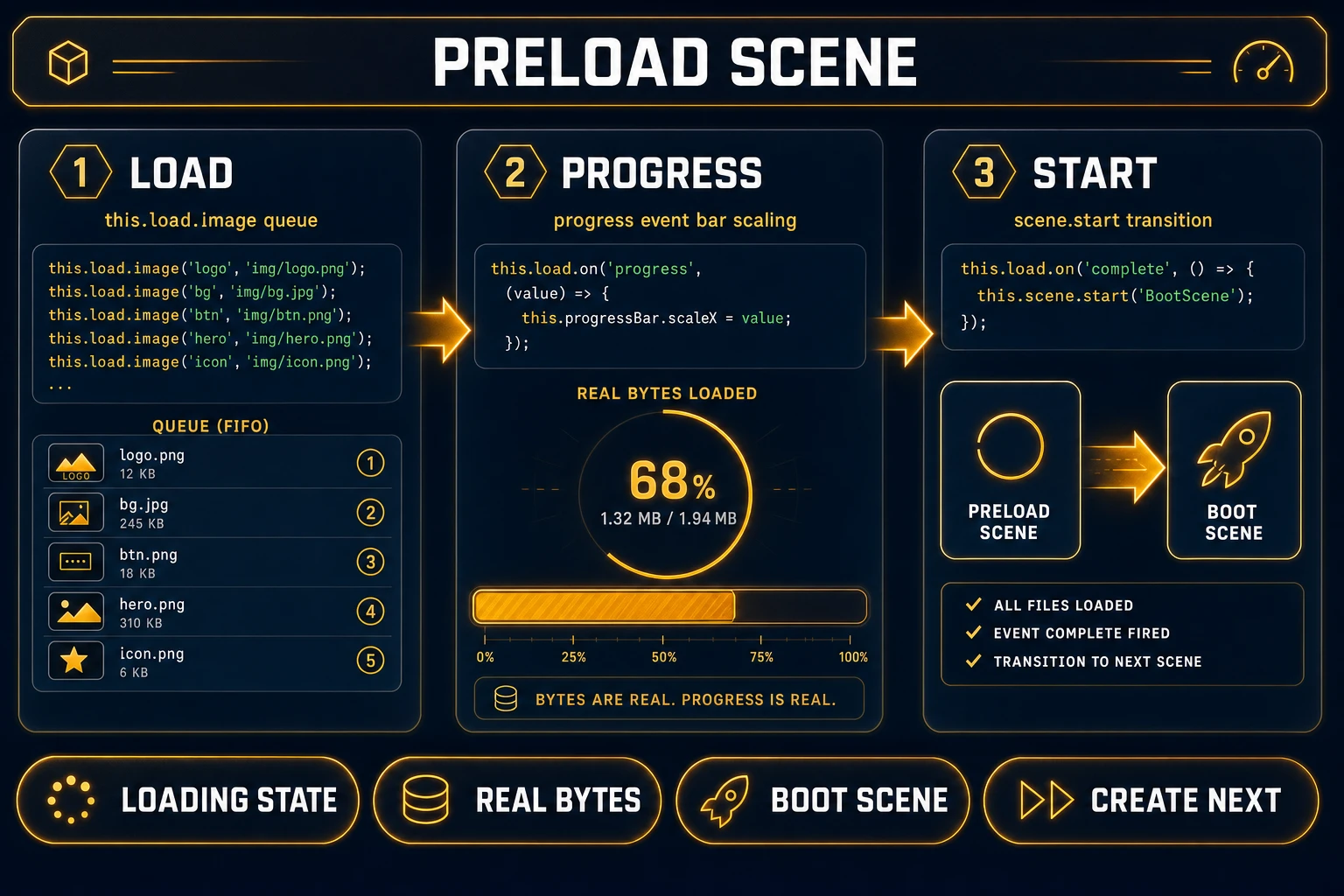
Players judge your polish before the first frame of gameplay renders. A game loading screen is the contract between “click Play” and “here is the world”—background art, logo placement, optional tips, and a progress indicator that tracks real bytes, not theater. For browser titles built with Phaser, that screen usually lives in a dedicated preload scene while this.load queues textures and audio. Sorceress stitches the art side across AI Image Gen, layer compositing in Canvas, and optional scene wiring through WizardGenie. If you already shipped store art with Brand’s logo pipeline or distant vistas with Shade, reuse those PNGs as layers instead of reinventing the wheel. New to the stack? Start from the tools guide or open plans when you are ready to export from Canvas.
What a game loading screen actually does for players
A game loading screen is not wallpaper you slap behind a spinner. It sets tone, reinforces your title, and—when done honestly—reports how much of the asset bundle has arrived. The loading screen pattern exists because real-time games cannot instantiate every texture the moment the tab opens; something must display while the network and GPU catch up.
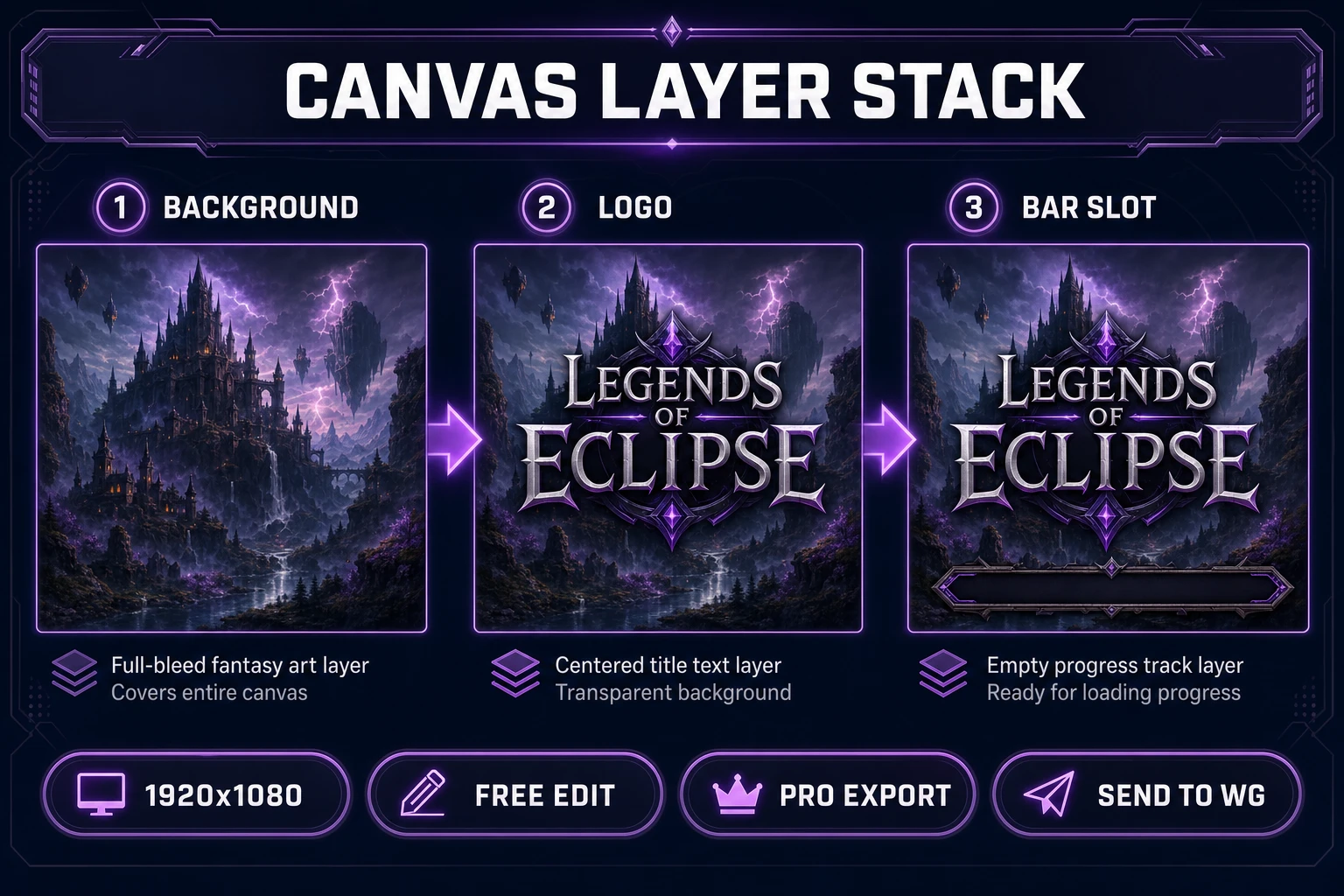
Indie browser games typically need four visual zones on that screen: full-bleed background art, a centered or corner-anchored logo, an optional rotating tip line, and a progress track aligned to the bottom safe area. Mobile browsers add notches and browser chrome; desktop players expect 16:9. A deliberate game loading screen documents those zones before anyone spends credits on generation.
Phaser treats this as a first-class scene type. While the loader runs, the scene stays in a LOADING state—it still renders game objects you created, but it will not call update() until assets finish (Phaser loader docs, verified July 8, 2026). That means your background image and empty bar can appear immediately; only the fill width needs code.
Contrast that with a black canvas flash. Players interpret black as crash. A composed game loading screen—even a simple gradient plus logo—signals intent. The art job is making that signal match your game’s genre without borrowing a meme template that screams “placeholder.”
Tips deserve their own sentence in the brief. “Press WASD to move” belongs on a controls overlay, not a load screen, unless your jam explicitly teaches during load. Lore snippets, patch notes, or humor that matches your voice work better—and rotate them in code so repeat launches feel alive.
Why meme templates and stock photos fail for indie games
Search “game loading screen” and you will find GTA-style parody generators and AAA screenshots meant for jokes, not shipping. Those templates optimize for shares, not for matching your palette, logo safe zone, or progress bar coordinates. Drop one into a fantasy RPG and the cognitive dissonance lands before gameplay does.
Stock photo sites sell generic sci-fi corridors that collide with every other itch.io title using the same $5 pack. Worse, licensing on stock art is often unclear for interactive use. You want assets born from prompts you own, composited in tools that export PNGs you can trace back to a session.
Single-image shortcuts also ignore layering. You need the logo on its own layer so you can swap languages later. You need an empty bar track separate from the fill so Phaser can scale a nine-slice or rectangle without redrawing the background. Flattening everything in one JPEG locks you into re-generation for every tweak.
Finally, wrong aspect ratios punish you at export. A portrait phone wallpaper stretched to 1920×1080 blurs hero props and pushes your title into the browser’s URL bar overlap zone. Canvas presets exist precisely to prevent that guesswork.
Even strong key art fails when typography is baked in. AI models love ornate letterforms that read as “fantasy” in a thumbnail and “illegible” at 1080p. Keep generated backgrounds mostly type-free; add the title in Canvas where you control kerning, stroke, and drop shadow against a real checkerboard.
The Sorceress game loading screen pipeline in four steps
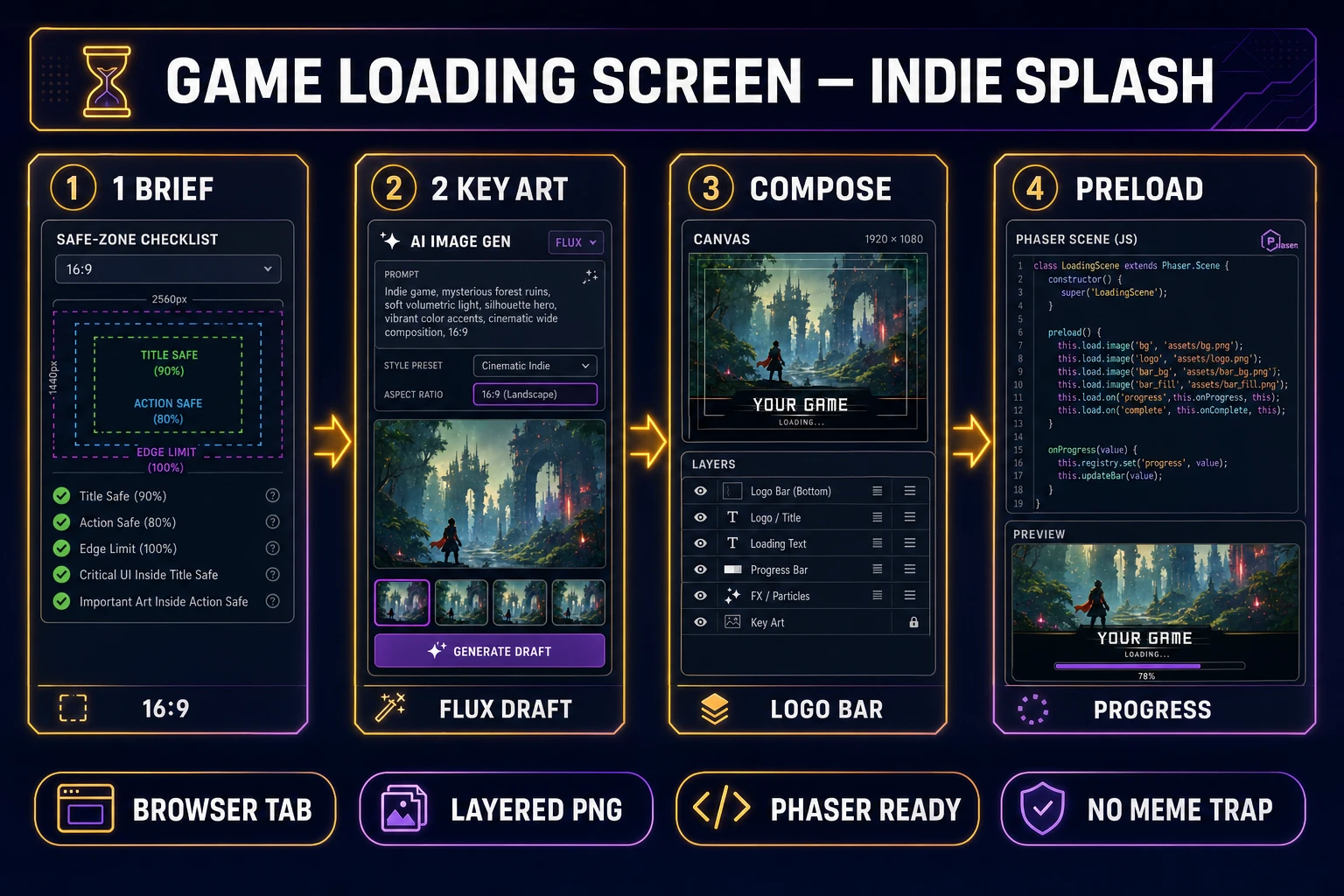
Think of the Sorceress game loading screen path as four stations: brief and safe zones, key art generation, Canvas compositing, and preload wiring. No hidden fifth step—WizardGenie is optional acceleration for the Phaser scene, not a requirement to download art.
Step 1 locks dimensions and safe areas. Step 2 drafts backgrounds in AI Image Gen at 16:9. Step 3 imports layers into Canvas, aligns logo and bar slots, exports PNG. Step 4 loads the PNG in a boot or preload scene and binds loader progress events. Repeat the same four steps for chapter loads, not just first boot, if your game streams levels.
Cross-tool handoffs stay inside Sorceress: generate → Send to Canvas from the lightbox menu, or drag from WizardGenie embed when you compose inside the agent workspace. That keeps prompts, seeds, and exports in one funnel instead of scattered downloads.
The pipeline deliberately separates static art from animated progress. Canvas handles pixels; Phaser handles bytes. Mixing fake progress bars that ignore this.load.progress erodes trust when a large audio file stalls at ninety-nine percent.
Step 1 — lock aspect ratio and safe zones before you generate
Before spending credits, write a quarter-page brief. State target resolution—1920×1080 for desktop browser games is the default Canvas preset named “16:9 Landscape” (src/app/canvas/page.tsx, verified July 8, 2026). Mark safe zones: keep critical logo pixels inside the center 80% width and above 12% from the bottom so progress UI never overlaps the title.
List forbidden elements: no embedded text in the background prompt (add type in Canvas), no photoreal faces unless your game needs them, no UI chrome that mimics Steam or console OS. Add positives: palette hex values, lighting direction matching your in-game key light, motif nouns (“obsidian fortress, violet lightning, fog”).
Decide tip strategy now. Static tip baked into art ages badly; plan a text object in Phaser fed from a JSON array. Note that in the brief so you do not paint tips into the background layer.
Match your Phaser config. If config.scale uses 1280×720 internally, you can still author at 1920×1080 and downscale on export—Canvas supports explicit download resize—or author native to keep file size lean.
Document file names: load_bg.png, load_logo.png, load_bar_track.png. Consistent names survive refactors when three teammates touch the preload scene.