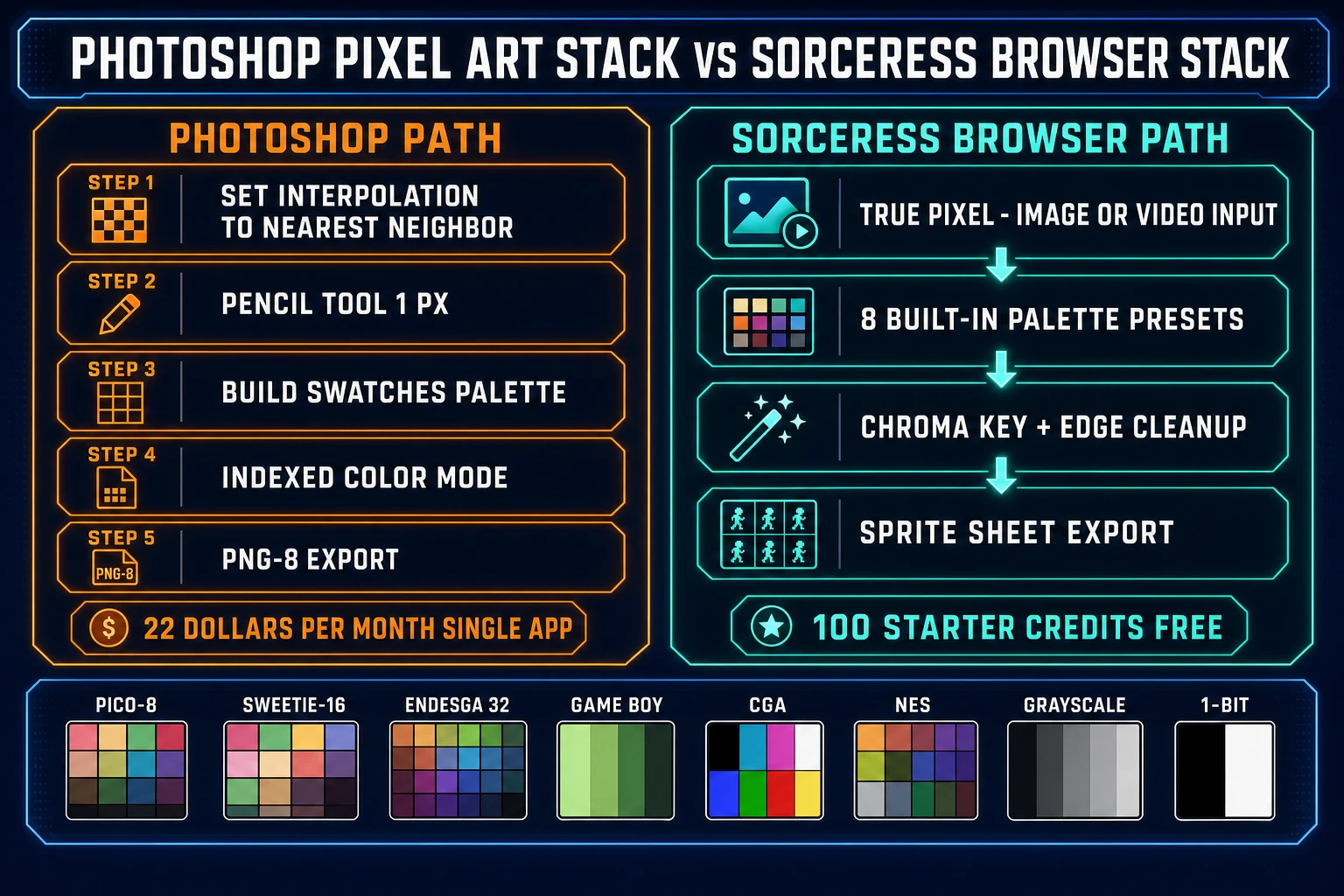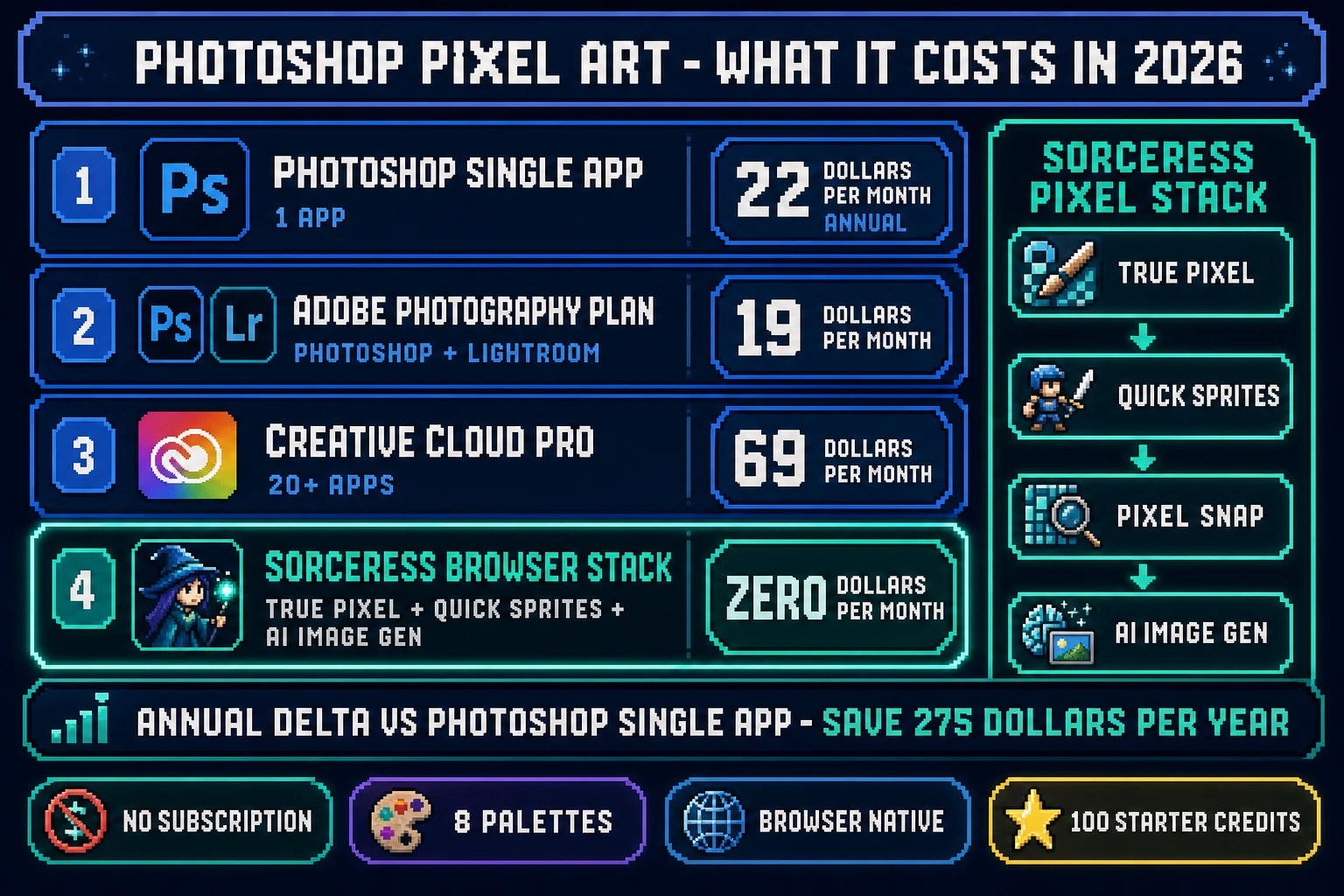
Every 2026 search for how to make pixel art in Photoshop lands on the same fork. The first reader is a graphic designer who already pays for Adobe Creative Cloud, has Photoshop docked on the second monitor every day, and wants to know which dialogs and which tool settings turn the same software they use for photo work into a real pixel-art workstation. The second reader is a hobbyist game dev or jam participant who does not own Photoshop yet, has seen tutorials that assume Photoshop, and wants to know if it is worth the $22.99 a month subscription or if there is a cleaner free path that produces equivalent sprite-sheet output. Both readers deserve the same honest answer: Photoshop ships every primitive a pixel artist needs — Nearest Neighbor interpolation, the Pencil tool, custom Swatches palettes, indexed-color PNG export — and a browser-native alternative also exists that costs nothing. This post walks the full Photoshop pixel-art workflow step by step, then puts the equivalent browser pipeline next to it for the second reader. Every menu path, tool name, and price in this post was verified against the live Adobe documentation and the live Sorceress source on June 8, 2026.
The honest Photoshop pixel art workflow in 2026
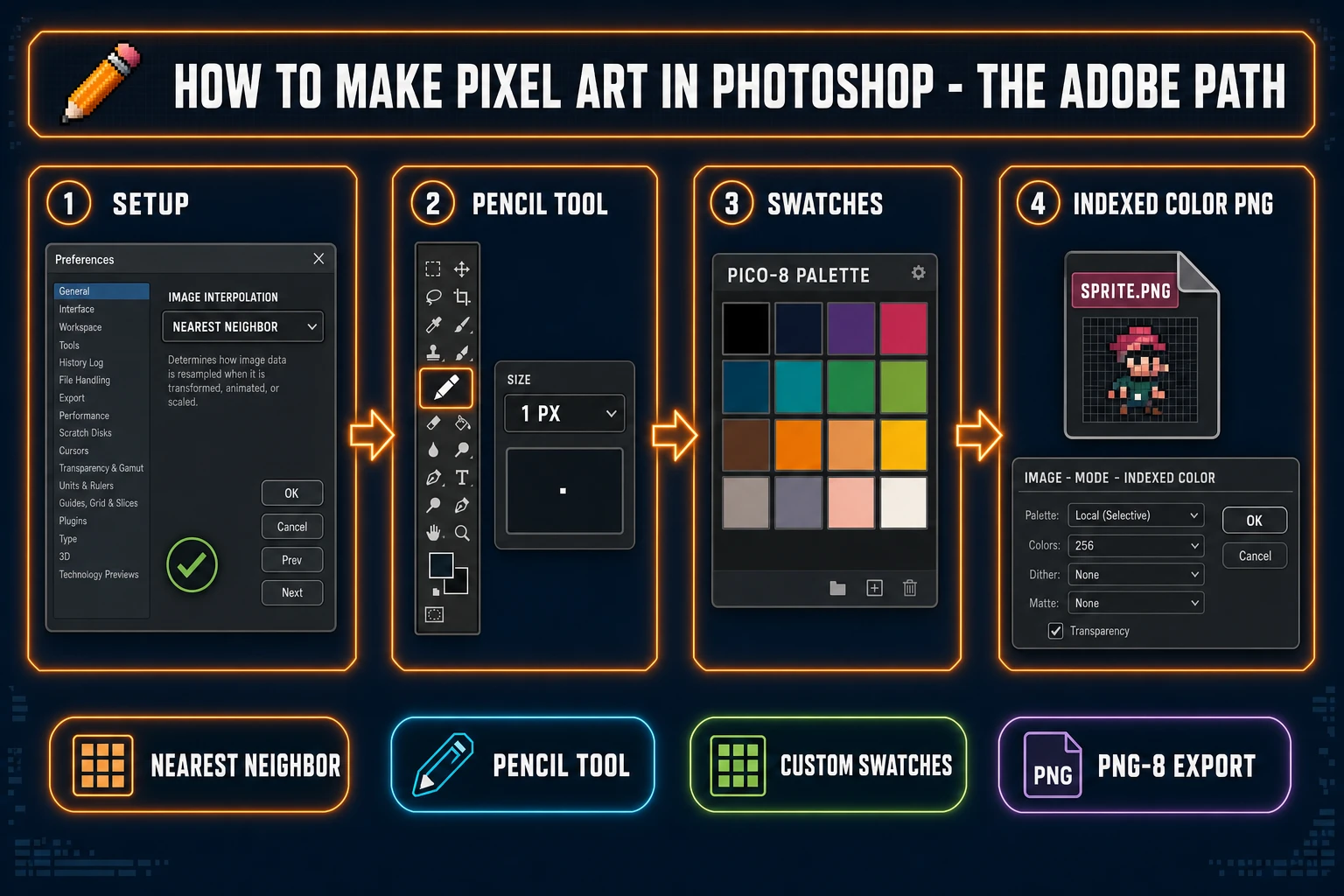
Pixel art in Photoshop has a quiet reputation problem: most beginners try once, get smeared blobs instead of crisp pixels, and conclude that Photoshop is the wrong tool. Photoshop is not the wrong tool. The default settings are tuned for photo retouching, which is the opposite of pixel art — photo work wants smooth interpolation, anti-aliased brushes, and millions of colors; pixel art wants exact integer scaling, hard-edged single-pixel marks, and a 16-to-64-color locked palette. The good news is that every required setting lives inside Photoshop already. The bad news is that Adobe does not surface a one-click Pixel Art Mode, so the workflow is the artist’s job to assemble. The four primitives in the right order are: switch Image Interpolation to Nearest Neighbor, switch the active drawing tool from Brush to Pencil, build a custom Swatches palette, and export through Image → Mode → Indexed Color plus File → Export → Save for Web (Legacy) as PNG-8.
The background primer for any pixel-art tutorial sits at the Pixel art Wikipedia entry: pixel art is a raster art form where individual pixels are intentionally placed on a small grid, with every pixel readable as a deliberate authoring decision. The technical primitive that makes pixel art readable is nearest-neighbor interpolation — the simplest rescaling algorithm, which copies the source pixel value to every output pixel inside its scaled neighborhood. Bicubic interpolation (the photo-retouching default) averages neighboring pixels to produce smooth gradients; nearest-neighbor preserves the hard edges that make pixel art look like pixel art instead of a low-resolution photograph. Photoshop ships nearest-neighbor in three places (Preferences default, Image Size dropdown, Free Transform dropdown), but the default in every dialog is the photo-tuned Bicubic variant. Switching the default once is the first move of the entire workflow.
Step one: switch Photoshop’s Image Interpolation to Nearest Neighbor
The first move of the entire pixel-art workflow is a one-time preference change. On Windows, open Edit → Preferences → General. On macOS, open Photoshop → Settings → General (the menu was renamed from Preferences in 2022 to match the platform convention but the dialog is identical on both platforms). The first dropdown in the dialog reads Image Interpolation, and the default is Bicubic Automatic. Change it to Nearest Neighbor (preserve hard edges) and click OK. Photoshop will then default to nearest-neighbor for every later Free Transform resize, every Image → Image Size rescale, and every paste-and-fit operation that triggers an internal interpolation pass. The setting persists across restarts because it is stored in the Photoshop preferences file, not in the document.
The reason this preference change matters for every pixel-art job is that Photoshop runs an interpolation pass under more conditions than most users realize. Free Transform a layer at 200% → interpolation. Image Size from 64x64 to 1024x1024 → interpolation. Paste a small selection into a larger canvas with Edit → Paste Special → Paste In Place → interpolation. With Bicubic as the default, every one of those operations softens the pixel art. With Nearest Neighbor as the default, every operation preserves the pixel-grid integrity. The dialog also exposes more granular variants — Bicubic Smoother (enlargement), Bicubic Sharper (reduction), Bilinear — but for pixel art, the only correct choice is Nearest Neighbor.
The single most common Photoshop pixel-art mistake is skipping this step, drawing the sprite at native pixel size, then resizing for preview through the default Bicubic dialog and concluding the sprite looks wrong. The sprite looked fine; the resize destroyed it. Set the preference once on day one and the rest of the workflow stays clean. The same Nearest Neighbor option also appears as a per-operation dropdown inside Image → Image Size (the Resample dropdown) and inside the Free Transform top options bar, so individual operations can override the default if needed. The preference is the safety net.
Step two: pick the Pencil tool (not the Brush tool) for hard pixels
Photoshop ships two tools that look almost identical in the toolbar — the Brush tool and the Pencil tool — and they share the same keyboard shortcut B. The Brush tool ships with anti-aliasing on by default, every stroke softens the edge across two or three pixels to look smooth at large sizes. That is the opposite of what pixel art wants. The Pencil tool draws a single hard-edged pixel per click with no anti-aliasing, no softness, no opacity falloff. To cycle between them, hold Shift + B and watch the toolbar icon change — the brush has a smooth tapered tip, the pencil has a sharp diagonal tip. Cycle until the toolbar shows the pencil.
With the Pencil tool active, set the size to 1 px in the top options bar. The size selector accepts integer values from 1 to 5000 px; for native pixel-art work, 1 px is the default and 2 px is occasionally useful for thick outlines. Set the Hardness to 100% (it defaults to 100% for the Pencil tool but the slider is visible if you opened the brush picker recently). Set Mode to Normal and Opacity to 100%. The pencil-tool defaults are already correct for pixel art — you mostly need to confirm them after using the brush tool for a photo job in the same session.
The same toolbar group also contains the Color Replacement tool and the Mixer Brush tool. Both anti-alias by default and should be avoided for pixel-art work. The matching Eraser tool (shortcut E) has a Mode dropdown in its top options bar with three options: Brush, Pencil, Block. Set Eraser Mode to Pencil so the eraser removes one pixel per click with no soft edge — otherwise the eraser will feather the area you tried to erase and leave half-transparent pixels behind. The Block mode draws a 16-pixel square stamp and is occasionally useful for clearing a large area but rarely for sprite work.
The single keyboard shortcut sequence that puts the entire pencil-tool stack into pixel-art mode in three seconds: Shift + B (cycle to Pencil), [ (shrink size, repeat until 1 px), E then Shift + E until Eraser shows the pencil mode in the options bar. After that, the canvas behaves as a true pixel grid and every click drops one deterministic pixel of the foreground color. The anti-aliasing Wikipedia entry covers the technical reason this matters: anti-aliasing intentionally blurs edges to make them look smoother at distance, which is the right call for typography and 3D rendering but the wrong call for hand-placed pixel art where the artist has chosen each pixel deliberately.
Step three: build a custom Swatches palette and lock the color count
The defining constraint of pixel art is a small, locked color palette. A 16-color palette (PICO-8, Game Boy, NES sub-palette) reads as classic 8-bit; a 32-color palette (Endesga 32, modern indie) reads as 16-bit Super Nintendo / Genesis era; a 54-color palette (full NES) reads as authentic NES-era; a 256-color palette (any custom 8-bit-per-channel) reads as VGA-era. Pick a target color count at script-prep time, build the palette inside Photoshop’s Swatches panel, and refuse to pick a color from outside it. The locked palette is what makes pixel art look intentional instead of a low-resolution photo.
The build steps inside Photoshop: open Window → Swatches to surface the panel, click the small hamburger menu in the top-right corner of the panel, choose New Swatch Folder, name it after the palette you are building (PICO-8, Endesga 32, NES). The folder keeps the palette grouped and lets you switch projects without losing the working palette. To add colors one at a time, double-click the foreground swatch in the toolbar to open the Color Picker, type the hex value (PICO-8 black is #000000, PICO-8 dark blue is #1D2B53, PICO-8 dark purple is #7E2553, and so on for the full 16-color spec), click OK, then click the empty area inside the Swatches panel to save the new swatch into the active folder. Name each swatch as you save it so the panel reads as p8-black, p8-blue-dark, p8-purple-dark instead of a row of unlabeled colored squares.
Two faster import paths exist for the common palettes. First, the Swatches panel’s hamburger menu has a Load Swatches item that accepts the .aco (Adobe Color Swatches) or .ase (Adobe Swatch Exchange) file formats. Both formats are exported by every major pixel-art palette site (the canonical resources for PICO-8, Endesga 32, Sweetie 16, and Game Boy palettes ship .aco and .ase files in their download bundles). Drop the file into Load Swatches, the panel adds every color in order. Second, drag the active foreground color directly into the Swatches panel by clicking and holding the toolbar foreground swatch and dragging it into the panel — a faster gesture than the double-click-and-save flow if you are mixing the palette by eye.
The same palette-quantization primitive is covered in the color quantization Wikipedia entry: reducing a high-color image to a small palette is a discrete optimization problem solved by algorithms like median-cut, octree, or Wu’s variant of median-cut. Photoshop’s Indexed Color mode (the next step) runs an Adaptive (Wu’s median-cut) algorithm to compute the palette from an image; building the palette manually in Swatches first means you bring the algorithmic answer with you instead of letting Photoshop guess per-image. For pixel art that needs to look consistent across an entire sprite sheet (every enemy in the same palette, every tile in the same palette), pre-building the palette inside Swatches is the workflow that scales.