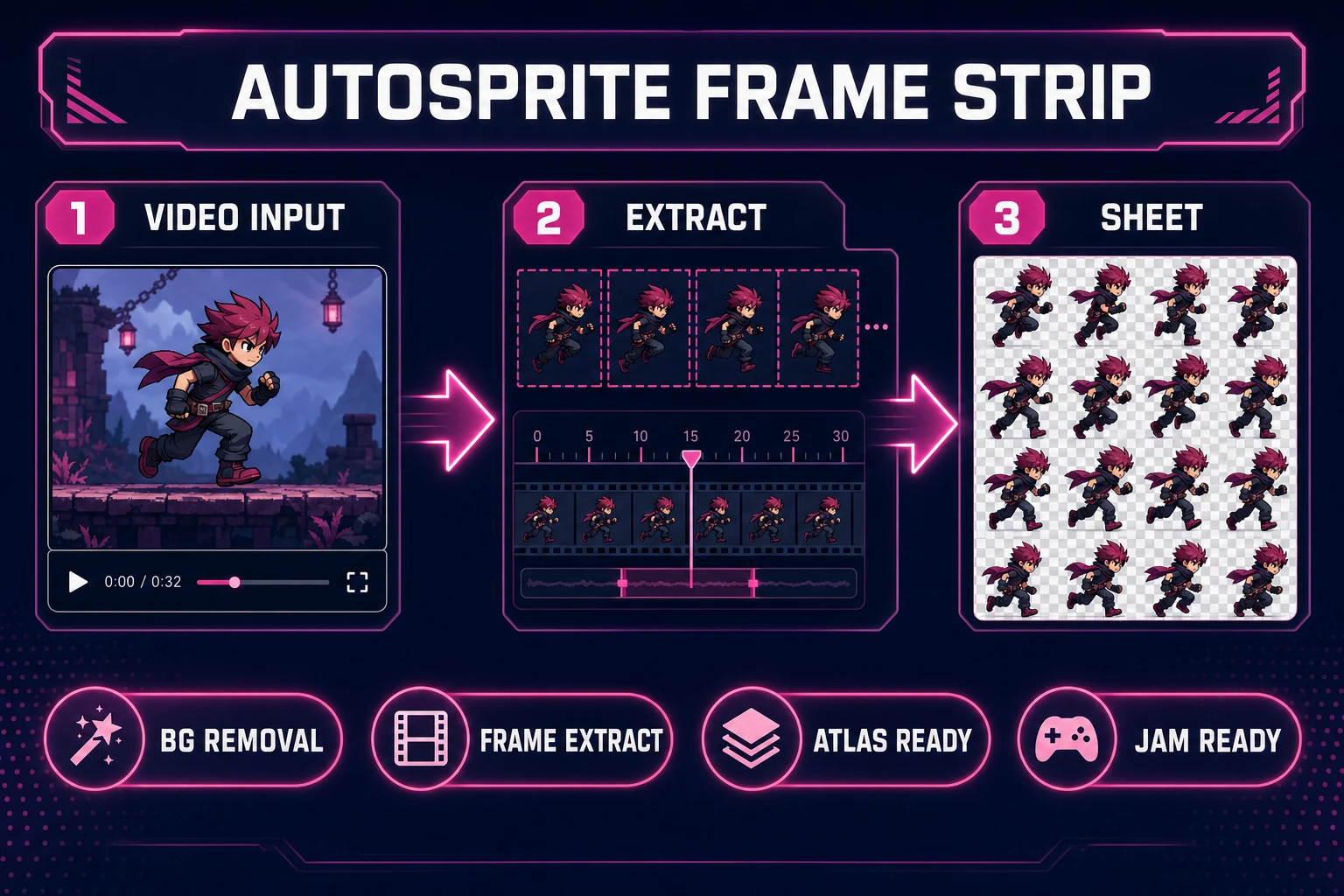
Side-scrollers live or die on motion. A static PNG hero looks fine in a mockup, then the moment your character slides across the screen you notice the legs never cycle, the idle pose never breathes, and every enemy shares the same frozen stance. Searchers typing ai sprite animation into Google want loops: walk cycles, idle bobs, attack swings, not a single illustration. Most free tools stop at one frame or export a GIF your engine cannot atlas. The 2026 answer is a browser pipeline where Quick Sprites generates pixel loops from a prompt, Auto-Sprite v2 cleans video or image sequences into frame strips, and WizardGenie scaffolds a Phaser 4.2 scene that loads those atlases with correct frame rates. Phaser 4.2.0 (released June 19, 2026, verified against the official GitHub release tag on July 7, 2026) is the honest runtime for shipping those loops in a browser tab. Everything below was checked against the Sorceress source on the same date.
What ai sprite animation actually outputs (and what it is not)
Searchers typing ai sprite animation fall into two camps. Social creators want a looping GIF for a profile banner. Indie devs want a state machine: walk right, walk left, idle, hurt, attack, each state mapped to uniform frames your engine can play at 8 to 12 fps. A useful ai sprite animation pipeline produces frame grids or strips with transparent backgrounds and consistent dimensions. It does not produce a single portrait PNG or an MP4 your runtime cannot slice into an atlas.
Why GIF-to-sprite converters fail as game loops
Dragging a screen recording into a GIF splitter feels fast until you import the result. Generic converters have no frame-dimension lock, no transparent PNG export at consistent sizes, and no walk-vs-idle state separation. An integrated ai sprite animation pipeline collapses those hops: Quick Sprites generates grid-based loops, Auto-Sprite v2 extracts frames from video reference, and WizardGenie scaffolds Phaser AnimationManager keys.
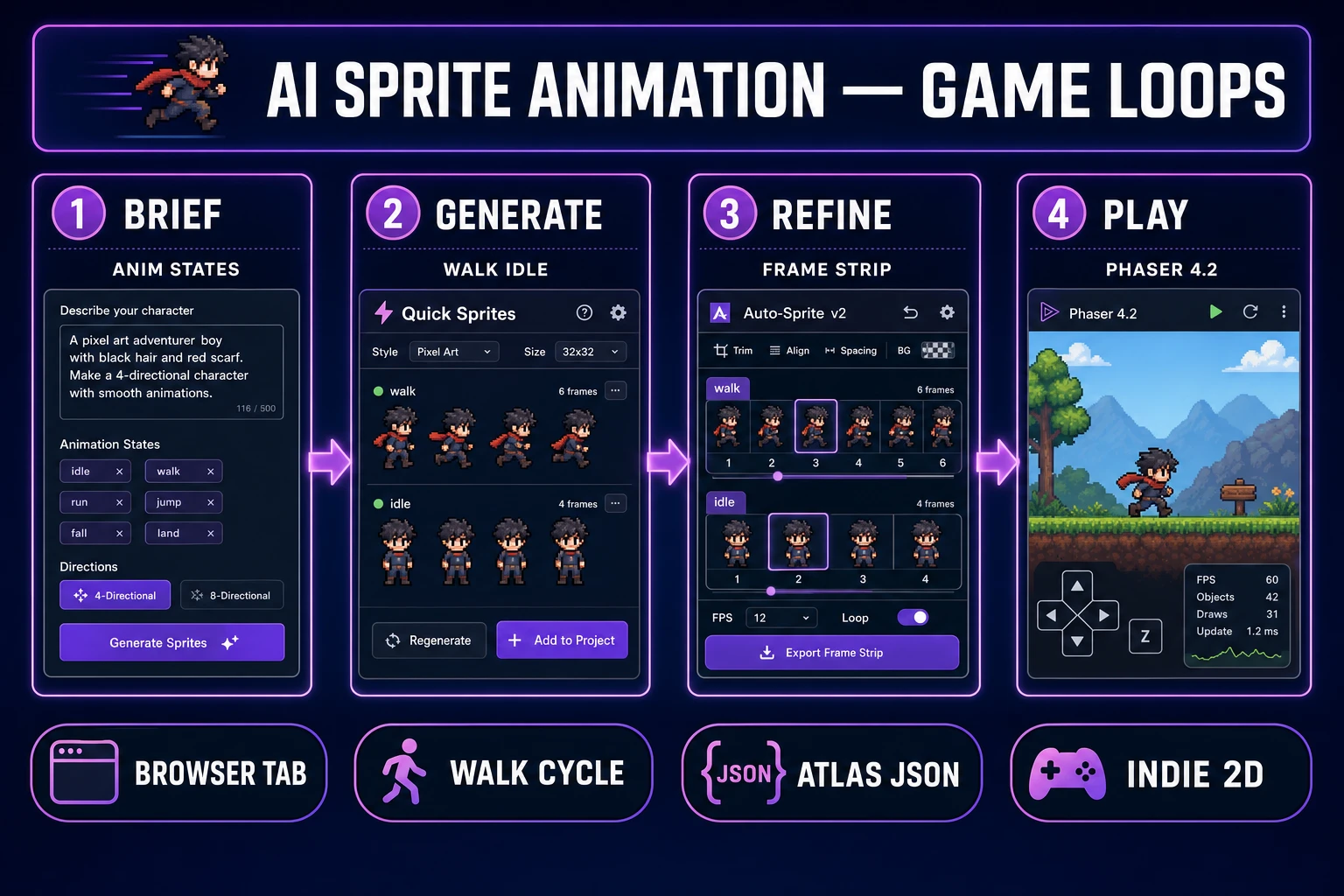
The Sorceress ai sprite animation pipeline in four steps
- Brief layer - define walk, idle, and attack states before generating.
- Generate layer - render pixel loops in Quick Sprites at 9 credits per pass.
- Refine layer - clean frame strips in Auto-Sprite v2 when you have video reference.
- Ship layer - wire atlases into Phaser 4.2 via WizardGenie.
See also the ai game sprite generator guide for Retro Diffusion style presets and the ai sprite sheet generator post for static grid packing.
Step 1 - define animation states before you generate
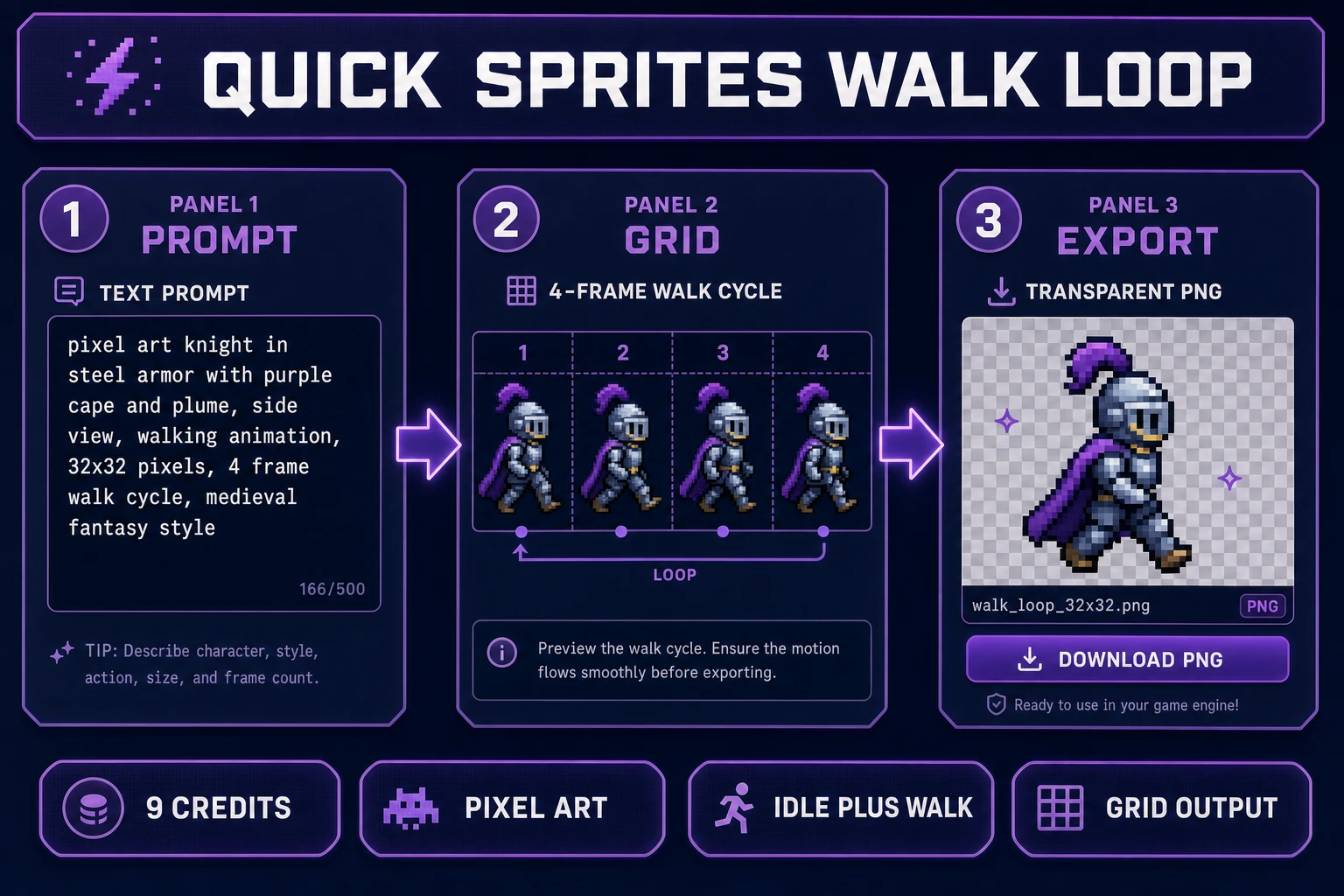
Before Quick Sprites, write one brief per state: walk (four-frame right cycle, 48x48, side view), idle (two-frame bob, same proportions), attack (three-frame swing). Store briefs in your WizardGenie project so every pass references the same silhouette.
Step 2 - generate walk and idle loops in Quick Sprites
Open Quick Sprites. Each generation costs 9 credits through Retro Diffusion rd-animation (verified in src/app/quick-sprites/page.tsx on July 7, 2026). Pick Four Angle Walking for direction grids or Small Sprites for 32x32 walk and idle rows. Download into sprites/[character]/ as walk.png and idle.png.
Step 3 - refine clips with Auto-Sprite v2
When you have motion reference, Auto-Sprite v2 extracts frames, removes backgrounds locally without credits for browser-native removal (verified in src/app/autosprite-v2/page.tsx on July 7, 2026), and exports a normalized sheet. Standard resolution costs about 1 credit per 10 frames.