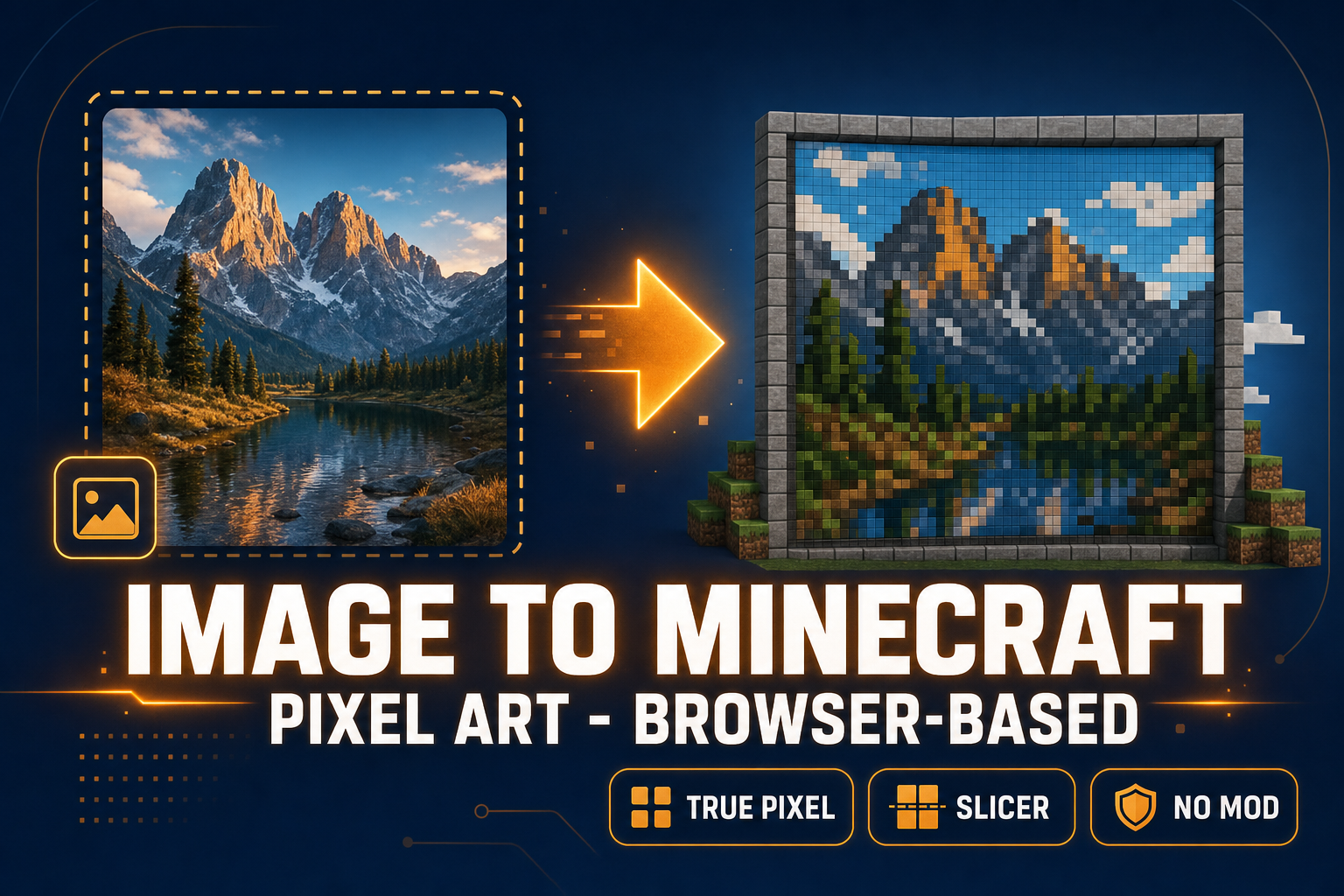
Going from a source image to Minecraft pixel art is a different problem than ordinary image-to-pixel-art conversion. Ordinary pixel art lives in a transparent PNG with whatever palette the artist picked; image to Minecraft pixel art has to land on the blocks a player actually owns, at the canvas size the build is going to occupy, with per-row strips a human can carry into the world and place block by block. The 2026 toolchain splits cleanly. Dedicated Minecraft converters auto-map every pixel to a specific block and export schematics for WorldEdit. The cross-purpose chain of True Pixel and Slicer trades that auto-mapping for a quantized reference image you can use inside Minecraft AND inside any other pixel-art project. This guide walks both paths honestly, picks the right one per use case, and shows the exact True Pixel and Slicer controls — every option verified against the live source on May 17, 2026 against Minecraft Java Edition 26.1.2 (the "Tiny Takeover" drop).
What "image to Minecraft pixel art" actually means in 2026
Pixel art in the general sense is a single still image at a low resolution with a deliberately limited palette. Image to Minecraft pixel art is the same idea inflated to physical scale: every pixel becomes one block, the canvas becomes a wall (or a floor, or a free-floating sculpture), and the limited palette becomes a finite list of buildable blocks. A 64-by-64 grid that renders as a thumbnail on the web becomes 4,096 blocks in survival, every one placed by hand or by mod-assisted paste. A 128-by-128 grid is 16,384. The math scales the way the picture scales, which is why size choice matters more for Minecraft than for any other pixel-art destination.
The other constraint is the palette. Minecraft Java Edition 26.1.2 — the latest as of April 9, 2026 — ships roughly 200 visually distinct buildable blocks if you count every wool, concrete, terracotta, glazed terracotta, planks variant, stripped log, and modern stone family. That number sounds large until you sort by hue and notice the palette is heavily biased toward earth tones and grays; the saturated reds, oranges, and cyans cluster around the concrete and wool families. A picture that needs deep saturated greens has more options than a picture that needs salmon pink. Treat the Minecraft block palette as a fixed list the same way you would treat a fantasy console color palette: the source picture has to bend to the destination, not the other way around.
Dedicated Minecraft tools vs cross-purpose pixel-art chains (the honest landscape)
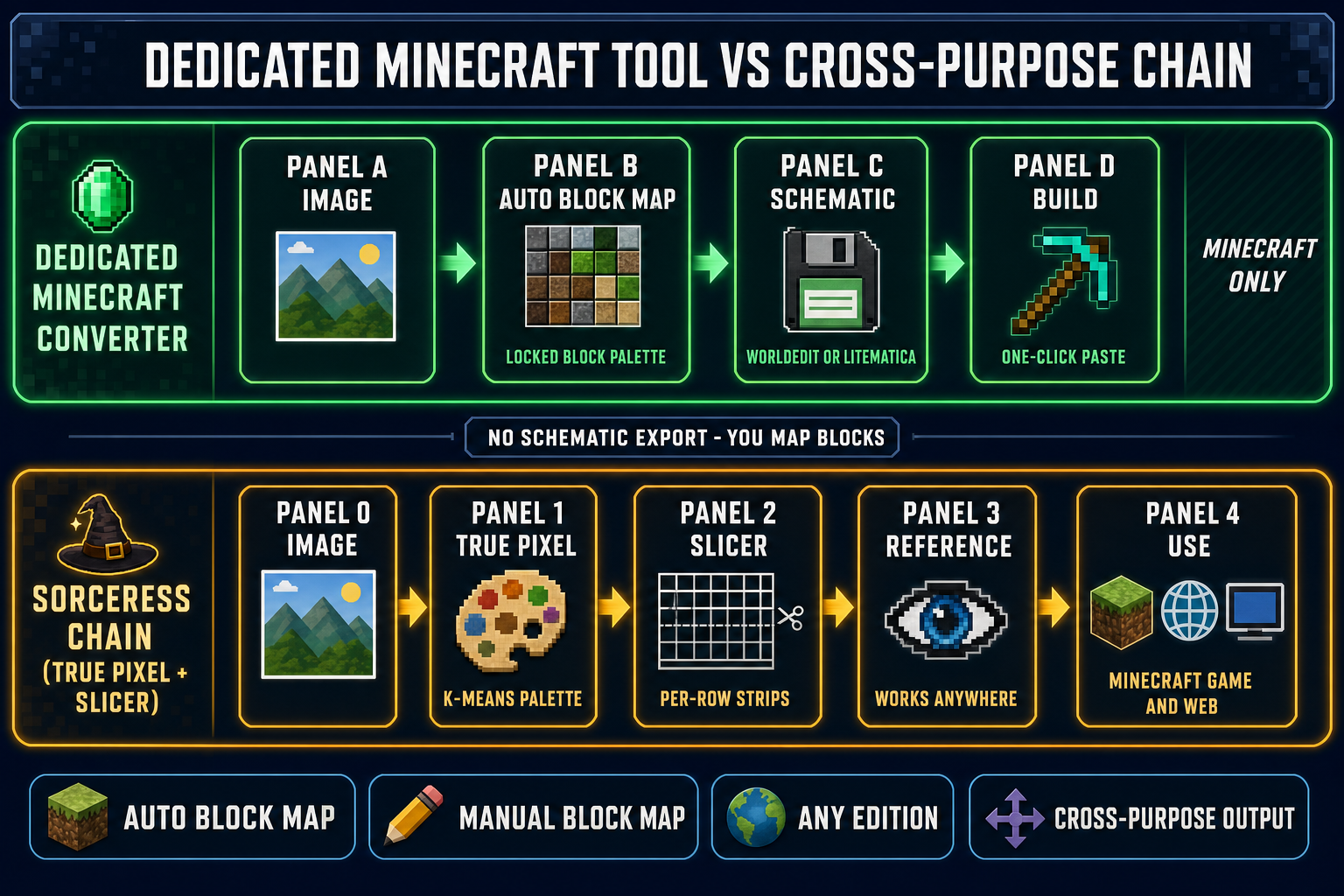
The 2026 image to Minecraft pixel art tool space has two distinct shapes. The first is the dedicated converter — Image to Pixel App, CraftMC Pixel Art Generator, ImagePixelator, the Minecraft-Pixel-Art Blueprint Generator, DedicatedMinecraft Pixel Art Converter, and several others. They take a PNG, auto-map every pixel to a specific block (Java or Bedrock edition), export a .schem for WorldEdit or a .litematic for Litematica, and ship a block-count CSV so you can plan the survival run. They are the right answer when Minecraft is the only destination — the auto-mapping saves hours of manual color-to-block lookup, and the schematic exports turn a 16,000-block build into a single WorldEdit paste.
The second shape is the cross-purpose pixel-art chain — True Pixel for palette quantization plus Slicer for grid layout. The output is a quantized PNG you can use anywhere: as a Minecraft reference, as a 2D game sprite, as a tileset cell, as a website logo, as a sticker print. The trade-off is the missing auto-block-mapping step, which the dedicated tools do for free. The right pick depends entirely on whether the picture lives only in Minecraft (use a dedicated tool) or also as a sprite, a tile, or a portrait somewhere else (use the cross-purpose chain). The image to Minecraft pixel art workflow described below is the Sorceress chain — when you want the same quantized output to do double duty, this is the path. We covered the broader sprite-sheet variant of this same chain in the image to pixel art grid piece; the Minecraft variant differs in the dimensions and the per-row slicing.
The five decisions before you upload (size, palette, dithering, edition, layout)
Pick five things before you drop the source onto the canvas. They are easier to set in order than to undo after a 4,000-block build.
Decision one — build size in blocks. 32 by 32 (1,024 blocks) reads as a small logo at server-spawn distance. 64 by 64 (4,096) is the comfortable portrait size — readable face, visible expression. 128 by 128 (16,384) is mural scale — visible across a server spawn courtyard. 256 by 256 (65,536) is flat-world art. 512 by 512 and up only makes sense if you already use WorldEdit or Litematica for the actual placement; nobody hand-places a quarter-million blocks.
Decision two — palette size. The fewer distinct colors in the quantized output, the shorter the shopping list. 16 colors keeps the build manageable. 32 is the sweet spot for most portraits — it gives the picture enough range without exploding the materials list. 64 starts to push past the "I can keep this in my head" threshold for survival players. 128 is for builds with a creative-mode inventory and WorldEdit on the side.
Decision three — dithering. Floyd–Steinberg dithering distributes quantization error to neighboring pixels, which smooths out gradient transitions but makes the build noisier (more block variety per row). Ordered dither patterns give a more regular tile-style look. None keeps cells flat and clean, which is the right pick for logos, flat illustrations, and any source where the artist already controlled the colors. For photos and AI-generated art, Floyd-Steinberg at 60–70 percent intensity is the safe default.
Decision four — Java or Bedrock edition. The two editions share most of the block palette but differ on a few items (glazed terracotta tinting, some redstone-component textures, the recent Tiny Takeover update Trumpet and baby-mob additions in Java 26.1). For pure block-color work the difference is small enough that a single quantized reference image works in either edition — the dedicated converters above let you swap palettes at export time, while the True Pixel + Slicer chain hands you a reference you map by hand against whichever edition you play.
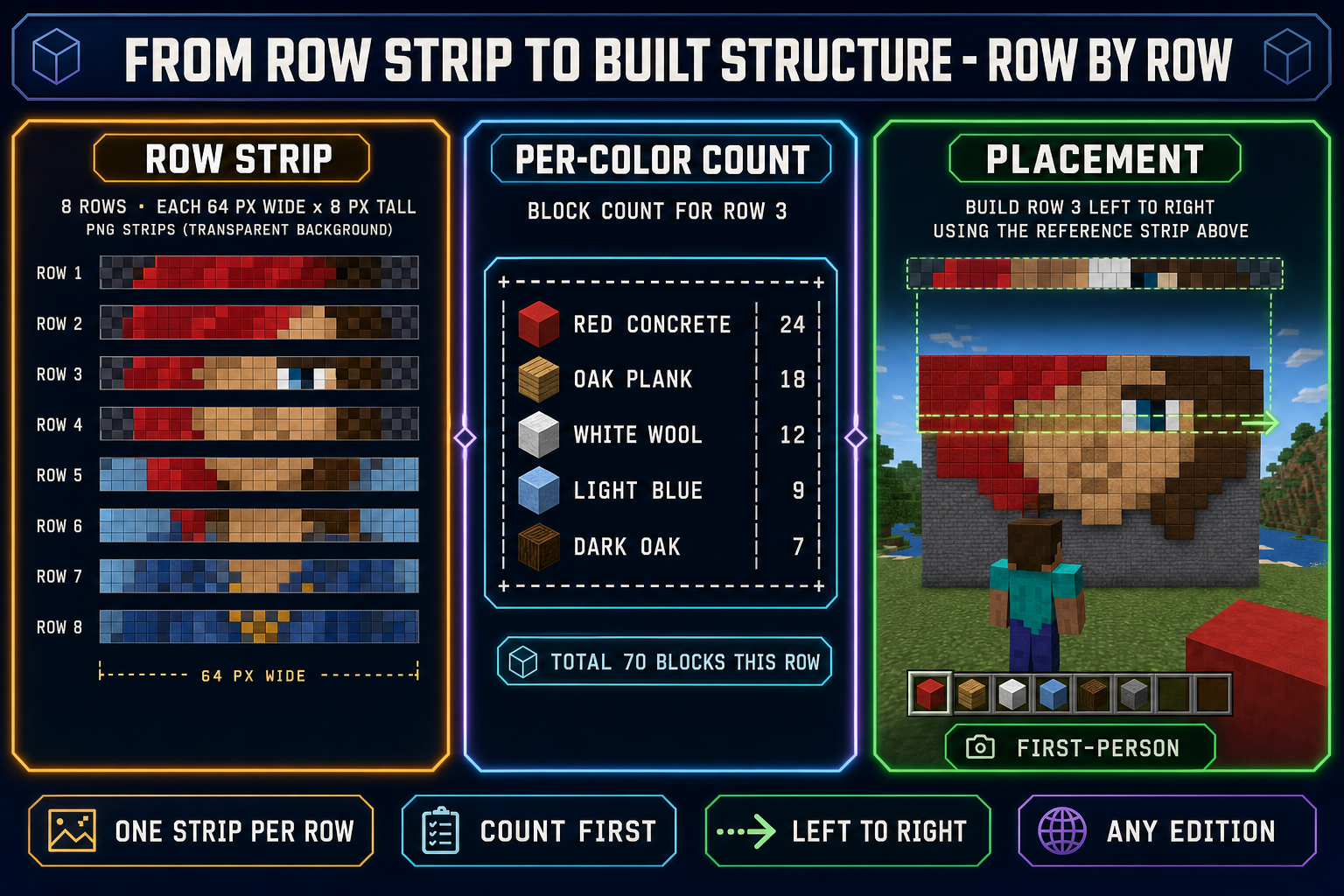
Decision five — layout shape. A single packed grid (the quantized PNG as one image) is fine for small builds you can read at a glance. Per-row strips (the Slicer output) are required for anything past about 32 blocks tall — the eye loses the row count past that, and miscounting rows is the most common cause of mid-build mistakes. Strip layouts also let you queue rows in your hotbar in the order you will place them.
The two-tool image to Minecraft pixel art workflow — True Pixel + Slicer
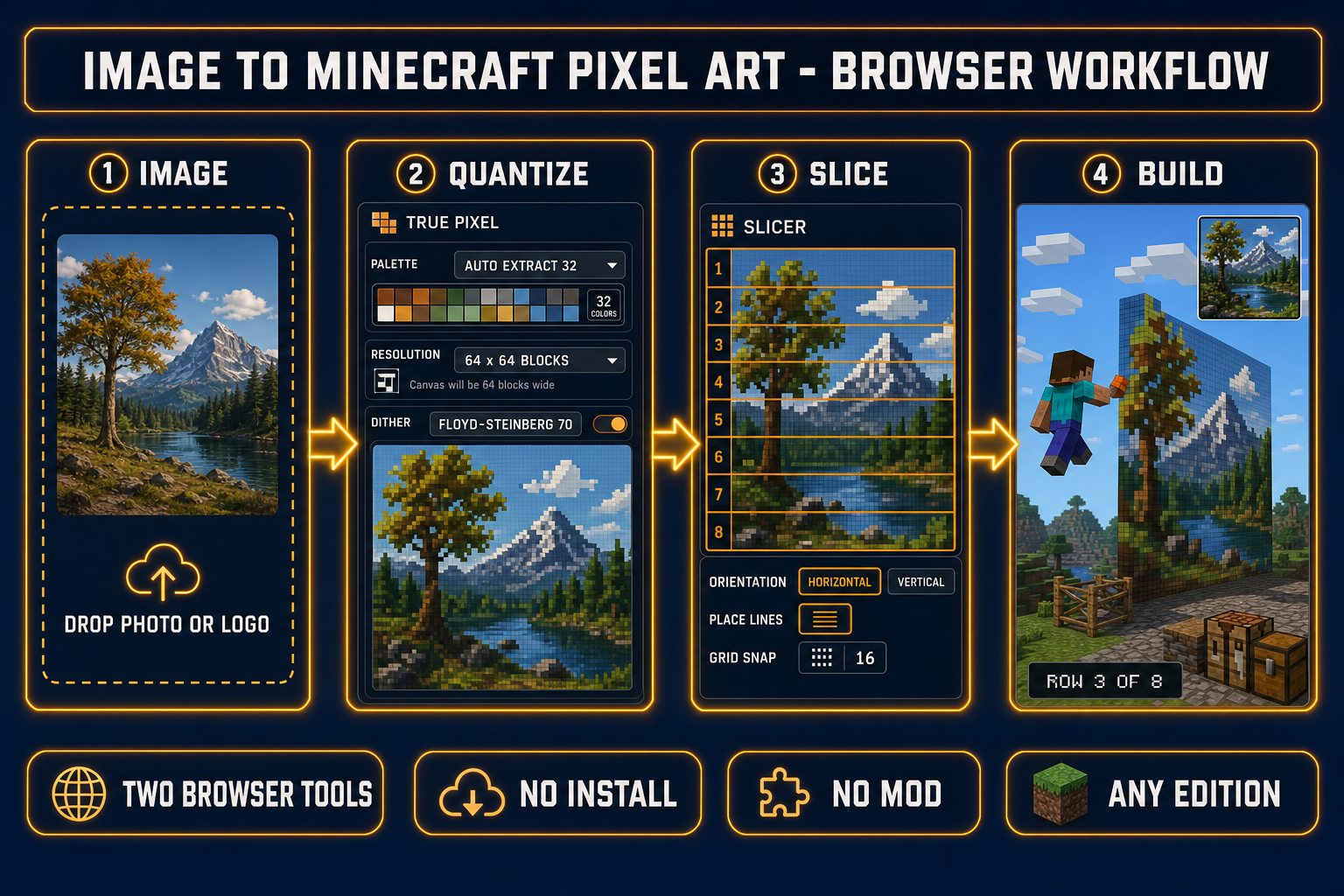
Here is the full Sorceress chain, verified against the source on May 17, 2026. The two-tool variant takes about a minute end to end and produces a quantized PNG plus a folder of row-strip references.
Click one — quantize in True Pixel. Open /pixel-art and drop the source image onto the canvas. The source can be a photograph, an AI render from AI Image Gen, a hand-drawn illustration, a screenshot of an existing artwork, or a frame from a video. Set Target Resolution to the build size you picked in decision one (64 by 64 for a portrait, 128 by 128 for a mural). Switch the Color Palette section to Auto Extract and set Max Colors to the palette size from decision two (32 for most builds). The auto-extract path runs k-means++ clustering on a perceptually-weighted RGB sample of the source, which produces a palette that fits the actual picture. If you want a fixed palette instead (PICO-8, SWEETIE-16, Endesga 32, Game Boy, CGA, NES, Grayscale, or 1-Bit), switch to Preset mode and pick — but Auto Extract is the better default for Minecraft work because the resulting palette will be closer to specific buildable block colors. Pick a dither mode from the Dithering section (None, Ordered, Floyd-S) and set intensity 0–100 percent. Click Export and you have a packed PNG at the target resolution with the palette locked.
Click two — slice in Slicer. Open /slicer, drop the quantized PNG, and switch the selection mode from Square to Grid using the four-mode toggle bar (Square, Free, Polygon, Grid). The Grid sub-panel that appears has two place-line buttons (Horizontal and Vertical) and a Grid Snap value with preset stops at 1, 5, 10, 20, and 50 (plus a custom integer field). For image to Minecraft pixel art work, the typical configuration is Horizontal lines at every row boundary with Grid Snap set to 1 — every Minecraft row is one block tall, so a 64-tall quantized image becomes 64 horizontal cells. If your build will use 16-block-tall chunks (common for survival builds where you place a chunk, then jump to the next layer of scaffolding), set Grid Snap to 16 and place lines at every chunk boundary. Slicer exports each cell as a separate PNG plus a manifest mapping cell indices to source coordinates. The output is your per-row reference deck for the in-game build.