Paint How to Make a Sprite Sheet in Photoshop 2026

By Arron R.15 min read
How to make a sprite sheet in Photoshop 2026: open Window > Timeline, create a frame animation, add one frame per layer, then export via the Sprite Sheet Export

The search intent behind how to make a sprite sheet in photoshop in 2026 is almost always the same: a game dev has an animation broken into frames, they know Photoshop can hold every frame as a layer, and they want to walk out with a single PNG grid that a game engine like Unity, Godot, or Phaser can slice back into frames on import. Photoshop can absolutely do it. The 2026 workflow has not fundamentally changed since Adobe added the Timeline panel — open the frames as layers, enable Window > Timeline, create a frame animation from those layers, then export. The catch, which most tutorials skip, is that Photoshop 2026 still ships with no native “Export as Sprite Sheet” menu item; the last export step is either a community script (Sprite Sheet Exporter) or a manual canvas grid. This post walks the honest Photoshop path step by step, and then shows the browser-native alternative — Sorceress Auto-Sprite v2 at about 1 credit per 8-frame walk cycle — that skips the manual export step entirely. Every fact below is verified against the live adobe.com plans and Photoshop HelpX pages, plus the Sorceress source at sorceress.games, on July 1, 2026.
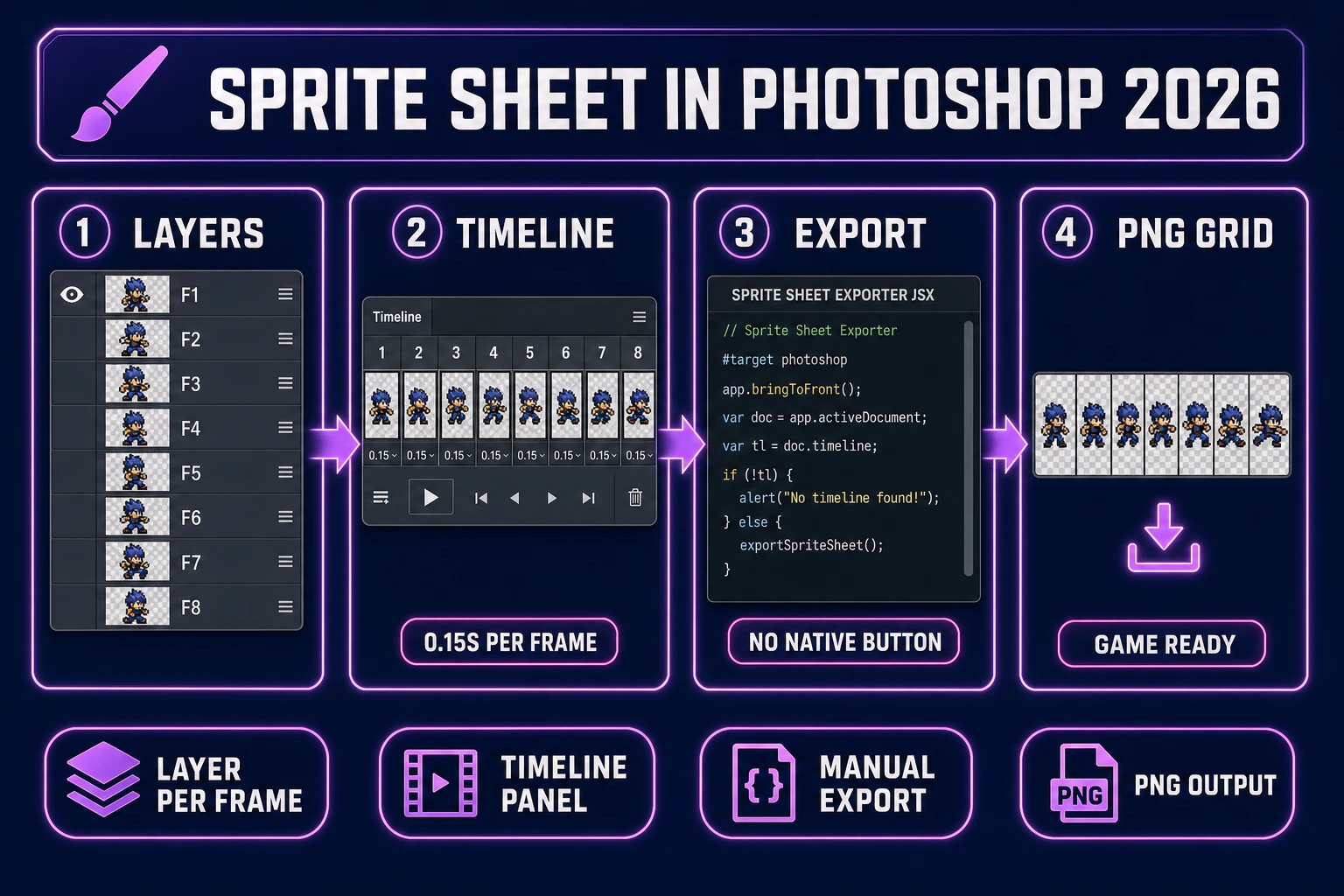
How to make a sprite sheet in Photoshop 2026 - four-panel pipeline from layer-per-frame to Timeline to manual export to game-ready PNG
The 2026 Photoshop sprite-sheet pipeline: put one animation frame on each layer, open Window > Timeline and create a frame animation, then manually export because Photoshop has no native sprite-sheet button. The browser-native alternative sits in Auto-Sprite v2 at ~1 credit per walk cycle.

What a sprite sheet is and why you’d want to make one in Photoshop

A sprite sheet is a single image file that stores every animation frame for one character (or object, or effect) in a fixed-size grid. A game engine loads the image once, slices it into frame rectangles at runtime, and plays the frames in sequence to produce animation. The pattern dates back to arcade hardware in the late 1970s when memory constraints forced developers to pack multiple images into a single addressable block per the Sprite (computer graphics) Wikipedia entry. In 2026 the constraint is different — modern GPUs prefer to sample from a single large texture rather than swap between many small ones, which is why the technique is still standard and the underlying data structure is often called a texture atlas.

Photoshop shows up in the sprite-sheet workflow for two honest reasons. First, it is the paid flagship of the general-purpose raster editor category, so a huge share of professional artists already own it and already know the layer model. Second, its Timeline panel handles frame animation well enough to preview a walk cycle before exporting, which matters for pacing decisions. It is not a dedicated pixel-art app (Aseprite fills that niche), it is not a dedicated animation app (After Effects handles time-based work with keyframing), and it has no game-engine integration. It is a raster editor with a frame-animation panel bolted on, and that is enough for a working sprite-sheet workflow if the artist is already fluent with it.

The alternative categories worth naming, so the reader knows the landscape: dedicated pixel-art apps (Aseprite, Piskel, Pyxel Edit), free raster editors (GIMP, Krita), browser-native asset generators (Sorceress Auto-Sprite v2 for prompt- and image-driven sprite sheets), and standalone sprite-packing utilities (TexturePacker, ShoeBox — both take a folder of individual PNGs and pack them into a grid with a JSON descriptor). Each category solves the same end goal — a game-ready PNG grid — through a different workflow.

What Photoshop actually gives you for sprite sheets in 2026 (Timeline, no native export)

The specific Photoshop features that matter for sprite sheets are the layer stack, the Timeline panel (Window > Timeline in 2026), and the frame-animation mode. What is missing, and worth stating clearly, is a native “Export as Sprite Sheet” menu item. In 2026, Photoshop still cannot output a packed sprite grid from a File > Export submenu. That is not a limitation of a specific plan or a beta — it is the shipping product on both the Photoshop Single App plan and the full Creative Cloud Pro plan.

The Timeline panel supports two modes: video timeline and frame animation. For sprite sheets, frame animation is the correct mode — each frame corresponds to one layer, and the panel toggles layer visibility to move between frames. Video timeline is designed for continuous-motion video work with keyframes and tweening between poses; it is the wrong tool for game sprites because game sprites are typically discrete frames that snap without interpolation. Switching modes is a small dropdown at the bottom of the Timeline panel labeled “Convert to Video Timeline” or “Convert to Frame Animation” depending on the current state, per the adobe.com HelpX page on creating frame animations verified July 1, 2026.

Photoshop 2026 pricing sits at US$22.99 per month for the Single App plan on the annual-billed-monthly tier, or US$34.49 per month on the month-to-month tier (verified via the live adobe.com/creativecloud/plans page on July 1, 2026). The Photography Plan at US$19.99 per month is cheaper and includes Photoshop plus Lightroom, Lightroom Classic, and 1TB of cloud storage — a better value than the Single App plan for most solo indie devs. There is no perpetual license option in 2026; every plan is subscription-based. That means the sprite-sheet workflow in Photoshop carries at minimum a US$239.88 annual commitment on the Photography Plan, or US$275.88 on the Single App plan, before any other tool spend.

How to make a sprite sheet in Photoshop step by step (the classic workflow)

The end-to-end Photoshop workflow for how to make a sprite sheet in photoshop looks like this. Open the PSD (or create a new one) where every animation frame is on its own layer. If your frames arrived as a folder of PNGs, use File > Scripts > Load Files into Stack, point it at the folder, and Photoshop stacks the PNGs into layers in one shot. Rename the layers in order (Frame_01 at the top, Frame_02 below it, etc.) so the sequence is unambiguous later.

Turn on Window > Timeline. If the panel opens in video-timeline mode, click the small dropdown next to the middle button that reads “Create Video Timeline” and switch it to “Create Frame Animation.” Click the Create Frame Animation button. The timeline panel now shows a single blank frame corresponding to whatever combination of layers is visible in the layers panel. Open the panel’s flyout menu (the four horizontal lines in the top-right corner) and pick “Make Frames From Layers.” Photoshop creates one timeline frame per visible layer, with layer visibility toggled correctly for each frame.

Set the frame delay (bottom-left of each timeline cell) to 0.1 or 0.15 seconds — a 6- to 8-frame walk cycle at 0.15s renders roughly 1 to 1.2 seconds per loop, which reads correctly for most character-scale animations. Set the looping option (bottom-left of the panel) to Forever. Press the spacebar to preview the animation. If a frame reads wrong, click the timeline cell, then toggle the correct layer visibility in the layers panel — the timeline captures the current visibility state per frame.

Once the preview looks correct, you have an animation. You do not yet have a sprite sheet. The next step — packing every frame into a single PNG grid — is the part Photoshop makes hardest.

Exporting the sprite sheet: Sprite Sheet Exporter script vs manual grid vs Export Layers to Files

Because Photoshop 2026 ships no native sprite-sheet export, three community workarounds cover the last mile.

Option 1: the Sprite Sheet Exporter script. This is a JSX script the community maintains for Photoshop; it reads every layer in the current document, packs them into a horizontal or grid layout, and saves a single PNG plus optional JSON metadata. Installation: download the JSX file, place it in your Photoshop Scripts folder (Applications > Adobe Photoshop > Presets > Scripts on macOS or the equivalent on Windows), restart Photoshop, and it appears under File > Scripts. Run it, pick the columns-per-row and margin settings in the dialog, and the sheet exports next to the source PSD. This is the fastest path but it is a community script — keeping it current with each Photoshop version is on the community, not Adobe.

Option 2: Export Layers to Files plus a packer. Run File > Scripts > Export Layers to Files. Pick PNG-24 as the format and a target folder. Photoshop writes one PNG per layer into the folder. Then use a standalone sprite-packing utility that reads the folder and outputs a packed sheet with a JSON descriptor. Two extra tool installs is more friction than the Sprite Sheet Exporter script, but the packer utility tends to be more actively maintained.

Option 3: manual canvas grid. Create a new document that is (frame_count × frame_width) pixels wide and frame_height pixels tall — for an 8-frame 64x64 walk cycle, that is 512x64 pixels. Turn on rulers, drag out vertical guides every frame_width pixels to snap to grid cells. Copy each frame from the source PSD, paste it into the target document, and snap it to the corresponding grid cell. Save as PNG. Slow, error-prone on longer animations, and doesn’t scale to grid layouts (multi-row sheets), but it works with zero external dependencies and is the fallback when the script options fail.

All three options end with a PNG file that a game engine can import per the Portable Network Graphics Wikipedia entry — PNG’s lossless compression and per-pixel alpha channel are both required for sprite sheets with transparent backgrounds, which is why every mainstream engine uses PNG as the standard sprite input.
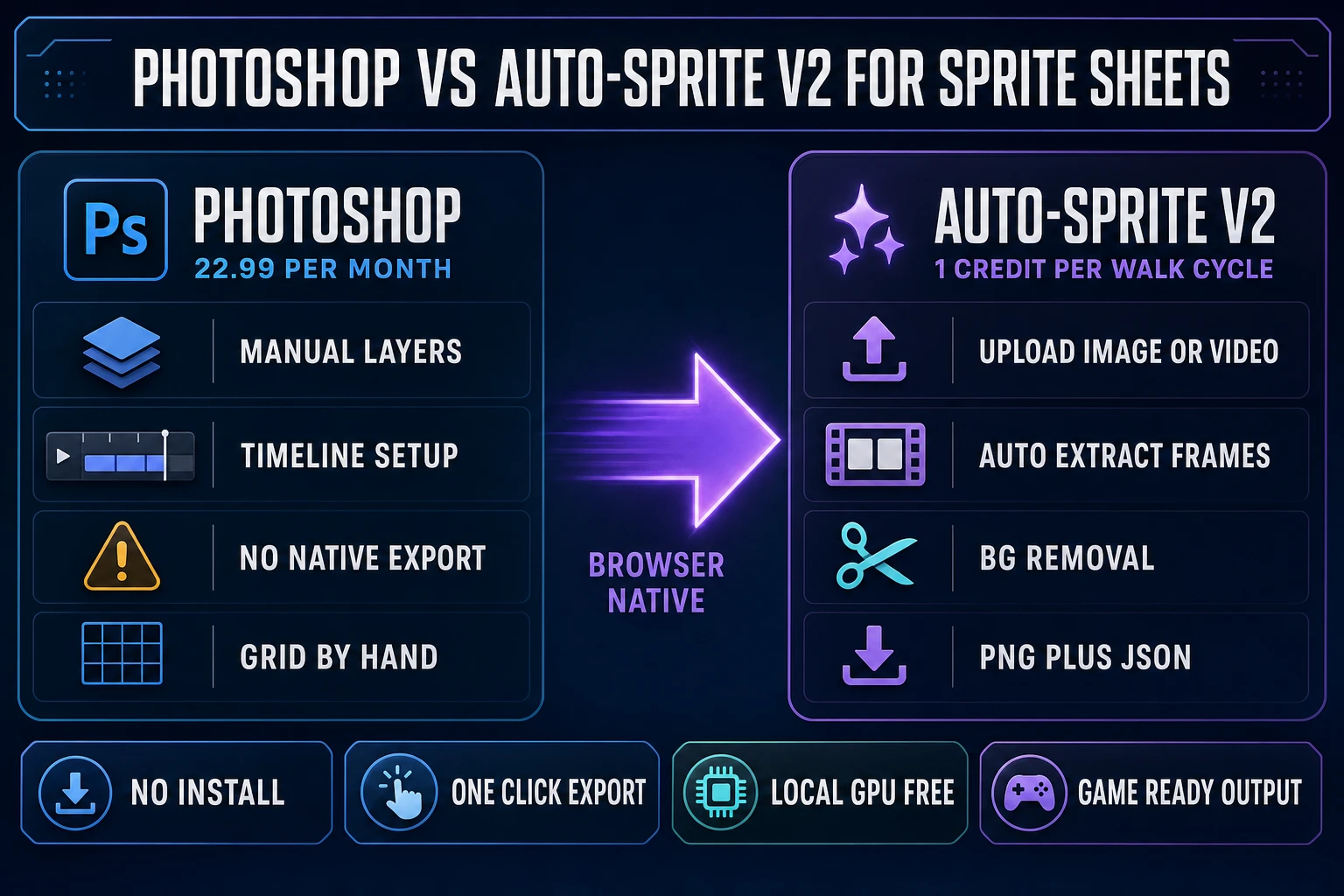
Photoshop vs Auto-Sprite v2 side by side - manual layer-per-frame workflow at $22.99 per month vs browser-native sprite sheet export at 1 credit per walk cycle
Photoshop and Auto-Sprite v2 both produce a game-ready PNG sprite sheet. Photoshop demands manual layer stacking, a Timeline panel setup, and a third-party script or manual grid for export. Auto-Sprite v2 takes an uploaded image or video, auto-extracts frames, removes the background, and exports PNG plus JSON in one click at ~1 credit per walk cycle.

Where Photoshop breaks down for game-ready sprite sheets

Photoshop is a raster editor that grew a frame-animation panel; the design assumptions built into every corner of its UI are wrong for pixel-perfect sprite work.

Anti-aliased brushes soften pixel edges. The default Brush tool is anti-aliased, which is exactly wrong for a 32x32 pixel-art sprite where every edge should be a hard 1-pixel transition. Fix: switch to the Pencil tool (behind the Brush tool in the toolbar), which paints hard edges. Every hand-painted frame requires the Pencil, not the Brush, or the sprite sheet renders soft in every engine that expects Nearest Neighbor filtering.

Bicubic scaling destroys pixel art. If you resize a 32x32 sprite up to preview it and forget to change the resample method, Photoshop bicubic-interpolates and turns a crisp 32x32 into a blurry 128x128. Fix: Image > Image Size > Resample dropdown, set to “Nearest Neighbor (hard edges).” This applies to Free Transform too — set the transform interpolation to Nearest Neighbor in Preferences > General.

Layer effects don’t bake without a flatten step. Drop shadow, outer glow, stroke — every layer effect is a runtime effect in Photoshop. If you export layers with effects to a sprite sheet, the effects are baked into the pixels the exporter reads, which is usually what you want, but if you accidentally toggle the effect visibility off before running the export script, the sheet exports without the effects and the sprite loses its outline in-engine. Rule of thumb: flatten each frame layer (Layer > Flatten Image on a temporary copy) before running the exporter, or verify the exported PNG frame-by-frame before shipping.

No frame metadata export. Photoshop’s sprite-sheet exports are pixel data only. There is no automatic JSON descriptor with frame names, durations, or hitbox rectangles — the engine has to slice the grid by cell size at import time and infer frame indices from position. This is fine for simple animations. For a complex character with 15 animations sharing one sheet (walk, run, jump, attack, hurt, etc.), a JSON descriptor listing frame ranges per animation is essential, and the artist has to hand-write it in the game project or use a separate sheet-packer that produces one.

The browser-native alternative: Auto-Sprite v2 turns any image or video into a sprite sheet

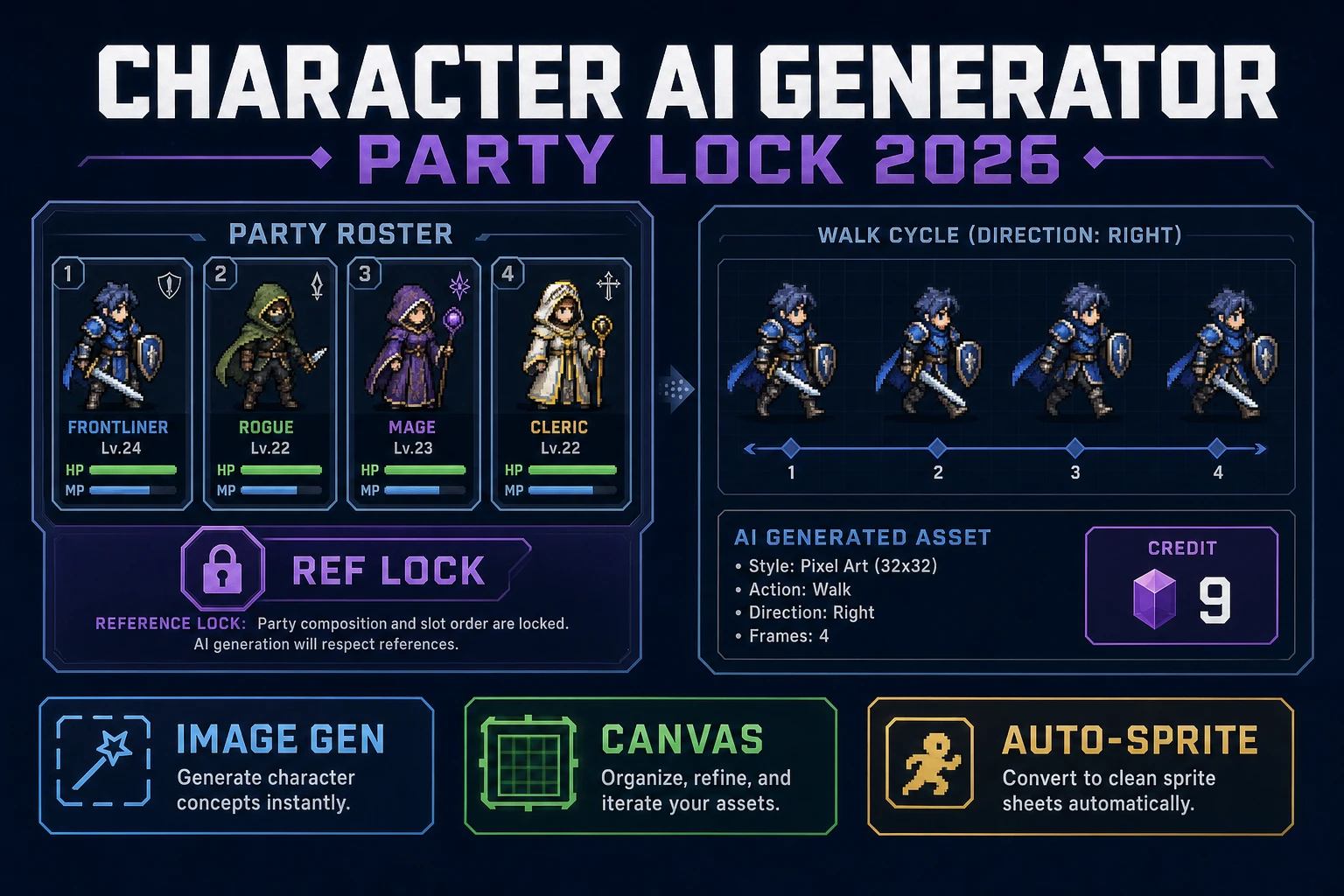
Sorceress Auto-Sprite v2 is the browser-native alternative to the Photoshop sprite-sheet workflow. The core loop is: upload a source image or video, the tool extracts individual animation frames (from a video, one per frame; from a single image, via prompt-driven animation generation), removes the background chroma with an AI corridor-key pass, arranges the cleaned frames into a sprite sheet, and exports a single PNG plus a JSON descriptor listing every frame’s x/y offset, width, and height. The whole workflow runs in a browser tab at /autosprite-v2 with no local install.

The cost math is straightforward. Auto-Sprite v2 credit cost is ceil(frameCount / 10) * ratePerTen where ratePerTen is 1 credit per 10 frames for frames whose max dimension is 512 pixels or smaller, and 2 credits per 10 frames for frames larger than 512 pixels, with a 1-credit floor per job (per getCreditCost at lines 3725-3730 of src/app/autosprite-v2/page.tsx, verified July 1, 2026). An 8-frame walk cycle at 512x512 costs 1 credit. A 30-frame combat animation at 512x512 costs 3 credits. A 30-frame combat animation at 1024x1024 costs 6 credits. Credits are purchased through the plans page at four tiers — Starter (US$10 for 1,000 credits), Creator (US$20 for 2,000), Plus (US$50 for 5,000), Studio (US$100 for 10,000) — and the LIFETIME_PRICE supporter tier at US$49 unlocks the whole studio (verified at line 45 of src/app/plans/page.tsx, July 1, 2026).

The local backend mode is worth calling out: Auto-Sprite v2 supports two processing paths — server (RunPod GPU, costs credits) and local (the user’s own GPU, zero credits per job). Selecting the local backend switches every job to free processing at the cost of requiring a modern NVIDIA GPU on the user’s machine. The local path handles frame resolutions up to 2048 pixels; the server path caps at 1536 pixels for cost reasons. For a solo indie with a gaming GPU already installed, the local mode collapses the marginal cost of every sprite sheet to zero after the initial free account setup.

Cost comparison: Photoshop Single App at $22.99/mo vs Auto-Sprite v2 at ~1 credit per walk cycle

The honest cost comparison over a one-year horizon is stark. Photoshop Single App at US$22.99 per month runs US$275.88 per year. Auto-Sprite v2 Starter (US$10 for 1,000 credits) produces about 1,000 8-frame 512x512 walk cycles per US$10 spent — the equivalent of 27,588 walk cycles for the same US$275.88 annual budget. Even a hobbyist producing a full 500-sprite indie game plus multiple iteration cycles fits comfortably in a single US$10 Starter purchase.

Two caveats keep the comparison honest. First, Photoshop is a general raster editor, not just a sprite-sheet tool — if the artist uses it for concept art, texture painting, promotional materials, and store-page banners on top of sprite work, the per-workflow cost drops. Auto-Sprite v2 is single-purpose. Second, artists with existing Photoshop fluency spend zero time learning a new tool, and that time value has real weight for a shipping-quality indie team. The right honest read is not “Auto-Sprite v2 replaces Photoshop for every artist” but “Auto-Sprite v2 replaces the Photoshop sprite-sheet workflow specifically for anyone who doesn’t already own Photoshop for other reasons.”

For a game dev whose art pipeline starts from AI-generated character images and just needs sprite sheets, Auto-Sprite v2 pairs cleanly with Sorceress AI Image Gen to produce the source characters, and the whole pipeline stays inside a browser tab. The Auto-Sprite marketing page lays out the tier structure in more detail.

Sprite sheet PNG drops into Unity Sprite Editor, Godot AnimatedSprite2D SpriteFrames, Phaser scene.load.spritesheet, and the WizardGenie assets folder
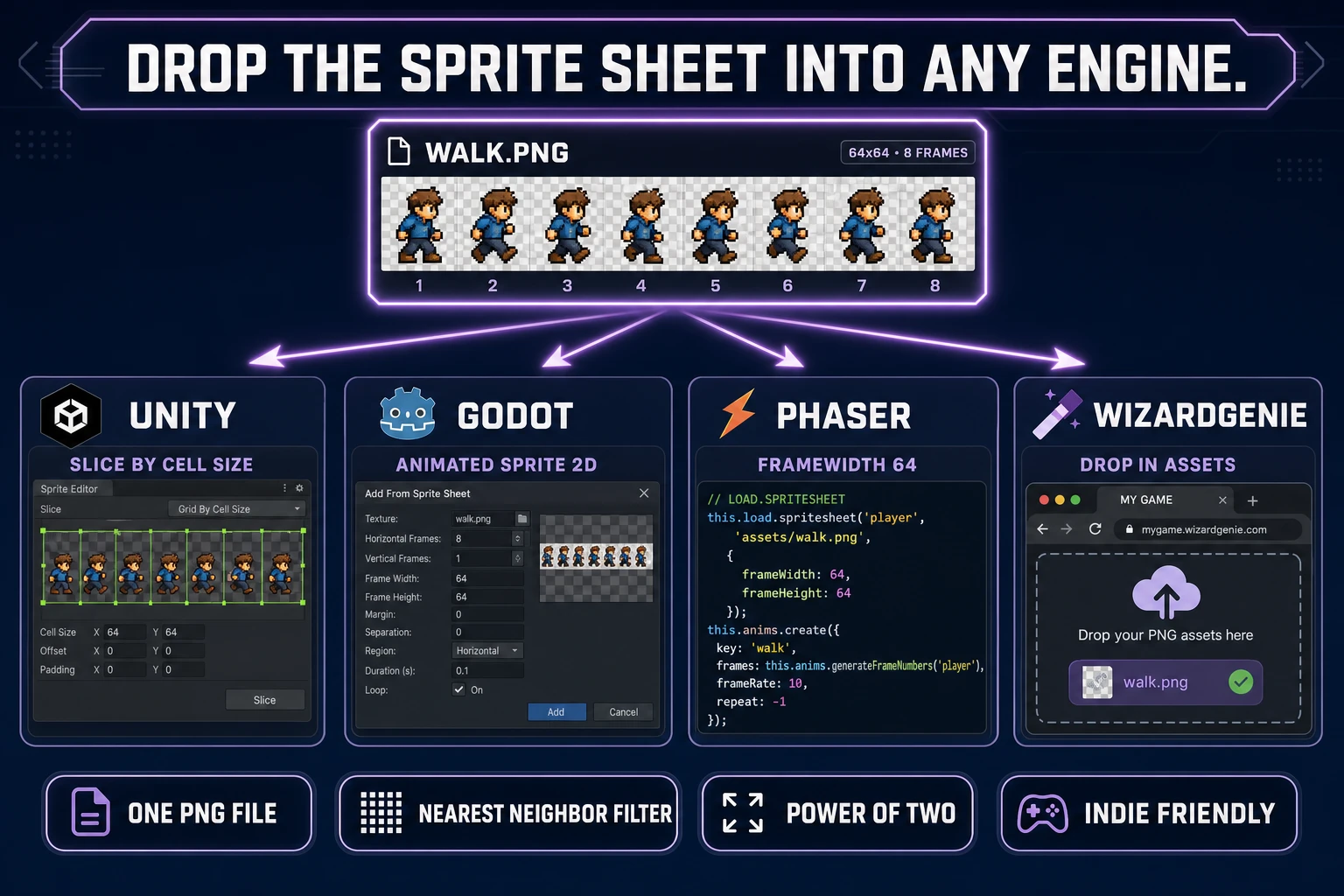
The same PNG sprite sheet drops into every mainstream engine. WizardGenie-generated browser games import it through the same asset-folder pattern as any Phaser 3 project.

Dropping the sprite sheet into Unity, Godot, Phaser, and WizardGenie

Whether the sprite sheet came out of Photoshop or Auto-Sprite v2, the import step into each game engine is the same — game engines don’t care about the source tool, only about the resulting PNG.

Unity. Drop the PNG into the Assets folder. Select it in the Project window. In the Inspector, set Texture Type to “Sprite (2D and UI),” Sprite Mode to “Multiple,” and Filter Mode to “Point (no filter)” for pixel-art clarity. Click Sprite Editor. In the Slice dropdown, pick Grid By Cell Size, enter your frame width and height in pixels, and click Slice. Unity generates one sprite per grid cell, ready to drop into an Animator Controller.

Godot 4.5. Drop the PNG in. Add an AnimatedSprite2D node to the scene. Create a new SpriteFrames resource on the node. Open the SpriteFrames editor, click the Add Frames from Sprite Sheet button, select the PNG, enter the grid dimensions in the dialog, and select every frame. Godot creates the animation resource with all frames in order.

Phaser 3. In your scene’s preload function, call this.load.spritesheet('walk', '/assets/walk.png', { frameWidth: 64, frameHeight: 64 }). In the scene’s create function, define the animation with this.anims.create({ key: 'walk', frames: this.anims.generateFrameNumbers('walk', { start: 0, end: 7 }), frameRate: 8, repeat: -1 }). Then any Phaser.GameObjects.Sprite plays the animation with sprite.anims.play('walk').

WizardGenie. The Sorceress WizardGenie browser-native game builder generates JavaScript-native game code (Phaser for 2D, three.js for 3D) with an /assets folder pre-wired into the project’s fetch loader. Drop the PNG into /assets, describe the animation to WizardGenie in plain English (“make the knight sprite play a walk cycle when the player presses arrow keys, 8 frames at 64x64 in walk.png”), and the generated code loads and plays the sheet correctly on the first pass. WizardGenie ships on both desktop and web — the desktop path is the Windows installer with auto-updater, the web path is the browser tab at /wizard-genie/app. The stack the generator produces imports PNG sprites through the standard 2D computer graphics patterns any Phaser dev already knows.

The verdict on how to make a sprite sheet in Photoshop in 2026 (and when to skip it)

The direct 2026 verdict on how to make a sprite sheet in photoshop is: yes, the workflow works, and no, it is not the right pick for most indie devs who don’t already own Photoshop. The path is layer-per-frame plus Window > Timeline plus a community export script (or manual grid layout), and it produces a clean game-ready PNG that Unity, Godot, Phaser, and any WizardGenie-generated browser game can import per the Animation Wikipedia entry. The cost is US$275.88 per year on the Photoshop Single App plan (or US$239.88 on the Photography Plan), and the ergonomics require the artist to work around Photoshop’s general-purpose defaults with the Pencil tool, Nearest Neighbor scaling, and manual export.

Use Photoshop for sprite sheets when: the artist already owns and uses it for the rest of the art pipeline (concept art, texture work, marketing materials); hand-painted frames are the source and the artist wants full brush-level control over every pixel; the project needs custom layer effects (drop shadow, outer glow) baked into each frame; and the sprite sheet is a small fraction of the Photoshop work the artist is already doing. In those cases the marginal cost of one more sprite-sheet export is small and the workflow reads as natural.

Skip Photoshop for sprite sheets when: the source frames are AI-generated character images (Auto-Sprite v2 handles the extract-clean-pack loop in one pass); the frames come from a video reference (Auto-Sprite v2 pulls frames directly from an uploaded MP4); the project is a one-person indie with no other Photoshop use case; or the annual budget can’t stretch to US$275.88 for a single-purpose tool. The Auto-Sprite v2 path is browser-native, credit-based, and produces a PNG plus JSON descriptor in a single click. The Sorceress tool catalog lists every adjacent asset tool (3D Studio for rigged characters, Sound Studio for SFX, Music Gen for background tracks, WizardGenie for the game itself) that pairs with Auto-Sprite v2 in the same browser session per the Video game Wikipedia entry.

For a new indie project starting today, the honest recommendation is: skip the Adobe subscription, spend US$10 on a Sorceress Starter credit pack, and produce the entire game’s sprite sheets in a browser tab. Reserve Photoshop for the exceptional case where hand-painted per-pixel control is genuinely required — and even then, use the free trial before committing to the annual subscription. That is what “how to make a sprite sheet in photoshop” means in 2026: a working legacy workflow, not the default answer.

Frequently Asked Questions

How do you make a sprite sheet in Photoshop step by step?

In Photoshop 2026, open the file with your animation frames as separate layers (one layer per frame). Turn on Window > Timeline. Click the Timeline dropdown and pick Create Frame Animation. In the Timeline panel, click the ‘Make Frames From Layers’ option in the flyout menu — each layer becomes a frame with its layer visibility toggled correctly. Set the frame delay (0.1 to 0.15 seconds is typical for a 6- to 8-frame walk cycle) and the looping option to Forever. Press Space to preview. Photoshop does not ship a native ‘Export as Sprite Sheet’ button, so exporting is the harder step: either run the community Sprite Sheet Exporter script (File > Scripts, if installed), or manually create a new canvas that is frame_count columns wide by 1 row tall, then paste each frame into its grid cell. Save the finished sprite sheet as a PNG. This is the workflow adobe.com HelpX documents under ‘Creating frame animations’, verified July 1, 2026.

How much does Photoshop cost in 2026?

Adobe Photoshop is subscription-only in 2026. The Single App plan is US$22.99 per month on the annual-billed-monthly plan, or US$34.49 per month on the month-to-month plan (verified via adobe.com/creativecloud/plans on July 1, 2026). The Photography Plan at US$19.99 per month is actually cheaper and includes Photoshop, Lightroom, Lightroom Classic, and 1TB of cloud storage. There is no perpetual license option; Adobe discontinued perpetual Creative Suite licenses years ago and every 2026 plan is subscription-based. That means a solo indie dev who only needs sprite-sheet work is committing to US$239.88 per year at minimum on the Photography Plan, or US$275.88 per year on the Photoshop Single App plan, purely for the sprite-sheet workflow — before any actual game engine license or asset store spend.

Can you export a sprite sheet natively from Photoshop?

No. Photoshop in 2026 still does not include a native ‘Export as Sprite Sheet’ menu item — that is the honest answer that most tutorials skip. There are three community workarounds. First, the Sprite Sheet Exporter script (a JSX file that runs under File > Scripts once installed) reads every layer, packs them into a grid, and saves a single PNG. Second, File > Scripts > Export Layers to Files writes one PNG per layer, and a separate sprite-packing tool (TexturePacker being the most-cited option outside our stack) combines them. Third, the manual grid method — create a new canvas frame_count columns wide by frame_height tall, paste each frame at the correct x offset, save as PNG. All three work, but all three are extra steps that a purpose-built sprite tool skips. Auto-Sprite v2 exports a game-ready PNG sprite sheet plus a JSON metadata file with frame offsets in one click.

What size should each frame be in a Photoshop sprite sheet?

Match the target game engine and the character's pixel budget. For pixel-art 2D games, 32x32 or 64x64 pixels per frame is standard — Photoshop is genuinely painful for pixel-perfect work because it defaults to bicubic scaling and anti-aliased brushes, both of which soften pixel edges. Set Image > Image Size > Resample to ‘Nearest Neighbor (hard edges)’ before scaling anything, and set the Pencil tool (not the Brush) at 1-pixel size for pixel-art paint work. For hi-res 2D games with soft-edge sprites, 128x128 or 256x256 pixels per frame is more common. Unity's Sprite Editor prefers Power-of-Two dimensions (128, 256, 512, 1024) on the total sprite sheet for GPU texture-atlas efficiency, so if you have an 8-frame walk cycle at 64x64 per frame, the sheet is 512x64 — already power-of-two-friendly on the width. Godot's SpriteFrames resource has no size constraint but Godot's compressed-texture pipeline also prefers powers of two on the total dimensions.

What is the cheapest way to make a sprite sheet in 2026?

Skip the paid DCC apps entirely. The two cheapest paths in 2026 are (a) Sorceress Auto-Sprite v2 in the browser at ~1 credit per 8-frame walk cycle (about $0.01 at the Starter tier of $10 for 1,000 credits), or (b) a fully free DCC like Aseprite (paid but one-time), Piskel (free web app), or GIMP (free). The math against Photoshop is stark: 275.88/year for the Single App plan buys about 27,588 Auto-Sprite v2 walk cycles at the Starter tier — more sprite-sheet output than any single indie project needs. And the Auto-Sprite v2 local backend runs on the user's own GPU for zero credits, so the marginal cost after the initial software install is $0. The Photoshop path only wins if you're already an experienced Photoshop artist for hand-drawn character work and the sprite-sheet export is a small part of a larger illustration workflow. For everyone else, browser-native tools cost less and export faster.

How do I get the sprite sheet into Unity, Godot, or Phaser after Photoshop?

Export the sprite sheet as PNG. For Unity, drop the PNG into the Assets folder, select it, set Texture Type to ‘Sprite (2D and UI)’, set Sprite Mode to ‘Multiple’, click Sprite Editor, and use the Slice tool to auto-slice by grid dimensions (Type: Grid By Cell Size, then enter your frame width and height in pixels). Set Filter Mode to ‘Point (no filter)’ for pixel-art clarity. For Godot 4.5, drop the PNG in and add a SpriteFrames resource on an AnimatedSprite2D node; the Frames editor lets you select the whole PNG and choose ‘Add Frames from Sprite Sheet’ with grid dimensions. For Phaser 3, load with scene.load.spritesheet(‘key’, ‘/assets/walk.png’, { frameWidth: 64, frameHeight: 64 }) in preload, then define animations via scene.anims.create with a frameNumbers array. For WizardGenie-built browser games, the WizardGenie project template already ships an /assets folder mapped to the JavaScript runtime's fetch loader — drop the PNG in and reference it from the code the way any generated Phaser or three.js scene expects.

Sources

  1. Sprite (computer graphics) (Wikipedia)
  2. Texture atlas (Wikipedia)
  3. Animation (Wikipedia)
  4. Portable Network Graphics (Wikipedia)
  5. 2D computer graphics (Wikipedia)
  6. Video game (Wikipedia)
Written by Arron R.·3,423 words·15 min read

Related posts