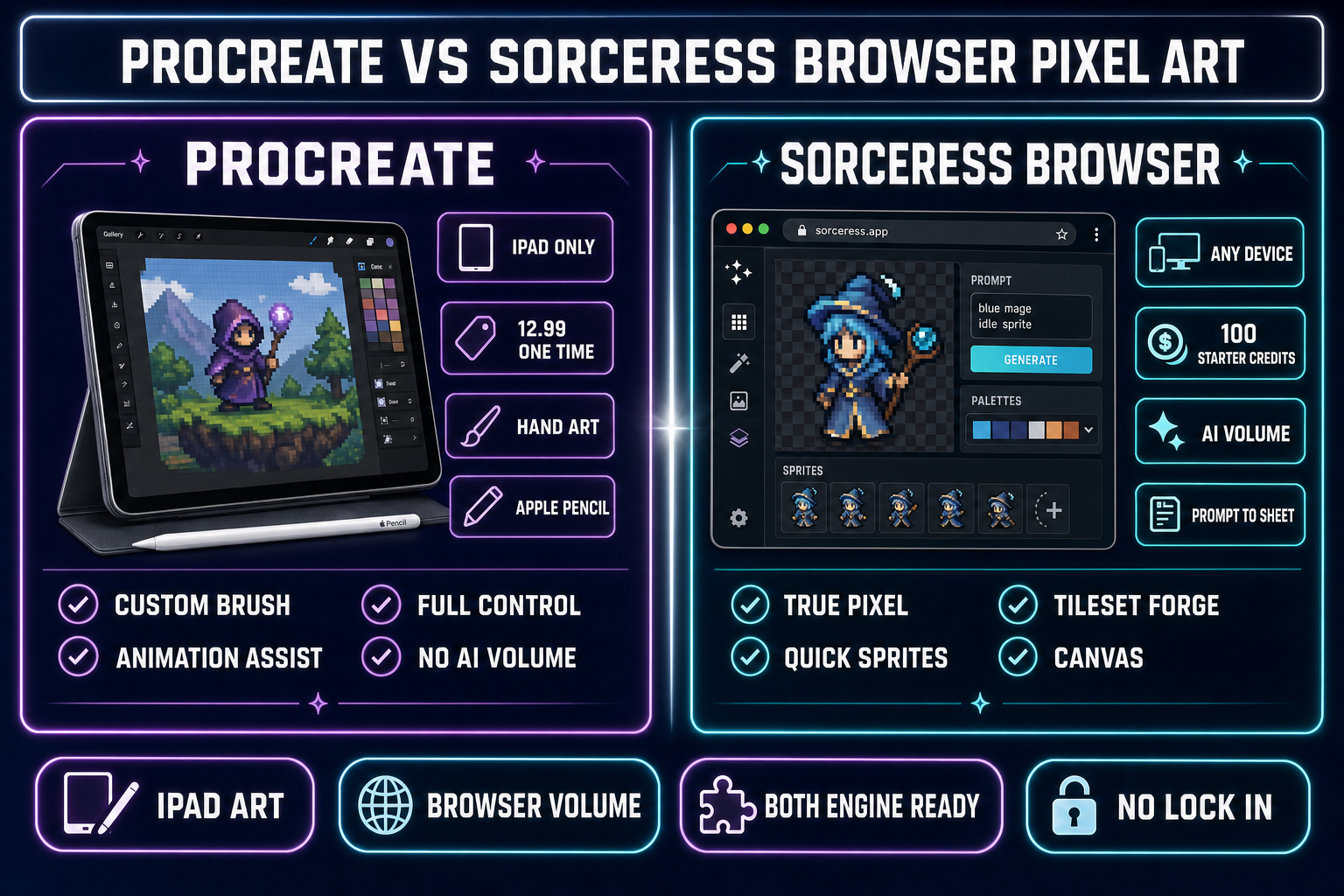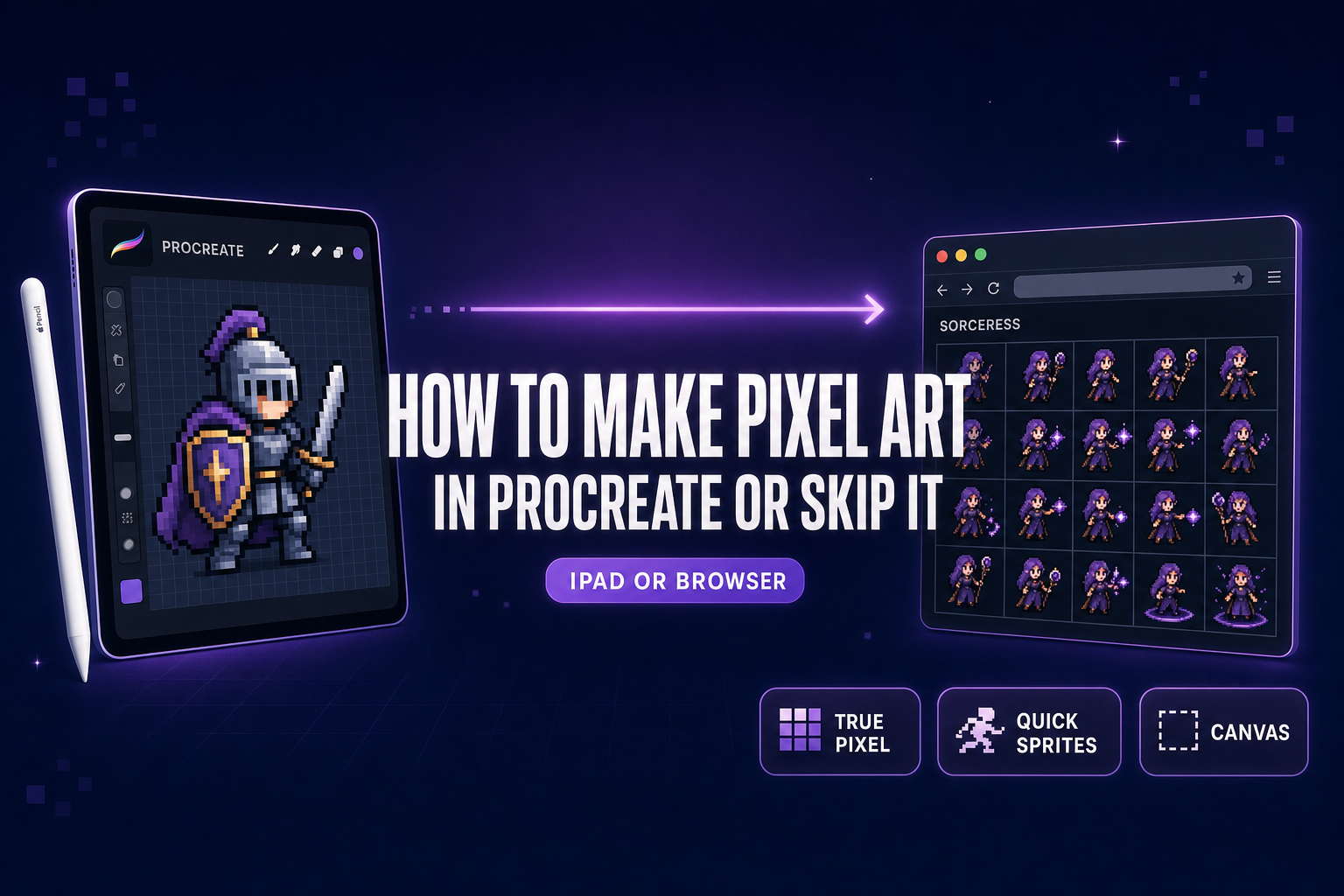
A solo indie dev who picks up an iPad and Apple Pencil in 2026 hits the same fork as everyone else trying to make pixel art on a tablet. Procreate is the leading creative app on iPad, priced at $12.99 USD as a one-time purchase, current version 5.4.10 with iPadOS 16.3 or later required (verified against the live Procreate FAQ on June 1, 2026), and it can absolutely make pixel art — but the app does not ship a dedicated pixel-art brush out of the box, and the canvas sizing, palette locking, and sprite-sheet export steps are not labelled the way pixel artists expect. This post walks the five-step workflow for how to make pixel art in Procreate the right way, then shows the browser-native escape hatch for the parts where the iPad app stops being the fastest tool.
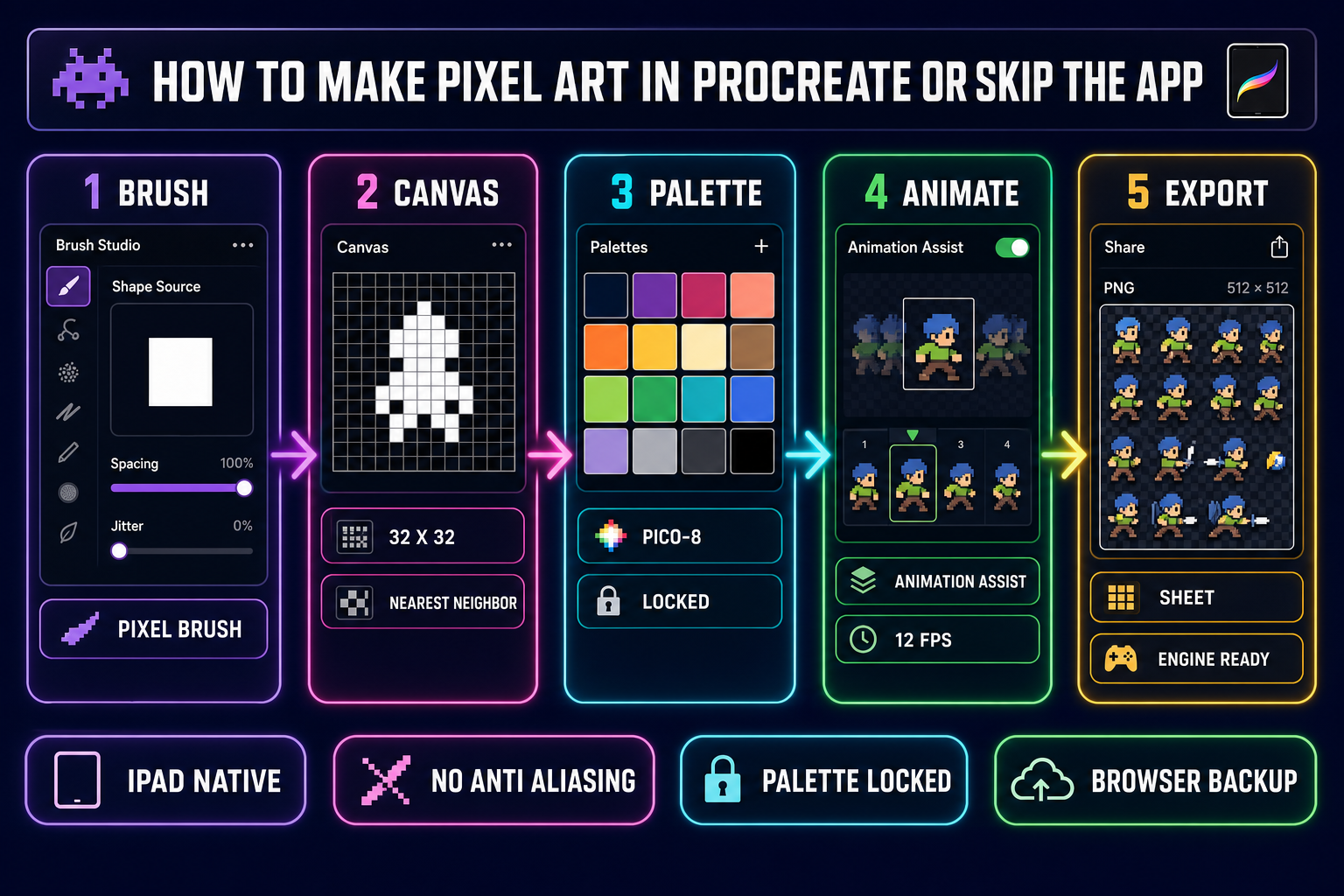
What “how to make pixel art in procreate” actually means in 2026
Pixel art is a constrained image format with three properties that separate it from pixel-shaped illustration. First, every pixel is intentional — the canvas is small (typically 16×16 to 96×96 per sprite) so each pixel is a deliberate choice. Second, the color palette is locked at 4 to 32 colors so the whole piece reads as one coherent style. Third, the output is a flat PNG with hard edges, no anti-aliasing, and a transparent background. Procreate is not built around any of those three constraints by default, which is what makes the “how to make pixel art in Procreate” question different from “how to draw in Procreate.”
The good news is the app’s underlying Valkyrie brush engine is flexible enough to do all three correctly once it is configured. The constraints have to be enforced manually: build a hard-edge single-pixel brush in Brush Studio, set the canvas to the small target resolution before drawing the first stroke, import and lock a palette, and turn on Animation Assist when the sprite needs to move. Skip any of those steps and the output is technically “pixel art” in the same way a rasterised illustration with low-res pixels is — visually close, but with the anti-aliased blur and palette drift that makes the difference between pixel art and pixelated art.
This post treats how to make pixel art in Procreate as a five-step workflow plus an honest assessment of where the iPad-only app stops being the fastest tool. For the bulk-generation step that a small team cannot reasonably do by hand — a full enemy roster, a tilemap, a VFX pack — the post then walks through the browser-native pipeline inside Sorceress as the second stage of the workflow.
How to make pixel art in Procreate in five steps
The five steps below are the canonical recipe for how to make pixel art in Procreate without paying for a third-party brush pack. Every step is verifiable inside the app and reproducible across iPad models running iPadOS 16.3 or later.
Step 1: Build a one-pixel brush in Brush Studio
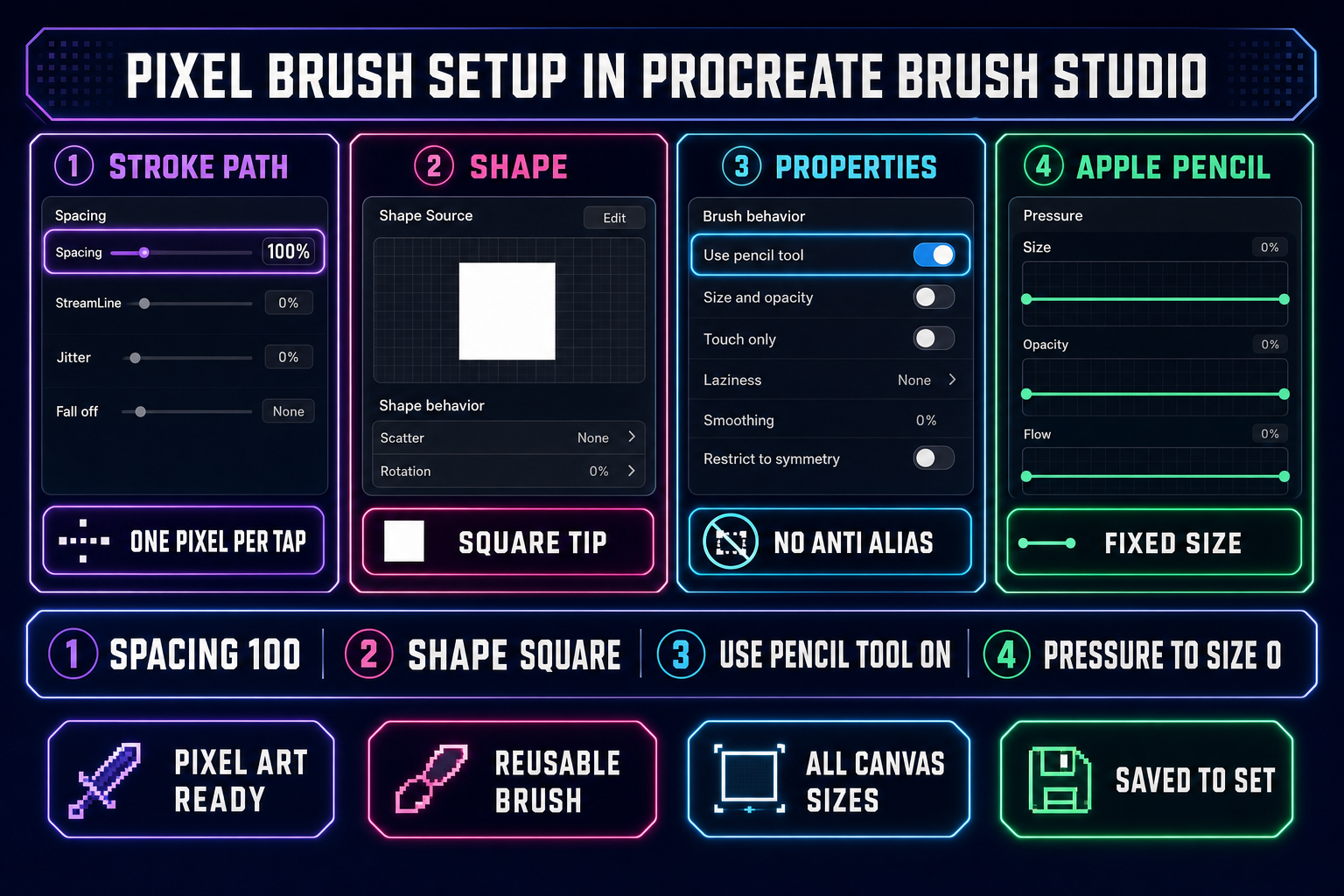
Procreate does not ship a dedicated pixel-art brush, but the built-in Brush Studio converts any brush into a hard-edge single-pixel brush in under a minute. Open the Brushes panel, swipe left on the Technical Pen inside the Inking set and tap Duplicate, then tap the duplicate to open Brush Studio. Set Stroke Path → Spacing to 100% so each pen tap places one discrete pixel instead of a continuous stroke. Set Properties → Apple Pencil → Pressure → Size to 0% so the pixel size stays fixed across the entire stroke. Set the Shape source to a hard square via the Edit button under Shape if the existing shape has soft falloff. Toggle Properties → Behavior → Use Pencil Tool on so the brush bypasses anti-aliasing entirely. Save the result to a new Pixel Art set at the top of the Brushes panel so the brush persists across projects.
The configured brush is now mathematically equivalent to the pixel pen in any dedicated pixel-art editor: one pen tap places one square pixel of one fixed color on the active layer with no anti-aliasing. The same recipe works on the Studio Pen, the Monoline brush, or any custom brush the artist starts from — the four settings (Spacing 100%, Pressure-to-Size 0%, hard square shape, Use Pencil Tool on) are the universal rule for how to make pixel art in Procreate with the native brush engine.
Step 2: Pick the canvas size before the first stroke
The single biggest decision in how to make pixel art in Procreate is the canvas resolution, because it locks the era, the palette range, and the readable detail level for the entire project. Set the canvas at file-creation time: tap the + button in the Gallery, then Create custom size, then enter the target resolution explicitly. 16×16 is the smallest practical sprite size for an NES-era RPG character or a single tile. 32×32 is the modern indie default for top-down RPGs and platformers; the Sorceress Quick Sprites Small Sprites preset is locked at 32×32 (verified at ANIMATION_STYLES[1].size = ''32x32'' in the live /quick-sprites page source on June 1, 2026). 48×48 is the workhorse for a humanoid character with a readable four-direction walk cycle; the Four Angle Walking preset is locked at 48×48 (verified at ANIMATION_STYLES[0].size = ''48x48'' in the same source). 24×24 up to 96×96 fits VFX loops, and the VFX preset spans the same range on a square aspect.
Picking the canvas at the target resolution is the rule. Drawing a 128×128 character at 4× the target size and then downsampling at export loses every intentional pixel placement the format requires. Procreate’s pinch-to-zoom on a tiny canvas plus the Reference companion window lets the artist see the full sprite at runtime size while painting at 800% zoom, which is the workflow every pixel-art DCC ships and which Procreate handles natively.
Step 3: Import a locked palette
Pick the palette that matches the era the art direction is borrowing from, and lock it before drawing the first pixel. The four palettes a beginner should know are PICO-8 (16 colors, the modern indie jam-game default), Game Boy (4 greens, NES-era nostalgia), SWEETIE-16 (16 colors, soft pastels), and Endesga 32 (32 colors, the broad-palette modern indie RPG default). All four are built-in palette presets in the Sorceress True Pixel tool (verified in the PALETTE_PRESETS array at the top of src/app/pixel-art/page.tsx on June 1, 2026), which makes them easy to grab as palette PNGs for import into Procreate. Inside Procreate, open the Palettes panel, tap the + button, and pick New from File or New from Photo to import the palette PNG. Tap the menu icon on the imported palette and choose Set as default. Lock the active palette so the color picker stays inside the chosen swatches.
Painting outside the locked palette by accident is the single biggest source of off-model pixel art for beginners. Procreate does not enforce a strict palette lock in the sense that it refuses to mix two locked colors during a smudge or fill, but combined with the hard-edge pixel brush and the Use Pencil Tool toggle, the active palette functions as a tight discipline tool: pick a swatch, stamp a pixel, repeat.
Step 4: Draw with Animation Assist on
Procreate ships Animation Assist as a built-in feature on the main app, no separate purchase needed. Toggle it on via Actions → Canvas → Animation Assist. A frame-by-frame timeline appears at the bottom of the canvas with onion-skinning for the previous and next frames, frame-rate control, looping and ping-pong cycle modes, and an Add Frame button. Animation Assist treats each Procreate layer as a separate animation frame, which is the convention every frame-by-frame pixel-art tool ships. For a four-frame walk cycle, the workflow is: draw frame 1 on layer 1, tap the layer count to add layer 2, ghost-trace frame 2 from the onion-skin of frame 1, repeat for frames 3 and 4, then tap the play button at the top of the timeline to preview at 8 to 12 frames per second.
For more advanced motion graphics, a multi-track timeline, audio sync, and longer-form 2D animation, Procreate Dreams is the separate sibling app from Savage Interactive, priced at $19.99 USD as a one-time purchase on the App Store (verified against the official Procreate Dreams Help Center FAQ on June 1, 2026, iPadOS 16.3 or later required). Both apps share the same Valkyrie brush engine, so a pixel brush built in main Procreate transfers to Procreate Dreams without modification. For a single pixel-art sprite sheet of a single character, Animation Assist in main Procreate is enough; for a longer cinematic the artist plans to score with audio, Procreate Dreams adds the timeline and the multi-track surface the work requires.
Step 5: Export and pack the sprite sheet
Procreate exports a flat PNG of the active canvas via Actions → Share → PNG, and exports an Animation Assist timeline as an animated GIF or MP4 via the same menu. The app does not pack multiple frames into a single sprite-sheet atlas natively, which is the last gap a game-dev pixel-art workflow has to fill. Two paths close the gap. First, export each animation frame as a separate PNG, then run the frames through a packer such as the Sorceress Spritesheet Analyzer, which aligns frames into a grid and writes the packed PNG plus frame metadata. Second, export the Animation Assist timeline as an animated GIF and drop the GIF into Sorceress True Pixel, which extracts frames at 30 frames per second, locks the palette across every frame, and writes the packed PNG in one pass. The second path is faster for any cycle longer than four frames.