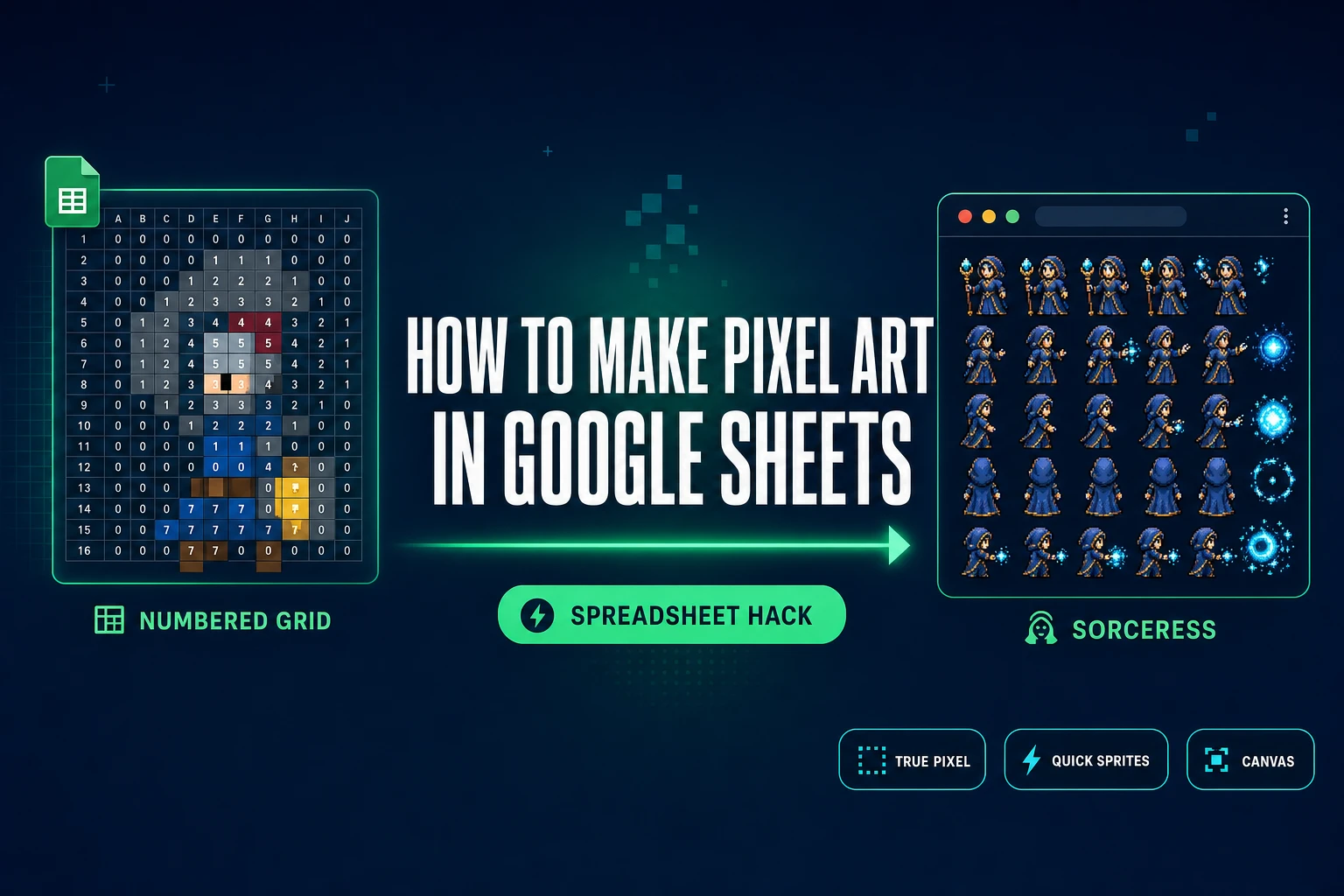
How to Make Pixel Art in Google Sheets (Spreadsheet Hack)

By Arron R.15 min read
How to make pixel art in Google Sheets: resize cells to a square grid, assign each palette color a number, set up Format then Conditional formatting rules so ea

A teacher running a 30-minute classroom unit, a kid messing around on a Chromebook the school locked down, or a game-jam dev who only has a browser tab open all hit the same surprising answer to how to make pixel art in Google Sheets: yes, it works, and the recipe is four ingredients. Resize the cells into perfect squares, build a numbered palette, set conditional formatting so each number paints a fill color, then paint the canvas by typing digits. The default Google Sheets row height is 21 pixels (verified against the live Google Sheets resize dialog on June 4, 2026), which is also the canonical column width the official Pixel Art by Alice Keeler add-on inserts, so the cell math lines up cleanly with no fuss. This post walks the full five-step workflow, then shows the browser-native escape hatch for the moments a spreadsheet stops being the fastest tool.
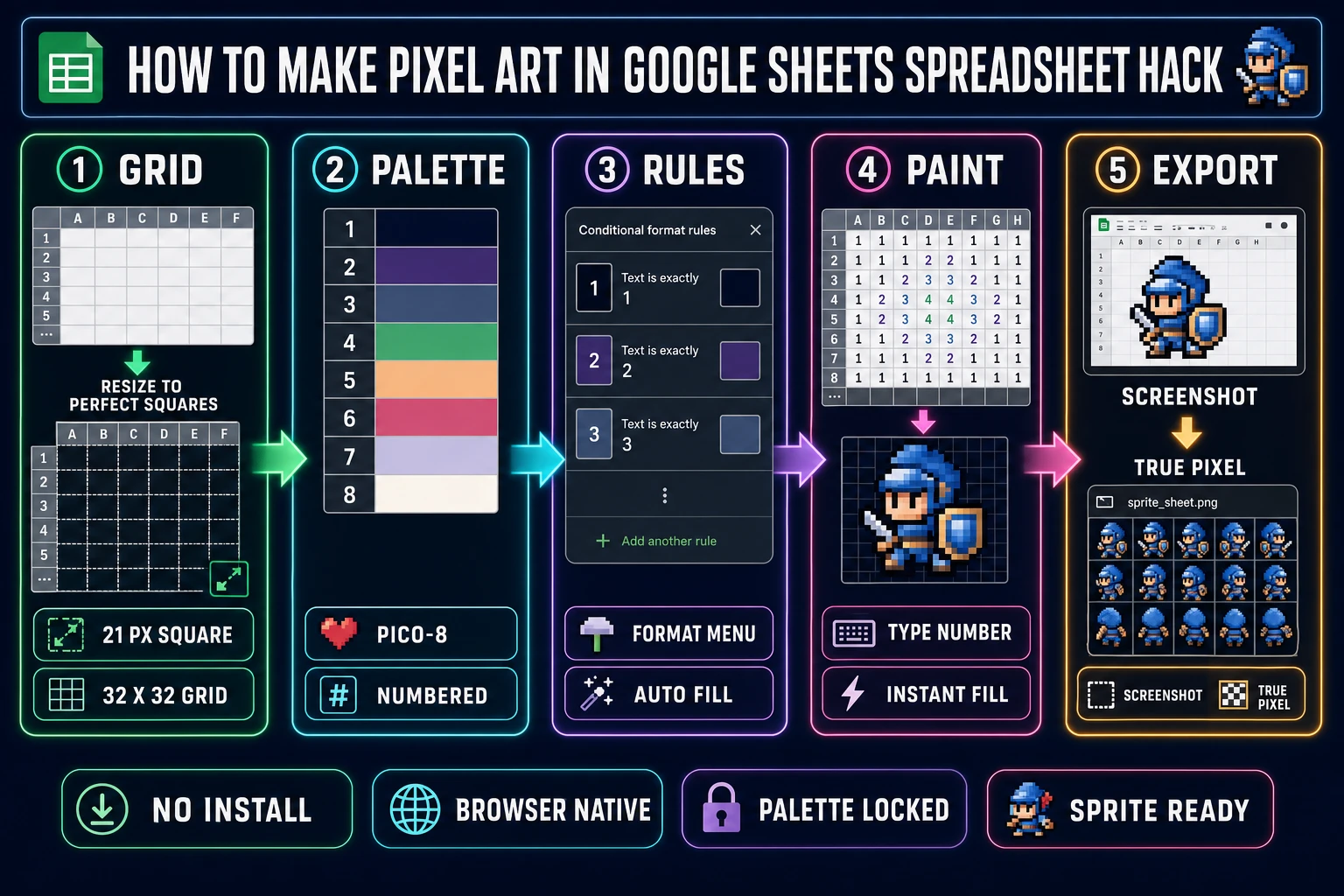
Five-panel diagram showing how to make pixel art in Google Sheets — grid, palette, conditional formatting rules, paint by number, and the browser-native sprite-sheet escape hatch
The five-step Google Sheets pixel art recipe — resize to 21px squares, number the palette, add one conditional-formatting rule per color, type digits to paint, then export through Sorceress True Pixel for game-ready PNGs. Hero image generated with GPT Image 2.

What “how to make pixel art in Google Sheets” actually means in 2026

Pixel art is a constrained image format with three properties that separate it from pixel-shaped illustration. First, every pixel is intentional — the canvas is small (typically 16×16 to 96×96 per sprite) so each placement is a deliberate choice (Wikipedia’s overview of pixel art spells out the genre’s low-resolution roots cleanly). Second, the color palette is locked to a small set so the whole piece reads as one coherent style. Third, the output is a flat raster image with hard edges, no anti-aliasing, and ideally a transparent background.

A spreadsheet is not built around any of those three constraints, but it can be coaxed into all three with a single trick: conditional formatting. Conditional formatting maps the value of a cell to a fill color. Tag each color with a number, write one rule per color, then the act of typing a digit into a cell becomes the act of painting a pixel. The grid becomes the canvas, the keyboard becomes the brush, and the rules become the palette. That is the whole conceptual basis for how to make pixel art in Google Sheets, and the rest of this post is just the mechanics.

The honest framing matters because the spreadsheet is excellent at the teaching surface (a kid sees how a pixel grid works in 60 seconds) and weak at the shipping surface (no PNG export with transparency, no animation timeline, no sprite-sheet packing). The five steps below cover the teaching surface end-to-end, and the second half of the post covers the browser-native pipeline that ships actual game assets when the spreadsheet runs out of room.

How to make pixel art in Google Sheets in five steps

The recipe below is the canonical five-step workflow. Every step is reproducible inside any Google Sheets browser tab in 2026 with zero install and zero payment.

Step 1: Resize cells into a perfect square grid

Cells in a fresh spreadsheet are rectangles, not squares, so the first step is fixing the geometry. Click the empty corner cell at the intersection above row 1 and left of column A — that single click selects every cell in the entire sheet (all 18,278 columns and 10 million rows). Right-click any column header letter (A, B, C, …) and pick Resize columns. In the dialog, switch to Enter a new column width in pixels and type 21, then click OK. Every column in the sheet snaps to 21 pixels wide. Repeat the move on a row header: right-click, Resize rows, Specify row height in pixels, type 21, OK. Both axes now match the default Google Sheets row height (verified on the live resize dialog on June 4, 2026), and every cell in the sheet is a perfect 21 by 21 pixel square.

The corner-cell trick is the fast path because the resize applies to the whole sheet in one operation, so any new tab or any duplicated copy of the workbook inherits the same square grid. If a larger preview canvas is wanted, swap 21 for 25 or 30 on both axes — the rule is simply that both numbers match. For classroom or jam-room work, 21 pixels is the sweet spot because it matches the official Pixel Art by Alice Keeler add-on, so any template a student grabs from the marketplace drops in cleanly. Above 64×64 the spreadsheet starts to slow down (each colored cell costs a conditional-formatting evaluation), so the practical sprite ceiling inside a sheet is roughly 64 pixels per side.

Step 2: Build a numbered palette

Pick a small color set and tag each color with a single digit. The fastest path is to copy a recognised pixel-art palette so the result looks like a real sprite, not a 1990s clip-art experiment. The four palettes a beginner should know are PICO-8 (16 colors, the modern indie jam-game default), Game Boy (4 greens, NES-era nostalgia), SWEETIE-16 (16 soft pastels), and Endesga 32 (the broad modern indie RPG default). All four are built-in palette presets in the Sorceress True Pixel tool (verified in the PALETTE_PRESETS array at the top of src/app/pixel-art/page.tsx on June 4, 2026, alongside CGA, NES 54, Grayscale 8, and 1-Bit). For a beginner Google Sheets project, eight colors is plenty: pick 1 through 8 and assign each digit a hex code on the side of the sheet so the key is visible while painting.

A simple eight-color starter set borrowed from PICO-8 is digit 1 black (#000000), 2 dark blue (#1d2b53), 3 dark green (#008751), 4 dark red (#7e2553), 5 light gray (#c2c3c7), 6 white (#fff1e8), 7 yellow (#ffec27), and 8 orange (#ffa300). Paint a small swatch in cells K1 through K8, then write the digit next to each swatch so the legend reads at a glance. The indexed color approach the spreadsheet is borrowing from is exactly how early consoles stored pixel art: one byte per pixel, lookup table in ROM, fill the canvas by writing indices.

Step 3: Add one conditional formatting rule per color

Open Format → Conditional formatting. The sidebar shows a single “Add another rule” button at the bottom. For the painting range, select a generous block (something like A1 to AZ50 covers a comfortable 50×50 canvas). For the first rule, set Format cells if to Text is exactly, type 1 in the box, then click the fill-color icon under Formatting style, pick a custom color, paste the black hex #000000, and click Done. The rule is now live: any cell in the range that contains exactly the digit 1 fills with black.

Repeat for digits 2 through 8, one rule per palette color, pasting the matching hex from the legend each time. Eight rules cover an eight-color palette. The order of rules matters when two rules could overlap, but for unique digit-per-color rules they fire cleanly in any order. Save the workbook. The conditional-formatting block is now an interactive paint-by-number canvas: every digit press fills the cell with the matched color, every Backspace empties the cell back to the spreadsheet’s default fill. This is the exact mechanic the official Pixel Art by Alice Keeler add-on automates — the add-on inserts a sheet with conditional formatting already configured for numbers 0 through 100, where 4 fills green and 9 fills black for the Minecraft creeper demo (verified against the Google Workspace Marketplace listing on June 4, 2026, where the add-on is listed as free with 102K+ installs and was last updated March 14, 2024).

Step 4: Paint by typing the numbers

Click any cell inside the rule range. Type the digit for the color desired, press Tab to move right or Enter to move down. The cell fills with the matched color instantly. To paint a horizontal run of one color, type the digit, hold Shift, hit Right Arrow to extend the selection, then press Ctrl+D (Windows) or Cmd+D (macOS) to fill down the digit into the whole range — the conditional-formatting rule paints every newly filled cell. To erase, select the cells and press Delete. To recolor, select and retype the new digit.

The discipline this teaches is exactly the discipline professional pixel artists build inside dedicated editors: pick a swatch, stamp a pixel, repeat. There is no smudge tool, no anti-aliased blend, no accidental color drift. The keyboard is the brush, the palette is locked to the eight digits, and every visible pixel was a deliberate keystroke. For a classroom paint-by-number activity, the teacher hands out a digit pattern in a Google Doc and students transcribe the digits cell-by-cell; the picture appears under their fingers as they type. For a solo project, the artist works freehand inside the rule range and references the legend swatches in column K.
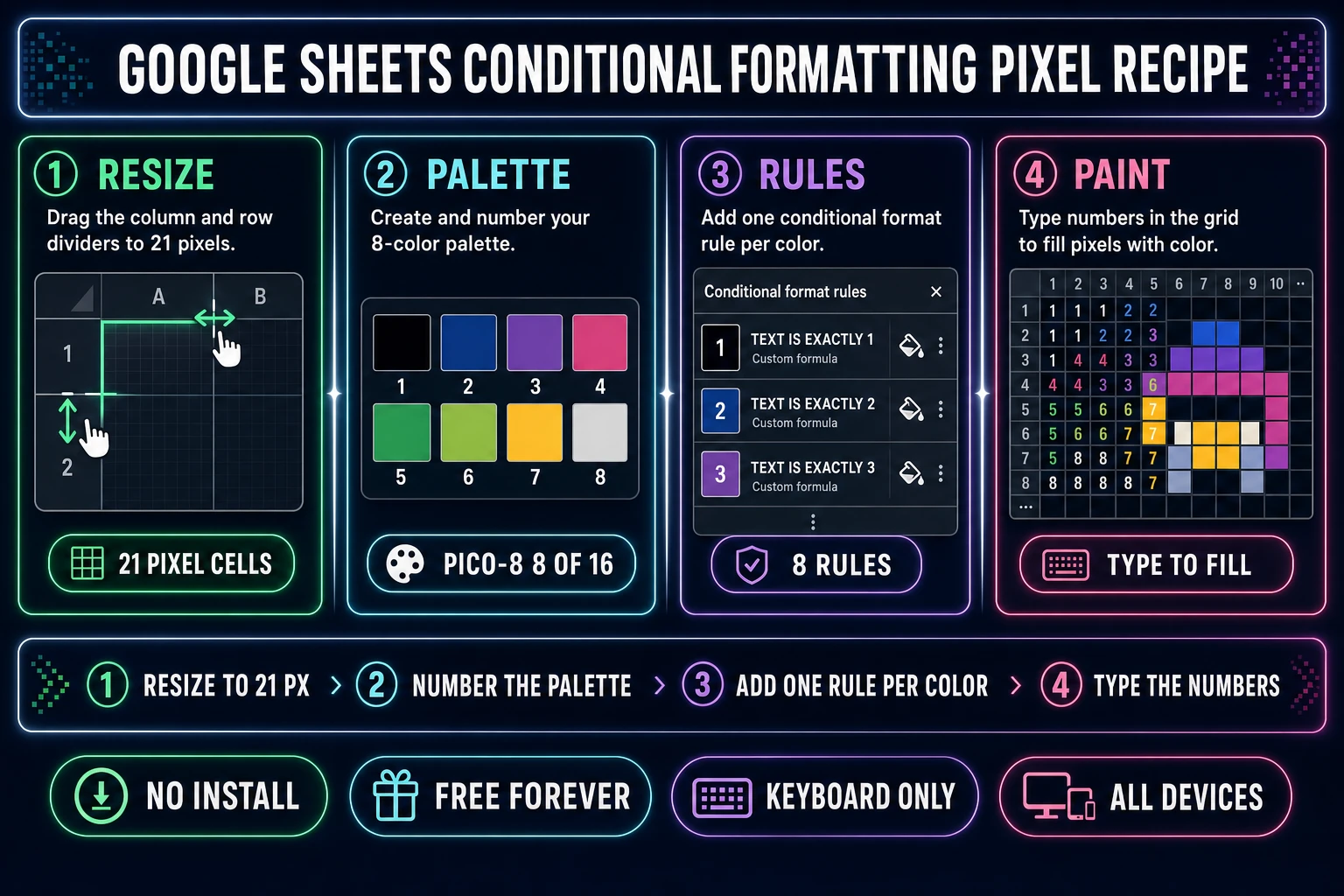
Four-panel diagram of the Google Sheets conditional formatting recipe — resize to 21 pixel squares, build a numbered palette, add one rule per color, paint by typing digits
The four-step Google Sheets conditional formatting recipe: resize cells to 21 pixel squares, number the palette, add one conditional-formatting rule per color, then type digits to paint. The whole pipeline is keyboard-only.

Step 5: Export the canvas (the hacky part)

Google Sheets does not export a flat PNG of a colored cell range natively. File → Download writes PDF, XLSX, ODS, CSV, TSV, or HTML — none of which a game engine accepts as a sprite atlas. Two paths get the art onto disk in 2026. First, the universal screenshot: Windows Win + Shift + S, macOS Cmd + Shift + 4, then crop tightly to the canvas edges. Drop the screenshot into Sorceress True Pixel, snap it to a true pixel grid, lock the palette, and export a clean transparent PNG. Second path: copy the colored cells into a Google Drawings file inserted into the same Sheet, then download the drawing as a PNG. The first path is faster because True Pixel handles the cropping precision, the palette quantization, and the alpha-channel cleanup in a single browser pass.

The export step is the honest cliff — the spreadsheet is the canvas, and the asset has to leave the spreadsheet through a downstream tool before any game engine’s 2D Sprite importer can load it. The downstream pass takes about ten seconds.
The official shortcut: Pixel Art by Alice Keeler add-on

For classroom or hobby work that wants to skip the manual resize and rule-setup, the official Pixel Art by Alice Keeler add-on automates the entire Steps 1 through 3 in two clicks. Open the Extensions menu in any Google Sheets workbook, pick Pixel Art by AliceKeeler, and the add-on inserts a fresh sheet at the front of the workbook with cells already resized to 21 by 21 pixel squares and conditional-formatting rules already configured for digits 0 through 100. Typing 4 fills the cell with a green; typing 9 fills black. The demo art is a Minecraft creeper (verified against the official add-on listing on the Google Workspace Marketplace on June 4, 2026, where the add-on is described as free, collecting no user data, with 102K+ installs and a last update of March 14, 2024).

The add-on saves the seven or eight minutes of manual setup. It does not change the underlying export limitation, so a downstream pass through a tool like Sorceress True Pixel is still required to get a transparent PNG onto disk. The add-on also adds an Add a Key command that builds the digit-to-color legend automatically in columns A and B, which is exactly the legend Step 2 above builds by hand. For a one-shot classroom session the add-on is the right call; for a workshop that wants students to learn the underlying spreadsheet mechanics, the five-step manual recipe is the better teaching path.

Where the Google Sheets pixel art workflow stops being the fastest tool

The five-step recipe ships a beautiful 32×32 paint-by-number illustration in an afternoon, and the keyboard-only paint loop is genuinely fun. The honest assessment is that a spreadsheet has five hard ceilings a game-dev workflow eventually hits.

First, no PNG export with transparency. The art has to leave through a screenshot, which means cropping precision and palette fidelity are not guaranteed without a downstream pass. Second, no animation timeline. Google Sheets has no frame-by-frame surface, no onion-skinning, no GIF or MP4 export of a colored range. The closest workaround uses Apps Script to time-cycle cell backgrounds on a fixed interval, which produces a slow flicker between two or three states inside the live sheet but cannot be exported as an animation file. Third, no sprite-sheet packing. A four-direction walk cycle wants 16 frames packed into a single PNG atlas the engine slices at load time; a spreadsheet has no atlas concept. Fourth, no texture atlas nor tileset alignment. Building a 32×32-tile dungeon set means hand-drawing every tile on a custom canvas range and slicing later by hand. Fifth, no palette lock that prevents drift. Each conditional-formatting rule is a discrete check; if the artist accidentally adds a ninth color to the legend, the original eight rules continue firing but the new ninth color has no rule and the cell stays its default fill.

None of those five ceilings is a bug; they are tradeoffs for a spreadsheet-native paint experience. They are also the five things a browser-native pixel-art toolchain solves directly.

The browser-native alternative — Sorceress True Pixel and Quick Sprites

The browser-native answer to the question of how to make pixel art for an actual game in 2026 is a three-tool pipeline inside Sorceress that runs in any modern browser tab. Sorceress True Pixel converts any existing image or video into palette-locked pixel art, with the eight built-in presets noted above (PICO-8 16, SWEETIE-16, Endesga 32, Game Boy, CGA, NES 54, Grayscale 8, 1-Bit) or an auto-quantizer between 16 and 32 colors using color quantization on the source image. Sorceress Quick Sprites generates animated sprite sheets directly from a text prompt, running the Retro Diffusion rd-animation model at 9 credits per generation (verified at MODEL_ID = 'retro-diffusion/rd-animation' and CREDITS_PER_GEN = 9 in src/app/quick-sprites/page.tsx on June 4, 2026), with three preset shapes: Four Angle Walking at 48×48, Small Sprites at 32×32, and VFX Effects at 24 to 96 pixels square. The output is a packed PNG sprite sheet plus an animated GIF preview, written to the artist’s collection in under a minute.

Sorceress Canvas is the browser-native paint editor for the hand-touch step after generation, and Sorceress Tileset Forge runs alpha-aware tile-boundary detection on AI-generated tile art and snaps the result onto a clean 16×16 or 32×32 grid. The four tools chain naturally. Generate the bulk of the sprite roster with Quick Sprites, drop the packed sheet into True Pixel for palette unification across the whole roster, open the final PNGs in Canvas for the hero-frame touch-ups, and run AI tile art through Tileset Forge for the world geometry. The Sorceress 100-credit starter grant covers the protagonist plus ten Quick Sprites generations at 9 credits each with credit to spare.

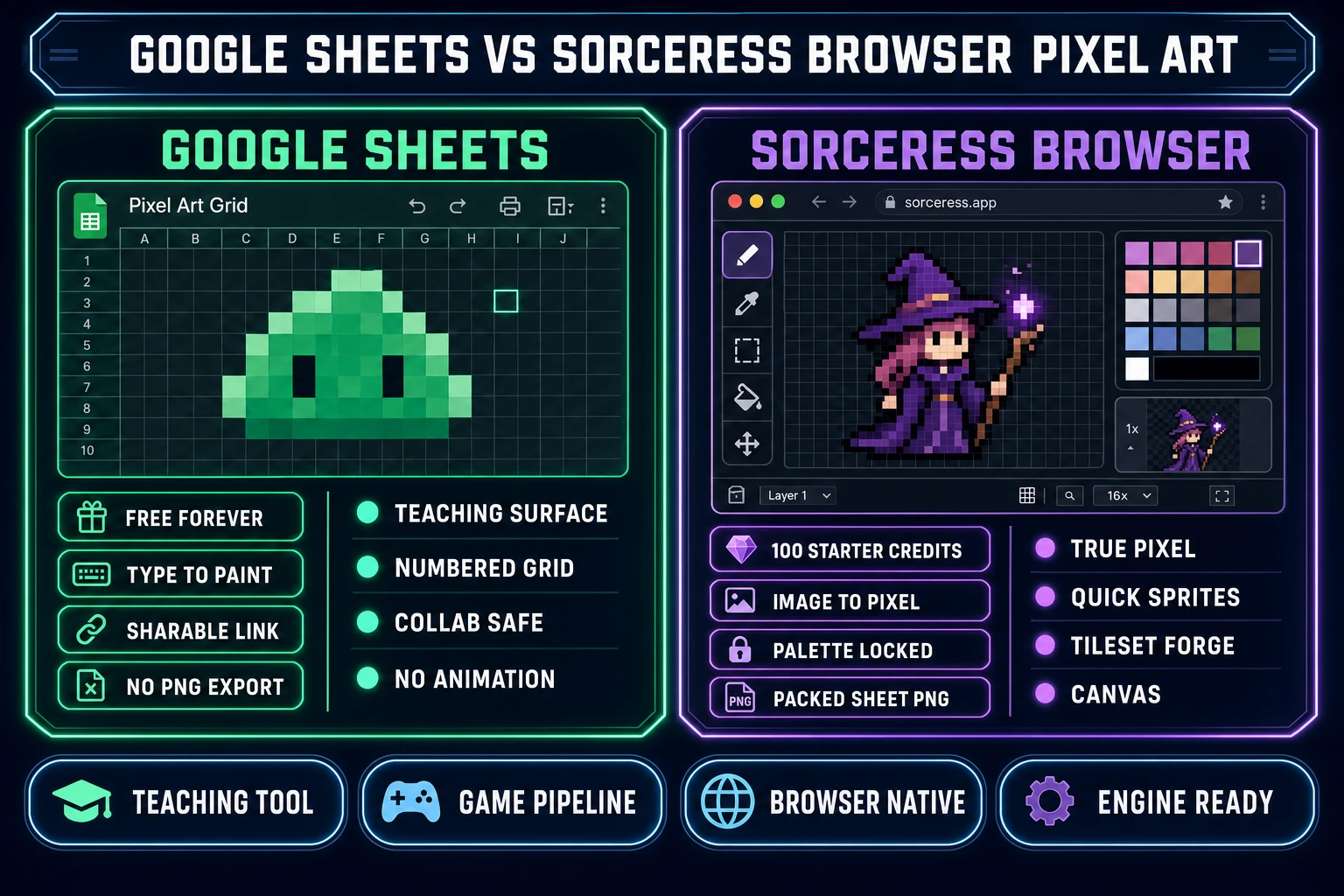
Side-by-side comparison of Google Sheets versus Sorceress browser pixel art — teaching surface versus production game pipeline
Google Sheets covers the teaching surface; Sorceress covers the browser-native production pipeline. Different tools, different jobs, both browser-only and both useful in sequence.

Google Sheets plus Sorceress — the teaching-to-shipping path

The two surfaces compose naturally. Use Google Sheets to teach the concept — a classroom or a self-taught beginner sees the pixel grid materialise under their fingers, learns that a palette is a fixed set, learns that every pixel is intentional. Once the concept clicks, move to the browser-native pipeline for the production assets the game actually ships. The hand-off is direct: a screenshot of the colored grid drops into True Pixel and emerges as a transparent PNG with the palette locked across every pixel. From there the artist either iterates by hand inside Canvas or scales the roster with prompts inside Quick Sprites.

The cost path is also clean. Google Sheets is free forever for anyone with a Google account. Sorceress ships 100 starter credits free on signup, then $10 buys 1,000 credits with no expiration, $20 buys 2,000, $50 buys 5,000, and $100 buys 10,000 (verified against the live plans page on June 4, 2026); a Lifetime license is $49 once. A 50-sprite roster at 9 credits per Quick Sprites generation costs 450 credits, well under one $10 top-up. The total spend to take a classroom pixel-art unit all the way to a shipped game asset roster in 2026 is under $25, and the pipeline is repeatable per project without further license fees.

Common mistakes when making pixel art in Google Sheets

Five mistakes account for most of the “why does my pixel art look stretched” questions after a first Google Sheets pixel art run. First, the column and row sizes do not match. 21 pixels wide columns with 25 pixels tall rows produces rectangles, not squares, and every painted pixel looks taller than it is wide. The fix is to match both numbers exactly. Second, the conditional-formatting range is too narrow. A rule set for A1:Z50 will not fire on cell AA1 — the digit gets typed but no fill appears. The fix is to set a generous range up front (A1:AZ50 covers a 50×50 canvas with margin).

Third, the rules use “Text contains” instead of “Text is exactly”. A “contains 1” rule fires on both 1 and 11, which double-paints the cell whichever rule was defined first. The fix is to switch every rule to Text is exactly. Fourth, the digit and the color do not match the legend. Painting the eyes of a sprite with digit 2 because the legend has 2 as dark blue, then later swapping 2 for green in the rule, recolors every pixel painted with 2 across the whole canvas. The fix is to set the palette once and never edit the rules mid-project; if the palette needs to grow, add digit 9 with a new rule rather than rebinding an existing digit. Fifth, the export is a JPEG. Screenshots taken with default OS settings on some systems write JPEG, which has no alpha channel and adds compression artefacts no game engine will accept on a sprite atlas. The fix is to confirm the screenshot tool writes PNG, or to push the screenshot through True Pixel which writes PNG with transparency by default.

The verdict on how to make pixel art in Google Sheets in 2026

The honest answer to how to make pixel art in Google Sheets in 2026 is that the spreadsheet is excellent at the teaching surface and not designed for the shipping surface. The five-step workflow above — resize to 21 pixel squares, number the palette, add one conditional-formatting rule per color, paint by typing digits, then export through a downstream PNG pass — ships a beautiful classroom or hobby pixel-art piece in under an hour and teaches the fundamentals of palette discipline and pixel intentionality in the same session. The official Pixel Art by Alice Keeler add-on collapses the setup to two clicks; the manual recipe teaches the mechanics.

For the rest of the pixel-art-for-games workload — the enemy roster, the four-direction walk cycle, the tilemap, the VFX pack, the transparent PNGs the engine actually loads — the browser-native pipeline inside Sorceress is faster, cheaper, and built around the constraints the engine cares about. The 2026 pixel-art workflow that wins is the one that uses both: teach with Google Sheets, scale with Sorceress, ship the packed PNG to the engine. For the deeper companion guides, see the existing posts on making pixel art in Procreate, making pixel art without Aseprite, making pixel art for games end-to-end, the image-to-pixel-art converter, and spinning up an AI sprite sheet generator. Together those five plus this one cover the complete pixel-art pipeline from spreadsheet to browser to engine, with honest tradeoffs on every step.

Frequently Asked Questions

How do I make cells square in Google Sheets for pixel art?

Click the empty corner cell above row 1 and left of column A to select every cell in the sheet, then right-click any column header and pick <em>Resize columns</em>. Set the column width to roughly 21 pixels (or 25 to 30 if a larger preview canvas is preferred). Repeat with <em>Resize rows</em> at the same value so columns and rows match exactly. Verified against the live Google Sheets resize dialog on June 4, 2026, the column-resize input accepts a pixel value directly, and the same value applied to both axes produces a perfectly square pixel cell. The corner-cell trick is the fast path because it applies the resize to all 18,278 columns and 10 million rows of the sheet in one operation, so any new tab or any pasted-in template inherits the same square grid.

Can I export pixel art from Google Sheets as a PNG?

Not natively. Google Sheets exports a sheet via <em>File &rarr; Download</em> as PDF, XLSX, ODS, CSV, TSV, or HTML, but it does not write a flat PNG of a colored cell range. Two paths get the art onto disk in 2026. First, take a screenshot of the colored grid (Windows <kbd>Win + Shift + S</kbd>, macOS <kbd>Cmd + Shift + 4</kbd>) and crop to the canvas, then drop the screenshot into Sorceress <a href="/pixel-art?ref=blog">True Pixel</a> to snap it to a true pixel grid, lock the palette, and export a clean PNG. Second, copy the colored cells into a Google Drawings file inserted into the same Sheet, then download the drawing as a PNG. The first path is faster because True Pixel handles the perspective correction, the palette quantization, and the alpha-channel cleanup in a single pass. Either way, the spreadsheet is not the export tool, it is the canvas, and a downstream pass is required to ship a sprite a game engine accepts.

Is there a Google Sheets add-on for pixel art?

Yes. The official <em>Pixel Art by Alice Keeler</em> add-on is published on the Google Workspace Marketplace and inserts a pre-formatted pixel-art sheet into any Google Sheets spreadsheet via the <em>Extensions</em> menu (verified against alicekeeler.com on June 4, 2026, where the add-on is described as free, with no user data collection, and is the official version of the long-running pixel-art template). Once installed, the add-on creates a new sheet at the front of the workbook with cells already resized to squares and conditional formatting rules pre-built so typing a number between 0 and 100 fills the cell with a corresponding pre-determined color, including a Minecraft creeper sample as the demo. The add-on is the fastest way to skip the manual cell-resize and conditional-formatting setup steps for classroom or hobby work; it does not change the underlying export limitation, so a downstream PNG pass through a tool like <a href="/pixel-art?ref=blog">True Pixel</a> is still required to get a game-ready sprite onto disk.

What is the difference between Google Sheets pixel art and a real pixel-art editor?

A spreadsheet pixel-art canvas is a discoverability and teaching surface, not a production pixel-art editor. The differences are concrete: spreadsheets do not support layers, animation timelines, onion skinning, palette locking that prevents an off-palette color picker drift, frame-grid alignment, alpha channels, sprite-sheet packing, dithering modes, or PNG export with transparency. A real pixel-art editor like Sorceress <a href="/pixel-art?ref=blog">True Pixel</a> ships eight built-in palette presets including PICO-8, SWEETIE-16, Endesga 32, Game Boy, CGA, NES 54, Grayscale 8, and 1-Bit (verified against the <code>PALETTE_PRESETS</code> array in <code>src/app/pixel-art/page.tsx</code> on June 4, 2026), three dither modes (none, ordered, Floyd-Steinberg), chroma keying, edge cleanup, batch processing across whole video files, and packed sprite-sheet export. The spreadsheet teaches what a pixel grid is; the dedicated editor ships the assets a game engine can load.

How big should my Google Sheets pixel art grid be?

Match the grid to the per-sprite resolution of the era the art is borrowing from, then keep the grid small enough that the whole canvas fits on the screen at the chosen cell size. The canonical pixel-art sizes are 8&times;8 for an icon or a single tile preview, 16&times;16 for an NES-era character or tile, 32&times;32 for the modern indie standard (top-down RPGs, platformers, the Sorceress Quick Sprites <em>Small Sprites</em> preset is locked at 32&times;32, verified at <code>ANIMATION_STYLES[1].size = '32x32'</code> in <code>src/app/quick-sprites/page.tsx</code> on June 4, 2026), 48&times;48 for a humanoid four-direction walk cycle (the <em>Four Angle Walking</em> preset is 48&times;48), and 24&times;24 to 96&times;96 for VFX loops. At 21-pixel cells, a 32&times;32 sprite is 672 by 672 actual pixels of screen real estate, which is comfortable on a laptop. Above 64&times;64 the spreadsheet stops being practical because the visible canvas grows past the viewport and conditional-formatting rules slow down.

Can I animate pixel art in Google Sheets?

Not in any production sense. Google Sheets has no animation timeline, no frame-by-frame surface, no onion-skin layer toggle, and no GIF or MP4 export. The closest workaround uses Apps Script to time-cycle the background of a cell range on a fixed interval, which produces a slow flicker between two or three states inside the live sheet but cannot be exported as an animation file. For a real pixel-art animation pipeline in 2026, the browser-native answer is Sorceress <a href="/quick-sprites?ref=blog">Quick Sprites</a>, which runs the Retro Diffusion <code>rd-animation</code> model at 9 credits per generation (verified at <code>MODEL_ID = 'retro-diffusion/rd-animation'</code> and <code>CREDITS_PER_GEN = 9</code> in <code>src/app/quick-sprites/page.tsx</code> on June 4, 2026) and writes a packed sprite sheet plus an animated GIF preview in under a minute, with three preset shapes (four-angle walking 48&times;48, small sprites 32&times;32, VFX 24-96 pixels).

Is Google Sheets pixel art good for game dev?

Useful as a teaching or planning surface, not as a production pipeline. Google Sheets pixel art is excellent for showing a beginner what a pixel grid actually is, for sketching a 16&times;16 sprite when no other tool is installed, for classroom paint-by-number exercises, or for collaborative pixel-art jam-room sessions where the whole team works inside one Drive document. It falls short the moment the asset has to ship: there is no PNG export with transparency, no animation timeline, no sprite-sheet packing, no palette lock that prevents drift across frames, and no path to a game engine&rsquo;s 2D Sprite importer. For a game-dev workflow, the spreadsheet is the wireframe step, and a browser-native tool such as Sorceress <a href="/pixel-art?ref=blog">True Pixel</a> or <a href="/quick-sprites?ref=blog">Quick Sprites</a> is the production step that writes the asset the engine actually loads.

Sources

  1. Pixel art - Wikipedia
  2. Spreadsheet - Wikipedia
  3. Conditional formatting - Wikipedia
  4. Indexed color - Wikipedia
  5. Sprite (computer graphics) - Wikipedia
  6. Color quantization - Wikipedia
  7. Texture atlas - Wikipedia
Written by Arron R.·3,326 words·15 min read

Related posts