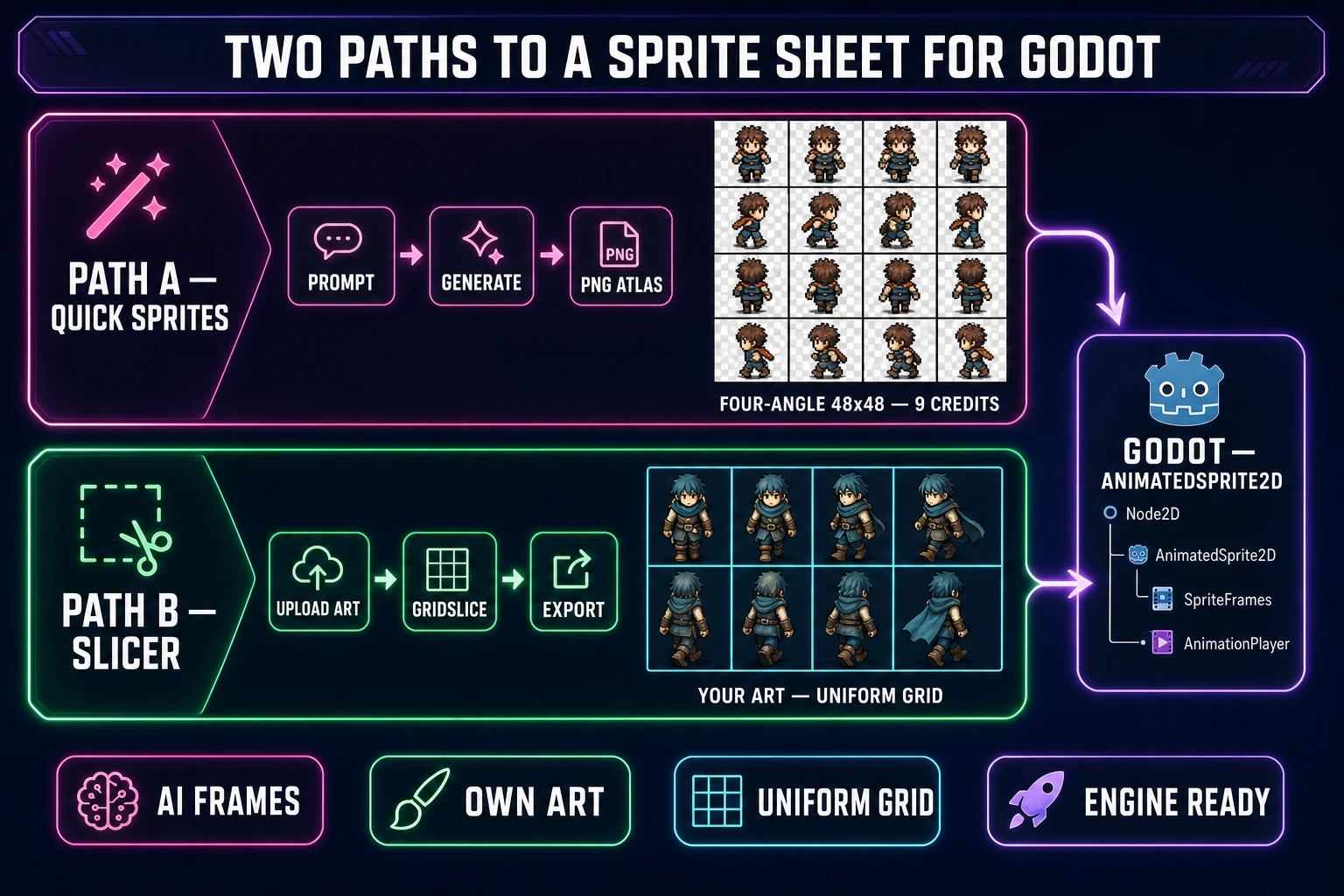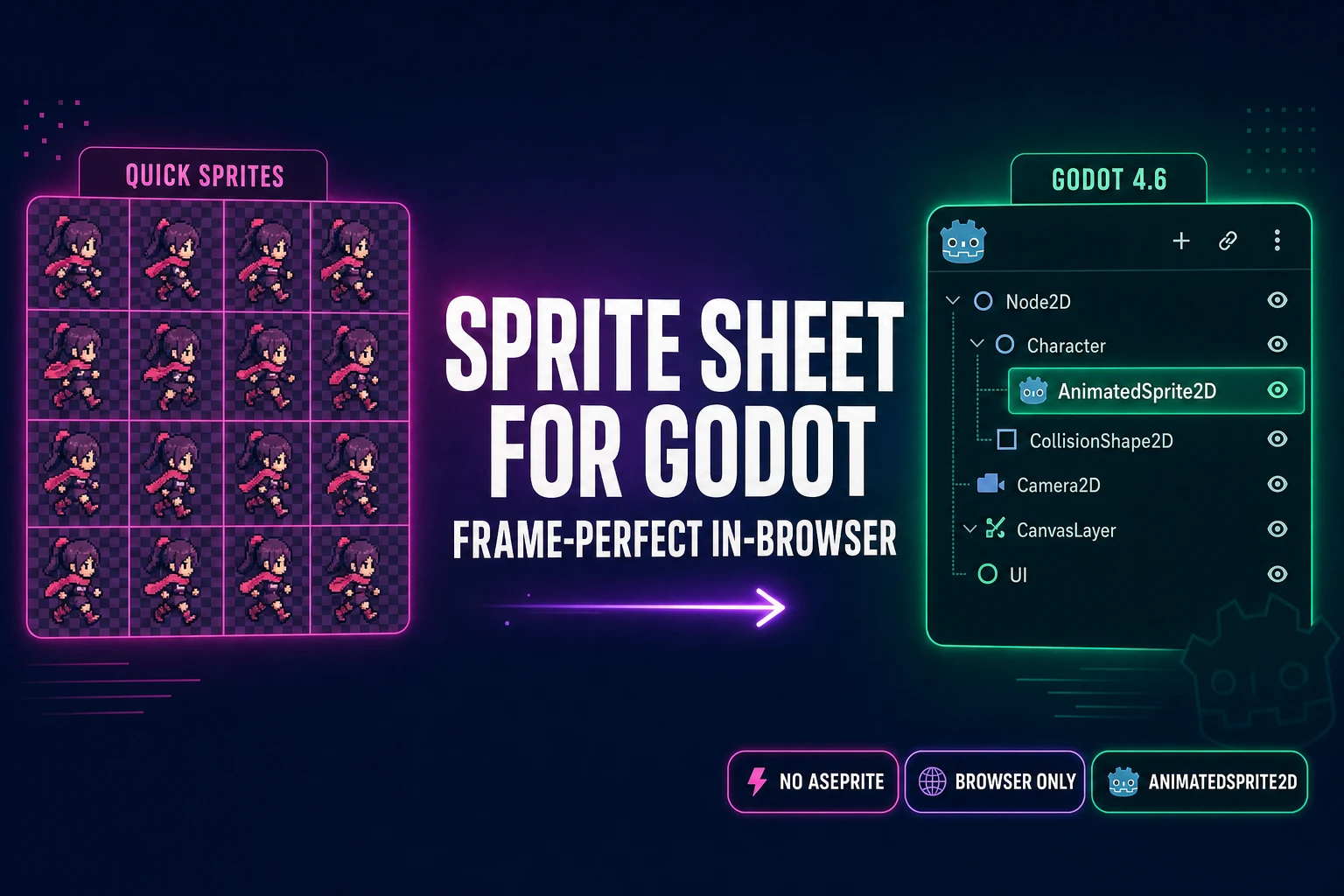
If the goal is a uniform-grid sprite sheet that drops straight into an AnimatedSprite2D node in Godot 4.6, the tooling story has shifted hard in the last 24 months. The classic answer — “open Aseprite, push pixels, export a sheet, install the godot-aseprite-wizard plugin, restart the editor, hope the JSON aligns” — still works, but the chain is longer than the work. The browser path is shorter: Sorceress Quick Sprites emits a packed PNG atlas from a one-line prompt, Sorceress Slicer cuts your own illustration into a uniform grid in five clicks, and Godot’s built-in Add frames from a Sprite Sheet button reads the PNG without any plugin or Python sidecar. Below is the end-to-end recipe, verified June 2, 2026 against Godot 4.6.3-stable and against the Sorceress source at src/app/quick-sprites/page.tsx + src/app/slicer/page.tsx. No Aseprite, no Asset Library plugin, no engine recompile.
What a sprite sheet for Godot actually is
Before the workflow, the technical primitive. A sprite is a single 2D image the engine composites onto the screen each frame. A sprite sheet — sometimes called a texture atlas — is a single PNG that packs many sprite frames into a uniform grid so the GPU can upload one texture and the engine can index into it by row and column. A walk cycle, an animation attack swing, an idle bob, a hit reaction — each one becomes a row of frames on the same sheet, and the engine plays the animation by stepping through the frame index at a fixed framerate.
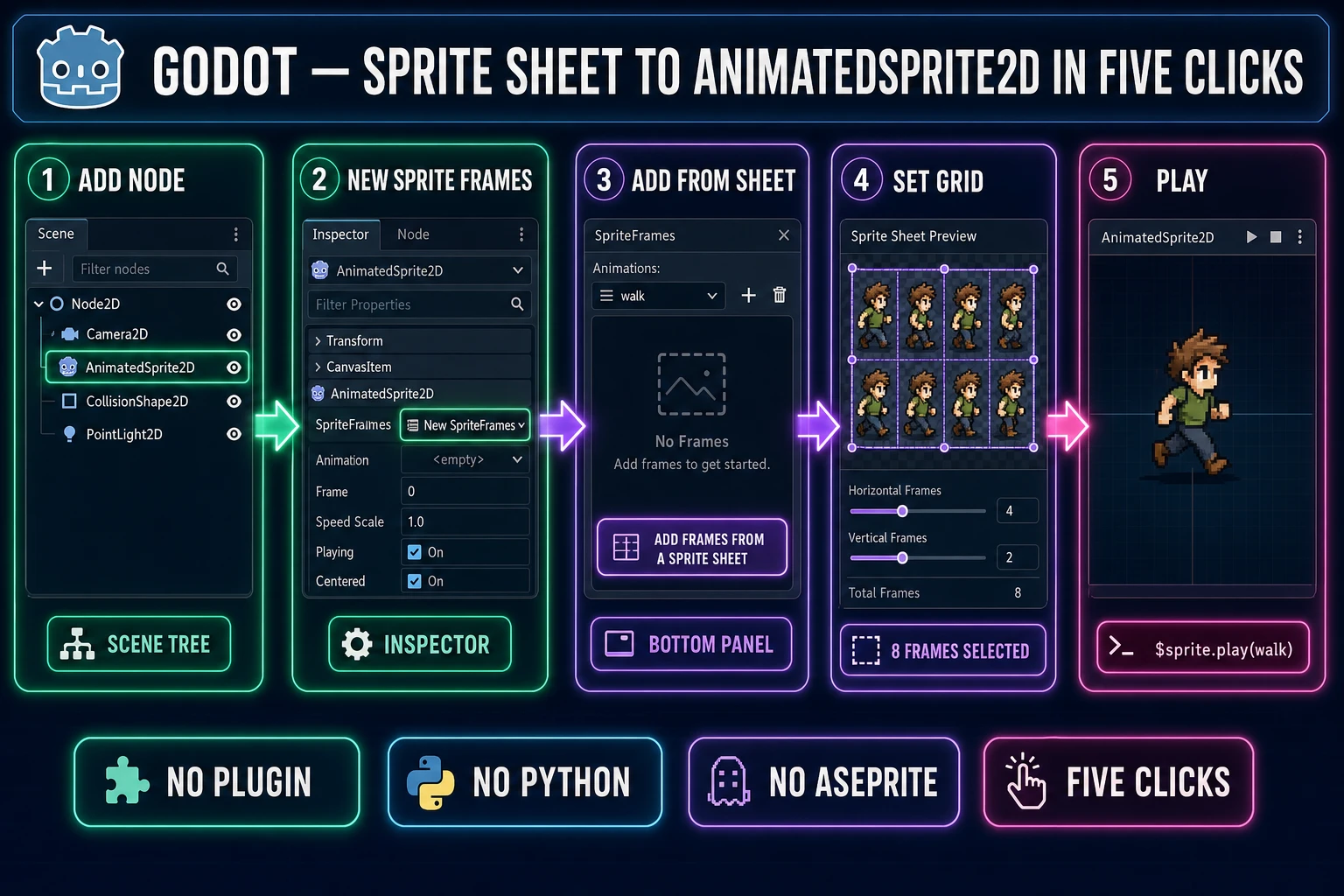
Godot 4.6 reads sprite sheets through the SpriteFrames resource, edited via the AnimatedSprite2D node’s bottom panel. The resource is a list of named animations (idle, walk, run, jump), each holding an ordered list of frame textures, each frame referencing a region of the source PNG. The runtime call to play an animation is a single line: $AnimatedSprite2D.play("walk"). The hard part is producing a sheet whose grid actually aligns to a uniform frame size, because every alignment mistake at production time turns into a visible jitter at playback. That alignment is exactly what Sorceress Quick Sprites and Slicer are tuned for.
How to make a sprite sheet for Godot in three browser steps (overview)
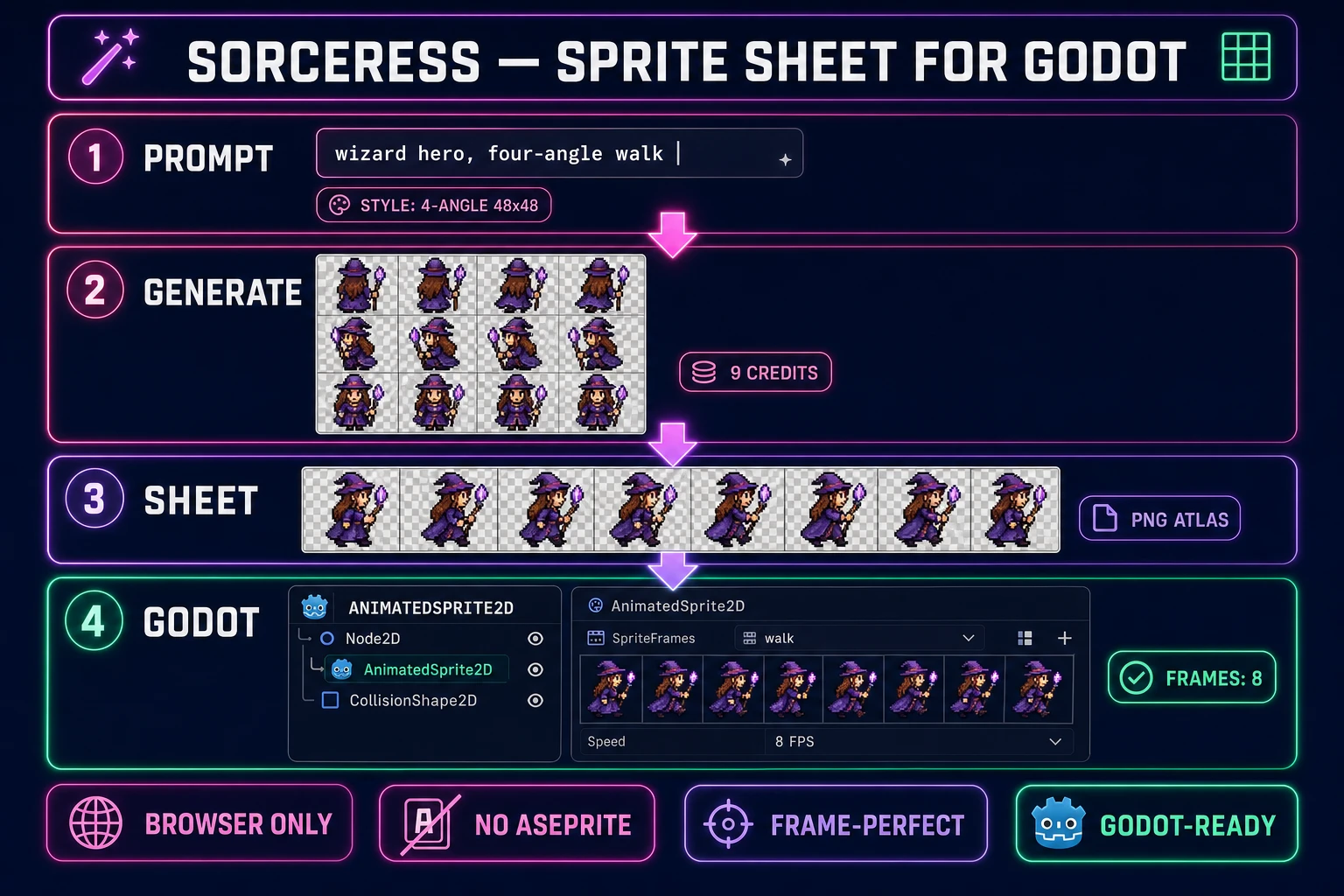
The full pipeline collapses into three steps once the source frames exist:
- Get the frames. Either generate them with Sorceress Quick Sprites (one-line prompt, 9 credits, packed PNG output), or bring your own illustration and slice it with Sorceress Slicer in gridslice mode.
- Drop the PNG into your Godot project folder. Right-click the FileSystem dock, choose Open in File Manager, copy the PNG in, and Godot auto-imports with 2D Pixel preset (filter set to Nearest).
- Wire it into AnimatedSprite2D. Add the node, click SpriteFrames → New SpriteFrames, open the bottom panel, click Add frames from a Sprite Sheet, set the horizontal and vertical frame counts to match the grid, click Add N frames, name the animation. Done.
Three steps, all browser-side except the click-into-engine step at the end. The next two H2s cover Path A (generate) and Path B (slice) in detail; after that, the engine-side recipe.
Step 1 (Path A): generate the frames with Sorceress Quick Sprites
If you do not have hand-drawn art ready, the fastest path is to generate the frames from a prompt. Open /quick-sprites. The page is verified against src/app/quick-sprites/page.tsx on June 2, 2026:
- Model:
retro-diffusion/rd-animation(theMODEL_IDconstant). Tuned for pixel-art animation frames, not for general image generation. - Cost: 9 credits per generation (the
CREDITS_PER_GENconstant). A new Sorceress account ships with a 100-credit starter pack — enough for eleven full Quick Sprites jobs out of the box. - Animation styles (the
ANIMATION_STYLESarray): four_angle_walking at 48×48 (four directions × four frames each, locked to 48×48), small_sprites at 32×32 (six rows of poses including walking, arms, looking, surprised, lying down), and vfx at 24–96 px square (effects, fire, explosions, lightning). - Reference image (optional): drop in a portrait of your hero and the model will lock to that silhouette across the four-angle pack.
- Output: a single packed PNG atlas with a clean PNG alpha channel. The file lands in your Sorceress library and downloads as a regular PNG.
For a Godot project, the four_angle_walking style at 48×48 is the workhorse — it’s the canonical top-down RPG character size, and the four-direction layout (up / right / down / left, four frames each) maps cleanly onto an AnimatedSprite2D with four named animations. The small_sprites style at 32×32 is the right pick for a lo-fi arcade game where you want six pose rows on the same sheet. The vfx style is for everything else — explosions, projectile trails, screen-shake hit flashes.
One prompt-engineering note: write the prompt for the character, not the animation. Quick Sprites already knows how to lay out a four-angle walk; you describe the character (“wizard hero, purple robe, pointed hat, holding a glowing staff”) and the style does the rest. For a deeper walkthrough of the prompt-to-pack workflow, the two-minute sprite sheet recipe covers the prompt-engineering side end-to-end.
Step 1 (Path B): slice your own illustration with Sorceress Slicer
If you already have hand-drawn art — concept paintings, frame strips from another tool, or a scanned animation rough — the path is Sorceress Slicer (verified against src/app/slicer/page.tsx on June 2, 2026):
- Drop your source PNG into the upload zone on the left. Slicer accepts PNG, JPG, and WebP.
- Switch the selection mode to gridslice. The other modes (square, free, polygon) are for cutting irregular regions; for a Godot sprite sheet, gridslice is the right tool because it enforces the uniform grid AnimatedSprite2D expects.
- Set the horizontal and vertical cell counts. For a four-angle walk pack at 48×48, that’s 4 columns × 4 rows. For a six-pose small_sprites pack at 32×32, that’s 4 columns × 6 rows.
- Use the snap presets (1, 5, 10, 20, 50 px) to lock the grid to clean pixel boundaries. Always snap to a power-of-two boundary — Godot’s pixel-perfect import preset assumes integer coordinates and softens edges if the grid is sub-pixel.
- Click Export. Slicer emits the cropped sheet (or individual frames, depending on your export choice) with a hard alpha edge.
If your source illustration is not already pixel-art-style and you want it to be, the cleanest precursor is Sorceress True Pixel — drop a video or image in, it emits a cleaned pixel-art sprite sheet, and you skip the Slicer step entirely. For converting a single concept painting into a frame strip, the no-push-pixels pixel-art workflow covers the upstream side. The Slicer path is for the case where your source is already a hand-built strip and you just need a uniform grid out the other end.