How to Make a Scratch Platformer (With AI Sprite Pack)

By Arron R.16 min read
How to make a Scratch platformer in 2026: wire gravity with a Yvel variable inside a run-without-screen-refresh custom block, use a touching-color ground check

There is a recognizable shape to the search query how to make a Scratch platformer: a beginner using MIT Media Lab’s free visual-programming editor has worked through enough Scratch tutorials to get a sprite moving with the arrow keys, and now wants the next thing every platformer needs — gravity that pulls down, a jump that goes up, a ground that stops the fall, and sprites that look better than the default cat. The honest answer comes in two halves. The first half is pure Scratch: a tiny script using a Yvel variable, a custom block with run without screen refresh ticked, and a touching-color ground check. The second half is the asset side that Scratch leaves open: AI-generated hero sprites with proper walk cycles, a real pixel palette instead of stretched clip art, and a music loop that does not come from a free SFX site that flagged your school’s firewall. Below is the full pipeline (verified 2026-06-07 against the Scratch Wiki canonical platformer references and Sorceress source code) that turns the cat-jumps-on-a-floor demo into something that looks and sounds like a real game.
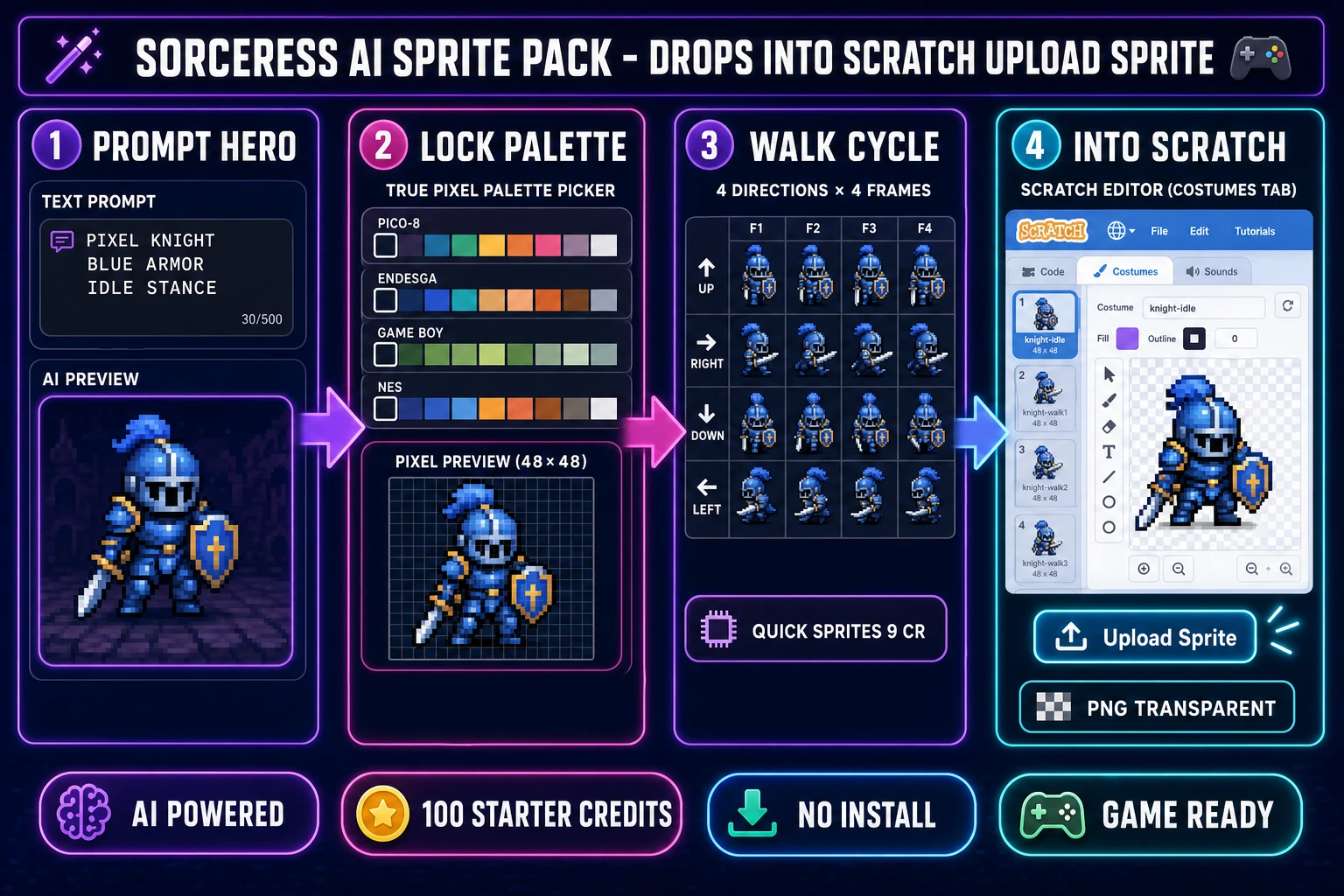
Four-panel Scratch platformer pipeline diagram on a dark navy background: AI image generation of a hero character, conversion through True Pixel to a palette-locked sprite, Quick Sprites four-direction walk cycle, and Scratch editor with gravity and jump blocks. How to make a Scratch platformer with an AI sprite pack.
The four-panel asset pipeline that drops into Scratch’s “Upload Sprite” button: generate a hero with AI Image Gen, lock the palette in True Pixel, animate a walk cycle in Quick Sprites, paste the result into the Scratch editor next to your gravity and jump scripts. Verified 2026-06-07.

What “How to Make a Scratch Platformer” Really Means in 2026

Before the code, the terms. Scratch is a free visual-block programming language and online community developed by MIT Media Lab in 2007, currently on version 3.0, with a browser-based editor that snaps coloured blocks together to drive sprites on a 480-by-360 stage. A platformer (short for platform game) is the side-view genre defined by a character that jumps from platform to platform while gravity pulls it back to the ground — the side-view tradition that runs from Donkey Kong through Super Mario Bros. through Sonic the Hedgehog through Celeste and Hollow Knight. The platformer-in-Scratch search slot covers the intersection: how to make a Scratch platformer that actually feels like a real platformer (gravity, jump, ground collision, hazards, scrolling) instead of a sprite that teleports up when the arrow key is pressed.

Two things separate a beginner Scratch platformer from one that feels right. The first is the physics: gravity must accumulate over time, jumps must arc instead of snap, and the ground check must run inside a custom block with the run without screen refresh flag ticked so the sprite never falls through the floor between frames. The second is the art: the default Scratch cat works as a placeholder, but a Scratch platformer with a proper hero sprite (recognizable silhouette, walk cycle that loops on four frames, palette-locked colours that read clearly against the background) feels eight steps closer to a real game with no extra code. The pipeline below covers both halves.

The Tools You Actually Need to Make a Scratch Platformer

One platform, four AI helpers, zero installs.

  • Scratch 3.0 (free, browser-based, MIT Media Lab) — the visual-block editor where the game itself lives. Open a new project, the stage and the block palette load in any modern browser, and the “Upload Sprite” button at the bottom-right of the stage accepts PNG, JPG, GIF, and SVG files up to a couple of megabytes (PNG with a transparent background is the format that drops in cleanest, verified 2026-06-07 against the Scratch User Guide on Science Buddies and the Scratch Wiki sprite-import canonical refs).
  • Sorceress AI Image Gen at /generate — type a one-sentence prompt for the hero character (style, palette, pose, mood), pick a 1:1 aspect ratio at 1024 by 1024, and let the model render a clean side-view reference. This is the source image that the next two tools convert into a Scratch-ready PNG sprite.
  • Sorceress True Pixel at /pixel-art — the browser pixelizer that takes the AI-rendered character and converts it to a real pixel-art sprite locked to one of eight retro palettes (PICO-8 16, SWEETIE-16, Endesga 32, Game Boy, CGA, NES 54, Grayscale 8, 1-Bit; verified against src/app/pixel-art/page.tsx on 2026-06-07). True Pixel handles the downscale, the edge cleanup, and the optional dithering pass; it outputs a transparent-background PNG that drops straight into Scratch’s “Upload Sprite” pipeline.
  • Sorceress Quick Sprites at /quick-sprites — the walk-cycle generator that takes the pixelized hero and produces a four-direction four-frame walking animation (48 by 48 pixel grid) or a six-row Small Sprites sheet (32 by 32 with right, left, arms, look, surprise, lay down). Each generation runs the Retro Diffusion rd-animation model at nine credits per generation, verified against src/app/quick-sprites/page.tsx lines 18 through 48 on 2026-06-07. The output is a sprite sheet PNG you can split into individual frames inside Scratch’s Costumes tab.
  • Sorceress Music Gen at /music-gen plus Sound Studio at /sound-creator — two browser tools that handle the audio half of a Scratch platformer: Music Gen produces a looping background track from a text prompt, Sound Studio generates short SFX clips (jump, land, hit, coin) ready to drop into Scratch’s Sounds tab.
  • Sorceress Pixel Snap at /spritely — the optional bridge tool that converts any uploaded character image into a Scratch-ready transparent PNG in one step, useful when you already have a hero illustration and want to skip the AI-generation step.

The full Sorceress stack starts at the free signup tier (100 starter credits, verified against the Sorceress home hero on 2026-06-07), which covers roughly the first ten Quick Sprites generations plus the True Pixel and AI Image Gen runs needed to ship one playable Scratch platformer. After the starter credits, the credit packs at ten dollars for 1,000 credits never expire and never auto-renew — a hard-stop credit model that suits the one-project-at-a-time rhythm of a school assignment or a weekend Scratch jam.

Step 1 — Generate Your Hero Sprite With AI (AI Image Gen plus True Pixel)

The cat sprite that ships with Scratch is iconic but generic; every Scratch platformer that uses it looks like every other Scratch platformer. The first real upgrade is a hero character that belongs to your game.

Open /generate in a new browser tab. In the prompt box, describe the hero character in one sentence: appearance, palette mood, view angle, action stance. Two prompts that consistently work for platformer heroes:

  • “Side-view pixel-art hero character, lavender cloak, brown boots, idle stance, transparent background, retro game aesthetic, 1024 by 1024 square format.”
  • “Side-view chibi knight character, blue armor, red plume, sword at side, idle stance, transparent background, NES-style palette, 1024 by 1024 square.”

Pick a 1:1 aspect ratio (Scratch sprites work best as squares because rotation transforms cleanly around the center pixel). Generate; the model returns a clean illustration. If the first roll does not match what you pictured, refine the prompt (palette name, art style, pose) and roll again — AI Image Gen renders are fast enough that three rolls take less than a minute. Save the chosen PNG to your computer.

Now open /pixel-art in another tab. Drag the saved PNG into the True Pixel upload zone. The tool reads the image, downscales it to a pixel grid (default 48 by 48, adjustable up to 128 by 128), and asks you to pick a palette. The palette choice matters more than beginners expect: a 16-colour PICO-8 palette reads cleanly on a Scratch stage at any scale, a 32-colour Endesga 32 palette gives you more painterly depth, and the Game Boy four-colour palette produces the classic monochrome look that some Scratch platformer styles lean into deliberately. Pick one, preview the result, optionally enable the dithering pass to smooth gradients, and export the final PNG. The output is a transparent-background sprite locked to the chosen palette, ready for the next step.

The end-to-end time from AI Image Gen prompt to True Pixel export is about four minutes the first time you do it, two minutes once you have the rhythm. The credit cost is about three credits for the AI Image Gen render and one credit for the True Pixel pass, so about four of the 100 starter credits per hero variant. That is cheap enough to roll three or four candidates and pick the strongest one.

Step 2 — Build a Four-Direction Walk Cycle in Quick Sprites

The static hero PNG from Step 1 works for the title screen and for a single still pose on the platformer stage. To make the hero actually walk, the platformer needs a multi-frame animation: a four-frame walk cycle that loops as the player holds an arrow key, plus an idle pose for when the player is standing still.

Open /quick-sprites in your browser. Drag the True Pixel hero PNG from Step 1 into the upload zone. Pick the animation style: Four Angle Walking produces a 48-by-48 pixel grid with four frames of walking animation in each of four directions (up, right, down, left), which is the right choice for a top-down or three-quarter-view Scratch platformer. Small Sprites produces a 32-by-32 grid with six rows (right, left, arms, look, surprise, lay down), which suits a side-view platformer where you do not need up and down directions. Pick the style that matches your game’s camera angle.

Quick Sprites runs the Retro Diffusion rd-animation model at nine credits per generation (verified against src/app/quick-sprites/page.tsx CREDITS_PER_GEN constant on 2026-06-07). The output is a single sprite-sheet PNG with all frames laid out on a grid — for Four Angle Walking, that is a 192-by-192 sheet (four columns of 48 by 48 frames in four rows). Download the sheet.

Now import the sheet into Scratch. Open your Scratch project, hover over the “Choose a Sprite” cat icon at the bottom-right of the stage, click “Upload Sprite” (the up-arrow icon), and select the Quick Sprites PNG. The sheet imports as a single sprite. Switch to the Costumes tab on the new sprite, and use the rectangle marquee plus duplicate workflow to split the sheet into individual costumes: select the first 48-by-48 frame, copy it, paste as a new costume, repeat for each frame in the walk cycle. Name the costumes walk-right-1, walk-right-2, walk-right-3, walk-right-4, then repeat for the other three directions. Twelve to sixteen costumes per hero is normal.

The walk-cycle script in Scratch is then tiny:

when [right arrow v] key pressed
forever
  switch costume to (walk-right-1 v)
  wait (0.08) seconds
  switch costume to (walk-right-2 v)
  wait (0.08) seconds
  switch costume to (walk-right-3 v)
  wait (0.08) seconds
  switch costume to (walk-right-4 v)
  wait (0.08) seconds
end

Roughly 0.08 seconds per frame at four frames produces a 0.32-second walk cycle, which is the canonical loop length for a side-view walk cycle in most 2D platformers. Adjust the wait value down for a faster sprint, up for a heavier slower walk.
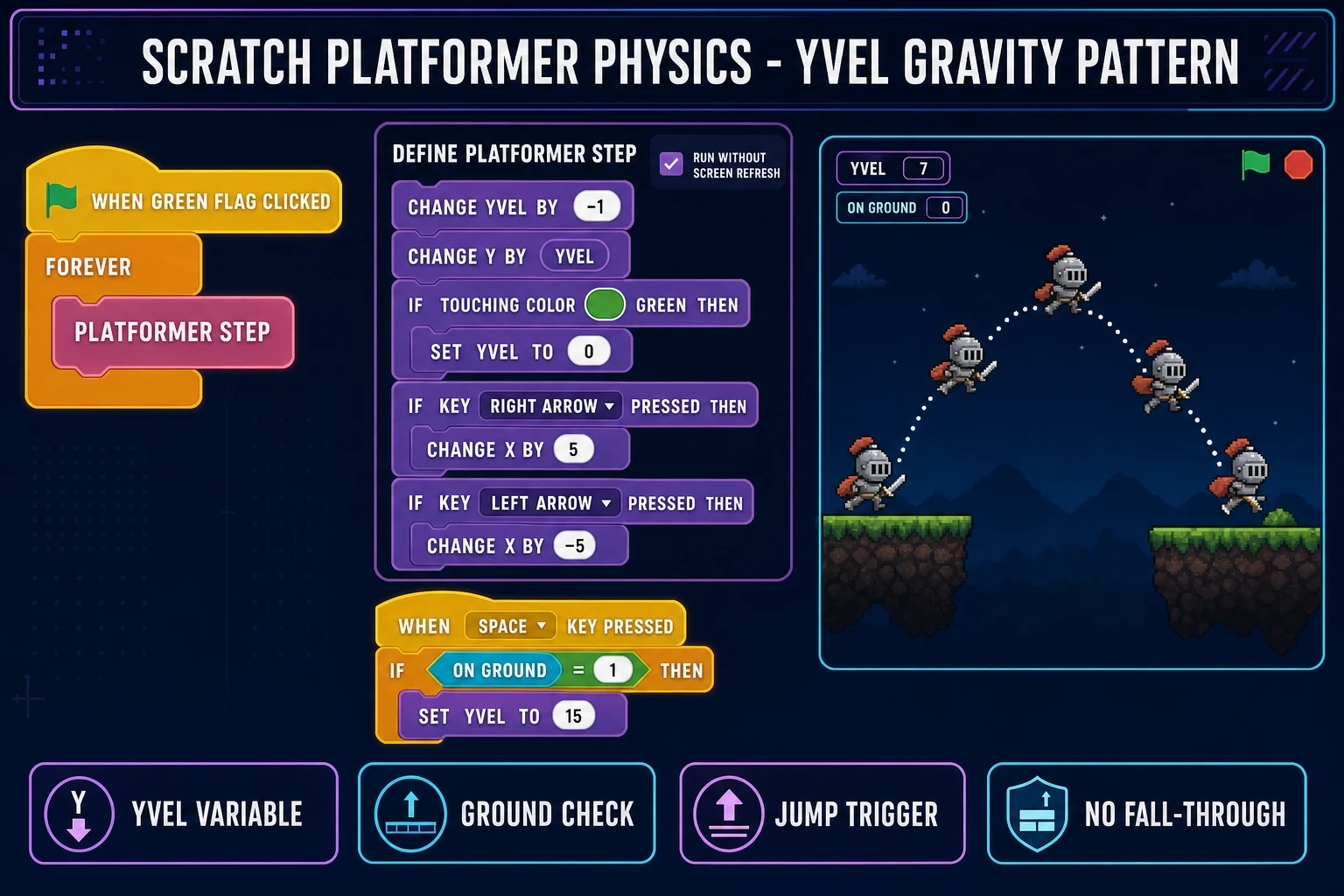
Scratch editor block diagram showing the Yvel gravity variable inside a forever loop, the touching color ground check, the if-then-jump block that fires when the space key is pressed and the player is on the ground, and a custom block labelled platformer step with run without screen refresh ticked. How to make a Scratch platformer with proper gravity and jumping.
The canonical Scratch platformer-physics block pattern: a Yvel variable scoped “For this sprite only,” a forever loop that subtracts gravity from Yvel and changes the sprite’s y position, a touching-color ground check that resets Yvel to zero on contact, and a custom block with the “run without screen refresh” flag ticked. Verified 2026-06-07 against the Scratch Wiki Basic and Advanced Platformer Physics canonical references.

Step 3 — Wire Gravity, Jumping, and Ground Detection in Scratch

This is the heart of the answer to how to make a Scratch platformer. The same block pattern shows up in roughly every well-built Scratch platformer because it is the smallest set of variables and blocks that produces convincing 2D game physics on the Scratch stage.

Variables to create (Data category, “Make a Variable” button, “For this sprite only” checkbox ticked):

  • Yvel — vertical velocity. Negative when falling, positive when jumping, zero when standing on ground.
  • Xvel — horizontal velocity. Driven by arrow-key input plus optional friction.
  • on ground — a flag (0 or 1) that the ground-detection block sets each tick.

Custom block to create (My Blocks, “Make a Block” button, name it platformer step, and crucially tick the “Run without screen refresh” checkbox). Run-without-screen-refresh tells Scratch to execute every block inside the custom block in a single frame without redrawing the stage between blocks — without this flag, the sprite can jump halfway through a floor before the ground check fires, and the player falls through platforms once every few jumps. The flag is the single most important detail in a Scratch platformer; the Scratch Wiki Advanced Platformer Physics page is explicit about this.

The platformer step block contents (in plain English, then in Scratch block names):

  1. Apply gravity: change [Yvel v] by (-1)
  2. Move vertically: change y by (Yvel)
  3. Check ground: if <touching color [ground-color] ?> then set [Yvel v] to (0); set [on ground v] to (1); change y by (5) repeat until not touching ground color (slides sprite out of ground)
  4. Read horizontal input: if <key (right arrow v) pressed?> then set [Xvel v] to (5) and similar for left arrow with -5; otherwise set [Xvel v] to (0)
  5. Move horizontally: change x by (Xvel)
  6. Handle wall collision: if <touching color [wall-color] ?> then change x by ((Xvel) * (-1)) to push the sprite back out

The jump trigger (a separate hat-block script on the player sprite):

when [space v] key pressed
if <(on ground) = (1)> then
  set [Yvel v] to (15)
  set [on ground v] to (0)
end

The main loop (drives the custom block every frame):

when [green flag v] clicked
forever
  platformer step
end

That is the complete platformer skeleton. The numbers (gravity at -1, jump velocity at 15, horizontal speed at 5) are starting points; tweak them until the jump arc feels right. A real platformer feel emerges when the jump-key-held duration extends the jump (variable-height jumping), which adds one more variable (jump-held, incremented while the space key is held, with the early-release logic that halves Yvel when the key is released). The Scratch Wiki Advanced Platformer Physics canonical reference covers the full set of refinements (variable jump, wall-jump, coyote time, jump-buffer) for the platformer that graduates from beginner to intermediate.

Step 4 — Add Backgrounds, Platforms, and Hazards

The hero sprite, the walk cycle, and the gravity-plus-jump physics produce a single sprite that runs and jumps on an empty stage. The next assets are the backgrounds, the platforms, and the hazards that turn the empty stage into a level.

Backgrounds. Open /generate again and prompt for a Scratch-stage-sized background scene (480 by 360 pixels, side-view, parallax-friendly). Two prompts that produce usable platformer backgrounds:

  • “Side-view forest background, distant mountains, layered trees, pixel-art style, 480 by 360 pixels, soft sunset palette, no characters.”
  • “Side-view underground cave background, stalactites, glowing crystals, parallax layers, pixel-art style, 480 by 360 pixels, cool blue palette.”

Run the result through True Pixel to lock the palette, then upload the PNG to Scratch’s “Stage” section (the bottom-right corner, click the picture icon, then “Upload Backdrop”). One game can carry multiple backdrops; switch with switch backdrop to [forest-1 v] when the player crosses a level boundary.

Platforms. Three patterns work cleanly in Scratch. Pattern one: draw the platforms directly on the backdrop and use the touching-color ground check (the touching color [ground-color] sensing block) to detect ground — this is the simplest, lowest-block-count approach, and the one most Scratch tutorials demonstrate. Pattern two: build platforms as separate sprites (one platform sprite per platform), use touching [platform-1 v] instead of color sensing, and you gain the ability to move platforms in script (rising platforms, falling platforms, conveyor belts). Pattern three (advanced): use a tile-grid sprite with multiple costumes representing different tile types, render the level as a script that clones the tile sprite at each grid position. Pattern three scales to bigger levels but requires more block plumbing.

Hazards. Spikes, lava, pits, moving enemies. Each is a sprite with its own collision check on the player sprite’s main loop: if <touching [spikes v]?> then broadcast [player-died v], which the player sprite handles by resetting position and decrementing a lives variable. Lava is usually a color-based check (touching color [lava-orange]) so the lava can flow across multiple platforms without requiring multiple sprite instances. Enemies follow the same touching-sprite pattern, and a real enemy AI in Scratch is a forever loop on the enemy sprite that walks back and forth between two markers, switches direction on wall contact, and broadcasts the death event when the player touches it.

The Scratch sprite system caps a project at roughly 200 sprites without performance degradation on a modern browser, which is more than enough for a several-level Scratch platformer.

Step 5 — Add Music and SFX Without Recording a Note (Music Gen plus Sound Studio)

A Scratch platformer without sound is functionally complete but feels half-finished. Background music ties the level together, and short SFX clips (jump, land, hit, coin pick-up) add weight to every player input. Both halves come from prompt-driven AI tools in the Sorceress stack.

Background music. Open /music-gen. Type a prompt describing the music: genre, mood, instrumentation, duration. Two prompts that produce platformer-appropriate music:

  • “Upbeat 8-bit chiptune platformer level theme, looping 30 seconds, NES-style square-wave instrumentation, fast tempo around 140 BPM, major key, no vocals.”
  • “Underground cave platformer ambient music, looping 60 seconds, low pads, distant water drips, slow tempo around 80 BPM, minor key.”

Music Gen renders a polished audio clip you can download as MP3 or WAV. Open your Scratch project, switch to the Sounds tab on the Stage, click the “Upload Sound” icon, and import the Music Gen file. Add a script on the Stage that plays the music in a loop: when green flag clicked / forever / play sound [level-theme v] until done. Scratch’s sound engine handles seamless looping on the Stage; the loop point is wherever the WAV file ends.

Short SFX clips. Open /sound-creator. Sound Studio is the prompt-driven SFX generator for shorter clips: jump whoosh, land thud, coin chime, hit impact, level-complete fanfare. Type a one-line description per clip, generate, download, drop into Scratch’s Sounds tab. Wire each clip to the gameplay event: when space key pressed / play sound [jump v], when this sprite touches [coin v] / play sound [coin v], and similar.

The full audio pass costs roughly fifteen to twenty credits for a typical Scratch platformer (one music loop at six to eight credits, plus four to six SFX clips at two to three credits each), well within the 100 starter credits the Sorceress free tier provides.

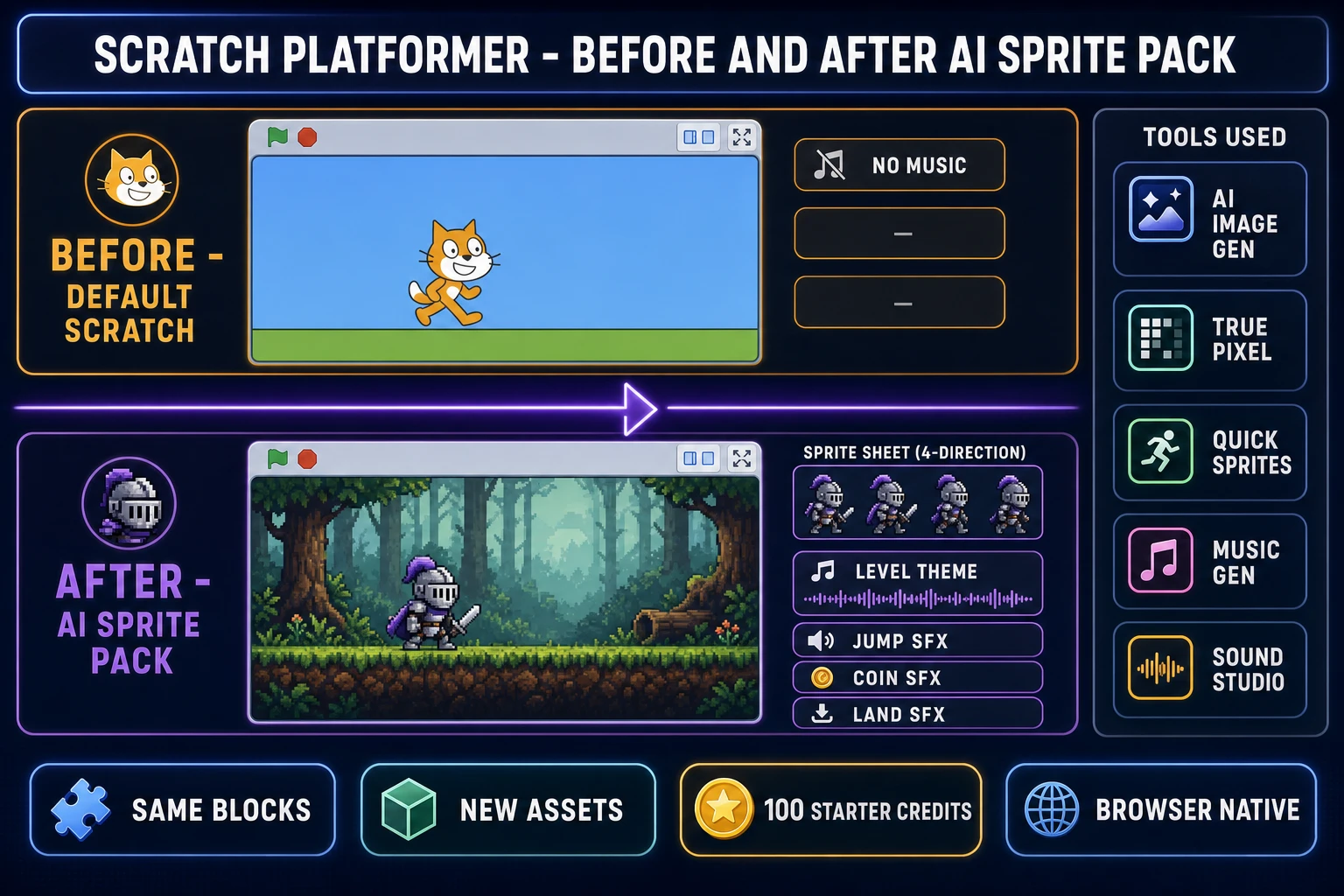
Three-panel comparison showing a default Scratch project with the stock cat sprite on a plain backdrop, the same project with an AI-generated hero sprite and pixel-art background, and the final project with walk cycle frames, music waveform, and SFX clip indicators. The AI sprite pack upgrade path for a Scratch platformer.
Three states of the same Scratch project: stock cat plus solid backdrop, AI-generated hero plus True Pixel background, and the full pipeline with a Quick Sprites walk cycle, a Music Gen background loop, and a few Sound Studio SFX clips wired to the gameplay events. The script blocks stay the same; only the assets change.

Where the Scratch Platformer Hits Its Ceiling (and What Comes Next for How to Make a Scratch Platformer)

A polished Scratch platformer with AI sprites, AI music, and AI SFX is a real shipping project. It is also bounded; the Scratch runtime is intentionally limited to keep the language approachable for ages 8 and up. Three ceilings show up consistently when a Scratch platformer is ambitious enough to bump into them.

Stage size. The Scratch stage is 480 by 360 pixels and that number does not change. Large levels are built either by scrolling the entire backdrop and re-positioning every sprite each tick (the Scrolling Platformer Tutorial pattern on the Scratch Wiki) or by switching between multiple stage backdrops at level boundaries. Both work, but neither matches the freedom of a real 2D engine with arbitrary world coordinates.

Performance. Scratch executes blocks in a JavaScript-based interpreter; complex platformers with many simultaneous sprites and many touching-color checks can hit framerate hitches on lower-end Chromebook hardware (the canonical Scratch target machine in 2026). The framerate ceiling is roughly 30 frames per second for the interpreter; 60-frames-per-second platformer feel requires either a tightly-optimised script pattern (custom blocks for every per-frame operation, screen-refresh flag ticked everywhere it matters) or a different engine entirely.

Distribution. Scratch projects live on scratch.mit.edu and only play inside the Scratch player. Exporting a Scratch platformer to a standalone Windows executable, to a Steam build, or to a mobile app requires a third-party tool like TurboWarp or HTMLifier; none ship from Scratch itself. Distribution outside the Scratch community is possible but adds a manual export step that beginners often hit unexpectedly.

When the Scratch platformer hits any of those ceilings, the next step is a real 2D engine with the same browser-first ergonomics. The Sorceress stack already wires up that bridge: the AI-generated sprite sheets from Quick Sprites, the palette-locked backgrounds from True Pixel, the music loops from Music Gen, and the SFX clips from Sound Studio all drop unchanged into a browser-native engine like Phaser, into a Godot 4 web export, or into the Sorceress browser play target. The pipeline is the same; only the runtime changes. For an indie dev who has shipped one or two Scratch platformers and is ready for arbitrary world coordinates, sixty-frame physics, and a real standalone export, the assets travel cleanly.

The honest verdict on how to make a Scratch platformer in 2026: Scratch is the right language for the first platformer. The Yvel-plus-custom-block physics pattern is correct, the touching-color ground check is correct, and the four-frame walk cycle is the right scope for a project shipped to scratch.mit.edu. The bottleneck is the asset side, which is exactly the gap an AI sprite pack closes. Open Sorceress, claim the 100 starter credits, run one hero through AI Image Gen plus True Pixel plus Quick Sprites, drop the resulting PNG into Scratch’s “Upload Sprite” button, and the cat-on-a-floor demo is one afternoon away from a platformer with a hero, a world, a soundtrack, and a personality. Sister reads worth a click while the sprites generate: How to Make a Platformer With AI in Your Browser for the engine-agnostic version of the same pipeline, AI Sprite Generator (Pixel Walk Cycles, Idles, and VFX) for the deep-dive on Quick Sprites, Spin Up an AI Sprite Sheet Generator (Browser-Based) for the sprite-sheet-focused angle, and How to Make Pixel Art (Without Pushing Pixels in Aseprite) for the pixel-art primer.

Frequently Asked Questions

What is the fastest path for how to make a Scratch platformer in 2026?

The fastest honest path is a five-step pipeline. One: open Scratch 3.0 in your browser at scratch.mit.edu and start a new project. Two: generate the hero with Sorceress AI Image Gen at /generate (one-sentence prompt describing pose and palette, 1:1 aspect ratio, about three credits per render). Three: lock the palette in Sorceress True Pixel at /pixel-art (pick one of eight retro palette presets like PICO-8 16 or Endesga 32, export a transparent PNG). Four: animate a walk cycle in Sorceress Quick Sprites at /quick-sprites (Four Angle Walking style at 48 by 48 for top-down or Small Sprites at 32 by 32 for side-view, nine credits per generation). Five: drop the sprite-sheet PNG into Scratch via the bottom-right Upload Sprite button, split the sheet into individual costumes in the Costumes tab, then wire up gravity with a Yvel variable inside a custom block that has Run Without Screen Refresh ticked. End to end, about 45 minutes the first time you do it. Verified 2026-06-07 against the Sorceress source code and the Scratch Wiki canonical platformer references.

Why does my Scratch platformer character fall through the floor?

The single most common bug in a beginner Scratch platformer. The cause is almost always that the gravity-and-ground-check logic runs inside a forever loop that DOES redraw the stage between blocks, which means the sprite can move by Yvel pixels, draw, and only then check whether it is touching the ground color. If Yvel is large enough (anything over five pixels per tick on a thin floor), the sprite passes through the floor in a single frame. The fix is to put the gravity-plus-ground-check logic inside a custom block (My Blocks, Make a Block, name it platformer step) and tick the Run Without Screen Refresh checkbox. With that flag, Scratch executes every block inside the custom block in a single frame without redrawing the stage in between, so the ground check fires before the sprite is rendered at its new y position. A second fix is to step the y movement in small increments inside the custom block (loop that changes y by one pixel at a time, checks ground, and stops if grounded) instead of a single change-y-by-Yvel block. The Scratch Wiki Advanced Platformer Physics page is explicit about both fixes.

What palette should I pick for a Scratch platformer sprite?

Three palettes cover roughly every Scratch platformer style. For the iconic NES retro look, pick PICO-8 16 (sixteen carefully chosen colours that read well on any background) or NES 54 (the actual fifty-four colours the Nintendo Entertainment System could display). For a more painterly modern look, pick Endesga 32 (thirty-two colours with strong primaries and good shading depth). For a deliberately constrained monochrome look that pairs well with chiptune music, pick Game Boy (four shades of green, the original Nintendo Game Boy palette). True Pixel ships eight presets total (PICO-8 16, SWEETIE-16, Endesga 32, Game Boy, CGA, NES 54, Grayscale 8, 1-Bit, verified against src/app/pixel-art/page.tsx on 2026-06-07); pick one and stick with it across the hero, the platforms, and the background so the level reads as a single coherent picture instead of a collage of different art styles.

How do I import a sprite sheet into Scratch?

Scratch 3.0 does not have a native sprite-sheet importer that auto-slices frames; the workflow is manual but quick. Step one: in the Scratch editor, hover over the cat icon at the bottom-right corner of the stage (the Choose a Sprite button), and click the up-arrow Upload Sprite option. Step two: select your PNG sprite sheet from your computer. The whole sheet imports as a single sprite. Step three: with the sheet sprite selected, switch to the Costumes tab in the top-left of the editor. The first costume shows the full sheet. Step four: use the rectangle marquee tool in the Costumes tab to select one frame at a time (drag a box around the frame, right-click, Copy, then right-click on the costumes panel, Paste as a new costume). Step five: name each new costume descriptively (walk-right-1, walk-right-2, walk-right-3, walk-right-4 for a four-frame walk cycle). Step six: delete the original full-sheet costume once all frames have been extracted. The walk-cycle animation script then switches between the named costumes with a forever loop and short wait blocks. Scratch supports PNG, JPG, GIF, and SVG sprite uploads; PNG with a transparent background is the cleanest format.

Can I make a scrolling platformer in Scratch?

Yes, and the scrolling-platformer pattern is well-documented on the Scratch Wiki Scrolling Platformer Tutorial. The technique: instead of moving the player sprite across the stage, keep the player sprite locked roughly to the centre of the stage and move every other sprite (platforms, enemies, hazards, backgrounds) in the opposite direction whenever the player presses an arrow key. A single scroll-x variable tracks the world position; every sprite updates its own x as set x to ((my-world-x) - (scroll-x)). The math is straightforward but adds block plumbing to every sprite. The Sorceress sprite pack (Quick Sprites at /quick-sprites for the hero, True Pixel at /pixel-art for the platforms and backgrounds) drops into a scrolling platformer the same way it drops into a single-screen platformer; the assets do not change, only the per-sprite x-position math does.

What is the difference between a Scratch platformer and a real engine platformer?

Three concrete differences. One: stage size. Scratch is locked to a 480 by 360 pixel stage, while a real 2D engine (Phaser, Godot, Unity 2D, Construct, GDevelop) uses arbitrary world coordinates with a camera that follows the player. Two: framerate. Scratch executes blocks in a JavaScript-based interpreter that targets roughly 30 frames per second on modest hardware; a real engine targets 60 frames per second or more by default. Three: distribution. Scratch projects live on scratch.mit.edu and play inside the Scratch player; a real engine exports standalone Windows EXEs, Mac apps, Linux binaries, mobile APKs, and web HTML5 builds. The honest verdict: Scratch is the right environment for the first platformer (the visual block editor teaches the same conditional logic and event handling that powers every real engine, and the asset pipeline transfers cleanly). When the project hits the stage-size or framerate or distribution ceiling, the assets generated from Sorceress AI Image Gen, True Pixel, Quick Sprites, Music Gen, and Sound Studio drop unchanged into a browser-native engine.

How much does the full Sorceress AI sprite pack cost for a Scratch platformer?

The Sorceress free signup tier ships 100 starter credits, verified against the live Sorceress home hero on 2026-06-07. A typical Scratch platformer art and audio pass uses roughly: three credits for the AI Image Gen hero render, one credit for the True Pixel palette-lock pass, nine credits for the Quick Sprites walk-cycle generation, three credits for the AI Image Gen background render plus one credit for the True Pixel background pass, six to eight credits for the Music Gen background loop, and two to three credits per Sound Studio SFX clip across four to six SFX clips. Total: about 35 to 45 credits for a single-level Scratch platformer with hero, background, walk cycle, music, and SFX. That fits inside the 100 starter credits with margin to roll alternative hero candidates. Beyond the starter tier, the Sorceress credit packs at /plans start at ten dollars for 1,000 credits with no expiry, no auto-renew, and no subscription, which buys roughly 22 to 28 fresh Scratch-platformer-asset passes.

Sources

  1. Scratch (programming language) - Wikipedia
  2. Platform game - Wikipedia
  3. Sprite (computer graphics) - Wikipedia
  4. Pixel art - Wikipedia
  5. Game physics - Wikipedia
  6. Walk cycle - Wikipedia
  7. Phaser (game framework) - Wikipedia
Written by Arron R.·3,702 words·16 min read

Related posts