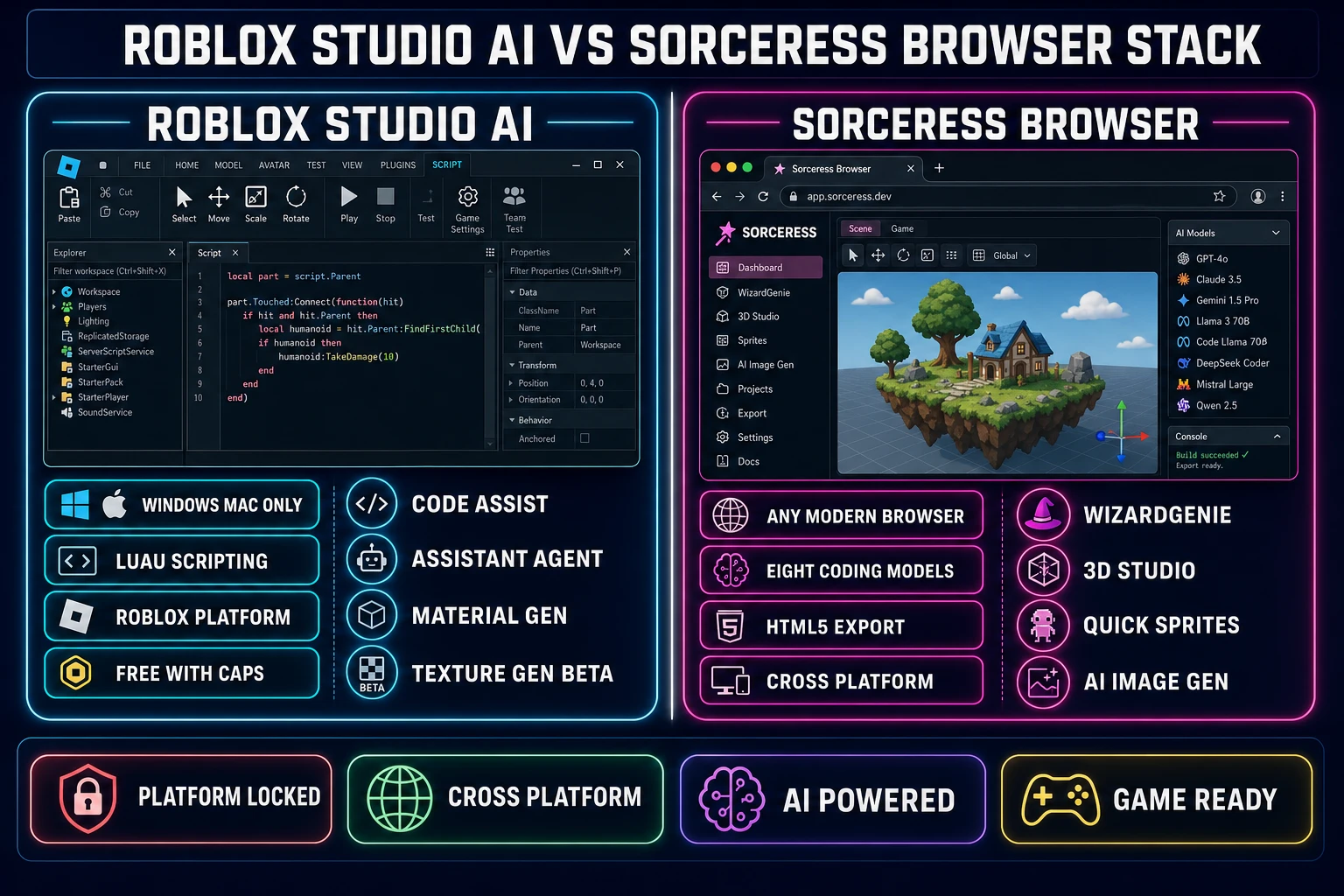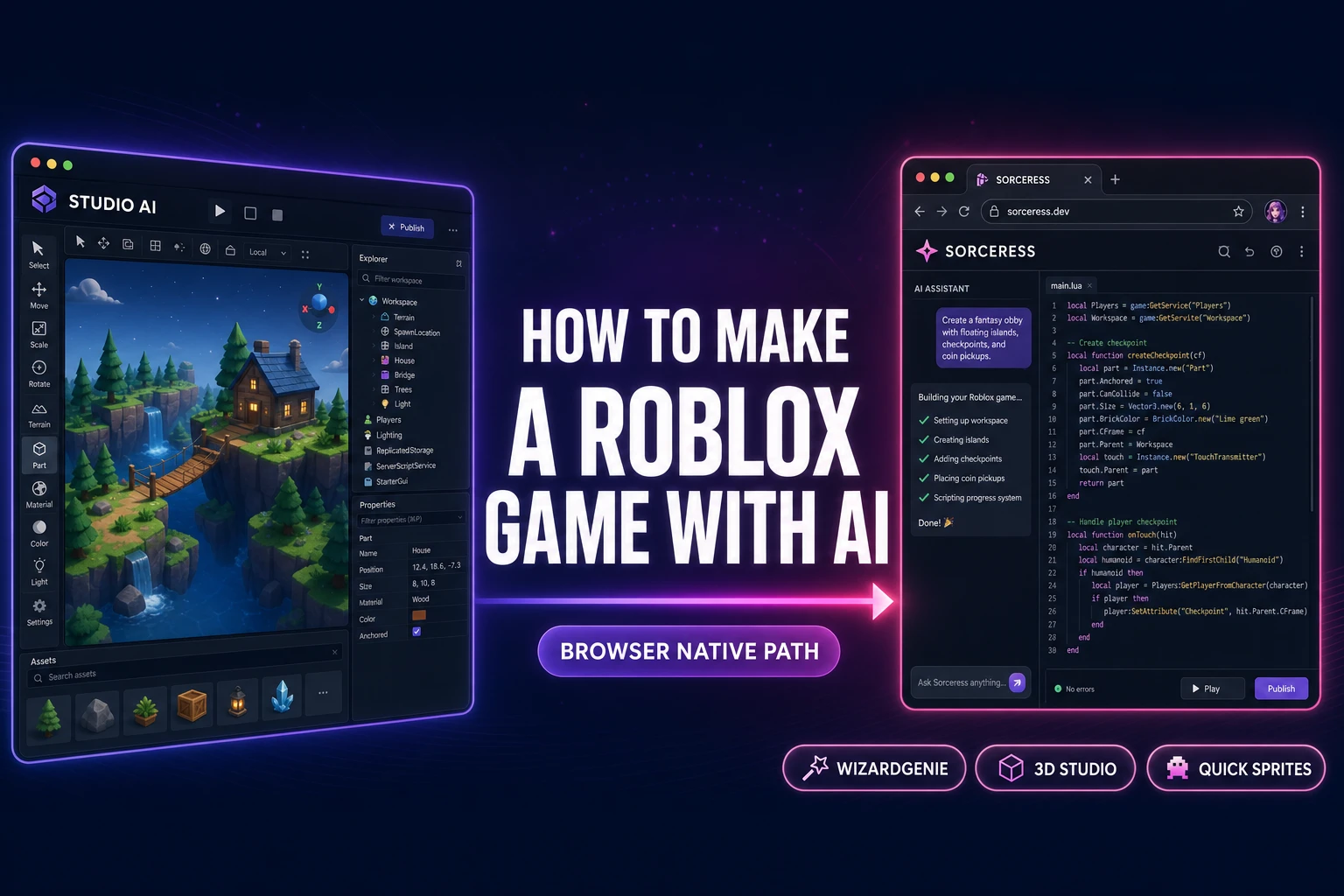
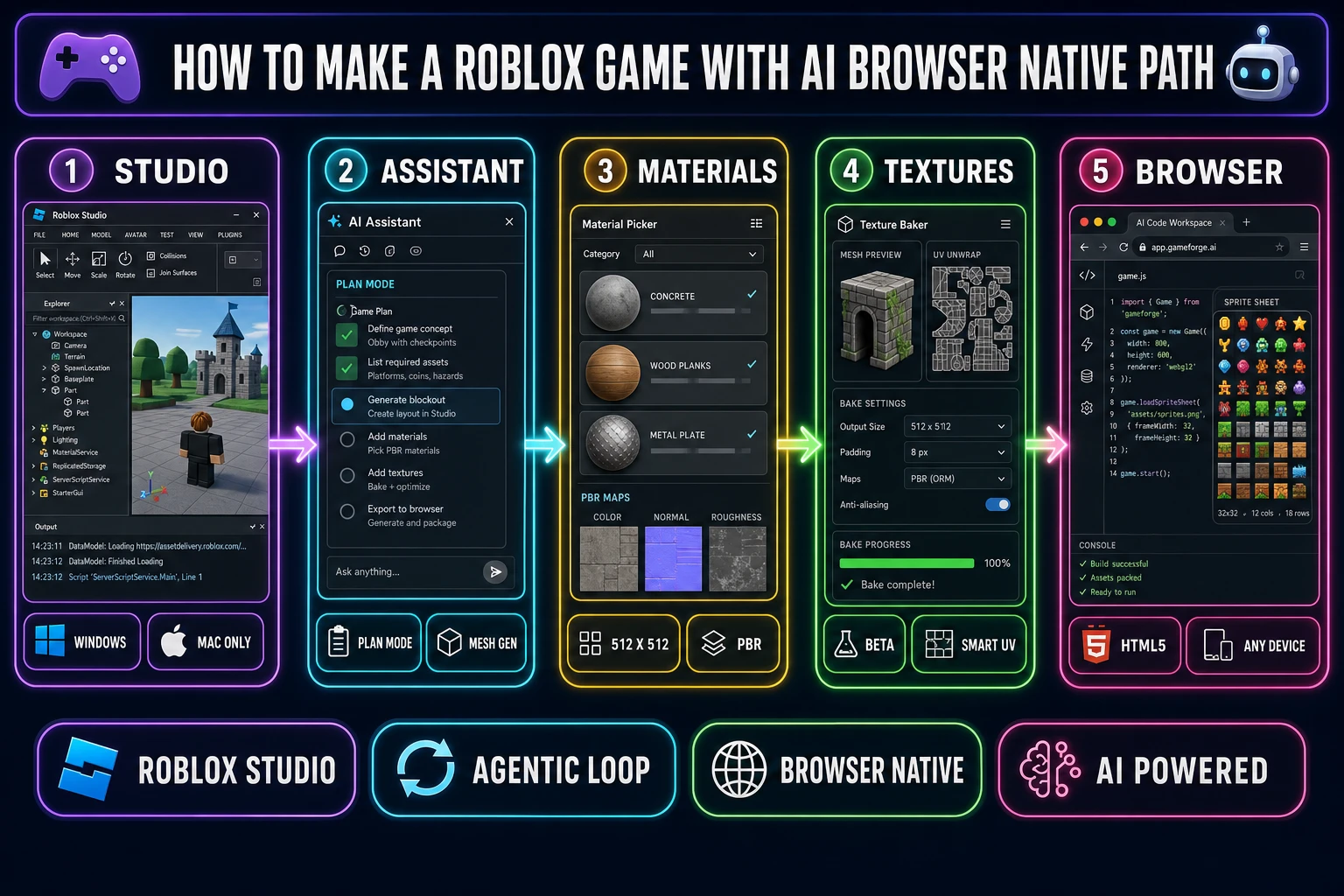
A first-time Roblox creator opening Studio in 2026, a kid asked to ship a school jam game by Friday, and a vibe-coder asking an LLM to scaffold a tycoon-loop prototype all land on the same surprising answer to how to make a Roblox game with AI: yes, AI is built directly into Roblox Studio in four distinct surfaces, and the real question is which assets the AI generates inside Studio and which assets a browser-native pipeline produces faster for a game that does not need to live on the Roblox platform. Roblox Studio shipped agentic Assistant tooling in 2026 alongside Material Generator (now general availability) and Texture Generator (still beta), so a 2026-fresh recipe for the Roblox path needs to spell out which feature does what, where the AI caps out, and where the browser-native escape hatch begins. This post walks all four built-in Studio AI tools honestly, then maps the cross-platform browser stack for the games that are better off shipping outside the Roblox client.
What “how to make a Roblox game with AI” actually means in 2026
Roblox is a fixed platform with a fixed runtime. A Roblox “game” (officially called an experience in the docs) runs only inside the Roblox client on Windows, macOS, iOS, Android, Xbox, PlayStation, and Meta Quest, and is monetised inside the Roblox Robux economy. The scripting language is Luau, a derivative of Lua 5.1 with a gradual type system and a JIT-capable bytecode compiler. The asset pipeline accepts FBX and OBJ meshes, PNG/JPG textures, MP3/OGG audio, and Luau scripts; everything else has to be converted before import.
So when the question is how to make a Roblox game with AI, the literal answer is a five-axis decision: AI-assisted Luau scripting (Code Assist + Roblox Assistant), AI-assisted scene authoring (Assistant insertions into the data model), AI-generated materials (Material Generator), AI-generated mesh textures (Texture Generator beta), and AI-generated audio/3D meshes/sprites (either the in-Studio Assistant prompt path or an outside-Studio pipeline that exports into Roblox-compatible formats). Roblox Studio in 2026 covers the first four directly; the fifth is where a browser-native pipeline like Sorceress quietly does most of the heavy lifting for non-Roblox-specific assets.
The honest framing matters because Roblox is a destination platform, not a generic 3D engine. If the game has to run inside the Roblox client (because the audience is on Roblox, the social graph is there, or the project is for a Roblox education program), Studio is the only sanctioned authoring tool and the four AI features below are the relevant levers. If the game can ship anywhere (web, mobile, desktop, arcade, itch.io), the browser-native pipeline through WizardGenie is faster, cheaper, and removes the platform lock-in entirely. Both paths are valid; the choice depends on where the audience lives.
The four AI tools built into Roblox Studio in 2026
Roblox Studio is a free desktop application available on Windows 10 or 11 and macOS 10.13 or later (verified against the official Roblox Studio setup docs on June 4, 2026). There is no native Linux build (Vinegar is a third-party workaround), and there is no in-browser Studio. Once installed, four AI features sit inside the editor at no extra cost beyond the optional Robux purchases that fund in-platform marketplaces.
1. Code Assist — Luau autocompletion in the Script Editor
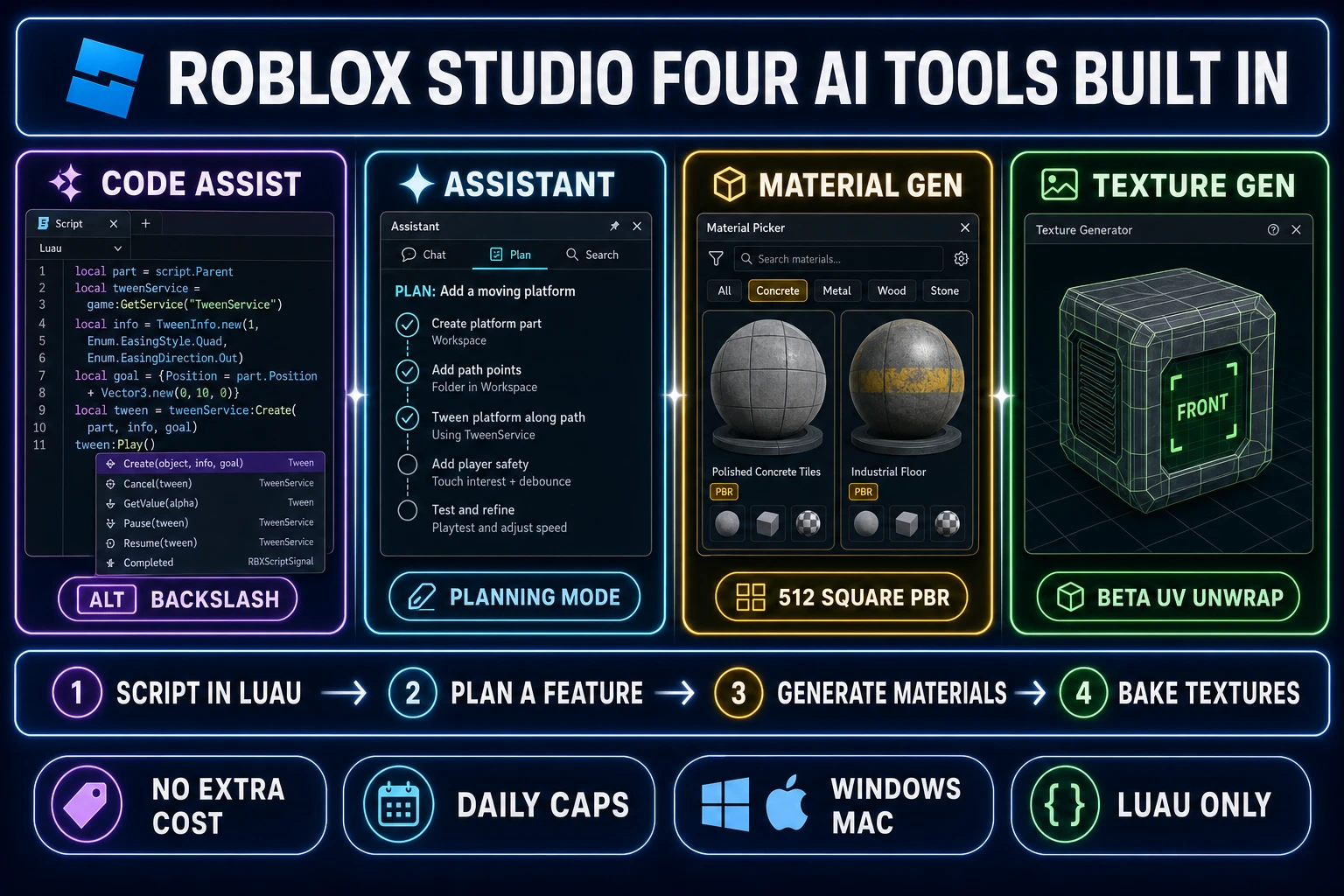
Code Assist is an in-editor AI code completion tool that suggests lines and short blocks of Luau as the developer types (verified against the official Roblox Script Editor docs on June 4, 2026). The trigger is either passive (pause typing for a moment and a faded inline suggestion appears) or manual via Alt + \ on Windows and Option + \ on macOS. The suggestion is accepted with Tab and rejected by continuing to type. Code Assist works best when the script already contains a few lines of context (variable definitions, a function header, a clear naming pattern); on an empty script the model has no signal and either suggests nothing or guesses generically.
The known limits matter for honest planning. Code Assist has a daily suggestion cap (the exact number rotates; the docs warn that once the cap is reached, no further suggestions arrive until the next day). Suggestions are learned from a corpus of historical Roblox code, so older Lua patterns sometimes surface where newer Luau idioms would be cleaner, and large multi-line suggestions are statistically more likely to contain a bug than two-line ones. Code Assist is a productivity tool, not an architecture tool; pair it with a developer who can read Luau, not with one who is hoping the AI will write the system from a comment.
2. Roblox Assistant — agentic Planning Mode, mesh generation, playtesting
Roblox Assistant is the agentic LLM that lives in the Studio sidebar and acts directly on the data model (verified against the official Assistant for Studio guide and the April 2026 Roblox newsroom announcement of agentic Studio on June 4, 2026). It uses a large language model paired with a run-command module that mirrors the Studio Command Bar, so Assistant can insert and modify objects, write and attach scripts, and perform bulk property changes across many instances in a single prompt-driven turn.
The 2026 upgrade made Assistant genuinely agentic. Planning Mode, triggered with /plan or any sufficiently complex prompt, generates an editable, multi-step action plan before execution. The developer reviews the plan, edits steps, removes wrong ones, and only then approves the plan to run. Procedural mesh and model generation lets a prompt like “create a wooden treasure chest with iron banding” turn into a real mesh inserted into Workspace (not a sphere with a chest-shaped texture; an actual generated mesh). The playtesting agent beta runs the game, drives the player character, reads logs, and feeds detected issues back into a self-correcting plan loop. Assistant also integrates with the Studio MCP server, so external clients like Claude, Cursor, and Codex can act on the Studio data model through the same set of unprivileged APIs.
3. Material Generator — text-to-PBR for tiling surfaces
Material Generator is the “type a phrase, get a tiling material” tool. It launched as a beta and became generally available in 2026 with over 230,000 user-generated materials shipped during the beta window (verified against the official Roblox developer forum announcement on June 4, 2026). Access is through the Material tab in Studio → Material Picker → Generate New Material, or from Window → 3D. Each click outputs a 512×512 PBR set (color, normal, roughness, basic metallic). The Studs Per Tile slider previews how the material reads on the selected parts, and the Organic toggle randomises the seam pattern so a stacked tile pattern looks less mechanically repetitive.
The right use case is a surface that needs to tile cleanly across area: terrain, floors, walls, signage backgrounds, cliff faces, fabric. The wrong use case is a single hero asset where the texture has to wrap around a specific shape (use Texture Generator for that instead). Once a material is generated, Save & Apply attaches it as a MaterialVariant with the chosen base material’s physical properties, so a custom “rusted iron charred” variant behaves physically like the built-in Metal base.
4. Texture Generator (beta) — text-to-texture per mesh
Texture Generator is the “type a phrase, get a mesh-specific texture” tool. It is still flagged as beta in 2026 and needs to be opted into via File → Beta Features → Texture Generator, then a Studio restart (verified against the official Roblox Texture Generator docs on June 4, 2026). Access is through Window → 3D → Texture Generator. Select a single mesh or a Model made up of multiple meshes, type a prompt, and Texture Generator bakes a full texture onto the mesh by attaching a SurfaceAppearance instance.
Two advanced options matter for honest results. Smart UV Unwrap re-projects the mesh’s UVs before texturing so the bake follows the actual surface geometry (helpful on meshes with bad UV layouts from external 3D apps). Specify Front View tags the preview angle as the mesh’s “front” so the AI knows which side is the face of a character or the front of a vehicle, which prevents the common failure of the AI baking eyes onto the back of the head. The right use case is custom assets (armor sets, vehicles, props with a clear front and back). The wrong use case is a repeating floor (use Material Generator).
The honest tradeoffs of building a Roblox game with AI
Roblox Studio AI is excellent at the specific job it is built for: rapidly authoring content that runs inside the Roblox client and reaches the Roblox audience. It is honestly weak at three specific things outside that scope.
First, platform lock-in. A game built in Studio runs only inside Roblox. There is no “export to HTML5,” no “build a desktop executable,” no “ship to Steam.” The audience must download the Roblox client and sign in to a Roblox account to play. For a creator whose audience already lives on Roblox, that is the entire point. For a creator targeting itch.io, Steam, the App Store, or a web embed, the lock-in is a wall.
Second, Luau-only scripting. Code Assist autocompletes Luau, Assistant writes Luau, the runtime executes Luau. A developer who already knows JavaScript, Python, C#, or Rust has to learn Luau idioms (services, instances, the client-server boundary, RemoteEvents) before any AI productivity gain materialises. Luau is a fine language with a strong type system, but it is a Roblox-specific dialect with a Roblox-specific standard library, and skills do not transfer cleanly to other engines.
Third, AI caps and resolution ceilings. Code Assist has a daily suggestion cap. Material Generator outputs 512×512 PBR maps, which is fine for stylised Roblox aesthetics but tight for high-fidelity work. Texture Generator is still beta. The Assistant’s playtesting loop is genuinely powerful but still requires a human review on every plan it produces. AI inside Studio is a force multiplier on a developer who already knows how Roblox is built; it is not a replacement for that knowledge.
Fourth, desktop-only authoring. Studio requires Windows or macOS. There is no Linux native build (Vinegar is a third-party wrapper, not an official path), no iPad version, and no in-browser Studio. A Chromebook user, a Linux desktop user, or a developer who works from a borrowed device cannot author content for the Roblox platform. The reader who is asking how to make a Roblox game with AI from a school-locked Chromebook unfortunately has to switch devices or switch platforms.