Frame How to Make a Sprite Sheet in Aseprite (AI 2026)

By Arron R.18 min read
How to make a sprite sheet in Aseprite in 2026 is the $19.99 pixel-art editor for pixel-perfect polish plus a Sorceress browser tab for AI Image Gen concept, Qu

Type how to make a sprite sheet in aseprite into Google on June 20, 2026 and the SERP is split between two readers. One is a solo indie dev who already owns Aseprite (the $19.99 one-time pixel-art editor) and just needs the cleanest 2026 workflow from blank canvas to packed PNG plus JSON. The other is a beginner staring at a free trial and wondering whether to pay the $20 or to skip Aseprite entirely and let a browser tool do the frame work. Both readers deserve the same honest answer: Aseprite is still the best pixel-perfect frame editor in 2026 for hand-tuned sprite work, but the upstream frames don’t have to come from a blank canvas anymore — an AI sprite sheet generator drafts the eight-direction walk cycle in 90 seconds, the dev imports those frames into Aseprite, polishes the pixel-perfect strokes and palette, and exports the final PNG + JSON pair through Aseprite’s native sprite-sheet exporter. Verified against aseprite.org documentation and the Sorceress source code on June 20, 2026.
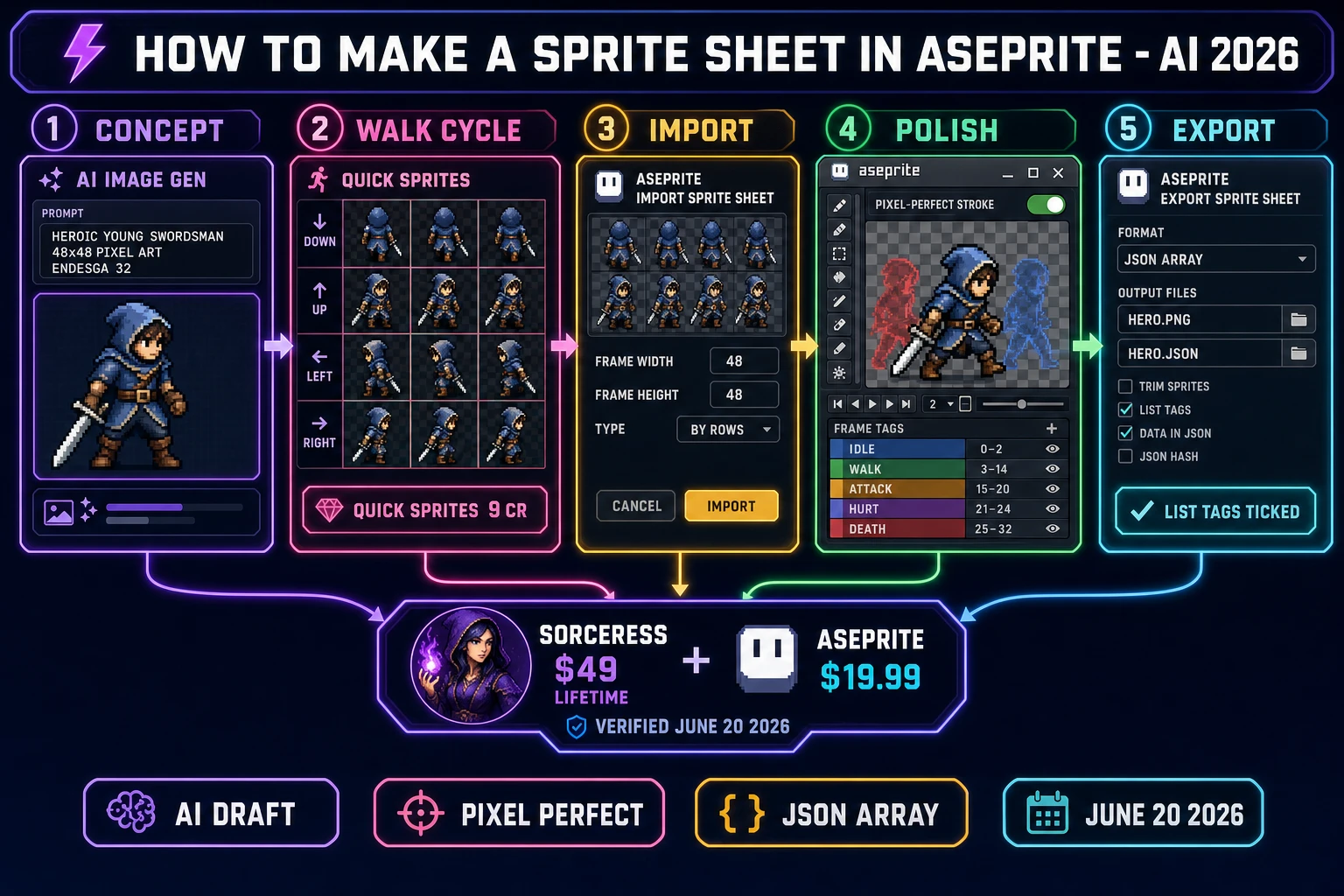
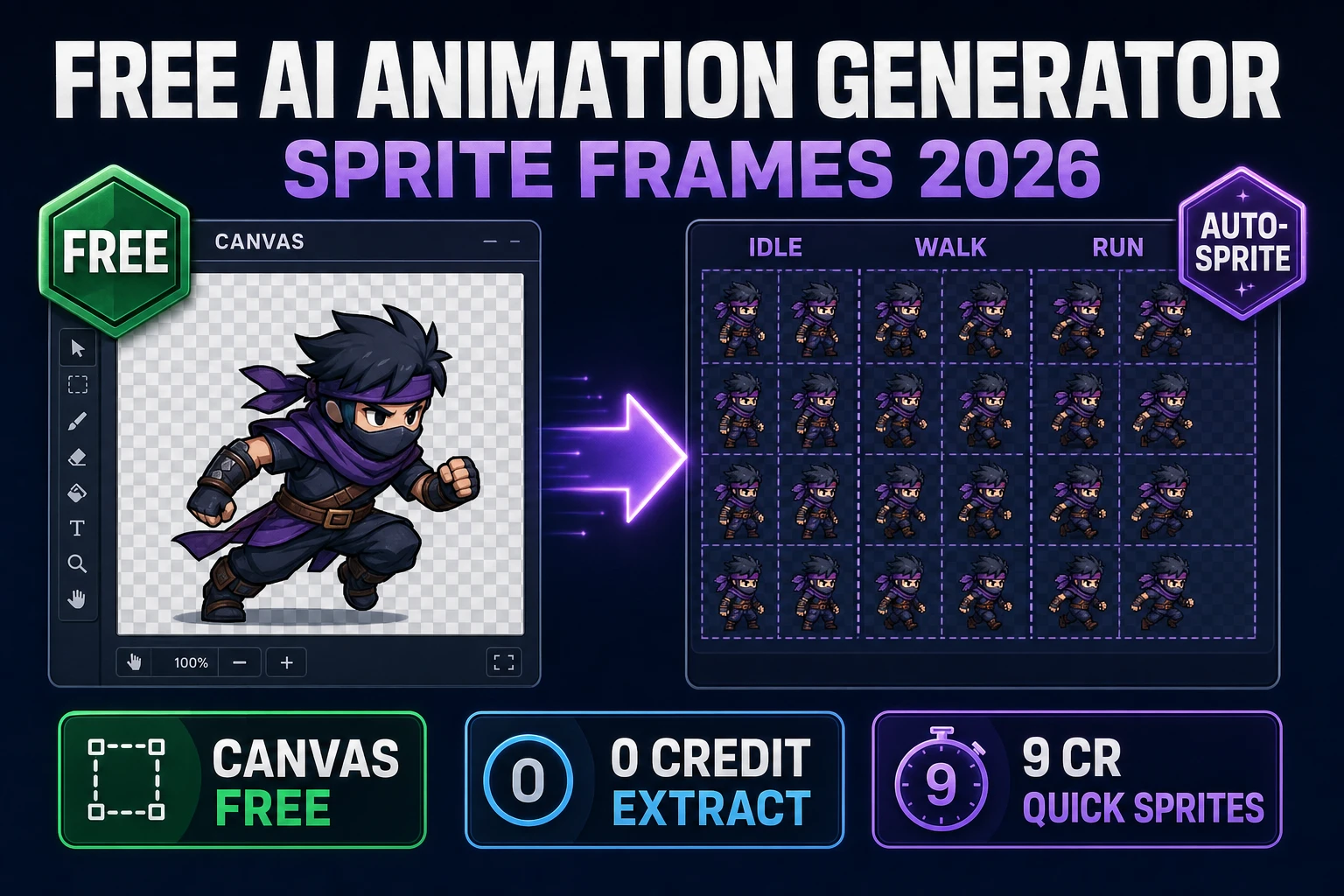
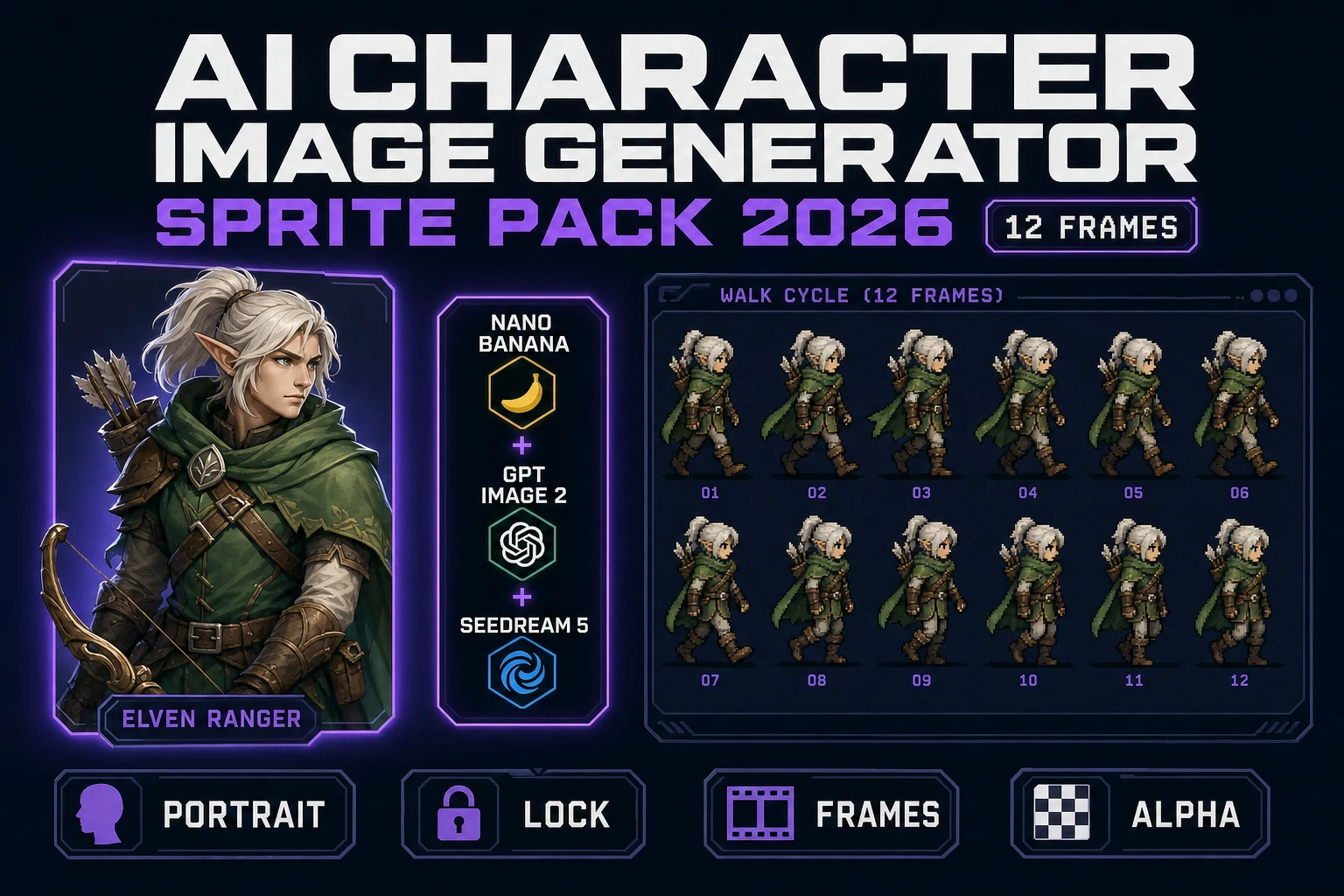
How to make a sprite sheet in Aseprite in 2026 - AI pipeline showing prompt to AI Image Gen, Quick Sprites walk-cycle frames, Aseprite polish in pixel-perfect mode with onion-skin, and sprite-sheet export to PNG plus JSON verified June 20, 2026
How to make a sprite sheet in Aseprite in 2026 means five layers in one workflow: prompt the character in AI Image Gen, draft the walk cycle in Quick Sprites, import the frames into Aseprite, polish with pixel-perfect strokes and onion-skin, export PNG + JSON via the built-in sprite-sheet exporter. Verified June 20, 2026.

What “how to make a sprite sheet in aseprite” actually means in 2026

The phrase how to make a sprite sheet in aseprite means something very specific in 2026. Aseprite is a paid pixel-art and animation editor built by Igara Studio S.A., licensed at $19.99 USD one-time (verified at aseprite.org/faq and aseprite.org/buy on June 20, 2026), shipping native Windows, macOS, and Ubuntu binaries plus a Steam key. A sprite sheet is a single image that packs many animation frames into a regular grid (or a packed atlas) so the runtime engine can blit each frame from one texture upload — a technique that dates to early NES and arcade hardware and is still the canonical way to ship 2D animation to Godot, Unity, Phaser, GameMaker, RPG Maker MV/MZ, LibGDX, and almost every other 2D engine in 2026. Combine the two and the goal becomes: open Aseprite, build the animation frames, then export the packed PNG plus the JSON metadata file that the engine reads to know where each frame sits on the sheet.

The reason this works as a how-to is that Aseprite’s feature surface and the sprite-sheet design surface map cleanly onto each other. Aseprite ships with frame-by-frame animation, frame tags (idle / walk / run / attack / hurt / death sections inside one file), onion-skin (red/blue mode for direction-aware reference), pixel-perfect strokes (the algorithm that removes double pixels from diagonal strokes), the RotSprite rotation algorithm (anti-distortion at small sprite sizes), palette control with alpha-channel entries, tiled mode (3x3 repeating preview for tile-able sprites), and a native sprite-sheet exporter that writes both the packed PNG and the JSON metadata (in either JSON Hash or JSON Array format) in one click — verified against the official Aseprite documentation at aseprite.org and github.com/aseprite/api on June 20, 2026. The only thing Aseprite does NOT ship in 2026 is the upstream concept art and frame drafts: an Aseprite seat starts with a blank canvas, and the dev paints every pixel from scratch unless they bring in reference frames. That is exactly the half AI now removes.

The seven moves every Aseprite sprite sheet ships in 2026

Before opening Aseprite, the dev needs a clear move list because every move maps either to a specific Aseprite feature (the editor half) or a specific Sorceress tool handoff (the asset draft half). The seven moves an indie 2026 Aseprite sprite sheet actually has to land are: (1) character concept — one or two reference frames at the final pixel size showing the character pose, palette, and silhouette, so the rest of the cycle has a target to match; (2) walk-cycle draft — the full eight-frame (or four-frame, or four-direction) animation drafted as a PNG sprite sheet, with the frames already roughly aligned and on transparent background; (3) import into Aseprite — bring the draft PNG into Aseprite as a sprite sheet (File > Import Sprite Sheet) with frame size and grid specified, so Aseprite splits the import into one frame per animation cel; (4) palette lock — quantize every frame to a fixed palette (PICO-8 16, Endesga 32, Sweetie 16, Game Boy, NES 54, or a custom 24-colour set) using Aseprite’s Sprite > Color Mode > Indexed conversion so the final sheet never drifts off-palette; (5) pixel-perfect polish — turn on Aseprite’s pixel-perfect stroke mode (the icon in the toolbar that removes doubled pixels from diagonal strokes), enable onion-skin (View > Show Onion Skin), and clean each frame against the previous and next one for smooth motion; (6) frame tags — group frames into named tags (idle / walk / run / attack / hurt / death) using Aseprite’s Tag panel so the engine can ask for a tag by name at runtime; (7) sprite-sheet export — File > Export Sprite Sheet, pick PNG + JSON, choose JSON Array format for game-engine consumers (or JSON Hash for editor consumers), check the “List tags” box, hit Export.

The split between Aseprite features and Sorceress asset handoffs falls cleanly along these moves. Moves 1 and 2 (the upstream concept and walk-cycle draft) are Sorceress — AI Image Gen for the concept frame, Quick Sprites for the packed walk-cycle PNG at 9 credits per sheet, and True Pixel for a palette-locked clean-up before Aseprite even opens. Moves 3, 4, 5, 6, and 7 are Aseprite’s home turf — the editor was built around exactly these features and every pixel artist who ships in 2026 leans on at least three of them. The audio half of a complete sprite ship (footstep SFX, swing whoosh, hit impact, hurt grunt) comes out of Sorceress SFX Gen at 3 credits per sound and lives next to the sprite in the engine’s asset folder, even though it does not technically pass through Aseprite. The total pipeline runs in one focused evening for a single character, where 2023’s blank-canvas Aseprite-only workflow took three to five evenings.
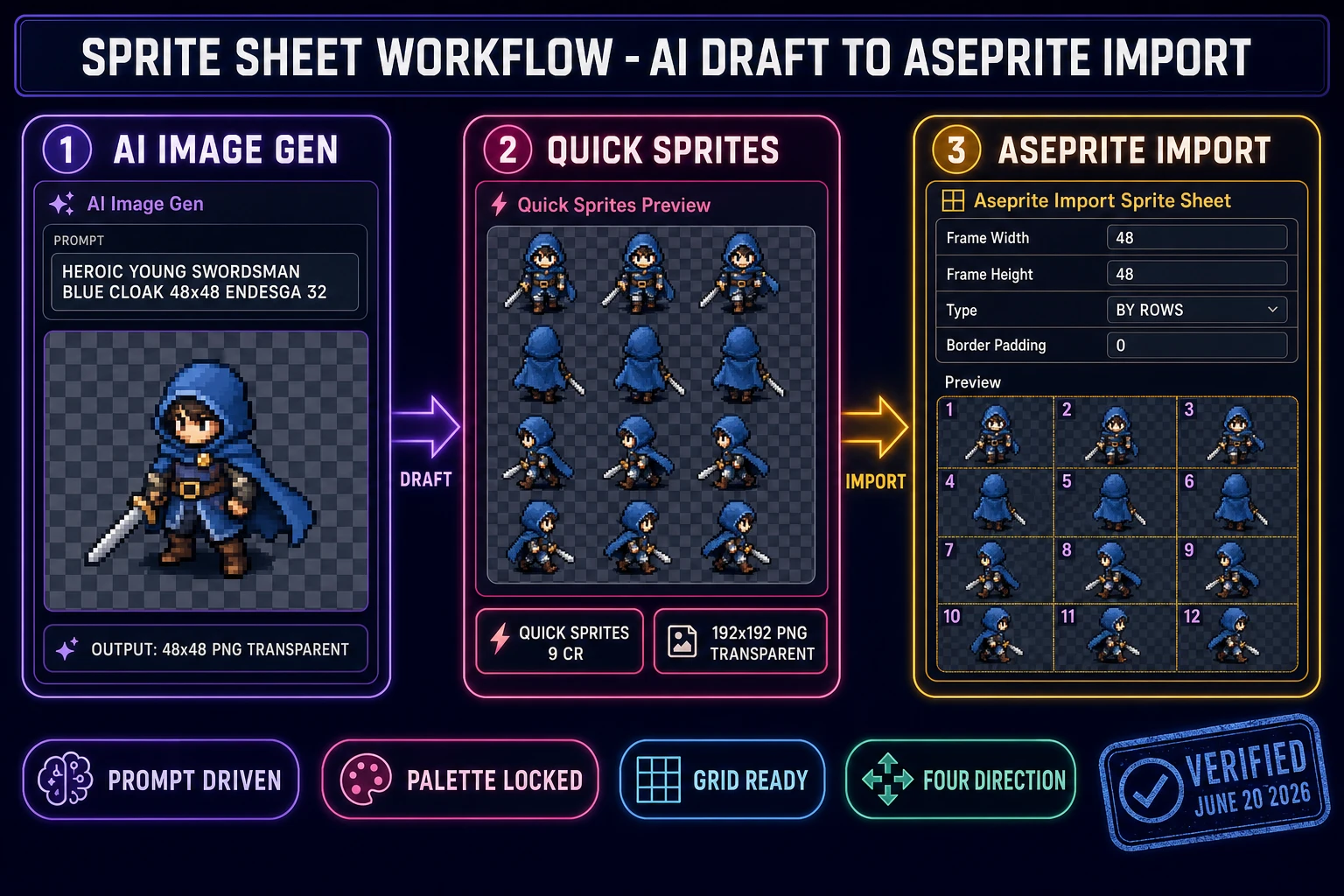
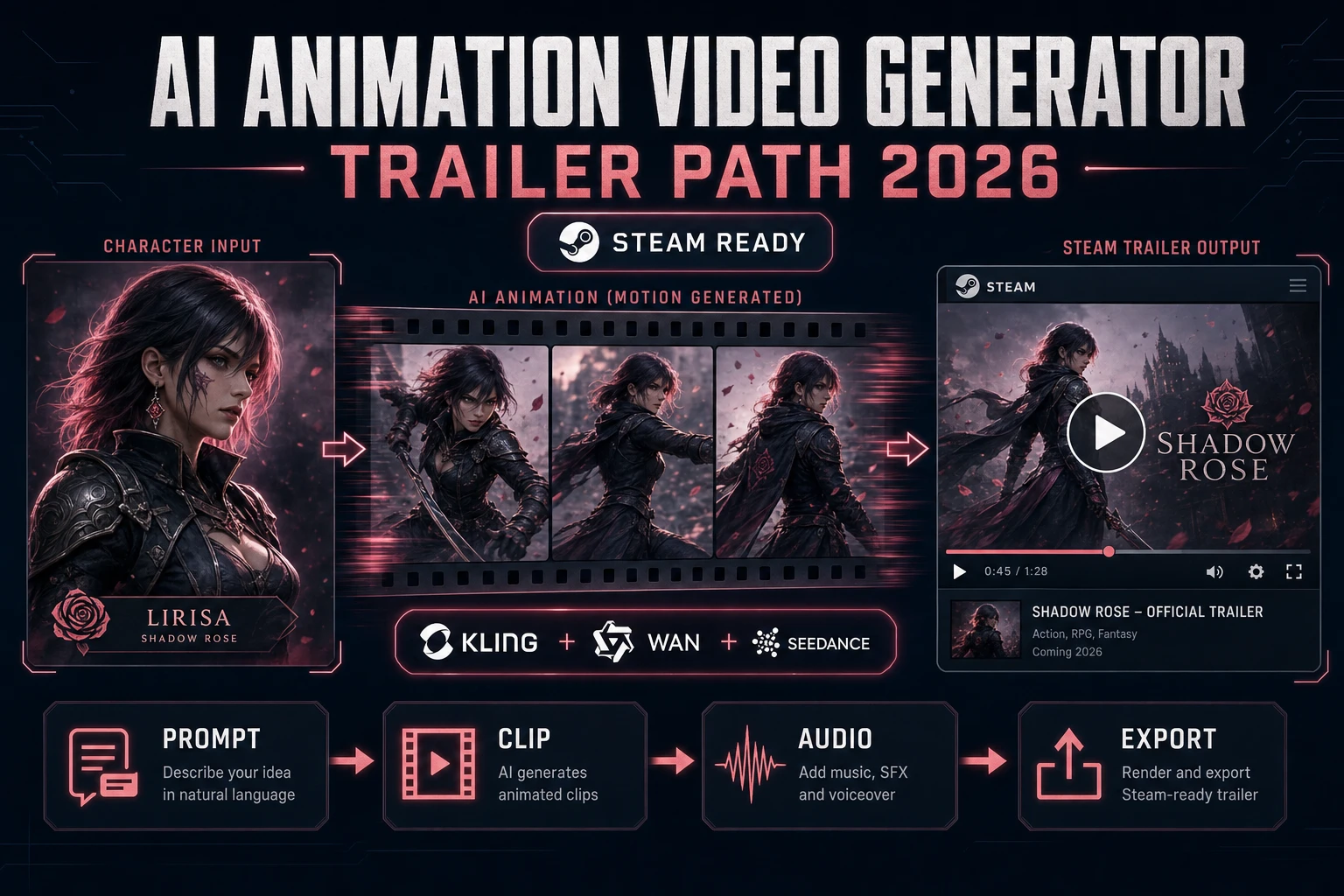
Aseprite sprite sheet workflow diagram with three panels showing AI Image Gen prompt, Quick Sprites walk-cycle output, and Aseprite import-sprite-sheet dialog with frame grid - verified June 20, 2026
The 2026 Aseprite sprite-sheet workflow has three handoffs before the polish phase: AI Image Gen drafts the character pose, Quick Sprites packs the full walk cycle, and Aseprite’s Import Sprite Sheet dialog splits the PNG into one frame per cel.

How to make a sprite sheet in Aseprite with the honest 2026 AI stack

The honest stack to make a sprite sheet in Aseprite in 2026 is one Aseprite seat plus one Sorceress tab. Verified against the live source on June 20, 2026, the Sorceress side is seven tools deep, all reachable from one browser tab: AI Image Gen at /generate for the concept frame and reference art; Quick Sprites at /quick-sprites for the packed walk-cycle PNG at 9 credits per sheet; True Pixel at /pixel-art for palette-locking every output to one of eight presets (PICO-8 16, SWEETIE-16, Endesga 32, Game Boy, CGA, NES 54, Grayscale 8, 1-Bit) before Aseprite even opens; Spritesheet Analyzer at /spritesheet-analyzer to verify the frame grid the Aseprite export produces; Slicer at /slicer to cut Aseprite’s packed PNG back into individual frame PNGs when the engine needs separate files instead of a sheet; BG Remover at /bg-remover for any reference photo or AI render that needs a clean alpha channel before drop-in; and WizardGenie at /wizard-genie/app for the engine-side glue code that loads the Aseprite-exported sprite sheet plus JSON. The Aseprite side is the canonical $19.99 one-time license (verified at aseprite.org/buy on June 20, 2026) for the polish and export half. Bundle pricing for Sorceress is one $49 Lifetime fee plus pay-once credit packs ($10 for 1,000 credits Starter, $20 for 2,000 Creator, $50 for 5,000 Plus, $100 for 10,000 Studio), and Aseprite is one-time $19.99. Total day-zero cost for a dev who buys both: under $70 lifetime.

The reason this stack works for Aseprite specifically is that Aseprite is a polish editor, not a frame-drafting engine. The hardest unit-of-work in pixel art has always been the first pose — getting the silhouette right, the palette consistent, the frame timing roughly correct. Once a draft frame exists, Aseprite’s pixel-perfect stroke, onion-skin, frame tags, and sprite-sheet exporter are best-in-class and have no real 2026 competitor at the $20 price point. The AI draft handoff is what removes the first-pose tax. For dual-agent coding (loading the exported sheet into the runtime engine), Sorceress’s eight-model picker (Claude Opus 4.7, GPT-5.5, Gemini 3.1 Pro, Grok 4.2, Sonnet 4.6, DeepSeek V4 Pro, Kimi K2.5, MiniMax M2.7, verified against src/app/_home-v2/_data/tools.ts CODING_MODELS on June 20, 2026) means the runtime loader can be planned by Opus 4.7 and typed by DeepSeek V4 Pro or Kimi K2.5 for roughly one-fifth of single-frontier billing — the mixture-of-experts economics that make the dual-agent pattern worth deploying. Acceptable executors per Sorceress’s guidance are DeepSeek V4 Pro, Kimi K2.5, MiniMax M2.7, Gemini 3.1 Flash, GPT-5.5 Mini, and Claude Haiku 4.5; never put a frontier-priced model on the typing side or the cost advantage disappears.

Step 1 — prompt the character in AI Image Gen and prep the reference

The first move is to open Sorceress AI Image Gen in one tab (sorceress.games/generate) and decide on the character concept before touching Aseprite. A reliable opening prompt looks like this: “heroic young swordsman, blue cloak, silver chainmail, brown shoulder-length hair, expressive face, standing pose facing camera, pixel art style, 48 by 48 pixel canvas, transparent background, single character centered, clean silhouette, limited 16-colour Endesga 32 palette.” The output is a single reference render that defines the character’s palette, proportions, and silhouette before any animation frame exists. Iterate two or three times until the silhouette reads clearly at the final 48-by-48 size (rule of thumb: if the silhouette is unrecognisable when zoomed out to thumbnail size, the design is too busy and needs simplifying). This concept image is the reference the dev will keep open in a side panel while every subsequent step runs.

The second move is the palette lock. Drop the AI Image Gen render into True Pixel at /pixel-art and quantize to one of the eight built-in palette presets: PICO-8 16 for a strict retro look, SWEETIE-16 for a modern 16-colour aesthetic, Endesga 32 for a flexible 32-colour modern pixel-art set, Game Boy four-grey for true Game Boy authenticity, NES 54 for NES-era authenticity, CGA four-colour for old DOS feel, Grayscale 8 for tone studies, or 1-Bit for stark Game Boy Macro silhouettes (palette presets verified against src/app/pixel-art/page.tsx PALETTE_PRESETS on June 20, 2026). The palette-locked output is now ready to drive every animation frame Aseprite will eventually polish — the colour set is fixed, the silhouette is approved, and the dev has a single reference frame to align every walk-cycle frame against. If the concept render has a slightly cluttered background or a stray gradient, drop it through BG Remover at /bg-remover for a clean alpha channel first; one round of BG Remover takes 3 credits and removes the background-vs-character ambiguity that often breaks Aseprite’s palette quantization.
Step 2 — generate the walk cycle in Quick Sprites and import to Aseprite

With the reference frame locked, the next move is the walk-cycle draft in Quick Sprites at /quick-sprites. Quick Sprites takes a text description plus a template (idle, walk, run, attack, four-direction walk, eight-direction walk) and outputs a packed PNG sprite sheet at 9 credits per sheet (verified against src/app/quick-sprites/page.tsx CREDITS_PER_GEN constant on June 20, 2026), formatted as a regular grid with transparent backgrounds and frame dimensions matching the engine target (typically 48x48, 64x64, or 128x128). A reliable prompt for a walk cycle looks like this: “heroic young swordsman in blue cloak and silver chainmail, brown hair, pixel art, four-direction walk cycle with three frames per direction, 48 by 48 pixels per frame, transparent background, Endesga 32 palette.” The output is a 12-frame packed PNG (3 frames each for down / up / left / right) at roughly 192 by 192 pixels — ready for the Aseprite import. Repeat the prompt for each additional animation set the character needs: idle (4 frames), attack (5-6 frames), hurt (2 frames), death (4-6 frames). Each set costs 9 credits, so a full sprite’s worth of animation sets (idle + walk + run + attack + hurt + death = 6 sets) lands at 54 credits, well inside the 100 credits a fresh Sorceress account ships with.

The third move is the Aseprite import. Open Aseprite, File > Import Sprite Sheet, point at the Quick Sprites PNG, set Type to By Rows or Packed depending on the layout Quick Sprites produced, and set Frame Width and Frame Height to match the per-frame size (48 by 48 in the running example). Aseprite splits the imported PNG into one frame per cel automatically and opens it as a multi-frame animation file. If Quick Sprites produced a packed (non-grid) sheet for tighter file size, run the PNG through Sorceress Slicer at /slicer first to cut it into individual frame PNGs, then File > Import in Aseprite with Multiple Files selected — Aseprite stacks each PNG as a new frame in import order. Either path lands the same destination: an Aseprite .ase file with one frame per animation cel, every frame at the correct pixel size, palette already roughly aligned because True Pixel pre-quantized the reference. The .ase file is now the canonical source-of-truth document for the rest of the workflow — every subsequent polish move happens inside this file.

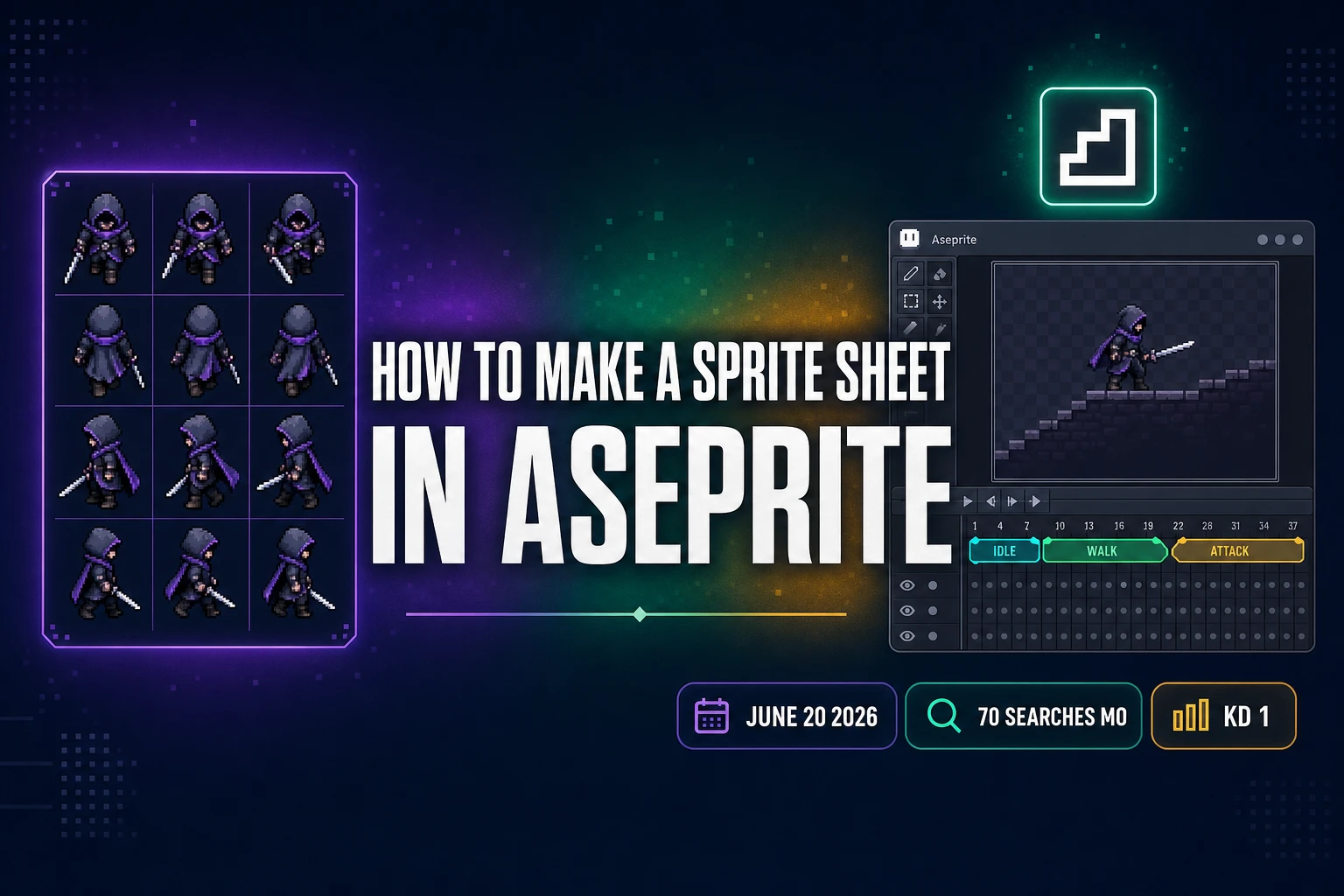
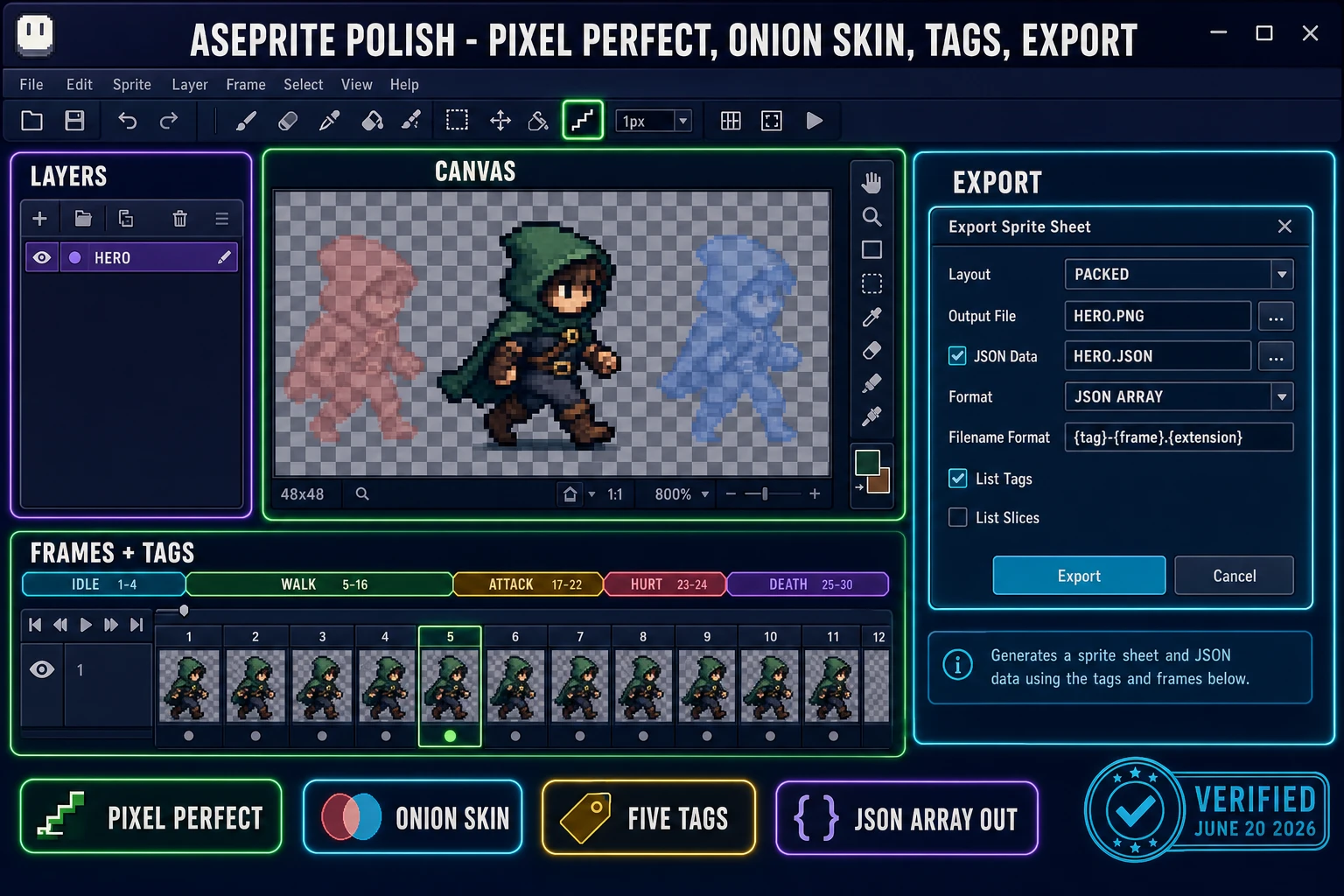
Aseprite editor screenshot mockup showing the Frames timeline at the bottom, the layers panel on the left, the canvas with a hooded hero sprite in pixel-perfect mode, the Tag editor with idle / walk / attack tags color-coded, and the Export Sprite Sheet dialog open on the right with PNG plus JSON Array format selected - verified June 20, 2026
The Aseprite polish phase: pixel-perfect stroke mode on, onion-skin showing the previous and next frames in red/blue, frame tags grouping walk and attack sets, and the native Export Sprite Sheet dialog ready to write packed PNG plus JSON Array metadata in one click.

Step 3 — polish frames in Aseprite (palette, pixel-perfect, onion-skin, tags)

The Aseprite polish phase is where the AI draft becomes a shippable sprite. Four Aseprite features matter most in 2026: indexed-mode palette lock, pixel-perfect strokes, onion-skin, and frame tags. Start with the palette lock: Sprite > Color Mode > Indexed converts the file from RGB to Indexed mode, which forces every brush stroke to pick from the active palette and prevents accidental off-palette colours from sneaking into a polished frame. Load the same palette True Pixel used (Endesga 32, PICO-8 16, or whatever the dev locked in Step 1) via the Palette panel > Open Palette button, pointing at the .gpl or .pal file that True Pixel exports. Every subsequent pencil stroke now lives inside the locked palette — verified against the official Aseprite documentation at aseprite.org on June 20, 2026.

The pixel-perfect stroke mode is Aseprite’s signature feature and the reason most 2026 indie pixel artists still pay the $19.99. Click the pixel-perfect toggle in the toolbar (it looks like a stair-step icon next to the pencil) and any freehand diagonal stroke will have doubled pixels automatically removed, leaving a single-pixel-wide line that reads cleanly at small sizes. Combined with onion-skin (View > Show Onion Skin, or hold Alt + scroll to step through frame-by-frame with the previous and next frames rendered in red and blue transparently), the polish workflow becomes: enable pixel-perfect, enable onion-skin in red/blue mode, step to frame 2, clean each silhouette pixel that drifted from frame 1 in the AI draft, step to frame 3 and align against frames 2 and 4, repeat until every frame in the walk cycle flows. The RotSprite rotation algorithm (Edit > Transform > Rotate with RotSprite checked) handles small-angle rotations without destroying the sprite’s anti-aliasing, useful for the attack-arc frames. The tile-able mode (View > Tiled Mode > Tiled in Both Axes) shows a 3x3 preview of the sprite tiled in both directions, which is non-obvious for character sprites but indispensable for any repeating texture the engine eventually needs.

The fourth feature is frame tags. Aseprite’s Tags panel lets the dev group a contiguous range of frames into a named tag (idle frames 1-4, walk frames 5-16, attack frames 17-22, hurt frames 23-24, death frames 25-30) with a colour code in the timeline. Tags are critical for game-engine consumption because the exported JSON includes the tag list, and runtime engines (Godot AnimationPlayer, Unity Animator, Phaser AnimationManager, Aseprite-loaders in LibGDX and MonoGame) can ask for an animation by tag name instead of by frame index. Naming convention matters: lowercase, hyphen-separated, semantically meaningful (walk-down, walk-up, walk-left, walk-right, idle-down, attack-down) so the engine code reads cleanly when it asks the loader for “walk-down” on input.

Step 4 — export the sprite sheet from Aseprite (.png + .json) and verify in Spritesheet Analyzer

The export is the moment the Aseprite .ase file becomes a game asset. File > Export Sprite Sheet opens the canonical Aseprite export dialog — verified against the official documentation at aseprite.org/api/spritesheetdataformat on June 20, 2026. Six settings drive the output. (1) Layout — Pack the frames in a grid (rows / columns / horizontal / vertical) or in a Packed atlas (frames in arbitrary positions for minimum file size). Game engines that consume JSON metadata accept either layout, so the choice is file-size versus debugging clarity. Rows-with-fixed-columns is the safest default. (2) Border padding / shape padding / inner padding — small integer values (1 to 2 pixels) prevent texture-filtering bleed when the engine renders the frames at non-integer scale. Set inner padding to 0 for pixel-perfect renderers like Godot at integer scale; set to 1 for Unity 2D or any engine doing bilinear filtering. (3) Output File — write to <character>.png next to the .ase source. (4) JSON Data — tick the checkbox and pick either “Hash” (the default, frame names as object keys) or “Array” (frames as an ordered list, much friendlier for engine code). Pick Array for any game engine consumer. (5) Filename Format — the default {title} ({tag}) {frame}.{extension} works for most engines; simplify to {frame} if the loader does not need tag names embedded in keys. (6) List Layers / List Tags / List Slices — tick at least List Tags so the JSON includes the named animation ranges; tick List Slices if the .ase file has slice rectangles for hit-boxes or attachment points. Hit Export. Aseprite writes a packed PNG plus a JSON file in the same directory, both pre-named based on the .ase source.

The verification move is to open the exported PNG in Sorceress Spritesheet Analyzer at /spritesheet-analyzer. Upload the PNG, let the analyzer auto-detect the grid (or set frame width and height manually if it’s a Packed atlas), and step frame-by-frame through the preview. Every frame should render in the correct order with consistent silhouette positioning; any frame that breaks the visual flow (a silhouette that jumps left or right by more than one pixel between frames) is a bug to fix back in Aseprite. The Spritesheet Analyzer’s grid-detect mode catches malformed exports before the engine does; one minute in the analyzer saves an hour of debugging in the engine. For the CLI-comfortable, Aseprite ships a command-line binary too: aseprite.exe -b animation.ase --sheet sheet.png --data sheet.json --format json-array --list-tags runs the same export from a build script — verified against the official Aseprite CLI documentation on June 20, 2026 — useful when the sprite sheet is part of an automated build pipeline rather than a one-off export.

When to skip Aseprite entirely — the Quick Sprites-only path

The honest 2026 answer to “do I need Aseprite at all?” is: it depends on the polish bar. For a Ludum Dare jam game, a Scratch RPG, or any first project, the answer is no — Quick Sprites alone ships a perfectly serviceable sprite sheet with one prompt at 9 credits, and the dev can drop the PNG into Godot / Unity / Phaser / RPG Maker / Scratch via the engine’s Upload Sprite or Import Texture button without ever opening Aseprite. The walk cycle reads cleanly at game distance, the palette is consistent because True Pixel pre-quantized, and the file lands in the engine in under five minutes of work. For a polished commercial release where every silhouette pixel will be inspected by thousands of players, the answer is yes — Aseprite’s pixel-perfect stroke and onion-skin remove the AI-draft micro-jitter that breaks immersion in a sustained-attention experience. The 2026 split is roughly: 60 percent of indie 2D games ship without ever opening Aseprite, 40 percent open it for the hero sprite and skip it for incidental enemies and pickups.

For a no-Aseprite pipeline, the seven-move list collapses to four: prompt AI Image Gen for the concept, palette-lock in True Pixel, generate the packed sheet in Quick Sprites, drop into the engine. Total: 9 credits for the Quick Sprites call plus optional 3 credits for BG Remover and 0 credits for AI Image Gen and True Pixel (both included). Total Sorceress credit cost per character: 9-12 credits. Total dev time: 10-15 minutes. For comparison, the original Aseprite-from-blank-canvas workflow took two to four evenings per character even for an experienced pixel artist. The dev who knows when to skip Aseprite ships 5x to 10x more art per week than the dev who polishes every frame; the dev who knows when to use Aseprite ships the one or two hero sprites that actually deserve hand-tuning. Both choices are valid; the framework is “polish where the player will notice, AI-draft where they won’t.” The Sorceress no-Aseprite path post covers the skip-Aseprite-entirely workflow in more detail.

The verdict on how to make a sprite sheet in Aseprite in 2026

The honest verdict on how to make a sprite sheet in Aseprite in 2026 is that the editor is still the gold standard for pixel-perfect polish at the $19.99 one-time price, but the workflow around it has changed permanently. Aseprite is no longer a blank-canvas tool — the first 90 percent of a sprite sheet (concept frame, palette lock, walk-cycle draft) now happens in a Sorceress browser tab before Aseprite even opens, and the last 10 percent (pixel-perfect strokes, onion-skin alignment, frame tags, sprite-sheet export) is where Aseprite still has no real competitor. The seven moves of a 2026 Aseprite sprite sheet (concept, walk-cycle draft, import, palette lock, pixel-perfect polish, frame tags, export) map cleanly across the AI draft phase (Sorceress) and the polish phase (Aseprite). The total cost for a dev who buys both Aseprite and Sorceress is under $70 lifetime (Aseprite $19.99 one-time plus Sorceress $49 Lifetime), with pay-once credit packs for additional generations that never expire (verified against src/app/plans/page.tsx on June 20, 2026). For comparison, a 2023 Aseprite-only workflow took two to four evenings per character; the 2026 hybrid workflow takes one focused evening — the same shape as a Sorceress user’s three-week ship report that combined the catalog with an off-the-shelf 2D engine.

The honest path forward is one character at a time. Pick the hero first — prompt AI Image Gen for the concept, palette-lock in True Pixel, generate the walk cycle in Quick Sprites, import to Aseprite, polish with pixel-perfect and onion-skin, tag the frames, export PNG + JSON Array. Verify in Spritesheet Analyzer. Drop into the engine. Total time: one evening for a competent indie. Once the hero pipeline is dialled in, the same workflow runs for every enemy, every NPC, every pickup at roughly half the time per sprite because the dev knows which moves take five minutes versus thirty. The 2026 pixel-art ship rate is no longer gated by Aseprite drawing speed; it is gated by how many AI drafts the dev can prompt-and-polish in an evening, which is roughly six to ten characters of release quality versus one to two in the 2023 workflow.

For the next step, the natural follow-ups are how to make a sprite sheet in 2 minutes with AI if the goal is to skip Aseprite entirely on the next project, how to make a sprite sheet for Godot if the engine target is Godot specifically and the dev needs the per-engine import settings, an AI pixel sprite generator with no Aseprite for the anti-Aseprite framing, or how to make pixel art without pushing pixels for the broader pixel-art-from-AI workflow. The Quick Sprites tab is the single entry point that turns this whole guide into a packed PNG ready for Aseprite’s Import Sprite Sheet dialog in under two minutes.

Frequently Asked Questions

What is the easiest way to make a sprite sheet in Aseprite in 2026?

Verified June 20, 2026: the easiest way to make a sprite sheet in Aseprite in 2026 is a four-step pipeline. One: prompt Sorceress AI Image Gen at /generate for the character concept frame (heroic young swordsman in blue cloak, 48 by 48 pixels, Endesga 32 palette, transparent background) and palette-lock the render in True Pixel at /pixel-art to one of the eight built-in presets (PICO-8 16, SWEETIE-16, Endesga 32, Game Boy, CGA, NES 54, Grayscale 8, or 1-Bit). Two: generate the packed walk-cycle PNG in Sorceress Quick Sprites at /quick-sprites (9 credits per sprite sheet, four-direction walk cycle with three frames per direction is the standard handoff). Three: open Aseprite (one-time $19.99 license verified at aseprite.org/buy on June 20, 2026), File then Import Sprite Sheet, point at the Quick Sprites PNG, set Frame Width and Frame Height to match the per-frame size, and Aseprite splits the import into one frame per cel automatically. Four: convert to indexed-mode palette via Sprite then Color Mode then Indexed, enable pixel-perfect stroke mode and onion-skin (View then Show Onion Skin), polish each frame, group frames into tags (idle, walk, attack, hurt, death) using the Tags panel, then File then Export Sprite Sheet with JSON Array format and List Tags ticked. Verify the export by uploading the PNG to Sorceress Spritesheet Analyzer at /spritesheet-analyzer. End to end for one hero, about one focused evening.

Do I need to pay for Aseprite to make a sprite sheet in 2026?

No, but it depends on the polish bar. Aseprite is $19.99 USD one-time (permanent license, no subscription, verified at aseprite.org/faq and aseprite.org/buy on June 20, 2026), shipping Windows, macOS, and Ubuntu binaries plus a Steam key. The free Aseprite trial v1.3.16.1 runs every feature except the Save action, so the dev can preview the editor before paying. For a Ludum Dare jam, a Scratch project, or a first-time sprite sheet, the dev can skip Aseprite entirely and ship the sprite sheet directly from Sorceress Quick Sprites at /quick-sprites for 9 credits per sheet, which lands a perfectly serviceable PNG with transparent backgrounds, consistent palette via True Pixel pre-quantization, and engine-ready frame dimensions (typically 48 by 48, 64 by 64, or 128 by 128). For a polished commercial release where every silhouette pixel will be inspected by thousands of players, Aseprite remains the best $20 spent on indie game dev in 2026 because pixel-perfect stroke mode and onion-skin in red/blue have no real competitor at that price point. The 2026 split is roughly 60 percent of indie 2D games shipping without ever opening Aseprite and 40 percent opening it for the hero sprite only.

What format does Aseprite export sprite sheets in?

Aseprite exports sprite sheets as a PNG image file plus a JSON metadata file in either JSON Hash or JSON Array format (verified against the official Aseprite documentation at github.com/aseprite/api/blob/main/api/spritesheetdataformat.md and aseprite.org/api/spritesheetdataformat on June 20, 2026). Hash format uses frame names as object keys (good for editor consumers that look up frames by name). Array format uses frames as an ordered list (better for game engines that consume frames by index plus tag). For game-engine consumption (Godot AnimationPlayer, Unity Animator, Phaser AnimationManager, LibGDX, MonoGame, Bevy), pick Array format and tick List Tags so the JSON includes the named animation ranges. The Aseprite CLI runs the same export from a build script: aseprite.exe -b animation.ase --sheet sheet.png --data sheet.json --format json-array --list-tags. The exported JSON includes frame dimensions, frame duration, source size, sprite-source-size with trim data, rotation flag, plus the tags and slices lists when those options are ticked. Game engines load both files at runtime: the PNG as the texture and the JSON as the frame and animation lookup table.

Should I import the Quick Sprites PNG into Aseprite as one frame or split into multiple frames?

Split into multiple frames using File then Import Sprite Sheet (not File then Open). The Import Sprite Sheet dialog asks for the Type (By Rows, By Columns, By Frames, or Packed), Frame Width, Frame Height, plus optional border and shape padding. For a 192 by 192 PNG containing a four-direction walk cycle with three frames per direction at 48 by 48 each, pick Type By Rows, Frame Width 48, Frame Height 48 (assuming the rows are: down row, up row, left row, right row, each with three frames left-to-right). Aseprite then opens the import as a 12-frame animation file with each cel correctly split. If the row order does not match the engine convention, use the Move Frame keyboard shortcut (right-click on a frame in the timeline then Move Frame) to reorder before tagging. For a Packed atlas where the frames are not on a regular grid, run the PNG through Sorceress Slicer at /slicer first to cut into individual frame PNGs, then File then Import in Aseprite with Multiple Files selected; Aseprite stacks each PNG as a new frame in import order.

Can I batch export Aseprite sprite sheets from a build script?

Yes. Aseprite ships a command-line interface that runs the full export pipeline without opening the GUI (verified against the official Aseprite CLI documentation on June 20, 2026). The canonical command is aseprite.exe -b hero.ase --sheet hero.png --data hero.json --format json-array --list-tags --filename-format {tag}-{frame}.{extension}. The -b flag means batch mode (no GUI). The --sheet flag specifies the output PNG. The --data flag specifies the output JSON. The --format flag picks json-hash (default) or json-array (preferred for game engines). The --list-tags flag includes the tag list in the JSON. The --filename-format flag controls how Aseprite names the frame keys inside the JSON. Combine with --split-tags to write one PNG per tag instead of one packed PNG with all frames. For a continuous-integration pipeline, wire the Aseprite CLI into the build step that re-generates art assets whenever a .ase source changes; pair with a per-engine post-processor that reads the JSON and emits engine-specific resource files (Godot .tres, Unity .meta, Phaser atlas JSON in TexturePacker format).

What palette should I use for the Aseprite sprite sheet?

Pick the palette before Aseprite opens, using Sorceress True Pixel at /pixel-art. Eight presets ship in 2026 (verified against src/app/pixel-art/page.tsx PALETTE_PRESETS on June 20, 2026): PICO-8 16 (strict 16-colour retro look matching the PICO-8 fantasy console), SWEETIE-16 (modern 16-colour set with smoother gradients than PICO-8), Endesga 32 (flexible 32-colour set popular with modern indie pixel artists, the default recommendation), Game Boy 4 (the original Game Boy four-grey palette for true GB authenticity), CGA 4 (classic DOS four-colour for retro PC aesthetic), NES 54 (the full NES master palette with 54 colours), Grayscale 8 (tonal study palette), and 1-Bit (stark black-and-white silhouettes). Endesga 32 is the safest default for a modern indie sprite. Once True Pixel locks the palette, load the same .gpl file into Aseprite via Palette panel then Open Palette so every brush stroke after import picks from the same set. The reason this matters is that AI generators occasionally hallucinate off-palette pixels that read as visible noise at integer scale; palette-locking before Aseprite import and converting to indexed mode (Sprite then Color Mode then Indexed) inside Aseprite eliminates the drift entirely.

How do I add the Aseprite sprite sheet to a Godot, Unity, or Phaser project?

All three engines accept Aseprite's PNG + JSON Array export with standard importers. For Godot 4, drop the PNG into the project then use AnimatedSprite2D and load the JSON via a community Godot Aseprite Wizard plugin or a manual AnimationPlayer setup that reads the frame ranges from the tags list in the JSON. For Unity, the official 2D Aseprite Importer package (Window then Package Manager then 2D Aseprite Importer) reads the .ase file directly and produces a Sprite Atlas plus AnimationClip per tag; for the PNG + JSON path use a community ImporterEditor script that parses the JSON Array. For Phaser 4, the AnimationManager accepts the Aseprite JSON natively via this.load.aseprite(key, pngPath, jsonPath); then this.add.sprite(x, y, key).play(tagName) plays the named animation. The reason the JSON Array format matters is that all three engines iterate frames by index plus tag rather than by hash key. The Aseprite + Sorceress pipeline ships clean to all three. If the engine target is something more exotic (LibGDX, Bevy, MonoGame), all of them have community Aseprite loaders on GitHub that read the JSON Array spec; pick the loader matching the engine, drop in the PNG and JSON, call the play method with the tag name.

Sources

  1. Aseprite - Animated sprite editor & pixel art tool
  2. Aseprite - FAQ ($19.99 USD one-time license)
  3. Aseprite Sprite Sheet Data Format - JSON Hash and JSON Array
  4. Aseprite GitHub API - spritesheetdataformat.md
  5. Aseprite - Wikipedia
  6. Sprite (computer graphics) - Wikipedia
  7. Texture atlas - Wikipedia
  8. Pixel art - Wikipedia
  9. Walk cycle - Wikipedia
  10. Mixture of experts - Wikipedia
Written by Arron R.·4,050 words·18 min read

Related posts