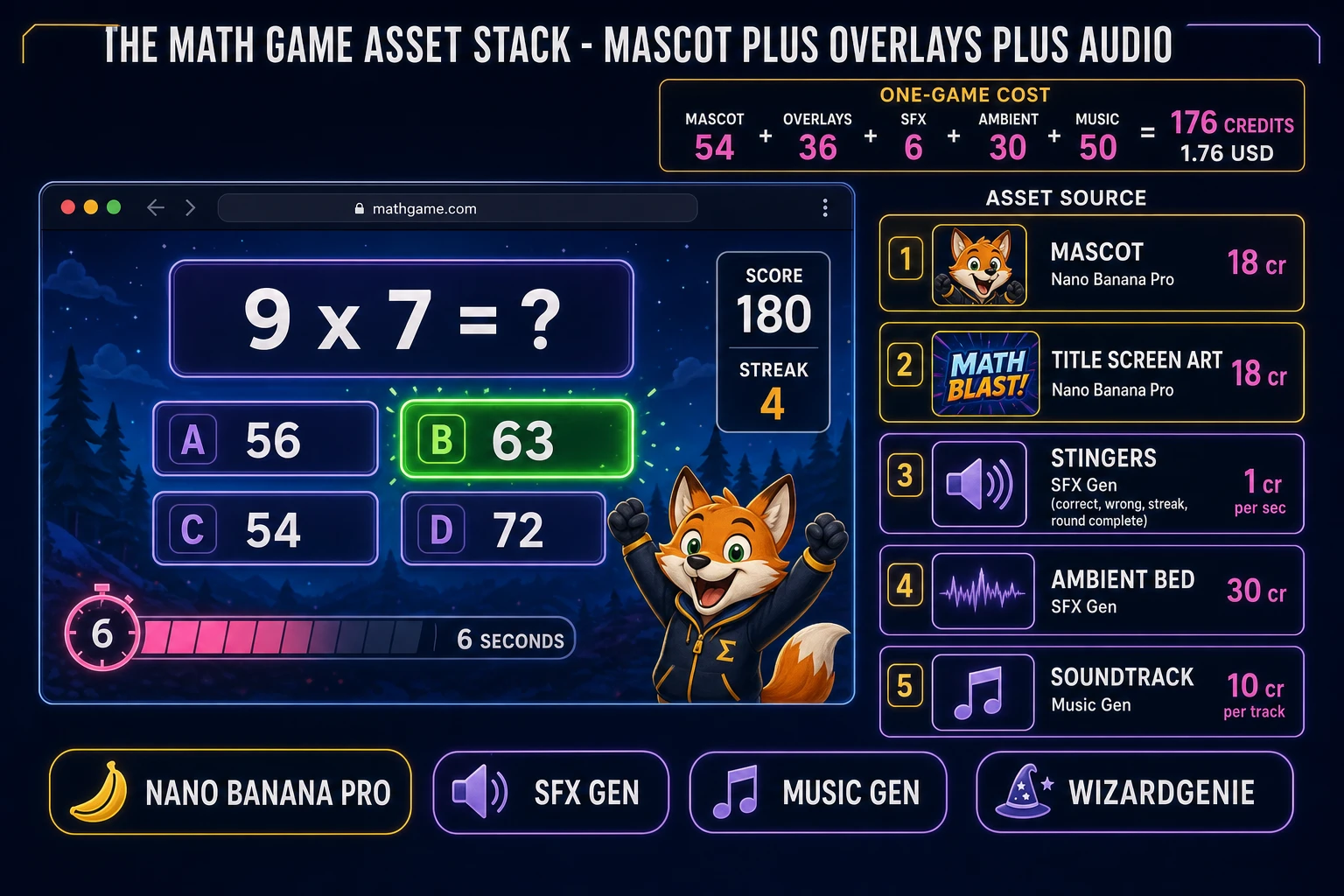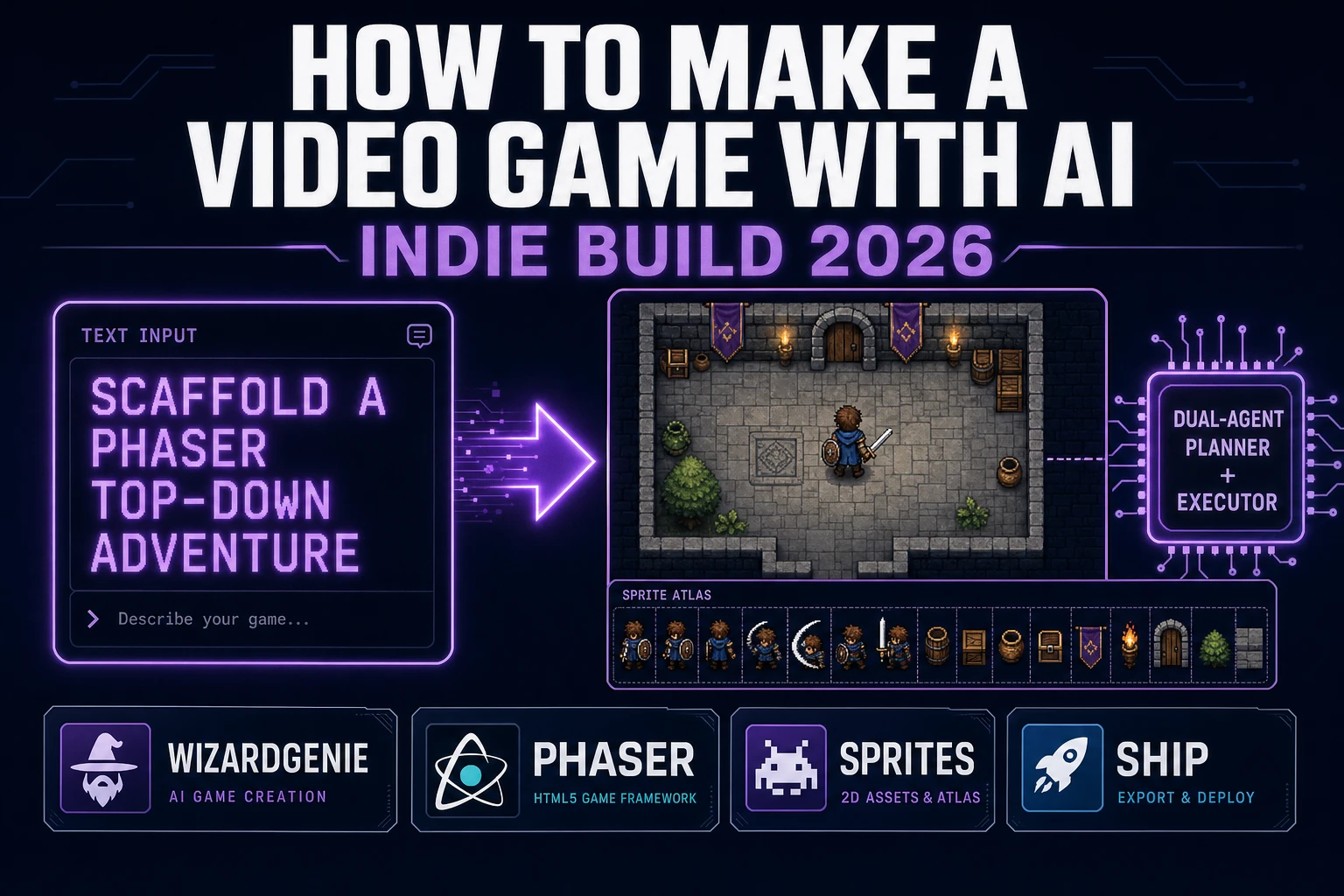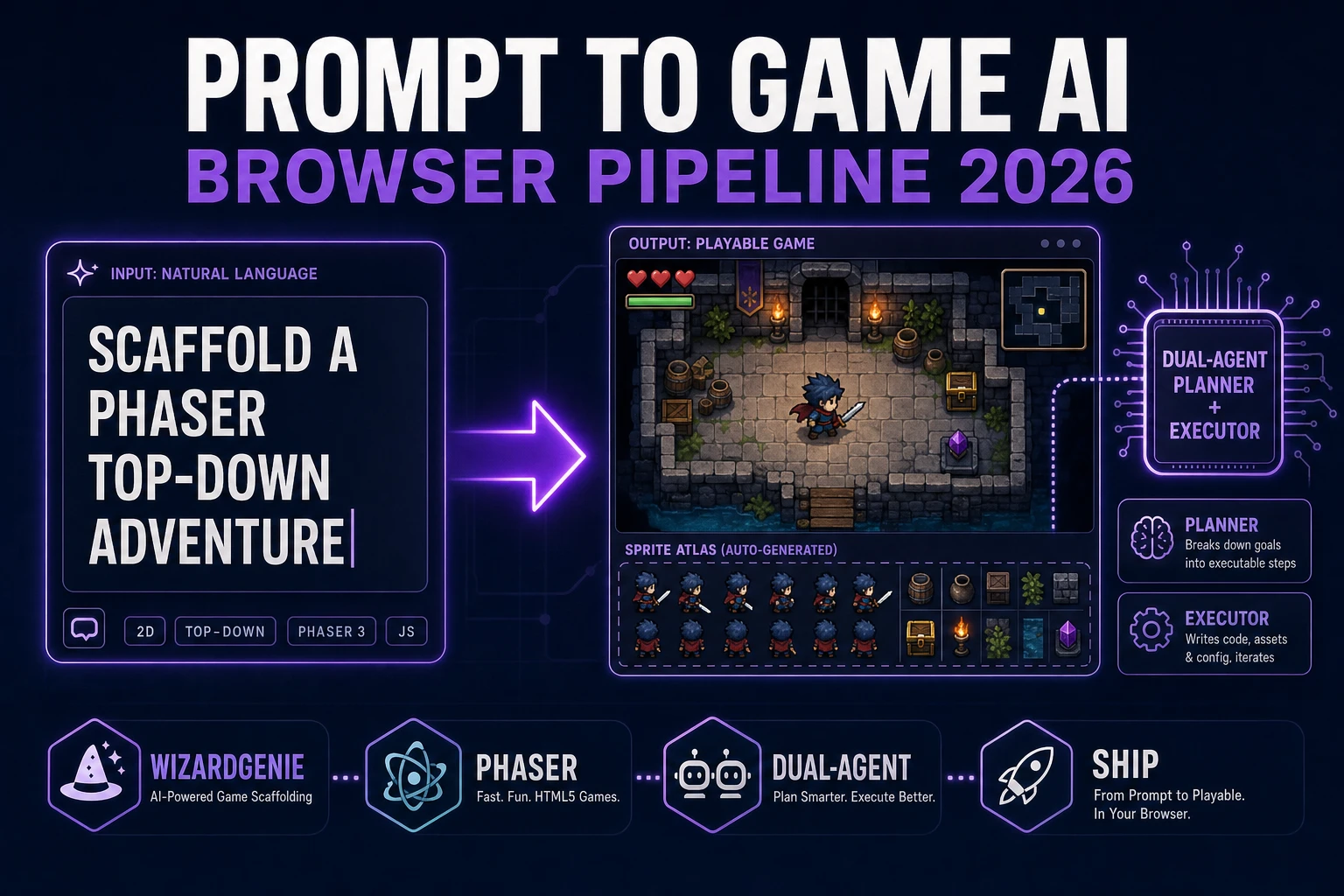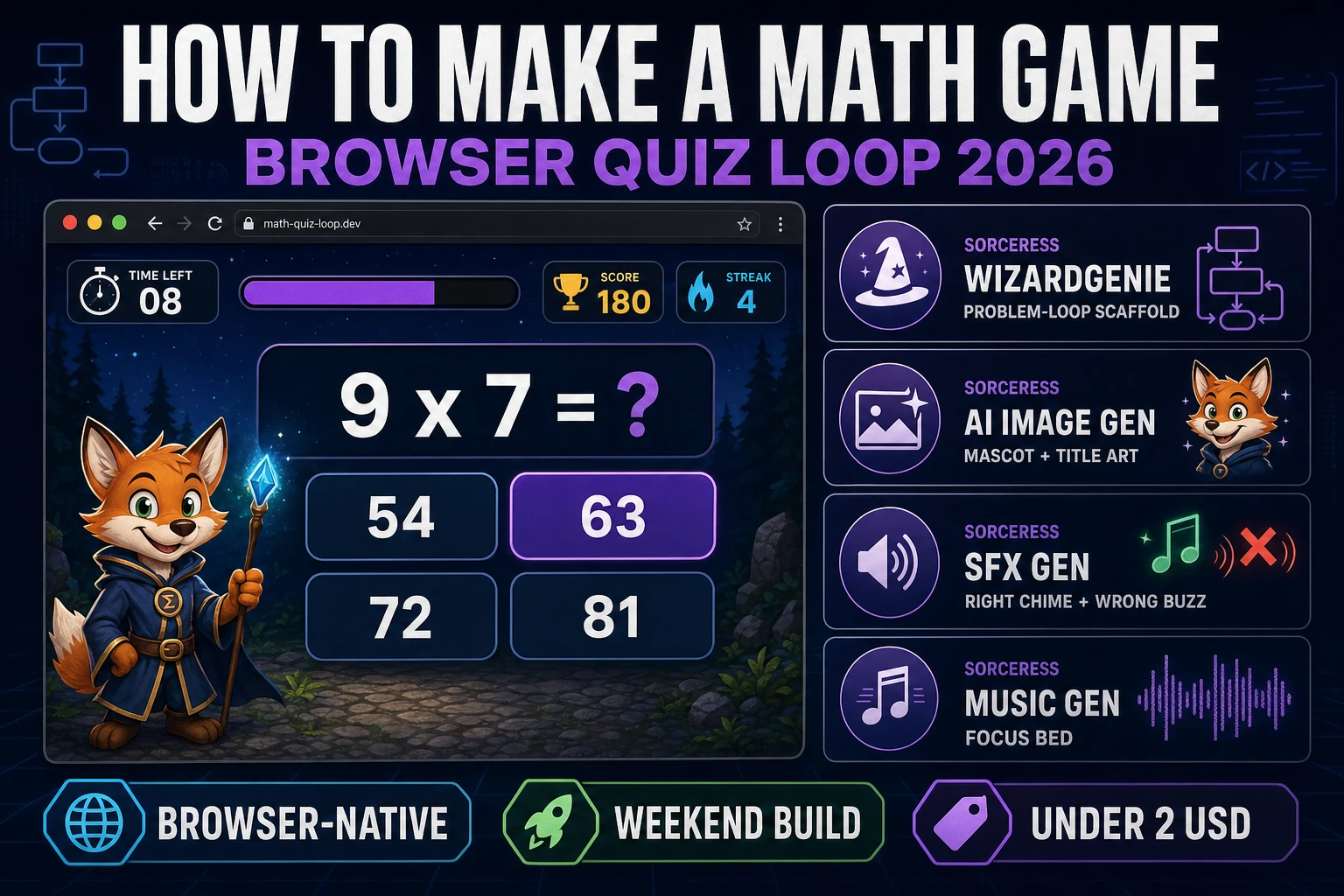
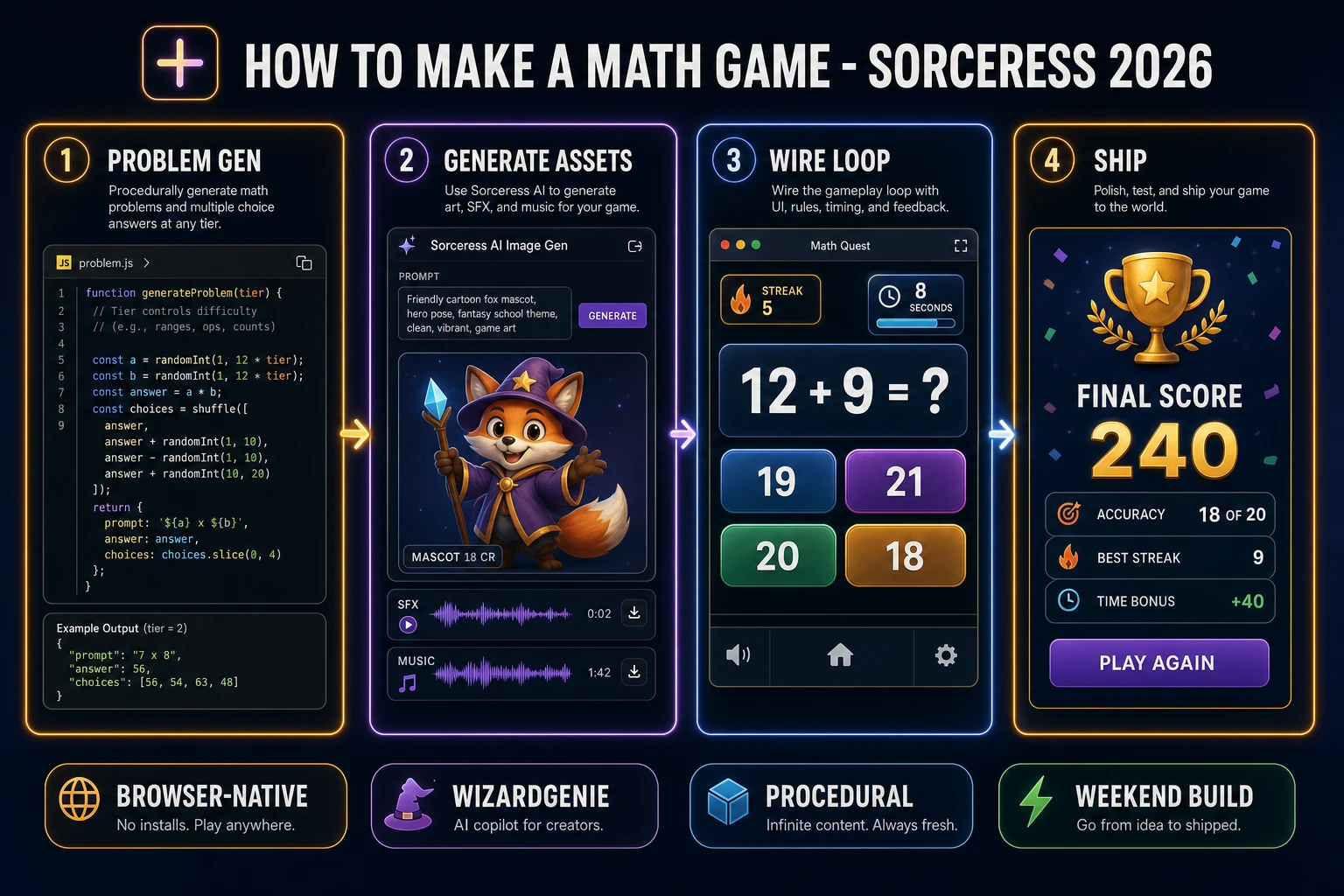
How to make a math game is one of the friendliest browser weekenders in 2026: a procedural problem generator, an answer input, a streak counter, a timer, and a results screen. The genre has deep classroom roots — from Davidson & Associates' Math Blaster! (1983, verified against Wikipedia on 2026-08-17) to MECC's Number Munchers (1986, verified against the Internet Archive copy on 2026-08-17) — and every modern tablet arithmetic app inherits the same underlying loop. Almost every tutorial for how to make a math game still stops at a hardcoded list of ten addition facts and calls it done. The 2026 pipeline is very different. A coding agent scaffolds the whole draw-answer-score-escalate loop in one prompt, the problem generator invents fresh equations forever, and AI generation covers every asset the game needs. In a browser, that means WizardGenie to scaffold the problem-loop interpreter, Sorceress AI Image Gen for the mascot and title art, SFX Gen for the correct chime, wrong buzz, and streak flourish, and Music Gen for the calm focus bed. This guide is the honest end-to-end for how to make a math game in 2026, in a browser, in a weekend.
What "how to make a math game" actually means in 2026
The query "how to make a math game" hides three distinct intents. Some searchers want printable classroom worksheets with a game-like skin — bingo cards of facts, race-the-clock worksheets — and a small share of the results serve that audience. This guide is not for them. A second intent is a full curriculum product with progress dashboards, teacher accounts, and Common Core tagging. That is a valid build but it needs a backend, auth, and content review — a multi-week project, not a weekend one. The third intent, and the one this guide targets, is a single-player browser math practice game: one player, twenty to forty problems per session, a difficulty ramp driven by streak, a countdown timer, a score, and a best-score saved between sessions. That is a weekend build, it demos the whole Sorceress toolset, and it is the format most first-time math-game builders actually want.
The presentation contract for a browser math game is small and strict. A title screen shows the game name, a Play button, an Operator selector (Add, Subtract, Multiply, Divide, Mixed), and a Mode toggle (Typed answer vs Multiple choice). A problem card fills the center of the screen with the equation text, either a numeric keypad / text field or four large choice buttons, a countdown bar at the top edge, a score HUD in the corner, and a streak badge. On answer, the correct result highlights in green; a 1200 to 1800 ms hold lets the player see the reveal; then the next problem loads. After the session length limit, a results screen shows the final score, accuracy percentage, longest streak, highest unlocked tier, and a Play Again button. Every classroom math title from Math Blaster! through modern tablet apps honours the same four-element layout, which is why the format renders so cleanly in a browser: it is fundamentally a switchable full-screen card UI.
The math game loop in one minute (draw, show, score, escalate)
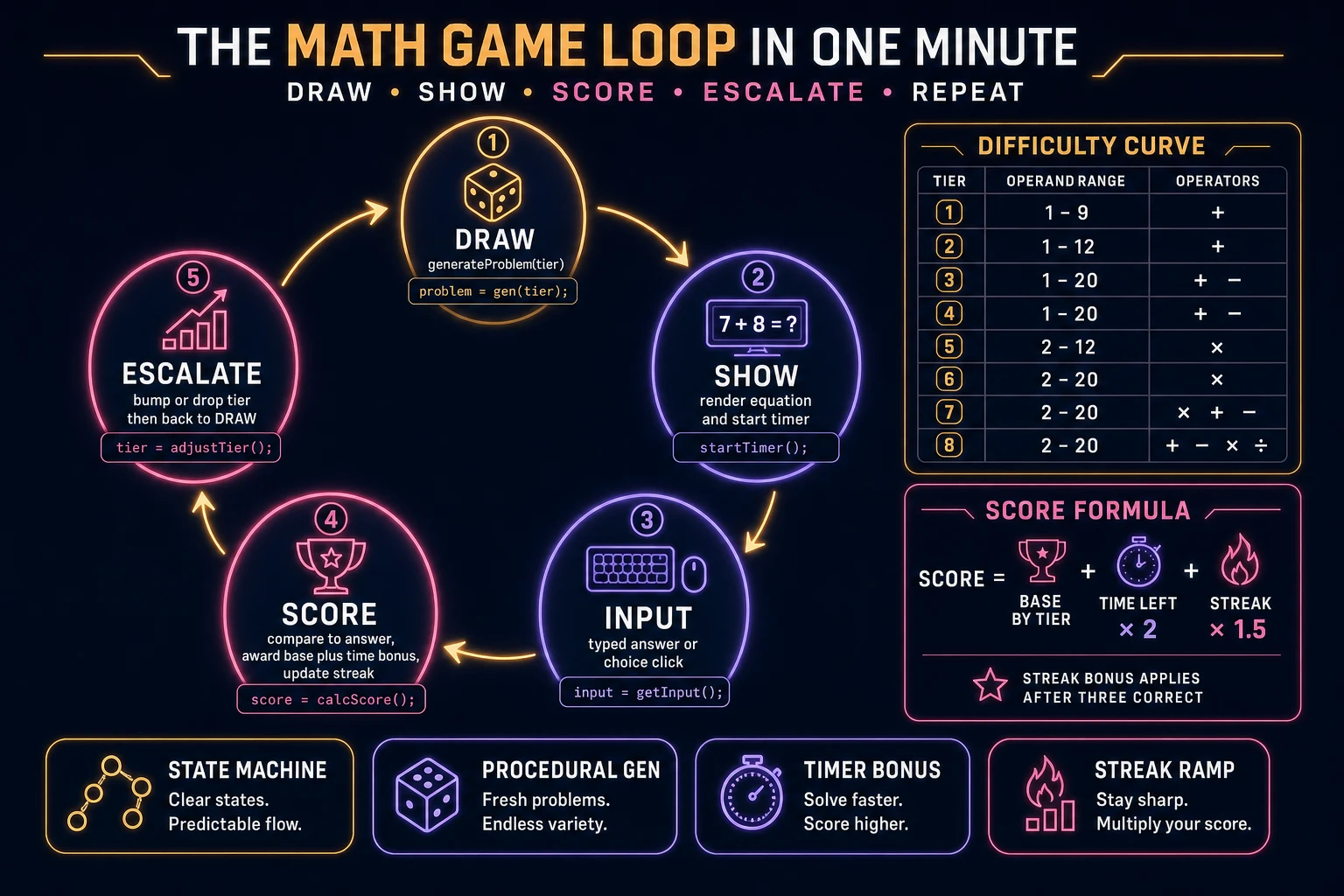
Five moving parts and nothing else, in strict order per player action. First, draw — call generateProblem(tier) to sample operators and operands for the current difficulty tier, producing a prompt string, a correct numeric answer, and (for multiple-choice mode) three plausible distractors. Second, show — render the equation card, start the per-problem countdown timer (10 to 20 seconds), play a short problem-intro click. Third, input — wait for either a typed submit / choice click or the timer expiry. Fourth, score — if the answer matches, award base points by tier plus a time bonus plus a streak multiplier after three-in-a-row; if wrong or timed out, reset the streak counter and play the wrong-answer buzz. Fifth, escalate — after three correct in a row, bump the tier; after two wrong in a row, drop one tier; briefly highlight the correct answer, hold 1200 to 1800 ms, then loop back to draw. When the session length limit is reached, exit the loop to the results screen.
Every answer, autosave the running score, streak, tier, and problem index to localStorage under a key like math.session. On page load, if a session autosave exists, offer a Resume button on the title screen next to New Game. Under a second key like math.bestscore, keep the all-time best score, longest streak, and highest unlocked tier. That is the entire game. Five steps, executed per problem, driven by a plain JavaScript state machine backed by a generateProblem function, a session state object, and a best-score object. Everything else — the animated countdown ring that pulses red in the last three seconds, the confetti burst on a ten-in-a-row streak, the mascot cheer pose on correct answers — is polish layered on top. Keep the core loop tight, ship one full math game end-to-end, and only then layer polish.
Pick your engine for how to make a math game: React, Phaser 4, or vanilla DOM
Three good browser targets in 2026, each with a different trade-off. Vanilla JavaScript with a DOM-based layout is the honest default and the pick this guide recommends for a first build. A browser math game is fundamentally a switchable full-screen card UI: one <div> for the title screen, one for the problem card, one for the results screen, and a small state variable that decides which is visible. The problem card is a flexbox column with the equation on top, either a keypad or a 2×2 choice grid below, and a countdown bar at the top edge. Total code footprint for a working math game is under 450 lines and ships as a single static HTML file. The Web Storage API handles best-score persistence. No engine to install, no build step, deploys to any static host including GitHub Pages, Netlify, or Vercel with a drag-and-drop.
React becomes the right pick if the math game grows into a longer app (five operator modes, a parent dashboard, a settings screen, a problem-history log) or if you already have a React project you want to embed the quiz inside. React's component model maps cleanly onto the math game structure — a <TitleScreen>, a <ProblemCard>, a <Keypad>, a <Timer>, a <ResultsScreen> — and React state hooks handle the running score and streak without ceremony. The cost is the build step and the roughly 130 KB React bundle.
Phaser 4.2.1 "Giedi" (released 9 July 2026, verified against phaser.io/download/stable on 2026-08-17) becomes the right pick if you want animated equation reveals, particle effects for streak celebrations, integrated audio timeline management, or if the math game has any real-time gameplay layer beyond answer-a-problem (a falling-numbers mode, a number-muncher grid inspired by the MECC classic, a boss round where a bar drains while you type). Phaser bundles Scene management, an asset loader, and audio playback in one file and its Scene lifecycle maps cleanly onto title-problem-results transitions.
WizardGenie is not a separate rendering engine — it scaffolds whichever of the three you pick, from a single natural-language prompt. WizardGenie is the Sorceress game-native coding agent. It ships as both a desktop app (Windows installer with auto-update, available to Early Access supporters and above) and a no-install web build at the same URL. Its coding-model lineup covers Claude Opus 4.7, Claude Sonnet 4.6, GPT-5.5, Gemini 3.1 Pro, DeepSeek V4 Pro, Kimi K2.5, Grok 4.2, and MiniMax M2.7 (verified 2026-08-17 in src/app/_home-v2/_data/tools.ts). For a math game, any frontier model scaffolds the whole problem-loop interpreter in one prompt. If you want to run cheap, pair a frontier planner (Claude Opus 4.7 or GPT-5.5) with a budget executor (DeepSeek V4 Pro or Kimi K2.5) and let the executor do the typing — the Dual-agent planner-and-executor pattern is the whole reason WizardGenie exists, and it lands most projects at roughly one-fifth the single-frontier cost.