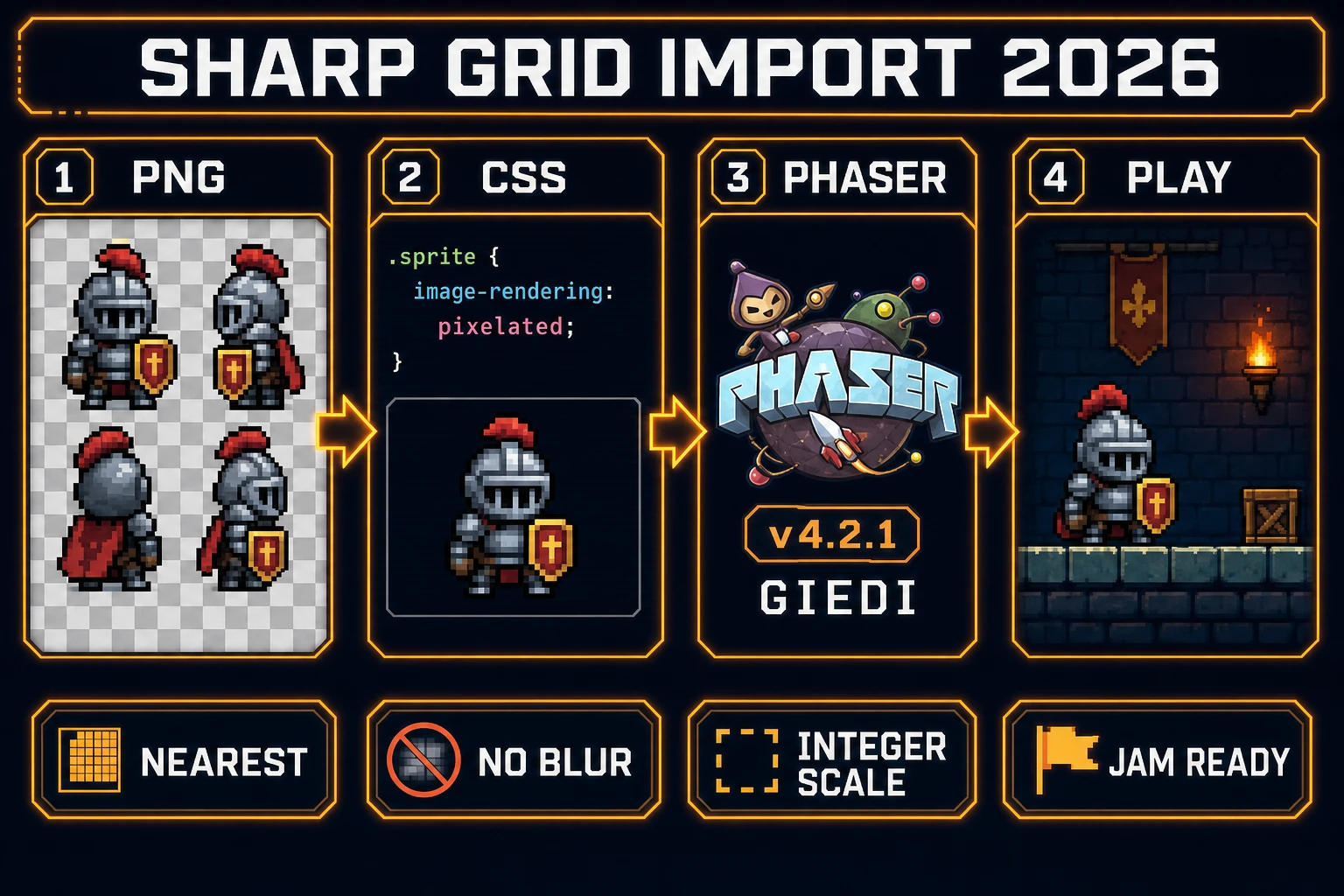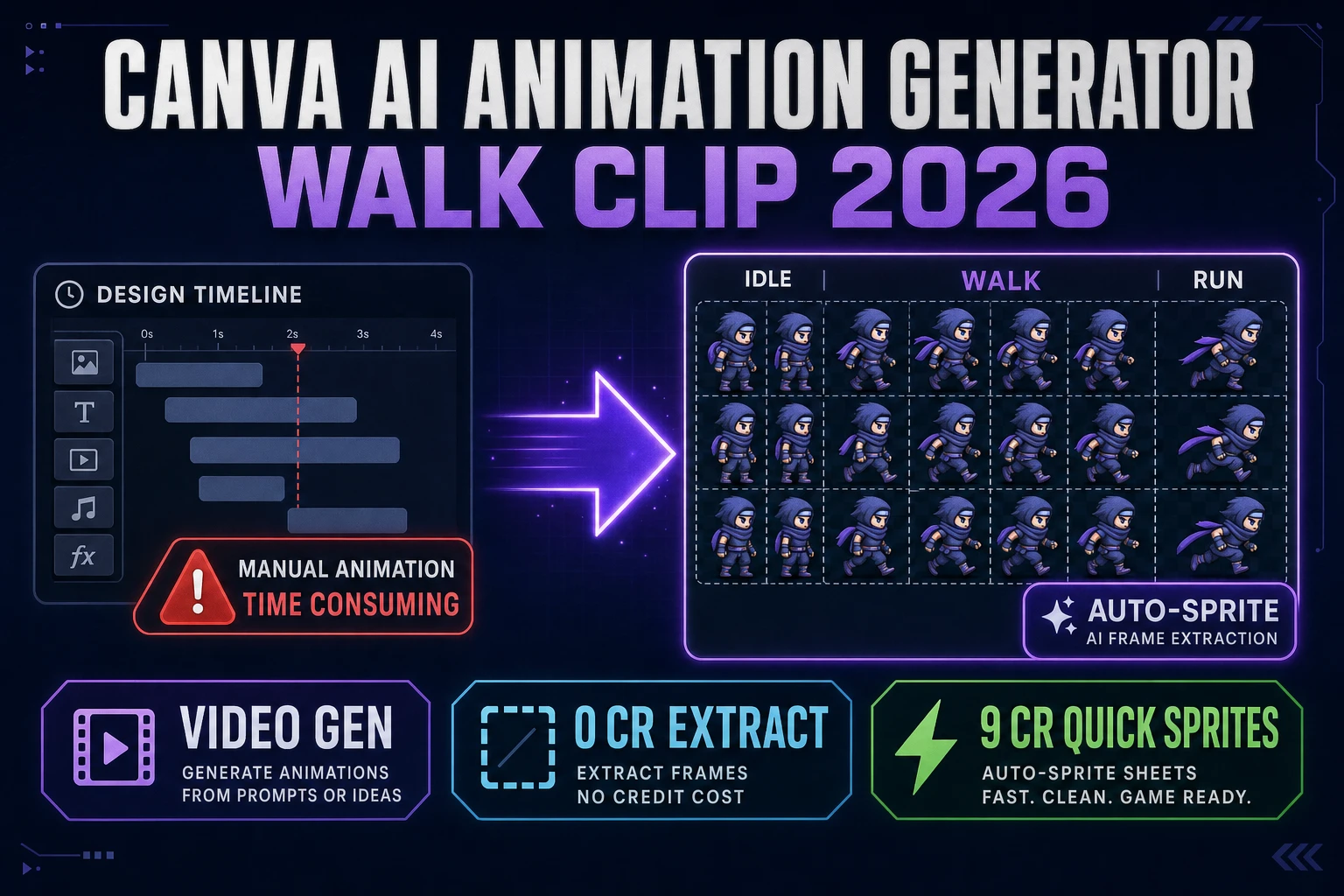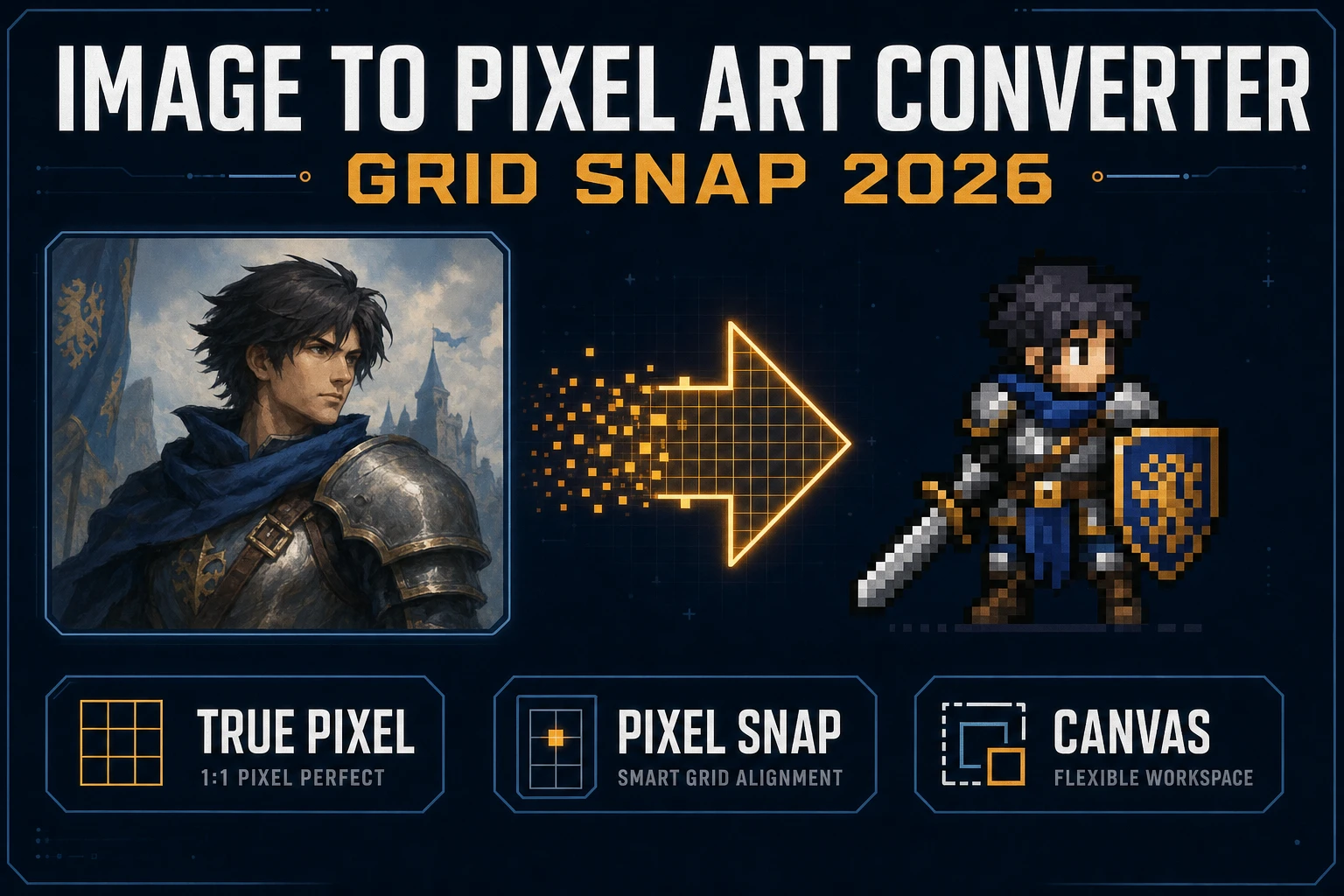
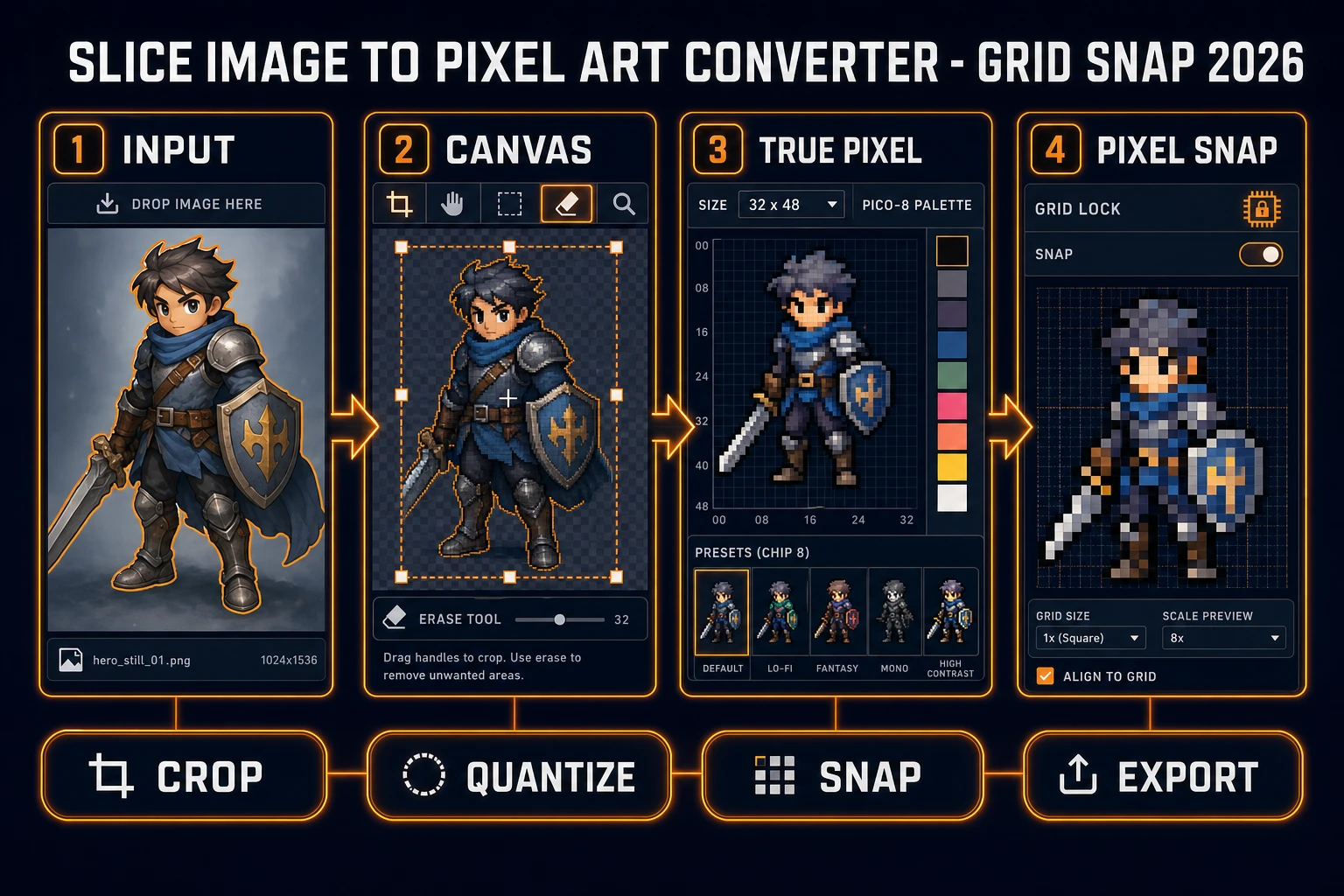
Soft AI portraits and phone photos share a failure mode once they hit a tile map: bilinear blur, muddy palettes, and silhouettes that fall apart at walking distance. Searchers who type image to pixel art converter are not hunting a Instagram filter. They want integer cells, a locked color set, and a PNG the engine can scale without mush. This guide treats that long-tail as a grid-snap job on Sorceress: prep in Canvas, quantize in True Pixel, harden soft edges in Pixel Snap, then import with nearest-neighbor rules verified against source today.
What an image to pixel art converter search actually wants
DataForSEO lists image to pixel art converter at 480 searches a month with KD 19 (confirmed in tools/research-supplement.md, verified 2026-09-26 pull). Neighbor queries sit nearby: image to pixel art, convert an image to pixel art, and image to pixel art grid already have their own posts. This page stays on the converter-shaped phrasing and on the outcome that phrasing implies: a tool path that turns one still into hard pixels, not a mood board of style transfer demos.
Three outcomes dominate that intent in September 2026. First, a target width and height that match the engine cell, not the camera resolution. Second, a palette short enough that the sprite still reads at 32 or 64 pixels tall. Third, square pixels with no half-pixel fringing after export. Miss the third and the converter job was cosplay — the file still looks like a downscaled photo.
The Wikipedia Pixel art page (verified 2026-09-27) still defines the form as artwork where the creator controls individual pixels. Conversion does not erase that definition; it relocates the control into size, palette, dither, and grid snap. You keep the silhouette you already like and throw away photographic detail the player cannot resolve on a phone screen.
True Pixel is the image to pixel art converter surface
True Pixel is the featured converter. The Sprites & 2D home card badges it Pro and describes video or image input becoming a pixel-art animated sprite (verified 2026-09-27 in src/app/_home-v2/_data/tools.ts). The live route is /pixel-art. Palette quantization and dither run in the browser page; you pay credits only when you invoke Cloud Corridor Key for background removal.
Facts checked today in src/app/pixel-art/page.tsx (verified 2026-09-27):
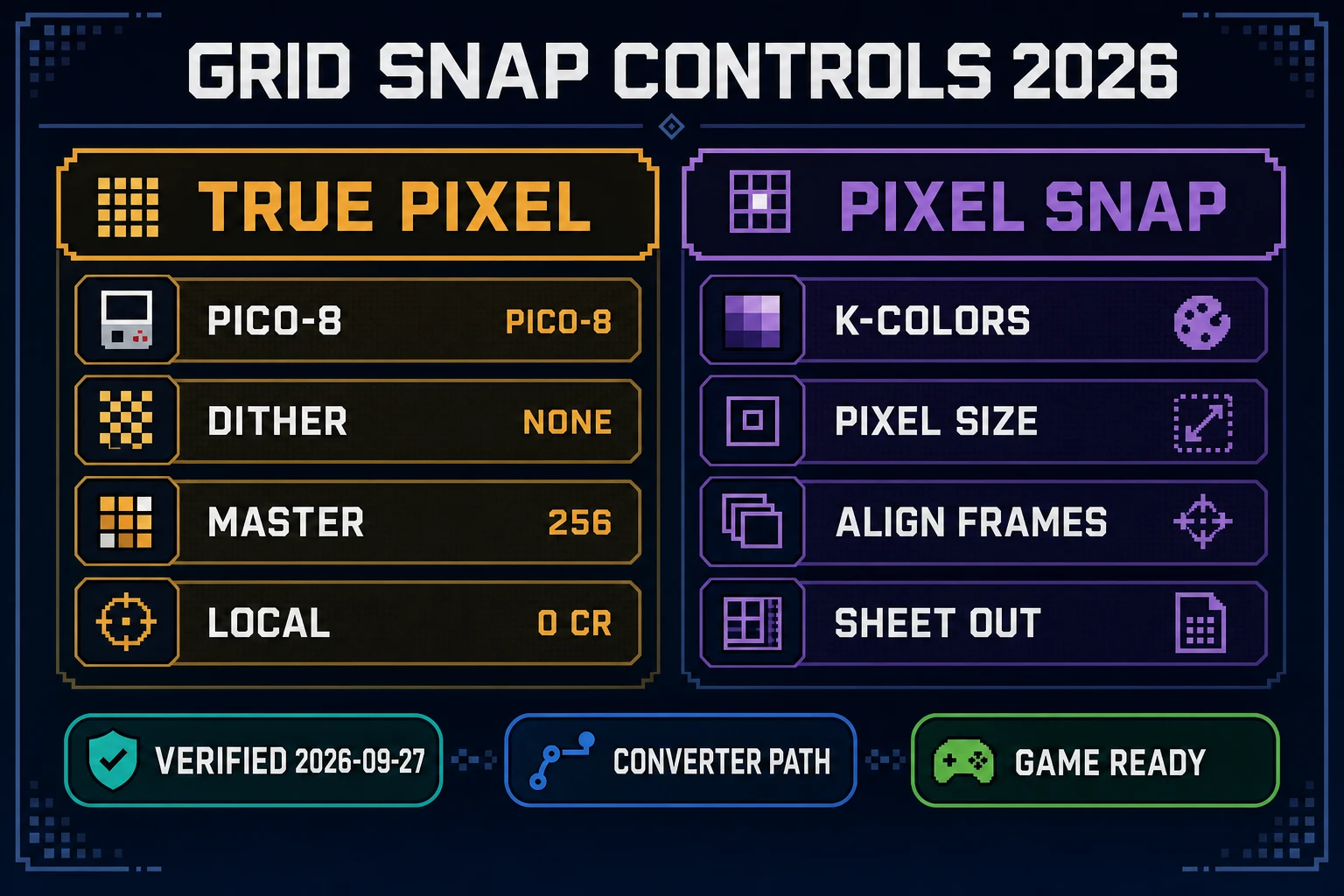
- Eight palette presets: PICO-8 (16), SWEETIE-16, Endesga 32, Game Boy (4), CGA (16), NES (54), Grayscale (8), 1-Bit (2).
- Three dither modes:
none,ordered(Bayer),floyd-steinberg, with an intensity slider when dither is on. - Master resolution longest side capped at
MASTER_RES_LONGSIDE = 256before you pick the final export size. - Cloud Corridor Key cost:
Math.max(1, Math.ceil(frameCount / 10) * (maxDim > 512 ? 2 : 1))credits. Local Corridor Key is 0 credits.
A clean image to pixel art converter run in True Pixel:
- Drop a single character or prop PNG or JPG. Prefer a clear silhouette. Avoid a tiny face buried in a wide landscape crop.
- If the plate is flat green or blue, enable chroma key on the preview. If the backdrop is photographic, matte first (next section), then upload the transparent PNG.
- Pick a palette that matches the rest of the game. PICO-8 and SWEETIE-16 are indie defaults. Game Boy and 1-Bit are deliberate monochrome. NES is for larger, more colorful sheets.
- Set target width and height to the draw size in the engine — a 48×64 hero is common for side-view jams — not the photo’s megapixel size.
- Start with dither
none. If gradients band, tryorderedat moderate intensity, thenfloyd-steinbergonly if softer steps are still required. - Download the PNG. Open it on a checkerboard. Confirm empty pixels are actually empty.
For the sibling convert-verb angle see convert an image to pixel art. For the broader framing without the converter noun see image to pixel art in the browser. This page stays on image to pixel art converter as the tool-shaped long-tail with a 2026 grid-snap finish.
Grid snap in Pixel Snap when AI edges stay soft
Some converter sessions end after True Pixel. Others still look painterly: anti-aliased hair, mushy boot soles, colors that never quite land on the palette. That is when you open Pixel Snap. The home card tags it “AI image/video → real pixel art” and describes cleaning backgrounds, extracting video frames, snapping to a true square-pixel grid, locking palettes, aligning animation frames, and exporting sprite sheets (verified 2026-09-27 in src/app/_home-v2/_data/tools.ts). The live route is /spritely.
Credit facts for Pixel Snap background cleaning (verified 2026-09-27 in src/app/spritely/page.tsx):
- Single-image CorridorKey clean: flat 1 credit.
- Video frame cleaning: 2 credits per 10 frames (
⌈frames / 5⌉), charged only for frames that still need cleaning. - Classic local chroma: 0 credits.
- Recompose-only runs after a clean: free.
Use Pixel Snap as the second converter stage, not a random restart. Feed it the True Pixel PNG (or the original soft AI still if quantization already failed) and treat grid snap as the product: every opaque texel should sit on the integer lattice. If a sheet still looks mushy after snap, the bug is usually a wrong pixel-size override or a source that was never cropped tight — fix prep before burning another clean pass.
For tile-ready grid language on a different primary keyword, see image to pixel art grid. Keep this article on the converter noun plus the Pixel Snap harden step.