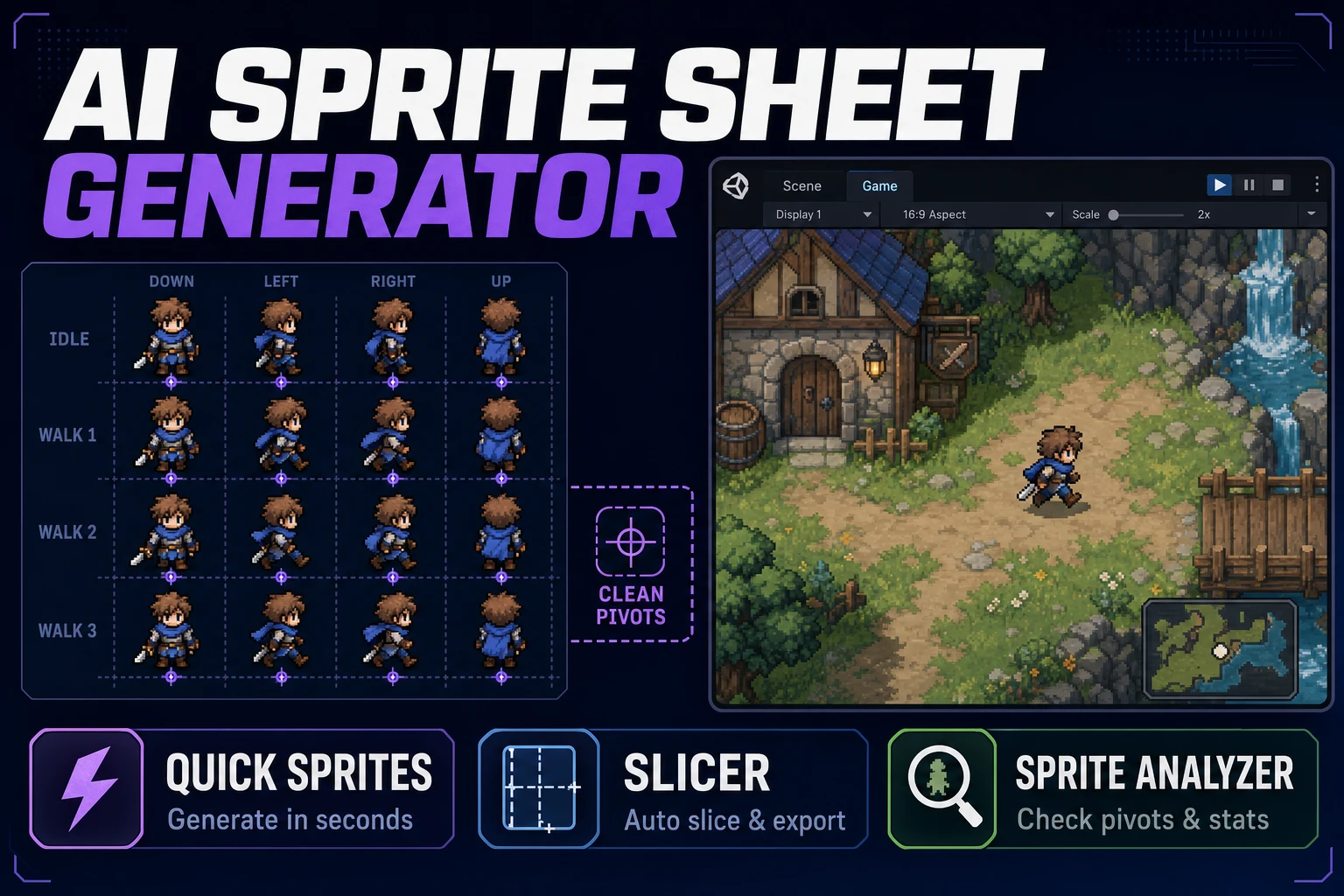
Align AI Sprite Sheet Generator (Atlas Pack)

By Arron R.9 min read
An AI sprite sheet generator only ships when you lock cell size first. Run one action row in Quick Sprites (retro-diffusion/rd-animation, 9 credits per gen), sl

Every AI sprite sheet generator gets exciting for about ninety seconds—until you drop the output into an engine and the walk row jitters, the pivots drift, and the “atlas” turns out to be a 4×4 grid of near-identical frames with mystery padding. Alignment is the whole job. Lock the cell size, generate one action row, slice only when the grid is uneven, and name the frames the way the engine expects.
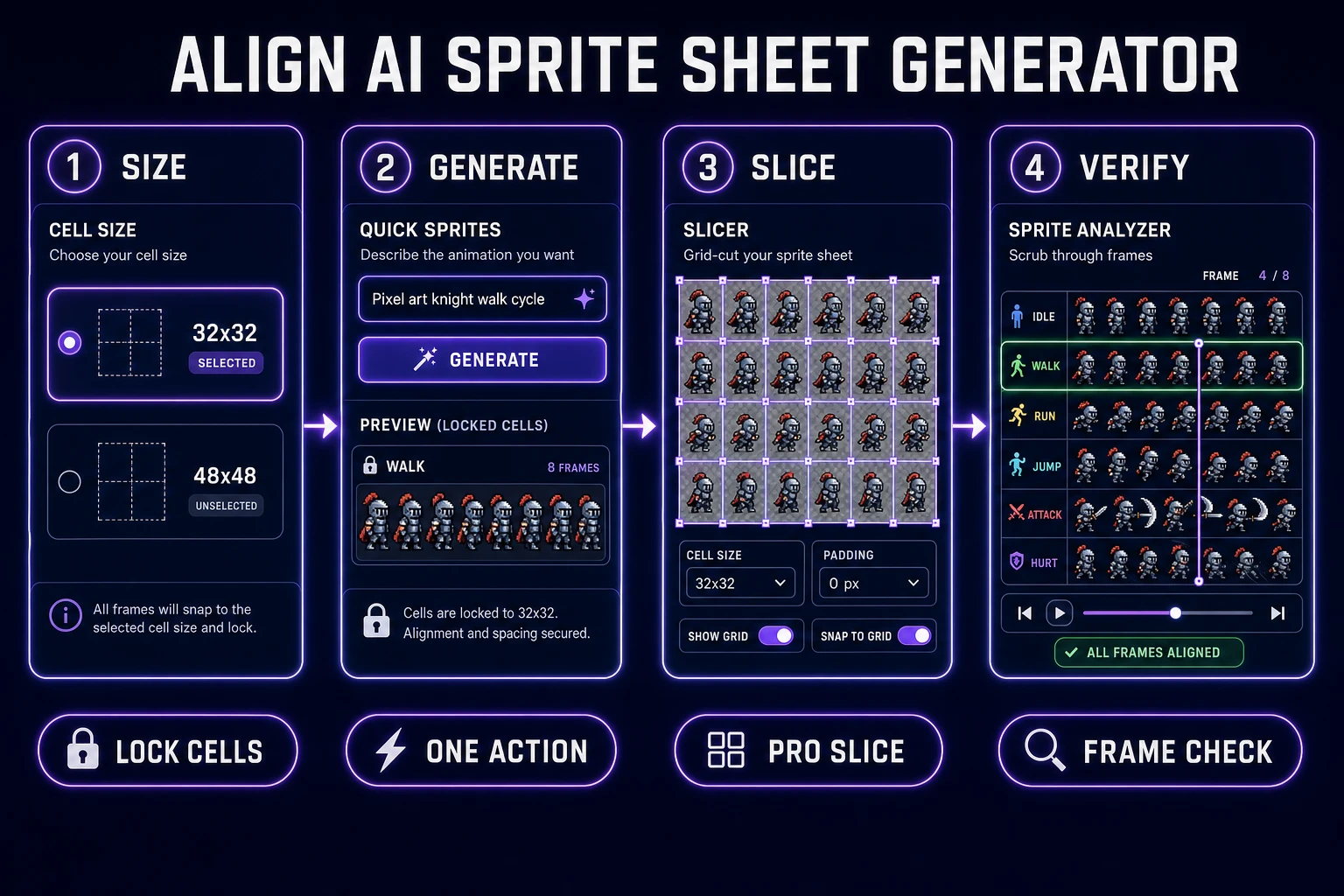
AI sprite sheet generator pipeline from locked cell size through Quick Sprites, Slicer, and Sprite Analyzer verification
Align first, generate second. Cells, rows, slice, verify — then the atlas is ready for Godot or Phaser.

What an AI sprite sheet generator must deliver

An atlas is a single texture that packs many sprites into one image so the GPU uploads once and the runtime samples frames by rectangle. That is the whole reason sheet-based animation exists: fewer texture binds, cheaper draw calls, tighter memory. Which means an AI sprite sheet generator only counts as useful when the grid the model returns actually snaps to the modulus your engine already expects.

Readers typing this query into search want three things at once:

  • Directional or action-based rows they can point an animation state machine at.
  • Consistent cell width and height so load.spritesheet(key, url, { frameWidth, frameHeight }) or Godot 4's SpriteFrames resource can index frames without hand math.
  • A transparent PNG with clean silhouettes, not a JPEG-flavored render with soft edges.

Phaser 4's texture concepts spell out the contract clearly (docs re-fetched July 31, 2026): a Texture holds one or more Frames, each Frame is a rectangular area, and a Sprite renders by picking the current Frame from that Texture. Break the rectangle grid and the sprite renders garbage. Godot 4 enforces the same math through AtlasTexture and AnimatedSprite2D. So the AI sprite sheet generator’s job is not “make cool art”—it is “return a grid you can measure with a ruler.”

The rest of this howto uses three Sorceress tools that keep the contract honest: Quick Sprites for the generation pass, Slicer for grid cleanup when the pack is close but not perfect, and Sprite Analyzer for a frame-by-frame preview before you import into an engine.

Lock cell size and row grammar

Open Quick Sprites and read the styles list before you type a prompt. In src/app/quick-sprites/page.tsx (verified July 31, 2026), ANIMATION_STYLES hard-codes three options with locked sizes:

  • Four Angle Walking — consistent four-direction, four-frame walk cycles for humanoid characters. Cell size locked to 48×48 only.
  • Small Sprites — four-direction walking plus arm, look, surprise, and lay-down rows. Cell size locked to 32×32 only.
  • VFX Effects — fire, explosions, lightning, sparks. Square cells in the range 24–96px (default 64), selectable from the VFX_SIZES array.

The style dictates the modulus. Do not fight it. Pick 48×48 for a hero locomotion pack; pick 32×32 when the cast is denser and you want the extra gesture rows; keep VFX in its own file so a 64×64 fireball never lands on the same sheet as a 48×48 knight.

Row grammar is the second half of the contract. Four Angle Walking labels rows as Up / Right / Down / Left. Small Sprites labels rows as Right / Left / Arms / Look / Surprise / Lay Down. You can read those labels in the row-preview UI—they come from STYLE_ROW_LABELS in the same file. Match the labels in your engine animation names (walk_up, walk_right, and so on) so the AI sprite sheet generator’s output plugs directly into AnimatedSprite2D.animation = "walk_up" or Phaser’s this.anims.create({ key: 'walk_up', frames: … }).

Write the contract down before you generate:

  1. Cell size — one modulus for the whole cast.
  2. Action count — walk only on the first pass. Idle, attack, and death live in later runs.
  3. Facing rule — four-direction top-down or two-direction side-view. Never both on one sheet.
  4. Transparency — return-as-spritesheet on, alpha channel intact, no white matte.

If the hero already exists at 48×48 from a previous run, everything new in the cast inherits 48×48. Scale mismatch is what makes a game read as “assembled from three AI tools” instead of “shipped by a team that cared.”
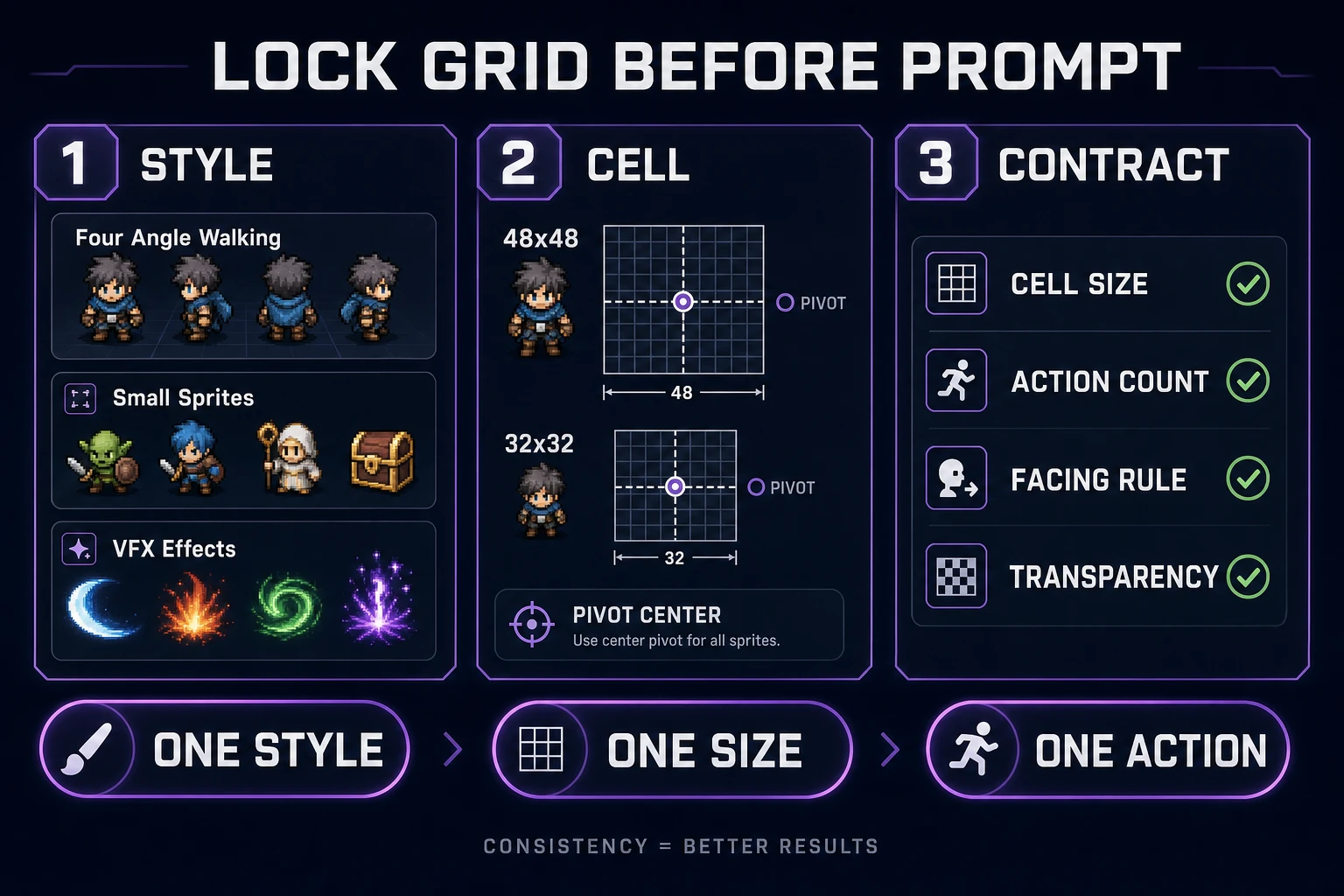
Scorecard for locking cell size, style, and prompt grammar before generating a sprite sheet
Four Angle Walking is 48×48 only. Small Sprites is 32×32 only. Pick the style; the size follows.

Generate one action sheet at a time

Confirm credits, then generate. CREDITS_PER_GEN is 9 and MODEL_ID is retro-diffusion/rd-animation in src/app/quick-sprites/page.tsx (verified July 31, 2026). Batch size is fixed at 1 (const batchSize = 1), so one Generate click bills exactly nine credits when the run succeeds. The Replicate model card describes RD Animation as a style-consistent animated pixel-sprite model that returns game-ready sheet grids—which matches the observed output on Quick Sprites.

Recommended first pass:

  1. Sign in, load Quick Sprites, pick Four Angle Walking (48×48) or Small Sprites (32×32).
  2. Type a short prompt that names the subject and the action, nothing else. Example: “mushroom knight, walking cycle”. Skip lighting essays.
  3. Leave return as spritesheet enabled (the page defaults returnSpritesheet to true).
  4. Optionally enable the seed toggle for repeatable retries. Optionally drop a reference image if costume lock matters.
  5. Click Generate. Wait for the sheet. Do not queue five near-duplicates while the first is still polling.

Prompt discipline is what makes an AI sprite sheet generator stop wasting credits. Every extra verb (“walking, attacking, ducking, casting”) gives the model permission to invent a fifth row and mangle the four you actually need. One action per sheet. When the hero needs an attack pack next, run a fresh nine-credit job with the same style and cell size—the atlas will end up as two files, and your engine can load both under separate keys.

A note on reference images: the page accepts a reference through refImage, and the model treats it as style guidance, not as a locked init latent. That means the reference nudges palette and silhouette, but a costume detail may still drift between rows. If drift wrecks a run, fix it with a fresh seed and a tighter prompt before you spend another nine credits.
Preview frames before you import

Editor zoom lies. A row that looks crisp at 400% in the browser can vanish when the game camera renders the hero three tiles tall. Before anything reaches the engine, drop the sheet into Sprite Analyzer. That page reads getSubscriptionStatus and gates upload behind an active subscription (see SpriteAnalyzerWorkspace.tsx lines 1739–1752, verified July 31, 2026), so budget a Pro seat if the sheet needs the frame scrubber; otherwise use your engine’s built-in preview.

Sprite Analyzer’s job is a frame-by-frame audit. It builds a preview timeline, detects the grid, and lets you flag start / middle / end sections per animation so a loop plays cleanly. Use it to answer four boring questions:

  • Do feet land on the same y-pixel across the walk row?
  • Does the silhouette survive a mid-gray, pure black, and pure white plate?
  • Does any frame secretly grow by one pixel in width or height?
  • Does frame 4 loop back to frame 1 without a “reset pop”?

An AI sprite sheet generator that returns nearly-consistent frames is common; a good preview pass is what stops “nearly” from shipping. If a frame fails silhouette or foot contact, regenerate with a tighter prompt or fix the pixel-level drift by hand in Canvas—the browser Canvas primitive under all of this is documented by the MDN Canvas API, and the same principle applies: edit pixels, do not soft-brush.

Skip the preview pass and you will spend the same nine credits again to fix what a two-minute scrub would have caught.

Slice uneven grids in Slicer

When the sheet is 95% right but the grid needs manual cleanup—padded oddly, combined rows, a stray extra frame—open Slicer. Upload is Pro-gated: checkAccessAndProceed in src/app/slicer/page.tsx pushes non-Pro users to /plans (verified July 31, 2026). Slicer supports four selection modes—square, free, polygon, and gridslice—all covered by the SelectionMode type.

Rules of thumb for cutting an atlas:

  1. Use grid-slice when the sheet is regular. Place horizontal and vertical grid lines to match the cell modulus, then export.
  2. Use square when only one or two frames need a custom crop.
  3. Use free or polygon only for VFX sheets where fireballs escape their bounding boxes. Never use polygon on a walk row—engines expect axis-aligned frames.
  4. Keep the full sheet alongside the sliced frames. The sheet is the source of truth for pivots; single-frame PNGs are convenience for animators who want raw files.

Slicing is optional. If your engine loads a spritesheet by rectangle (Phaser 4's load.spritesheet with frameWidth / frameHeight, or Godot 4's SpriteFrames.add_frame against an AtlasTexture), you do not need discrete PNG files. Slice when a collaborator or an asset pipeline specifically wants named singles—not as a default ritual. Extra exports create version drift, and version drift is how the wrong hero_walk_04.png ends up in production.

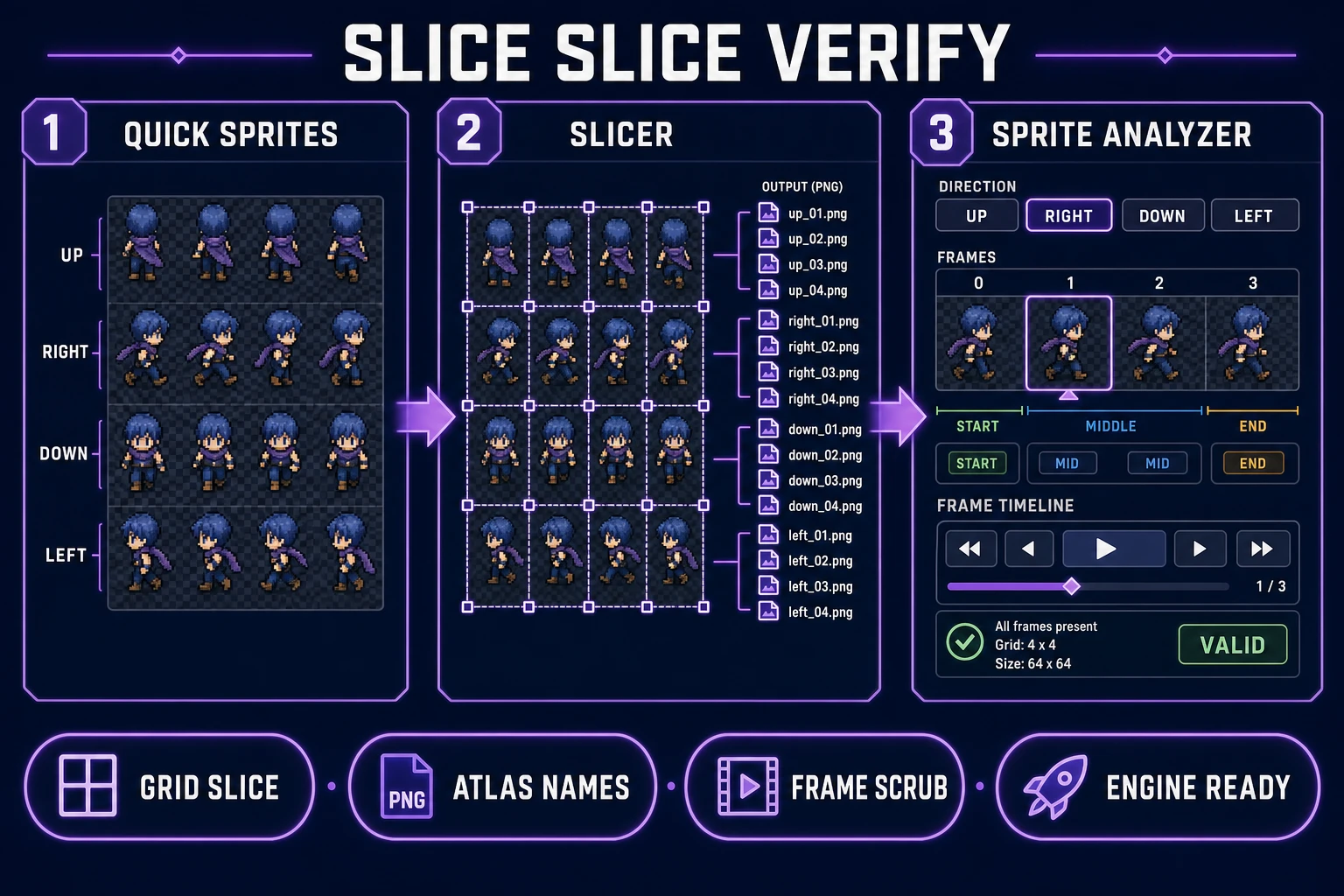
Quick Sprites walk sheet feeding into Slicer grid cuts and Sprite Analyzer frame verification
Nine credits buys a sheet. Slicer cleans the grid. Sprite Analyzer decides whether you spend nine more.

Name atlas cells the engine can import

Filenames outlive prompt threads. An AI sprite sheet generator that ships a beautiful walk row with a filename like FinalFinal2.png is a maintenance bomb waiting for the third sprint. Adopt a boring convention on day one:

  • hero_walk_48_up_01.png — subject, action, cell size, direction, frame index.
  • hero_walk_48.png for the full sheet.
  • Match the same tokens in your engine animation keys so this.anims.create({ key: 'hero_walk_up', … }) or anim.name = "hero_walk_up" in Godot reads as one system, not two.

Phaser 4 loads sprite sheets in two shapes: a fixed grid via load.spritesheet(key, url, { frameWidth, frameHeight }), or an irregular atlas via load.atlas(key, texturePng, atlasJson). Godot 4 does the same job with either an AtlasTexture pointing at a rect on the master PNG, or a SpriteFrames resource holding named animation arrays. Either way the engine needs the same three things: a PNG at 1× resolution, frame rectangles, and consistent naming.

Two habits keep the atlas engine-safe:

  1. Never rescale the master PNG. Keep 1× as the source of truth. Scale in the engine with nearest-neighbor / point filtering for pixel art or with a filtered material for smooth art.
  2. Never edit frames in a lossy paint app. Round-trip PNG or WebP-lossless only. JPEG artifacts inside a texture atlas show up as color halos at every frame edge.

If you need a wider view of what plugs into what, the tools guide lays out every Sorceress tool with its role in the pipeline. This article’s job is smaller: the AI sprite sheet generator step and the two cleanup tools that keep the output engine-ready.

Stop rules before sheet sprawl

An AI sprite sheet generator is cheap enough that it will happily generate a full battler kit—walk, run, attack A, attack B, hurt flash, block, block-hurt, death—for under 100 credits. That is a trap. Every extra row is another chance for the cast to drift out of scale, out of silhouette, or out of your palette contract.

Sane stop rules for a weekend jam:

  • Ship the walk pack first. Load it into the engine. Move the hero left and right. Watch feet for two minutes.
  • Only after walk passes playtest, generate idle. Same style, same cell size.
  • Only after idle passes, generate attack—as its own file, indexed under a different animation key.
  • VFX lives in its own atlas at its own cell size. Do not glue a 64×64 spark row to a 48×48 hero sheet.
  • Refuse a second style until the first sheet lives in a running build. “It looks good in the tool” is not the same as “it renders correctly at camera zoom.”

Compare that to the failure pattern: generate five sheets in twenty minutes, stack them in a folder, never load any of them, then a week later re-generate three of them because the cell sizes don’t match. That is 45 credits of vibes and 0 credits of art in the game. The AI sprite sheet generator earns its keep only when the output ships.

The final loop: lock the cell size, generate one action row in Quick Sprites, verify in Sprite Analyzer, cut in Slicer only if the grid is uneven, name the atlas with tokens your engine will still recognize six months from now, then playtest. Sibling posts cover related workflows in more depth—the walk-pack recipe for locomotion-first sprite AI generator runs, and how to make a sprite sheet for the manual atlas fundamentals underneath. Stack them together only after this atlas ships.

Frequently Asked Questions

What must an AI sprite sheet generator lock before the first prompt?

Cell size and row grammar. Quick Sprites Four Angle Walking is fixed at 48×48, Small Sprites is fixed at 32×32, and VFX Effects allows 24–96px squares (verified in src/app/quick-sprites/page.tsx on July 31, 2026). Mixing sizes inside one sheet breaks pivots. Write the cell size on a note before you open the prompt field.

How much does Quick Sprites cost per generation?

CREDITS_PER_GEN is 9 in src/app/quick-sprites/page.tsx (verified July 31, 2026). The model id is retro-diffusion/rd-animation. Batch size is fixed at 1, so one Generate click is nine credits when the run succeeds.

Do I need Pro for Slicer or Sprite Analyzer?

Yes for both. Slicer upload calls checkAccessAndProceed, which redirects non-Pro users to /plans (src/app/slicer/page.tsx, verified July 31, 2026). Sprite Analyzer reads getSubscriptionStatus and gates upload behind hasSubscription (SpriteAnalyzerWorkspace.tsx). If you are on the free tier, generate the sheet, then either upgrade or use the sheet as-is with your engine's frame rectangles.

How do I stop the AI sprite sheet generator from producing uneven grids?

Keep return-as-spritesheet on (Quick Sprites defaults it to true), stick to one style per run, and prompt for one action only. Uneven grids usually come from mixing walk with attack rows or asking for a new pose mid-batch. When the grid is still slightly off, cut it in Slicer with grid-slice mode instead of re-rolling the prompt.

Which engine texture atlas format should I export to?

Both Godot 4 and Phaser 4 read a single PNG plus a JSON or frame-rectangle definition. Godot 4 uses SpriteFrames or AtlasTexture resources. Phaser 4 loads sprite sheets via load.spritesheet with fixed frameWidth and frameHeight, or a JSON hash for irregular atlases (docs.phaser.io verified July 31, 2026). Keep the master PNG at 1×; scale in the engine with nearest-neighbor / point filtering.

Sources

  1. Texture atlas — Wikipedia
  2. Textures — Phaser Concepts
  3. Sprite (computer graphics) — Wikipedia
  4. Canvas API — MDN Web Docs
  5. retro-diffusion/rd-animation — Replicate model card
Written by Arron R.·2,069 words·9 min read

Related posts