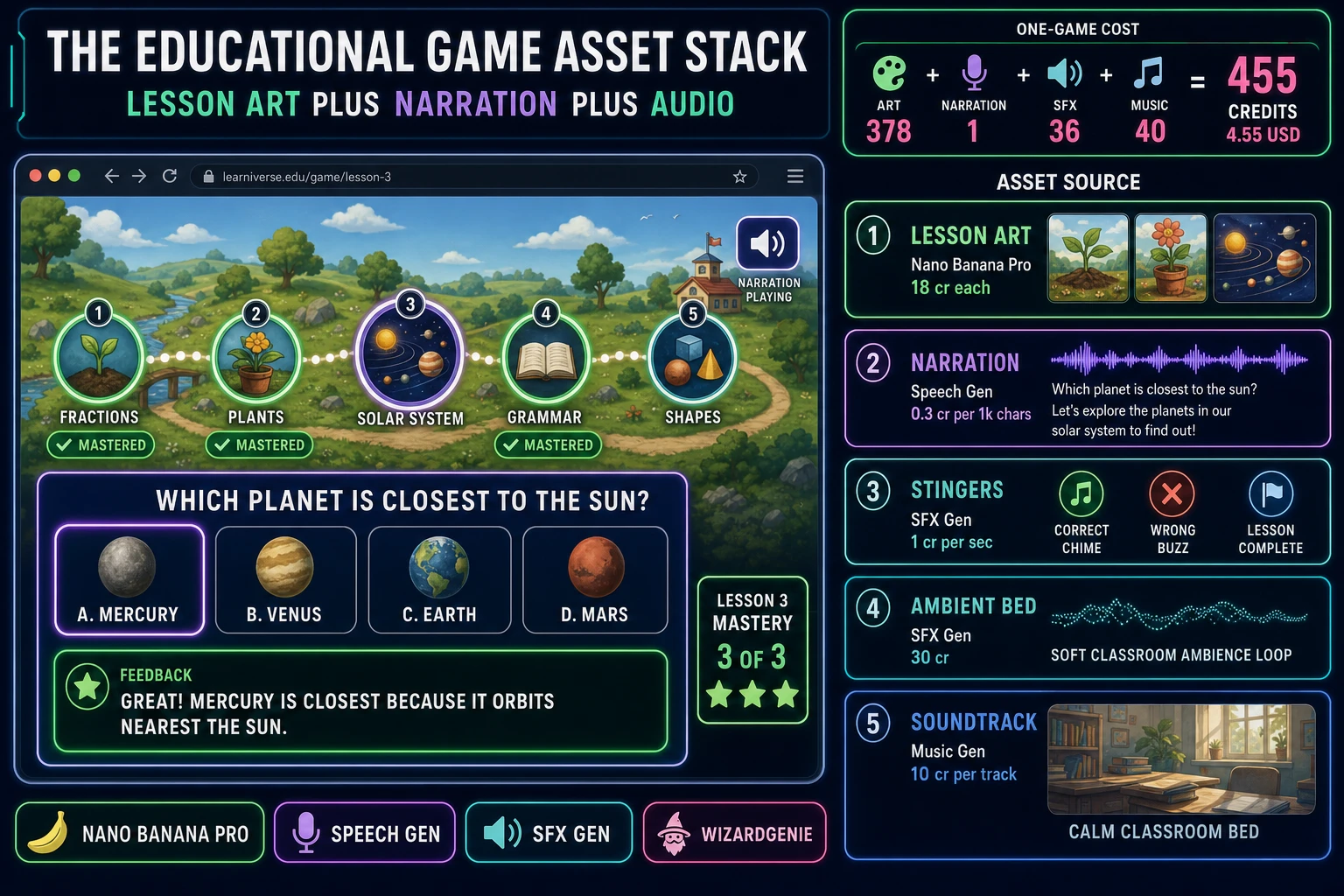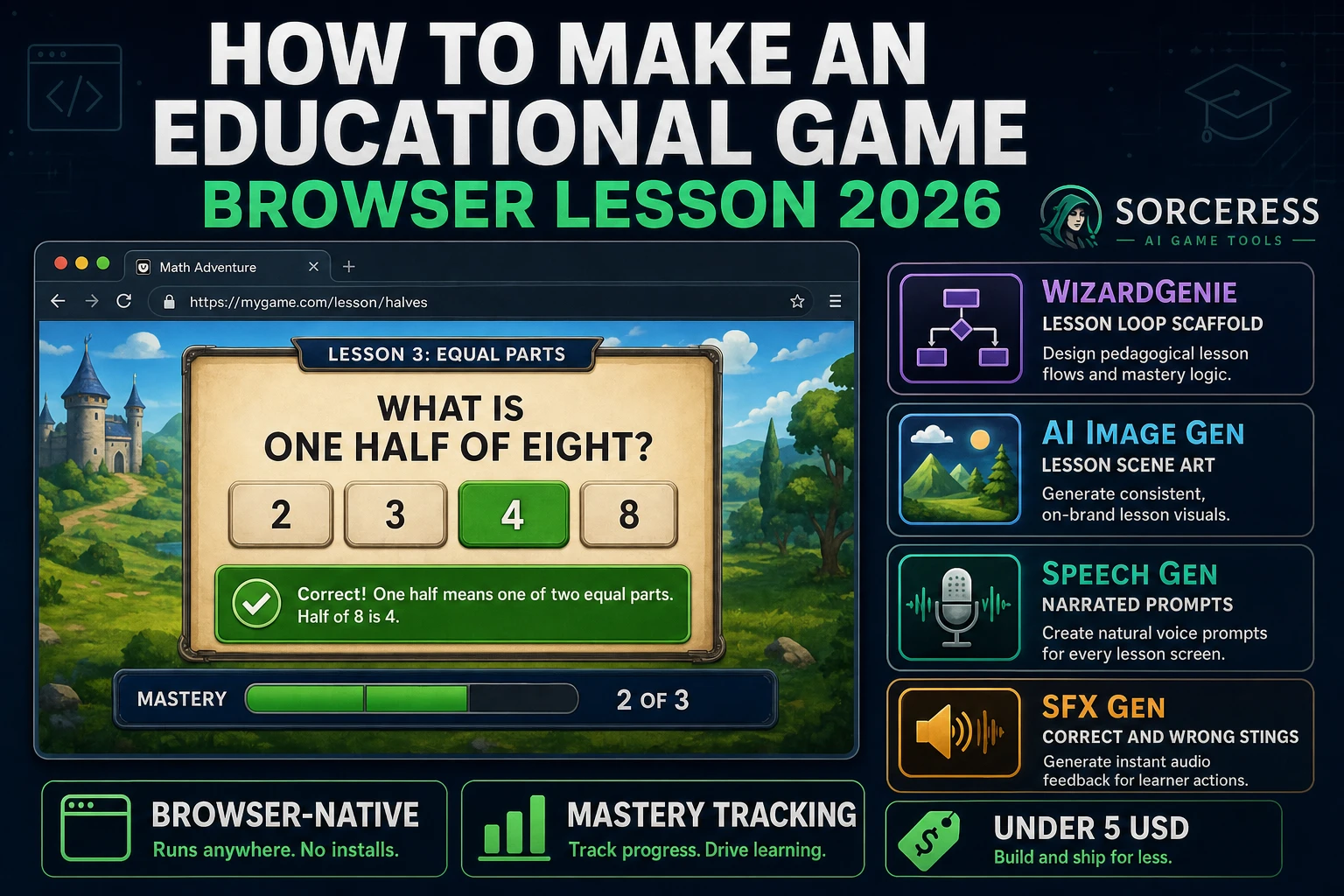
How to make an educational game is the query teachers, homeschool parents, and indie devs type when they want something better than a printable worksheet — a browser lesson that teaches, checks understanding, explains mistakes, and unlocks the next unit only after mastery. The genre stretches from Oregon Trail (1971) through Math Blaster and every classroom Kahoot clone, but the modern stack is lighter: one JSON lesson bank, a prompt-attempt-feedback loop, optional voice narration, and a lesson map that shows progress. In 2026 that pipeline runs entirely in the browser with WizardGenie scaffolding the interpreter, Sorceress AI Image Gen painting each lesson scene, Speech Gen narrating prompts for early readers, and SFX Gen plus Music Gen handling the audio bed. This guide is the honest end-to-end for how to make an educational game in 2026 — browser-native, mastery-aware, and shippable in a weekend.
What how to make an educational game actually means in 2026
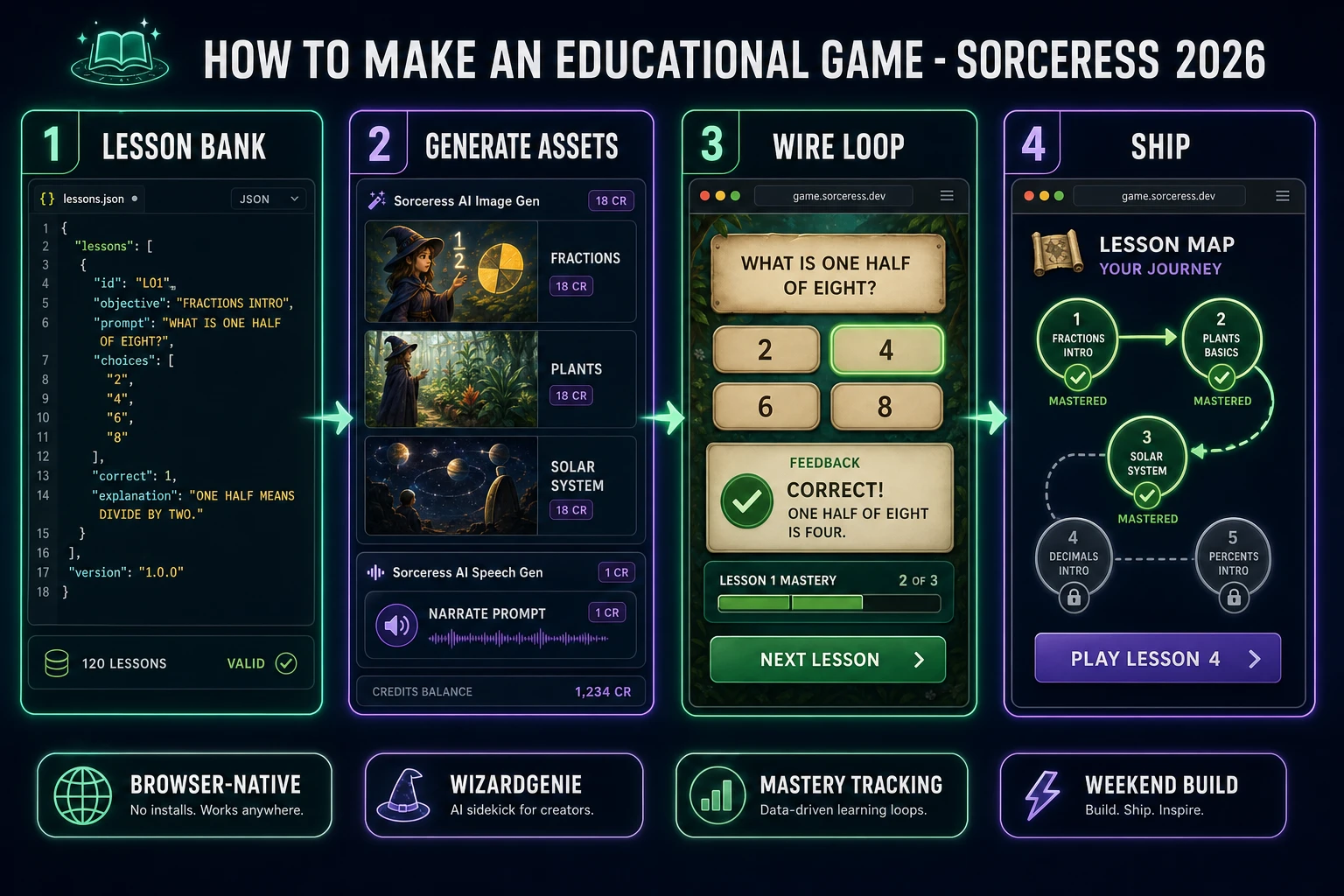
The query “how to make an educational game” hides three intents. Some searchers want curriculum design advice — learning standards, rubrics, assessment theory — and a handful of results serve that audience. This guide is not for them. A second intent is a full LMS-integrated product with teacher dashboards, roster import, and grade export to Google Classroom or Canvas. That is a multi-week build with authentication, a database, and compliance review. The third intent — and the one this guide targets — is a single-player browser lesson game: a lesson map, instructional prompts, immediate explanatory feedback, mastery tracking per objective, and progressive unlock of harder units. That is a weekend build, it demos the Sorceress audio and art stack, and it is the format most first-time educational-game builders actually want.
The presentation contract for a browser educational game differs from a trivia quiz in one critical way: feedback must teach. A trivia game shows right or wrong and moves on. An educational game shows why the wrong answer is wrong, links back to the concept, and may offer a hint or a worked example before the next attempt. The UI shape is still card-based — title screen, lesson map, prompt card, feedback panel, results or map return — but every lesson object carries an explanation string and a masteryThreshold that gates advancement. Research on educational games consistently emphasizes “desirable difficulties”: enough challenge to engage, enough scaffolding that failure teaches rather than frustrates. Your JSON schema is where that philosophy becomes code.
The educational game loop in one minute (prompt, attempt, feedback, advance)
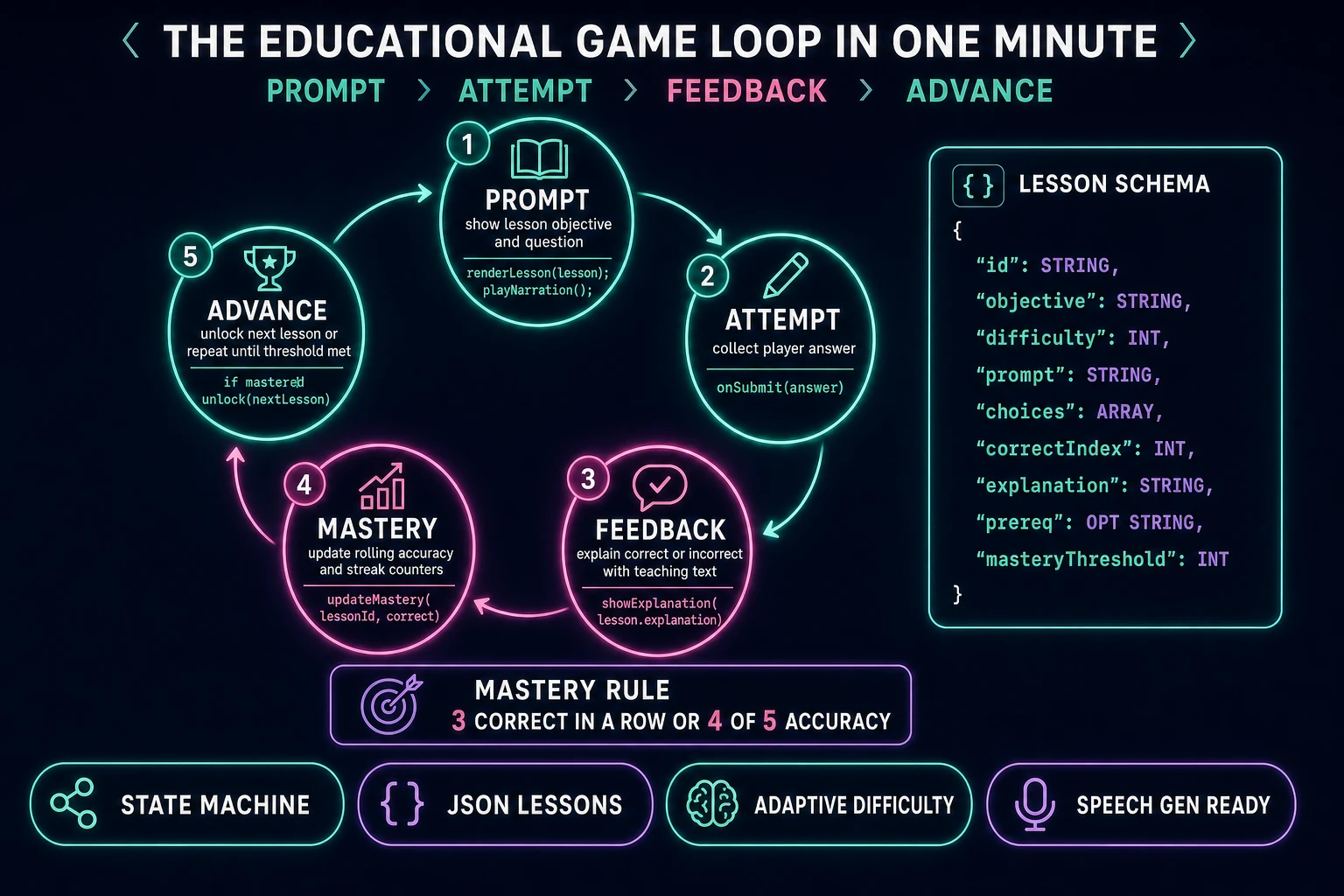
Five moving parts, repeated per lesson attempt. First, prompt — render the lesson objective, the question or interactive challenge, and optionally play a Speech Gen narration clip so non-readers hear the same text shown on screen. Second, attempt — collect the player’s answer: multiple choice, numeric input, drag-and-drop ordering, or a short typed response. Third, feedback — evaluate the attempt, show the explanation field from the lesson JSON (not a generic “try again”), highlight the correct choice, and play a correct or incorrect stinger. Fourth, mastery — append the attempt to a rolling window for this lesson id; when consecutive correct count or accuracy percentage crosses masteryThreshold, mark the lesson mastered in localStorage. Fifth, advance — if mastered, unlock the next lesson on the map and return to the map screen; if not mastered, offer “try again” or an optional hint before re-prompting.
Autosave the mastery object and attempt history under keys like edu.mastery and edu.attempts using the Web Storage API. On page load, grey out lesson nodes whose prereq is not yet mastered. That is the entire game. Five steps, driven by a plain JavaScript state machine, a lessons array, and a mastery map. Everything else — animated stars on mastery, confetti on unit completion, a printable certificate screen — is polish layered after the core loop ships.
Pick your engine for how to make an educational game: DOM quiz, Phaser, or WizardGenie
Three good browser targets in 2026. Vanilla JavaScript with a DOM layout is the honest default for a first lesson game. An educational game is a switchable full-screen card UI: a lesson map built from flexbox or CSS grid, a prompt card with choice buttons, and a feedback panel that slides in below the prompt. Total code footprint for a ten-lesson game is under 500 lines and ships as a single static HTML file. No build step, deploys anywhere static files host.
React becomes the right pick when the lesson game grows into a longer app — a parent dashboard, a settings screen, multiple student profiles, or embedded mini-games per lesson type. Component boundaries map cleanly onto <LessonMap>, <PromptCard>, <FeedbackPanel>, and <MasteryBadge>.
Phaser becomes the right pick when lessons include drag-and-drop manipulatives (fraction bars, labeled plant parts, planet ordering), animated reward sequences, or integrated audio timelines where narration, stingers, and music crossfade per scene transition. The trade-off is bundle size and setup time versus a DOM quiz.
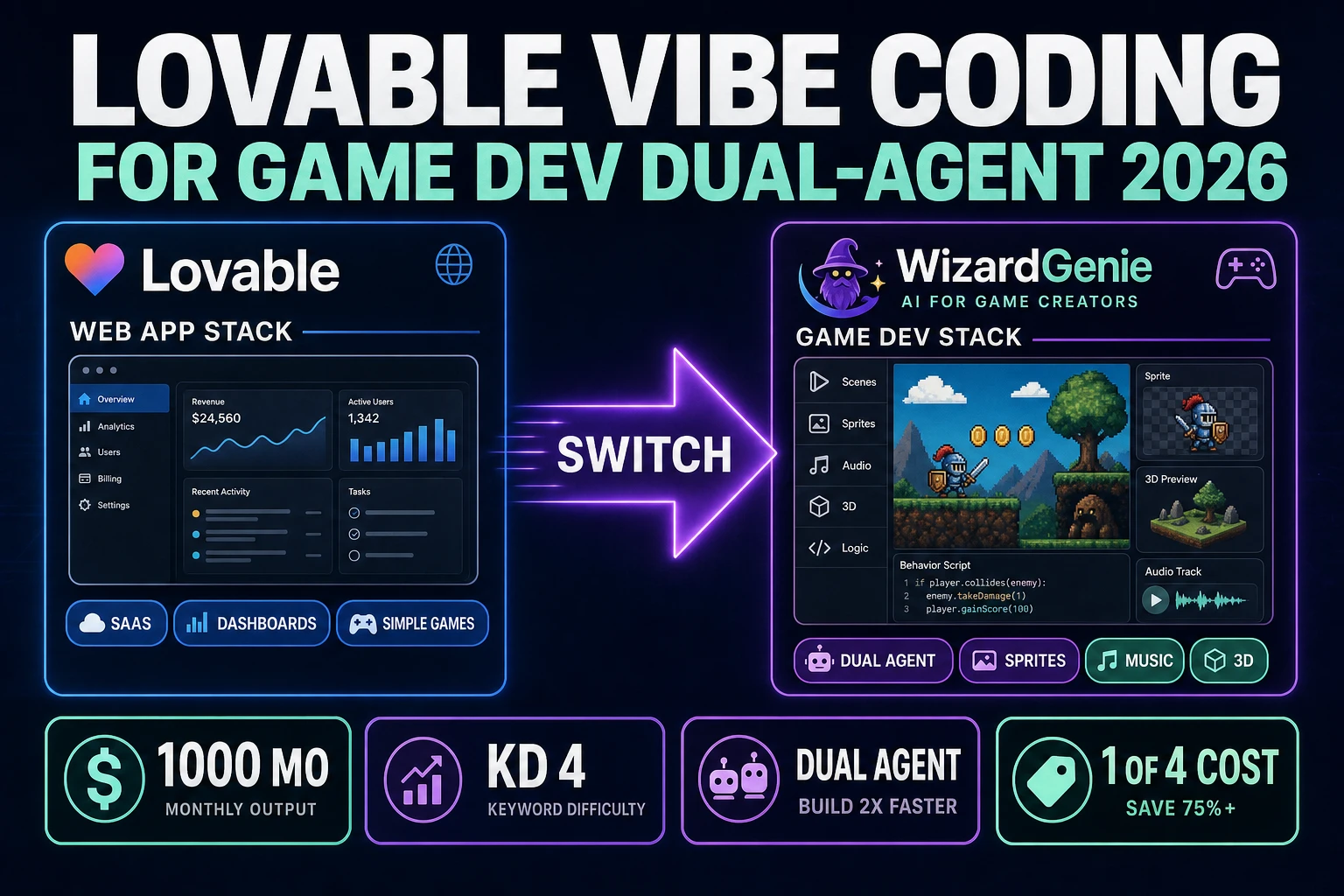
WizardGenie scaffolds whichever target you pick from a natural-language prompt. WizardGenie ships as both a desktop app (Windows installer with auto-update, available to Early Access supporters and above) and a no-install web build. Its model lineup covers Claude Opus 4.7, GPT-5.5, Gemini 3.1 Pro, DeepSeek V4 Pro, Kimi K2.5, Grok 4.2, and MiniMax M2.7 (verified 2026-08-19 in src/app/_home-v2/_data/tools.ts). For an educational game, any frontier model scaffolds the lesson-loop interpreter in one prompt; pair a frontier planner with a budget executor like DeepSeek V4 Pro or Kimi K2.5 if you want to minimize API spend.