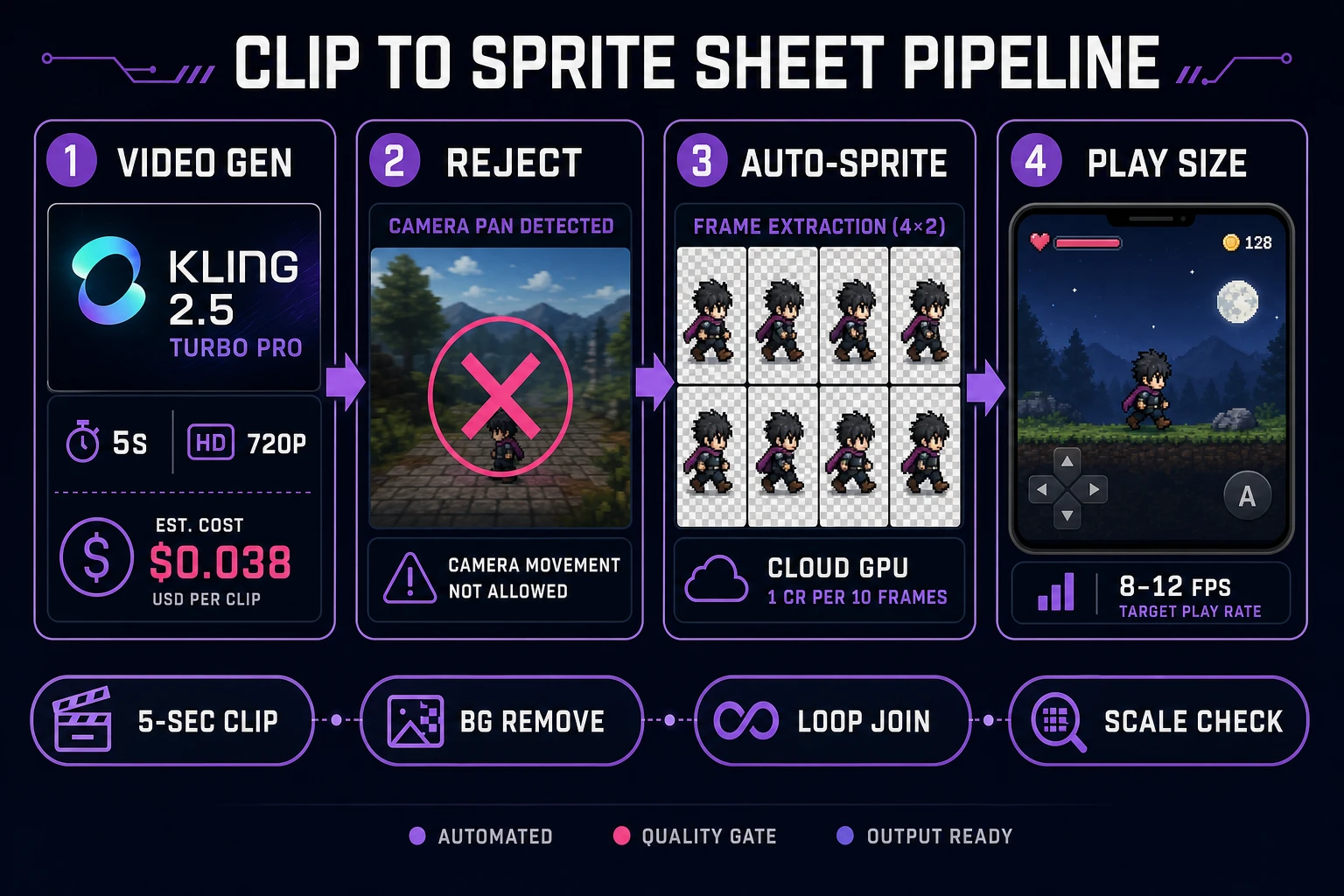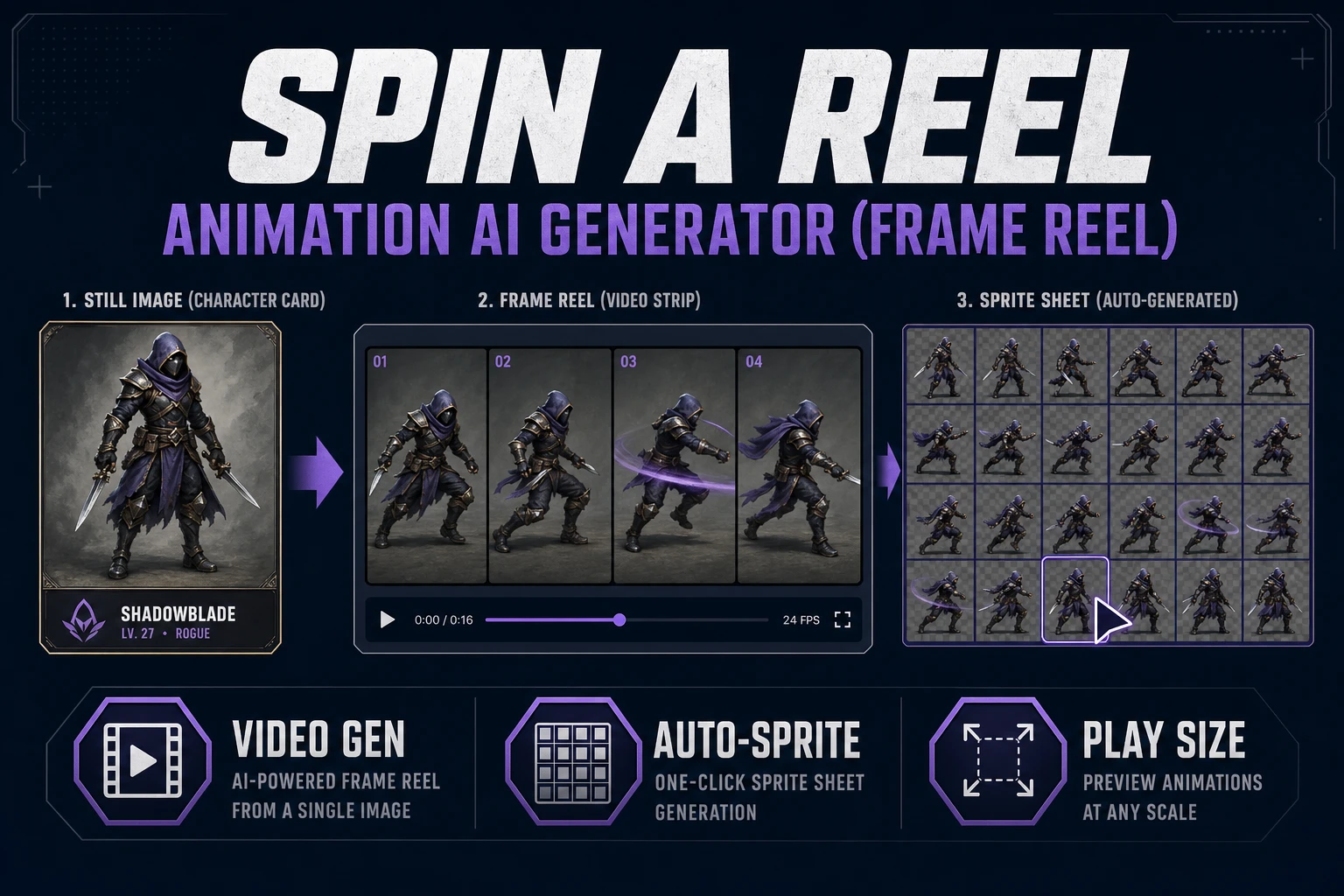
People typing animation ai generator into a search box in 2026 want two very different things at once. Half want a trailer clip that looks cinematic in an X post. The other half want game motion — a walk, an idle, a hit reaction — that will actually cut into a sprite sheet and play under a game loop. The two outputs live in the same tools but need very different discipline. This guide runs the second path end to end: lock a short brief, prompt a five-second clip in AI Video Gen, cut frames in Auto-Sprite v2, and reject anything that fails at play size before spending more credits.
A sprite is still just a 2D bitmap composited into a larger scene, and the job of the frame reel is to produce a short strip of those bitmaps with stable identity. Cinematic pans and wardrobe swaps belong in a different folder; keep them out of the sheet.
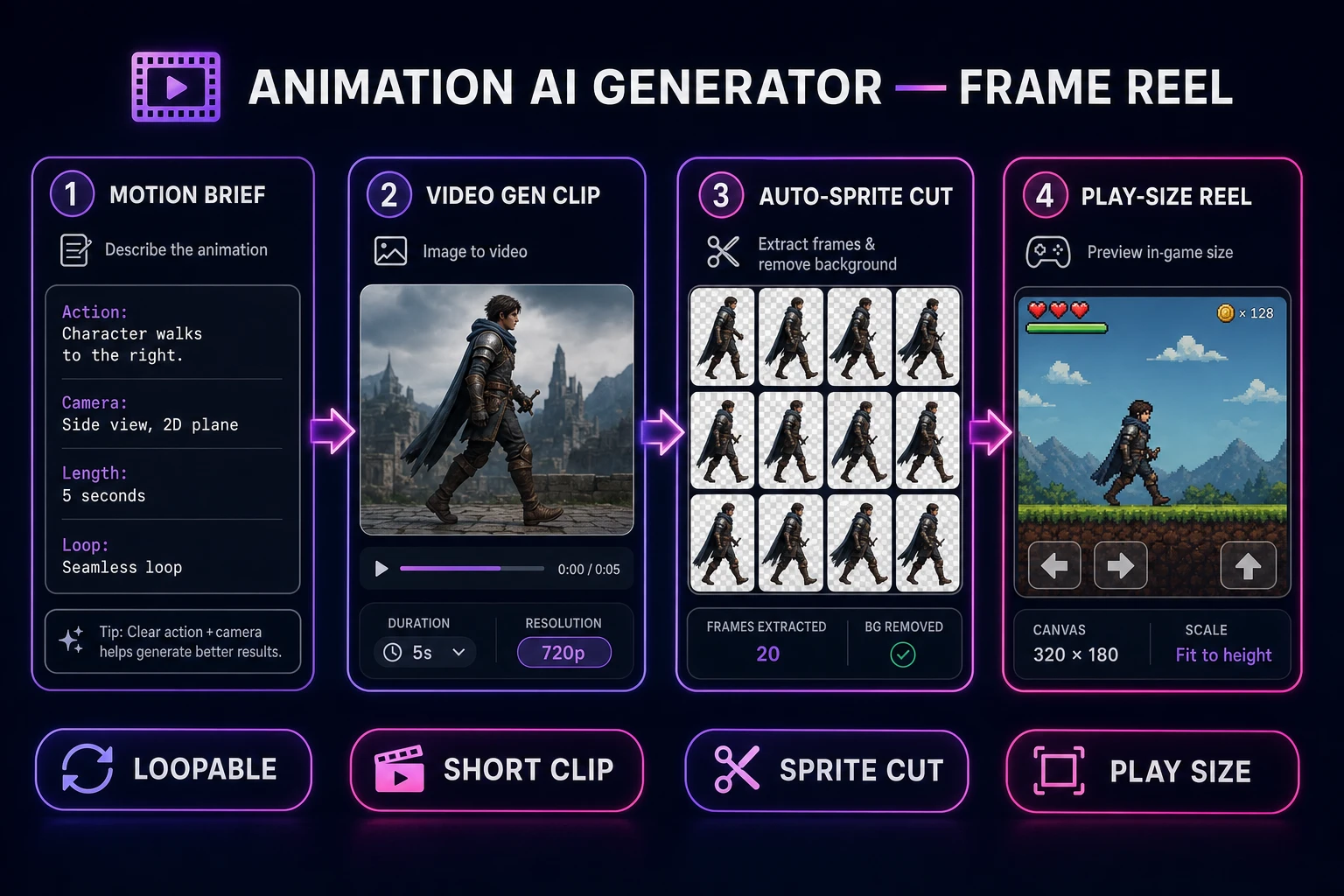
What an animation ai generator search actually wants
An animation ai generator query is ambiguous by design. Some searchers mean text-to-video for a trailer beat. Some mean image-to-video from a character portrait. Some mean a browser tool that produces a sprite sheet directly. The tools overlap in the picker but the deliverables do not, so the first job is to decide which output the current jam actually needs.
For gameplay work, only one output matters: a short clip whose frames survive extraction into a named atlas. That means:
- Stable character identity across every frame (face, costume, silhouette).
- Locked camera — no pan, no zoom, no orbit inside the clip.
- Loopable start and end poses that can sit next to each other in a sheet without a pop.
- Readable silhouette at the pixel size a player will actually see.
Sibling queries like ai animation video generator and ai animation generator from image pull people toward trailer prompts (dolly shots, dramatic freeze-frames, camera whip) — beautiful and useless for a walk cycle. If the current task is a store-page teaser, run the trailer path instead. This article stays on the game reel path where the deliverable is a sheet, not a movie.
Decide the scope out loud before you open the model picker. A one-screen jam usually needs three actions: idle, walk, and one hit or attack. Everything past that is polish. If you cannot name the three actions in one sentence, an animation ai generator will not save you time — it will multiply your indecision at 20 credits per take.
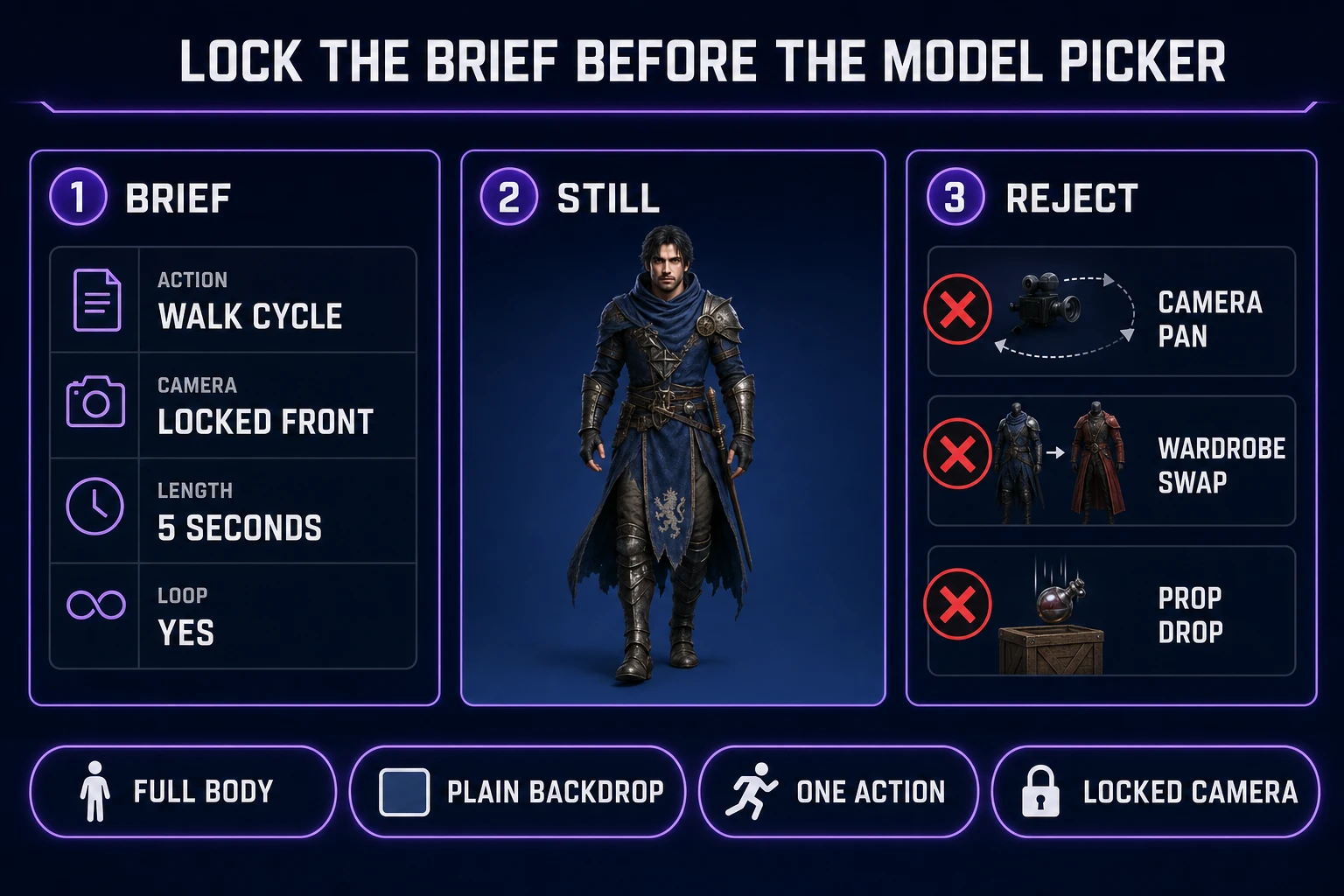
Lock the brief before the model picker
Before touching Video Gen, open a plain text file next to the project called motion_brief_v1.txt and write four lines:
- Action — walk cycle, idle breathe, hit flinch, or attack swing (pick exactly one per reel).
- Camera — locked frontal or locked three-quarter; explicit “no zoom, no pan, no orbit.”
- Length — 4 to 6 seconds; one clear phrase of motion.
- Loop rule — end pose must sit next to start pose without a costume or facing change.
That file becomes the prompt prefix on every retry. Locking the brief means failures stay comparable: when a take dies, you know it was the model, not a prompt rewrite you just made up. Reference hunting comes after the first take survives the brief — never before, or the jam clock evaporates chasing YouTube timing charts.
Decide what is out of scope, too. Full cutscenes belong in Video Gen as marketing assets. Dialogue lines belong in Speech Gen. Music beds belong in Music Gen. Keep the reel path narrow so the credit spend stays honest — mixing paths in one session is how a “quick walk pack” turns into a six-hour trailer edit.
Prep the still so the reel has a chance
Even for text-to-video paths, most jam-quality reels start from a locked reference still. Character consistency has climbed sharply in 2026, but a clean plate on frame zero still buys a full generation of consistency downstream. If you already have a sheet or portrait you trust, skip to the next section. If not, produce a still in AI Image Gen first and use it as the image-to-video start frame.
The still must be:
- Full body — hands and feet inside the frame with a little padding.
- Plain backdrop — solid or near-solid; busy rooms force salvage in Auto-Sprite v2.
- Stable costume — one outfit, one silhouette, no prop that will drop mid-clip.
- Facing locked — the exact angle the whole clip will keep.
If the still lands with a messy background, run it through BG Remover and composite onto a flat color before Video Gen. Image-to-video models amplify whatever is already noisy — a clean plate is cheaper than three regeneration loops. Name files boringly (hero_front_v03.png, not final_final2.png) so you can trace which still produced which clip when credits run low.
Prompt a loopable clip in AI Video Gen
Open AI Video Gen. Use image-to-video with your cleaned still as the start frame. As of August 3, 2026, the default model in src/components/video-gen/VideoGenerationWorkspace.tsx is Kling 2.5 Turbo Pro (DEFAULT_VIDEO_MODEL_ID = 'kwaivgi/kling-v2.5-turbo-pro'), a well-behaved image-to-video model with strong prompt adherence, tight identity across frames, and fast inference. Both the constant and the live model surface were verified today. That combination is what a frame reel actually cares about.
Model names below are listed in plain text only — Sorceress ships them all inside src/lib/video-models.ts and none of them link out. Pick one for the whole brief; hopping models mid-session makes failures incomparable.
- Kling 2.5 Turbo Pro — the default. Start every walk, idle, or hit here at 5 seconds. Fast, cheap enough for two or three retries before you upgrade.
- Kling 3.0 — reach for it when Kling 2.5 keeps drifting facial identity or the motion physics look mushy. Not the first take.
- Wan 2.7 — stronger for complex full-body motion; save for the take where the cheap model missed silhouette twice in a row.
- Seedance 2.0 / Seedance 2.0 Fast — good aspect-ratio behavior with a start frame; useful when a portrait crop needs to survive.
- Grok Imagine Video 1.5 — the featured Sorceress Special image-to-video option; strong for stylized characters.
Build a reusable prompt prefix from the brief so every retry is comparable. Example walk prefix:
- “same character, front three-quarter, walk cycle in place, looping footsteps, locked camera, no zoom, no pan, plain backdrop, 5 seconds, keep costume identical”
Idle cousin (only after walk passes):
- “same character and camera, subtle idle breathe and weight shift, looping, no camera move, 5 seconds”
Reject anything that asks for a “cinematic tracking shot,” a wardrobe change, a weapon swap mid-clip, or a dramatic ending pose that never returns near frame one. Those cues read as trailer beats — sprite sheets need joins, not finales. Put anticipation and recovery inside the loop if you want juice; endings that crest then freeze are classic sheet killers.
Hard reject rules on the take itself:
- Any camera pan, zoom, or orbit.
- Any costume, prop, or hair change mid-clip.
- Feet leaving the frame or merging into the ground.
- A non-looping ending pose that cannot sit next to frame one.
When a take fails, keep the same still and change one prompt noun. Do not save it “for post” on jam day unless the trim is already in your head. The browser reel path wins when rejection is fast and decisive.