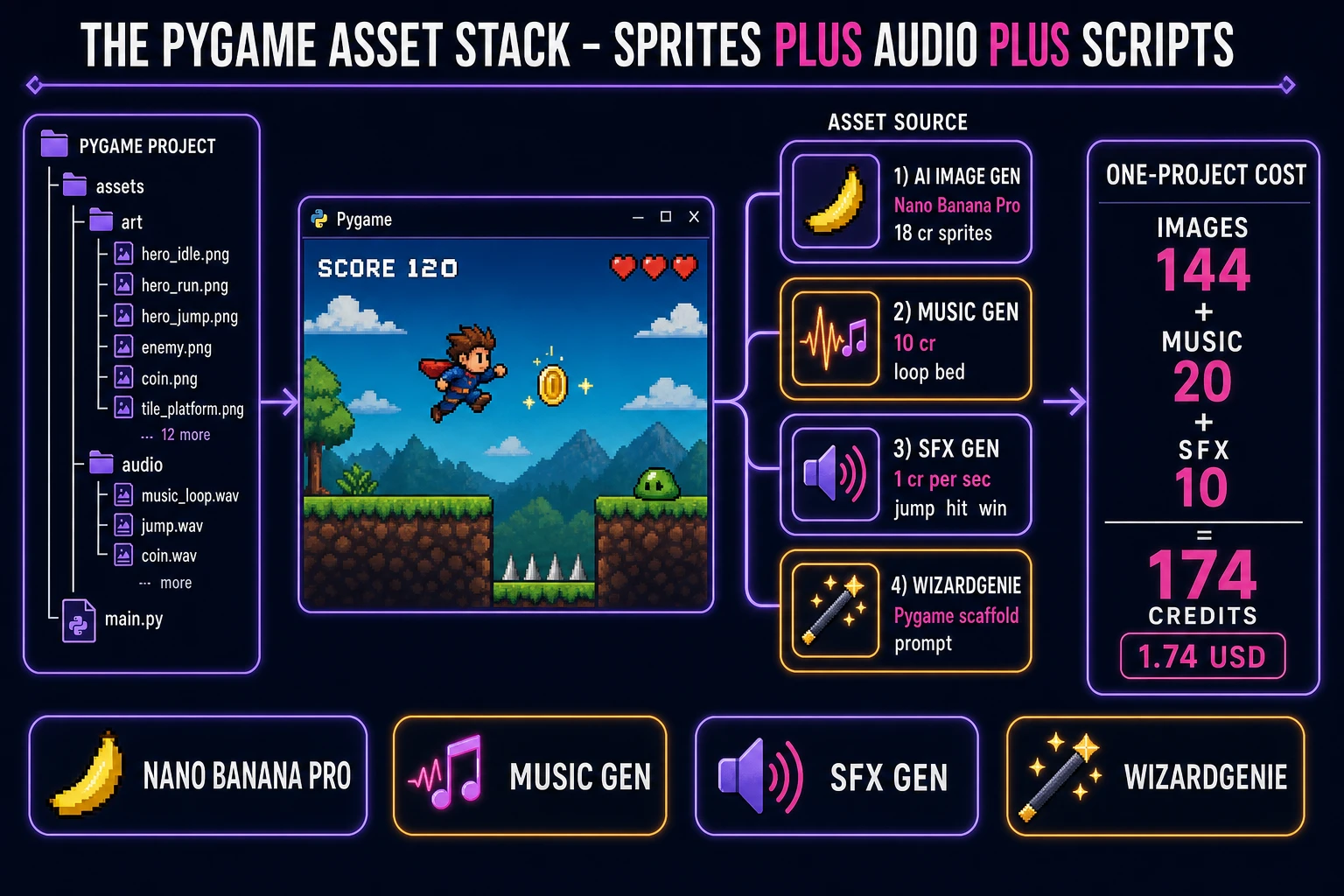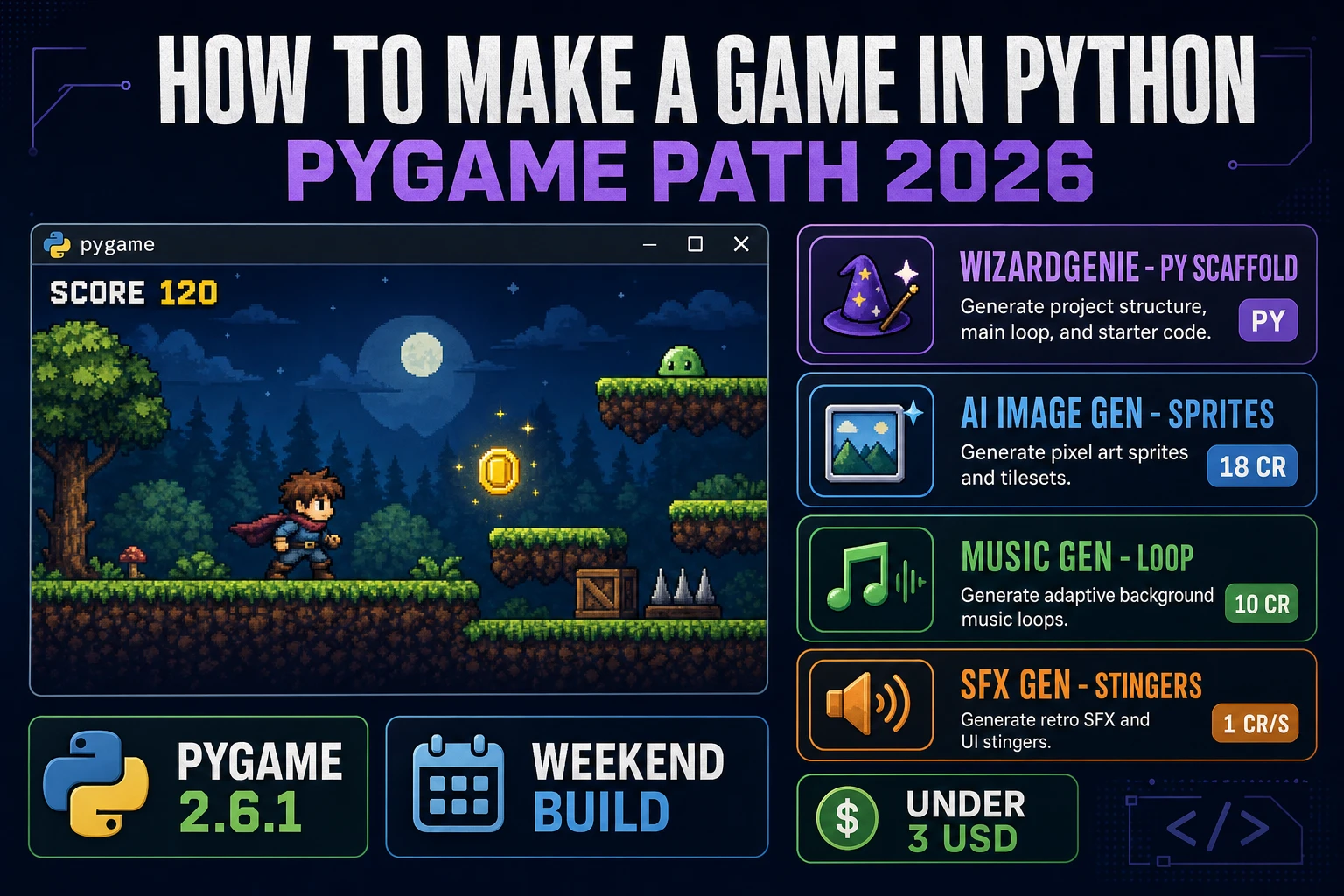
How to make a game in Python in 2026 still starts with the same three primitives Pygame has used since the SDL2 rewrite: a display Surface, a Clock that caps the frame rate, and a blit that paints sprites onto that Surface each tick. The Pygame page on Wikipedia (verified 2026-08-17) frames it as a cross-platform set of Python modules for writing video games, wrapping the Simple DirectMedia Layer so you get windows, input, and audio without dropping into C. Almost every beginner guide for how to make a game in Python still dumps a week of OOP diagrams, class hierarchies, and unfinished “engine” folders on you before the first coin collects. The Pygame path is tighter. Pin Pygame 2.6.1, open one window, write one event–update–draw–tick loop, and pull sprites, music, and stingers from Sorceress so art never blocks the loop. That means WizardGenie to scaffold the Python, Sorceress AI Image Gen for the sprite pack, Music Gen for the loopable bed, and SFX Gen for jump, hit, and win cues. This guide is the honest end-to-end for how to make a game in Python on a weekend clock.
What how to make a game in python actually means in 2026 (Pygame window + clock + blit)
The query “how to make a game in python” hides three intents. Some searchers want a CS curriculum — object-oriented design, state machines, and months of library fluency. Some want a commercial product with live-ops, analytics, and storefront packaging. The third intent, and the one this guide targets, is an arcade playable: one window, one player Rect, one win condition, and a folder you can zip and share before Monday. That is the same short list MDN’s Games development overview keeps returning to — loop, input, physics-or-collision, art, sound, build — applied inside Python’s Pygame bindings (verified 2026-08-17).
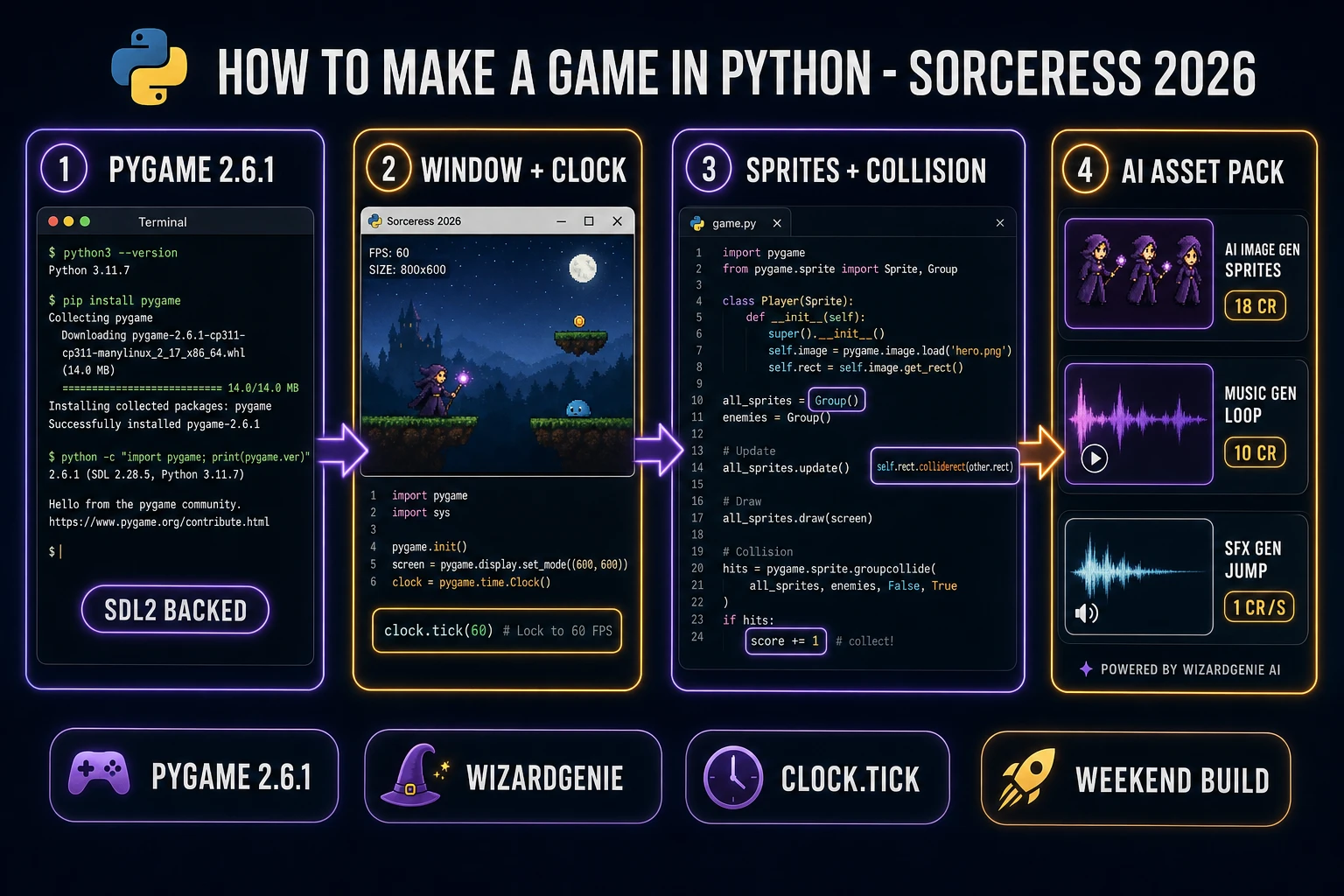
Pygame’s object model is small once you strip marketing. A Surface is a pixel buffer (the window is one; every loaded PNG becomes one). A Rect is the axis-aligned box you move and collide against. A Clock is the timer that calls tick(60) so your loop does not burn the CPU at uncapped FPS. A sprite.Sprite (optional but useful) pairs an image Surface with a rect and can live in a Group for batch update and draw. How to make a game in Python, at weekend scope, is “open a display, pump events, update positions, blit, flip, tick,” not “master every multimedia module in the docs.”
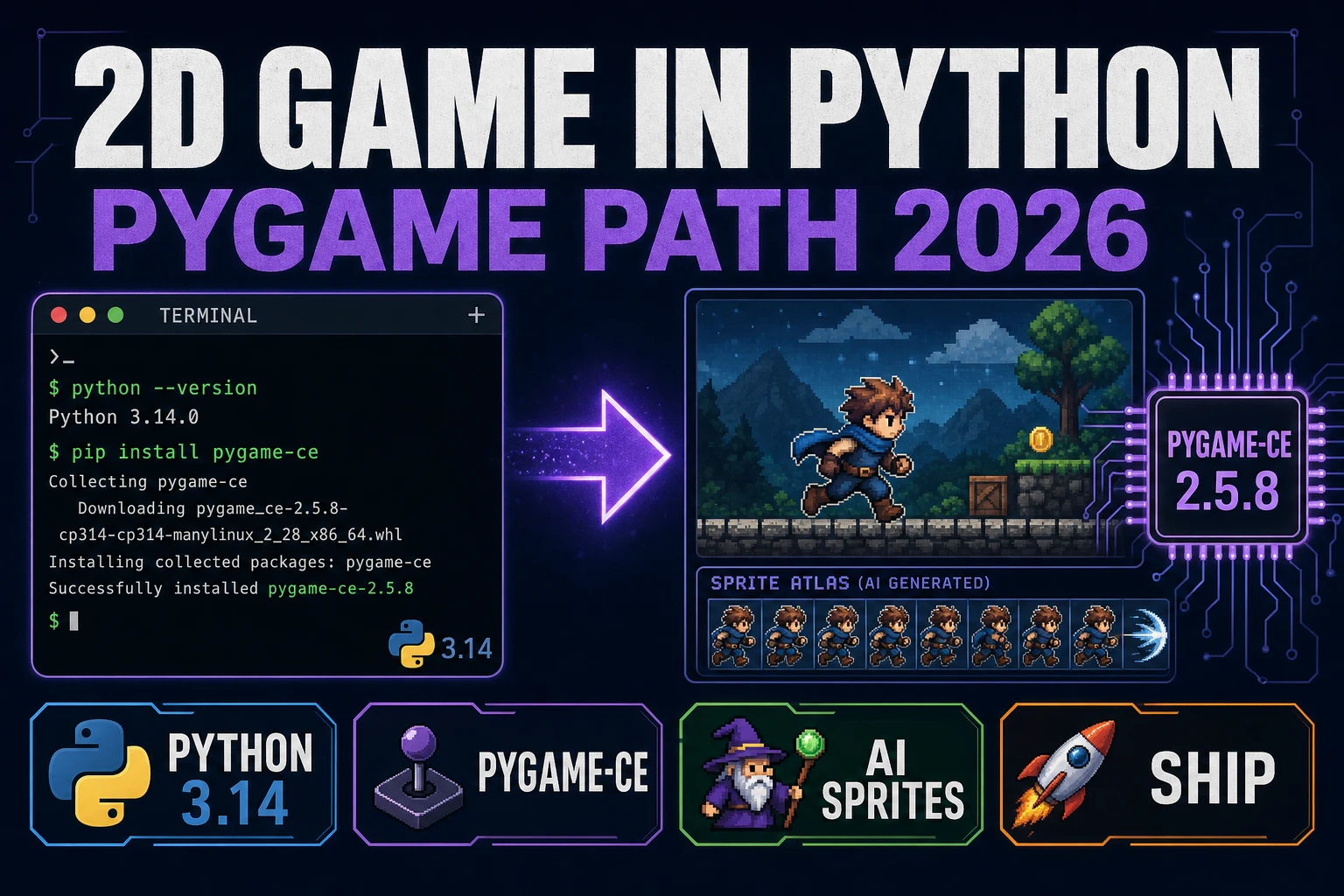
Version choice matters more than template choice. Per pygame on PyPI and Wikipedia (stable release 2.6.1 dated 30 September 2024, verified 2026-08-17), Pygame 2.6.1 is the current full release. It requires Python ≥ 3.6 and SDL ≥ 2.0.8. Install with pip install pygame, smoke-test with python -m pygame.examples.aliens, and browse docs with python -m pygame.docs. Pin pygame==2.6.1 in a requirements.txt so a friend does not silently pull a future API change mid-weekend.
The Python game loop in one minute (events, update, draw, tick)
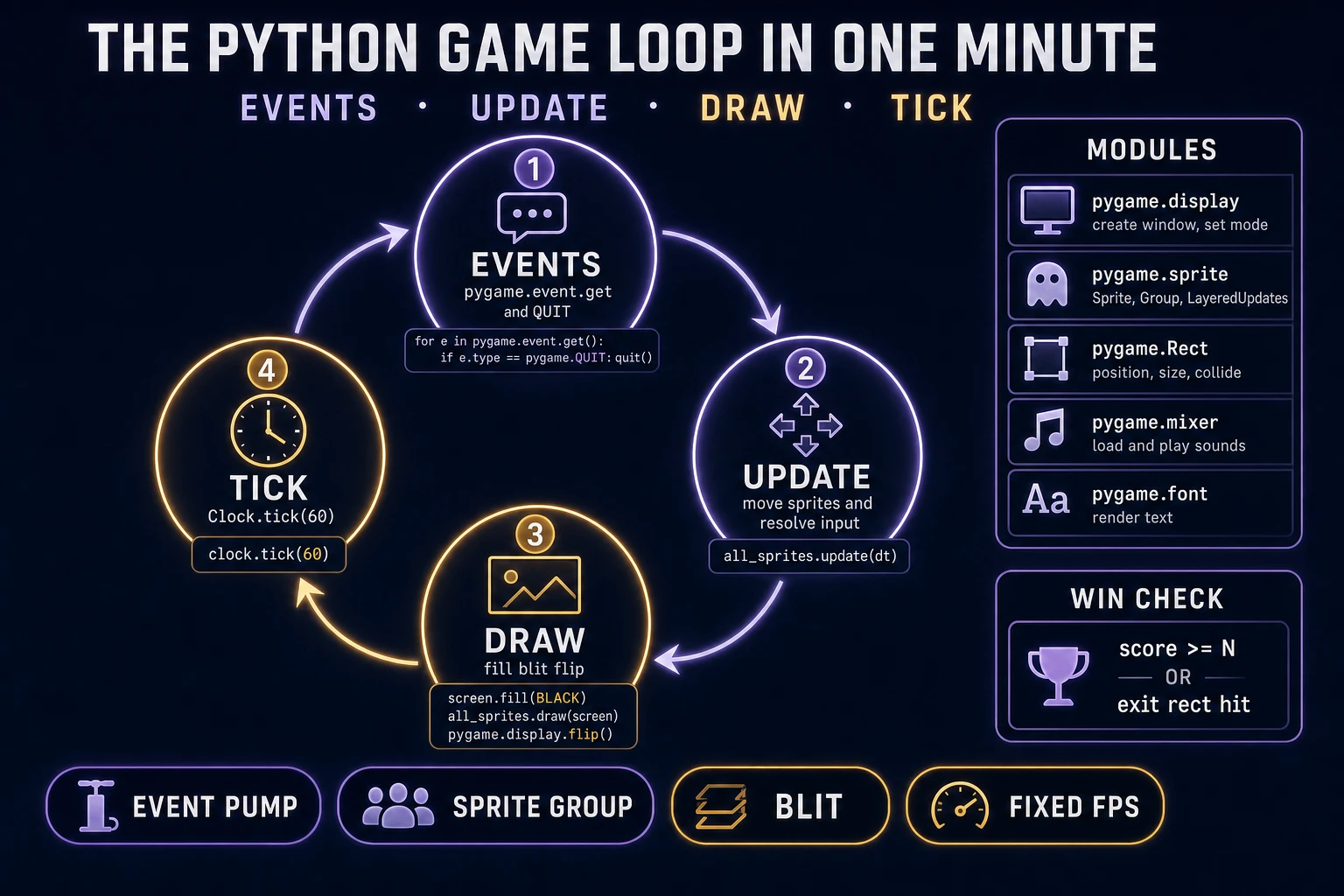
Four moving parts, in strict order, every frame of a Pygame build. First, events — call pygame.event.get(), handle QUIT, and read key-down edges for jump or pause. Second, update — apply velocity to Rects, run simple gravity, resolve collisions with colliderect or spritecollide, and bump the score. Third, draw — screen.fill, blit every sprite, draw the score with font.render, then pygame.display.flip (or update). Fourth, tick — clock.tick(60) so the loop yields and your delta stays predictable.
The discipline that keeps how to make a game in Python honest on a weekend clock is the same discipline every real-time loop needs: input and logic before draw; draw before flip; flip before tick; win and lose are state flags, not leftover velocity. If gravity keeps running after the win overlay appears, the player slides off the world and the restart feels broken. Set running = False or won = True, zero velocity, and only accept a restart key until the loop restarts. That is the entire Python game loop. Four steps. Everything else is polish.
Pick your stack for how to make a game in python: turtle, Pygame, or WizardGenie-scaffolded
Three good approaches in 2026, each with a different trade-off. Turtle (stdlib) is the classic classroom path: zero pip installs, a tkinter window, and enough drawing for snake or a text-heavy quiz. The official turtle graphics docs (verified 2026-08-17) cover the API. It is also the wrong stack the moment you need PNG sprites, mixer channels, or a stable 60 FPS arcade feel.
Raw Pygame is the middle path and the one this guide builds: pip install pygame, one main.py, an assets/ folder, and the event–update–draw–tick loop above. You learn Surfaces and Rects deeply. It is also the slowest path to a first jump if you have never touched the event pump — which is where scaffolding helps.
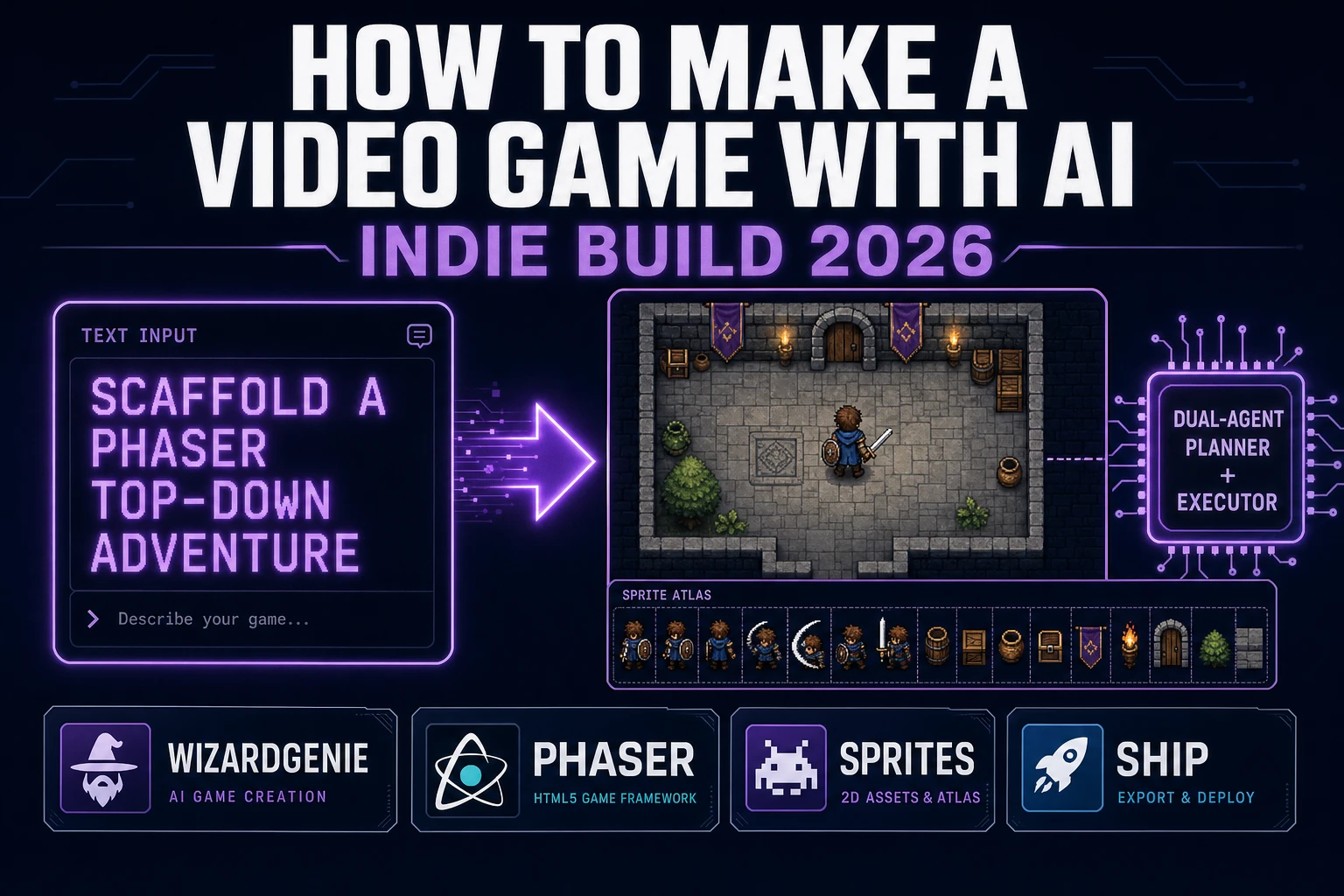
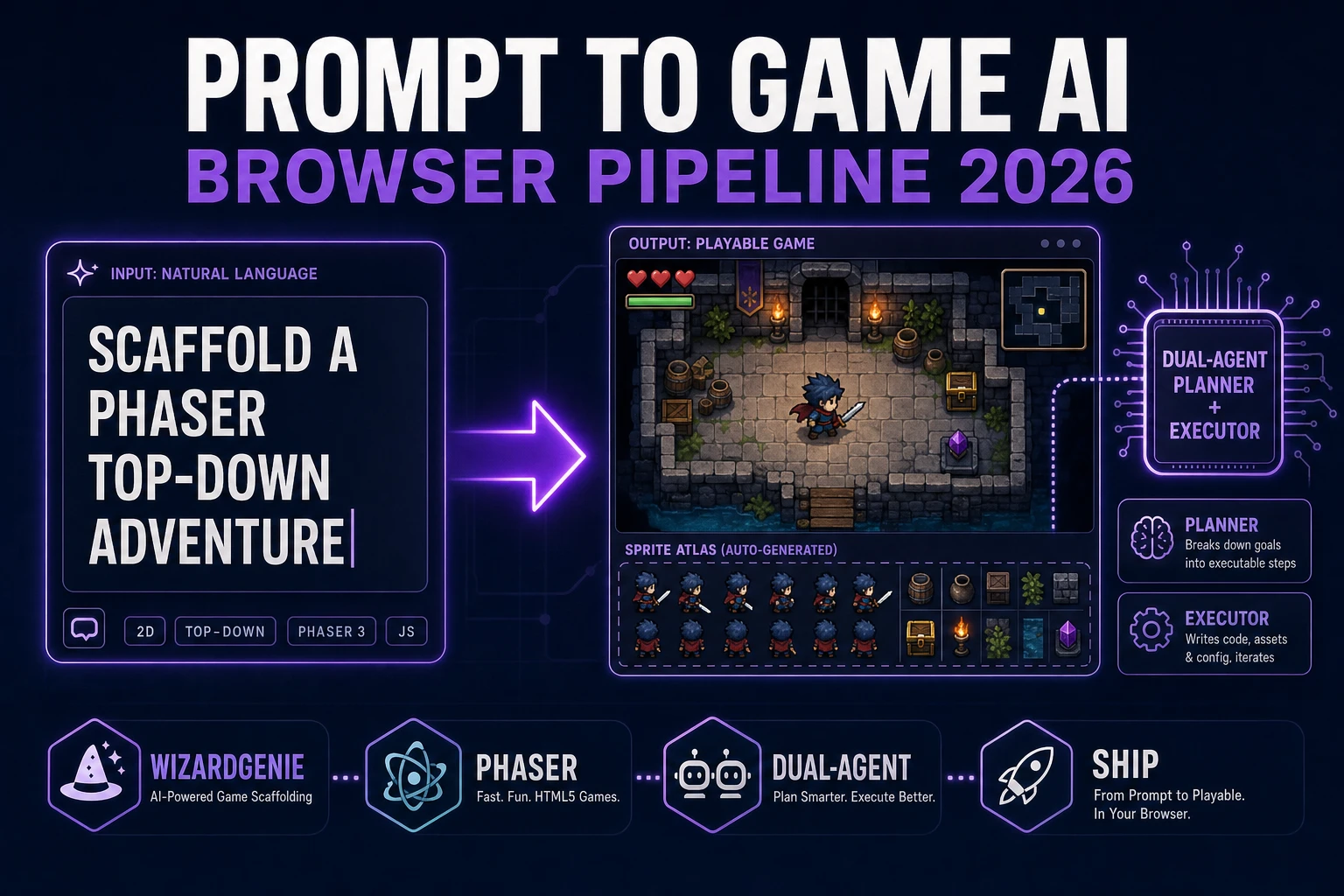
WizardGenie is the third path and the one this guide recommends for the typing half. WizardGenie is the Sorceress game-native coding agent. It ships as both a Windows desktop app (installer with auto-update, Early Access and above) and a no-install web build at the same URL. Its coding-model lineup (verified 2026-08-17 in src/app/_home-v2/_data/tools.ts) covers Claude Opus 4.7, Claude Sonnet 4.6, GPT-5.5, Gemini 3.1 Pro, DeepSeek V4 Pro, Kimi K2.5, Grok 4.2, and MiniMax M2.7. Paste a Pygame-specific prompt that names display.set_mode, Clock, sprite.Group, and mixer.Sound; save the .py output next to your assets; run it locally. For longer sessions, pair a frontier planner (Claude Opus 4.7 or GPT-5.5) with a budget executor (DeepSeek V4 Pro or Kimi K2.5) so typing stays cheap — roughly one-fifth the cost of a single-frontier session. Your machine still owns the interpreter, the debugger, and the zip-and-share step; WizardGenie owns the blank-page tax on boilerplate.