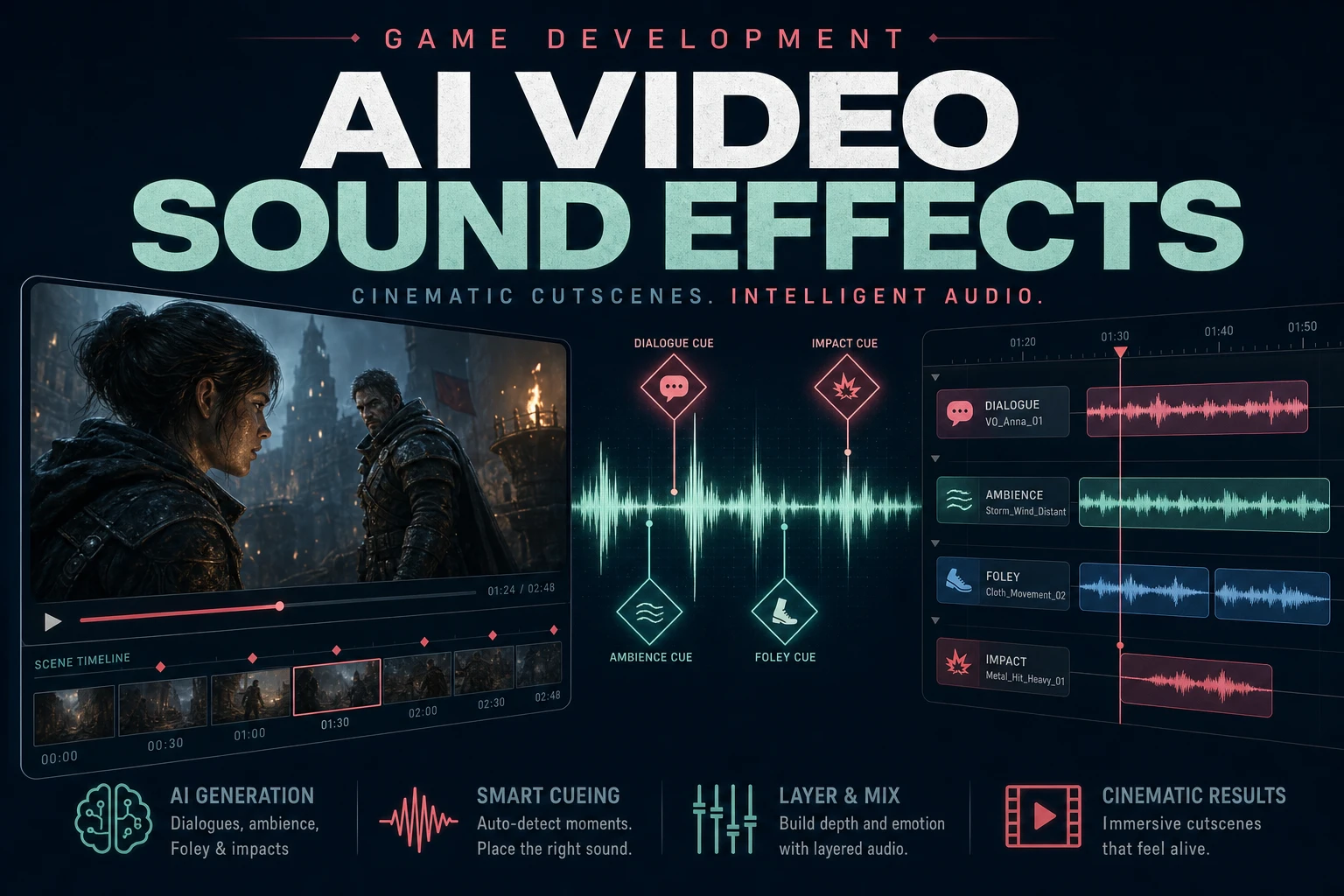
Direct an AI Video Generator With Sound Effects

By Arron R.10 min read
An AI video generator with sound effects works best when you separate picture, dialogue, ambience, Foley, and impacts. Generate the shot first, replace weak cue

A silent cutscene is easy to judge: either the picture works or it does not. A generated clip with automatic audio is harder because the soundtrack can feel convincing while missing the exact footstep, latch, impact, or room tone the game needs. The dependable method is to treat picture and sound as connected but separately editable assets. The Sorceress controls described below were verified against the live product source on July 19, 2026; the browser-audio references were also checked against W3C and MDN documentation on that date.
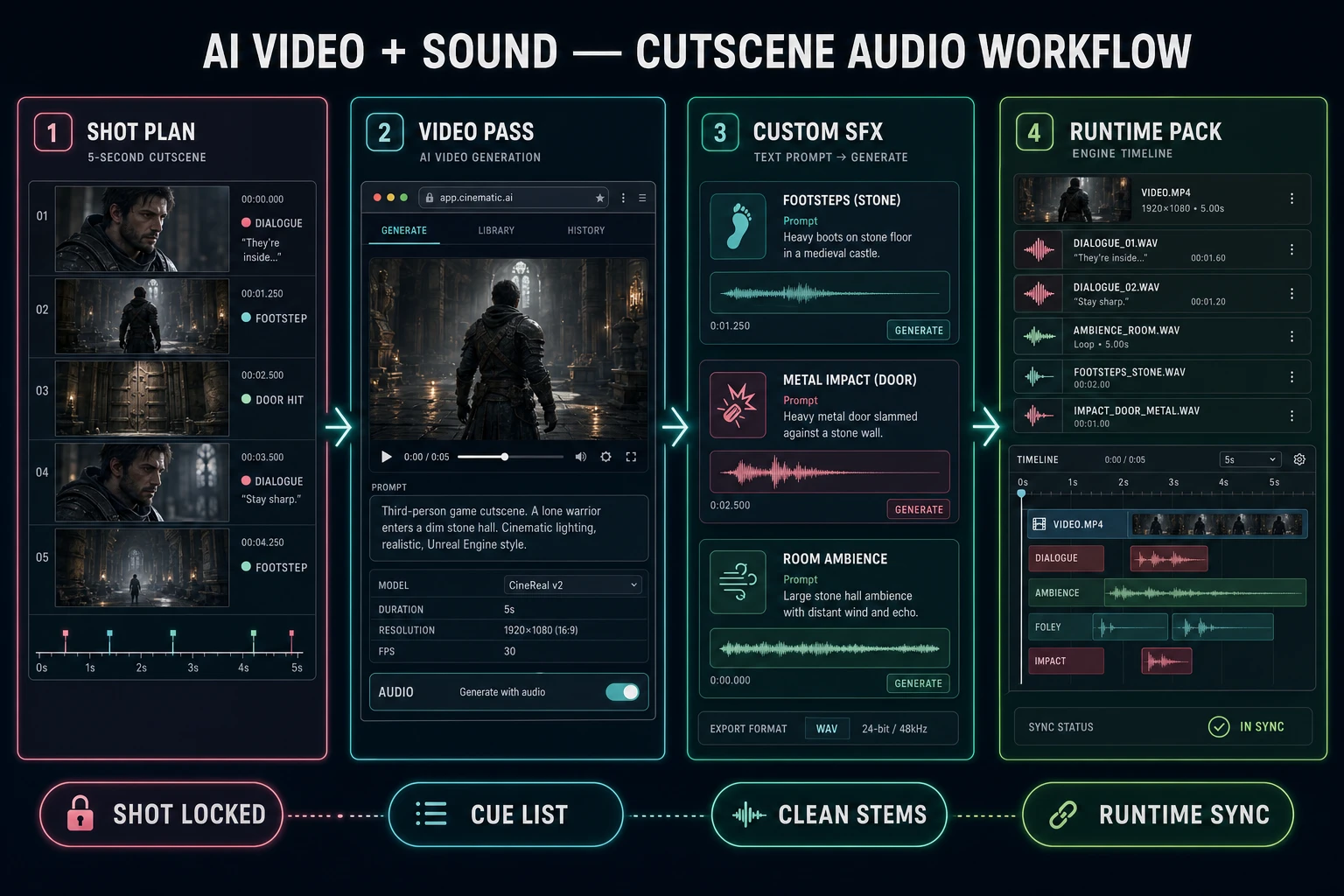
AI video generator with sound effects workflow from shot plan through native audio, custom SFX, cleanup, and runtime synchronization
A production-ready cutscene package separates the visual pass from dialogue, ambience, Foley, and impacts so the game can control every layer.

What an AI video generator with sound effects must deliver

The primary keyword ai video generator with sound effects has 10 monthly searches and KD 40 in DataForSEO research refreshed July 19, 2026. The query is small but specific: the searcher does not want another mute animation demo. They want a clip whose sound supports the action and can survive the move from preview to a real game.

A useful result needs more than an audio track attached to an MP4. It needs readable timing, clean cue boundaries, and enough separation for the runtime to respond to player settings. Dialogue may need subtitles or localization. Ambience may need to loop under a longer scene. A door impact may need its own volume and compression. Music may need to duck when a character speaks. If every sound is baked into one mixed track, each later change becomes a full regeneration or an awkward compromise.

Sorceress AI Video Gen supports image-to-video and text-to-video paths across its current model picker. Where the selected path supports native audio, the interface exposes a Generate Audio option; the source explicitly describes that output as synchronized dialogue, effects, and music. That makes native audio a useful first pass. It does not guarantee that every cue has the right material, distance, loudness, or tail for your game.

The acceptance test is simple: mute each category mentally and ask whether the scene still communicates. Can you identify the space from the ambience? Does the character’s weight match the footstep? Does the impact happen on contact rather than several frames later? Can dialogue remain understandable without flattening every other sound? An AI video generator with sound effects passes when the visual action and those audio decisions agree, not merely when the file contains an audio stream.

Plan dialogue, ambience, Foley, and impact cues separately

Lock the shot before polishing audio. Use a fixed visual reference and write down its duration. Then watch once without stopping and list only the events you notice. Watch again and divide them into lanes:

  • Dialogue: spoken lines, breaths, exertion, reactions, and narration.
  • Ambience: wind, machinery, room tone, forest beds, crowds, or distant combat.
  • Foley: footsteps, cloth, armor, object handling, and body movement.
  • Impacts: doors, weapons, collisions, UI stings, magical hits, and transition accents.
  • Music: score or tonal beds that support the scene without masking information.

Record cue times against the start of the clip. Millisecond precision is unnecessary during spotting; a tenth of a second is enough to organize the first pass. Note the visible event as well as the desired sound: “2.4 seconds — latch reaches stop — close iron click with short stone reflection.” That description remains useful even if the shot is regenerated, because it states why the cue exists.

Separate simultaneous events. A boot hitting the floor, a coat settling, and a door slamming may overlap, but they are three different production decisions. One generated “cinematic door entrance” sound often smears them together. Individual cues let you move the footstep earlier, shorten the cloth, or make the door heavier without disturbing the rest of the scene.

The browser can schedule and process separate audio nodes rather than treating playback as one opaque recording. The W3C Web Audio specification defines an audio graph built from sources, processing nodes, and destinations. MDN’s Web Audio API guide describes the same modular routing model for selecting sources, adding effects, and sending the result to an output. That architecture is why separate runtime files are worth the small packaging cost.
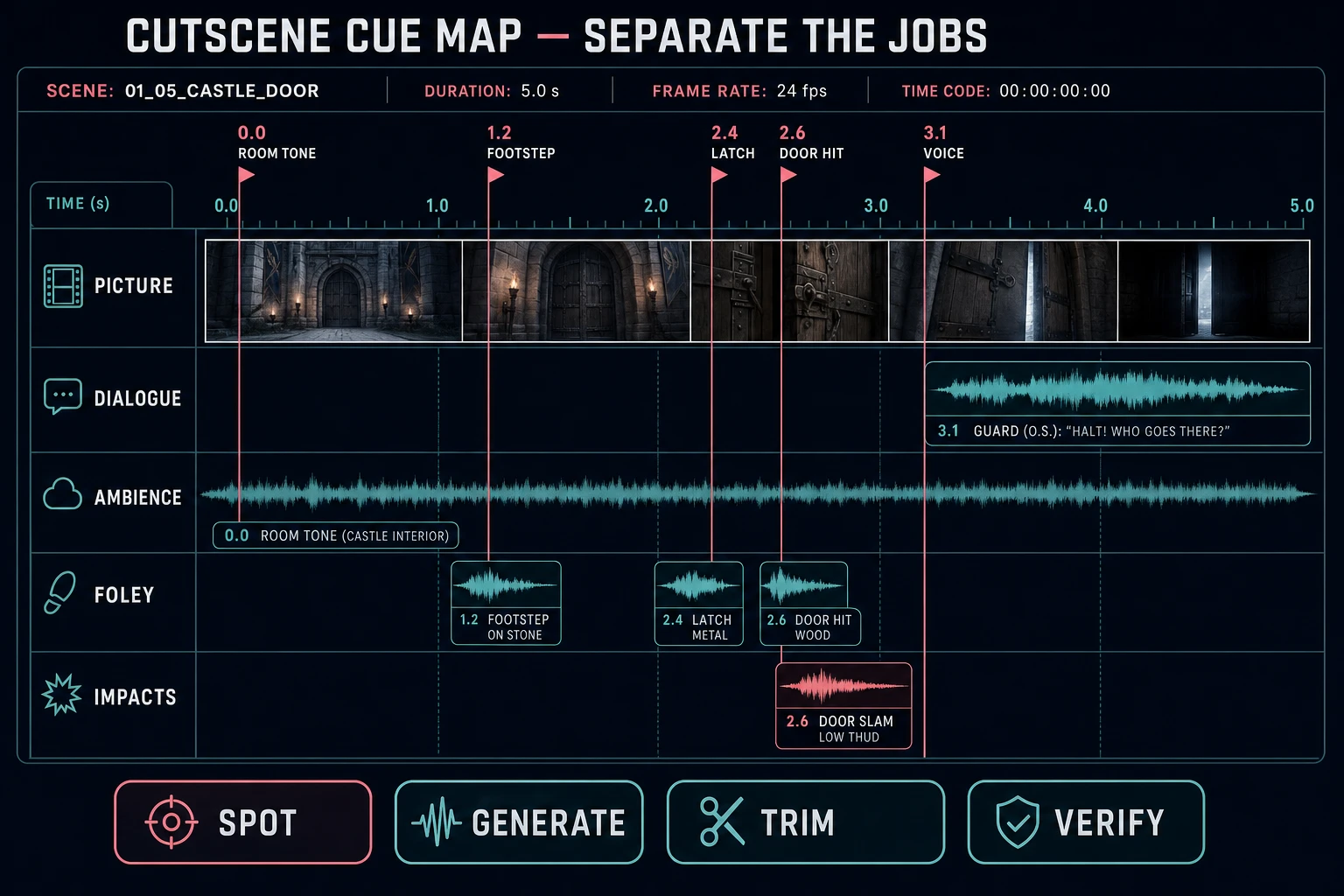
AI video generator with sound effects cue map separating picture, dialogue, ambience, Foley, and impacts on a cutscene timeline
Spotting the scene before generation prevents one vague prompt from becoming an inseparable mix of unrelated audio jobs.

Direct the Sorceress AI video generator with sound effects workflow

Use this seven-part path for a short game cutscene or trailer beat:

  1. Write one sentence describing the visible action and camera.
  2. Create or choose the start image, then generate the visual pass in AI Video Gen.
  3. If the selected video path offers native audio, keep it enabled for the first review.
  4. Lock the best visual take before spending time on replacement cues.
  5. Spot dialogue, ambience, Foley, impacts, and music on separate lanes.
  6. Generate missing or weak effects in SFX Gen, then clean each selected file in SFX Editor.
  7. Trigger the approved files from the game timeline and verify sync at normal speed.

Do not ask the video prompt to solve every audio detail. Keep the visual instruction concrete: subject, action, camera, setting, duration, and the most important audible event. “Armored guard takes two steps, pulls a heavy iron vault door shut, medium camera, stone corridor, restrained room tone, one clear latch impact” is easier to judge than a paragraph containing a full sound-mix specification.

Keep the first output even when its audio is imperfect. It is your timing reference. A generated footstep may be too light, but it tells you where the model interpreted ground contact. A vague impact may reveal that the visible door never fully reaches the frame. Fix visual ambiguity before replacing sound; precise Foley cannot rescue an action whose contact point is missing.

When the picture passes, duplicate the cue list into your project notes or asset manifest. Give every cue a short role-based name such as vault_step_01, vault_latch_close, and vault_room_loop. Role-based names survive prompt revisions and make it obvious which event a coding agent should trigger.
Step 1 — block the shot and choose the audio intent

Start in AI Video Gen with either a text prompt or a clean start frame. A start image is useful when the character, prop, costume, or camera composition must remain anchored. Text-to-video is useful when you are exploring the shot itself. Keep the clip short enough that one action remains readable; a sequence with five cuts and twelve sound events is several shots pretending to be one generation.

Choose one of two audio intents before rendering:

  • Native-audio first: generate the picture and initial sound together, then preserve good cues and replace weak ones.
  • Replacement-audio first: judge the generated clip primarily as picture, then build the soundtrack from separate dialogue, ambience, Foley, impact, and music files.

Native-audio first is efficient for ideation and review. It can establish rhythm, vocal pacing, and environmental density in one pass. Replacement-audio first gives the game more control. It is usually the better production choice when the scene needs localization, accessibility options, repeated gameplay triggers, a consistent character voice, or tight synchronization with code.

Do not claim a capability the selected path does not expose. The AI Video Gen model picker changes as providers change, and not every path has the same controls. Check the active model’s visible mode tabs and audio setting in the interface. This article does not freeze a vendor model list or price table; it describes the current Sorceress workflow verified on July 19, 2026.

Once a take passes, stop regenerating for novelty. Download the accepted MP4, note its exact duration, and make it the spotting reference. A new take changes body timing, camera movement, and contact frames. If the picture changes later, assume the cue sheet needs another pass.

Step 2 — generate missing cues in SFX Gen

Open SFX Gen and write one prompt per sound role. The current interface accepts a text description, a target duration, and a variation count. Generations appear as independent cards, so you can compare alternatives by waveform and playback rather than committing to the first result.

A strong prompt names six things in order:

  1. Source: iron door, leather boot, glass vial, plasma rifle.
  2. Action: closes, scrapes, lands, charges, breaks.
  3. Distance: close microphone, medium room, distant exterior.
  4. Space: stone corridor, dry studio, forest clearing, metal hangar.
  5. Shape: one transient, repeating loop, rising charge, short decay.
  6. Exclusions: no music, no voice, no extra impacts, no long reverb.

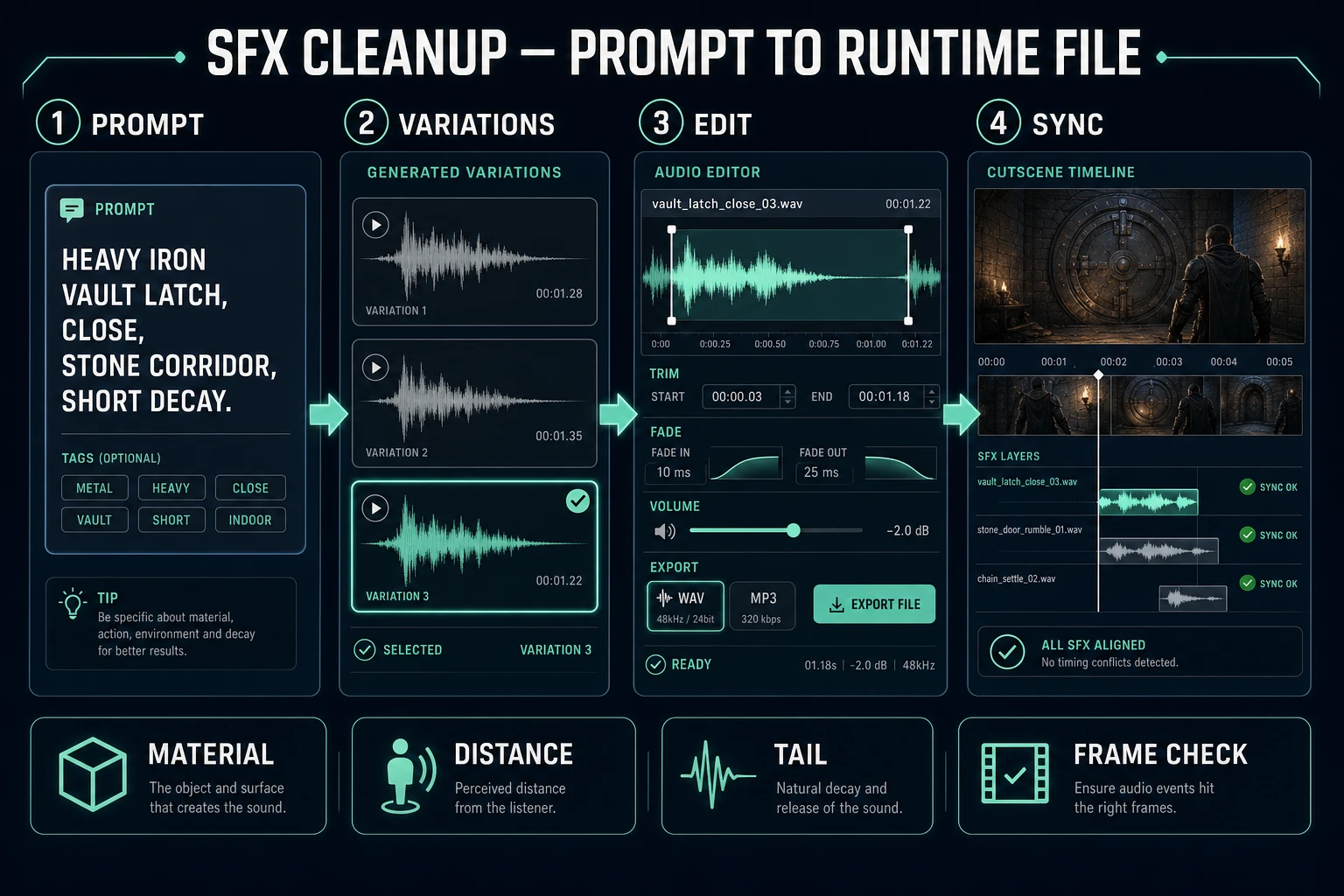
For the vault example, try: “Heavy iron vault latch closing, close microphone, stone corridor reflection, one hard mechanical click, short metallic decay, no footsteps, no music, no voices.” Generate several variations. The best choice is not necessarily the most dramatic. Pick the one whose transient aligns with contact and whose tail fits before the next line or action.

Generate ambience separately. A room bed should be stable enough to loop or extend under the complete scene. Do not ask an impact prompt to include “subtle room ambience throughout” because that bakes a second environment under the real ambience lane. The same rule applies to music. The Sorceress audio suite keeps generation and editing tools connected, but each clip should still have one clear job.

Save the source prompt with the chosen file. If a later shot needs a related door or footstep, the prompt becomes a controlled starting point rather than a guess. Add the variation number and cue time to the manifest. Reproducibility matters more than collecting dozens of nearly identical sounds.

AI video generator with sound effects cleanup workflow showing a precise SFX prompt, waveform variations, trim and fade controls, and runtime synchronization
A clean cue begins with one audible job, then gets trimmed and checked against the fixed visual contact frame.

Step 3 — trim, fade, and level each cue in SFX Editor

Send or load the selected clip in SFX Editor. The current editor displays a waveform with draggable trim handles and provides volume, speed, loop, fade, EQ, filter, reverb, delay, distortion, stereo, and compression controls. It exports WAV or MP3. Use only the processing the cue needs; a clean source with correct timing is better than a heavily processed file whose transient has disappeared.

Trim silence before the transient so the game trigger and audible event agree. Leave enough tail for the space to sound natural, but do not let that tail cover the next line. Add a tiny fade when a cut creates a click. Match perceived loudness by listening in context, not by making every waveform look equally tall. A whisper, room bed, and vault slam should not share the same apparent intensity.

Preview at the intended playback speed. If changing speed is necessary to hit the action, make a small adjustment and recheck pitch and texture. Large time changes usually mean the wrong variation was chosen. Regenerate or select a better-shaped clip instead of stretching a two-second sound into a half-second contact.

Export a clean master first. WAV is useful for an editable source; compressed files reduce delivery size. Codec support and quality vary by browser, operating system, and container, so use the project’s tested asset pipeline rather than assuming one file suits every target. MDN’s audio codec guide, verified July 19, 2026, documents codec characteristics and compatibility considerations.

Keep filenames predictable: scene_role_variant.ext. For example, vault_latch_close_01.wav is more useful than amazing_final_sound_v3.wav. The first name tells a developer or agent where it belongs. The second preserves only the history of indecision.

Export an AI video generator with sound effects package for a game

The final deliverable should be a package, not a lonely video file. Put the accepted visual clip beside separate audio assets and a compact cue manifest:

  • vault_close.mp4 — accepted visual reference.
  • vault_dialogue_guard_01.wav — spoken line or reaction.
  • vault_room_loop.wav — ambience bed.
  • vault_step_01.wav and vault_step_02.wav — Foley.
  • vault_latch_close_01.wav — impact cue.
  • vault_cues.json — cue time, bus, loop flag, gain, subtitle key, and notes.

Trigger those files from the game’s cutscene timeline. Keep dialogue on a voice bus, ambience on an environment bus, Foley and impacts on effects buses, and music on its own bus. That separation lets player settings work as expected. It also makes localization practical because a translated voice file can replace one asset without regenerating the picture or effects.

Run three acceptance passes. First, watch with all audio enabled and check the emotional read. Second, mute music and confirm that dialogue and action remain clear. Third, test at the lowest and highest supported frame rates or device profiles and look for cue drift. The neighboring guide to sound-effects generation covers library building, while the AI voice acting workflow covers repeatable character dialogue.

An AI video generator with sound effects saves time when it gives you a useful first audiovisual pass. Production control comes from separating that pass into decisions the game can own. Generate the shot in AI Video Gen, replace weak cues in SFX Gen, clean each file in SFX Editor, and synchronize the approved assets in the runtime. That workflow keeps the speed of generation without surrendering timing, accessibility, localization, or mix control.

Frequently Asked Questions

Can an AI video generator create sound effects automatically?

Some video-generation paths can return native synchronized audio when the selected model supports it. Treat that audio as a first pass, not an untouchable master. Review dialogue, ambience, Foley, and impacts separately, then replace weak or missing cues with purpose-built clips.

Should game cutscene audio stay inside the generated video?

Usually not for an interactive game. Separate audio files give the runtime control over volume buses, subtitles, localization, ducking, accessibility, and timing changes. Keep an embedded-audio preview for review if useful, but package clean dialogue, ambience, Foley, and impact stems beside the visual asset.

How do I prompt an AI sound effect for a specific action?

Describe the source material, action, distance, space, intensity, and tail. For example: heavy iron vault latch closing, close microphone, stone corridor reflection, one hard impact, short metallic decay, no music, no voices. Generate variations and select by timing as well as tone.

What audio format should I export for a browser game?

Choose the format after testing the actual target browsers and runtime. WAV is useful as a clean editing master, while compressed delivery files reduce download size. Sorceress SFX Editor exports WAV or MP3; keep the master and let the project’s asset pipeline create the delivery versions it needs.

How do I keep AI-generated sound effects synchronized with a cutscene?

Record cue times against a fixed visual reference, trim each effect to the intended transient and tail, and trigger the files from the game timeline rather than relying only on embedded video audio. Recheck sync after every edit that changes shot duration, playback rate, or transition timing.

Sources

  1. Web Audio API — W3C Recommendation
  2. Web Audio API — MDN
  3. Web Audio Codec Guide — MDN
Written by Arron R.·2,149 words·10 min read

Related posts